

Understand Policy Variables
Heads Up!
This feature is currently in limited Beta, and is available to select customers. For more information, please reach out to your Customer Success Manager or contact Scrut Support at support@scrut.io.
Managing multiple policies can be tedious, especially when updating the same information across several documents. For example, details such as your organization's name, address, product names, and service descriptions are included in multiple policies.
When you have to input this information individually into each policy, it can quickly become repetitive and time-consuming. It also creates complications when updates are needed, as you must search and update the information across all relevant policies. If you miss even one tiny detail, you risk creating conflicting information, which can lead to confusion and potential compliance issues.
Policy variables help you overcome these challenges.
What are Policy Variables?
By defining standard details in a central location, you can simplify the process of entering and updating information across all your policies. When your organization undergoes any changes, such as a rebranding, an update to its legal entity, or modifications to infrastructure, you only need to make the necessary updates on one central page. Scrut will then automatically apply these changes to all policies that utilize those variables.
- Policy variables ensure that your policies reflect the most up-to-date and accurate information, ensuring consistency across all your policy documentation.
- Moreover, it significantly reduces the time and manual effort needed to maintain and revise policies.
In this guide, we’ll walk you through how to define, edit, and use policy variables in Scrut.
Heads Up!
Defining or editing a policy variable will change the status of impacted policies (policies that use this variable) to Draft.
Defining the Values for Policy Variables
-
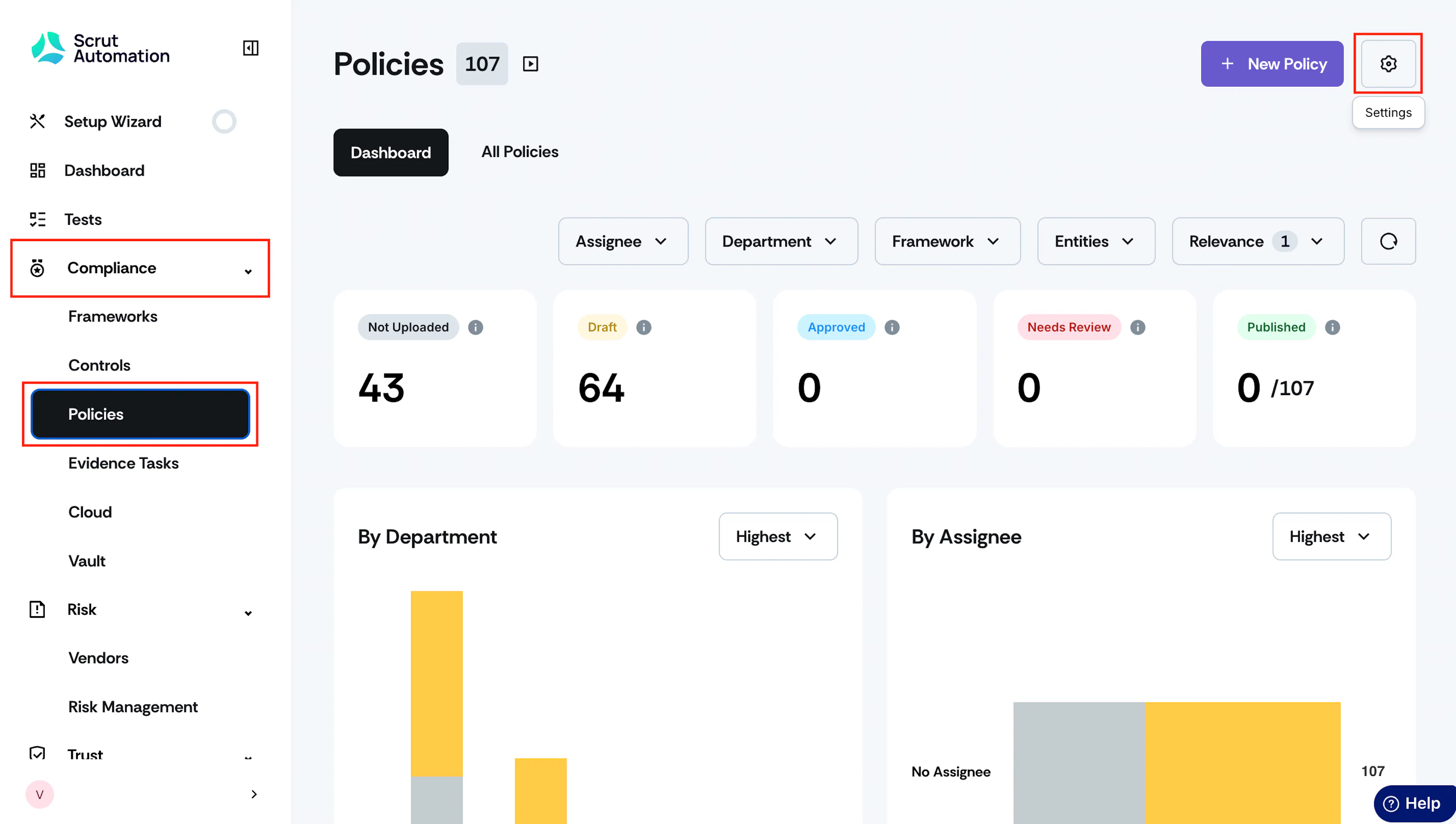
Sign in to Scrut, go to Compliance → Policies using the left navigation panel.
-
Click the Settings icon at the top right.

-
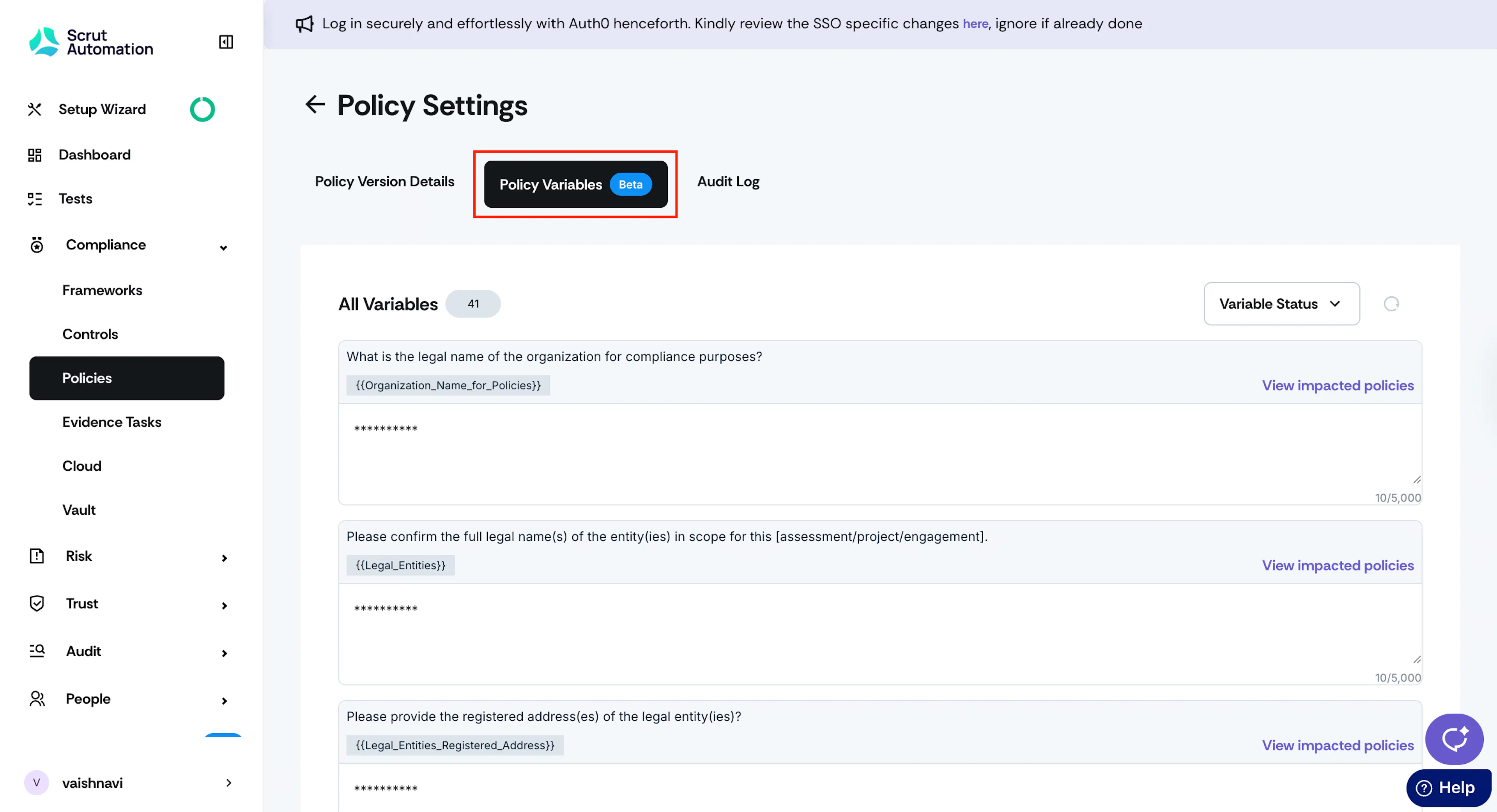
Click the Policy Variables tab.
-
This page lists all policy variables used across all your policies.
-
Enter the values you want to define for each variable.
-
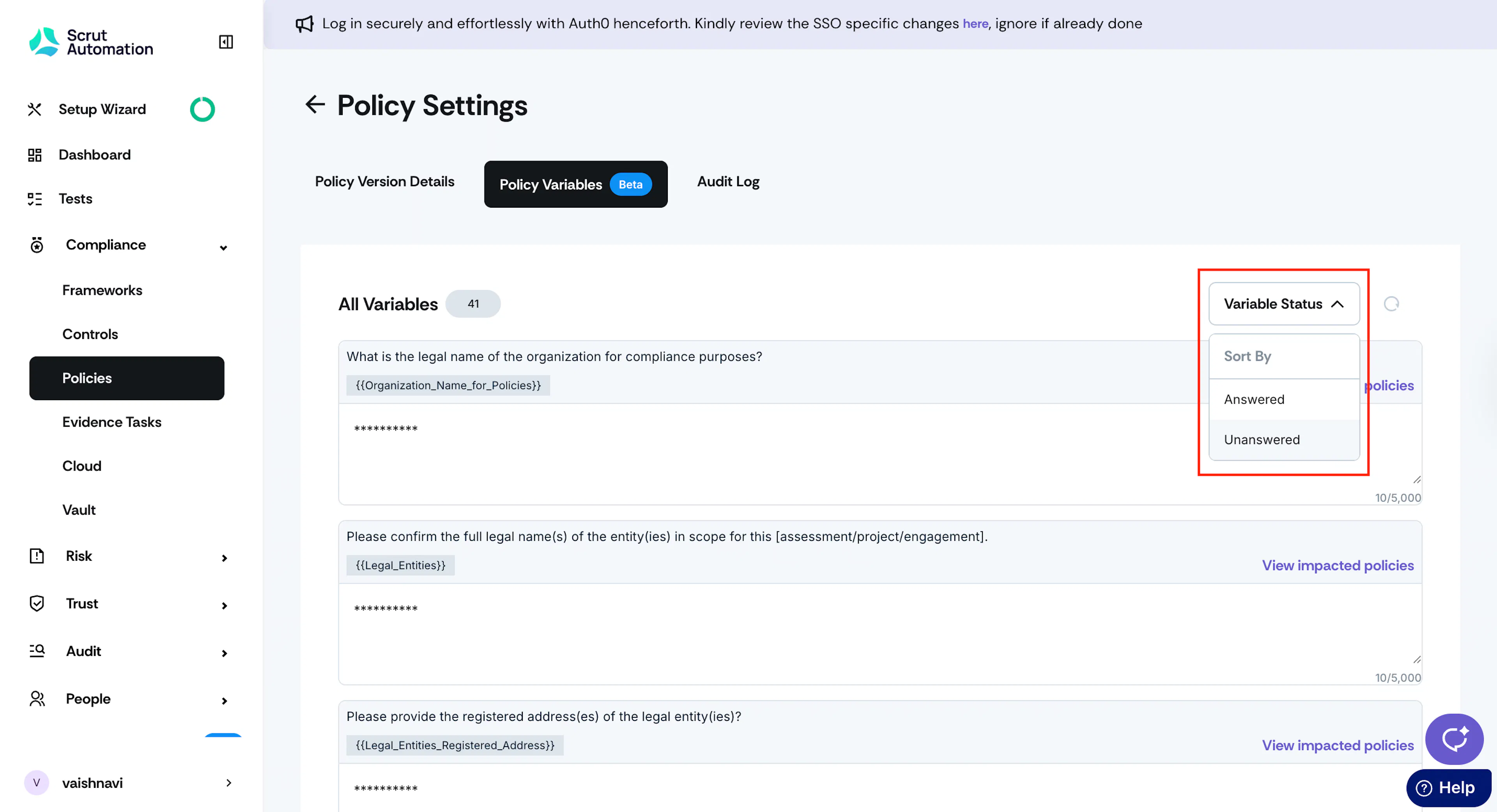
Use the Variable Status filter to identify unanswered questions. The Reset icon clears the filter selection.

-
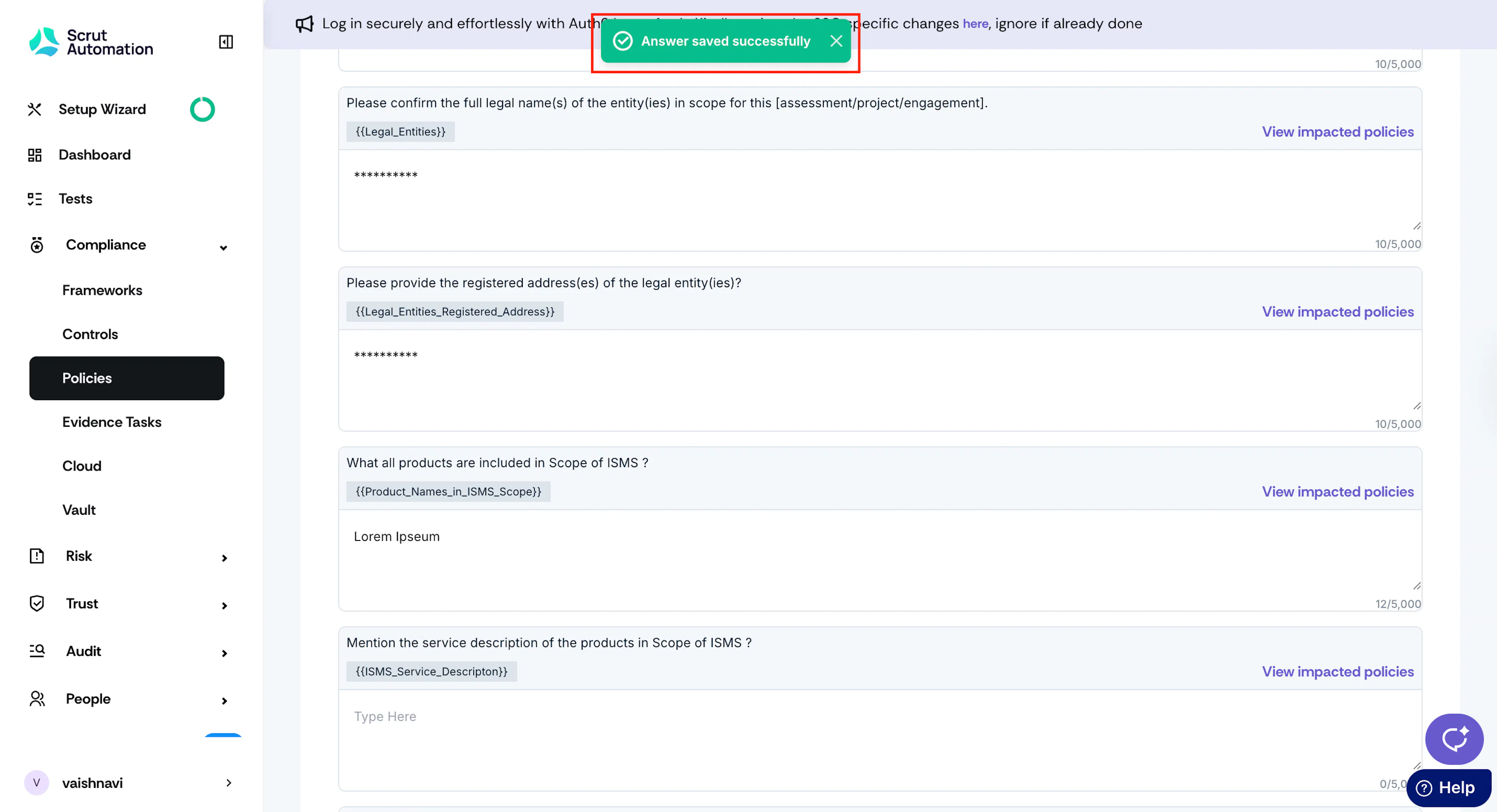
Your answers are saved automatically.
How do policy variables affect existing policies?
When enabling policy variables for the first time for your Scrut organization, you will notice a helpful notification for all policies that use variables.
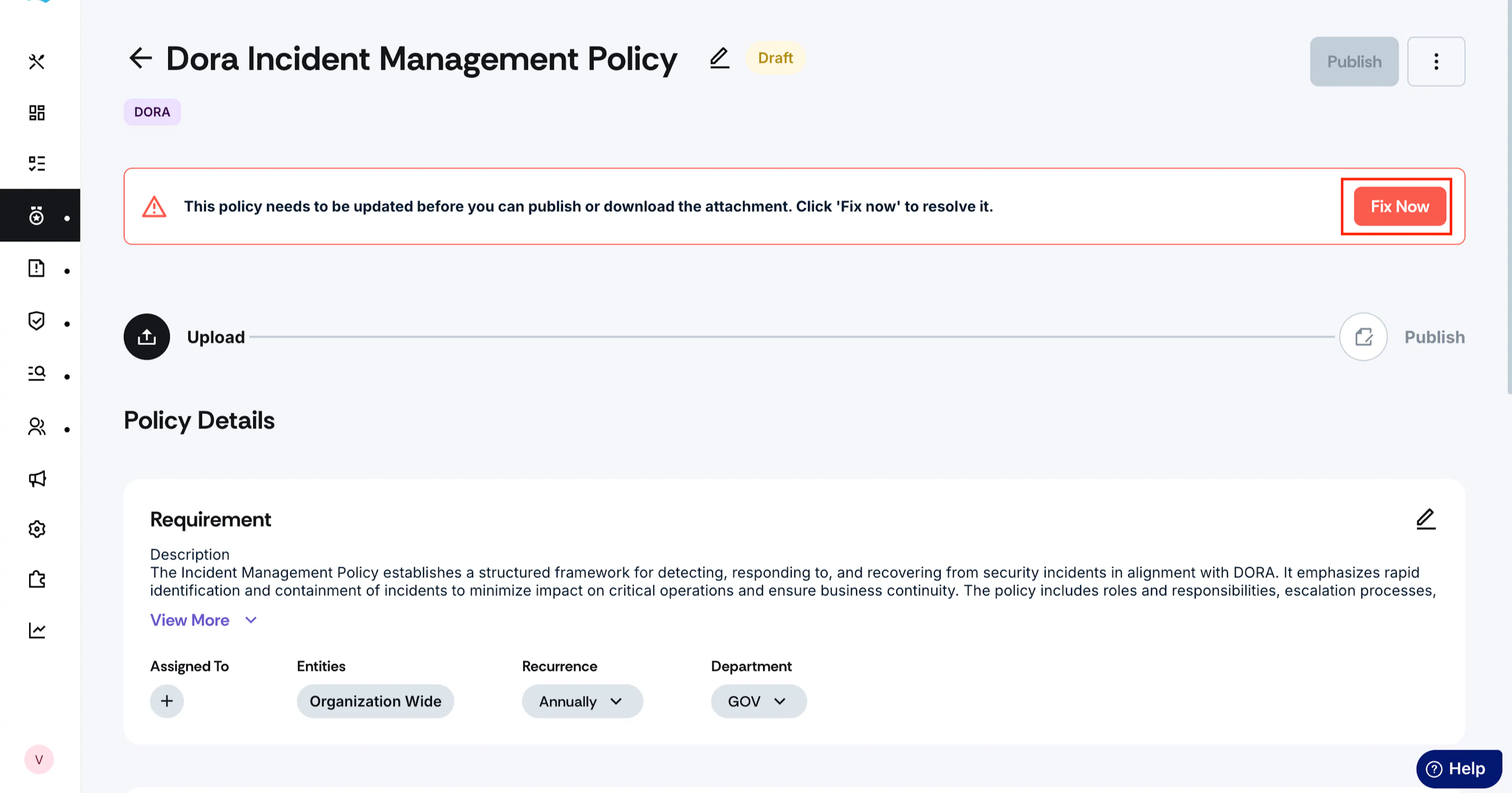
To proceed, click the Fix Now button to allow Scrut to add variables at the appropriate locations. You must complete this step to publish the policy or export attachments.
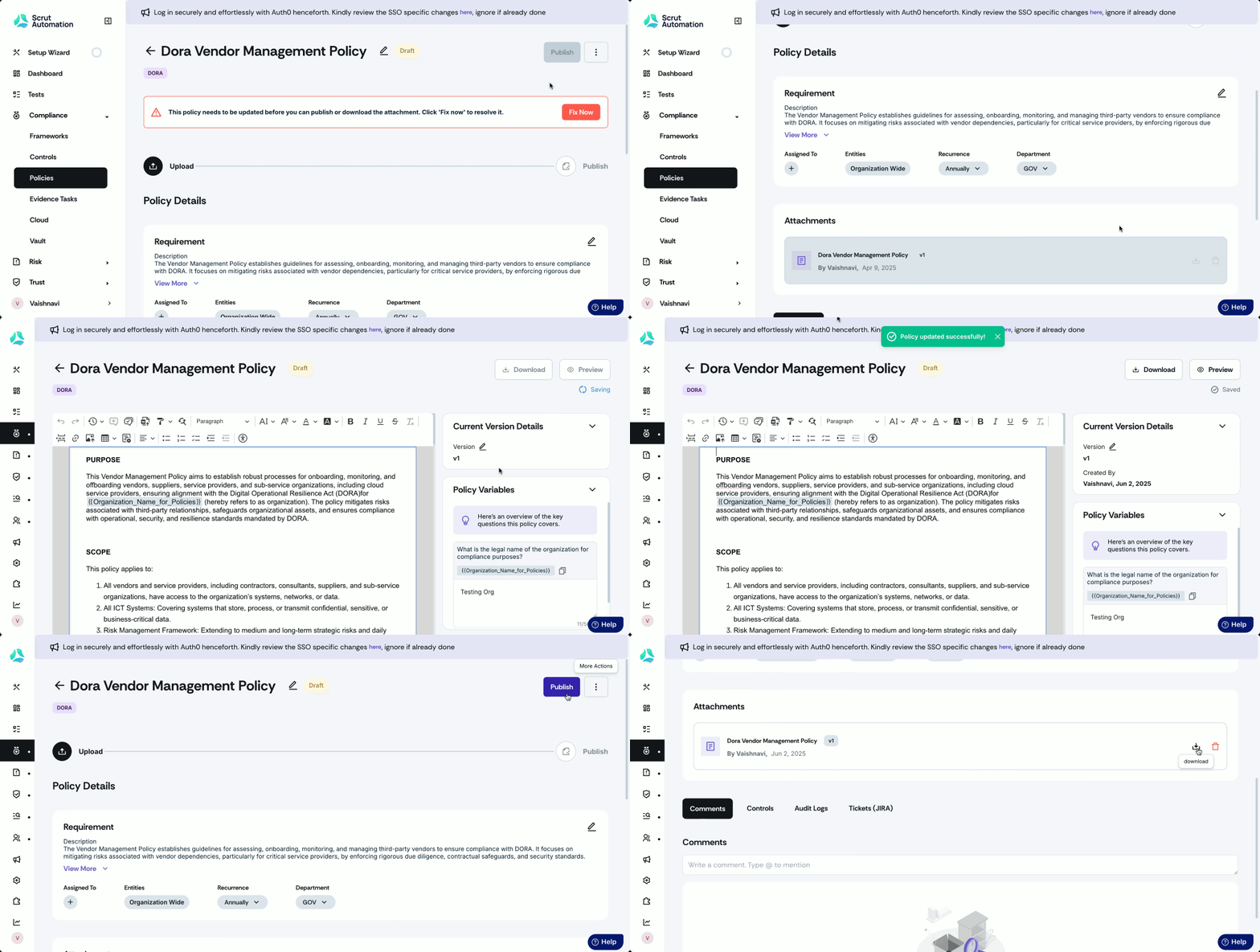
Note: Once you have completed the above action for all policies, the Fix Now button will no longer be visible.
Impacted Policies
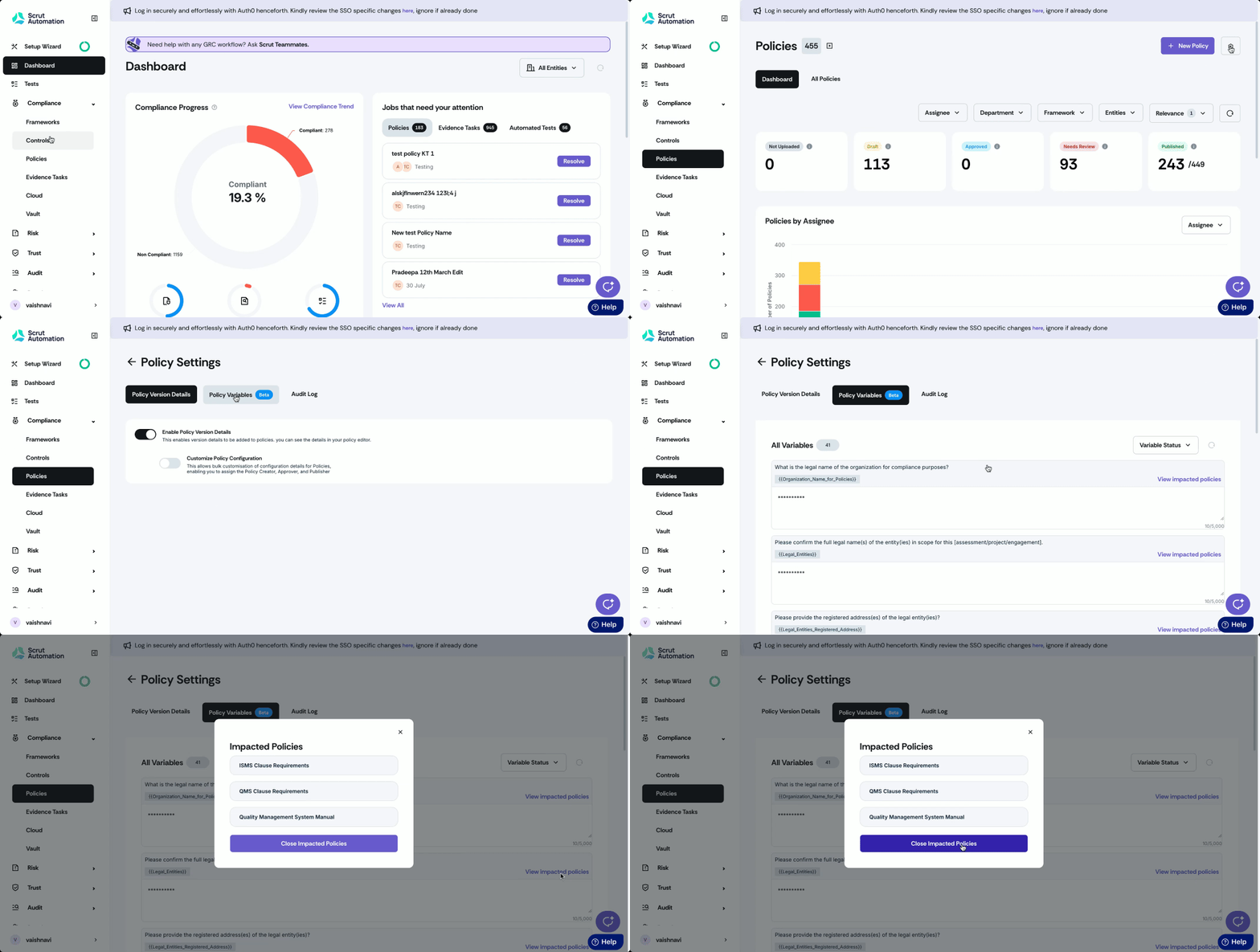
Impacted policies are the list of all policies that utilize a specific policy variable. This means that any changes made to that variable will affect all the policies included in this list.
To view impacted policies:
-
Navigate to the Policy module section and click the Settings icon on the top right.
-
Click the Policy Variables tab.
-
Click View impacted policies to view the list of all policies that use a specific variable.
Viewing Variable Values
Heads Up!
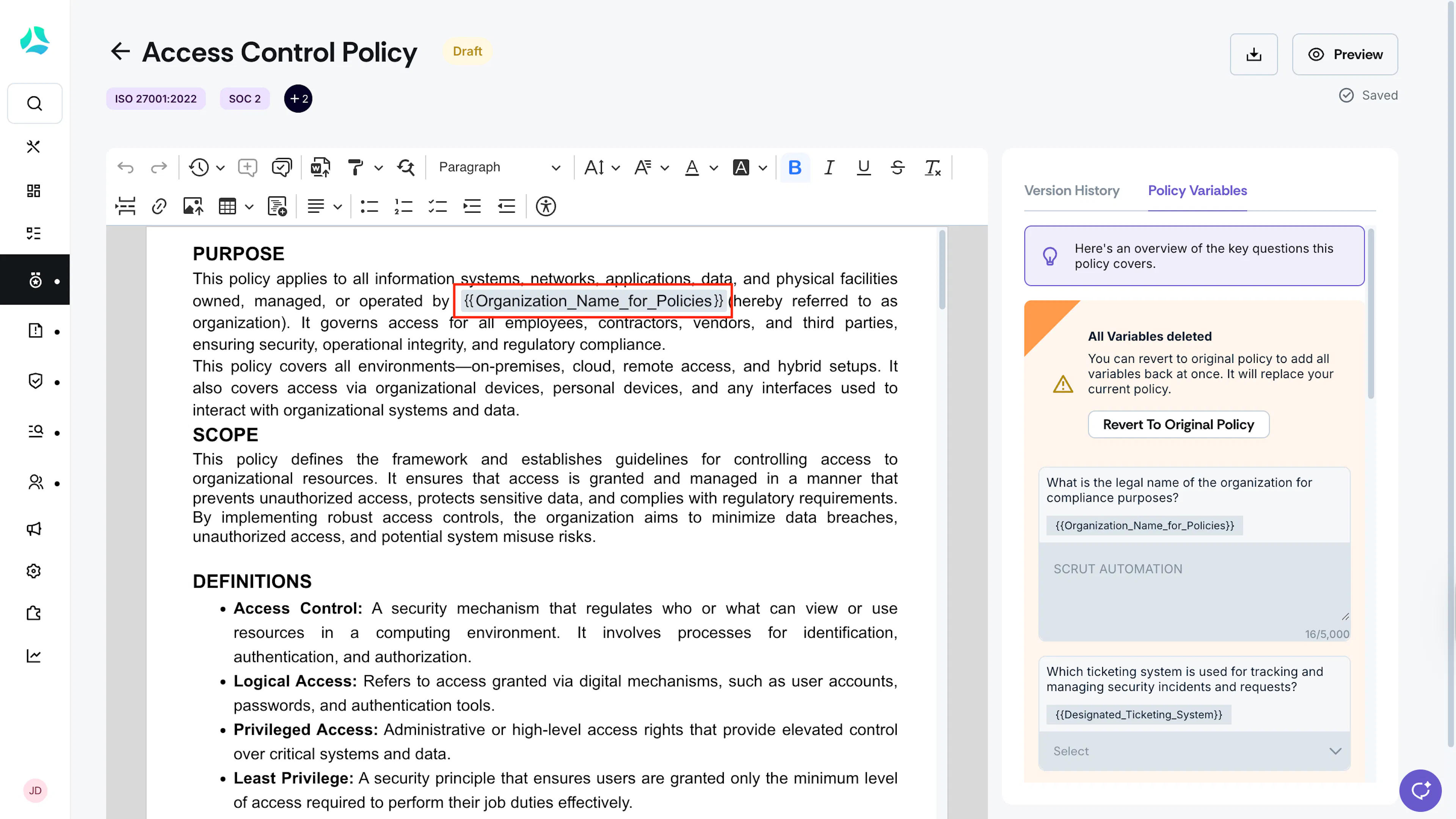
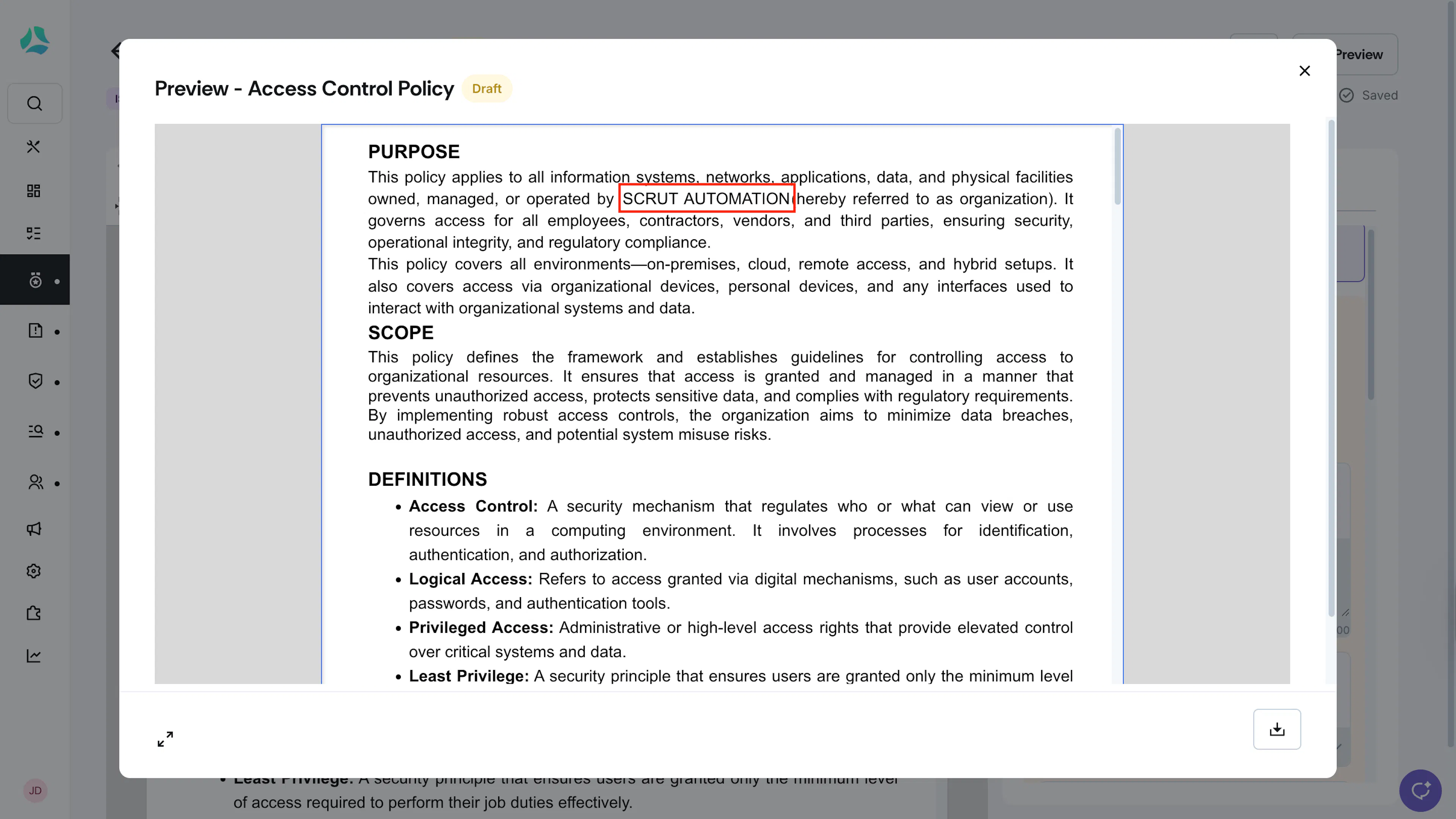
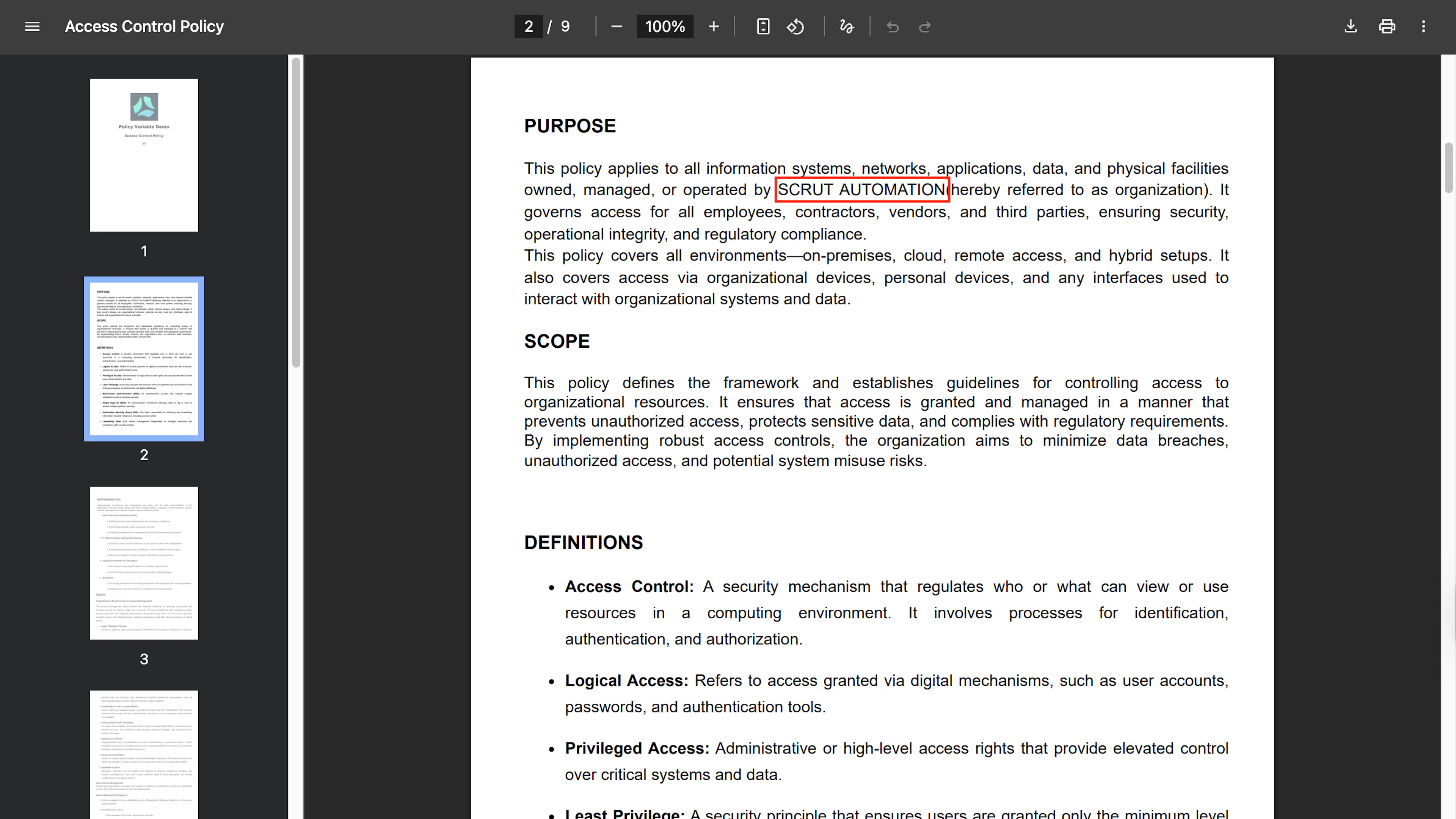
Variable values will not be visible in the policy editor. However, Scrut will replace them with the defined values when you download or preview the policy.
Review any policy that uses these variables to ensure the defined values are accurately reflected in the document.
Editing Policy Variables
Important:
Any change you make to a policy variable will automatically reflect across all policies that use it.
Follow these steps to edit or change the value of any policy variable:
Method 1: Via the Policy Variables Tab
-
Sign in to Scrut and navigate to Compliance → Policies using the left navigation panel.
-
Click the Settings icon at the top right.
-
Click the Policy Variables tab.
-
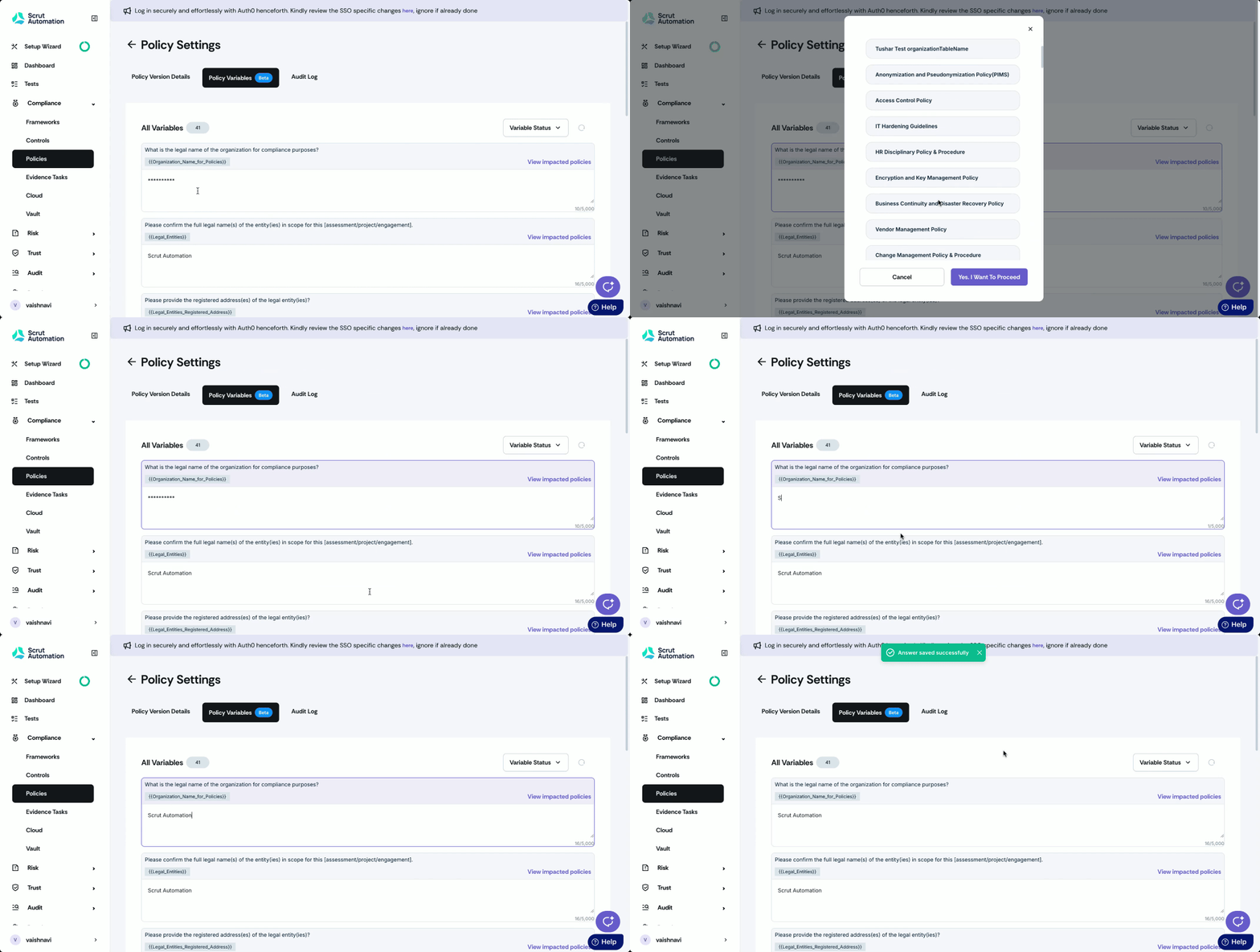
Edit the values for any of the policy variables, and Scrut will update the changes automatically in all impacted policies (Policies that use these variables).
Method 2: From the Policy Page
An alternative is to update the policy variable directly on the policy that uses it.
-
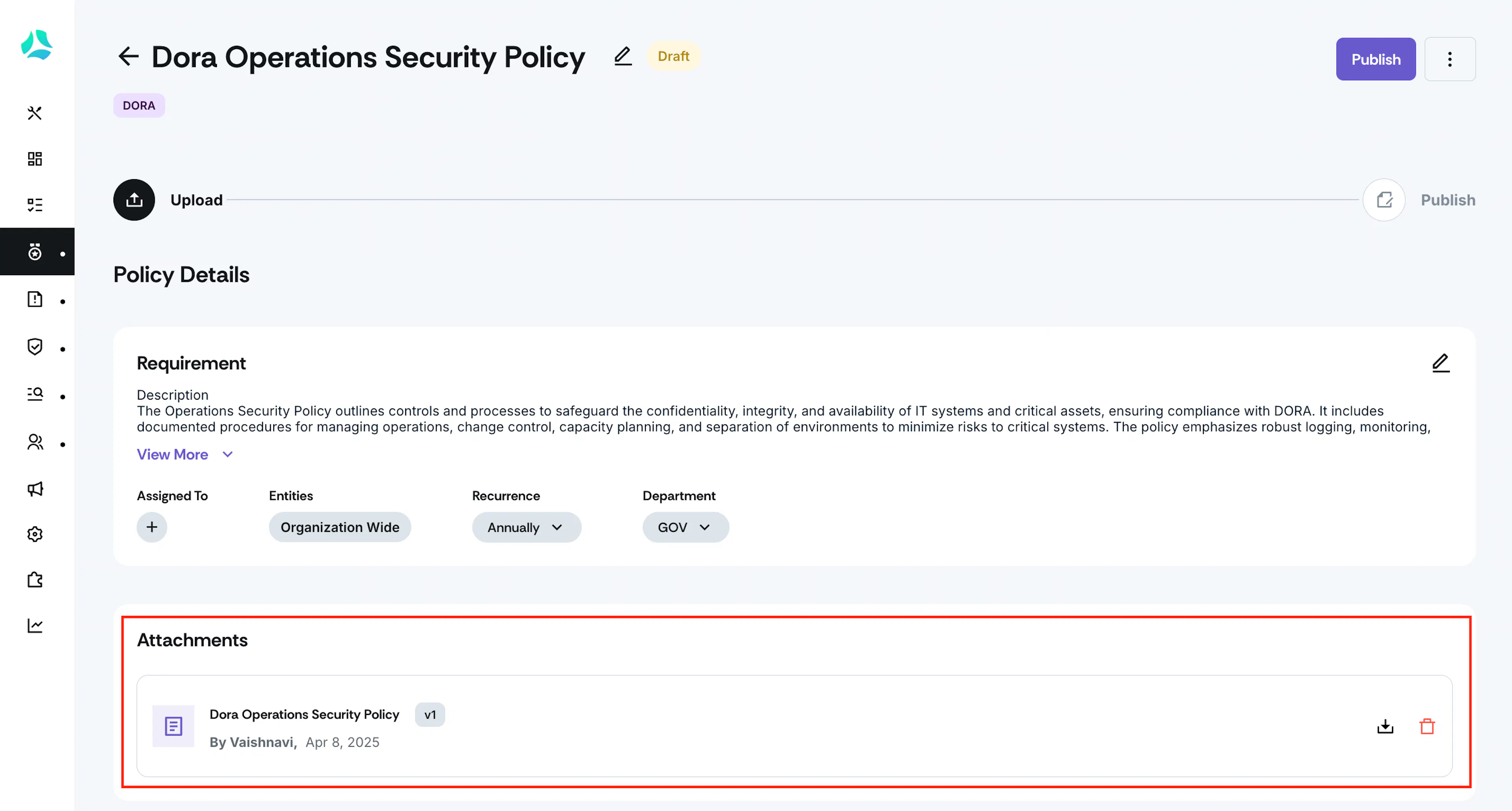
Open your preferred policy and navigate to the Attachments section.
-
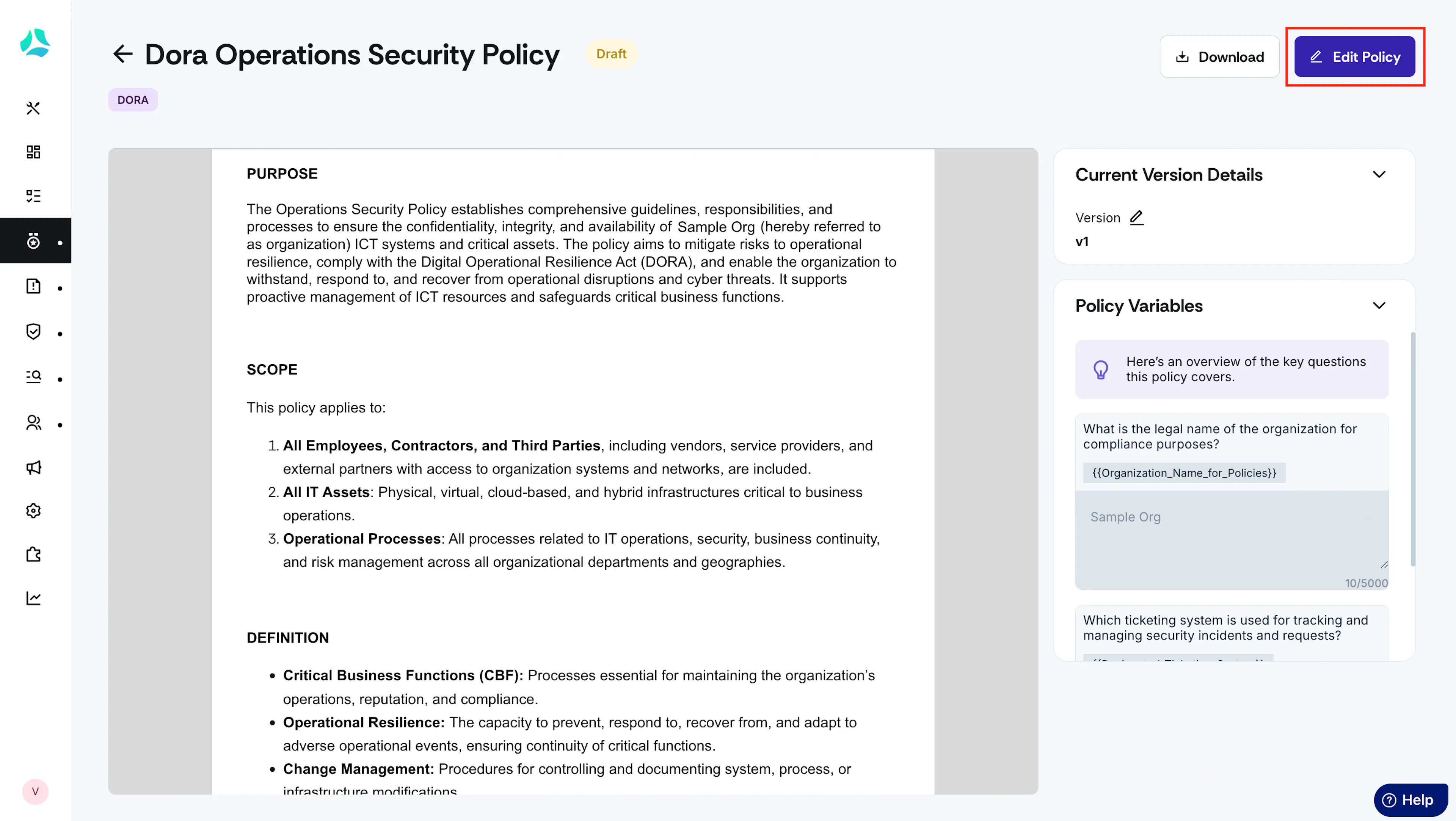
Click the attachment and click Edit Policy.
-
Use the Policy Variables section on the right panel and click the variable you want to edit.
-
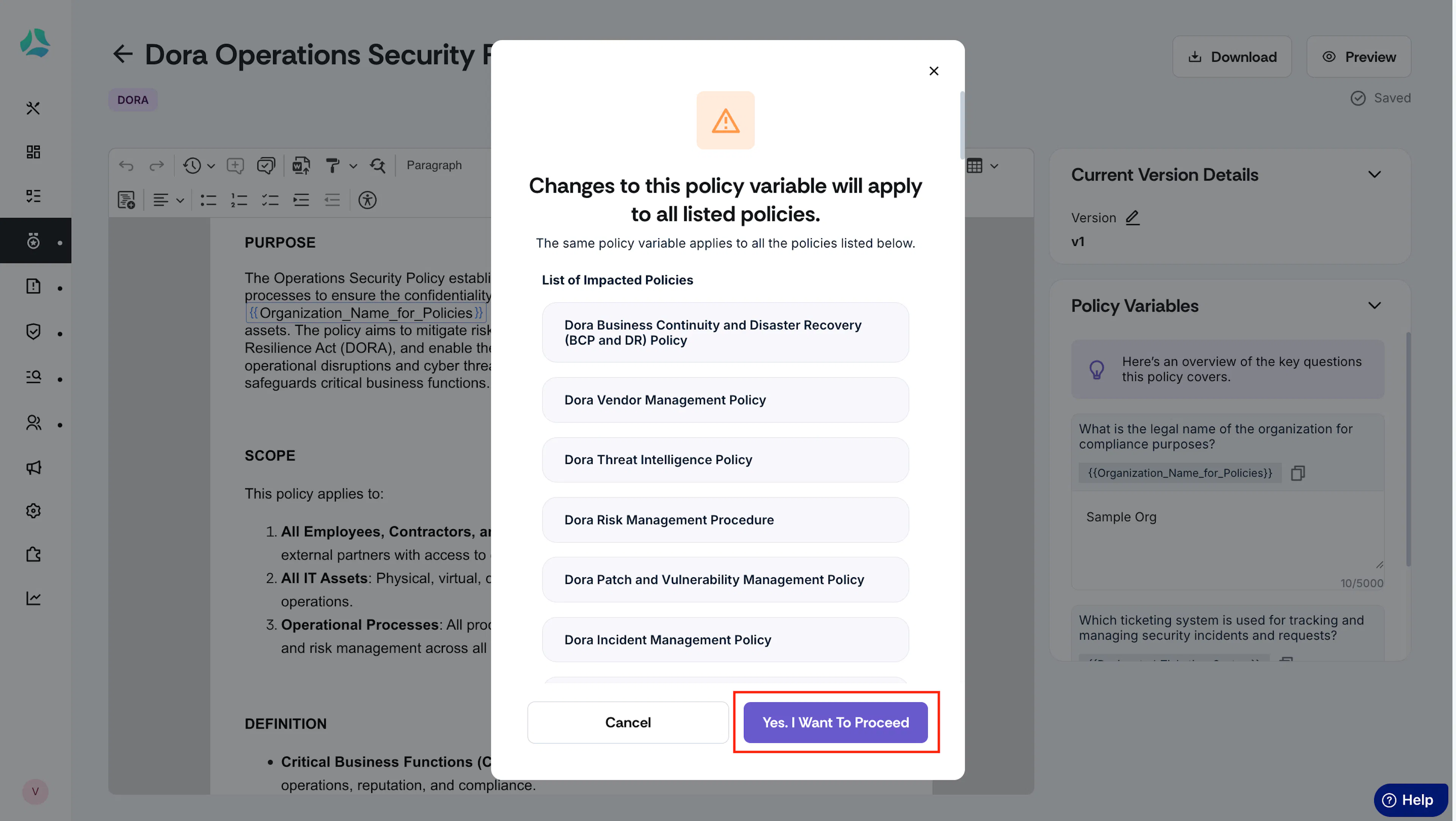
Scrut lists all the policies that will be impacted by this change.
Note: By proceeding, Scrut will change the value of the policy variable across all policies that use it. This change is also captured in the audit log of the individual policies.
-
Click the Yes, I Want To Proceed button to confirm your action.
-
Watch out for the success notification, “Answer Saved Successfully.”
Pro Tip!
Click the Preview button to verify if the change you made is reflected in the policy.