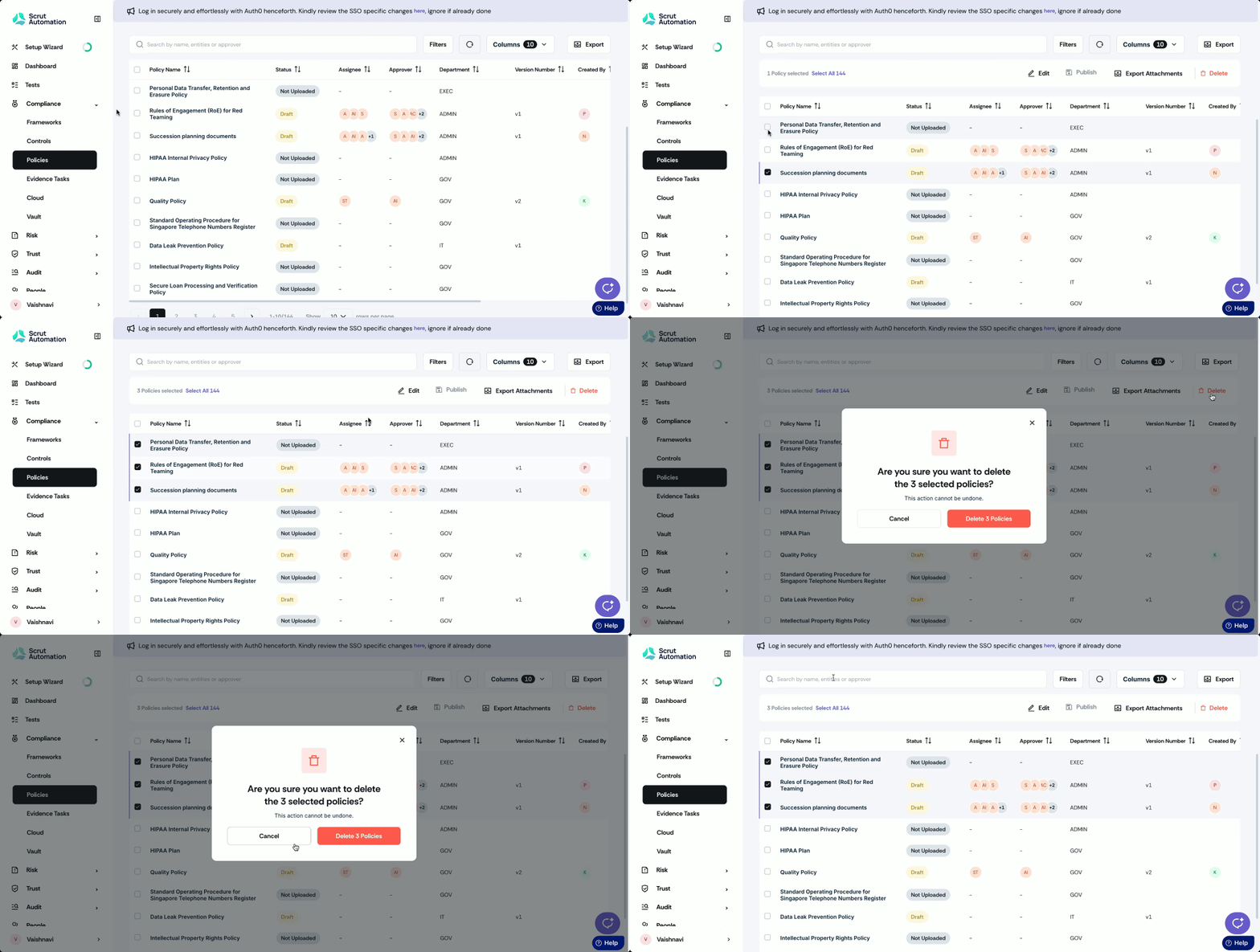
Bulk Manage Policies
Who can use this feature
- Supported on Foundation, Growth, and Scale plans
Making individual policy changes can often become repetitive, tedious, and time-consuming. To streamline this process, Scrut offers a bulk actions feature that enables users to apply changes to multiple policies at once. This article provides a comprehensive overview of how to use the bulk action feature and outlines the available actions.
How to Use the Bulk Action Feature
Sign in to Scrut and go to Policies → All Policies using the left navigation panel. Select one or more policies that you want to modify. Available bulk actions are displayed at the top of the table.
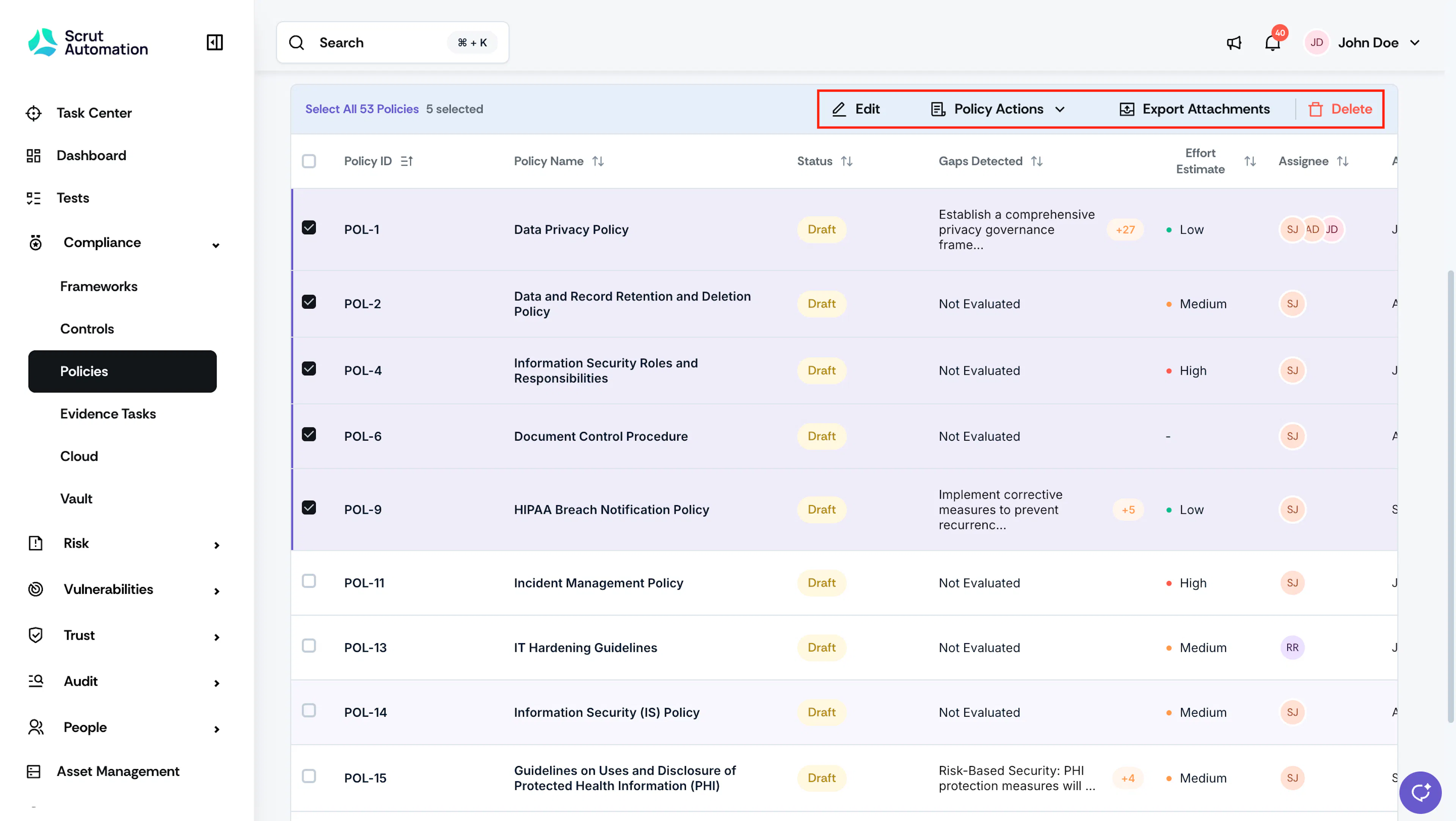
You can perform the following bulk actions:
Bulk Edit
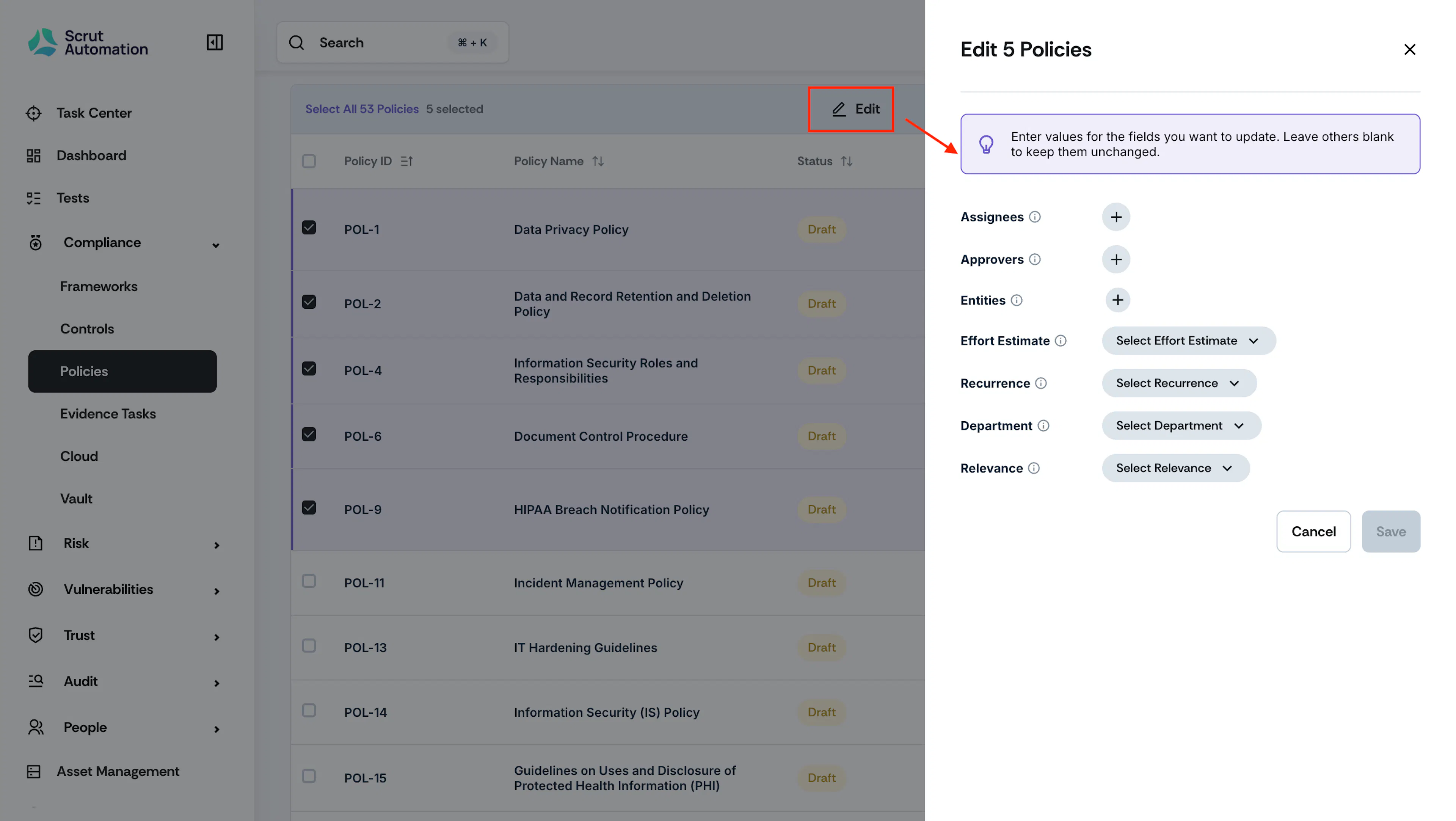
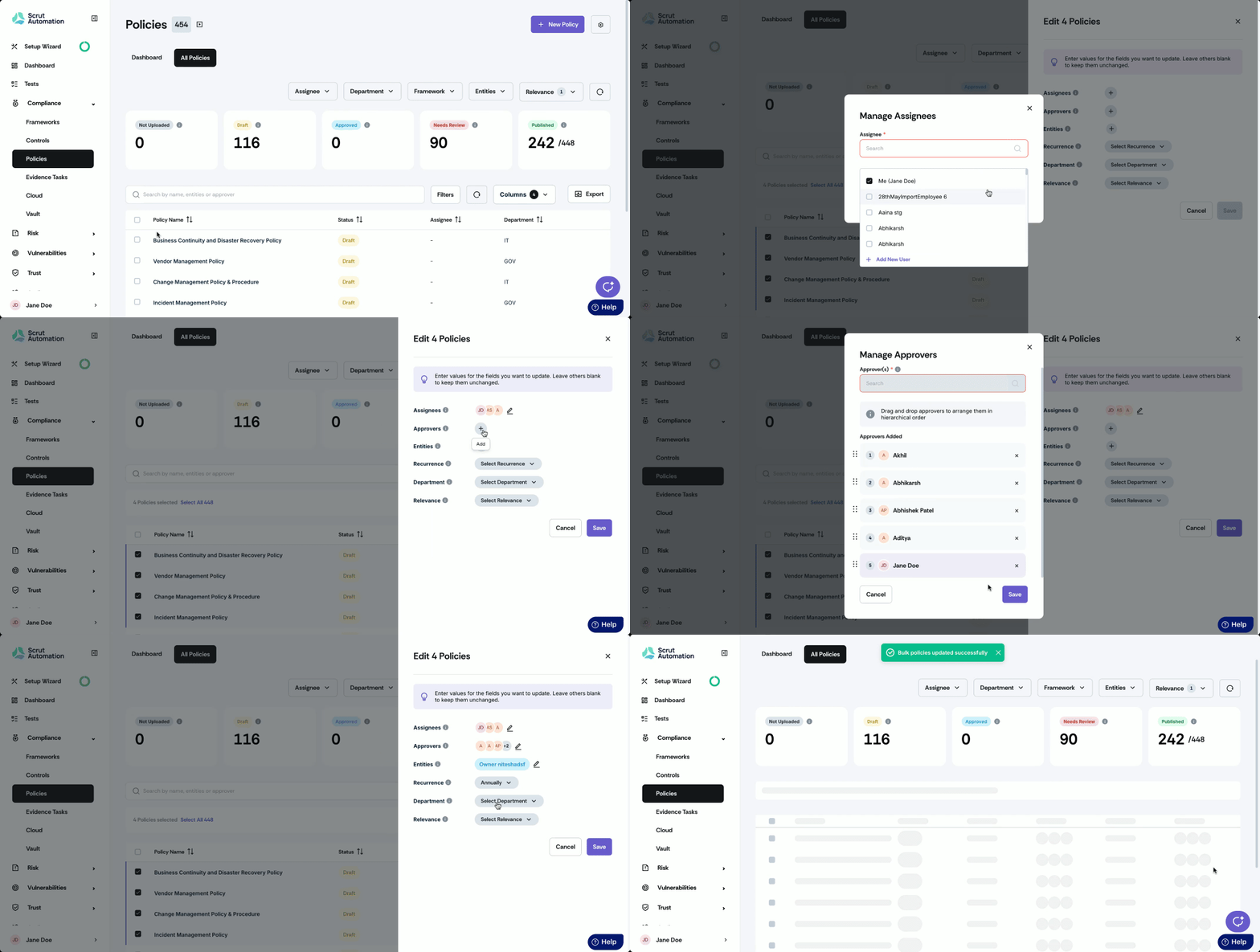
Once you select the policies, click the consolidated Edit option at the top. You can bulk update various policy features, such as:

- Assignees: Choose one or more assignees for the policies and click Make Primary to designate a Primary Assignee.
- Approvers: Add up to five approvers for a policy. Drag and drop approvers to arrange them in hierarchical order. You can update approvers only for policies that aren’t in the Published state.
- Entities: Link the selected policies to the desired entities.
- Effort Estimate: Set the effort estimate for publishing a policy.
- Recurrence: Set the policy recurrence schedule: Annually, Biannually, Quarterly, Monthly, or Never.
- Department: Modify the departments for selected policies in one go.
- Next Review Date: Set the next review date for the selected policies. This option is only available for policies in the Published or Needs Review status.
- Relevance: Mark all selected policies as relevant or not relevant.
Note:
If you don’t want to modify a particular field, leave it unchanged. Scrut will retain the existing value for it, and update other fields that you have specifically modified.
Pro Tip!
To monitor changes, click on any policy to access its audit log. The log will display the user who made the changes, and the changes made.
Bulk Submit for Approval
This action is available only when the policy approval workflow is turned on. Use it to send multiple Draft policies into the approval process at once instead of opening each one individually.
- Select the policies you want to send for approval, click Policy Actions, and select Submit for Approval.
- Review the confirmation dialog, which shows the number of eligible policies.
- Click Submit.
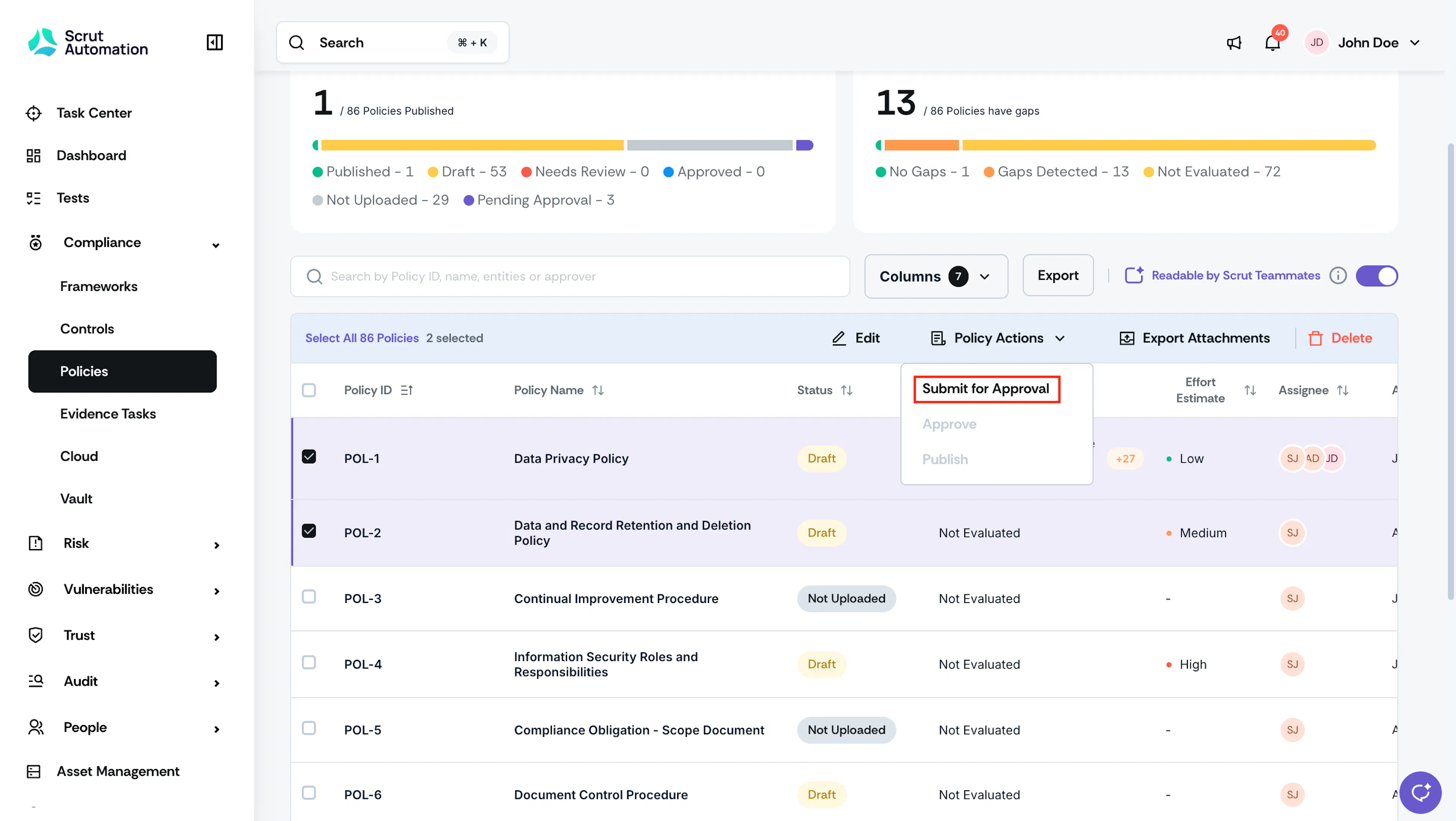
Scrut checks each selected policy against the following conditions before sending it for approval:
- You are the assignee of the policy.
- The policy is in the Draft status.
- At least one approver is assigned to the policy.
Policies that don't meet all three conditions are skipped. Scrut moves eligible policies to the Pending Approval status and notifies the first approver in the hierarchy.
Bulk Approve
This action is available only when the policy approval workflow is turned on. Use it to approve multiple policies awaiting your approval at once, instead of approving them one at a time from each policy's detail page.
- Select the policies you want to approve, click Policy Actions, and select Approve.
- Review the confirmation dialog, which shows the number of eligible policies.
- Click Approve.
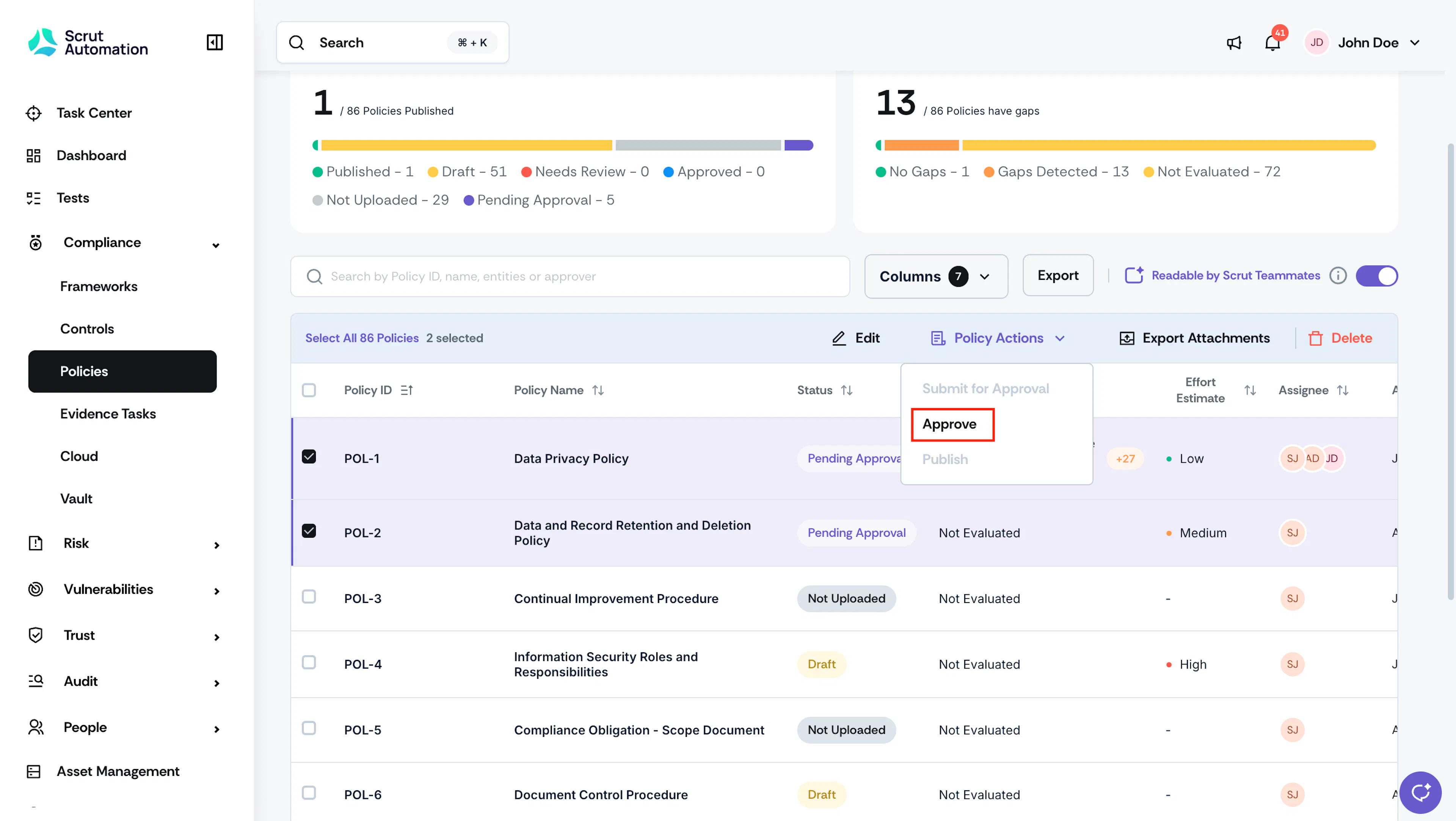
Scrut checks each selected policy against the following conditions before approving it:
- You are the current approver in the policy's approval hierarchy.
- The policy is in the Pending Approval status.
Policies that don't meet both conditions are skipped. If you're an intermediate approver, approved policies stay in the Pending Approval status and move to the next approver in the hierarchy. If you're the final approver, approved policies move to the Approved status. Publishing remains a separate step and is unaffected by this action.
Bulk Publish
To bulk publish:
- Select the policies you want to publish, click Policy Actions, and select Publish.
Note:
The bulk publish button is available only when at least one of the selected policies are in approved state.
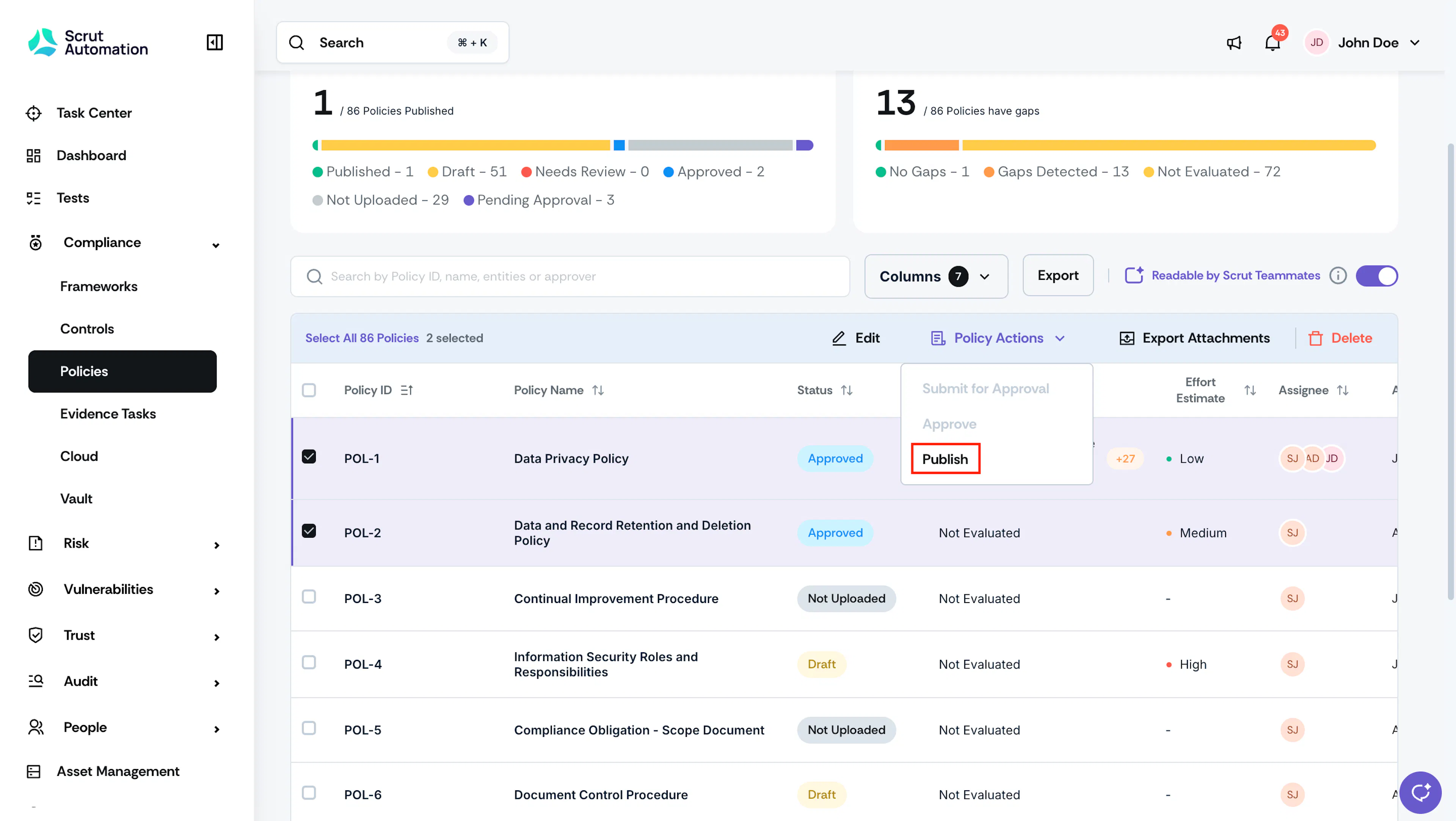
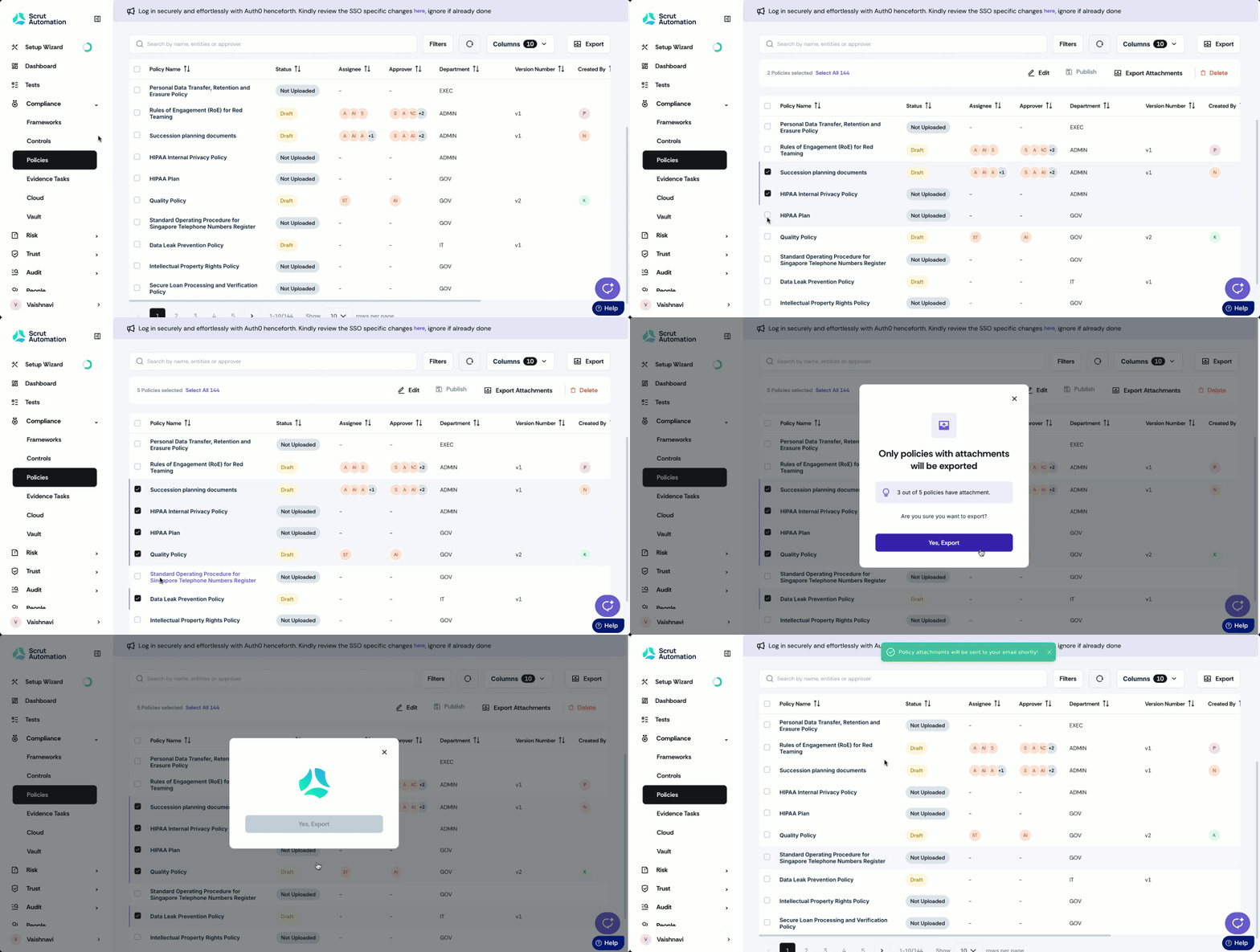
Bulk Export Attachments
Select the policies for which you want to export attachments, and click the consolidated Export Attachments button at the top. Scrut lists policies with attachments. Confirm the action, and you will receive the attachments to your email.
Bulk Delete
Select the policies you want to delete, and click the consolidated Delete button at the top.
Note:
This action is permanent, so proceed with caution.