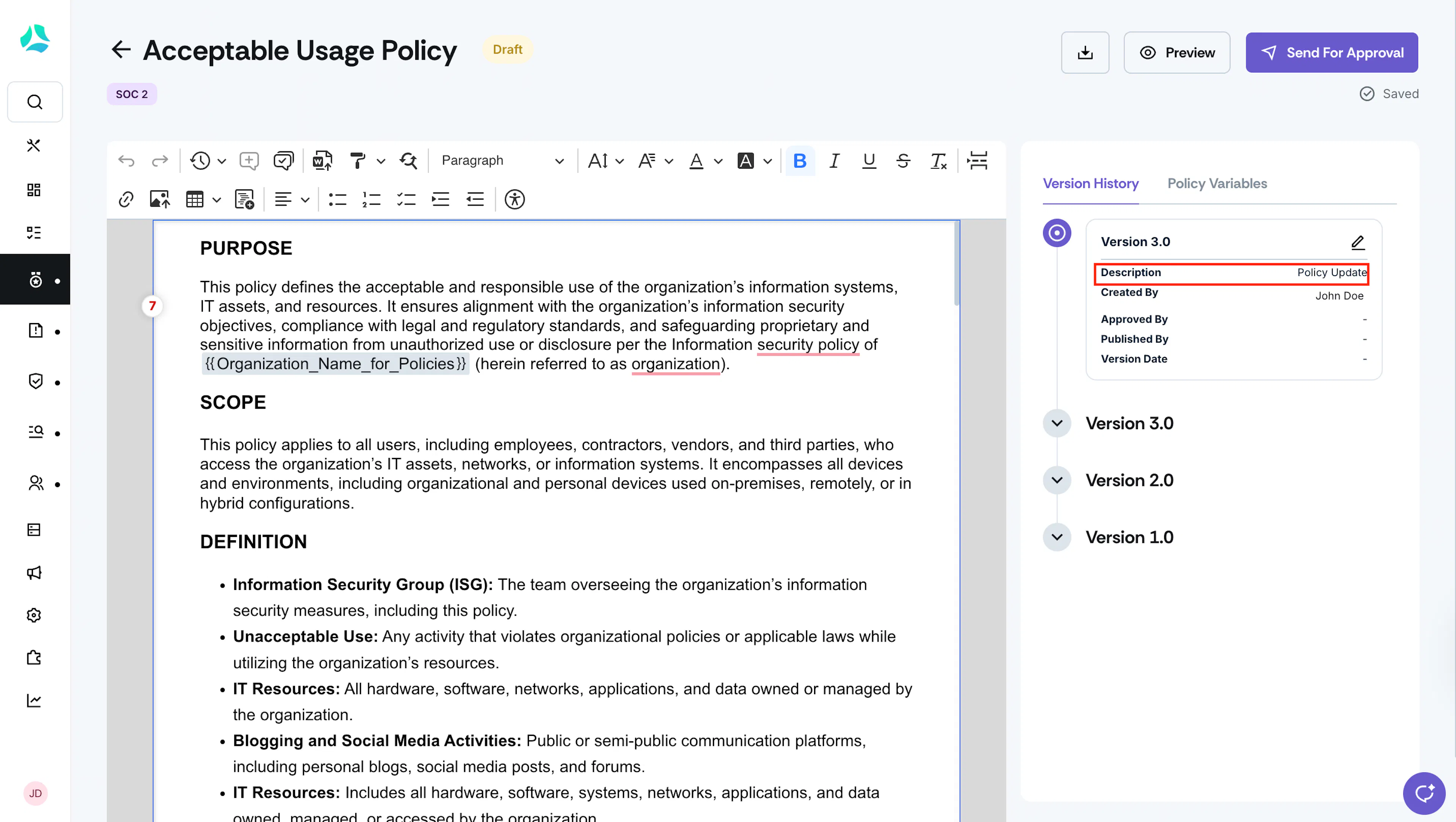
Manage Policy Versions
Scrut makes it easy to track and manage different versions of your policies throughout their lifecycle. Having the details of all current and previous versions within Scrut provides transparency in policy management by maintaining a detailed history of changes, contributors, and approvers. This article explains all that you need to know about Scrut policy versions and how to edit them.
Enable Policy Versioning
Heads Up!
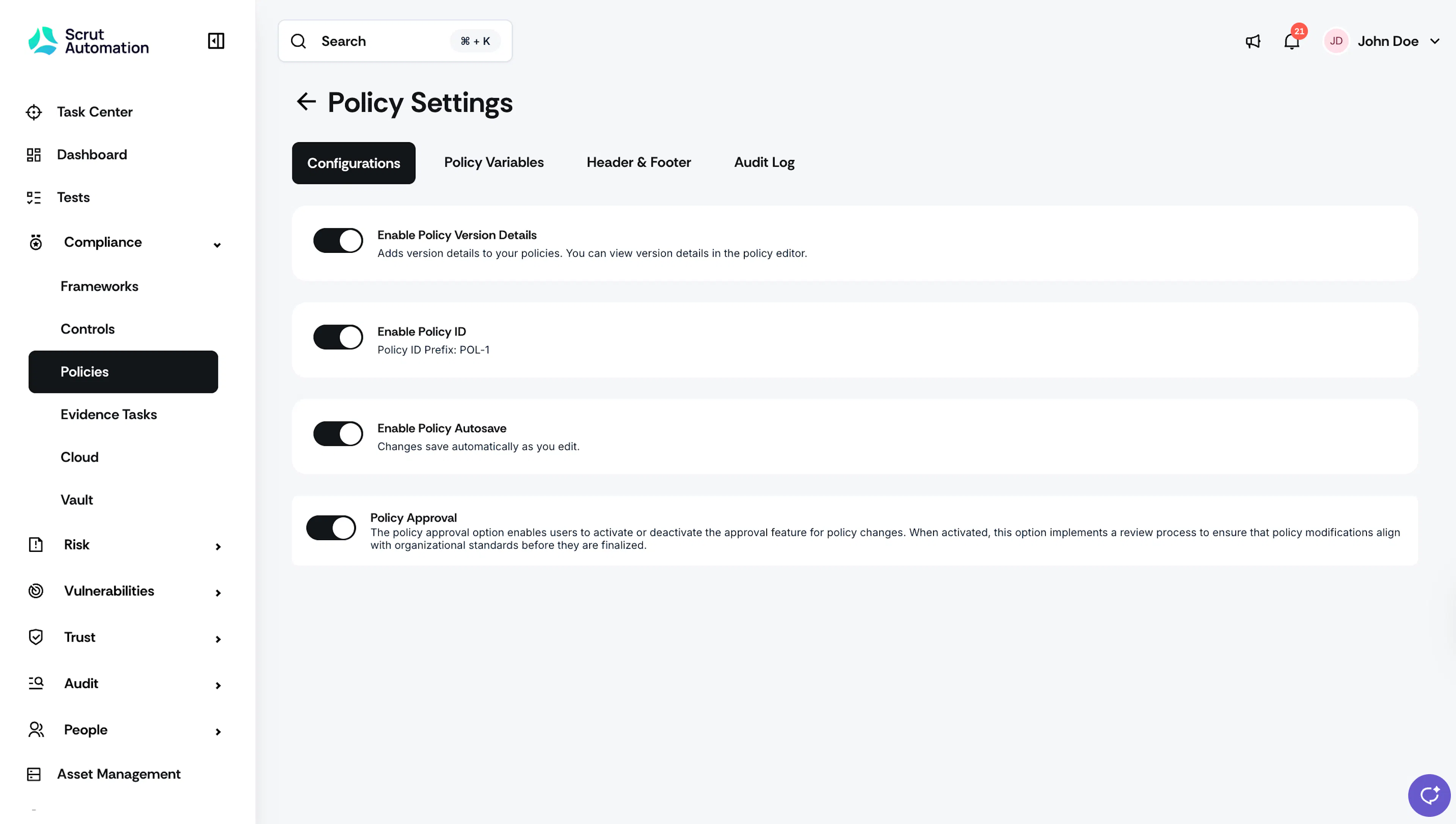
Policy versions are available only when you turn on the “Enable Policy Version Details” toggle in Policy Settings.
To enable this toggle:
-
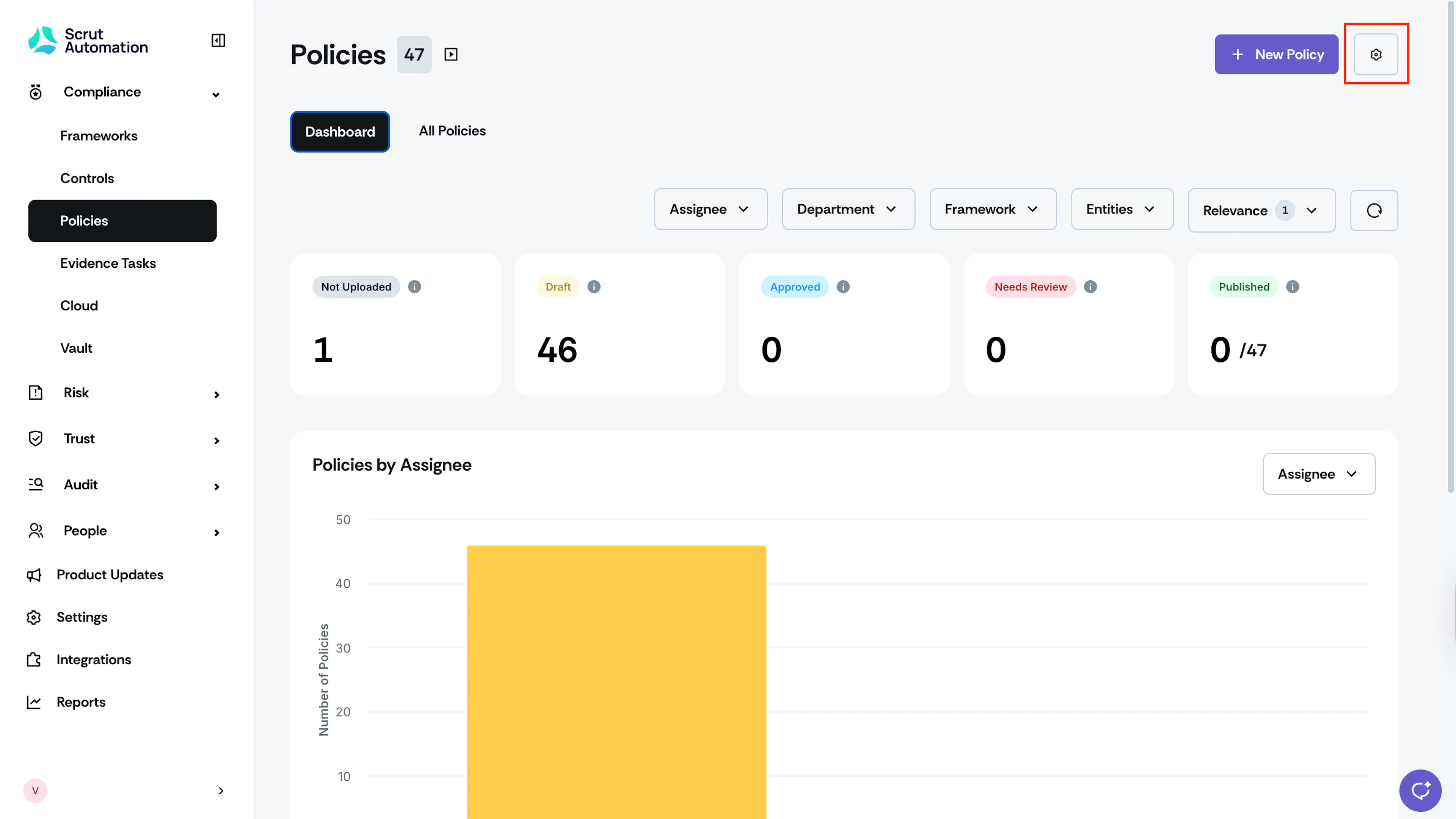
Sign in to Scrut and click Policy on the left navigation menu.
-
Click the Settings icon on the top right of the Policies page.
-
Turn on the Enable Policy Version Details toggle.
Editing Initial Version Details
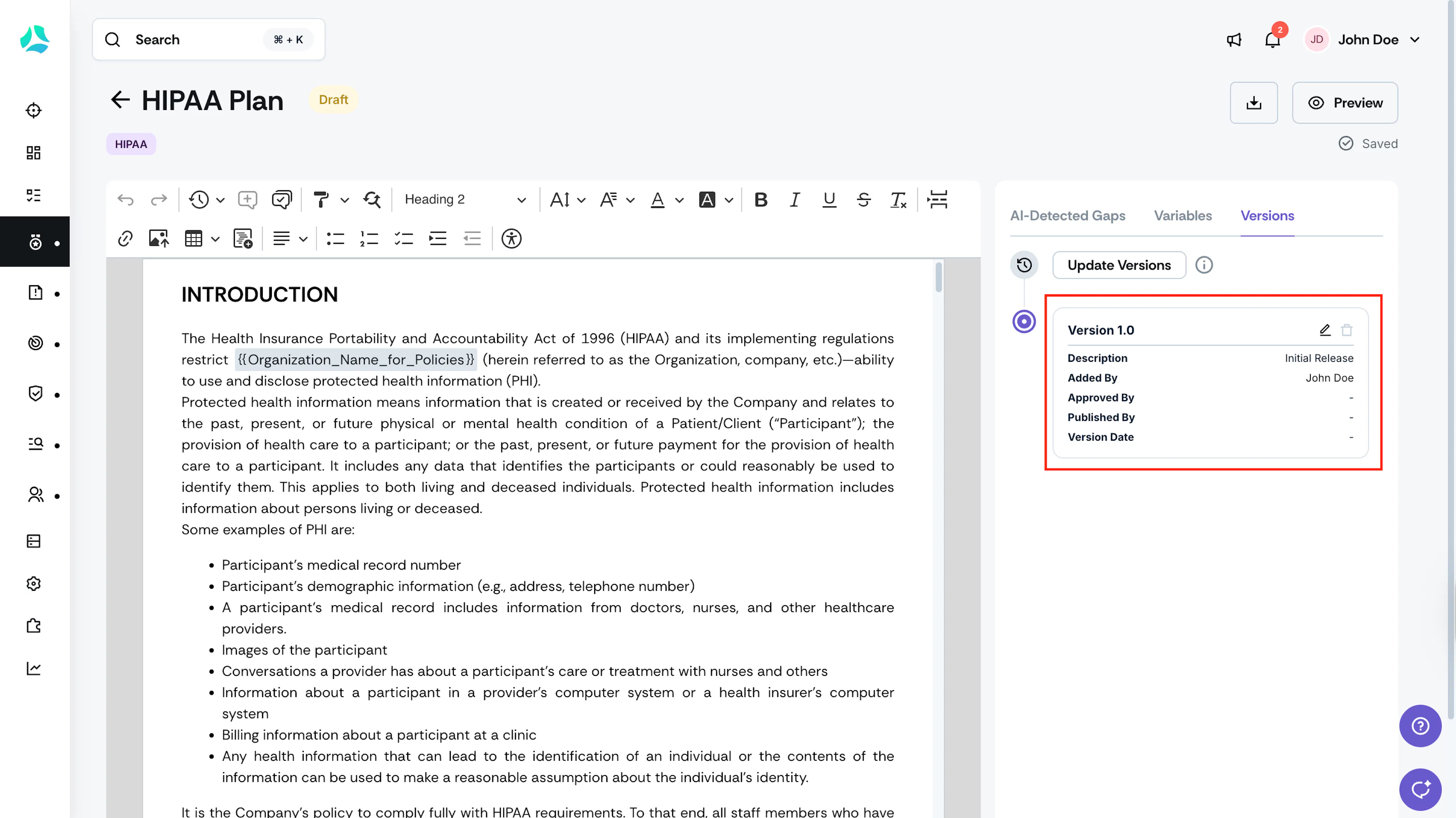
When you create a new policy in Scrut using the policy editor:
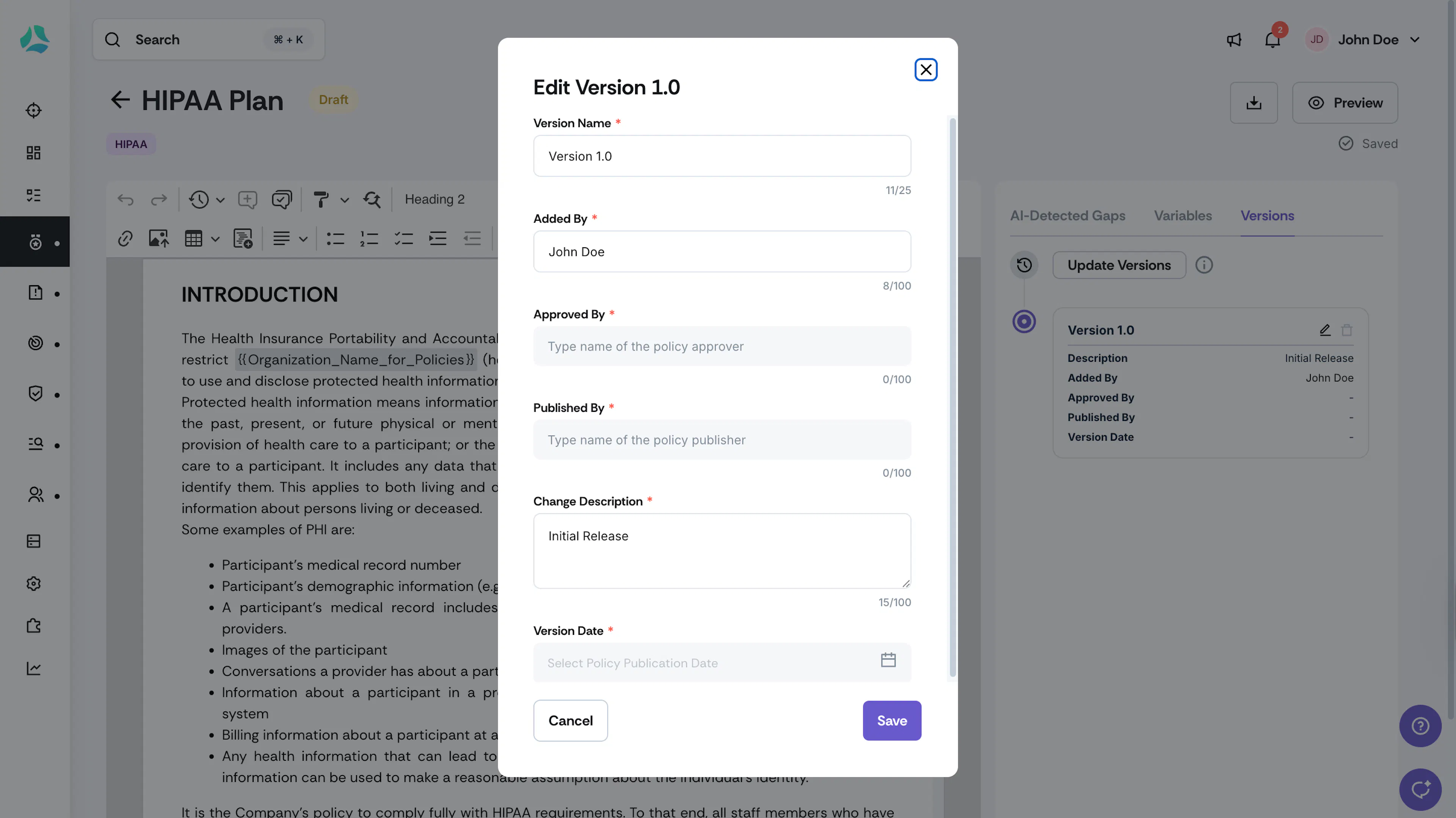
- Version Assignment: Scrut automatically assigns it "Version 1.0."
- Change Description: Pre-filled as "Initial Release."
- Created By: Shows the name of the user who created the initial draft of the policy.
Note:
Approved By, Published By, and Version Date are empty as the policy is in Draft mode and not yet published.
Click the Edit icon to change details of this version.

Adding Previous Version Details
Sometimes, you may already have existing versions of a policy on other platforms. Scrut allows you to add these details to the platform to maintain complete historical records.
To add previous policy versions:
-
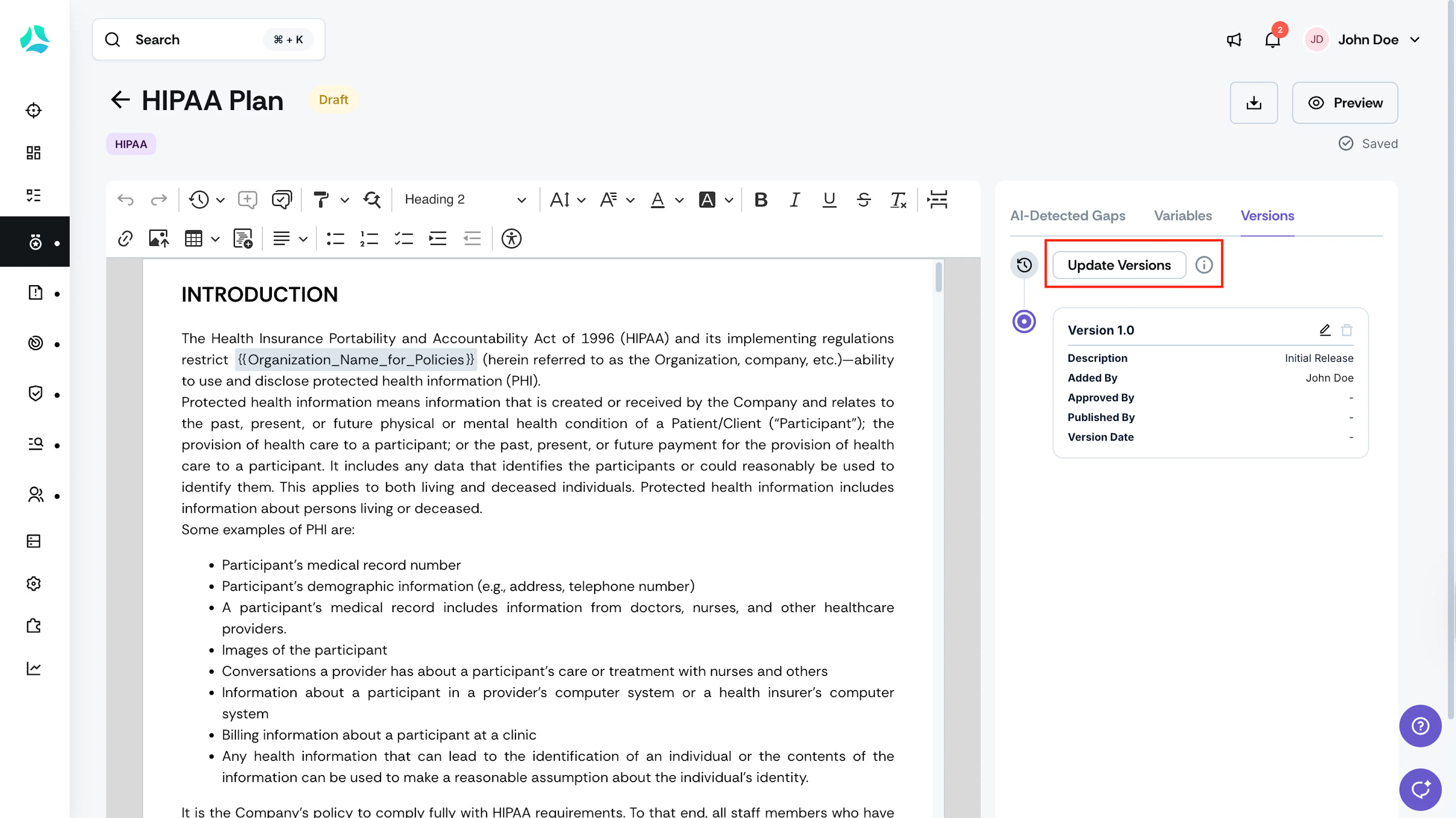
Click the Update Versions button.
-
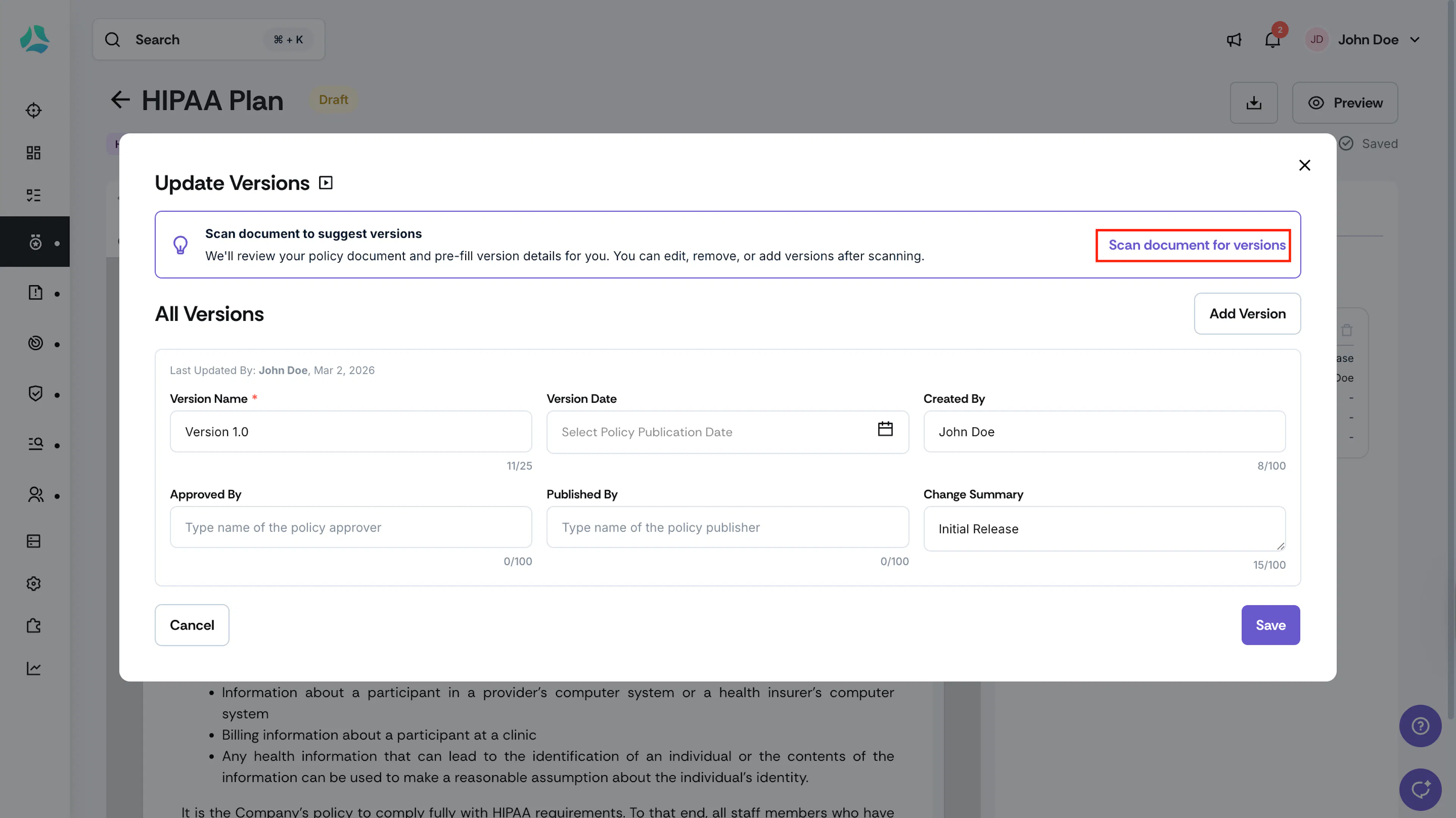
Click Scan document for versions to allow Scrut to automatically review your policy document and fetch details of previous versions. If there are none, you can add them directly on this page.
-
If available, Scrut will fetch these details from your policy document:
- Version Name: The version name
- Version Date: Enter the date on which this version of the policy was finalized and made effective. This helps track the document's revision history and timeline.
- Created By: Enter policy creator names. You can add multiple contributors.
- Approved By: Enter the names of the policy approvers. You can add various approvers.
- Published By: Enter the names of the policy publishers. You can add multiple publishers.
- Change Description: Provide a short description of any changes made in this version compared to previous ones. Include specific reasons for the changes and any relevant context to enhance understanding.
-
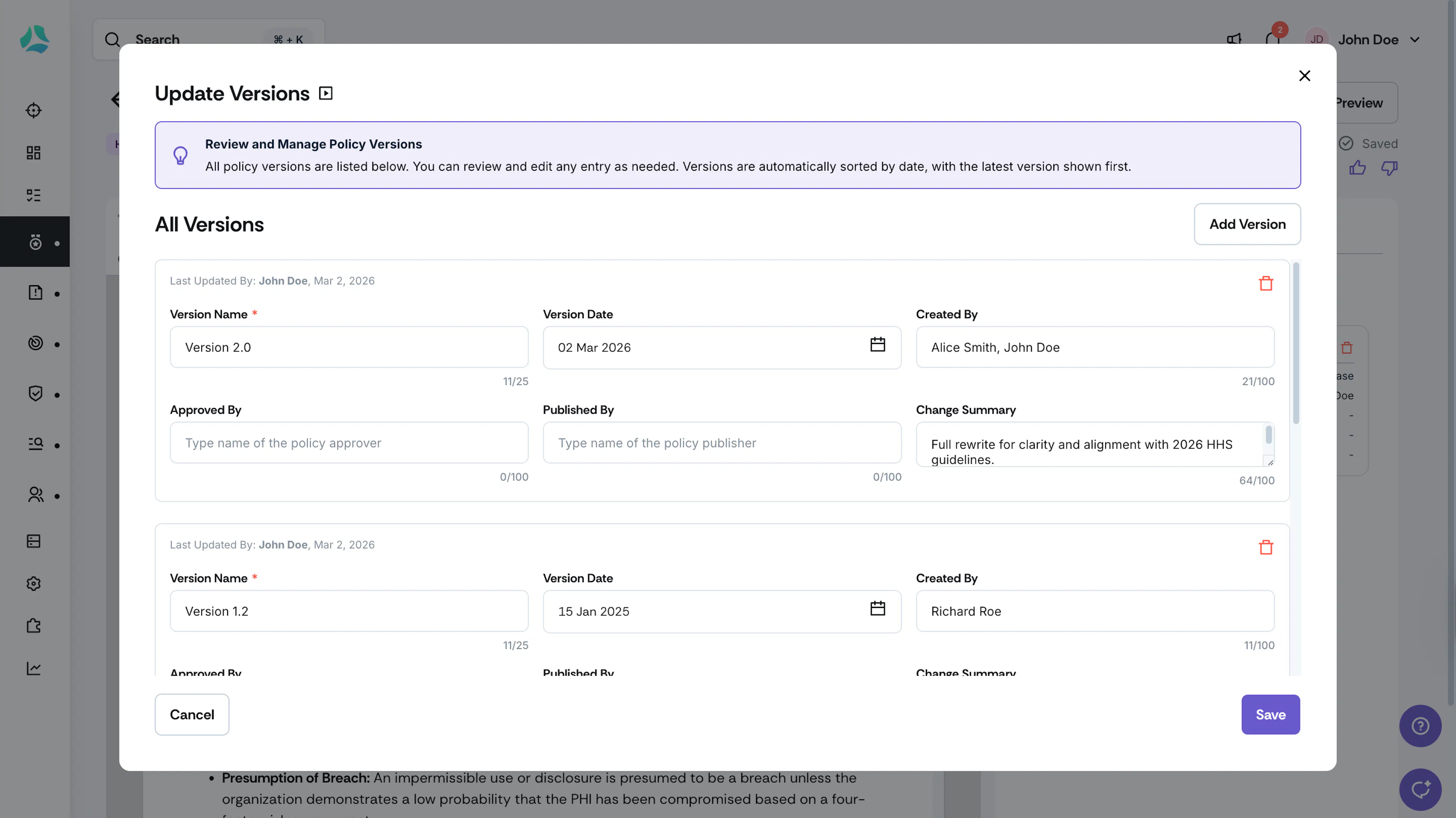
You can edit, remove, or add versions, as needed.
-
Click Save.
Points to Note
-
You can add multiple previous versions, as needed.
-
Scrut sorts previous versions by version date, with the most recent one shown at the top.
-
To avoid duplicate version details tables, remove any extra tables by deleting them directly from the editor.
-
When you click Preview, the Version Details table appears at the bottom of the Policy.
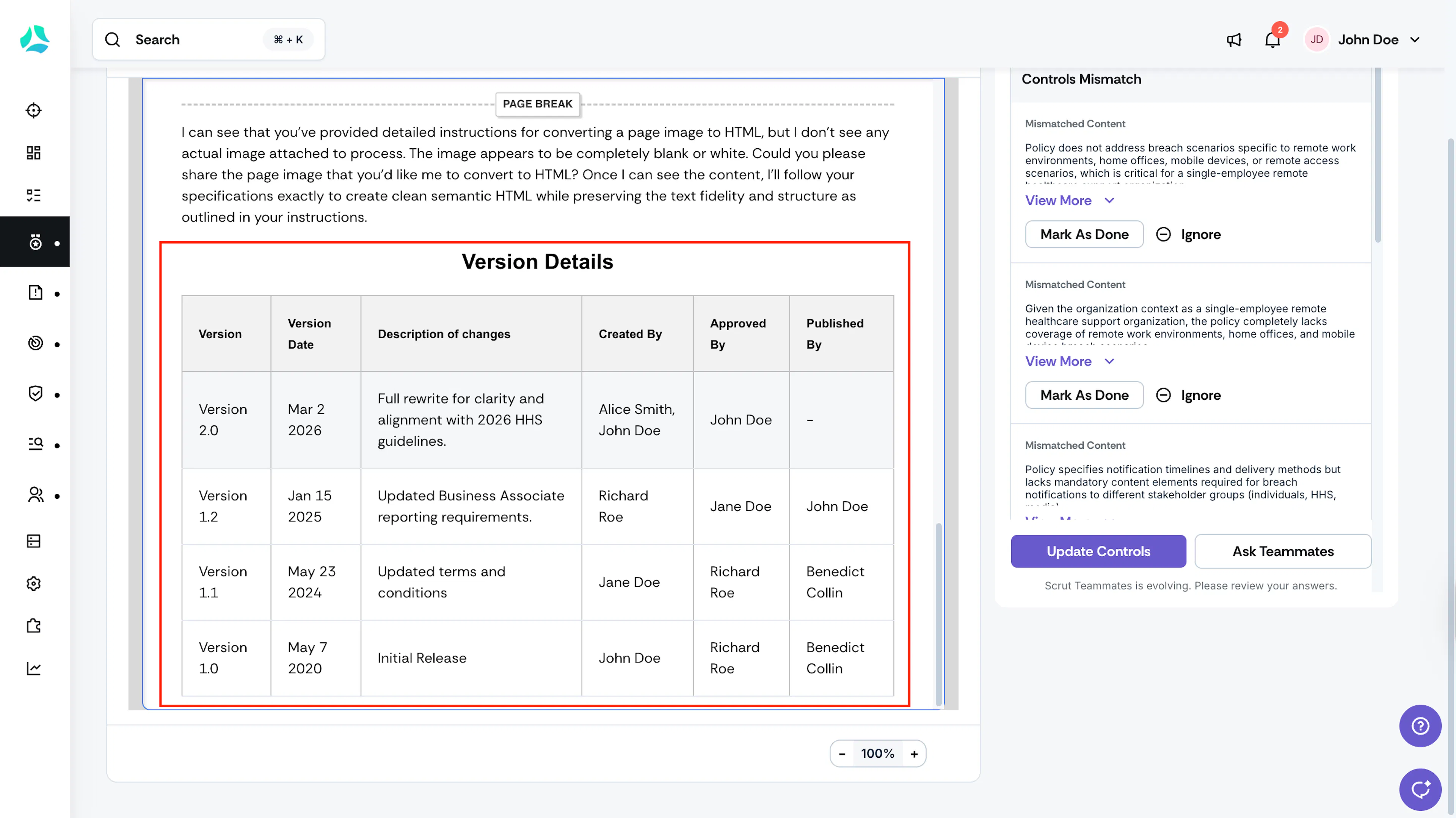
Managing Policy Versions through the Policy Lifecycle
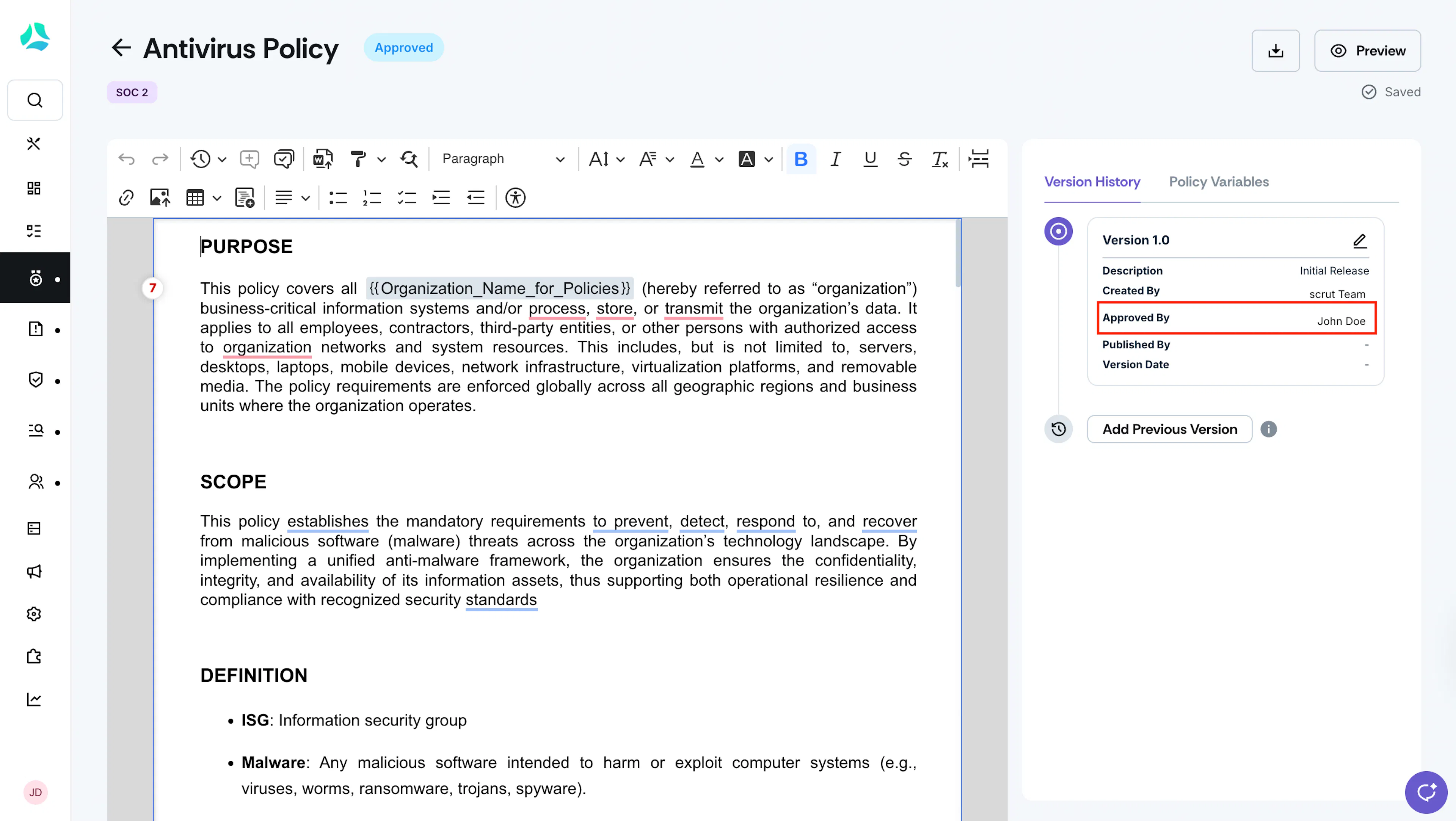
Once the policy moves into the Approved status, Scrut will automatically add the Approvers’ details to the version history. You can edit it as required before publishing the policy.
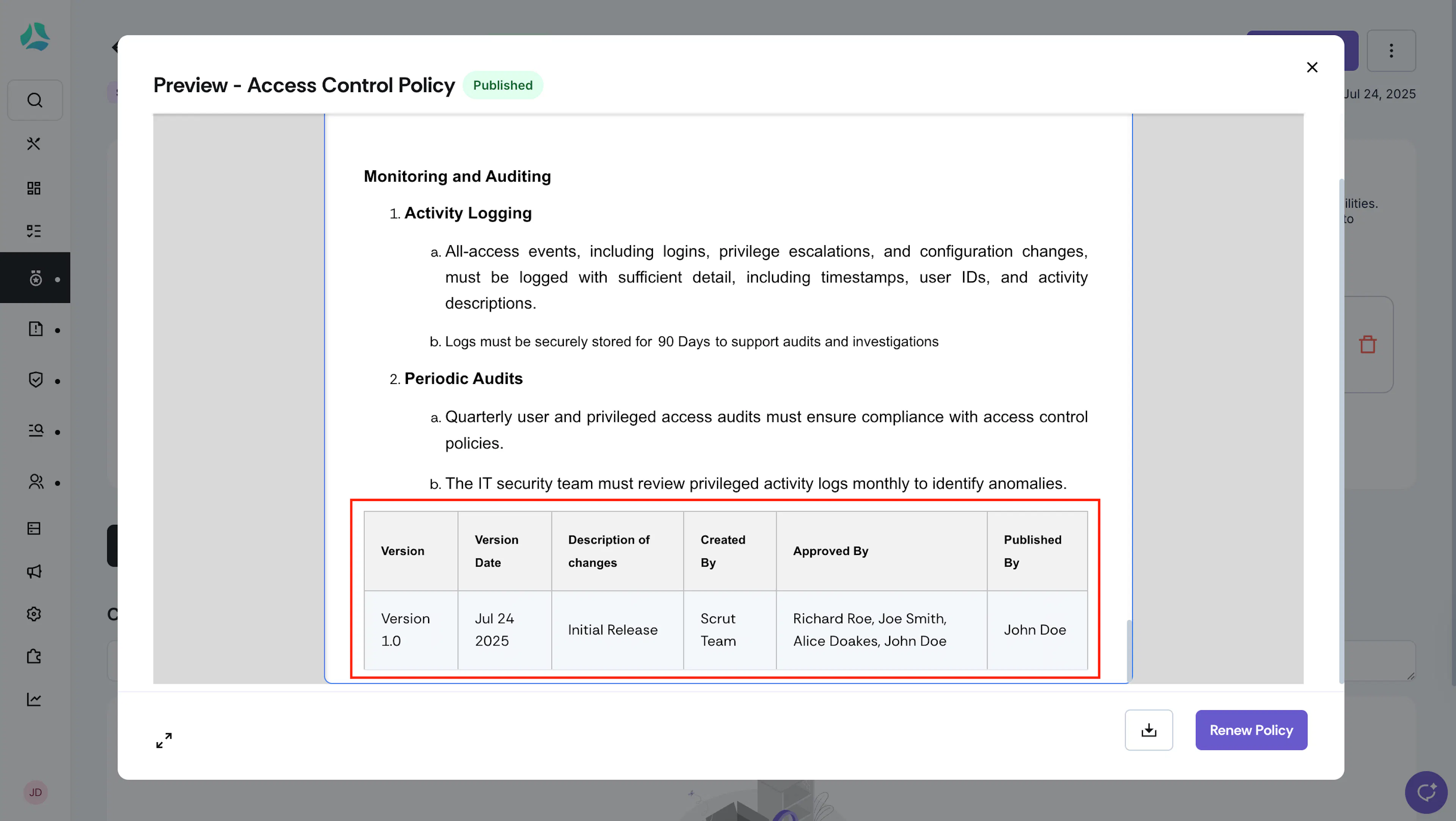
Similarly, when the policy moves into the Published status, Scrut will automatically add the Publishers’ details. The version history table is included at the bottom of each policy.
Policy Export
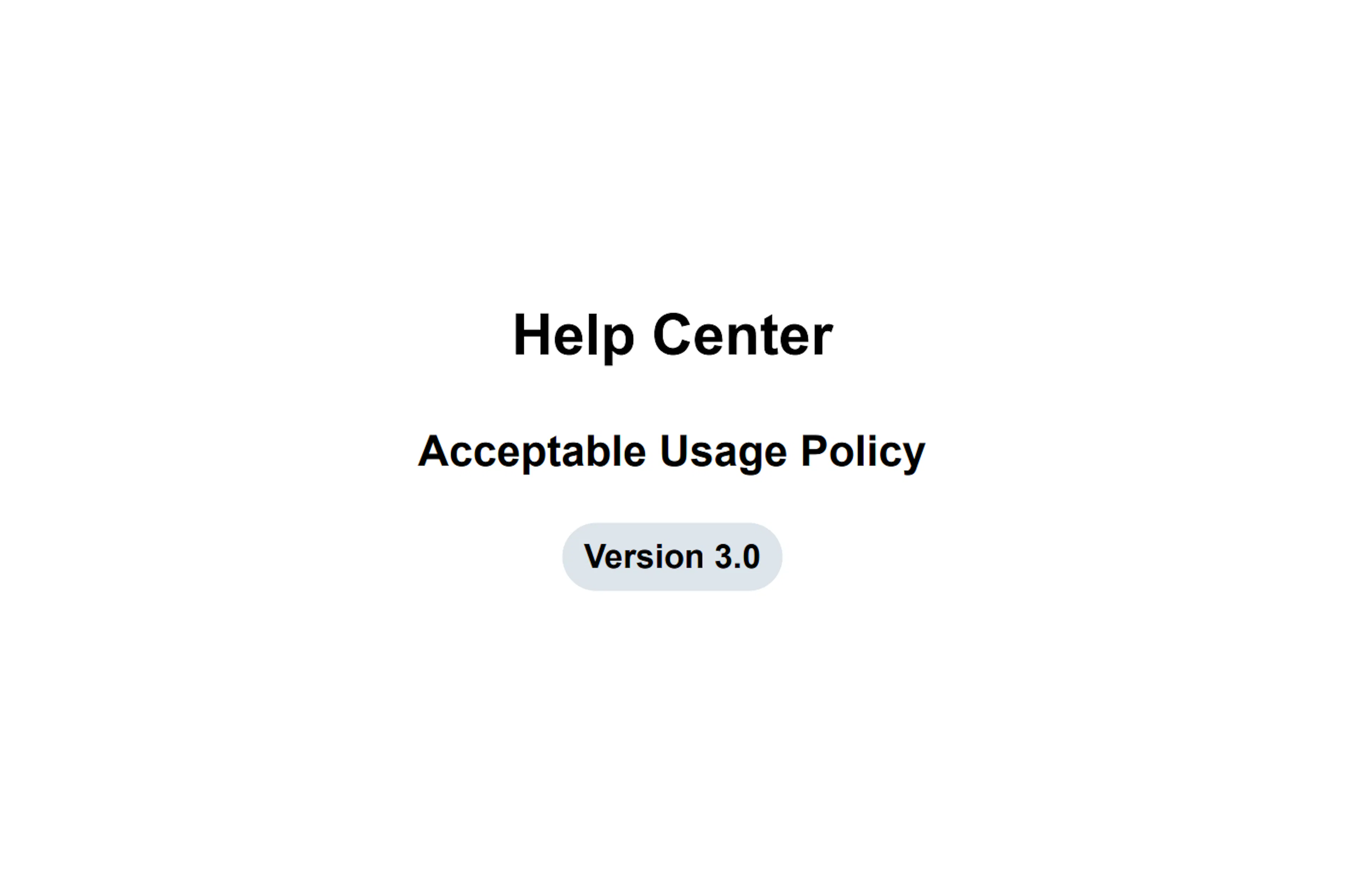
When you download a policy, Scrut automatically includes the current policy version in the title page.
It also includes the complete policy versioning history as a table at the end of the document. The version history table also has the details of any previous versions you have entered.
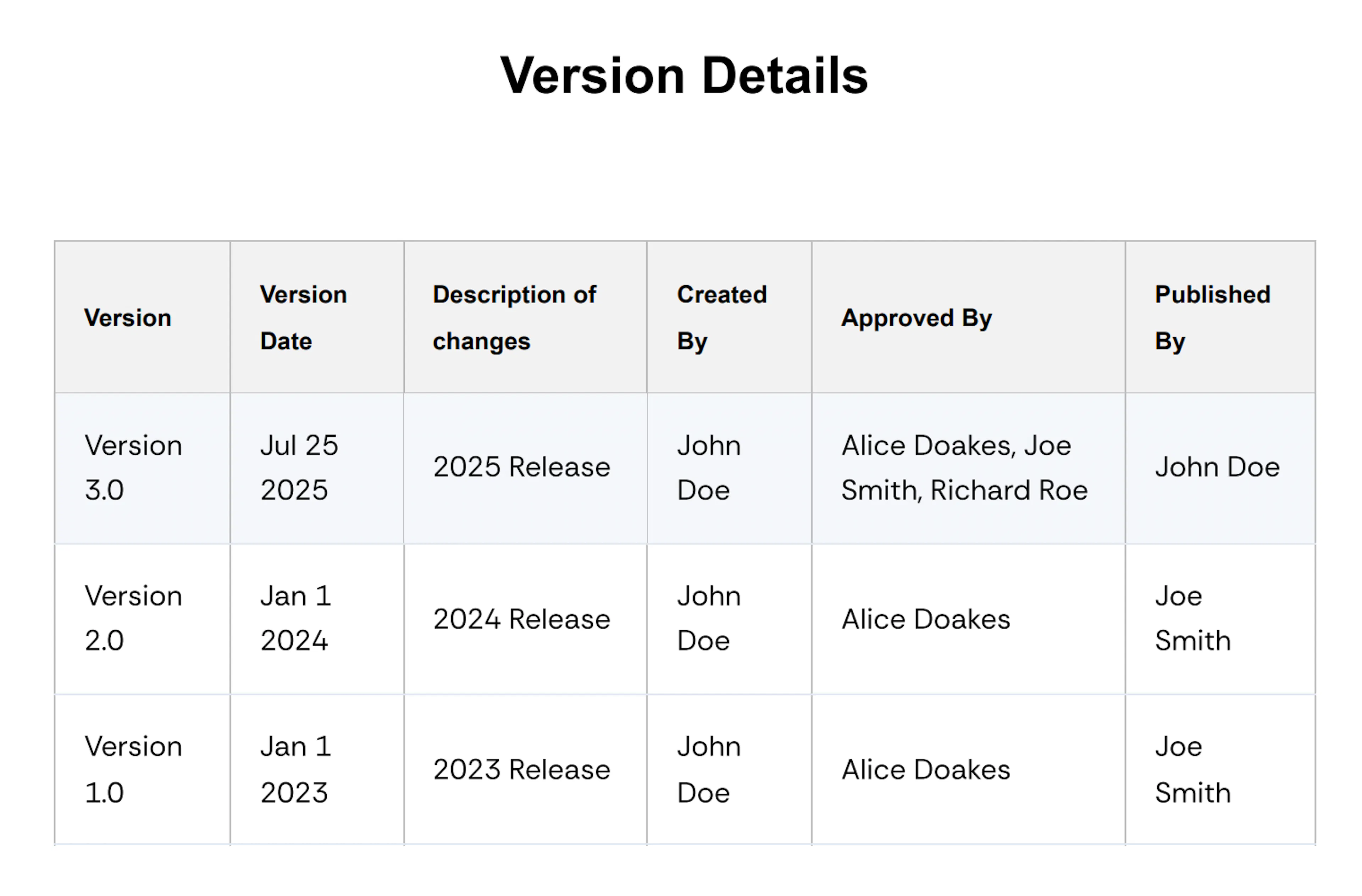
Note:
The versioning history is included in both individual policy downloads and bulk export of attachments.
Policy Renewal
When you renew the policy, you have two options:
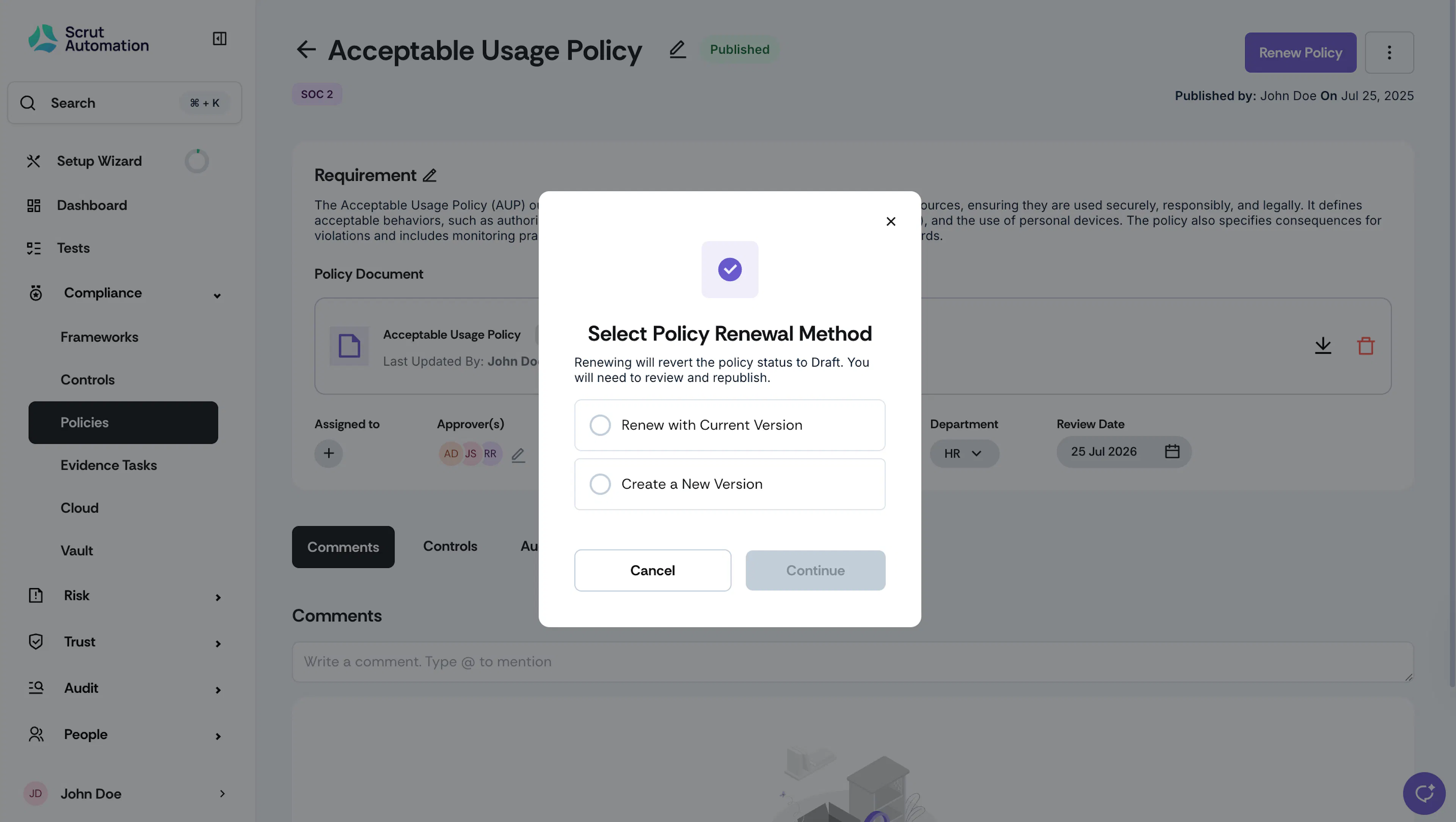
1: Renew with Current Version
Retains the current version number and description. All other details, including Created By, Approved By, Published By, and Version Date, are reset.
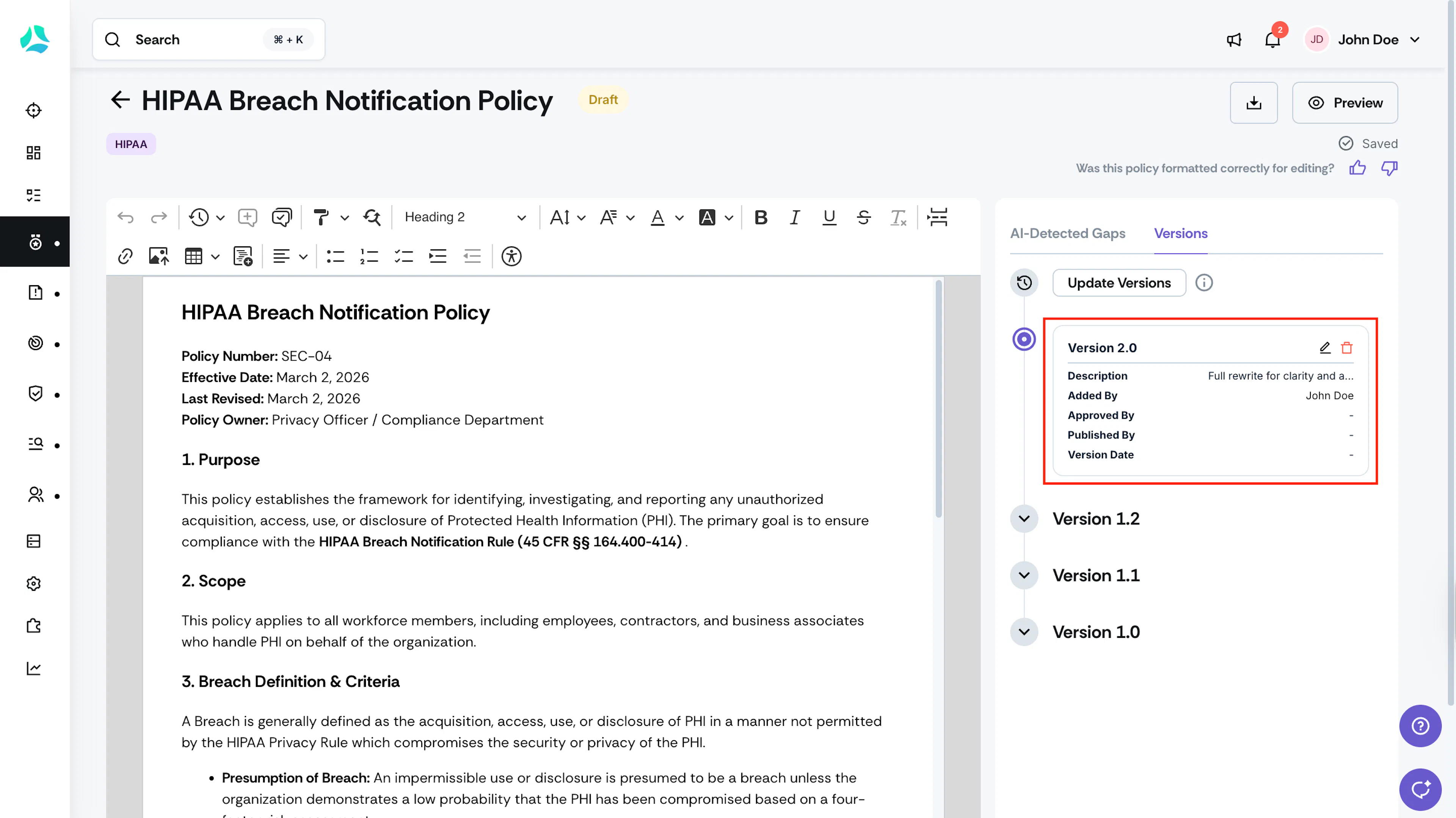
2: Create a New Version
Scrut creates a new policy version for this renewal cycle.
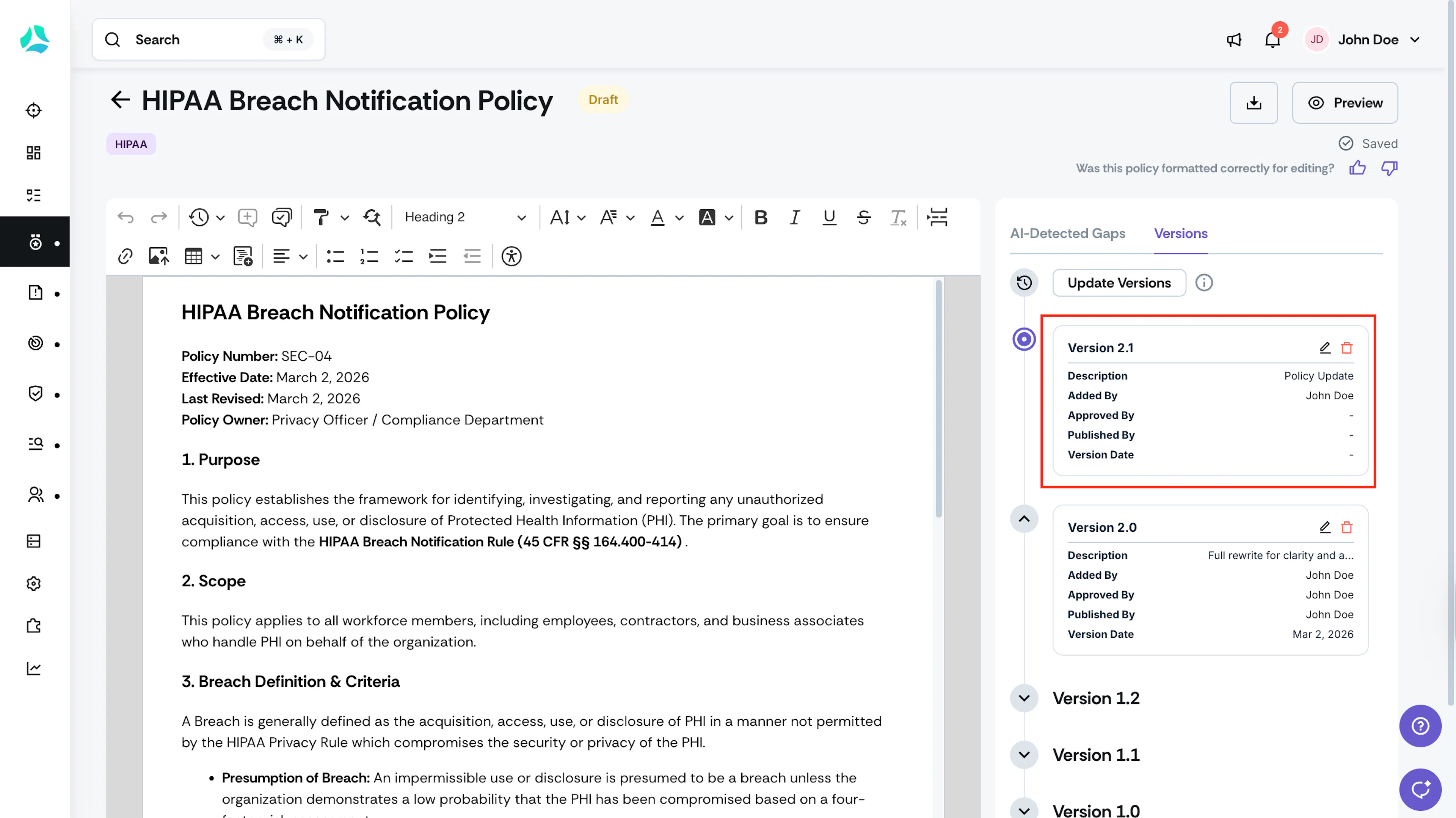
In this option, Scrut automatically populates the change description for the new version as Policy Update. You can edit it as required.