

Add Policy Header and Footer
Who can use this feature
- Supported on Foundation, Growth, and Scale plans
You can customize the header and footer of policies with logos, page numbers, custom text, and images to match your organization’s branding.
Before You Begin
- The header and footer are automatically applied when policies are exported or previewed in Scrut. However, it doesn’t show up in the Policy Editor while you’re editing the policy content.
- The header and footer do not appear on the first page (cover sheet) of the exported policy PDF.
- Page numbers include the first page in the total count but are visible from the second page onward.
- Organization name and logo are fetched from the details you have configured in Settings → Organization Info. However, if you need a different image or logo, you can upload a custom image in the header or footer.
How to Configure Header and Footer for Policy Documents
Step 1: Open Policy Header and Footer Settings
-
Navigate to Compliance → Policies.
-
Click Policy Settings in the top-right area of the Policies page.
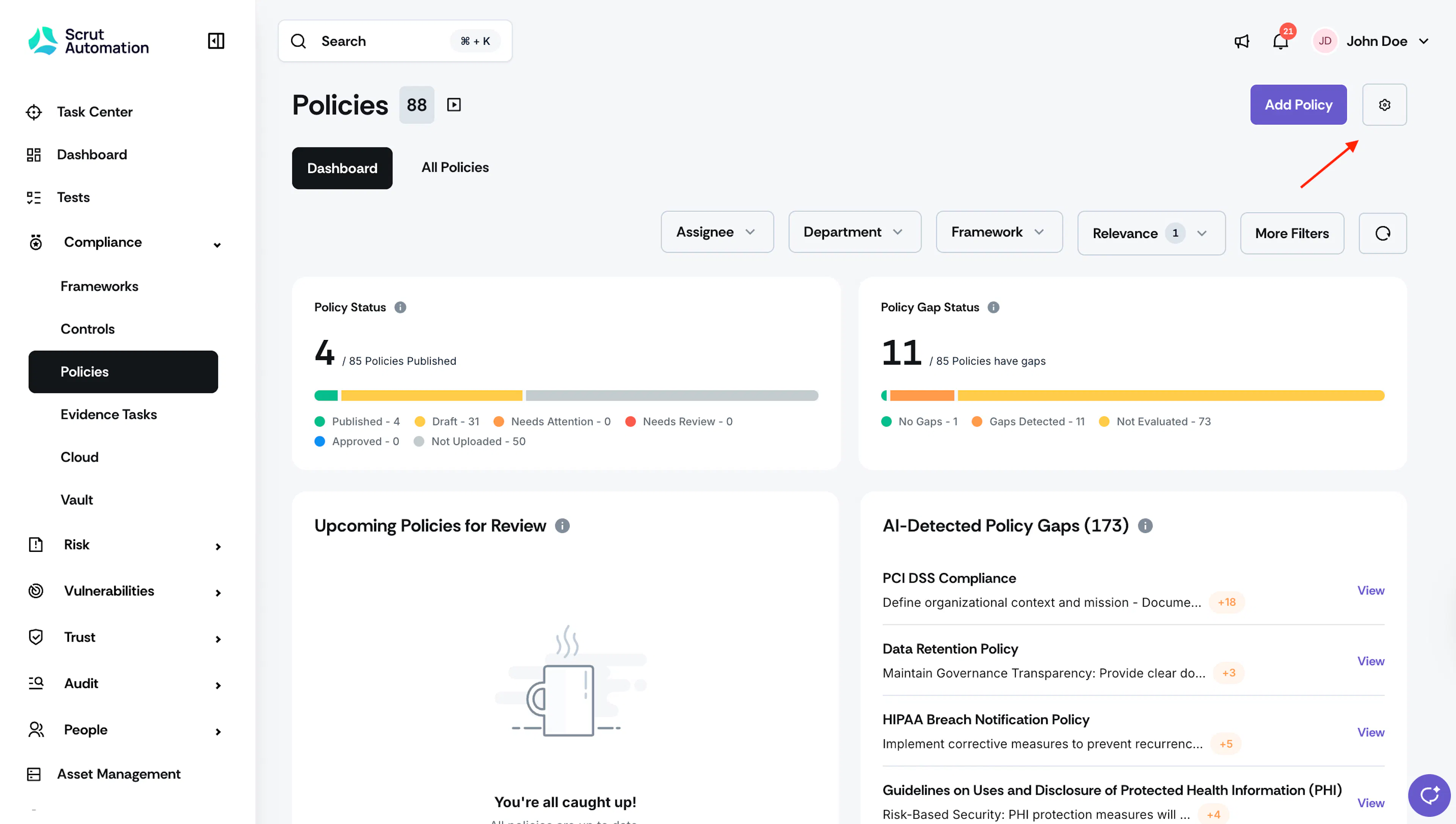
-
Select the Header & Footer tab.
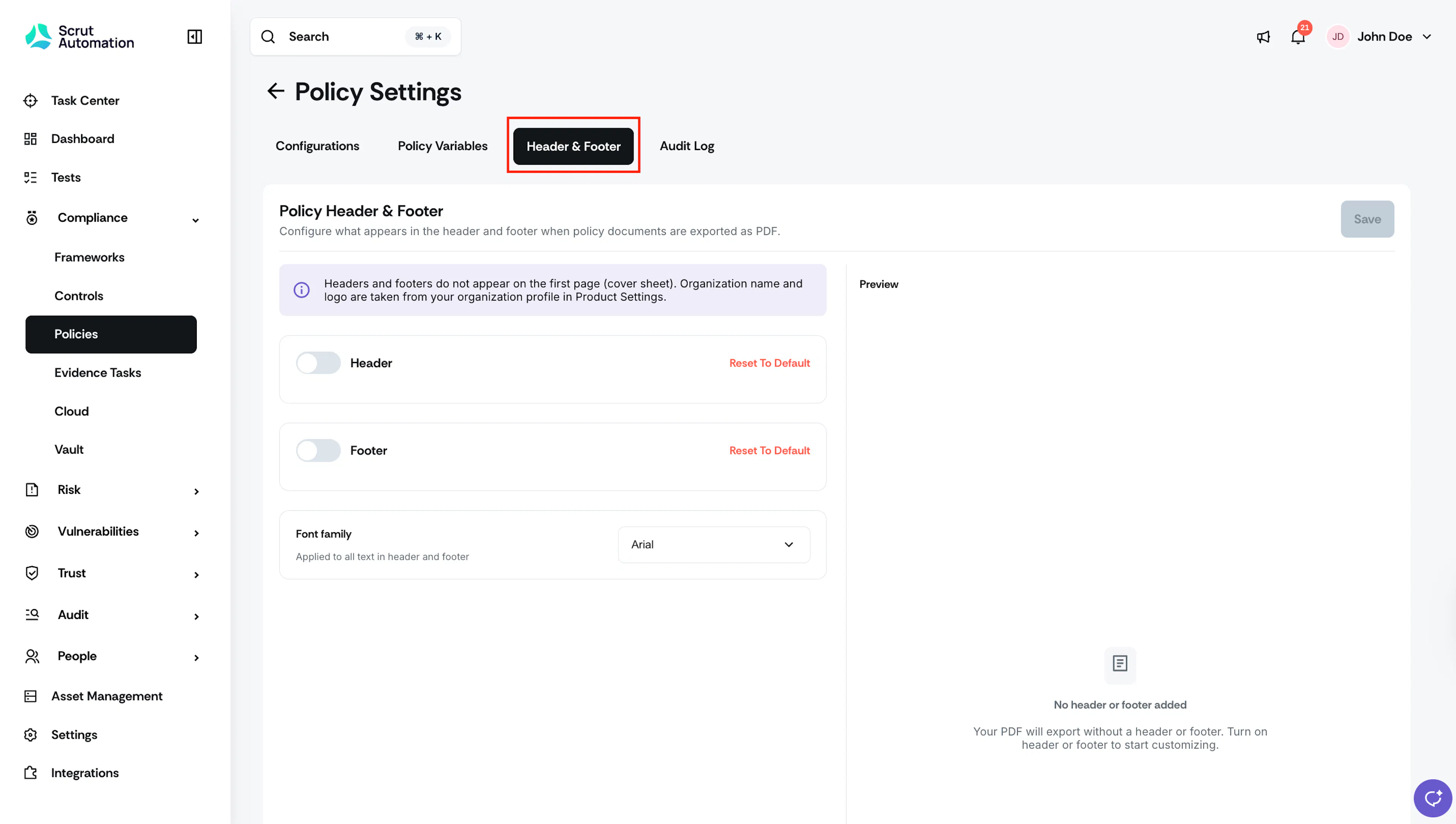
You'll see separate toggle sections for Header and Footer, along with a real-time Preview panel on the right.
Step 2: Turn On the Header or Footer
Turn on the Header toggle to configure the header, the Footer toggle to configure the footer, or both.
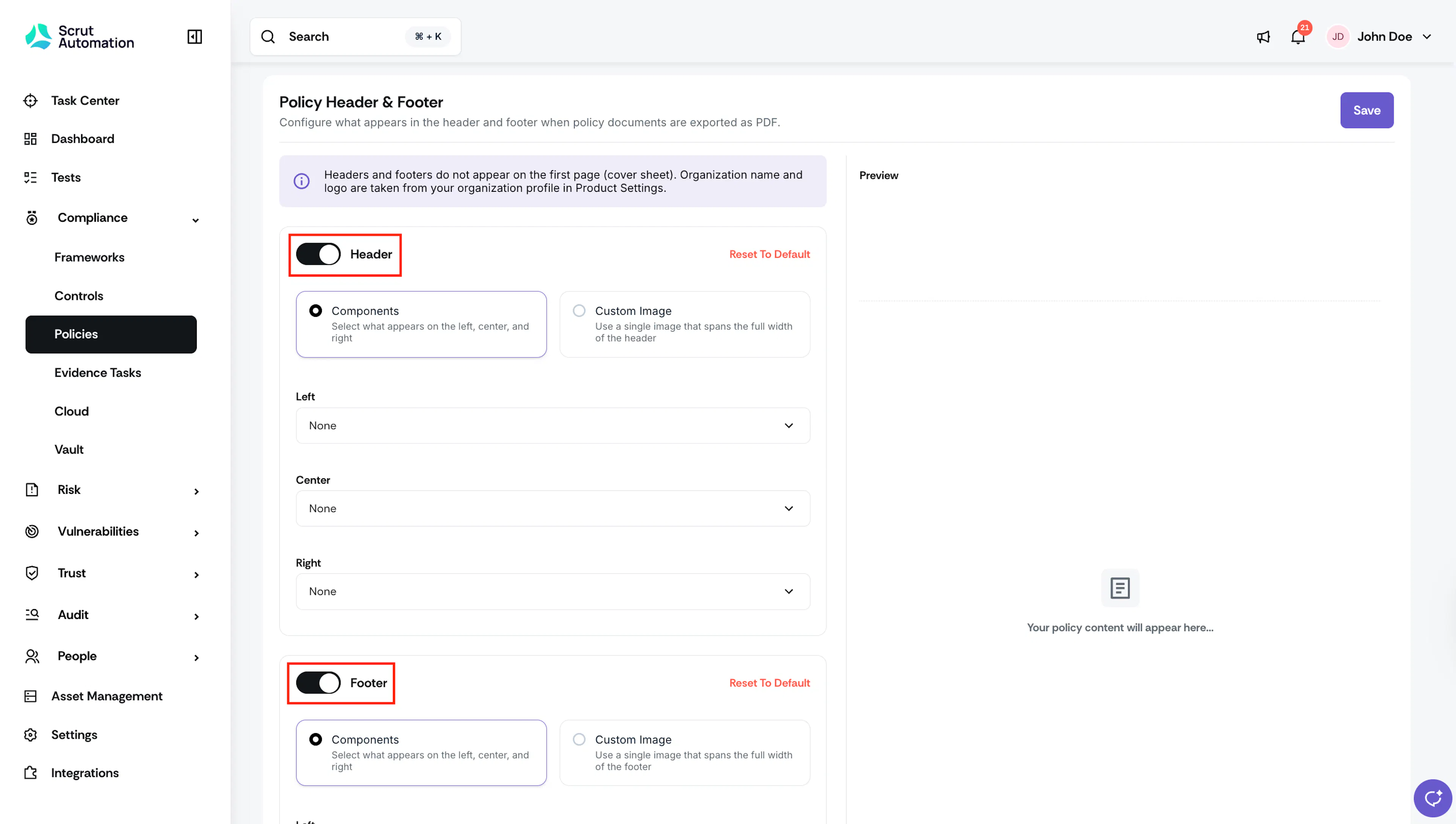
Step 3: Customize the Header and Footer
For each section, you can select either:
- Components: Select what appears in the left, center, and right positions of the header or footer.
- Custom Image: Upload a single image that spans the full width of the header or footer.
Using Components
-
Select Components.
-
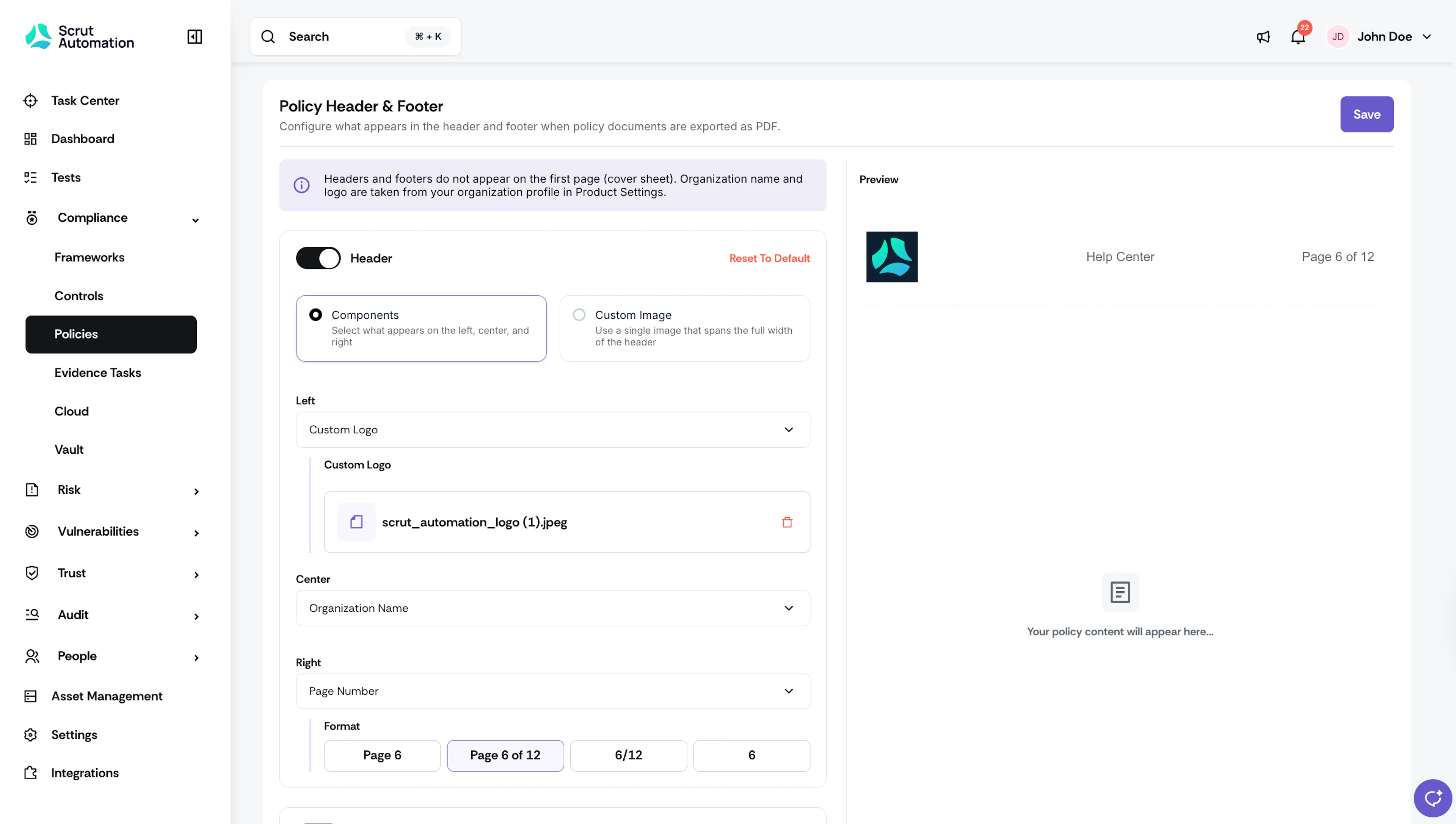
Use the Left, Center, and Right dropdowns to assign content to each position.
-
Each dropdown lets you select one of the following:
- None: Select this option if you don’t want to add a component to the left, center, or right positions
- Organization Name: Fetched from Settings → Organization Info
- Organization Logo: Fetched from Settings → Organization Info
- Policy Name: Fetched from the policy title
- Page Number: Choose a display format from the options that appear below the dropdown
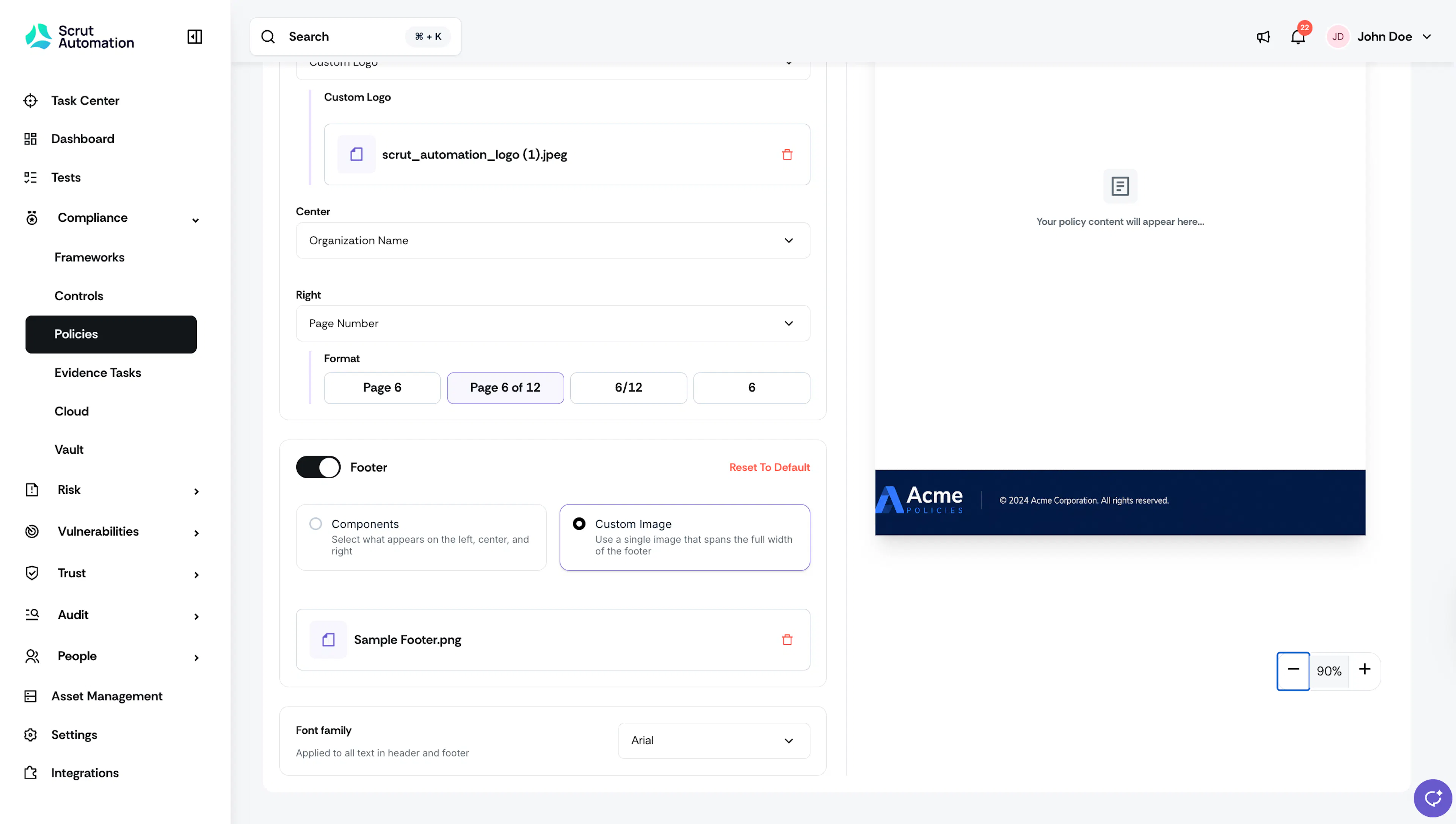
- Custom Logo: Upload your own image
- Custom Text: Up to 50 characters
Using a Custom Image
-
Select Custom Image.
-
Upload an image file. The image spans the full width of the header or footer.
Note: Supported image formats: JPEG and PNG. Make sure your image meets the allowed dimensions (595 px or wider) and file size before uploading.
Step 4: Set the Font Family
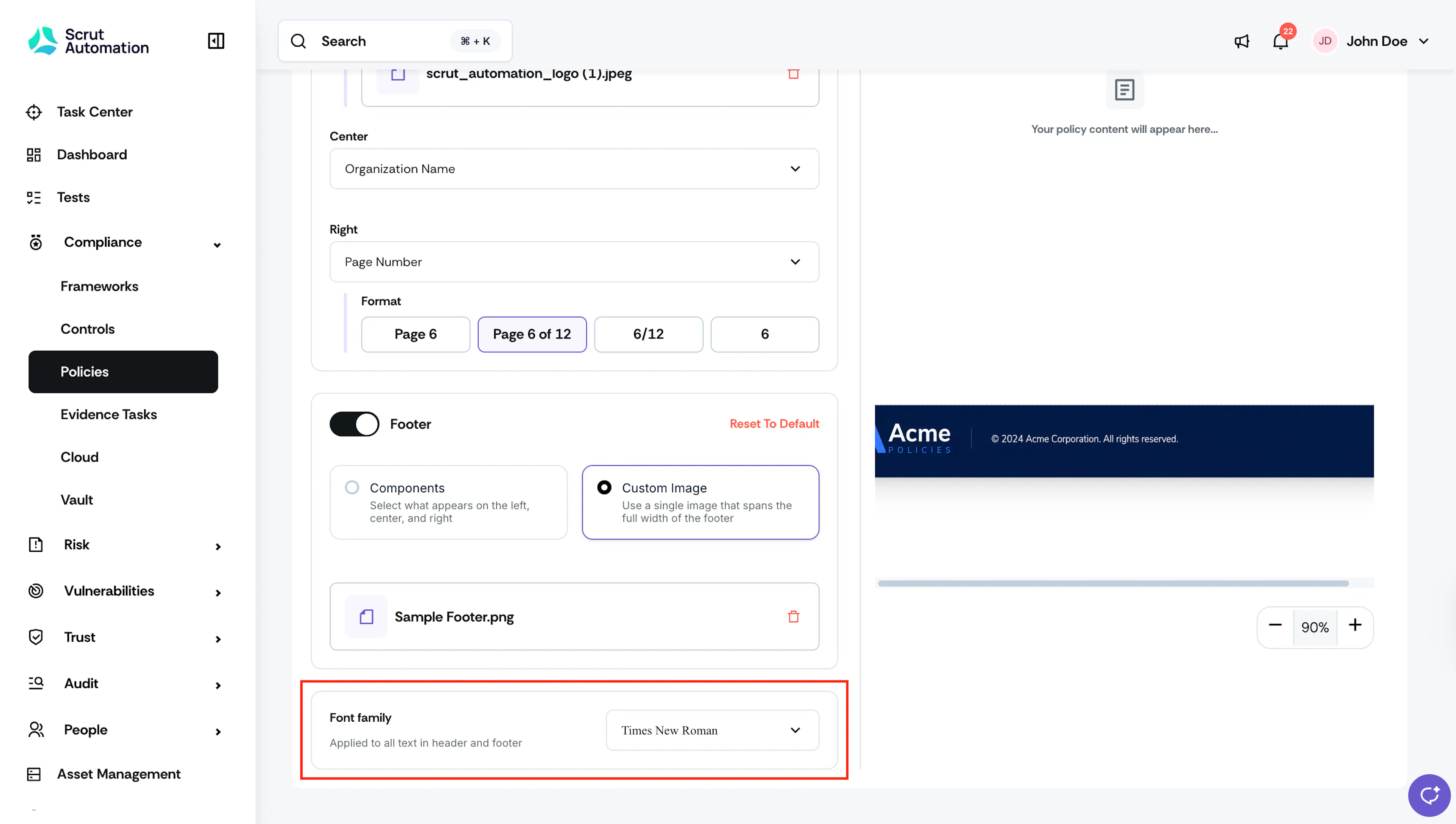
Scroll to the Font Family section at the bottom of the page. Select a font from the dropdown. The selected font applies to all text across both the header and footer.
Note:
Font size cannot be customized. The system applies a standard size to all components.
Step 5: Preview Your Configuration
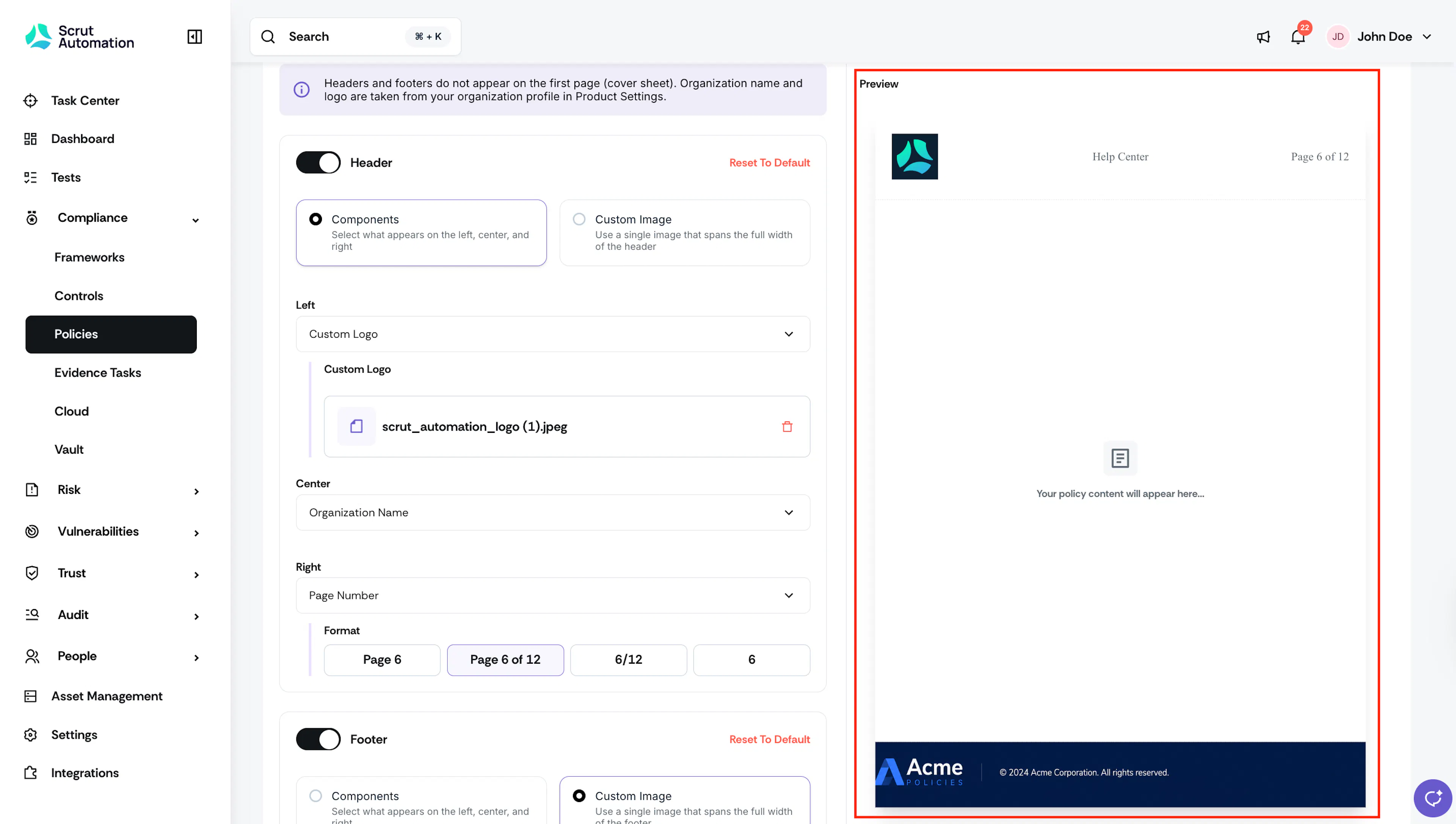
The Preview panel on the right updates in real time as you make changes. Review the preview to confirm the layout looks correct before saving.
Step 6: Save Your Settings
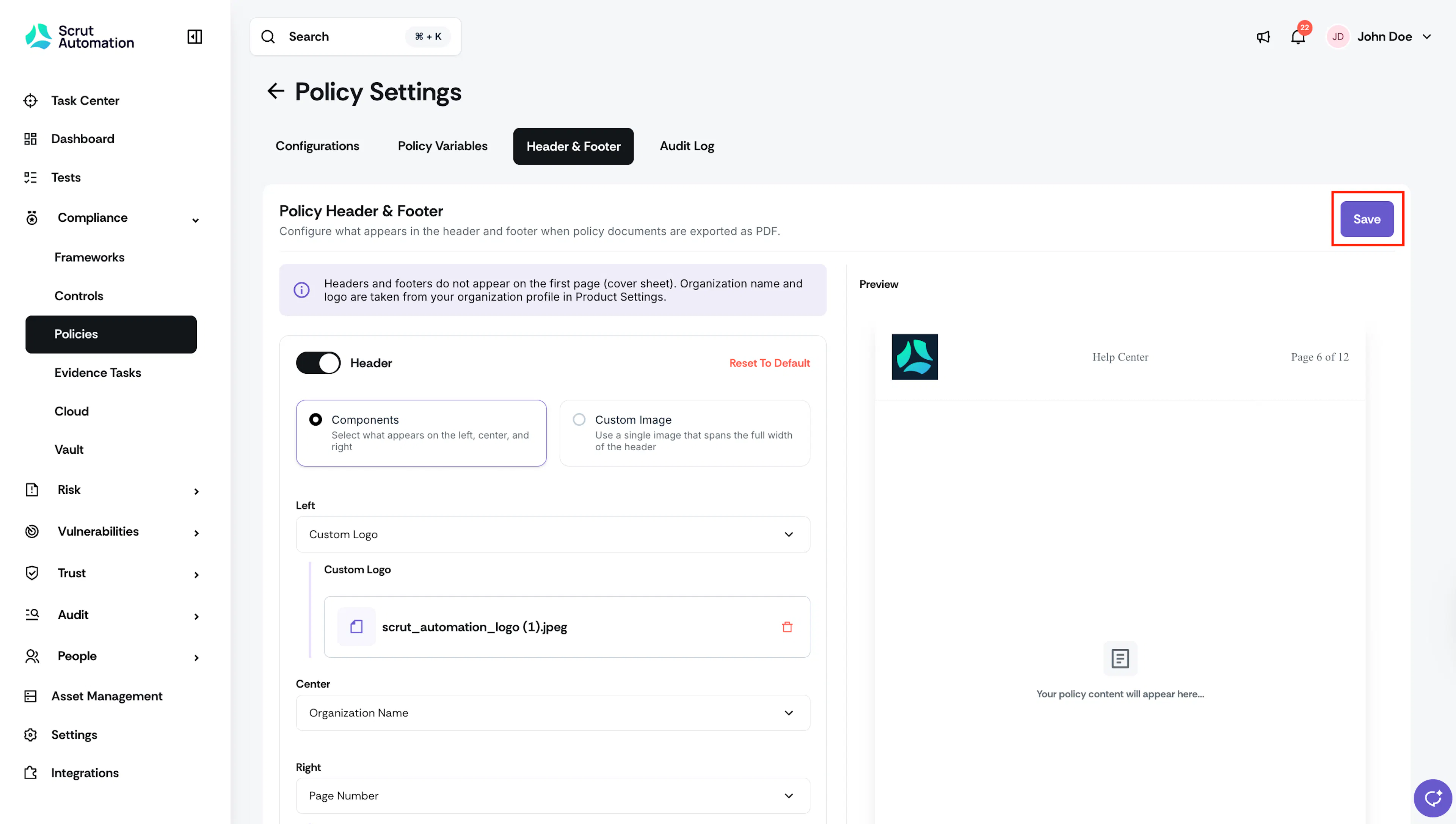
Click Save in the top-right corner to apply your header and footer configuration.
Important:
- If any of your policies are attached to Trust Vault, a confirmation prompt appears asking whether you'd like to update the header and footer on those attachments as well. Review the prompt and confirm your preferred action.
- Policies attached to Corrective Actions before this feature was released will not update automatically. To apply your configured header and footer to those attachments, remove the existing policy attachment from the Corrective Action and re-add it.
- Policies linked to a Corrective Action after this feature was released will automatically include your configured header and footer.
Your header and footer settings are now saved and will apply to all future policy exports, downloads, and previews.
FAQs
Reach out to support@scrut.io or contact your CSM for further assistance.