

Run a PTaaS Lite Scan
Trigger a PTaaS Lite scan on your web application, track its progress, and understand your scan allowance and what happens if a scan fails.
Who can use this feature
Available as an add-on. Contact your CSM to learn more.
In PTaaS Lite, you decide when to scan your web application. Each scan discovers vulnerabilities, and the AI Validation agent confirms them before they appear in your Findings list.
Run a Scan
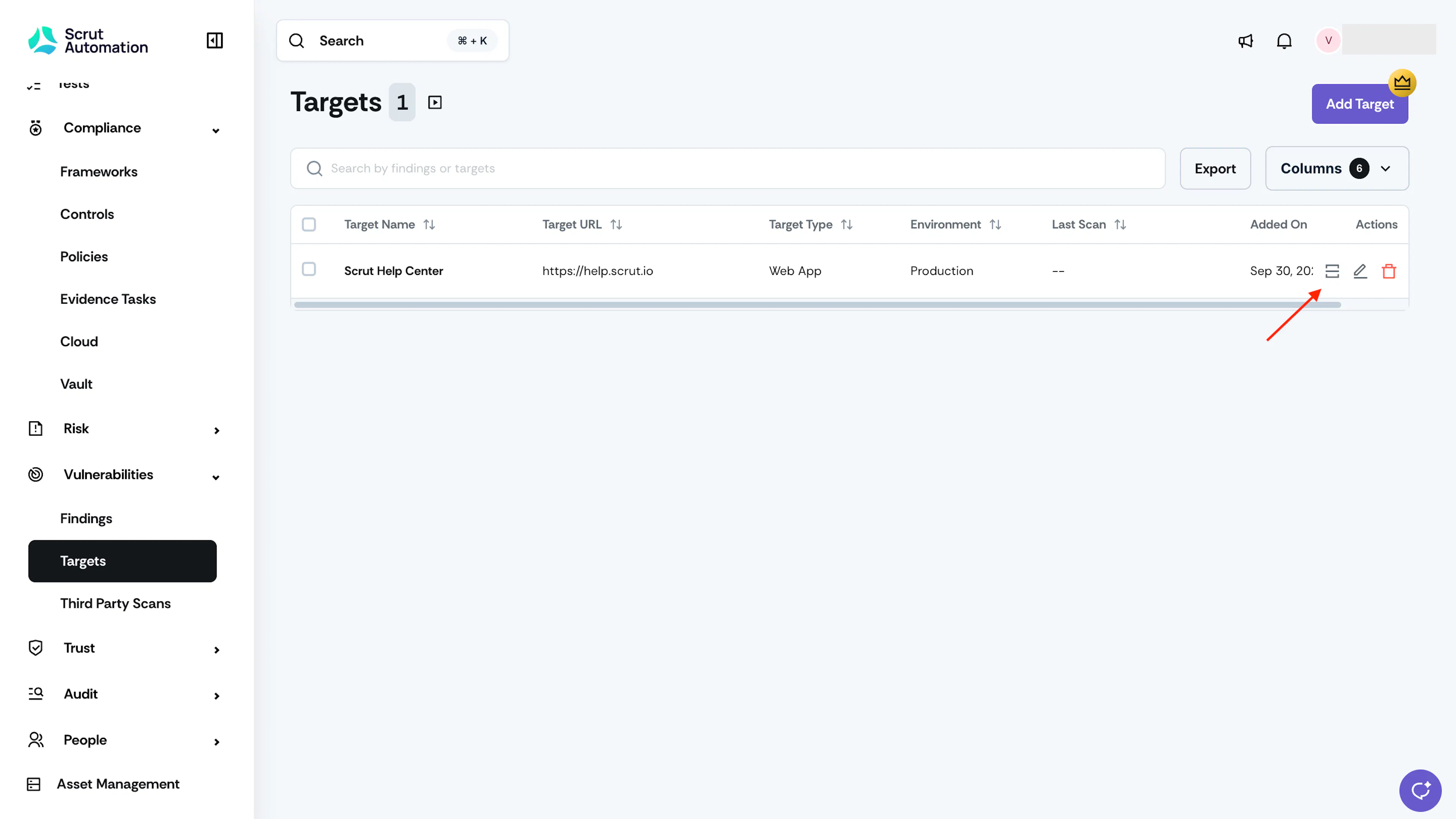
- Navigate to Vulnerabilities → Targets.
- Click Run scan in the Actions column of your target.
Pro Tip! You can also click Run scan from the header of the Target Detail page.
Your scan starts, and Run scan is unavailable until your next scan is due.
Track Scan Progress
You can see the scan status in the Last Scan column of the Targets table and in the scan history on the Target Detail page.
| Scan status | What it means |
|---|---|
| Initializing Scan | The scan is being set up. |
| In Progress | The scan is discovering vulnerabilities. |
| Scan Completed | The scan finished. This status clears one hour after completion or at your next login, whichever comes first. |
| Scan Failed | The scan couldn't complete after automatic retries. |
Heads Up! While the scan runs, your Findings list shows no findings. Findings appear only after the AI Validation agent finishes validating them, so they may arrive some time after the scan shows Scan Completed.
Understand Your Scan Allowance
You can run one scan per target every 30 days. Your next scan becomes available 30 days after your last completed scan. Hover over the button to see when your next scan is available.
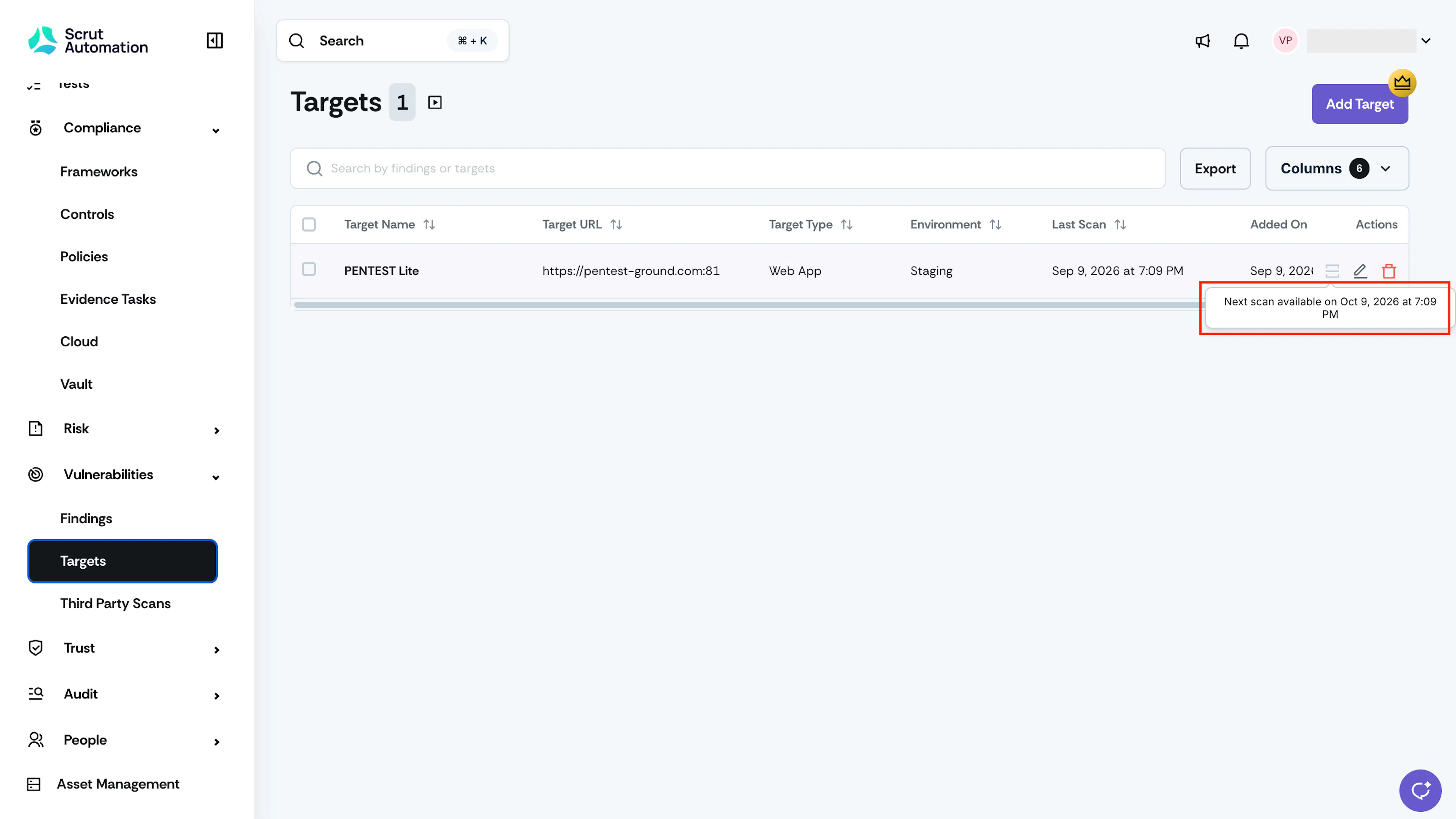
Heads Up! If a scan fails, it doesn't use your allowance. Click Run scan to try again.
FAQs
Contact support@scrut.io or your CSM for further assistance.