Create Risks From Assets
The Asset Management module enables you to identify and assess potential risks linked to your organization’s assets. You can create risks directly from your asset inventory and add them to your Risk Register.
- This process establishes a clear connection between specific assets (such as a critical server or software application) and the risks they pose. It makes it easy for compliance teams and auditors to trace asset-risk relationships, helping them gain a clear understanding of your risk landscape.
- Knowing which critical assets are associated with risks allows you to prioritize your mitigation efforts effectively.
- During compliance audits (such as ISO 27001, SOC 2, HIPAA, etc.), auditors require evidence that asset-related risks are identified and managed. Directly linking risks to assets provides the necessary documentation trails.
- By identifying potential risks before they materialize, you can implement the right strategies to strengthen your security posture.
How To Create a Risk From an Asset
-
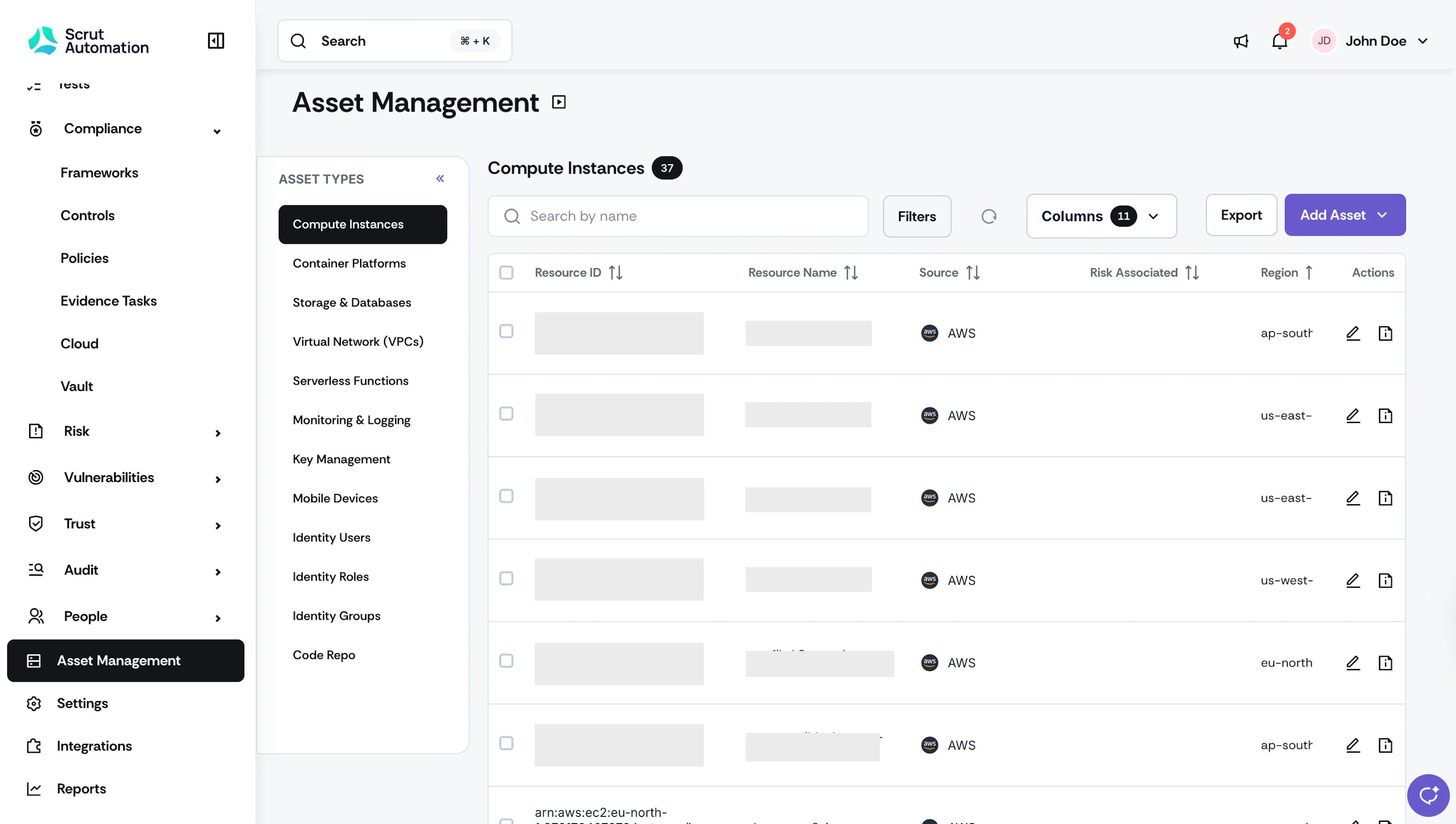
Sign in to Scrut and go to Asset Management using the left navigation panel.
-
You’ll see a list of all the asset types in your Scrut organization.
-
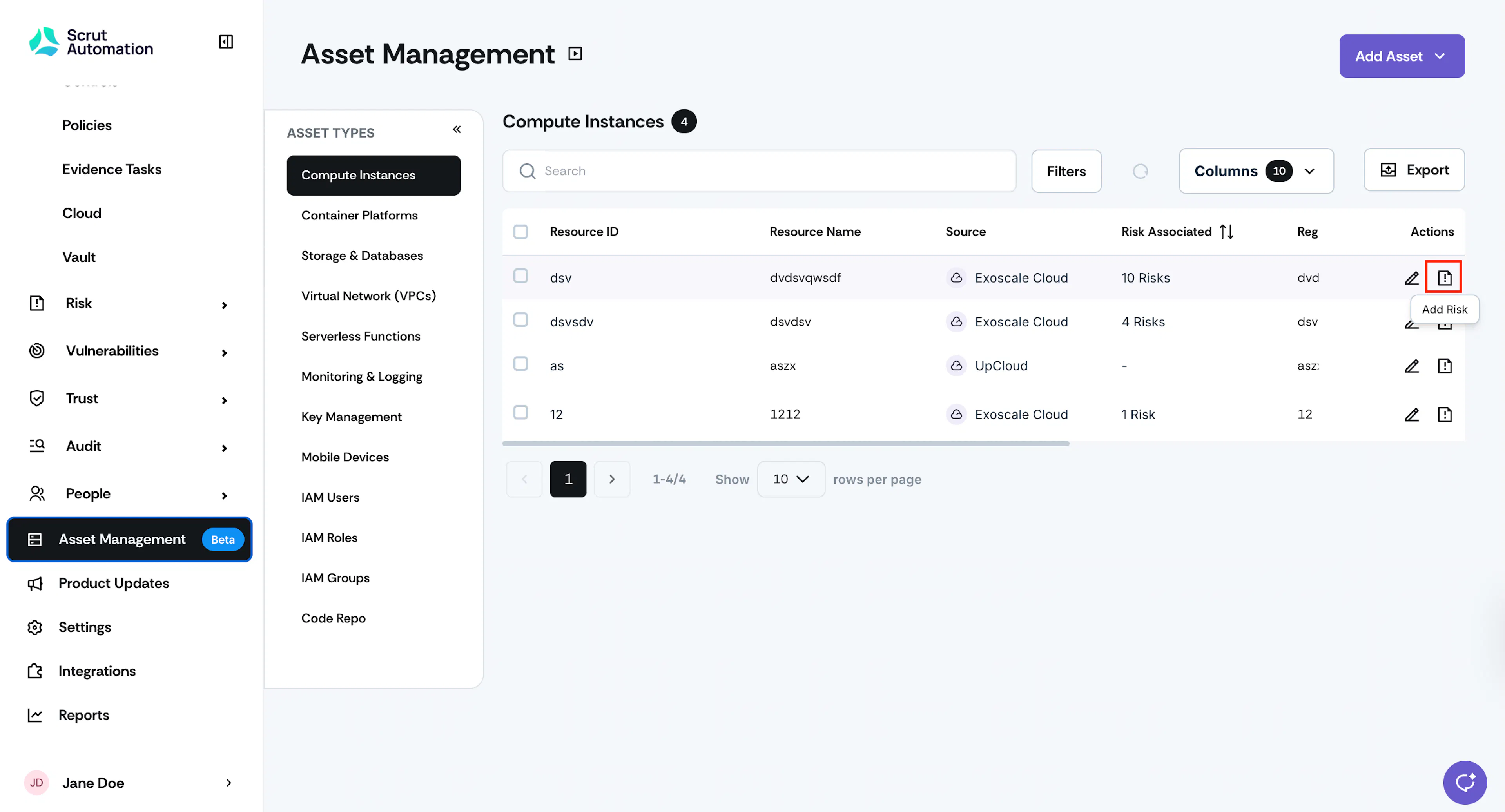
If you want to add risk to a single asset, click the Add Risk icon in the Actions column.
-
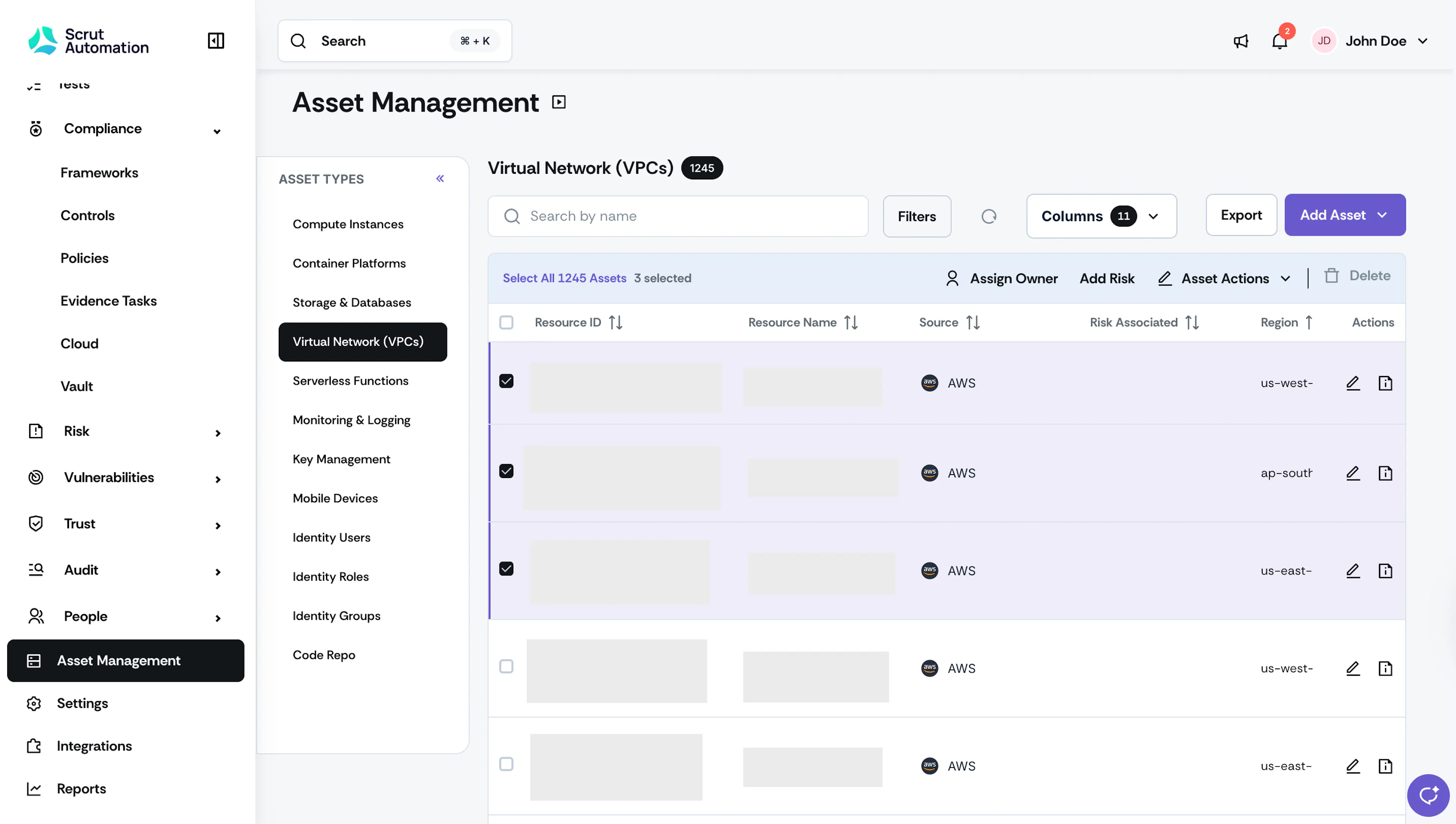
For multiple assets, select the assets for which you want to create a risk and click the Add Risk button at the top of the table.
Note:
You can link multiple assets with a single risk.
-
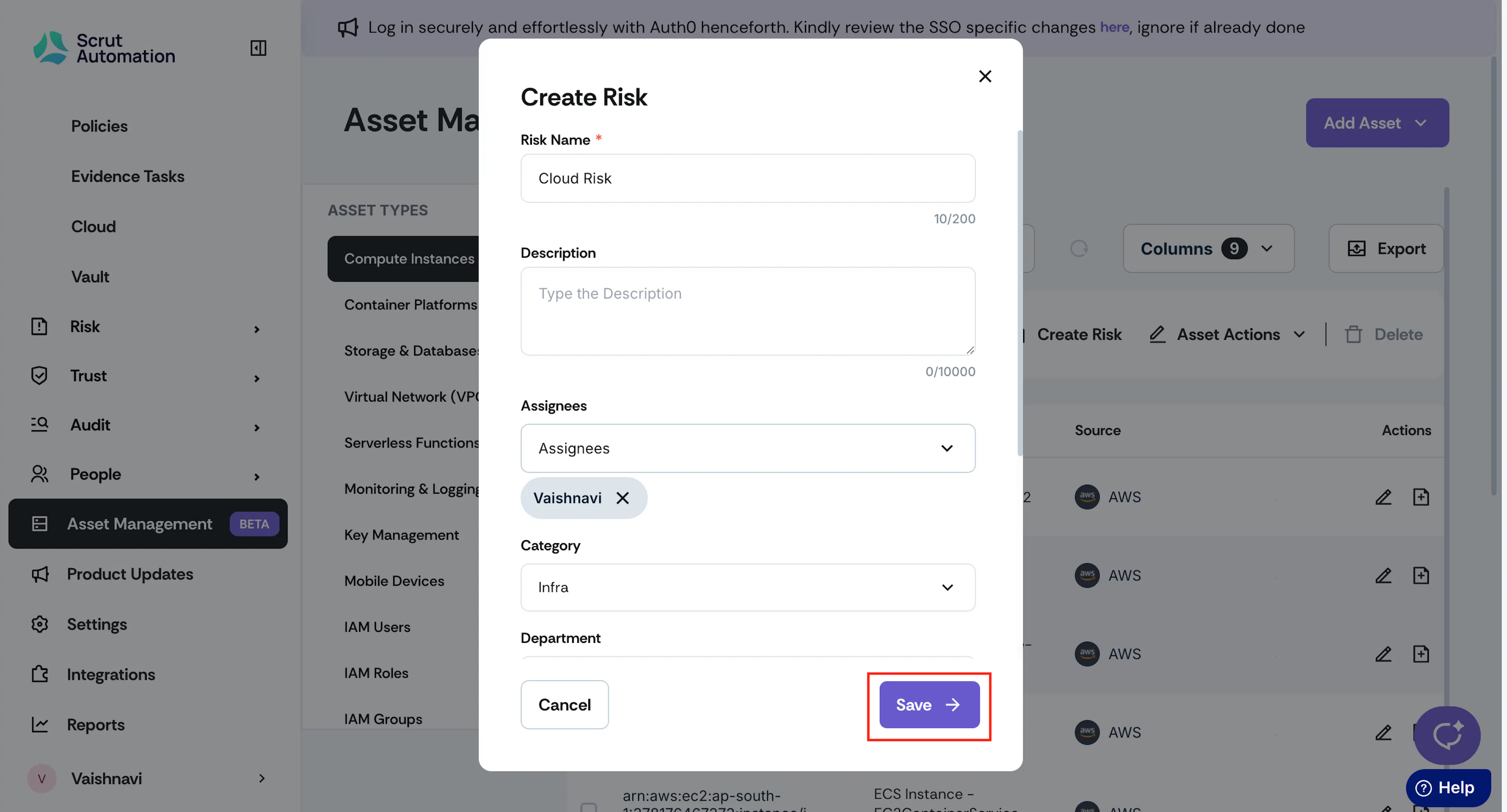
Enter the risk details such as:
-
Name*: Provide a clear, descriptive name for the risk.
-
Description [Optional]: Detail the specific risk scenario, including:
- What could go wrong
- Potential triggers or causes
- Impact on the selected assets
-
Assignees [Optional]: Select one or more assignees who will monitor the risk.
-
Category [Optional]: Select a suitable risk category from the available options.
-
Department [Optional]:
-
Entities*: Select the entities to which the risk belongs to.
-
Application Name [Optional]: Enter the name of the application of the asset.
-
-
Click Save.
Scrut will create and add the risk to the Risk Register.
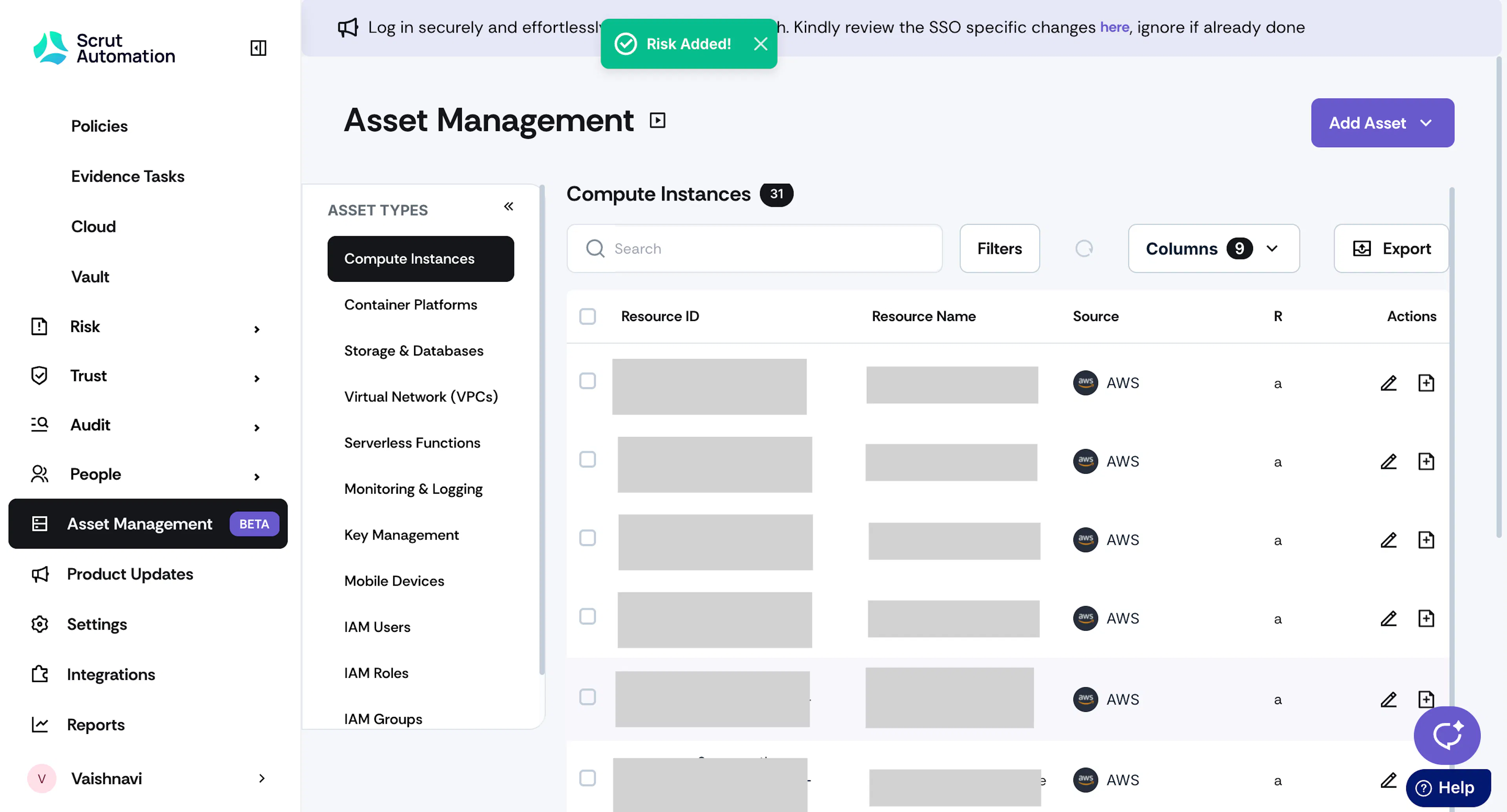
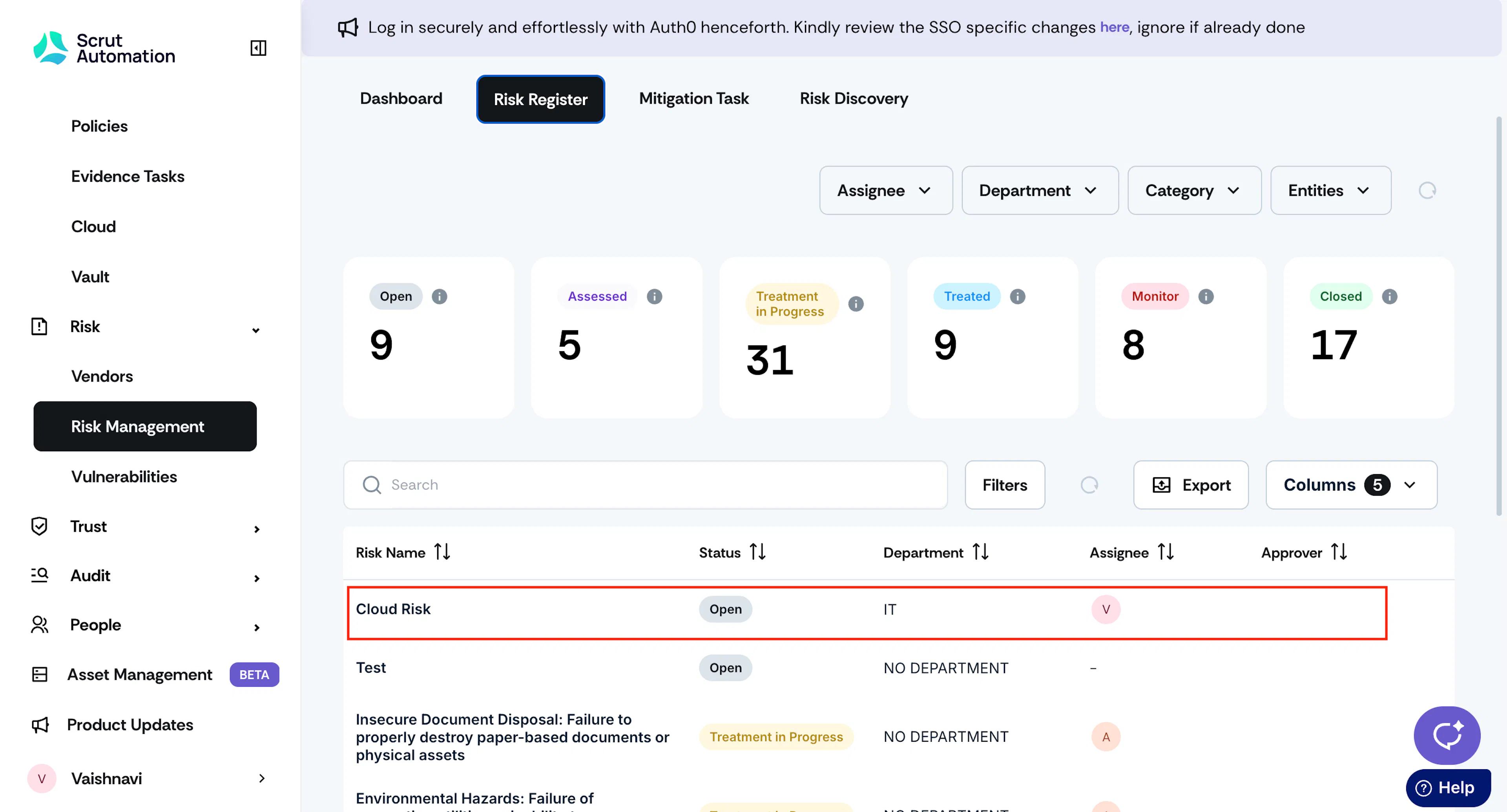
Navigate to Risk → Risk Management → Risk Register to confirm if your newly created risk appears here. You can carry on the risk mitigation efforts from there.