Create a Mitigation Task for a Specific Risk
Who can use this feature
- Supported on Foundation, Growth, and Scale plans
In Scrut, there are two ways to create a mitigation task:
In this article, we walk you through how to create a mitigation task for a specific risk from the Risk Register.
How to Create a Mitigation Task
-
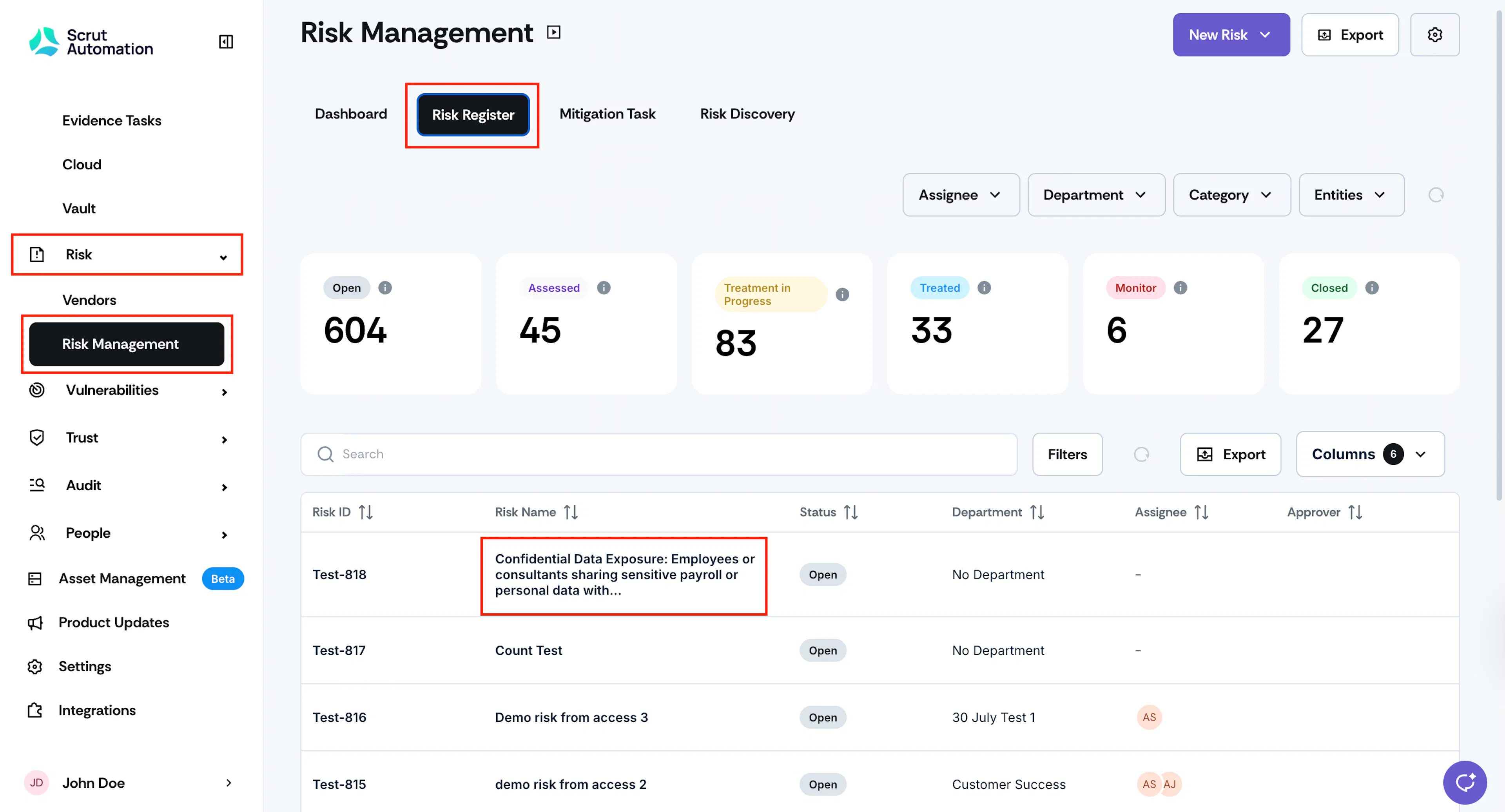
Sign in to Scrut, and navigate to Risk → Risk Management using the left side panel.
-
Go to the Risk Register tab and click on the risk for which you want to create a mitigation task.
-
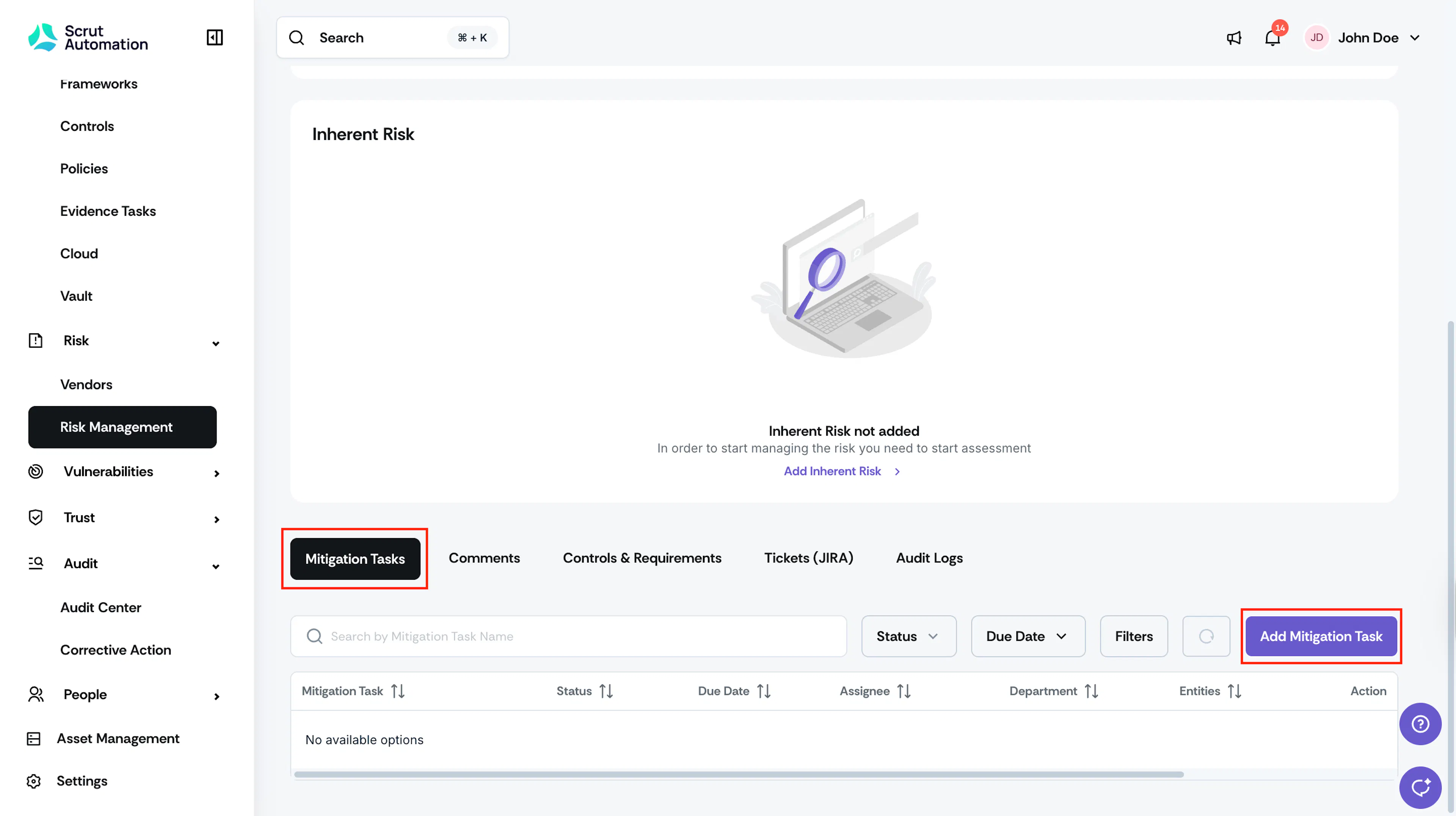
Once you’re on the risk detail page, scroll below to the Mitigation Tasks tab and click Add Mitigation Task.
-
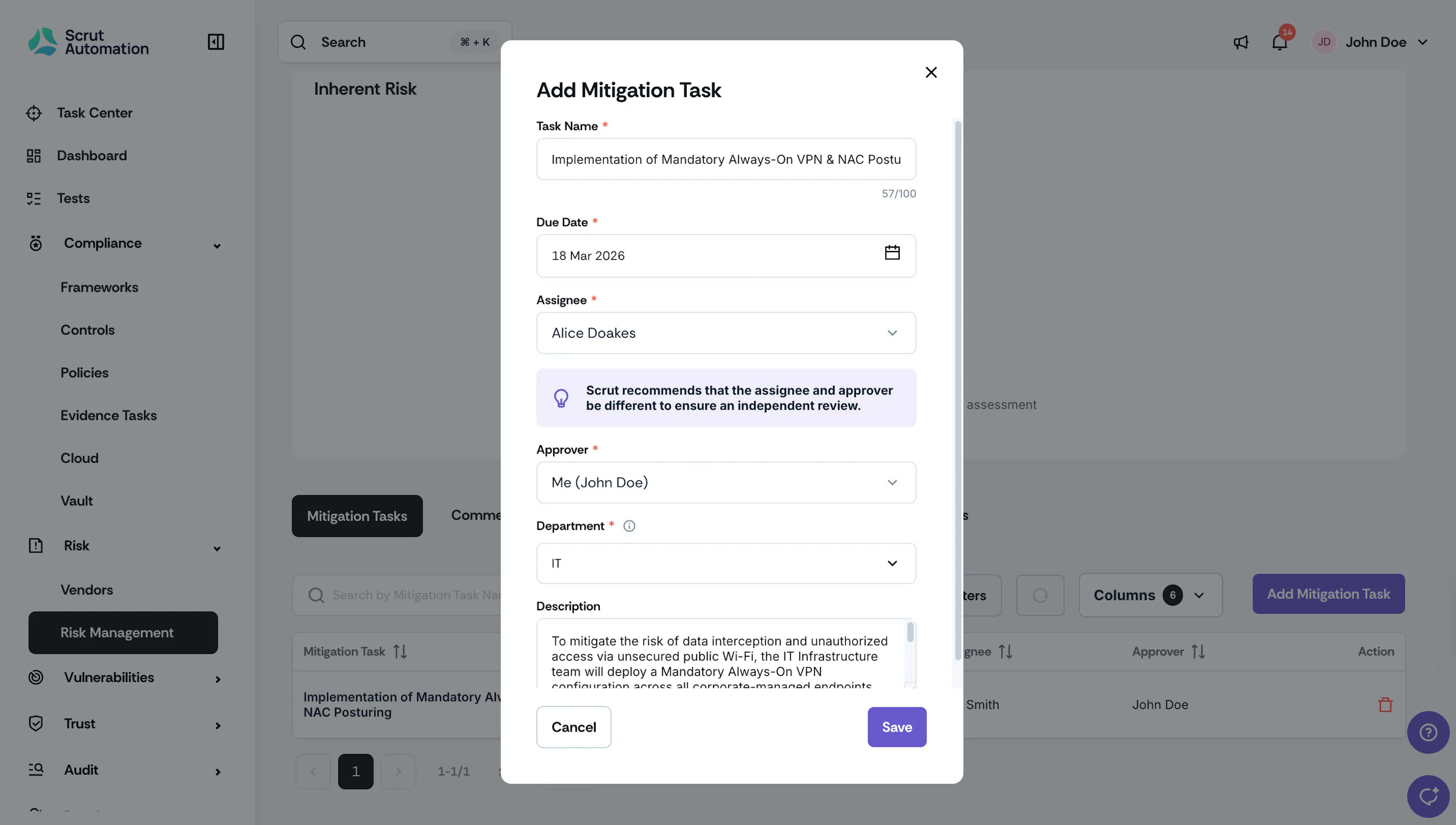
Enter the following details in the Mitigation Task window:
-
Task Name: Enter a name for the mitigation task.
-
Due Date: Select the date by which the assignee has to complete the task.
-
Assignee: Use the dropdown to select a user who will be responsible for handling the task.
-
Approver: If you have enabled the mitigation task approval workflow, you can select an approver for reviewing the completed task.
-
Department: Select the department to which you want to assign this task.
Note: The assignee must belong to the selected department to access this task.
-
Description: Optionally, add a description to provide more context about the task.
-
-
Click Save.
-
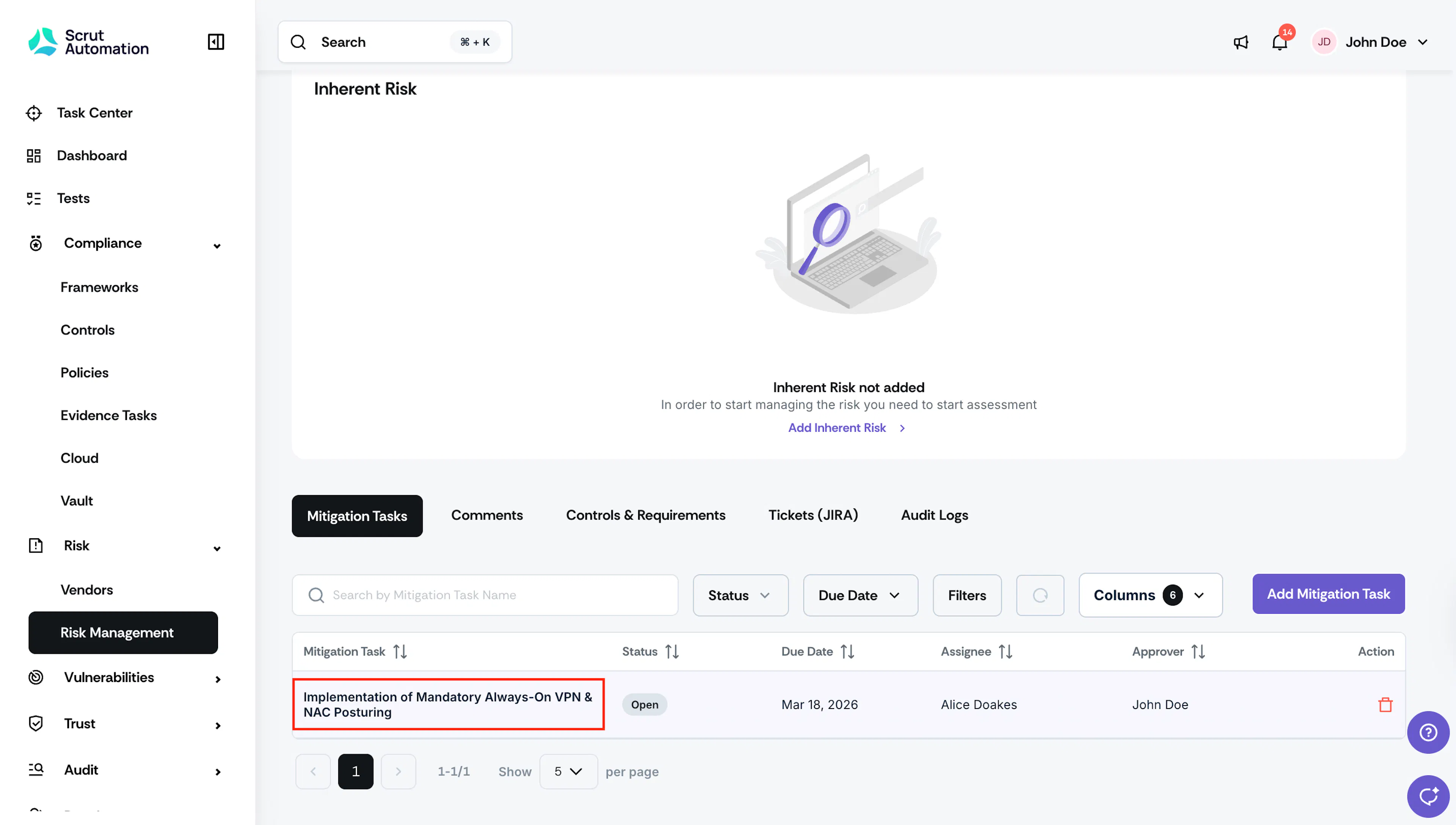
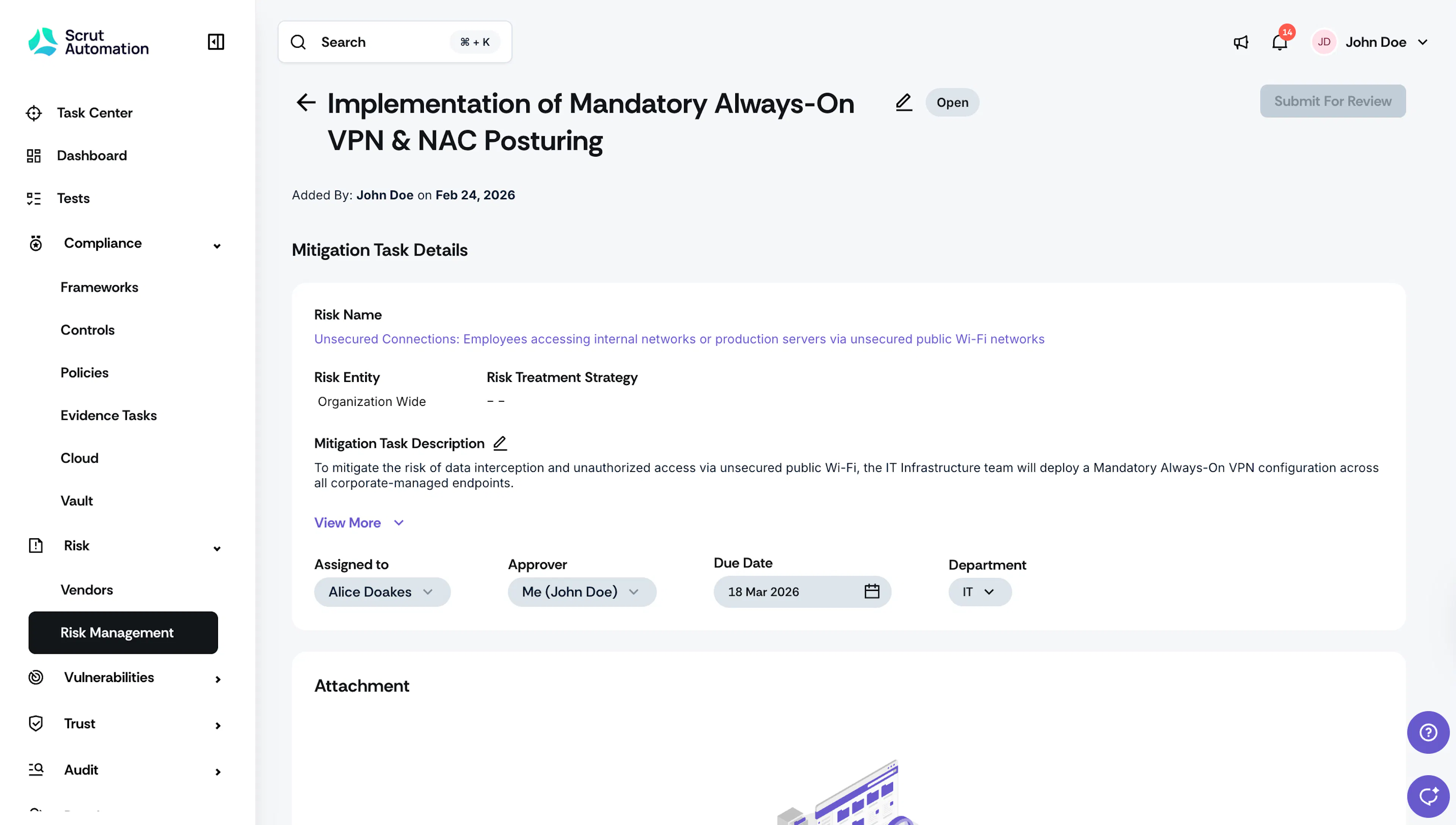
The newly created mitigation task will be added to the Mitigation Tasks tab. Click on it to view its details.