

Auto-Populate Controls in Mitigation Tasks
Who can use this feature
- Supported on Foundation, Growth, and Scale plans
This feature streamlines the risk management process by automatically populating the controls from the risk to its associated mitigation task. This helps ensure accurate and efficient task tracking while maintaining consistency between risk controls and mitigation efforts.
-
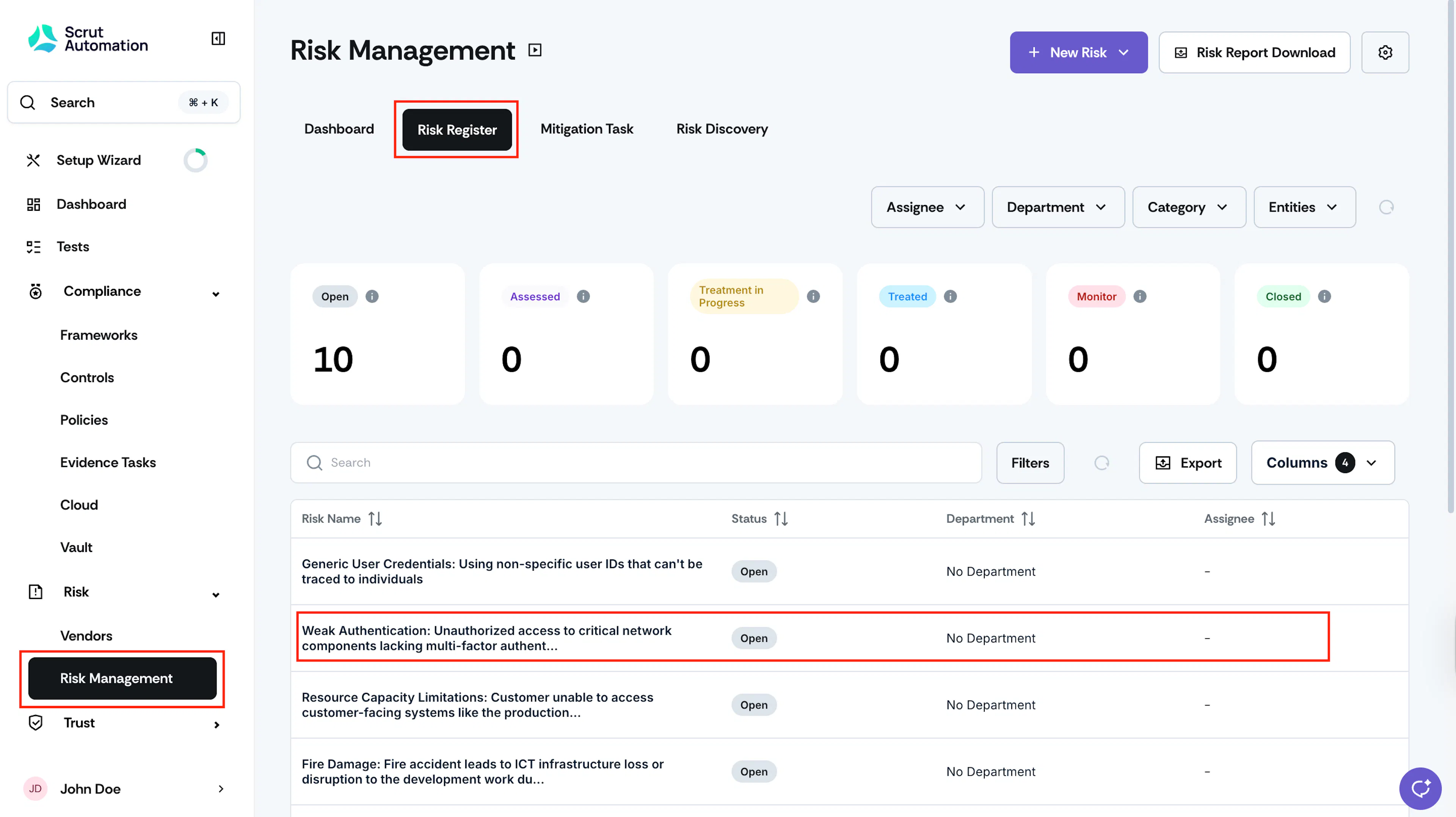
Sign in to Scrut and go to Risk → Risk Management using the left navigation panel.
-
Go to the Risk Register tab and click on the risk that you want to assess.
-
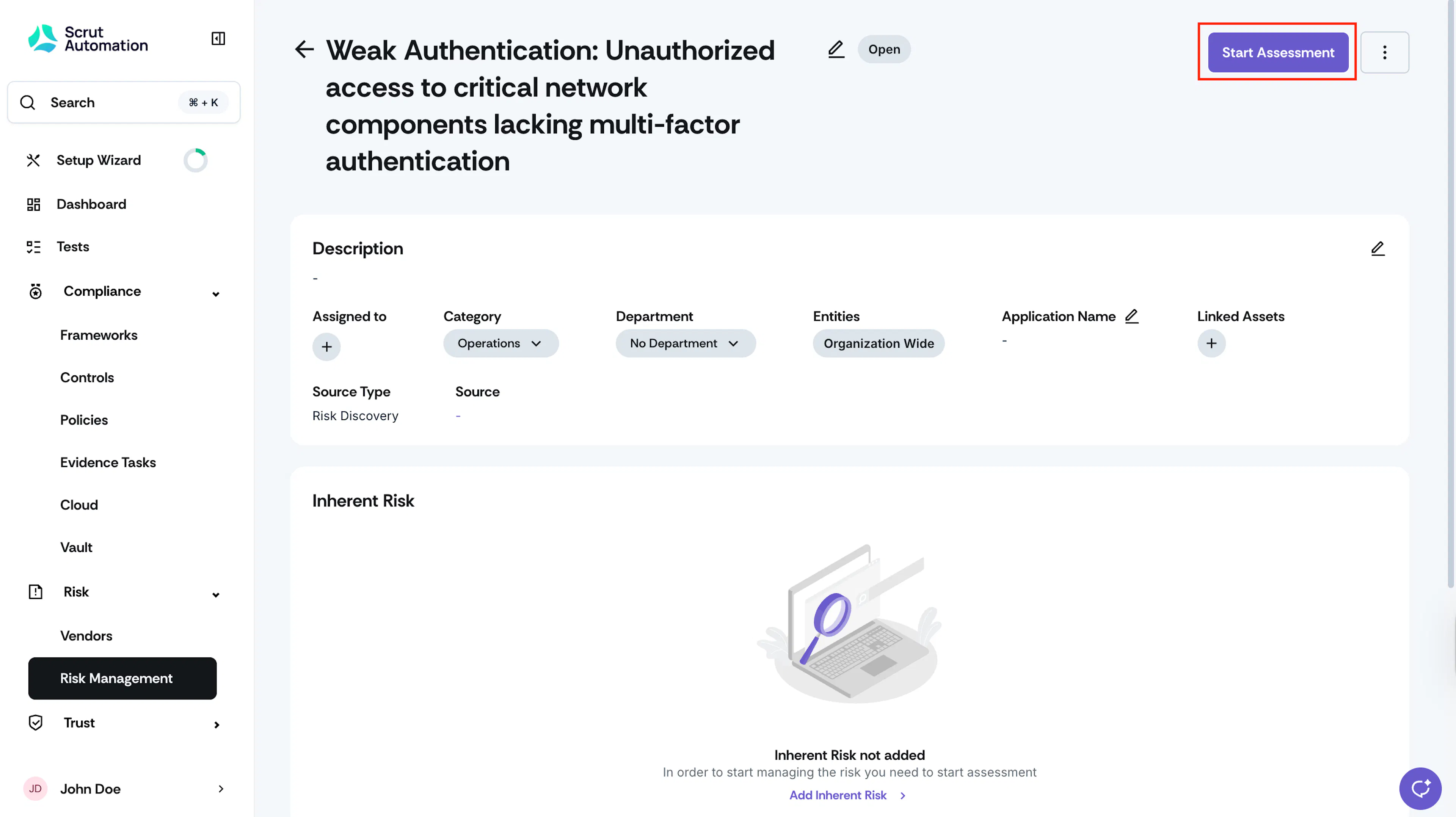
Click Start Assessment. This opens the Risk Assessment window.
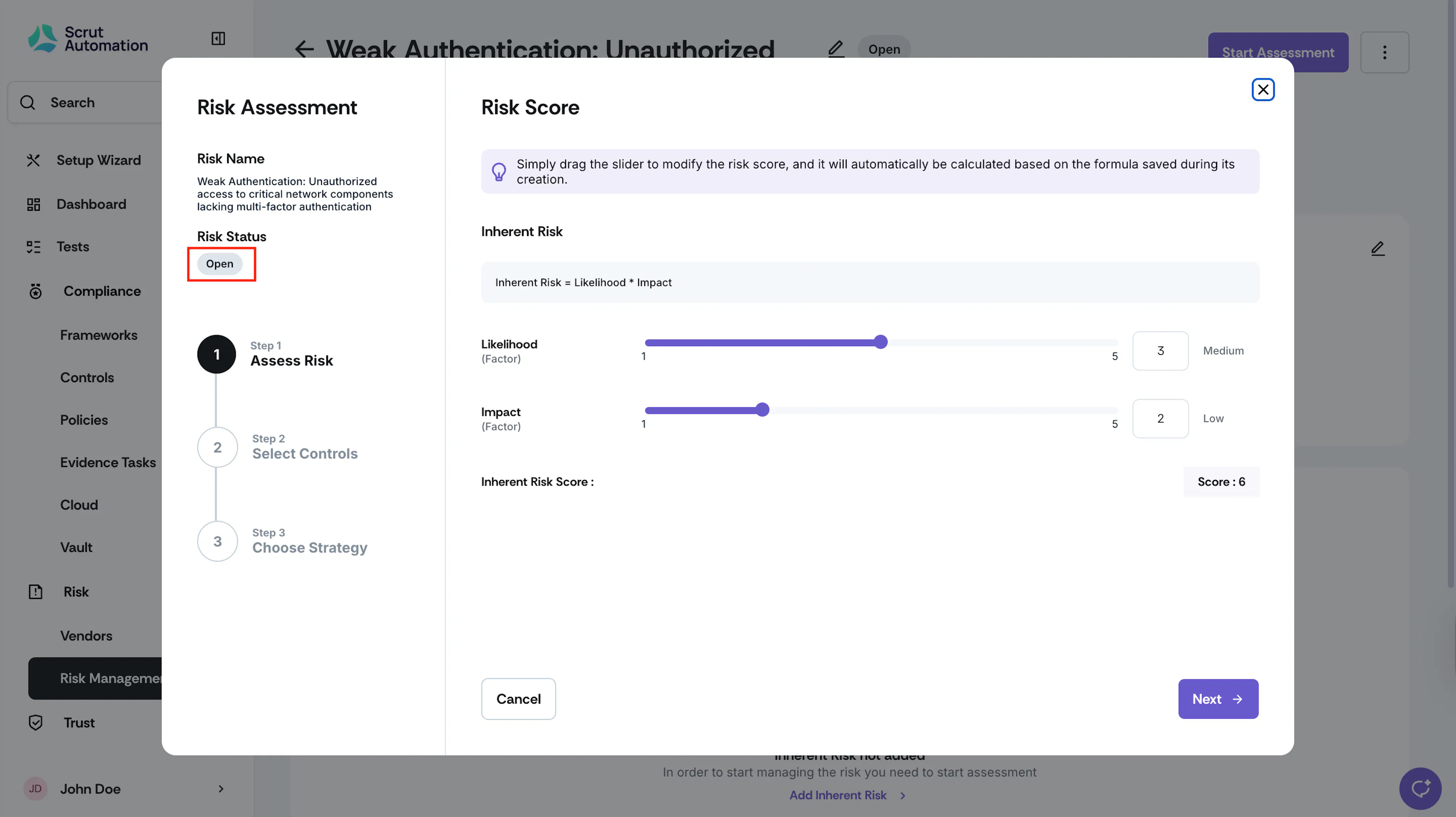
Step 1: Risk Score
Drag the slider for each risk factor to modify its value. Scrut will automatically calculate the inherent risk score based on the risk formula you have configured. Click Next.
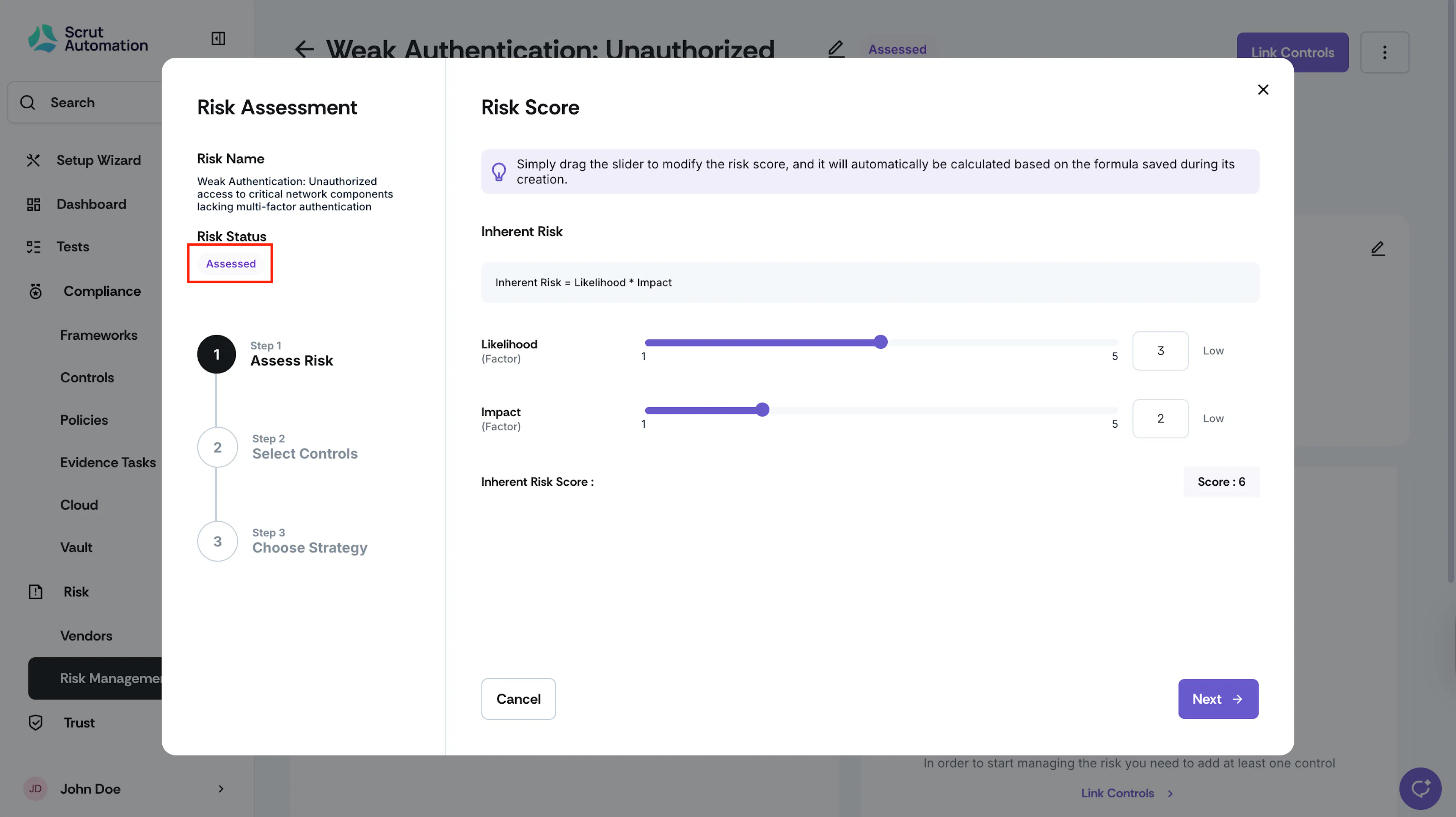
Note:
The risk status changes from Open to Assessed once you complete this step.
Step 2: Select Controls & Requirements
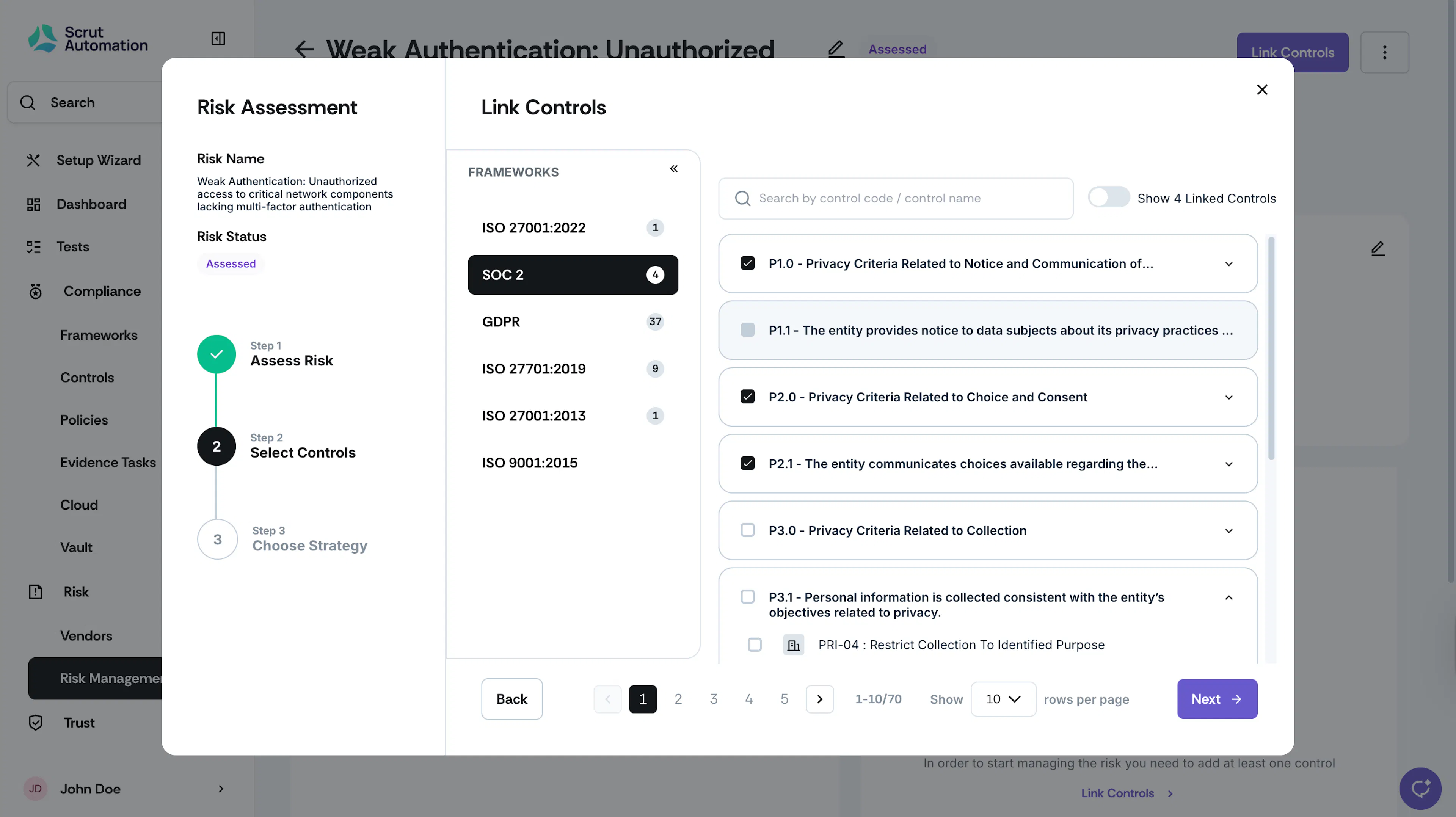
In this step, you will select controls that are specific actions or measures designed to mitigate the identified risk according to the chosen treatment strategy.
-
Use the Frameworks panel to view controls relevant to your frameworks.
-
Expand a specific requirement to view all controls associated with it.
- When you select a requirement, all controls within it will be selected by default.
- If needed, you can then select/unselect specific controls, as required.
-
Select the checkboxes next to the controls you want to link.
Note: Any not applicable requirement will appear grayed out.
-
Optionally, use the search bar at the top to quickly locate controls by name or code.
-
Once you’ve made the selections, enable the Show Linked Controls toggle to review and verify which controls you’ve chosen to link.
Click Next.
Step 3: Select Treatment Strategy
Once you have linked the controls and requirements, the next step is to determine the appropriate treatment strategy. The treatment strategy outlines how your organization plans to address the identified risk.
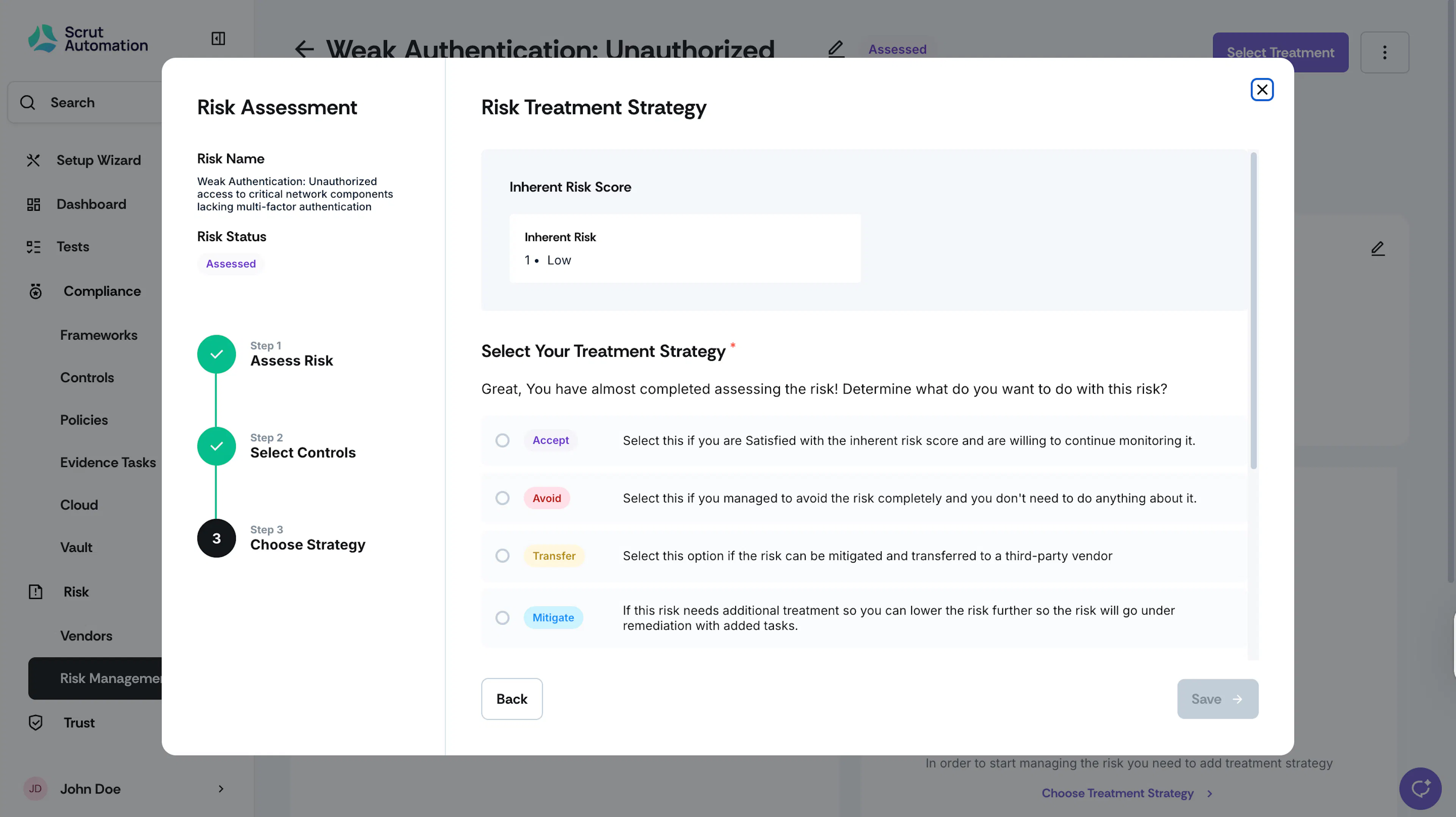
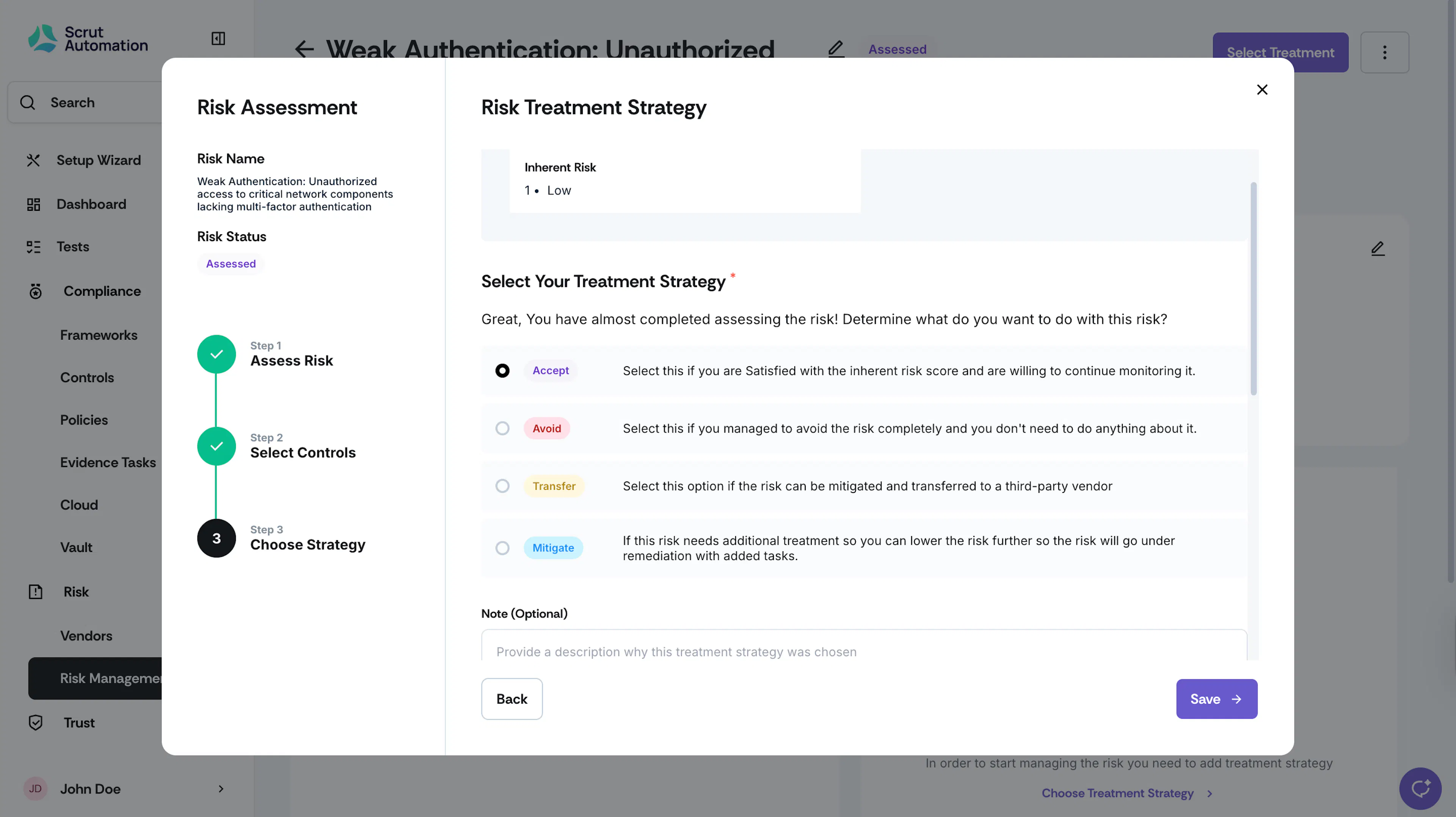
Choose an appropriate risk treatment strategy.
- Accept: Choose this option if you are satisfied with the residual risk score and are prepared to keep monitoring it over time. It indicates a willingness to accept the risk as it stands.
- Avoid: Opting for this means you have managed to avoid the risk completely, so there are no further actions required from your side. It shows that you don’t anticipate any negative impacts from this risk.
- Transfer: This option is relevant when a risk can be shifted to a third-party vendor. By selecting this, you indicate that you can pass the responsibility of managing this risk to someone else.
- Mitigate: Select this option if the risk still poses a significant threat and additional measures are necessary to reduce its impact or likelihood. It indicates that you will implement specific remediation strategies to lessen it further.
Note [Optional]: Provide a brief description of why you chose this particular risk treatment strategy.
Step 4: Create a Mitigation Task
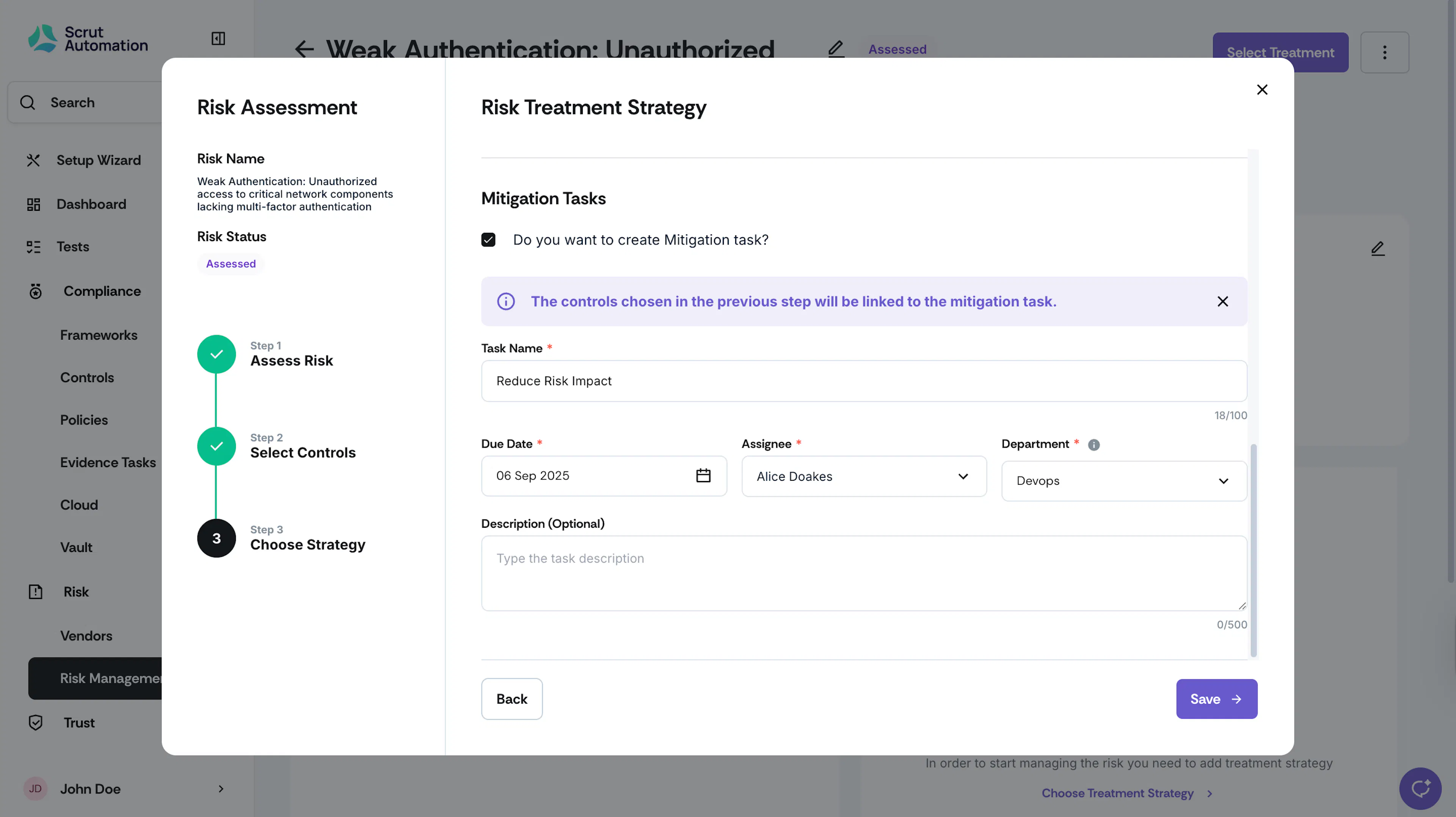
Optionally, you can create a mitigation task for the risk. Enter the task name, due date, assignee, and department. Include an optional description to provide more context about the task.
Note:
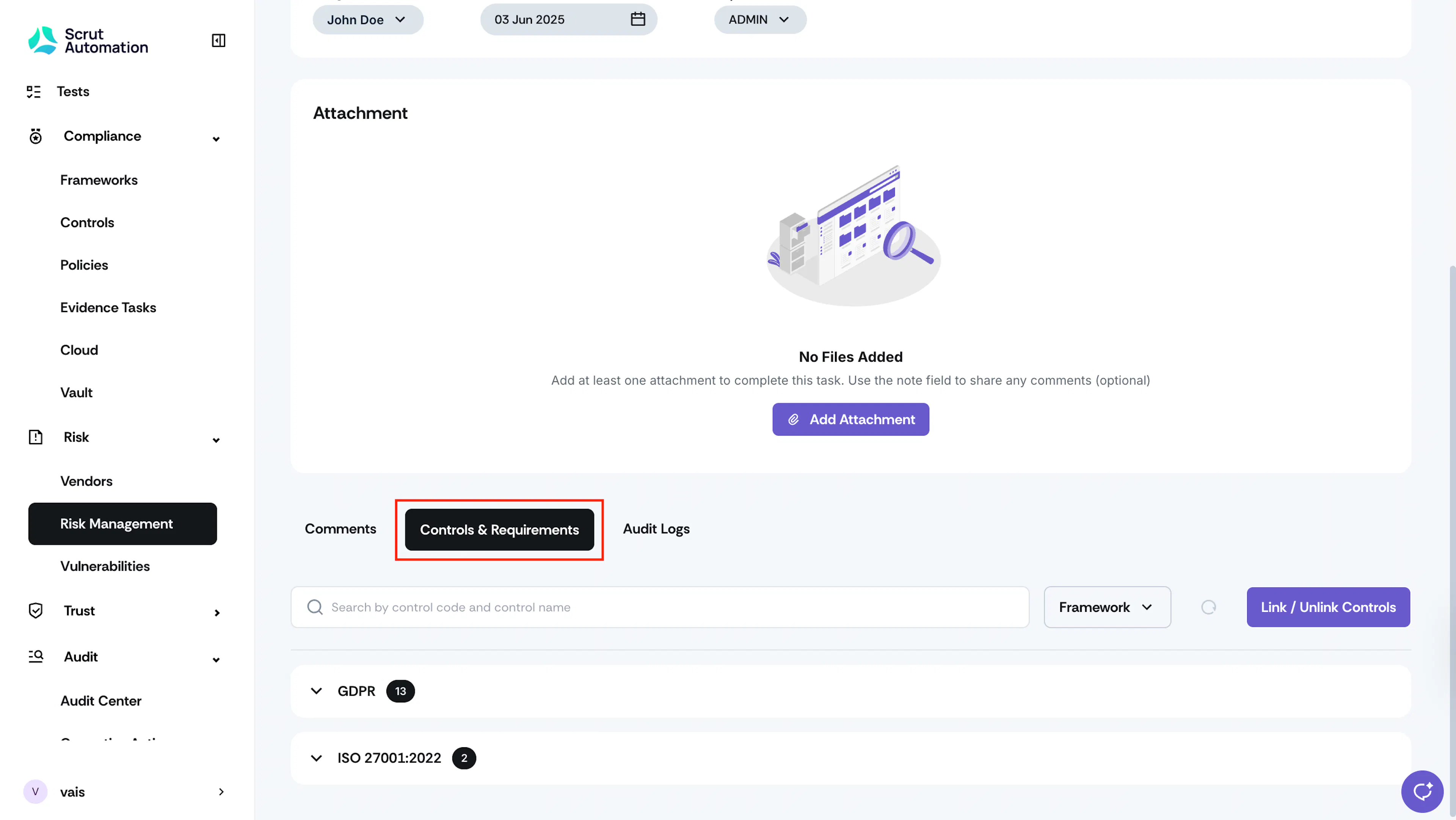
The controls linked in the previous step will automatically populate under the Controls tab of the new mitigation task.
Click Save.
Note:
The risk status changes from Assessed to Treatment in Progress once you complete this step.
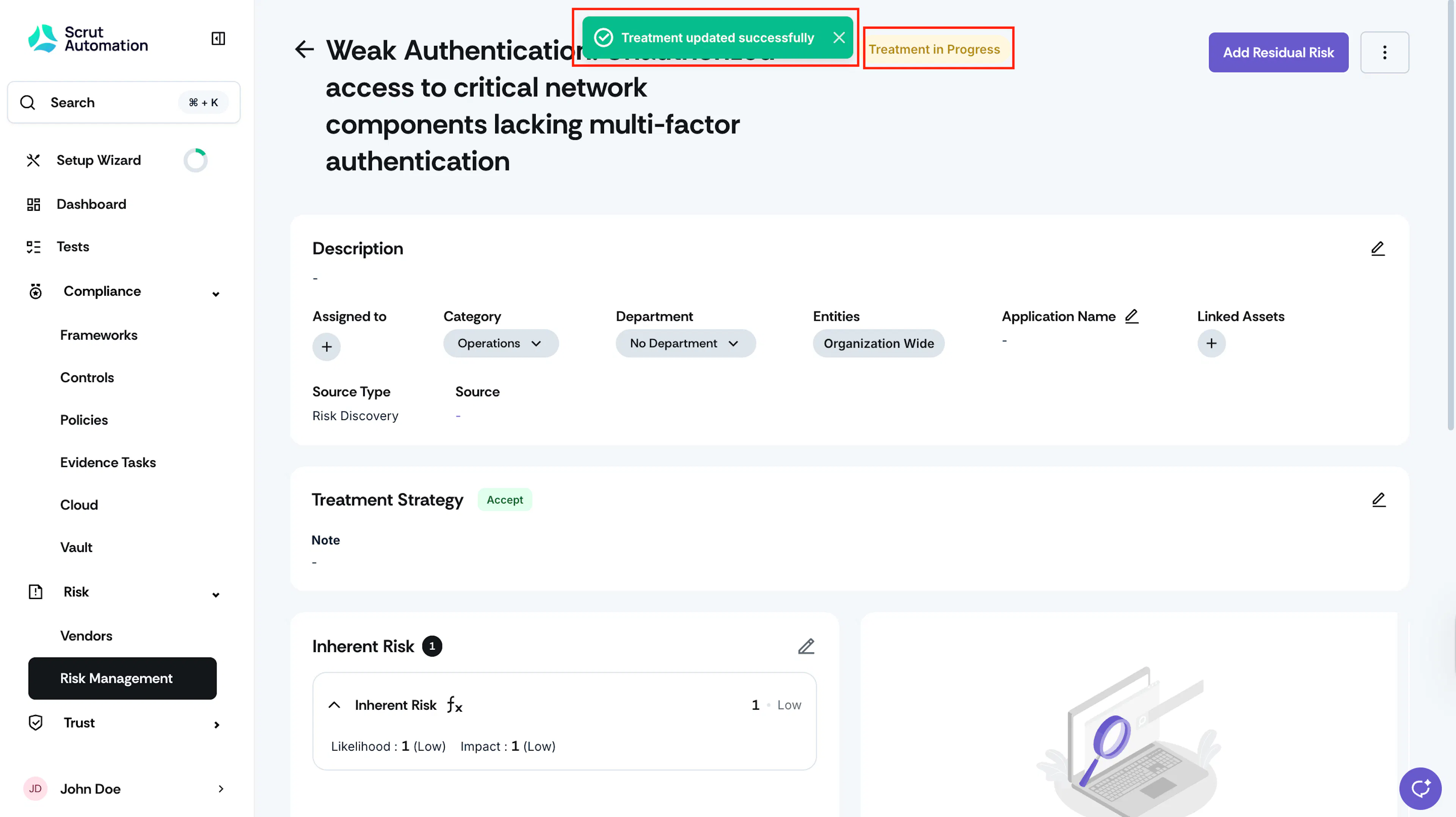
How to View the Mitigation Task
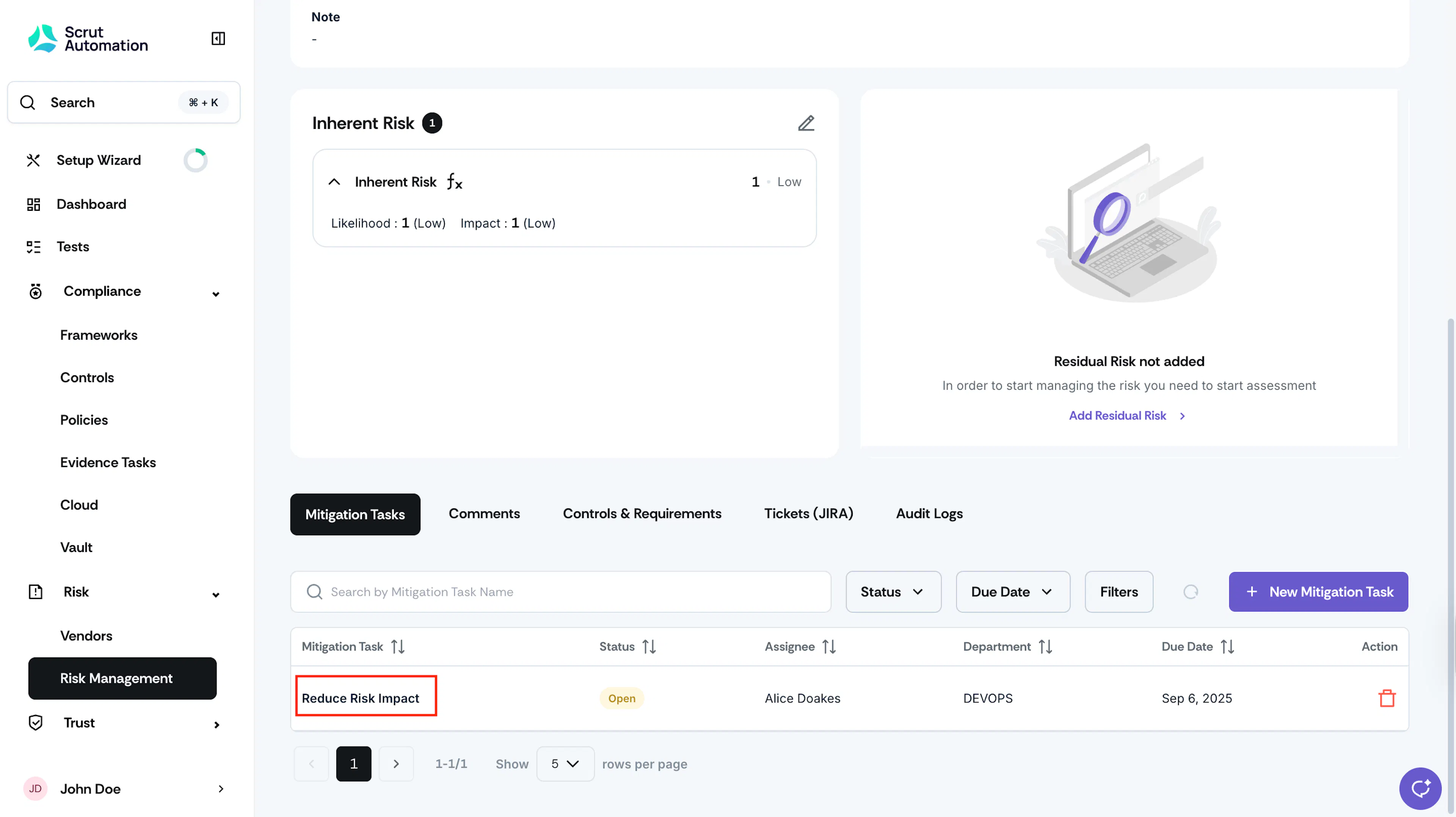
If you created a mitigation task during risk assessment, it will be available in the Mitigation Tasks tab on the risk page. Click on it to view its details.
Note
The controls linked to the risk will automatically reflect in the Mitigation Task.
Impact of Linking/Unlinking Controls from Risks & Mitigation Tasks
Key Points to Note
- If you remove controls from the Risk details page, they will also be removed from the corresponding mitigation tasks.
- However, adding new controls to a risk will not automatically update existing mitigation tasks.
- But if you create a new mitigation task after linking new controls, the newly created task will include the new controls.
- If a control is removed from the mitigation task, it doesn’t impact the risk.
- But if you add new controls to a mitigation task, it will also be linked to the corresponding risk.