

View Test Details
What are Automated Tests?
Scrut runs several automated checks on your cloud providers and integrated systems, such as vulnerability scans, penetration tests, code reviews, social engineering tests, etc.
The primary goal of these tests is to identify and alert you to potential security weaknesses. By uncovering these vulnerabilities, you can take proactive steps to enhance your security posture. The best part is that Scrut not only alerts you but also provides actionable insights on how to remediate failing tests.
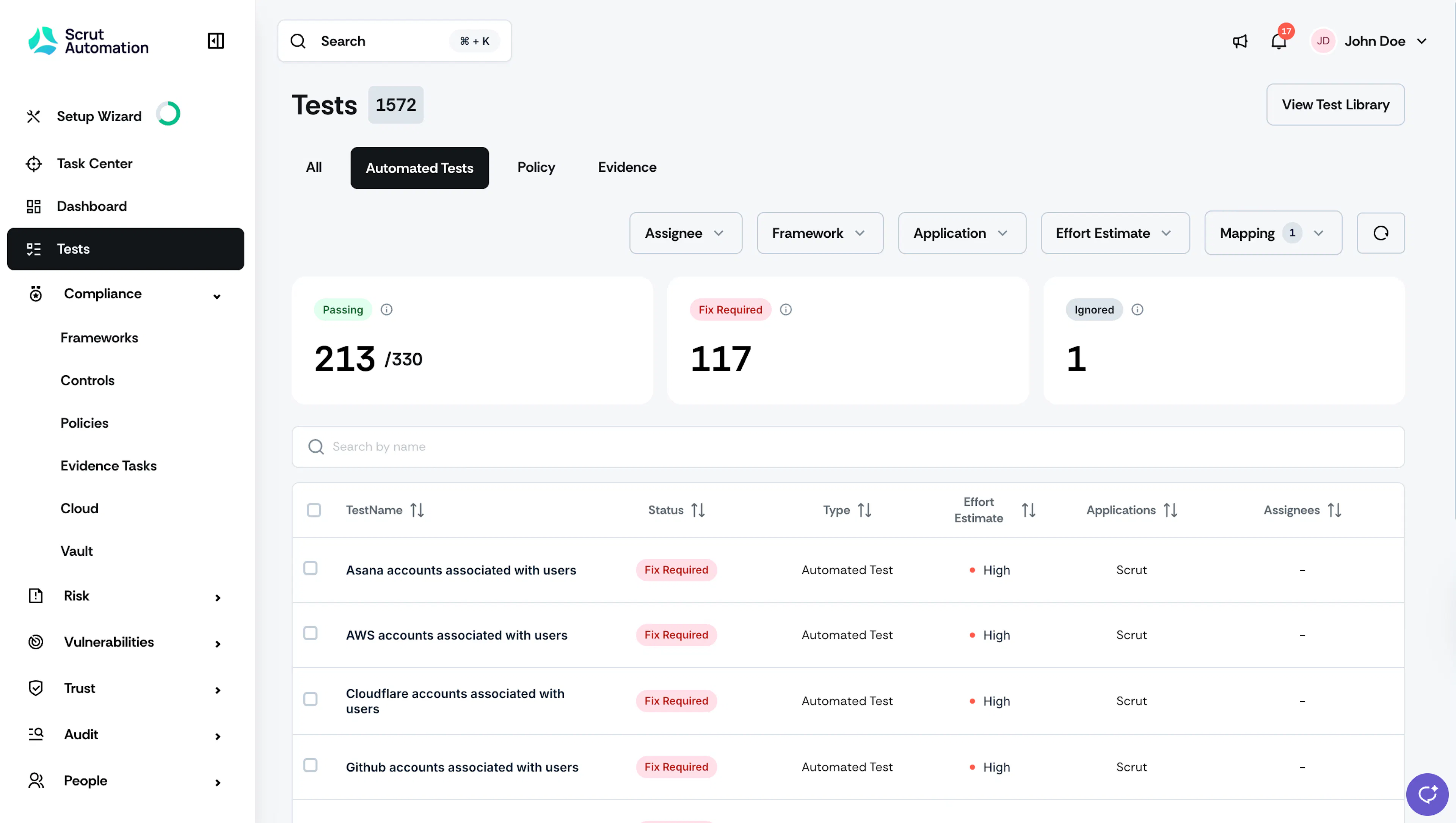
These automated tests come from two primary sources:
- Integrations: Scrut scans the metadata of connected cloud providers (AWS, Azure, GCP) and other integrations to generate tests.
- Scrut: Scrut's recommended tests are based on compliance best practices and CIS benchmarks.
Filtering Tests
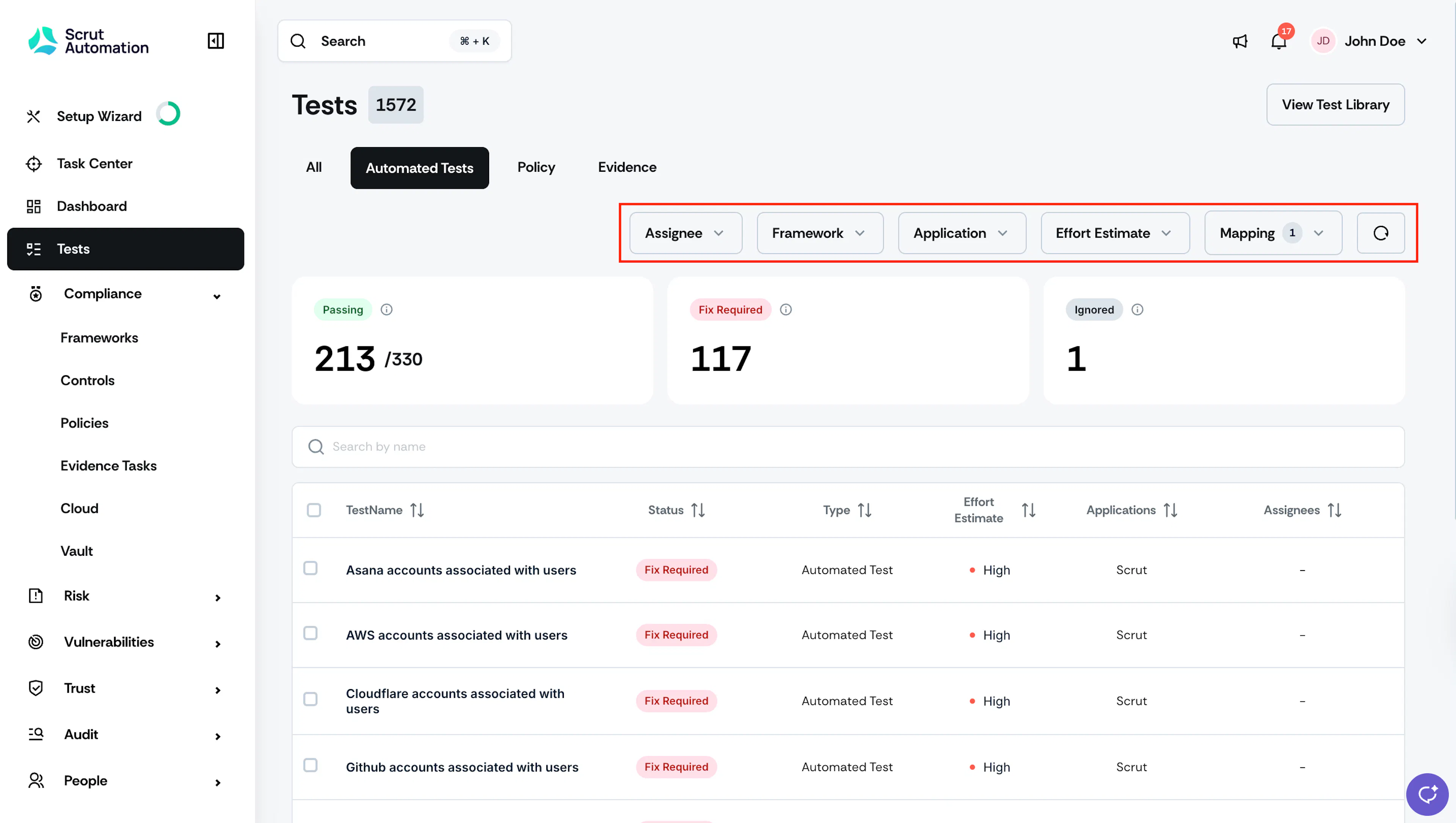
Use the filters on this page to refine your search based on specific criteria such as:
- Assignee: Use this filter to narrow down the tests assigned to specific team members. This is useful to track individual contributions and responsibilities.
- Framework: Use this filter to view tests relevant to specific framework(s) that you're working towards.
- Application: Select the integration that corresponds to the tests you want to view. This helps you focus on tests relevant to a particular application, such as AWS, GitHub, GCP, etc.
- Effort Estimate: Filter tests based on the approximate effort required to make it compliant.
- Mapping: Use this filter to view tests that are not mapped to any specific framework. By default, all mapped tests are shown in the table.
Test Details Page
Click on any test to view detailed information on it.
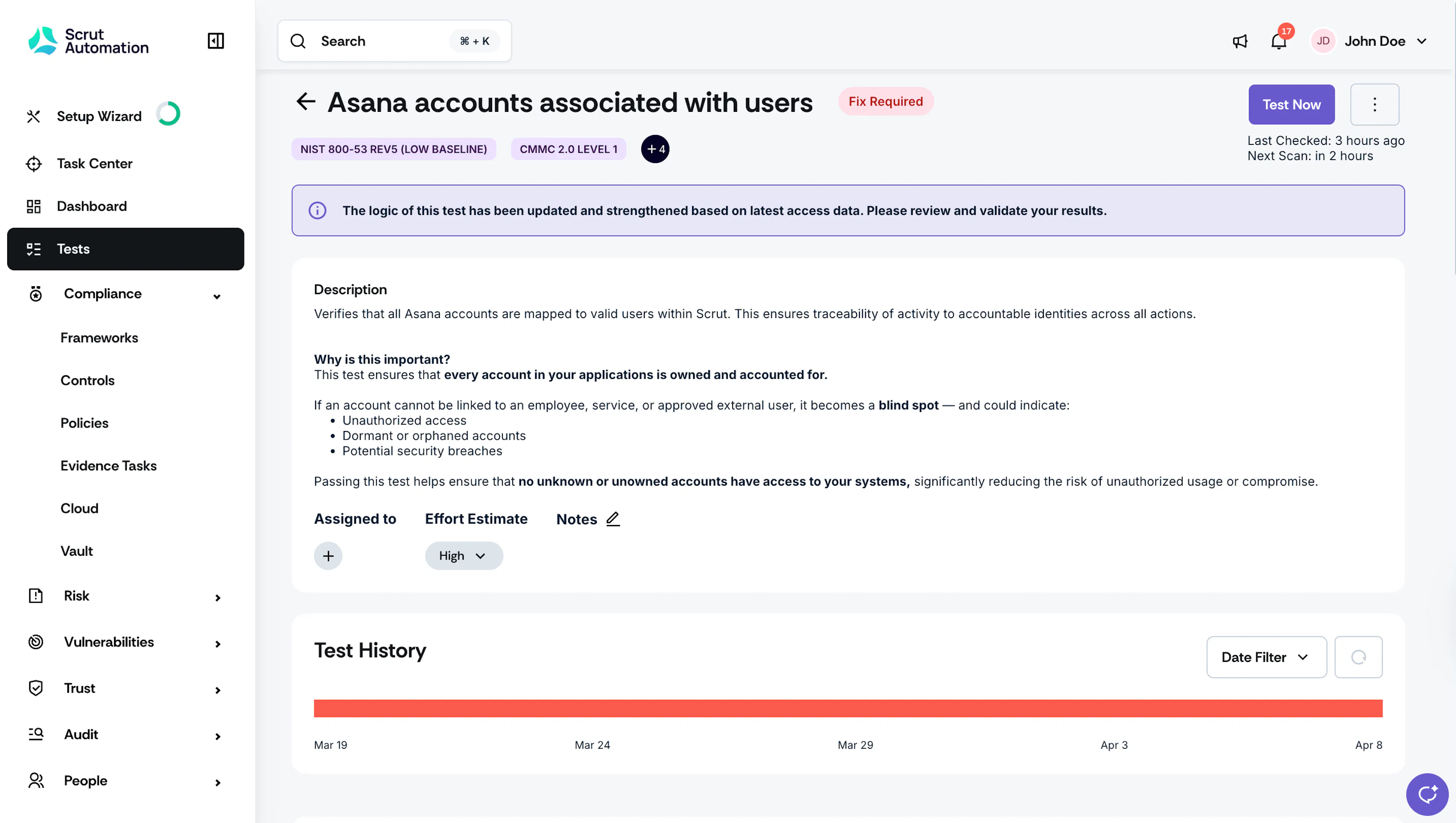
- Description: Explains what the test checks and why it matters.
- Assigned To: Use this column to assign the remediation to suitable team member(s).
- Last Checked: The timestamp showing when Scrut last ran this test. Visible in the top-right area of the test header. Use it to confirm whether the result you're seeing reflects a recent scan or an older one before taking action.
- Next Scan: For scheduled tests, this shows when the next automated scan is due to run. For real-time tests, a Continuous Monitoring label appears in place of the next scan time, indicating the test runs continuously rather than on a schedule.
- Stale Test Warning: If a test has not run in more than 24 hours, Scrut displays a warning on the test and shows the reason, such as a sync error or integration error. Click the warning to view details from the last successful scan and troubleshoot the issue from there.
- Assigned To: Use Assigned To to assign responsibility for remediating this test to one or more team members. Click the + icon to select a member. Assigning a test creates accountability and helps your team track who is working on a fix.
- Effort Estimate: Effort Estimate lets you indicate how much work is required to remediate this test. Select a value from the dropdown: Low, Medium, or High. This field is manually set and helps your team prioritize remediation tasks across the test list.
- Notes: Use Notes to add context, decisions, or follow-up actions related to this test. Click the edit icon next to the Notes label to open the input field. Notes are visible to all members with access to the test and are useful for capturing remediation decisions or exceptions.
Ignore a Test
If a test is not relevant to your organization, you can click the three-dot icon on the top-right and click Ignore Test. Ignored tests do not impact your compliance percentage. Scrut will not resurface these tests in subsequent scans. They'll remain marked as ignored until you reverse your decision by marking them as "Monitor."
Heads Up!
You must provide a valid justification for ignoring the test.
Pass By Default Tests
Scrut includes several Pass By Default tests that are built-in and enabled by default. These tests automatically pass due to the security configurations of the integrated services, ensuring compliance without any additional manual intervention. They help to:
- Streamline the audit process. They save time by quickly confirming compliance for services with built-in security features.
- Ensure accuracy. Scrut regularly validates these tests to ensure they're accurate. If an integrated service updates its security features, Scrut promptly updates the relevant test to reflect these changes. This ensures your audits always reflect the latest information.
How to Export Test Data
Navigate to Tests → Automated Tests, open your preferred test, and click the Export Test Data button on the top-right.
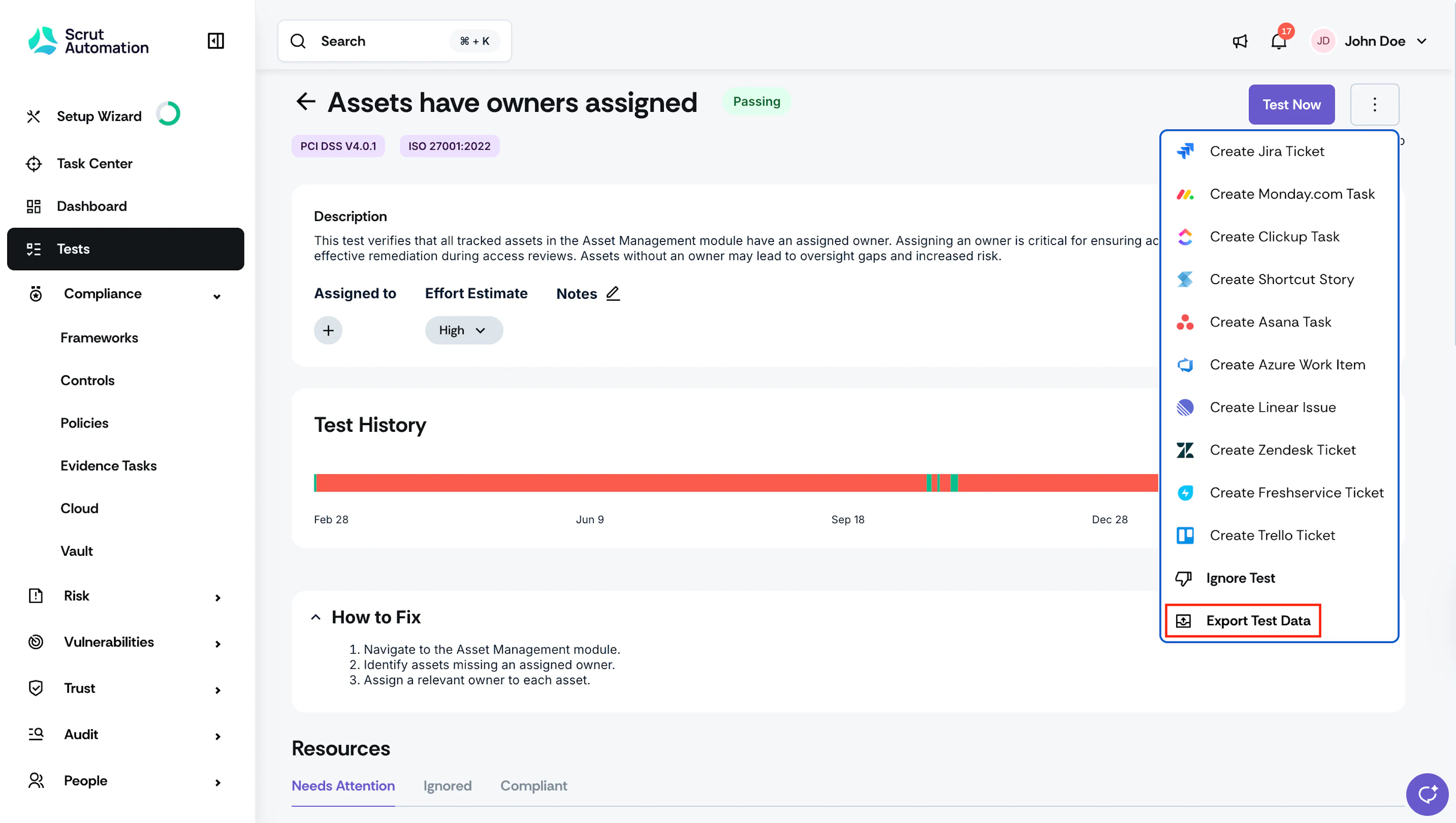
Watch out for the success notification. You can download the exported data from the Notification Center. Scrut also sends the data via email once it's ready.
The export data provides detailed insights into both compliant and non-compliant resources linked to the test. It includes key details such as the resource name, description, status, and critical dates (first detected, last detected, added on, due date, start date, modified on), along with indicators like whether the resource is active or deleted. However, note that if there are no compliant or non-compliant resources associated with the test, the export data will include only the test history.
JSONL Export
Heads Up!
Currently in Beta.
Whenever available, Scrut exports test data in JSONL format. JSONL exports include detailed metadata for each test, such as source information and authenticity signals, giving auditors the data they need to independently verify pass/fail outcomes. The data is pulled directly from integrations and internal sources.
Best Practices
We recommend following this workflow as you work towards compliance and to get audit-ready:
- Scrut runs automated tests daily and compiles the results in the Tests → Automated Tests tab.
- Make sure to monitor this section regularly to identify and resolve failed tests.
- Click the Fix Required card to view non-compliant tests.
- Click on each failed test and review the How To Fix section to understand how you can resolve it. If needed, you can assign it to other team members for remediation.
- Click the three-dot icon on the top-right of the page to ignore a test if it does not apply to your organization.