

Check Test Run Status & Next Scheduled Scan
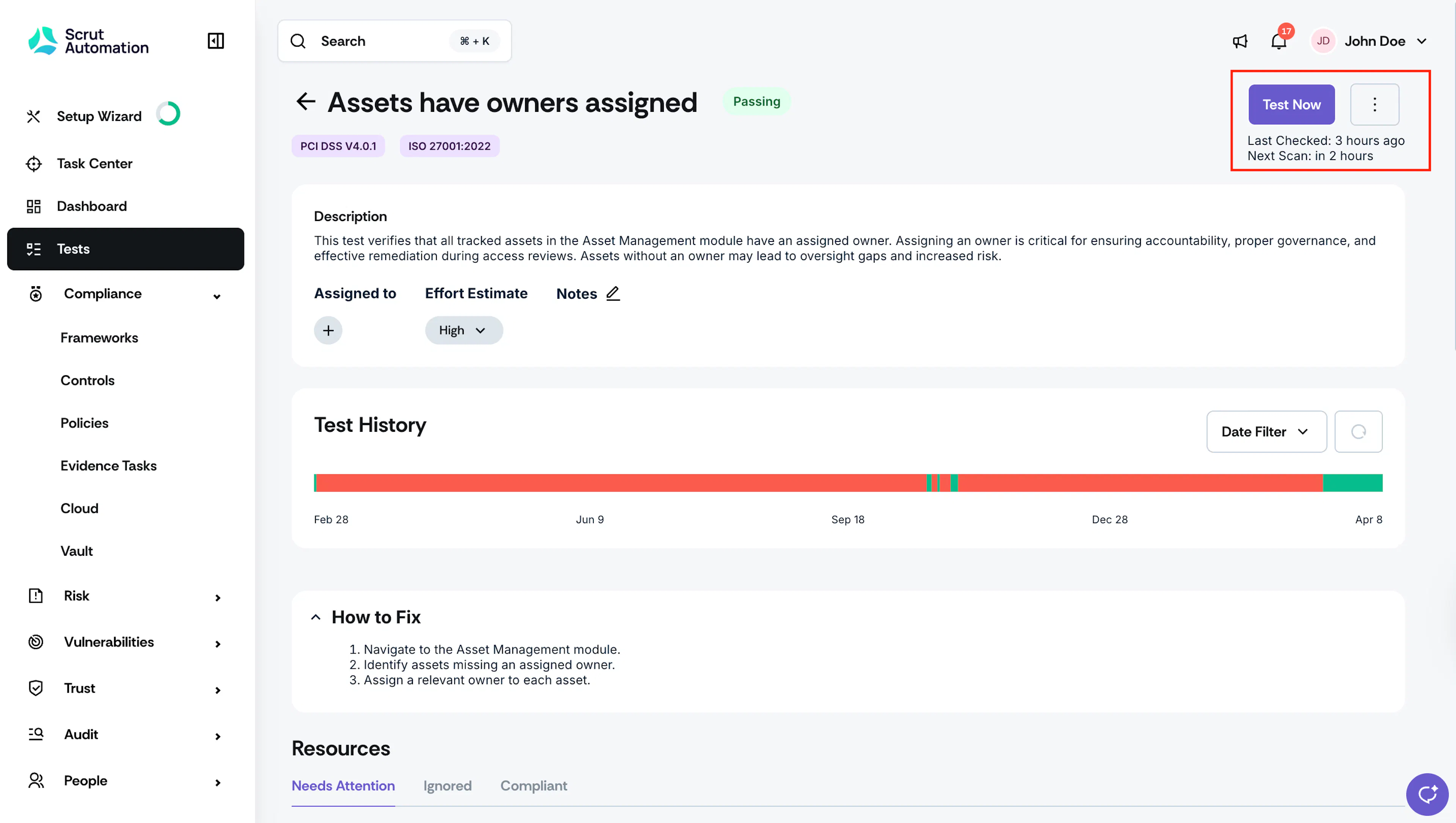
The Tests module shows you the scan status of each test directly on its details page, so you can tell at a glance when a test last ran, when it's due to run next, and whether something has gone wrong.
Scheduled Tests vs. Continuous Monitoring Tests
Tests in Scrut run on one of two cadences, depending on how they're configured.
- Scheduled tests run automatically once every 24 hours. These tests check the configurations of your connected integrations and cloud providers on a fixed daily cycle. You can also trigger a manual scan at any time using the Test Now button on the test details page.
- Continuous Monitoring tests run in real time rather than on a scheduled cycle. Instead of a next scan time, these tests display a Continuous Monitoring label in the test header, indicating they're always active.
Scan Status Indicators on the Test Details Page
Open any test to view its current scan status in the header. The following indicators are available:
- Last Checked: The timestamp showing when Scrut last ran this test. This appears for both scheduled and continuous monitoring tests.
- Next Scan: For scheduled tests, this shows when the next automated scan is due. This field is not shown for continuous monitoring tests.
- Continuous Monitoring label: Appears on real-time tests in place of the next scan time. Indicates the test runs continuously rather than on a schedule.
- Stale Test Warning: If a scheduled test hasn't run in more than 24 hours, Scrut flags it with a visible warning. The warning also displays the reason, such as a sync error or integration error.
What to Do When a Test Is Stale
A stale test warning means Scrut was unable to complete the test's last scheduled scan. This usually points to a connectivity issue between Scrut and one of your integrations.
- Click the stale test warning on the test details page.
- Review the reason displayed, such as a sync error or integration error.
- Click the warning to access the last successful scan details. These show you the most recent passing results, which helps you identify what changed.
- Navigate to your integration settings and check the connection status for the affected integration.
- Once the underlying issue is resolved, click Test Now to trigger an immediate re-scan and confirm the test is running again.
Note: The Test Now button is greyed out while a scan is already in progress.
Reach out to support@scrut.io or contact your CSM for further assistance.
Was this page helpful?