

View the Effort Estimate to Complete Tests
Heads Up!
This feature is currently available only for specific tests for the following frameworks: ISO 27001, SOC 2, GDPR, and HIPAA. To know more, contact your CSM.
The effort estimate quantifies the amount of effort required to fix a failing test. This helps to:
- Prioritize and allocate resources more effectively
- Assign appropriate tasks based on the effort required and team capacities
- Balance workload across team members
- Set realistic timelines for test completion
- Report progress to stakeholders more accurately
By default, Scrut provides an effort estimate for each automated test, helping you prioritize tasks and allocate resources effectively. It's important to keep in mind that these estimates are benchmark figures based on the average implementation effort required for each test. If you find that the default estimates do not align with your specific needs or circumstances, you can modify them, as required.
Effort Estimate Levels
Scrut categorizes effort into three levels:
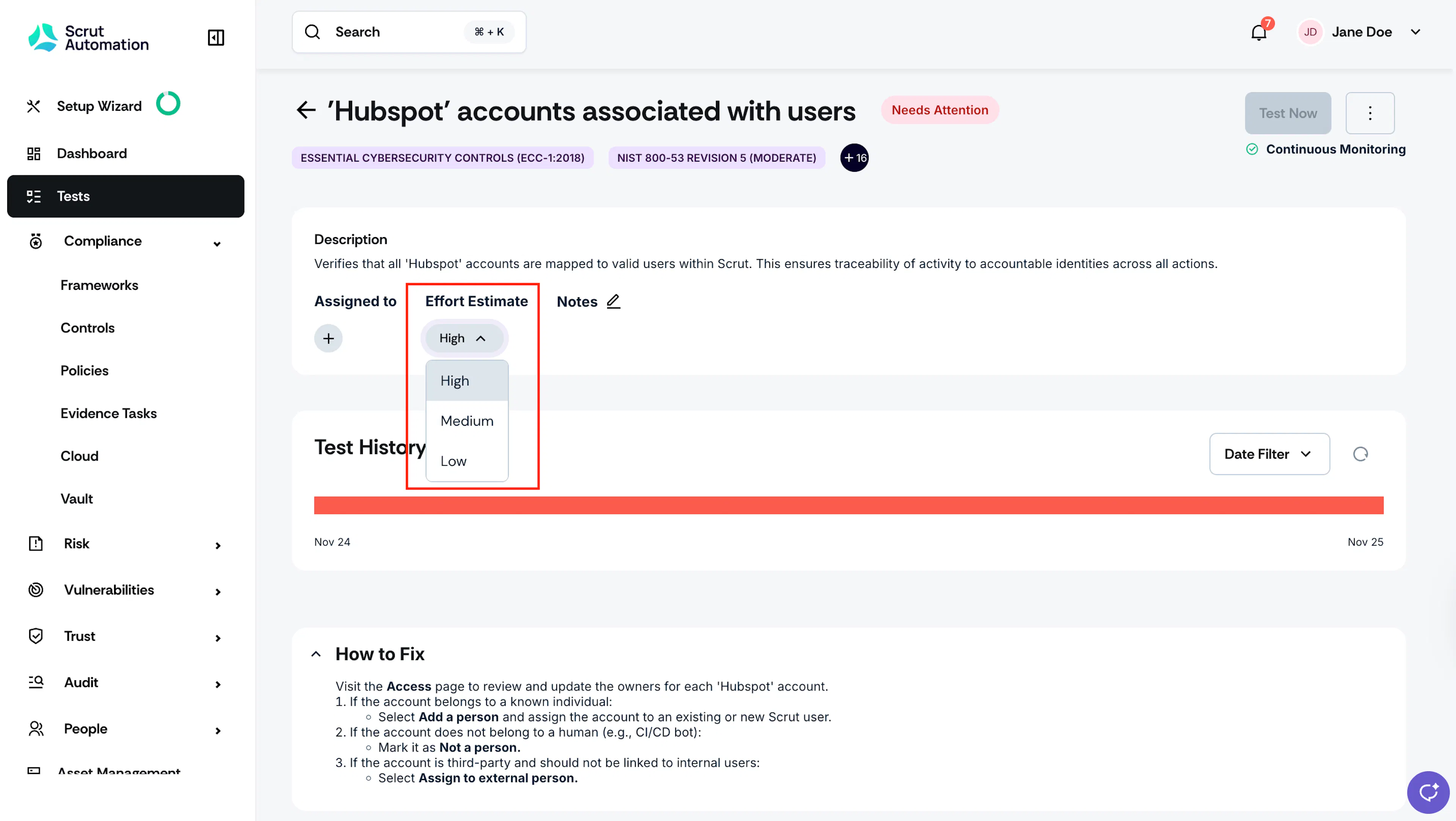
- Low: Easy to implement, minimal configuration or steps required
- Medium: Moderate complexity, requires multiple steps or configuration across several resources
- High: Complex implementation, extensive configuration, or affects multiple systems
How To View Effort Estimates for Tests
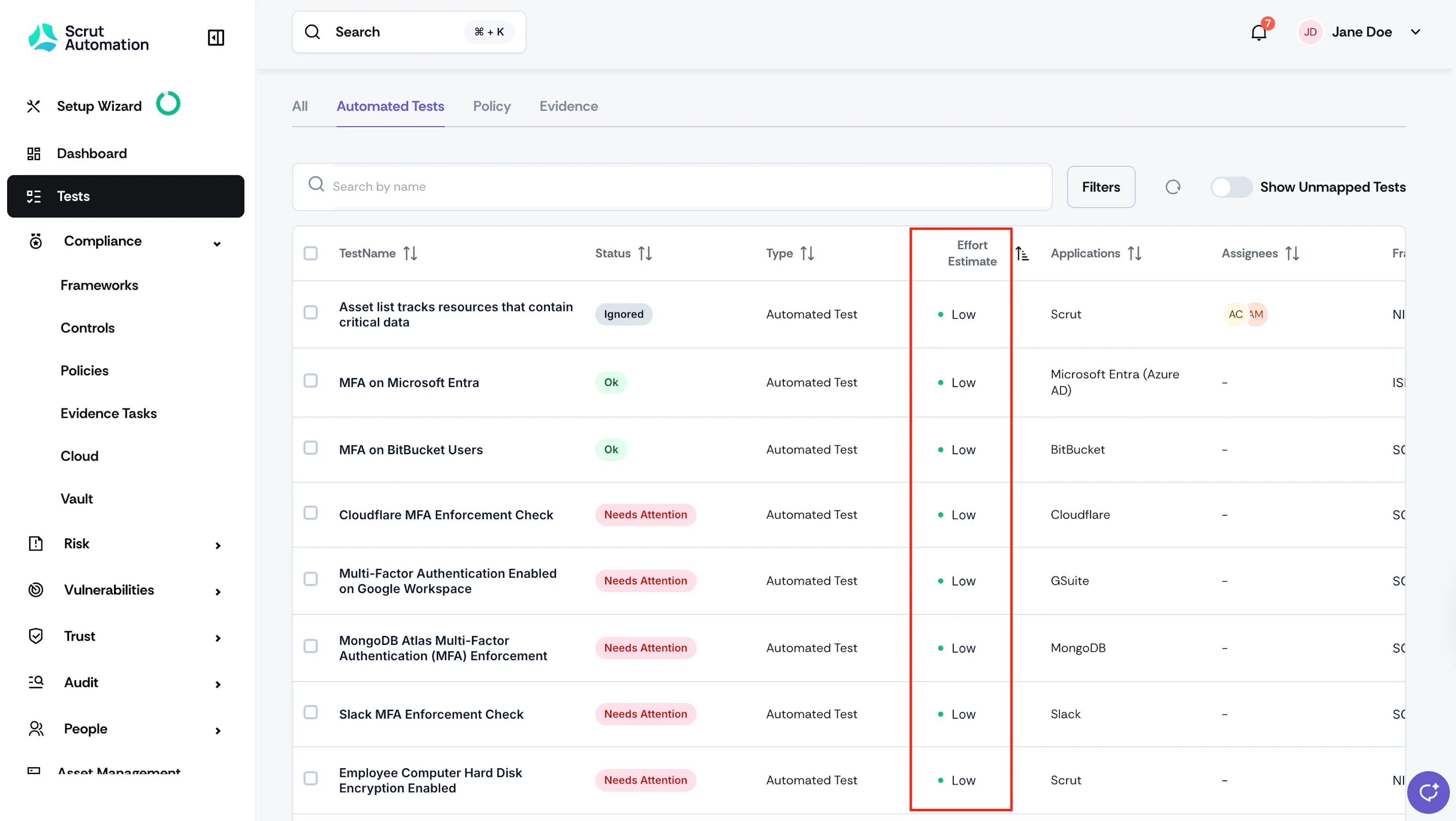
Click on the Effort Estimate column on the Automated Tests tab in the Tests module. This allows you to sort tests by effort level.
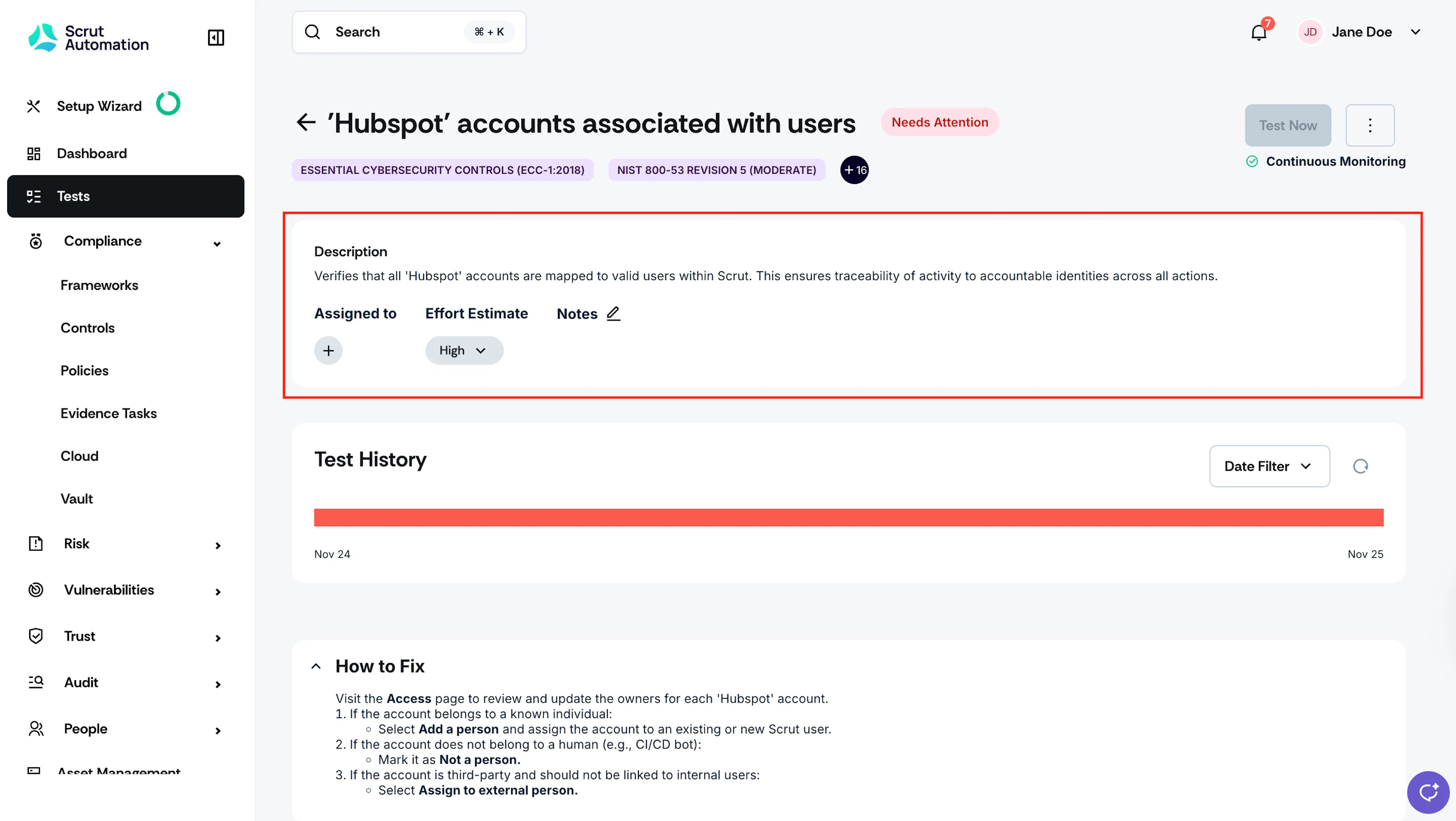
Navigate to a specific test and look for the Effort Estimate field on the test details page.
How to Set Test Effort Estimates
For a Single Test
-
Sign in to Scrut, and click Tests on the left navigation panel.
-
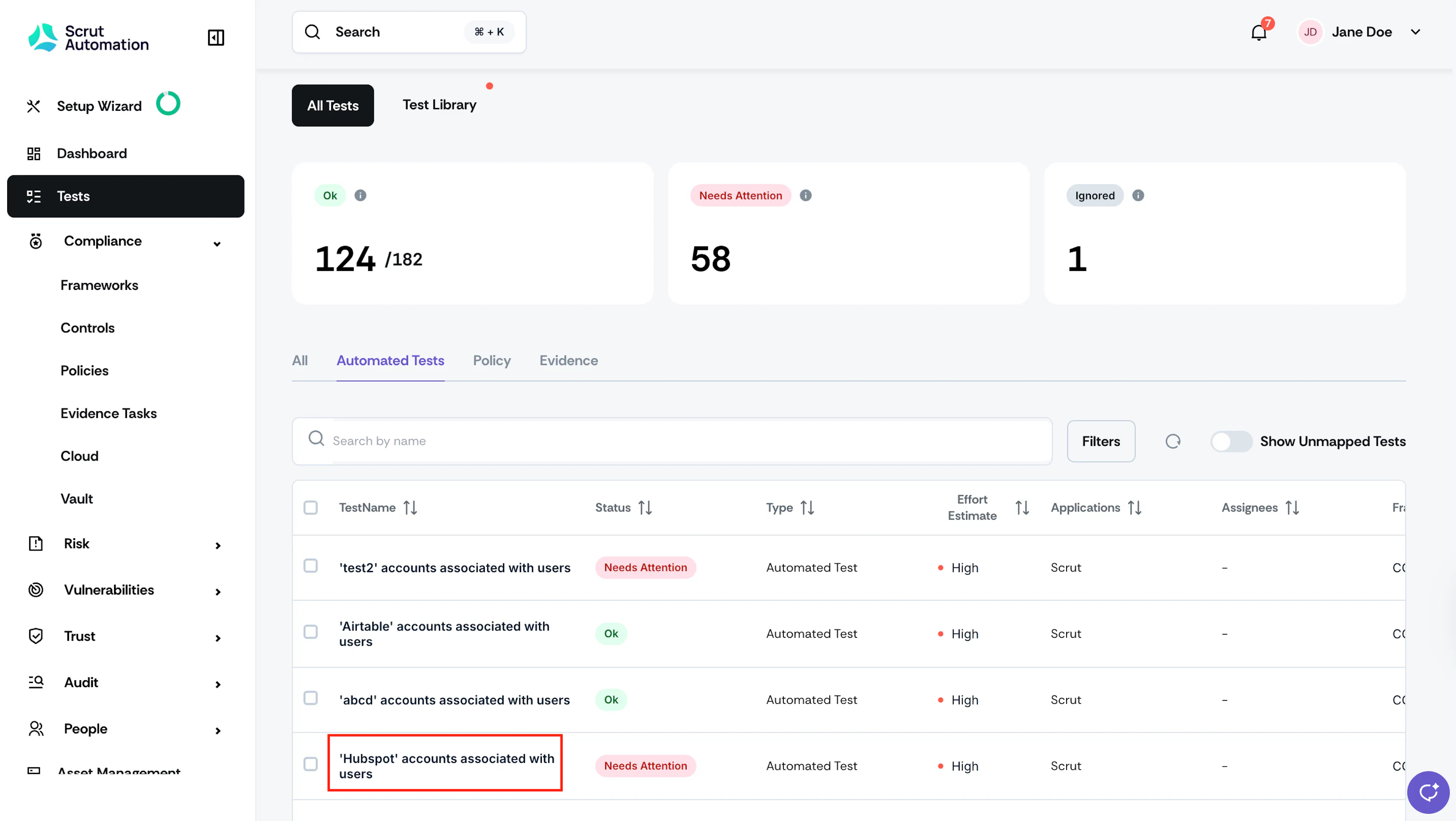
Go to the Automated Tests tab and select the test you want to set the effort estimate for.
-
Use the Effort Estimate dropdown and set the desired level.
For Multiple Tests
You can also set effort estimates for multiple tests simultaneously:
-
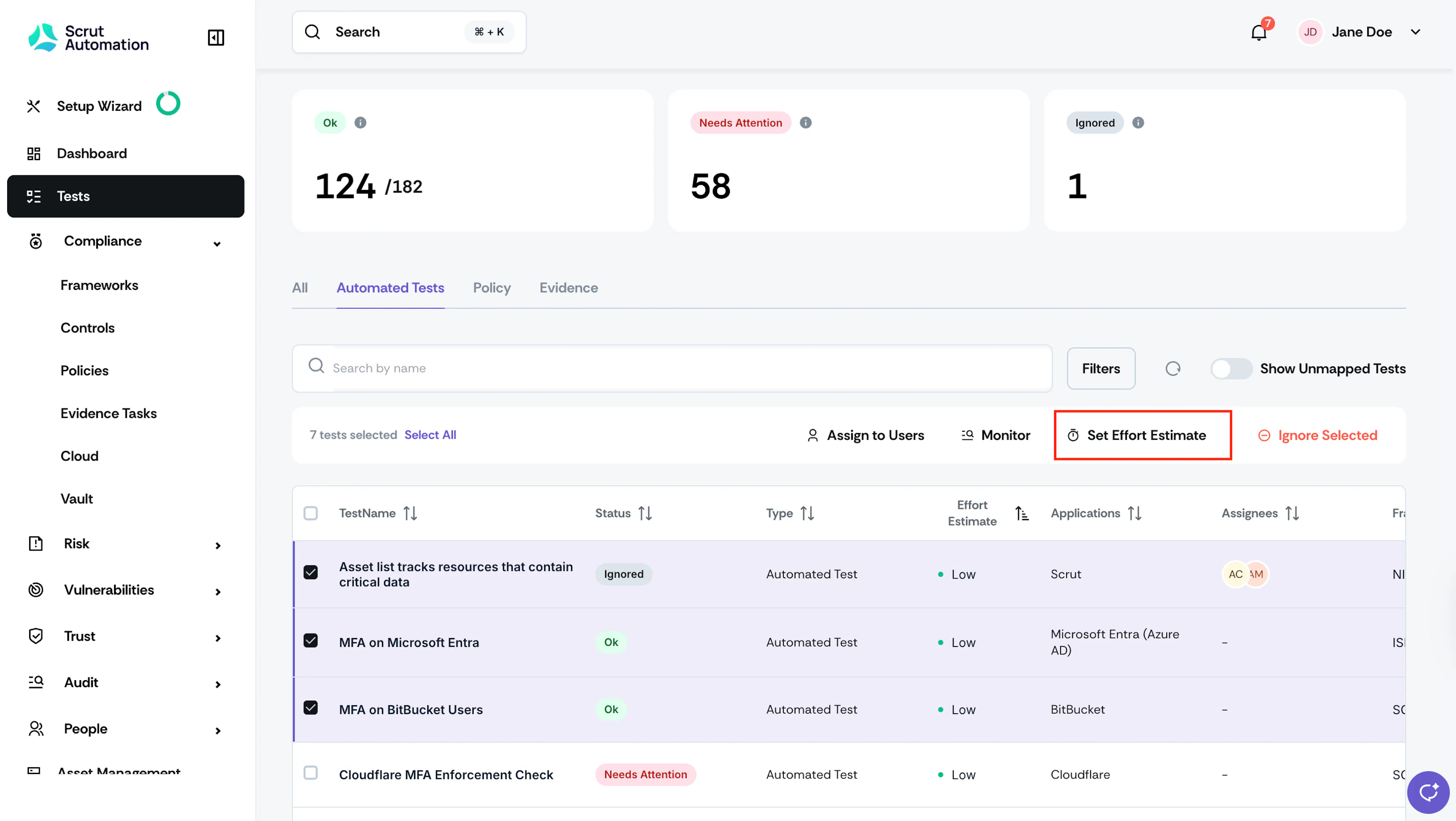
Go to Tests → Automated Tests and select the tests you want to set the effort estimate for.
-
Click the Set Effort Estimate button at the top of the Automated Tests table.
-
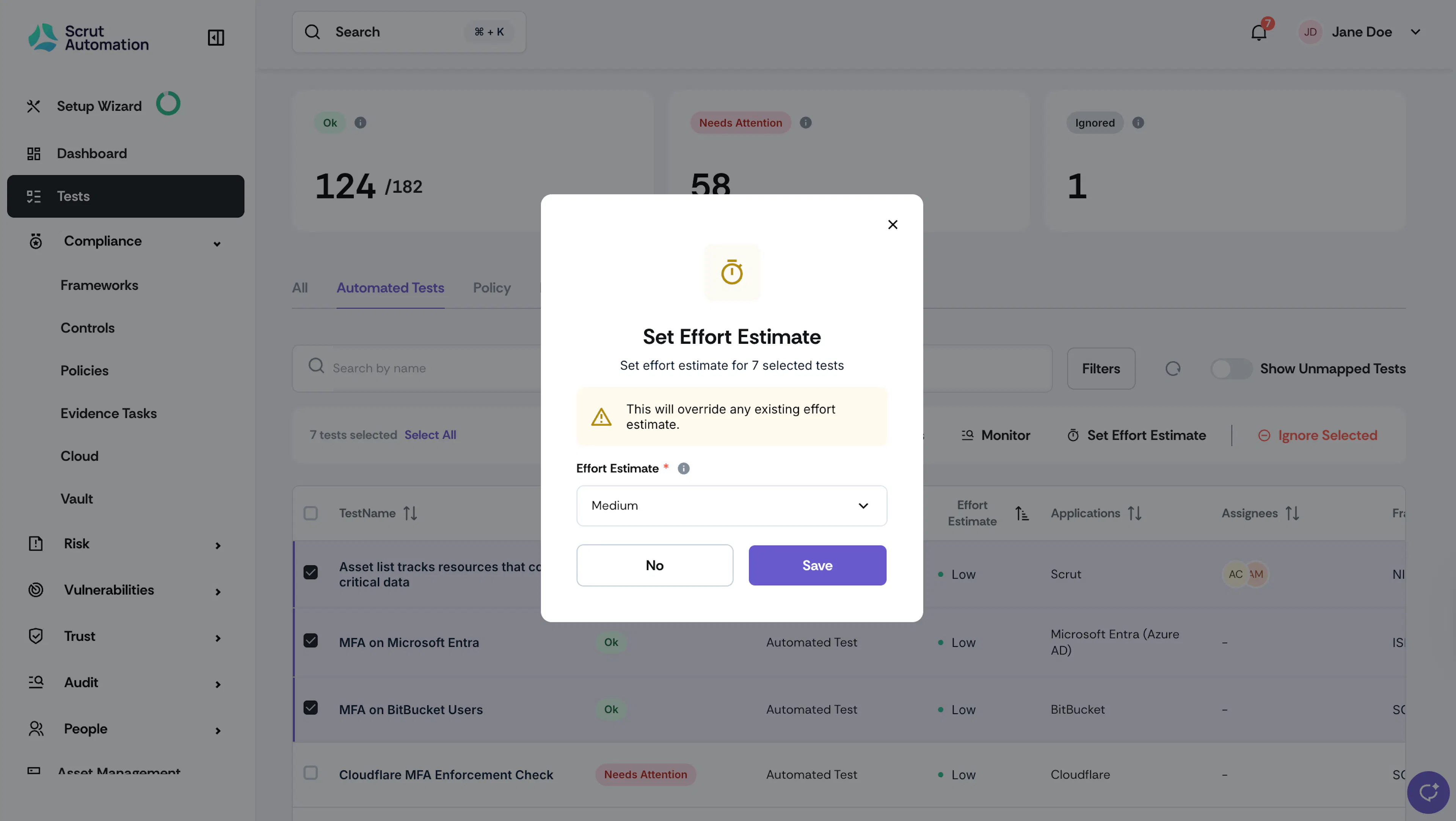
Choose the desired level from Low, Medium, or High.
-
Click Save to complete the bulk assignments.
Heads Up!
This action overrides any existing effort estimates for selected tests.