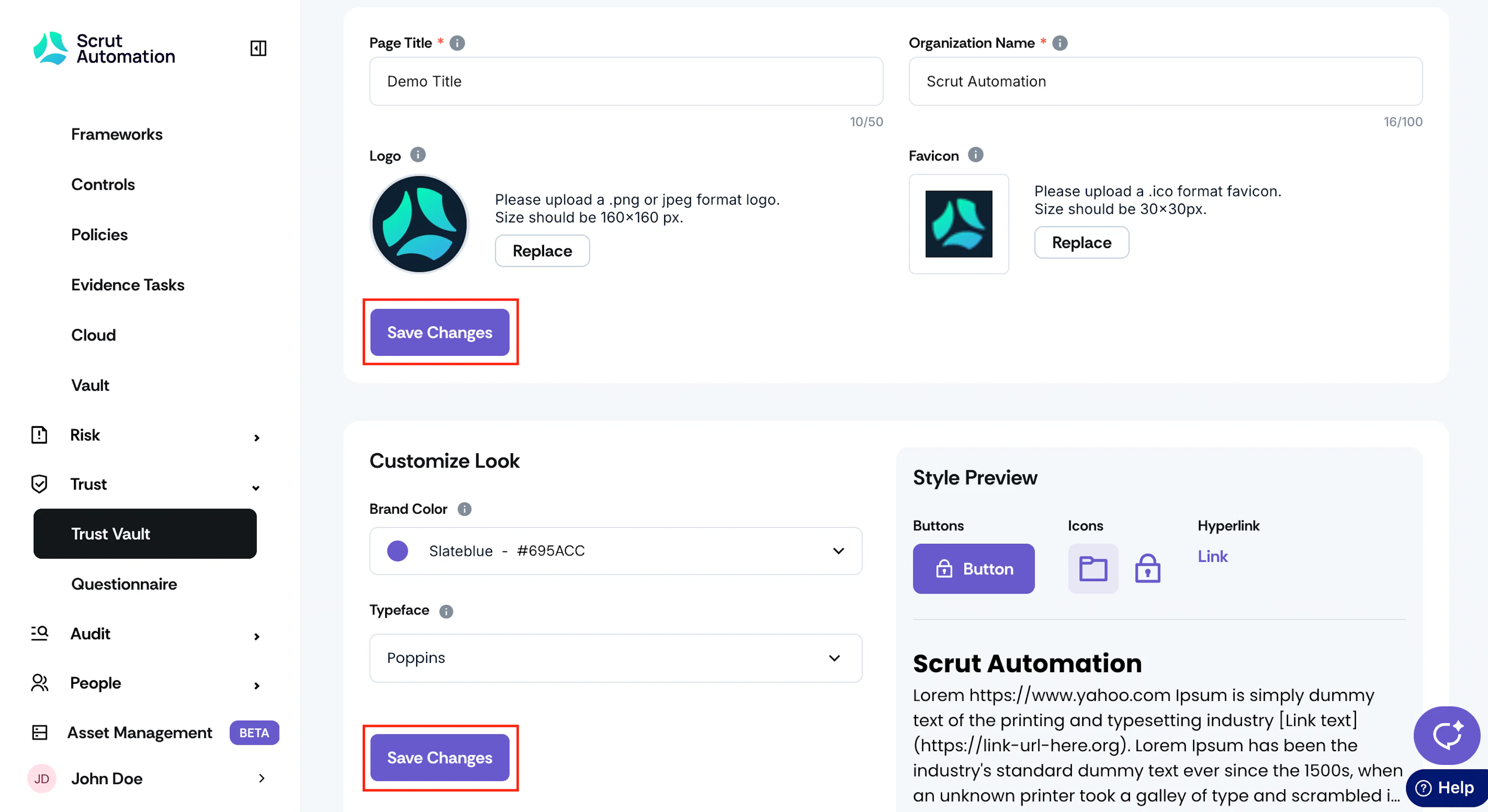
Customize Your Trust Portal's Branding
Scrut offers powerful branding tools to customize your Trust Portal to reflect your organization's unique identity and style. In this section, we explain how to customize the following elements of your Trust Portal:
Step 1: Go to Trust Vault Settings
-
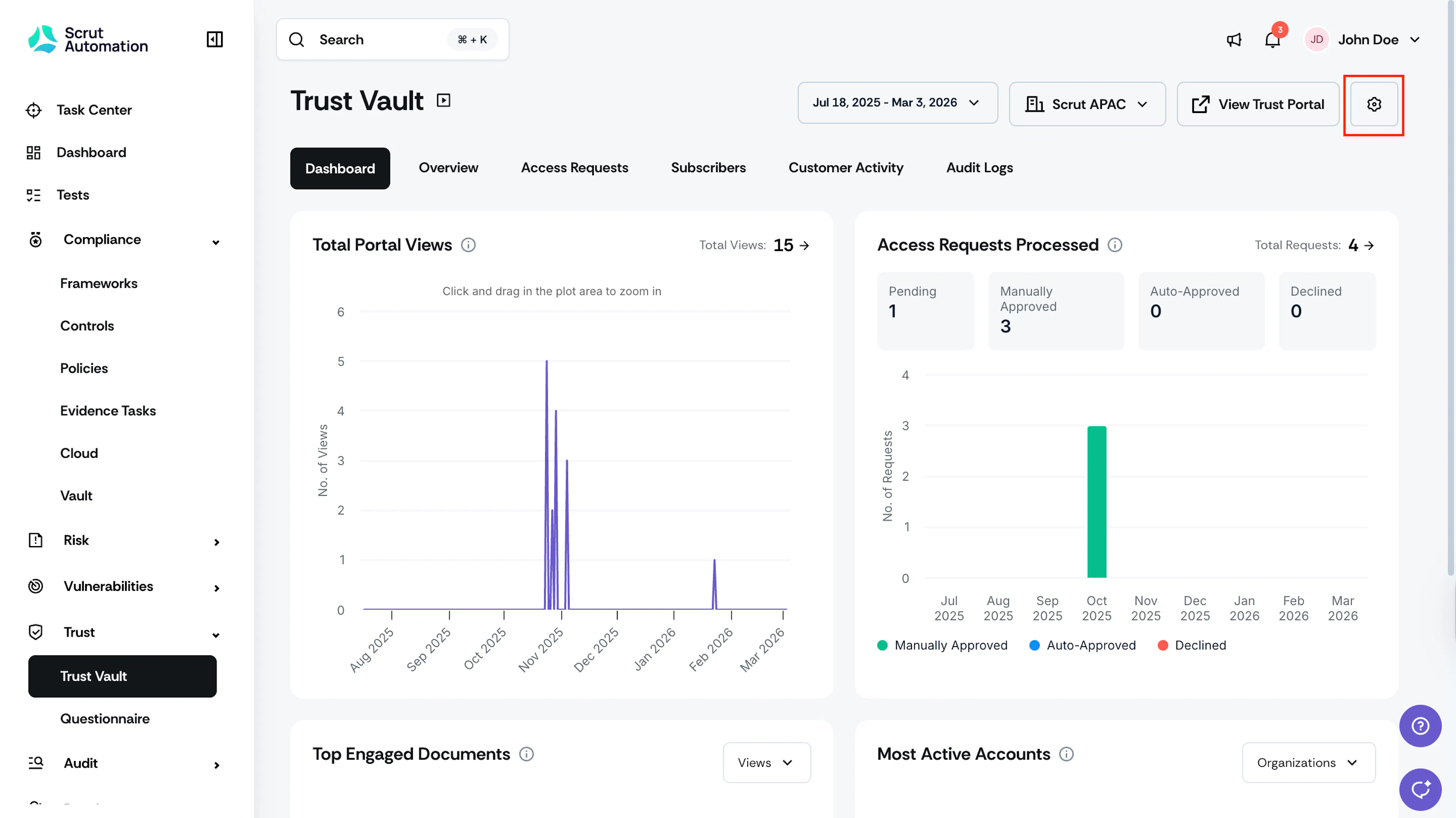
Sign in to your Scrut account and click Trust → Trust Vault on the left navigation panel.
-
Click the settings icon on the top right.
-
This opens the Trust Vault Settings → Branding page.
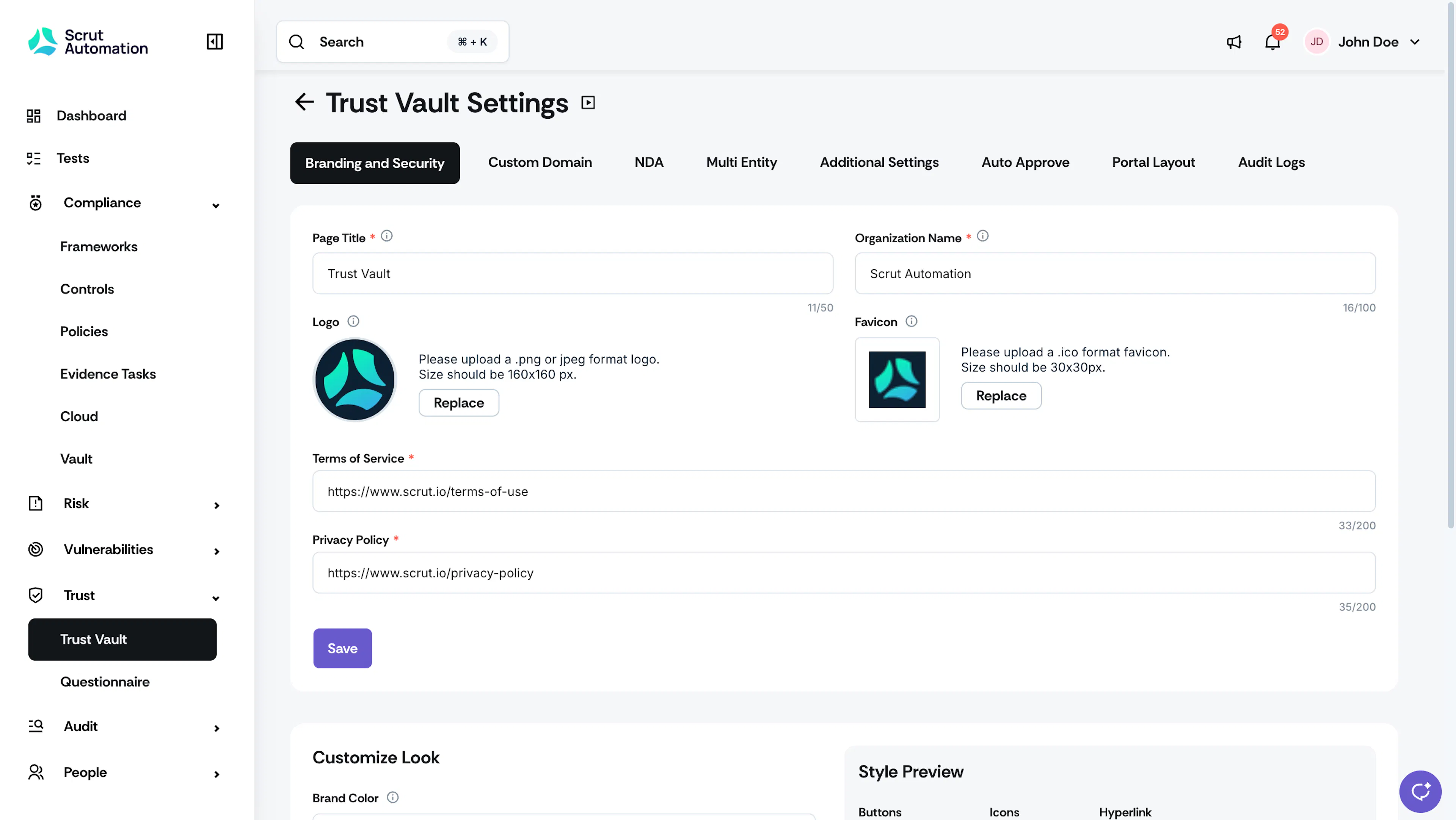
Step 2: Customize
Here you can customize the following elements:
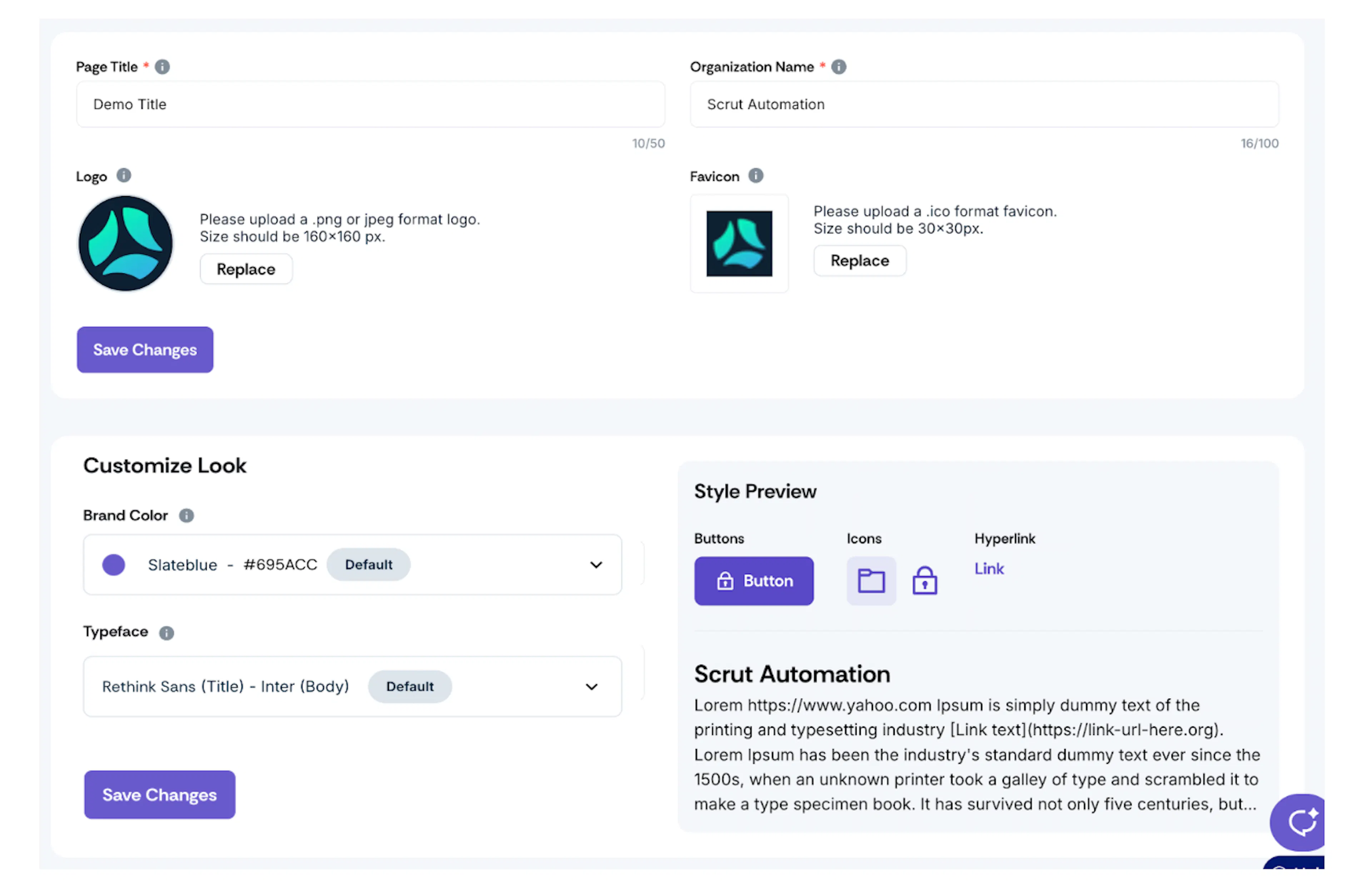
1: Page Title
Enter the main title for your Trust Vault page.

2: Organization Name
Enter your organization's name (appears above the About section).

3: Logo
Upload your organization's logo (displays next to the Page Title).
- Format: .png or .jpeg
- Size: 160 × 160 pixels

4: Favicon
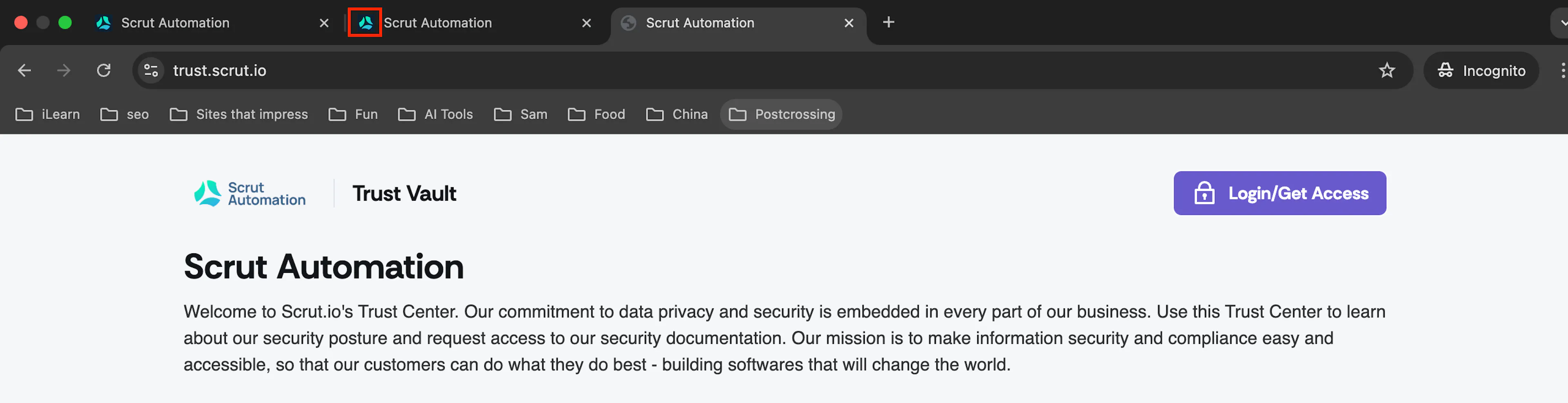
Upload the favicon icon. This small icon appears in the browser tab next to the page name.
- Format: .ico
- Size: 30 × 30 pixels
5: Brand Color
Who can use this feature
- Included in the Scale plan
- Available in the Trust Advanced Add-On for Foundation and Growth plans
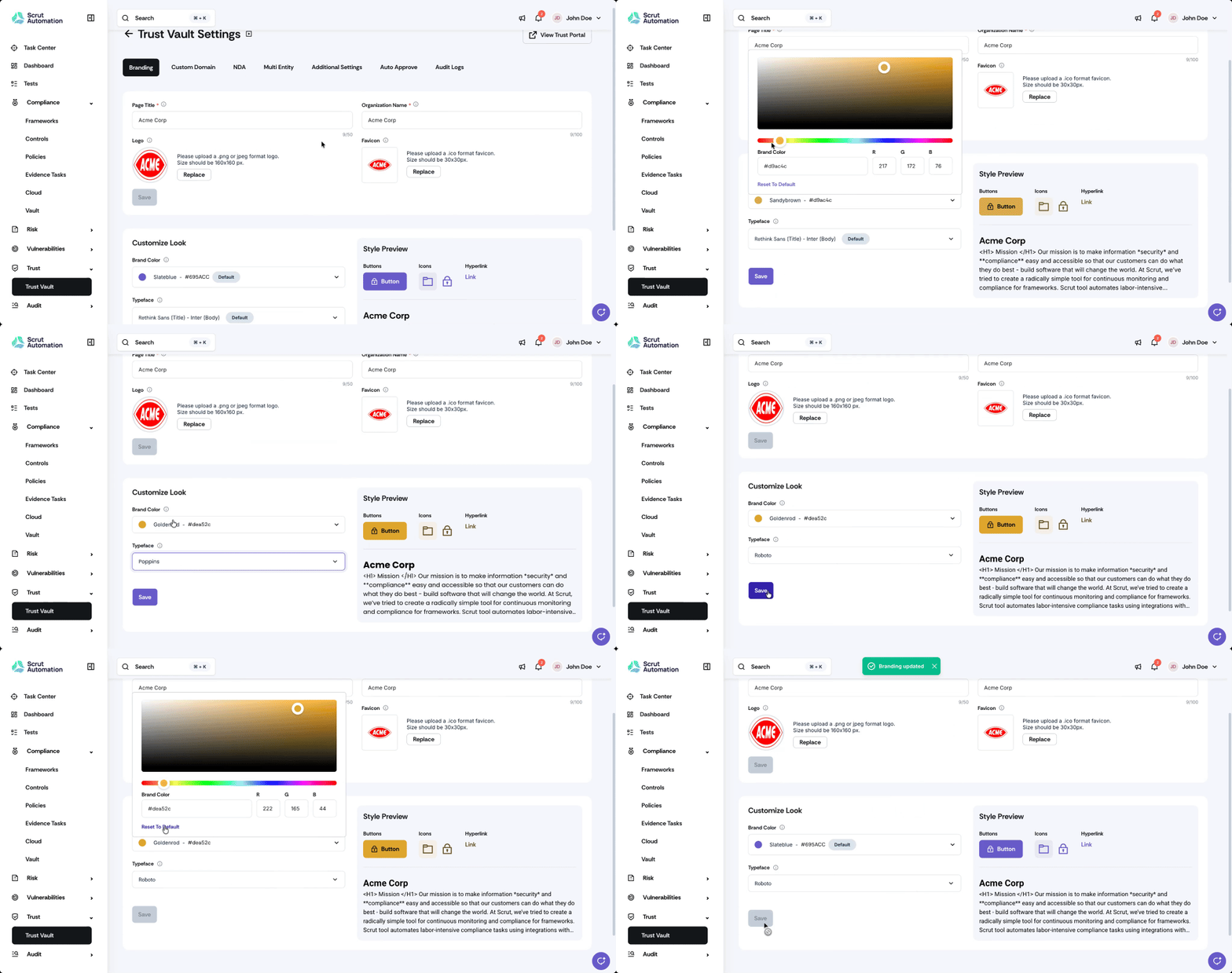
Use the color picker or enter the hex code to select your primary brand color. Scrut applies this color to:
- Button faces
- Icons
- Hyperlinks
The style preview panel on the right shows how the colors will appear on the Trust Vault in real-time.
Note:
Click the Reset to Default button in the color picker to restore the original colors.
6: Typeface
Who can use this feature
- Included in the Scale plan
- Available in the Trust Advanced Add-On for Foundation and Growth plans
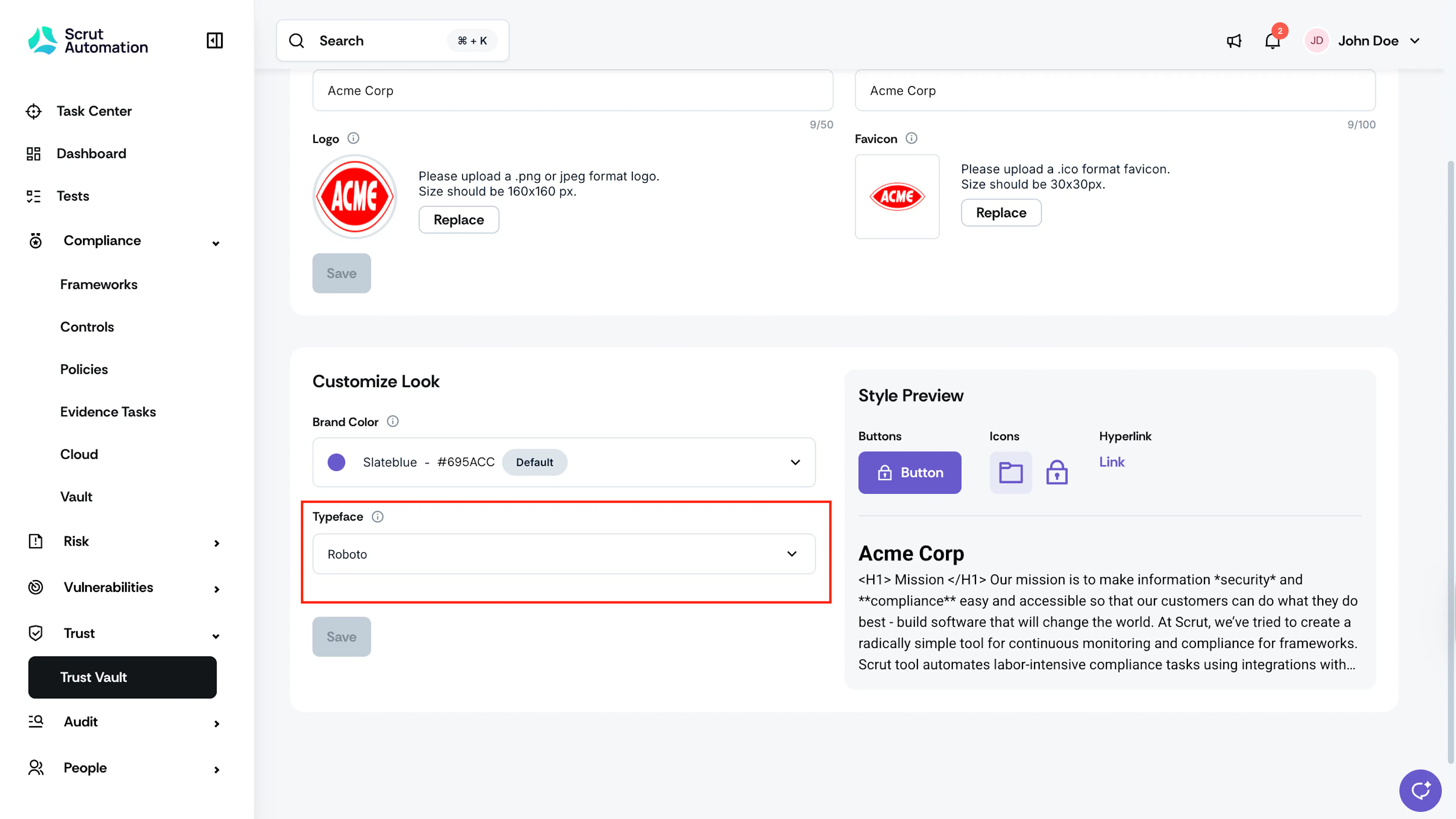
Select the font style used for Headers and Descriptions across the Trust Vault. The style preview panel shows font changes in real time.
Pro Tip!
If you feel unsure about your changes, don't worry! Just use the Preview button to see a quick glimpse of how everything looks in the Trust Vault.
Step 3: Preview and Save Changes
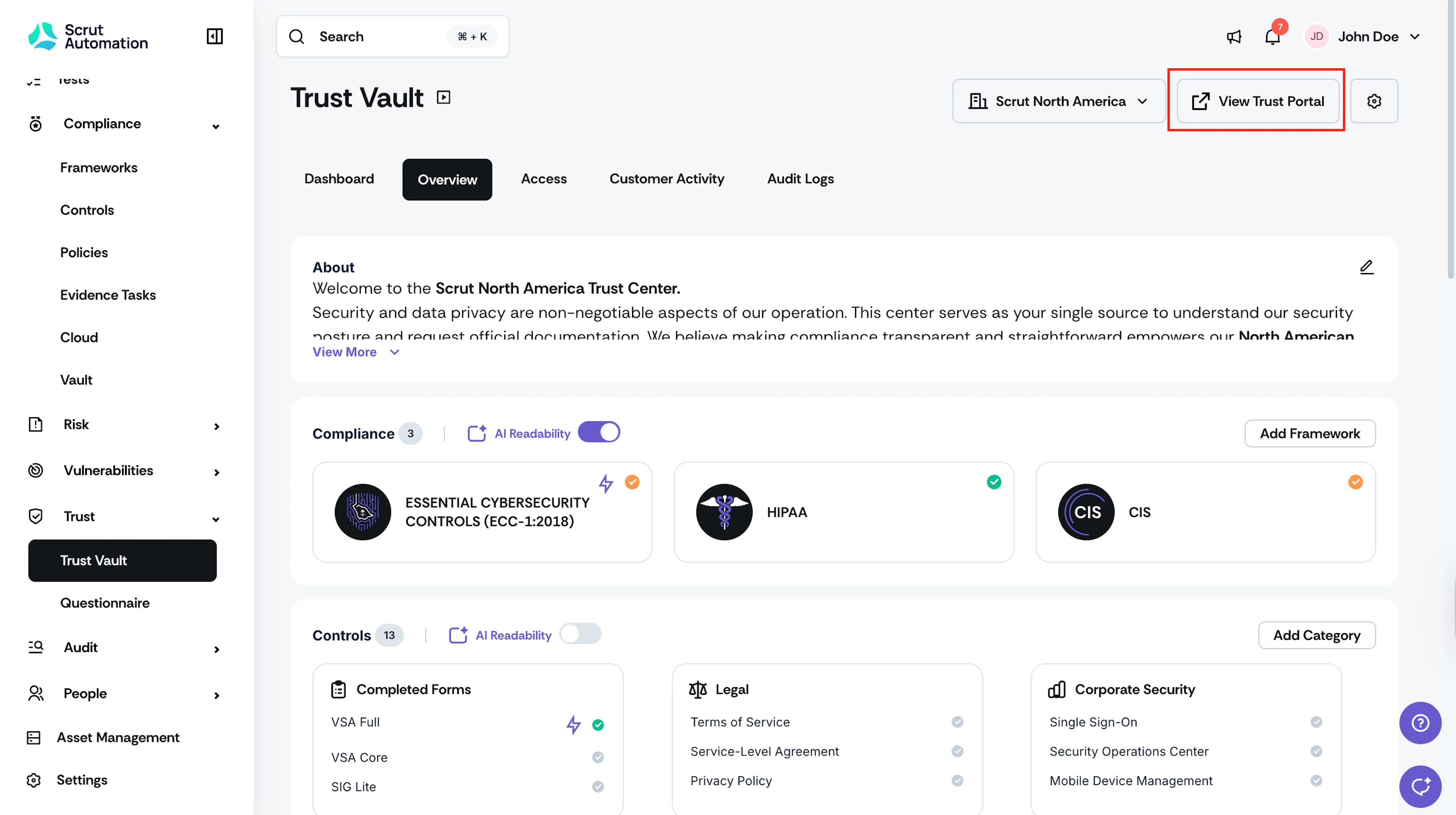
Once you’ve completed the branding, click the View Trust Portal button in the top-right corner. This will show how your Trust Vault will look with the new branding.
If you’re happy with the preview, click the Save Changes button. This will update your Trust Vault with your new branding, and the changes will be visible in real-time.