

Complete Pending Scrut Monitor Setup
Heads Up!
This feature is currently available only for organizations with at least one of the following frameworks: ISO 27001, SOC 2, GDPR, or HIPAA. To know more, contact your CSM.
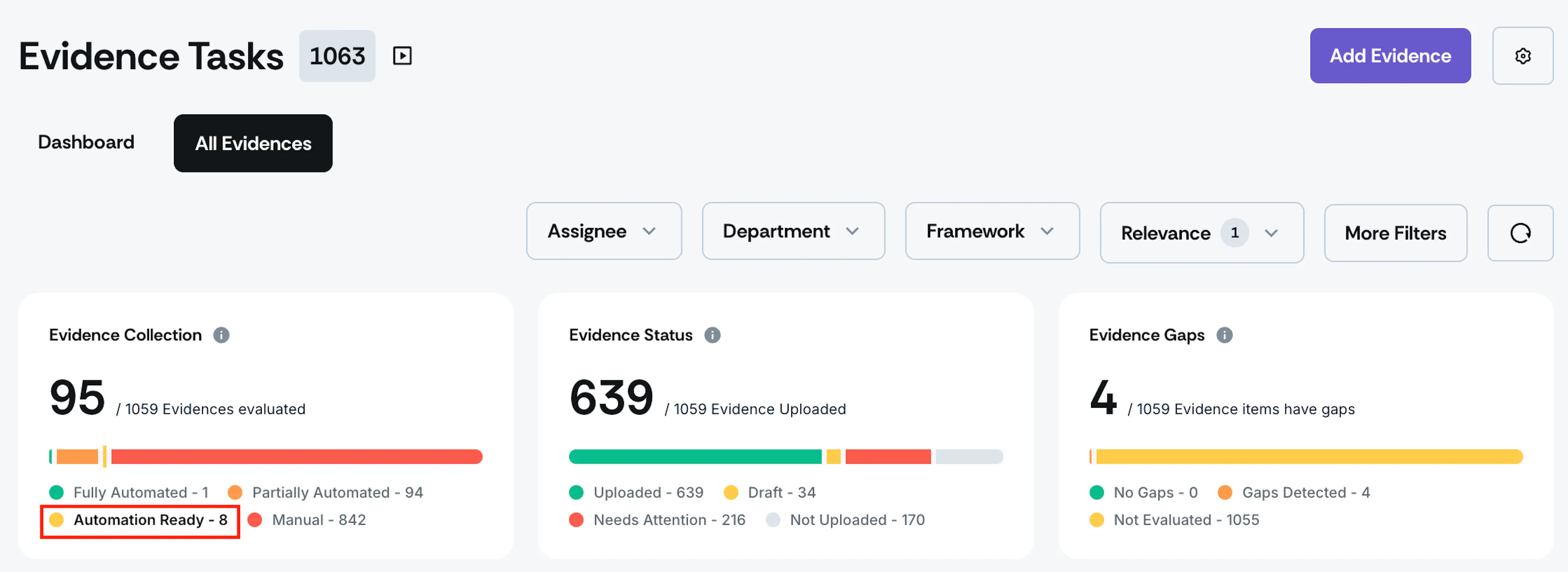
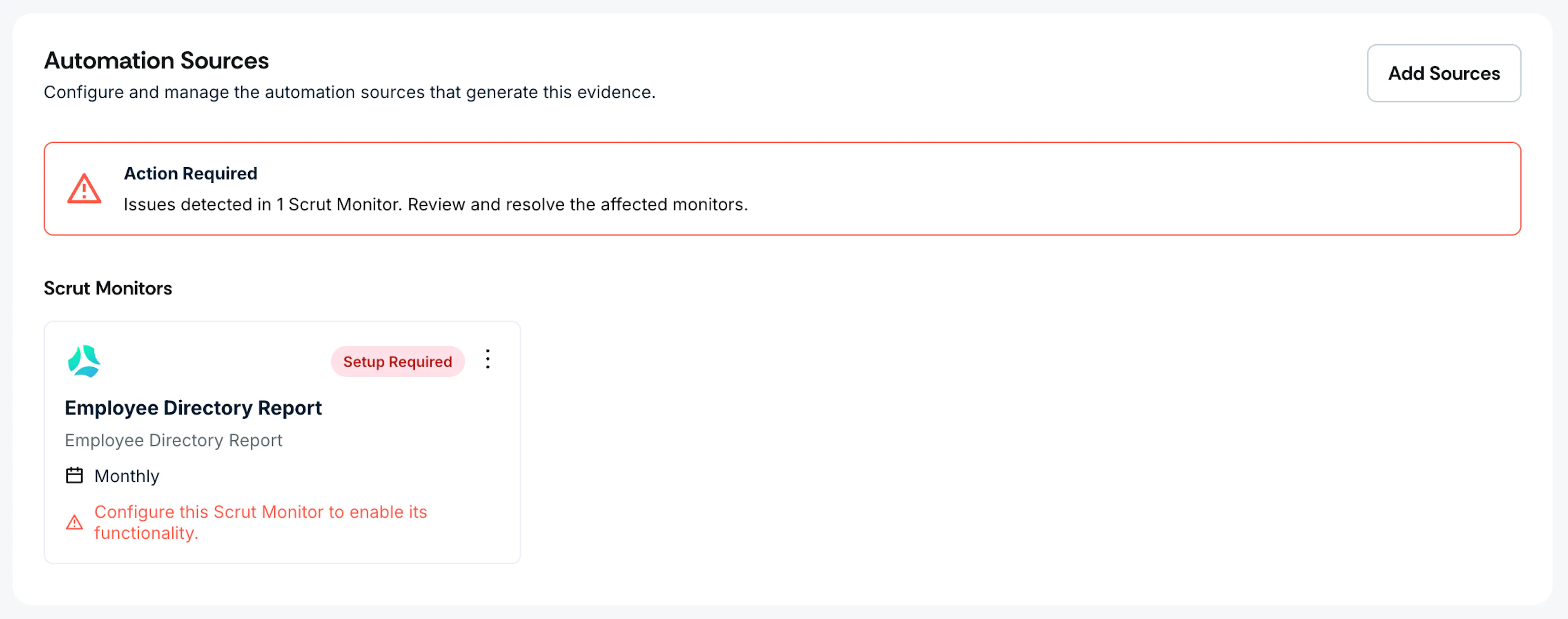
When you connect an integration, Scrut automatically creates Scrut Monitors for relevant evidence tasks. However, some of these monitors require you to provide additional configuration, such as selecting a repository, project, or resource group, before they can start collecting data. Until you complete this setup, the evidence stays in Automation Ready status.
Identify Evidence Tasks with Pending Monitor Setup
-
Navigate to Compliance → Evidence Tasks → All Evidences.
-
Click the Evidence Collection chart and select Automation Ready to filter the evidence list.
-
Open an evidence task from the filtered list.
-
Scroll to the Automation Sources section and look for a Scrut Monitor with the status Setup Required.
-
Complete the Monitor Setup. Provide the required details. Depending on the integration, this may include selecting:
- A repository or branch (for GitHub or GitLab)
- A project or board (for Jira or Asana)
- A resource group or account (for cloud providers like AWS, Azure, or GCP)
-
Save the configuration.
-
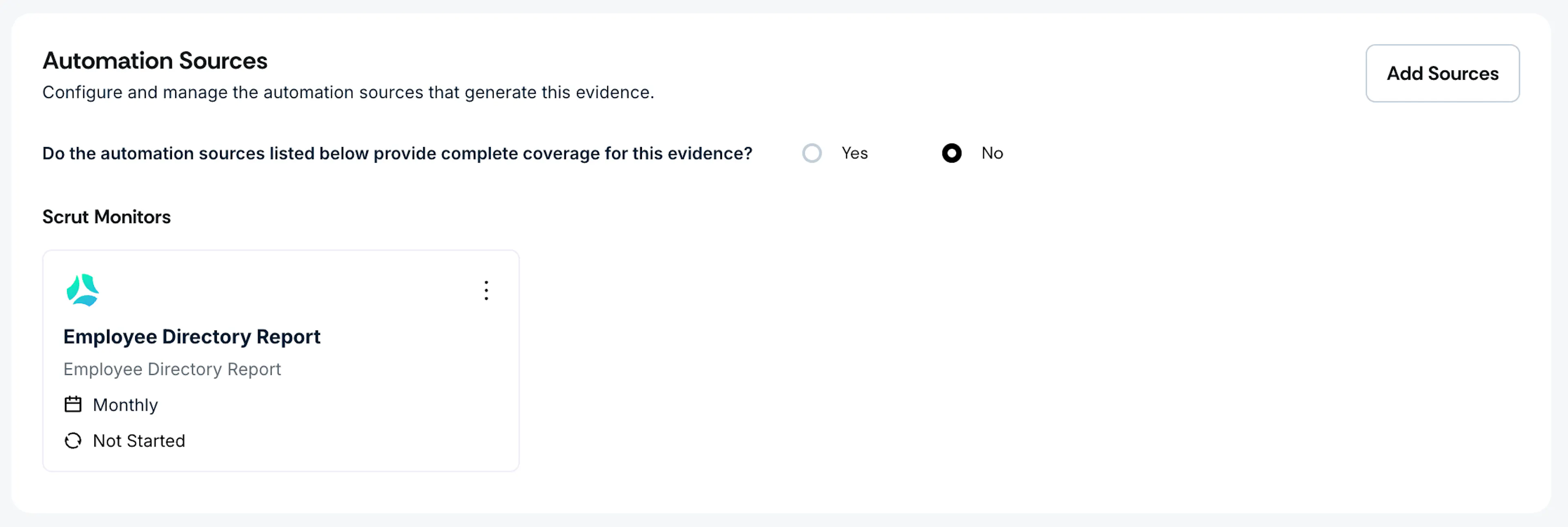
The monitor status changes from Setup Required to Active, and the evidence task moves from Automation Ready to Partially Automated.
Heads Up!
After completing the monitor setup, you still need to confirm whether the automation covers all your systems. Open the evidence task and answer the coverage question.
Connect a Missing Integration
If the evidence task shows a banner indicating a required integration hasn't been connected yet:
- Note the integration name shown in the banner.
- Navigate to Integrations.
- Find and connect the required integration.
Once connected, Scrut automatically creates the relevant monitors and tests. Return to the evidence task to complete any remaining monitor setup.
Fix an Unhealthy Integration
If a Scrut Monitor shows an unhealthy status instead of Setup Required, the integration has a permission or connectivity issue.
- Navigate to Integrations.
- Find the affected integration and review the error details.
- Fix the permission issue or reconnect the integration.
Once the integration is healthy, the monitor resumes automatically, and the evidence task returns to its previous automation status.
Reach out to support@scrut.io or contact your CSM for further assistance.