

Mark an Evidence as Fully or Partially Automated
Heads Up!
This feature is currently available only for organizations with at least one of the following frameworks: ISO 27001, SOC 2, GDPR, or HIPAA. To know more, contact your CSM.
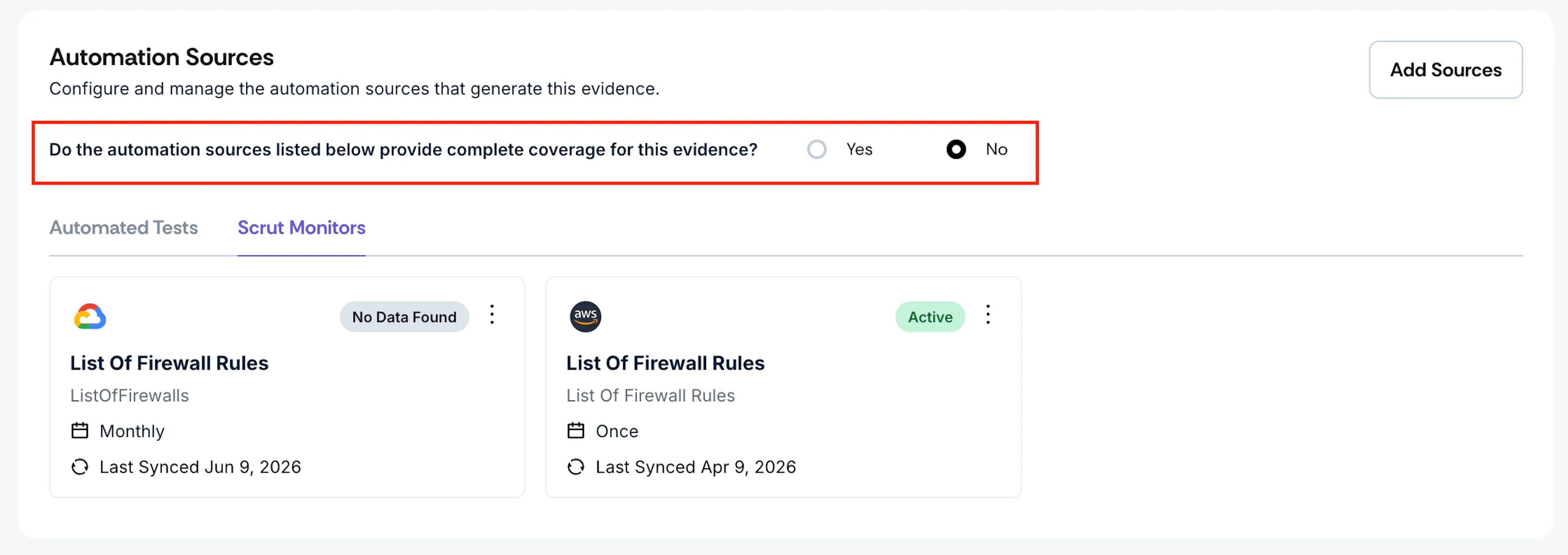
When an automation becomes active for an evidence task, Scrut moves it to the Partially Automated status. This means Scrut has identified at least one active Automated Test or Scrut Monitor for that evidence, but cannot determine whether the automation provides complete coverage for the evidence.
You need to confirm this manually. Your answer moves the task to the appropriate automation status:
- Mark Yes: Scrut moves the evidence task to Fully Automated
- Mark No: Scrut retains the evidence task in Partially Automated
Important:
- This is a one-time action. You only need to confirm coverage once per evidence task. Until you do, the task stays in Partially Automated regardless of how many automation sources are linked.
- This action only applies to evidence tasks in Partially Automated status. Tasks in Automation Ready or Manual Only status are not eligible because they do not have active automation sources linked yet.
Mark an Evidence as Fully or Partially Automated
-
Navigate to Compliance → Evidence Tasks → All Evidences.
-
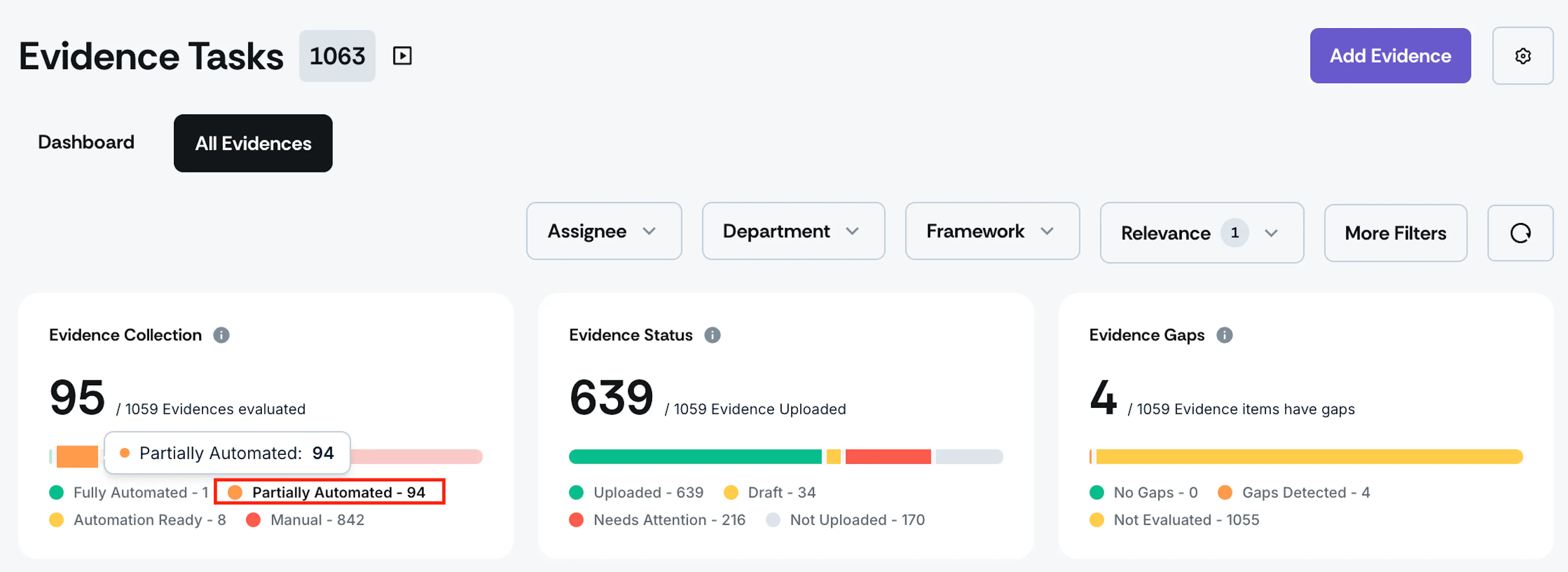
Click the Evidence Collection chart and select Partially Automated to filter the evidence list.
Heads Up! Evidence tasks with active automation start at Partially Automated by default. Work through this list to confirm coverage for each one.
-
Click an evidence task to open it.
-
Scroll to the Automation Sources section and review the linked Automated Tests and Scrut Monitors. Check what data is being collected and whether it covers all the systems your organization uses for this control.
-
Locate the coverage question: "Does this automation cover all systems relevant to this evidence?"
-
Select your answer:
- Click Yes if all your systems are covered by the active automation. The evidence moves to Fully Automated.
- Click No if some systems are outside Scrut's automation scope. The evidence stays at Partially Automated, and you need to upload manual proof for the uncovered systems.
-
If you selected No, click Add Attachment and upload the required proof for systems not covered by automation.
Heads Up!
Automation never automatically marks an evidence task as complete. You always need to verify the evidence and click mark it as complete to move it to the Uploaded status.
How to Decide: Fully vs. Partially Automated
Select Fully Automated (Yes) if:
- All the systems relevant to this control are covered by active tests or monitors
- The automated data is sufficient for your auditor's requirements
- You don't need to supplement with additional documentation
Example: Your organization uses only AWS for cloud infrastructure, and an AWS Automated Test covers the encryption requirement entirely.
Select Partially Automated (No) if:
- You use additional cloud providers, tools, or systems that Scrut doesn't integrate with
- Your auditor requires specific documentation beyond what automation collects
- You need to provide additional context, screenshots, or reports alongside the automated data
Example: Your evidence covers both AWS (automated) and Alibaba Cloud (not integrated with Scrut). You select No and upload the Alibaba Cloud proof manually.
Pro Tip!
If you're unsure whether to mark an evidence as Fully or Partially Automated, consult your CSM. They can advise based on your framework requirements and what auditors typically expect.
Changing a Coverage Decision
You can update your coverage answer at any time by reopening the evidence task and selecting a different option. The automation status updates immediately.
Reach out to support@scrut.io or contact your CSM for further assistance.