

Understand Evidence Automation & Statuses
Heads Up!
This feature is currently available only for organizations with at least one of the following frameworks: ISO 27001, SOC 2, GDPR, or HIPAA. To know more, contact your CSM.
Scrut automatically links Automated Tests and Scrut Monitors to your evidence tasks, so you can see exactly how much of your compliance evidence is covered by automation and where manual effort is still required.
What Is Evidence Automation
Each evidence task in Scrut has an Evidence Collection status in addition to the regular Evidence statuses. It indicates whether Scrut can automatically collect proof for an evidence task, and how much of that automation is currently active. This helps you prioritize where to focus manual effort, identify integration gaps, and track your overall compliance automation progress over time.

How Automation Works
Scrut uses two types of automation sources to collect evidence:
-
Automated Tests: Compliance checks that verify whether a control is correctly configured (for example, verifying if encryption is enabled or if monitoring is turned on). Tests run automatically when the relevant integration is connected.
-
Scrut Monitors: Data collection jobs that fetch and attach proof documents, such as CSV exports, logs, configuration reports, etc., from external integrations and internal Scrut modules like Access Reviews, Asset Management, etc.
- Internal monitors that fetch evidence from Scrut modules are created and activated automatically.
- Integration-based monitors that fetch evidence from your connected integrations. These require initial configuration before they can start pulling data.
Evidence Collection Statuses
Evidence Collection is a secondary status on each evidence task that tells you how much of that evidence is covered by automation. It works alongside the regular evidence status and updates automatically as you connect integrations, configure Scrut Monitors, and confirm coverage decisions.
Fully Automated
All evidence requirements are completely satisfied by active Automated Tests or Scrut Monitors. No manual upload is required. An evidence task reaches this status when at least one Automated Test or Scrut Monitor is active and linked to the evidence. You confirm that the automation sources provide complete coverage for the evidence.
Example: The evidence for "Encryption at Rest" is fully covered by an AWS test that verifies all disks are encrypted, and your organization uses only AWS for cloud infrastructure.
Partially Automated
Some parts of the evidence task are automated, but manual uploads are still needed for tools or systems outside Scrut's automation scope. An evidence task reaches this status when at least one Automated Test or Scrut Monitor is active and linked to the evidence. You confirm that the automation sources do NOT provide complete coverage for the evidence.
Example: An evidence task covers both AWS and Alibaba Cloud. Scrut automates the AWS portion, but you need to upload proof for Alibaba Cloud manually.
When to mark an evidence as Partially Automated:
- You use tools or cloud providers that Scrut doesn't integrate with
- Your auditor requires documentation beyond what automation provides
- You need to supplement automated data with additional context, screenshots, or reports
Automation Ready
Scrut can automate this evidence task, but something is blocking it. This is the default status for all evidence tasks that have supported automation sources that are not yet connected (integrations) or configured (Scrut Monitors).
Common reasons an evidence task is Automation Ready:
- Missing integration: The required integration (AWS, GitHub, Jira, and others) hasn't been connected yet
- Setup pending: A Scrut Monitor has been created but needs configuration, such as selecting a repository, project, or resource group
- Unhealthy integration: The integration exists, but has permission issues or connectivity problems
Manual
No Automated Tests or Scrut Monitors are available for this evidence. Manual upload is always required.
Examples of Manual evidence tasks:
- Physical security policy documentation
- Photographs showing fire safety in your office premises
How Evidence Collection Status Changes
Status changes happen automatically based on integration health, Scrut Monitor configurations, and your coverage decisions.
The table below shows a few of the most common transitions.
| Trigger | Result |
|---|---|
| Integration connected | Automation Ready moves to Partially Automated (after the integration setup is complete in Scrut) |
| Integration disconnected | Partially or Fully Automated moves to Automation Ready (if no other active automation exists) |
| Test ignored | Status downgrades from Partially or Fully Automated to Automation Ready, if the ignored test was the only active automation source |
| Scrut Monitor deleted | Status downgrades from Partially or Fully Automated to Automation Ready, if the ignored test was the only active automation source |
| Coverage confirmed as Yes | Partially Automated moves to Fully Automated |
| Coverage confirmed as No | Remains Partially Automated |
How Evidence Collection Status Affects Evidence Status
The Automation Availability status and the Evidence status are independent and work separately.
- When automation is added: If a test or Scrut Monitor is attached to an evidence task, the evidence status changes from Not Uploaded to Draft. You still need to review and mark it as complete to move the evidence to the Uploaded status.
- When automation is removed: If you disconnect an integration, ignore a test, or delete a Scrut Monitor, the evidence status changes from Uploaded back to Draft or Needs Attention. This prompts you to review the evidence since its automated proof has changed.
Heads Up!
Automation never automatically marks an evidence task as complete. You always need to verify the evidence and click mark it as complete to move it to the Uploaded status.
Automation Sources Inside an Evidence Task
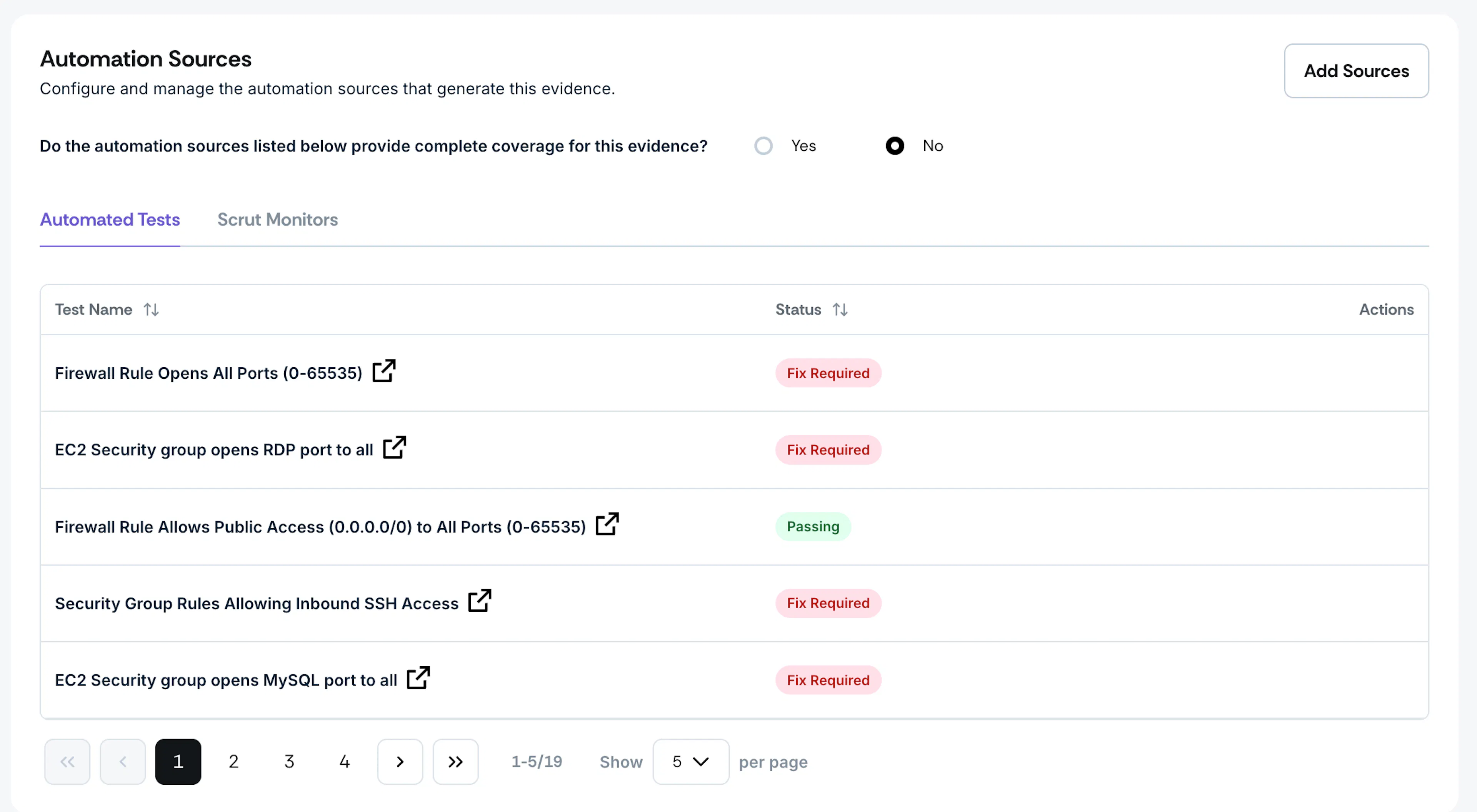
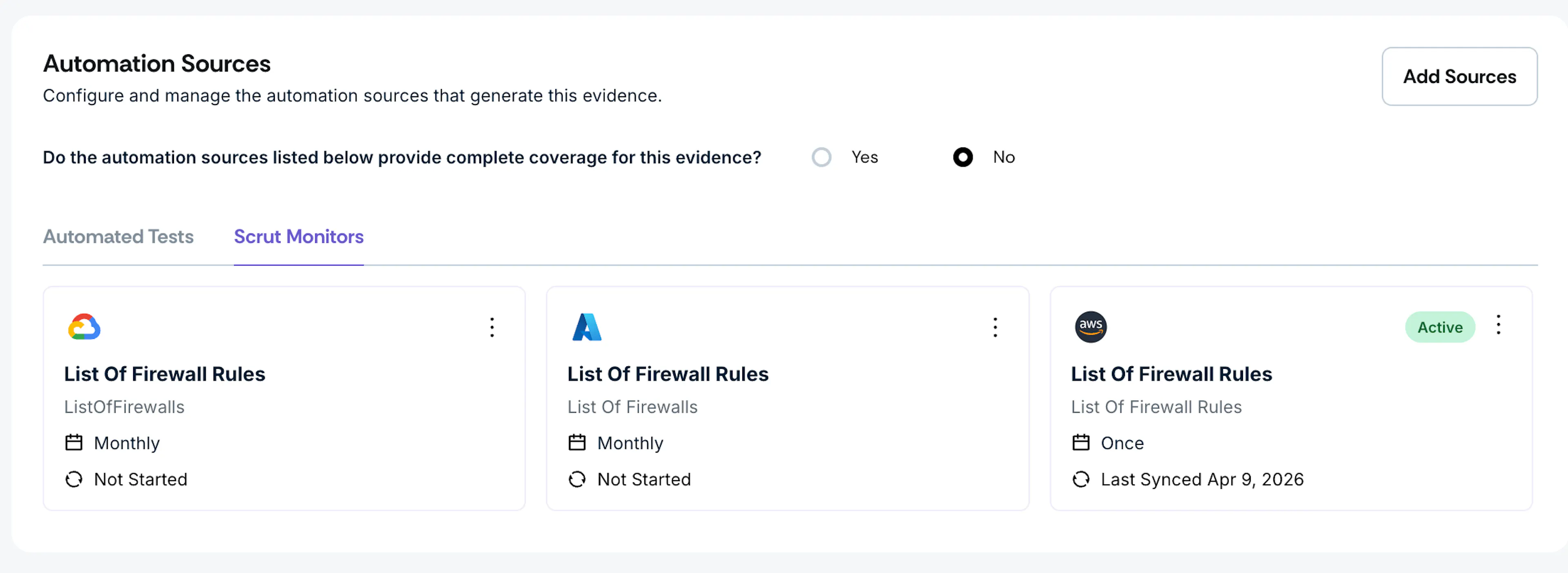
Evidence tasks with statuses - Fully Automated, Partially Automated, or Automation Ready - display an Automation Sources section below the attachments area.
This section lists all automation linked to the evidence, grouped into two types:
-
Automated Tests: Each entry shows the test name, current status (Passed, Failed, or Ignored), and an Export button to download results without navigating to the Tests page. Click any test to open its detail view.
-
Scrut Monitors: Each entry shows the monitor name, frequency, last synced time, and current status (Setup Required, No Data Found, Healthy, and others). Click any monitor to configure it or view details.
Pro Tip!
Click Add Source in the Automation Sources section to manually configure an additional Scrut Monitor for an evidence task.
Why do some evidence tasks have both Tests and Monitors?
Some evidence requirements need two types of proof to demonstrate compliance fully. Automated Tests validate that a control is correctly configured (binary checks), while Scrut Monitors collect documentary proof that the control is actively working (logs, reports, configuration screenshots).
Example: For capacity monitoring compliance, an Automated Test verifies that AWS CloudWatch is enabled and configured, while a Scrut Monitor collects the actual alert logs and monitoring dashboards that auditors review.
The test proves the control exists, and the monitor proves it's being used. As long as at least one source is active and healthy, the evidence can be in Fully or Partially Automated status.
Reach out to support@scrut.io or contact your CSM for further assistance.