

Review Customer Activity
Use the Customer Activity tab for a comprehensive view of all user interactions on your Trust Portal.
Who can use this feature
- Supported on Foundation, Growth, and Scale plans
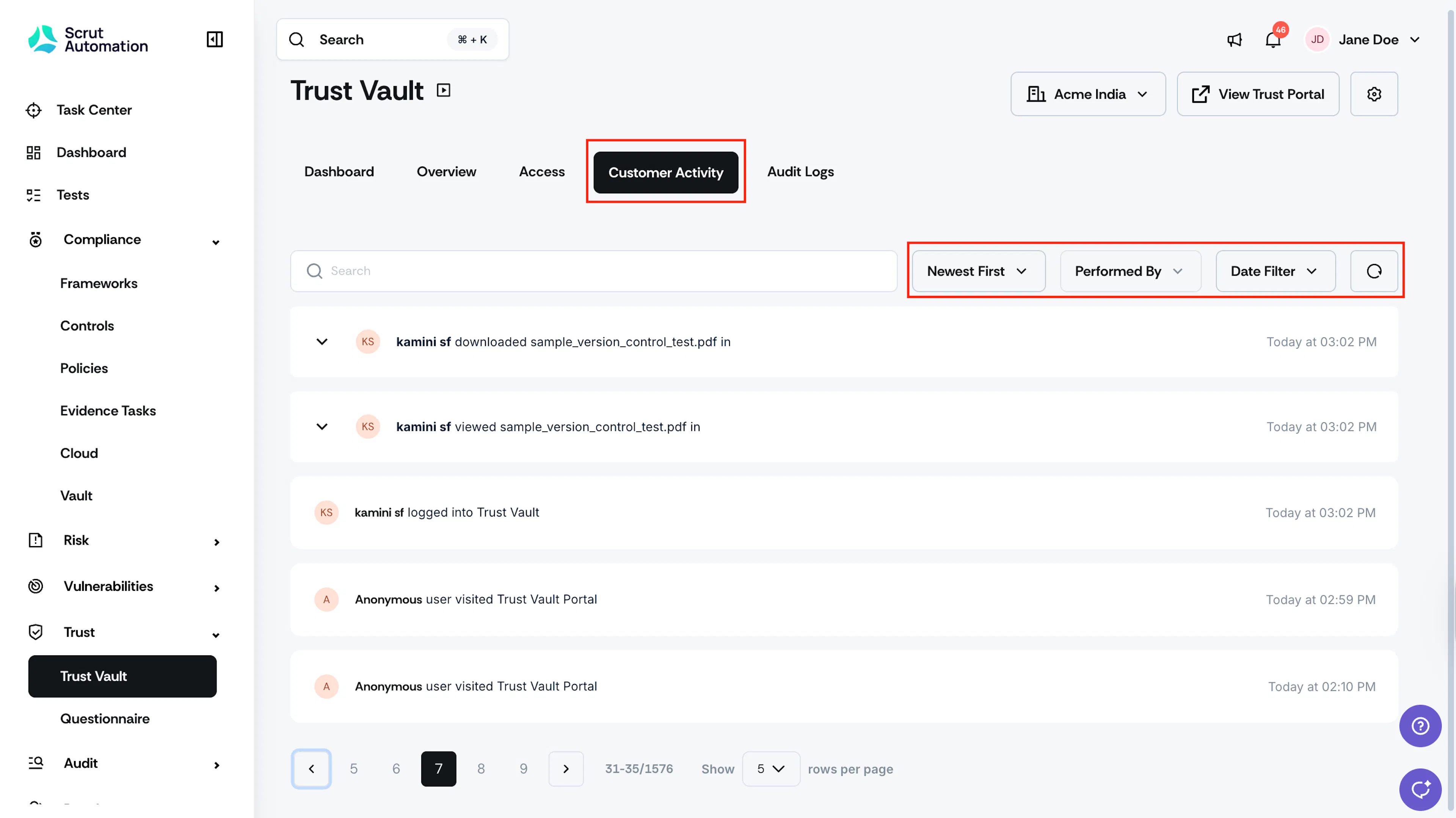
To access the Customer Activity tab, select Trust → Trust Vault in the left navigation panel, then click Customer Activity. This tab provides visibility into how external users interact with your Trust Vault. It captures all customer interactions, including:
- Trust Vault portal visits
- Document views
- Document downloads
- Access requests submitted
- User session information
- Consent activity, including Access Request, NDA, Subscribe to Updates, and Reclaim Access acceptances
Pro Tip!
Use the filters at the top of the page to narrow down activity data. You can filter by date range, customer name, activity type, or specific documents. Apply multiple filters simultaneously for more precise results. Clear filters anytime to return to the full activity view.
Consent Audit Logs
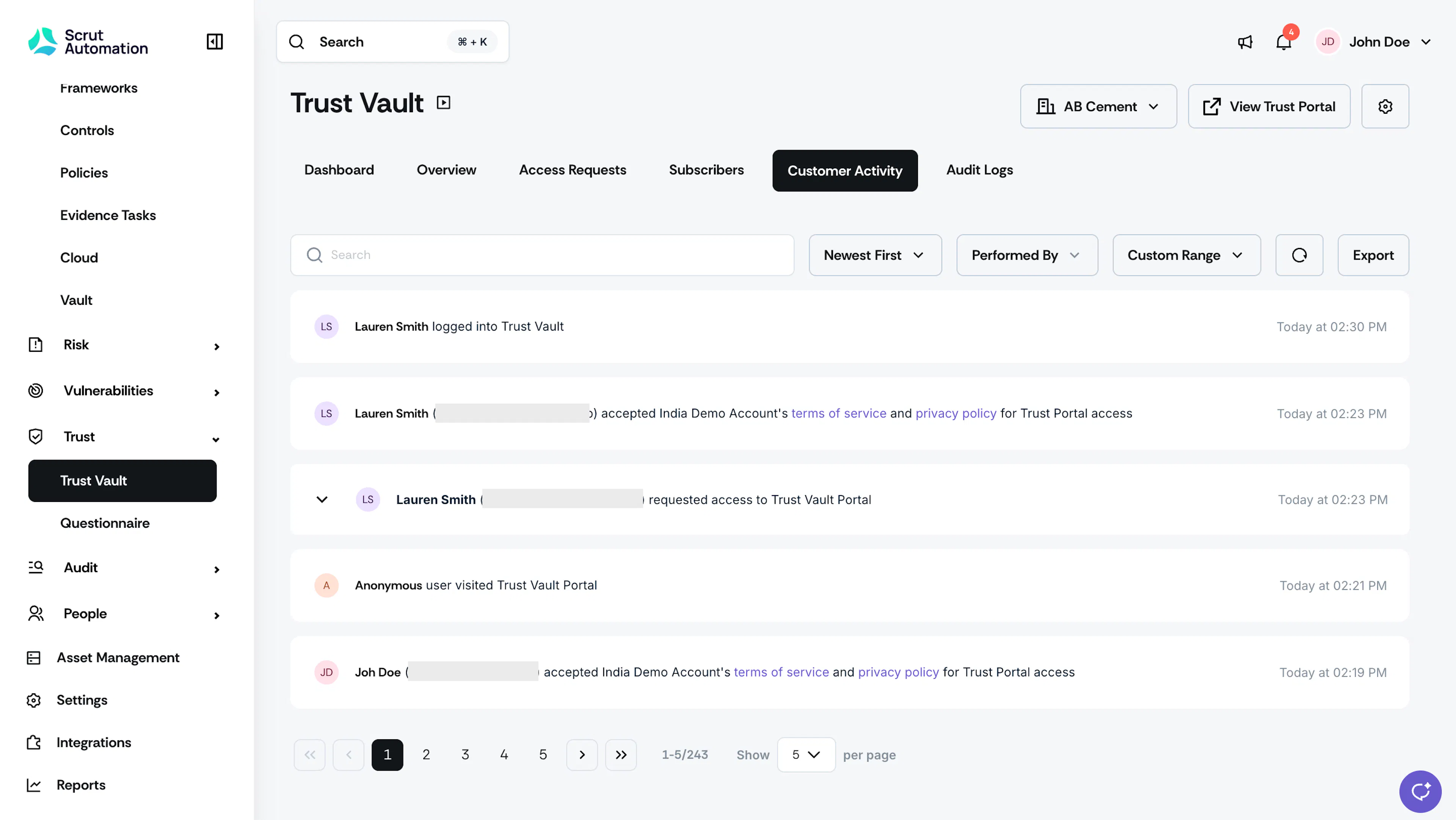
The Customer Activity tab captures consent-related actions as dedicated log entries, so you always have a record of who consented to what and when. These logs cover:
- Access Request and Reclaim Access: Logged when a visitor accepts your Terms of Service and Privacy Policy while requesting or reclaiming access.
- NDA Agreement: Logged when a visitor accepts your Non-Disclosure Agreement, with a link to the exact version of the NDA text they accepted.
- Subscription to Updates: Logged when a visitor subscribes to Trust Portal updates and accepts your Terms of Service and Privacy Policy. This applies to both anonymous visitors and already-approved Trust Portal users.
Each consent log entry shows the visitor's name, email, a description of the action taken, and the timestamp. IP address is captured at the time of consent and is available in the exported file, though not shown in the activity list.
Export Customer Activity
You can download Customer Activity logs as an Excel file whenever you need an audit-ready record.
- Navigate to Trust → Trust Vault → Customer Activity.
- Apply any filters you want reflected in the export, such as date range or activity type.
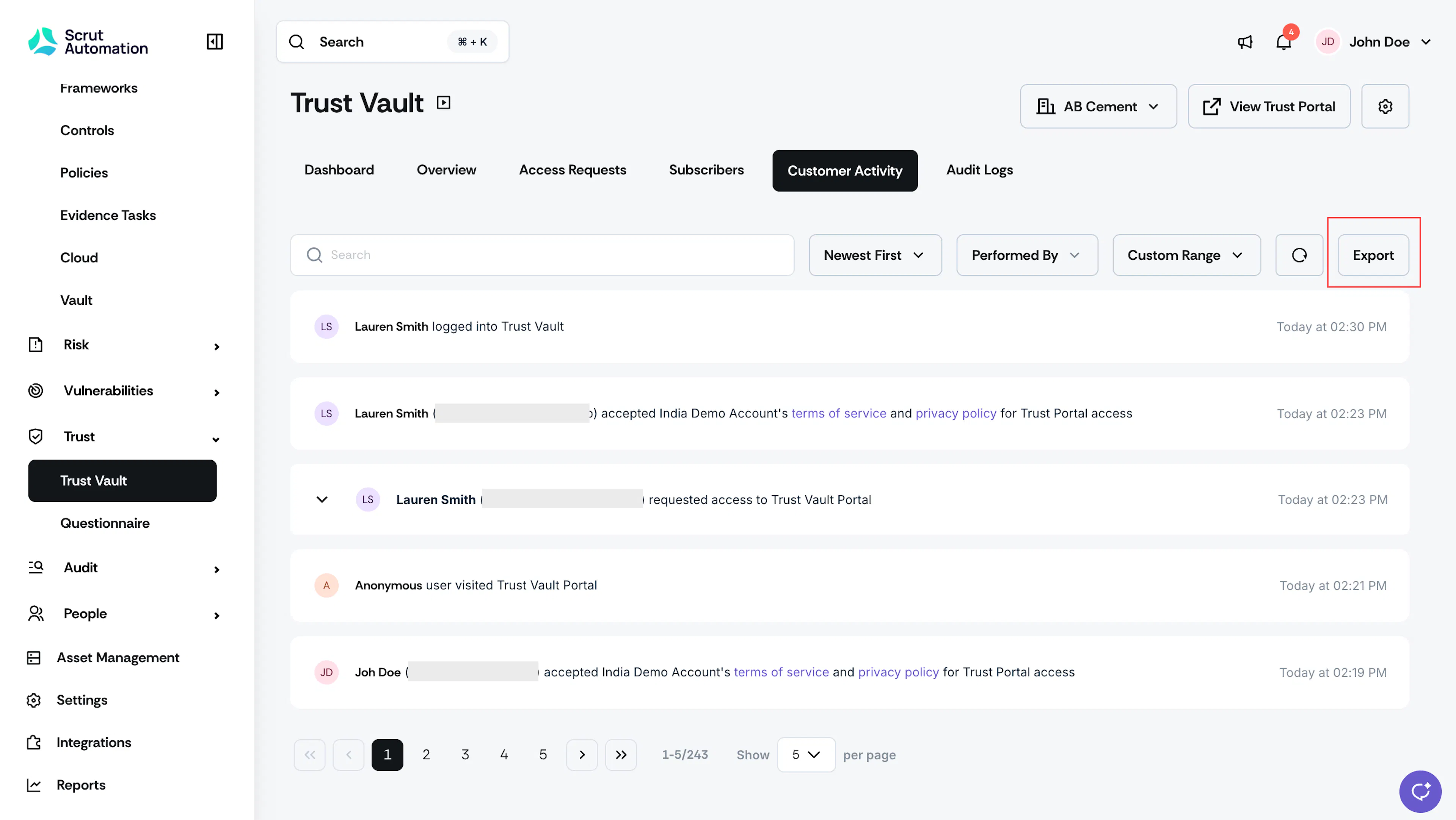
- Click Export.
Note:
- The exported file includes one sheet with five columns: Username, User Email, Description, Timestamp, and IP Address.
- The export includes only logs that match your applied filters.
- For logs with additional details, such as justification text or access request data, the extra information appears as line breaks within the Description cell rather than as separate columns.
- NDA and Terms of Service references appear as plain text links in the Description cell, for example, "NDA (https://app.scrut.io/nda/example)", so you can copy the URL.
Reach out to support@scrut.io or contact your CSM for further assistance.