

Edit or Delete Vendor Mitigation Tasks
Who can use this feature
- Supported on Foundation, Growth, and Scale plans
Mitigation Tasks can be edited and deleted in two ways:
- Method #1: Via the Vendor Overview Page
- Method #2: Via the Mitigation Task Tab
Method 1: Via the Vendor Overview Page
Editing a Mitigation Task
- From the left navigation panel, expand Risk menu.
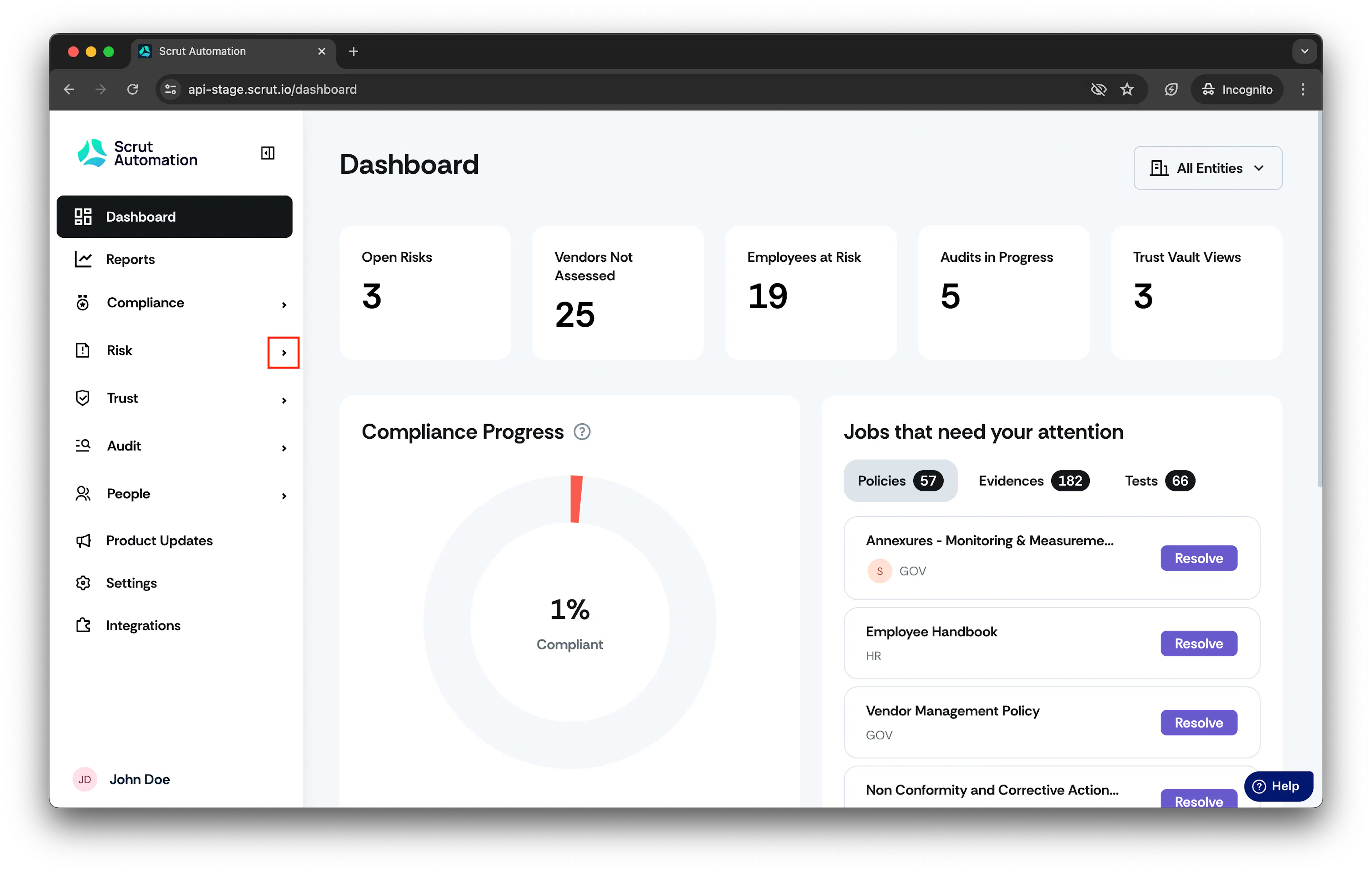
-
Click Vendors and go to Vendors tab.
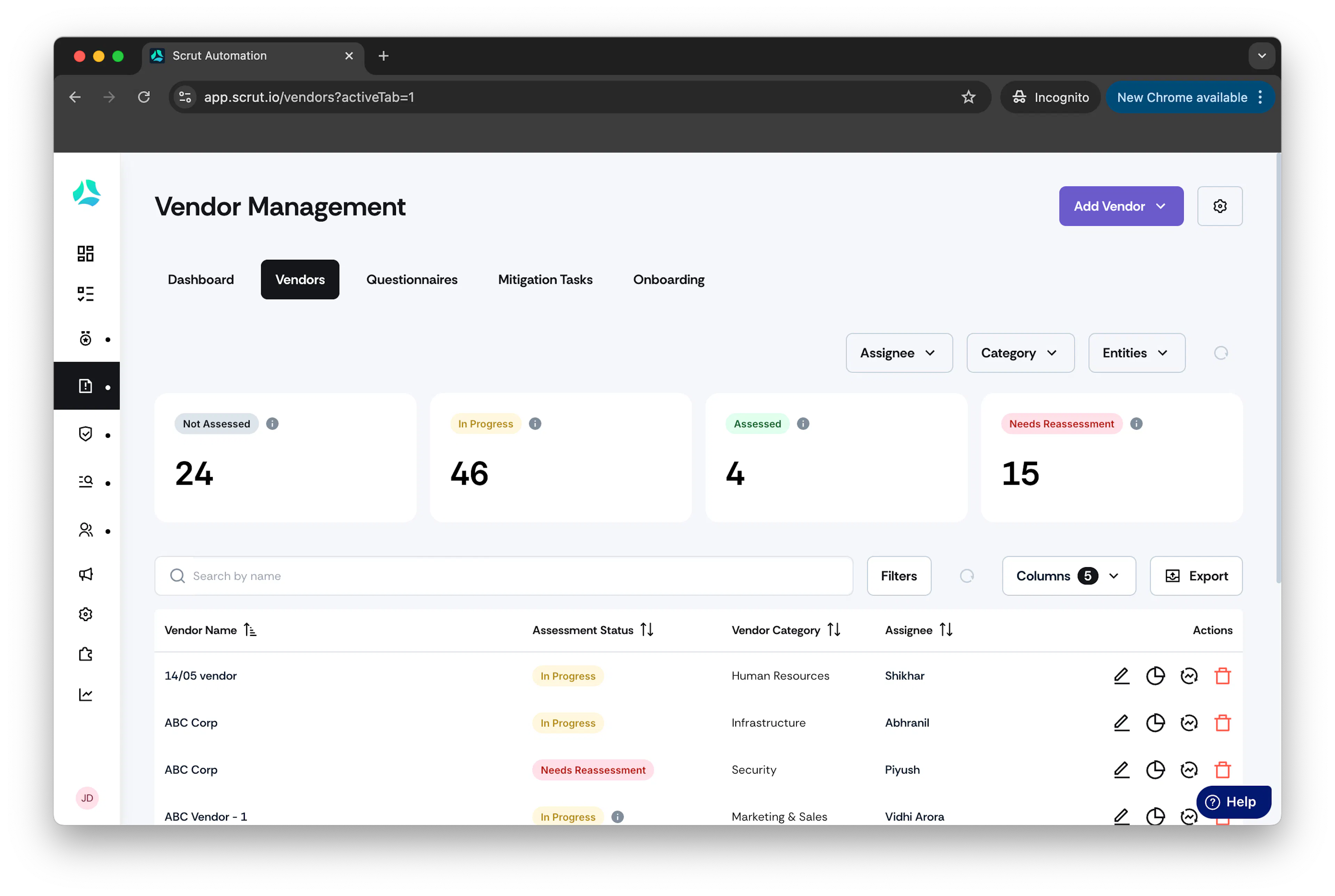
-
Click on the vendor you want to edit the mitigation task for.
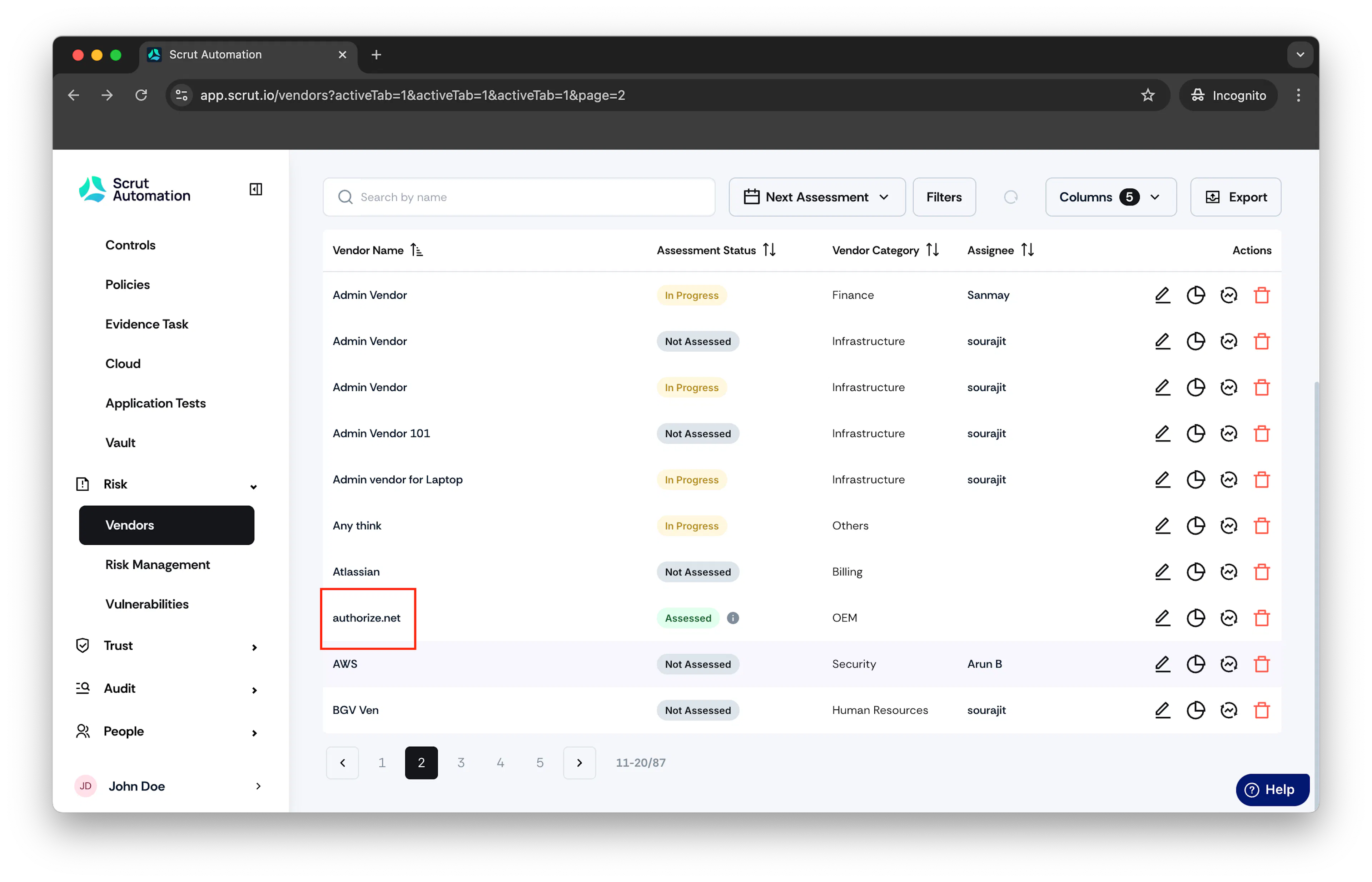
-
Click on the Mitigation Tasks tab.
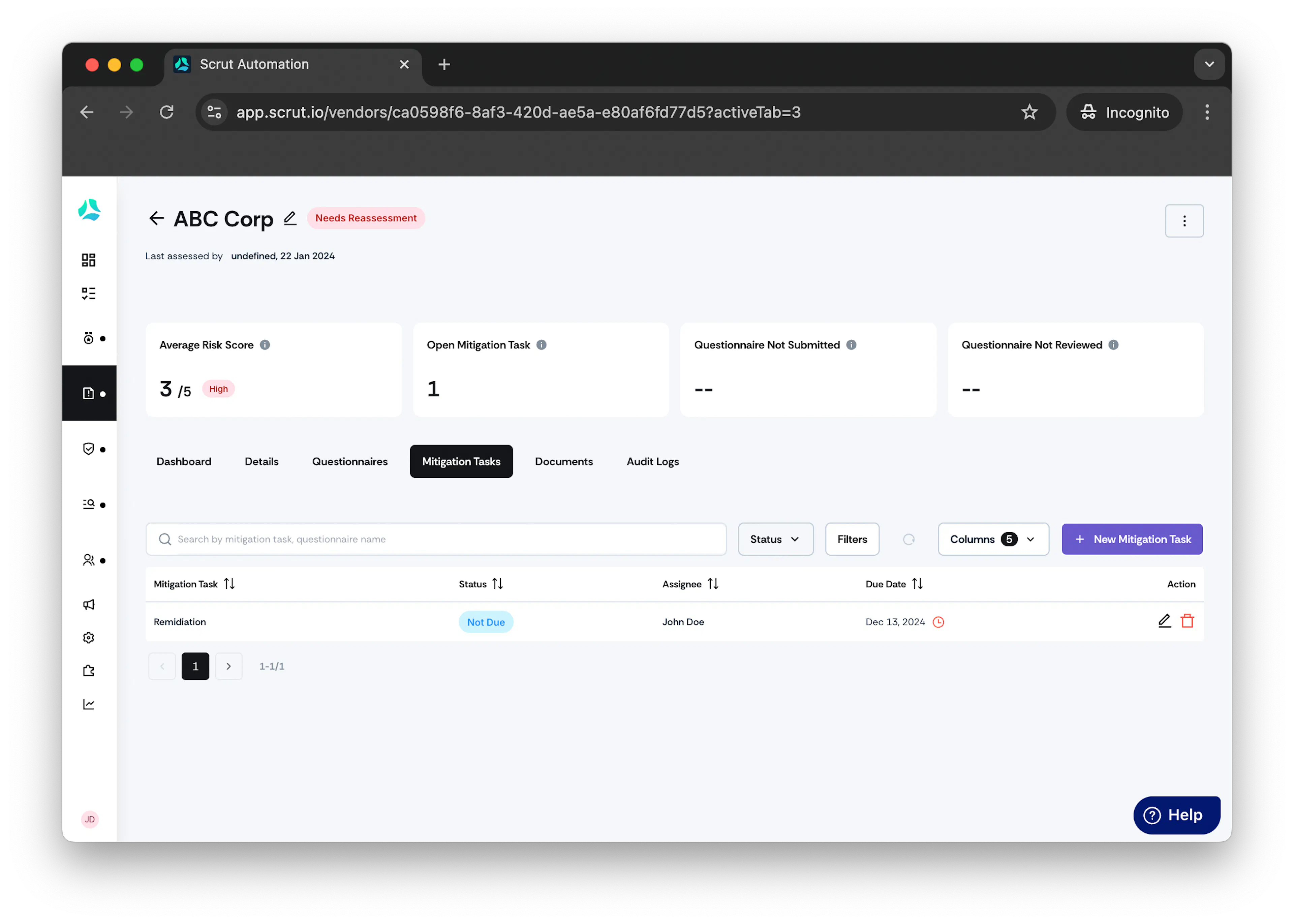
-
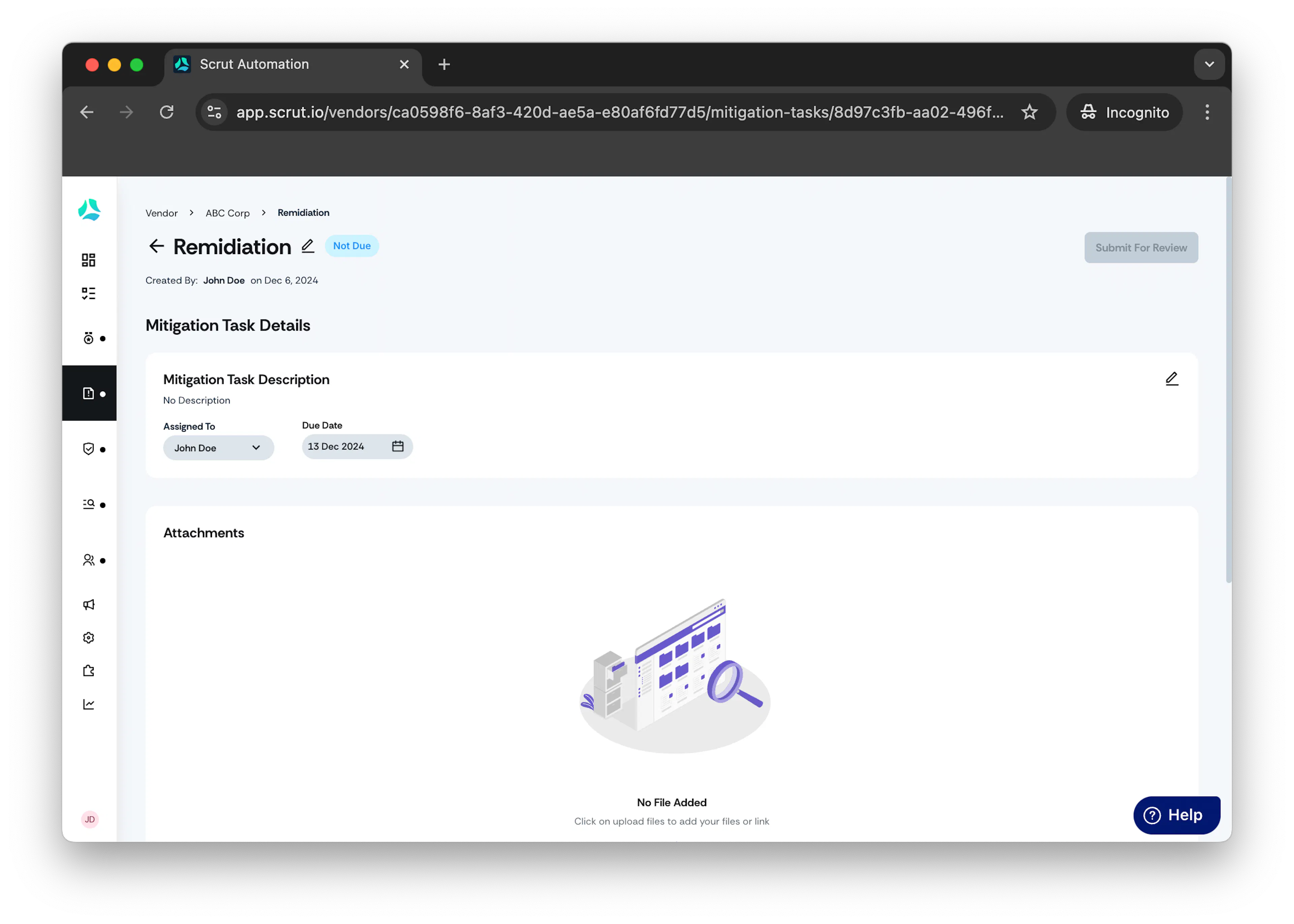
Open the mitigation task you want to edit.
-
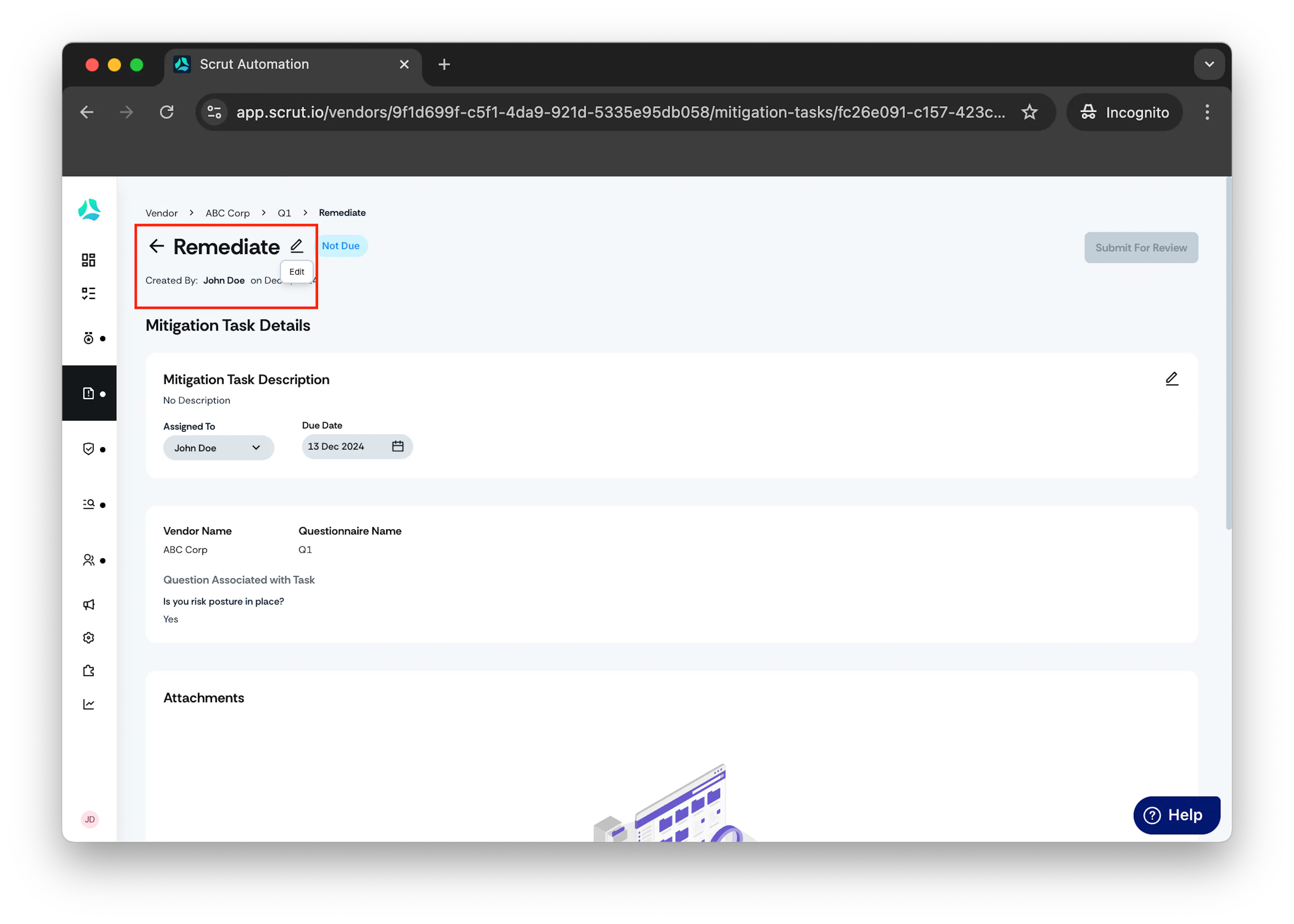
Click on the pencil icons beside the name and description to edit the task.
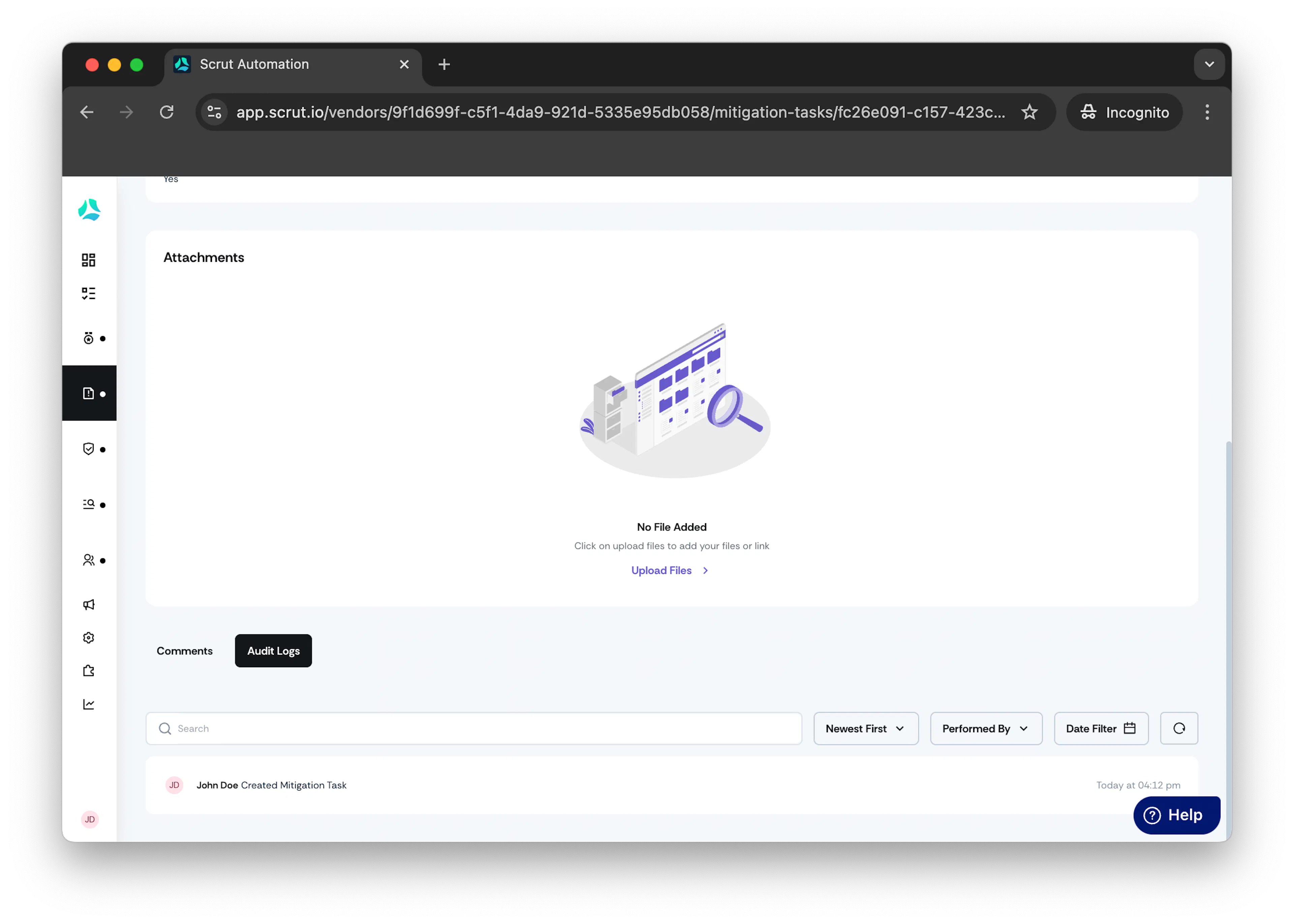
Audit logs: Audit logs within the mitigation task section capture the audit for mitigation task creation, changes, and document updates.
Deleting a Mitigation Task
- From the left navigation panel, expand Risk menu.
-
Click Vendors and go to Vendors tab.
-
Click on the vendor you want to delete the mitigation task for.
-
Click on the Mitigation Tasks tab.
-
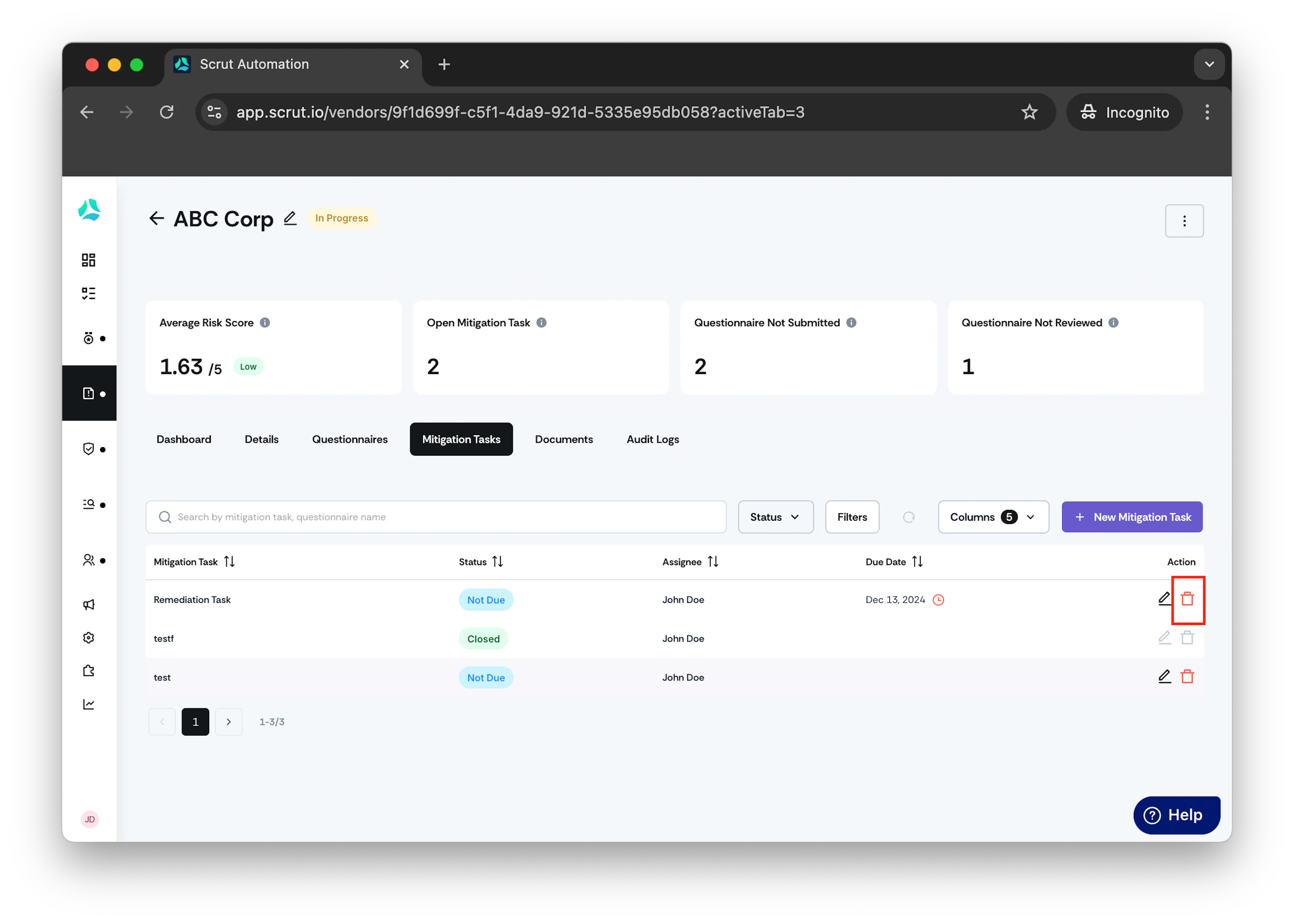
Click on the delete icon situated on the right corner of the mitigation task under Actions.
- Delete confirmation window opens.
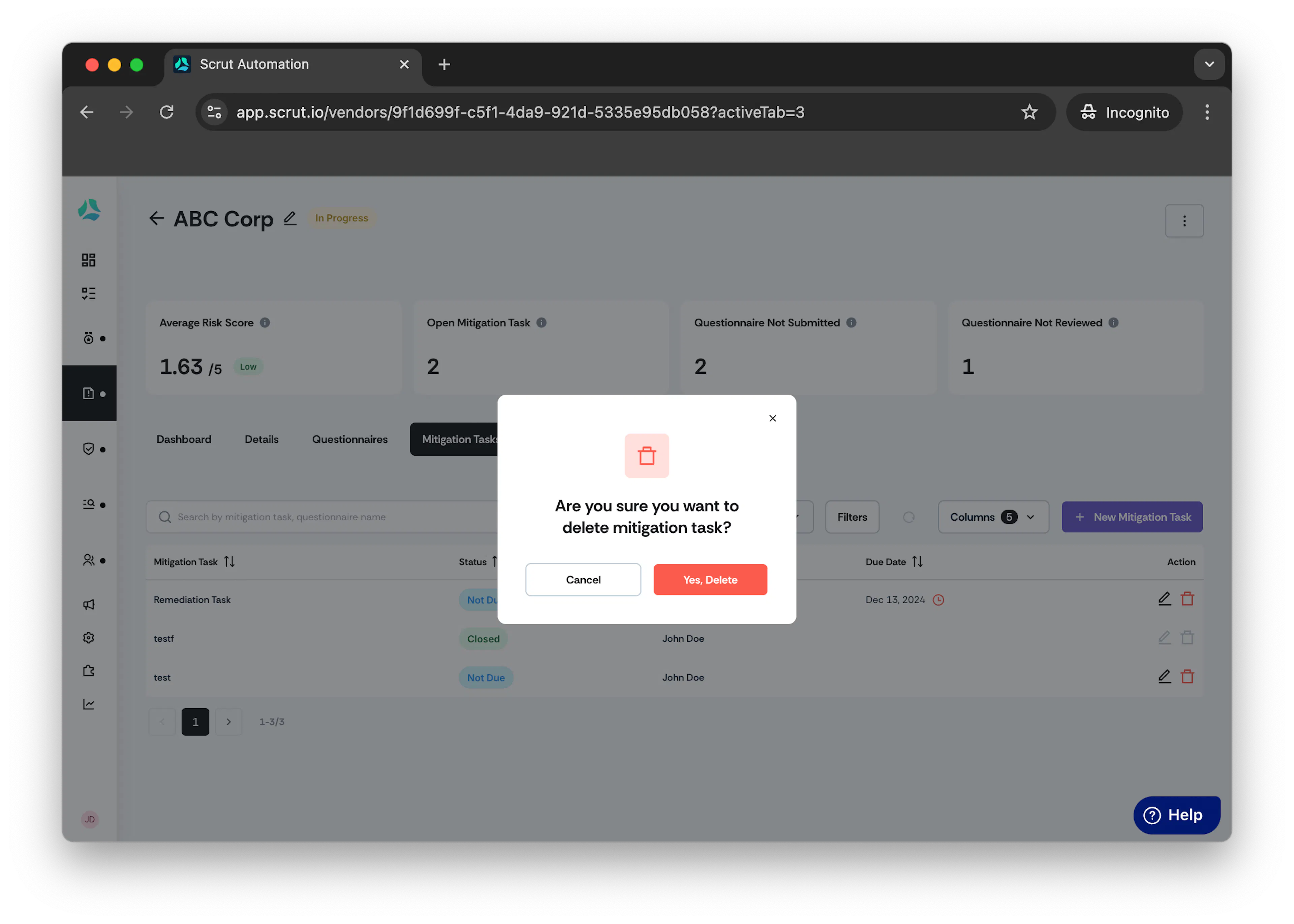
- Click Yes, Delete.
Method 2: Via the Mitigation Task Tab
Editing a Mitigation Task
- From the left navigation panel, expand Risk menu.
-
Click Mitigation Task.
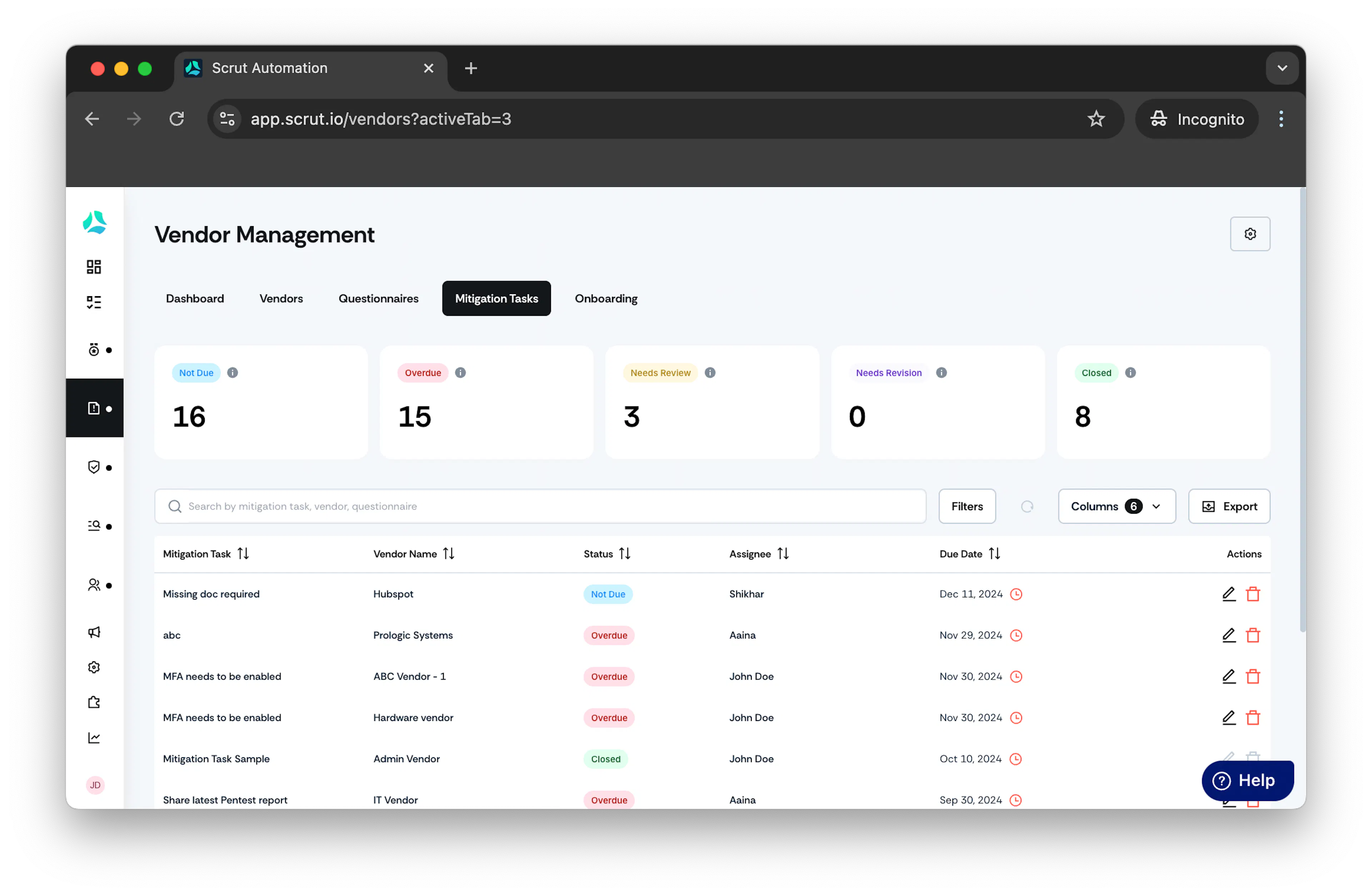
-
Under Actions click on the pencil icon.
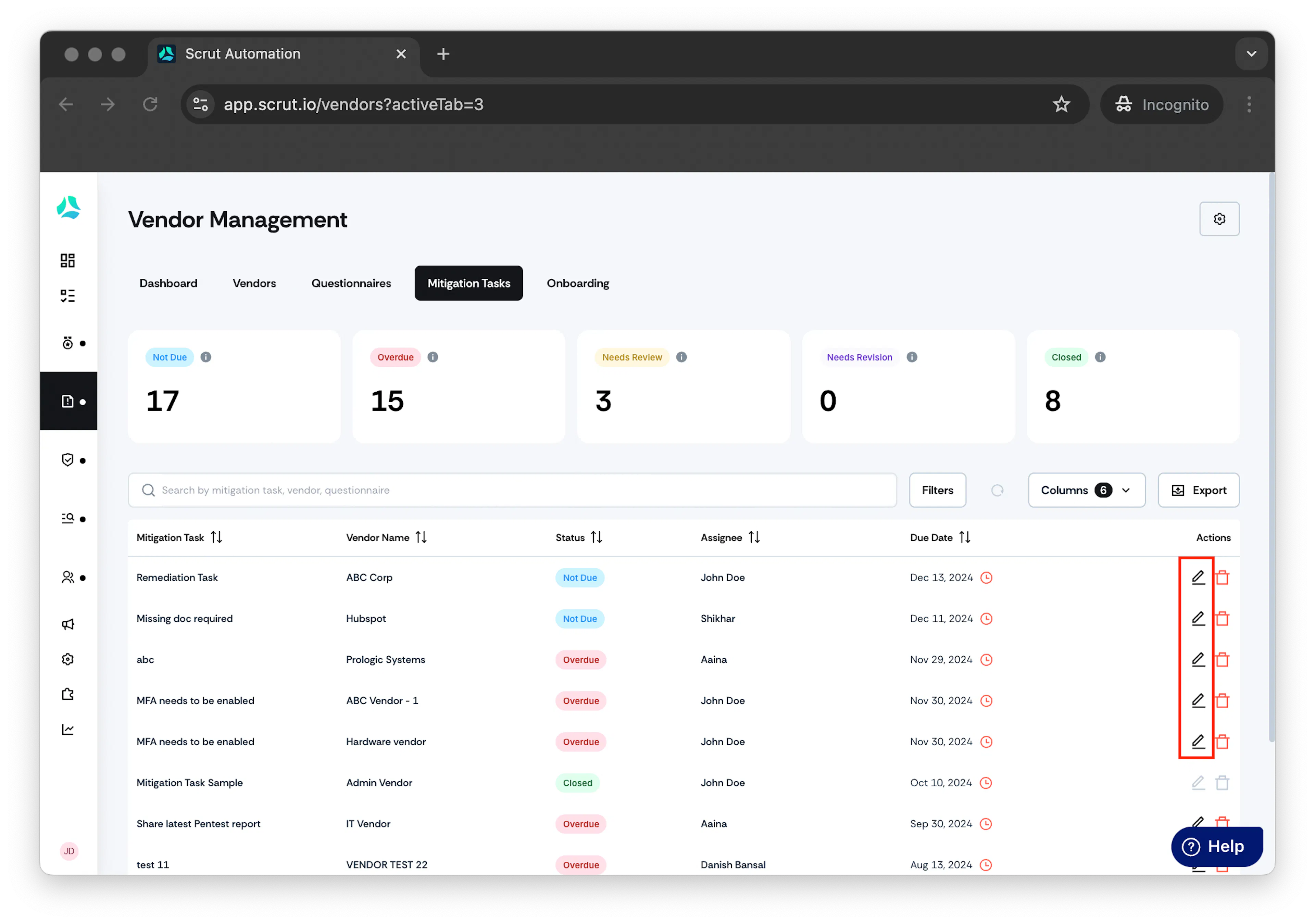
-
Edit Mitigation Task window opens.
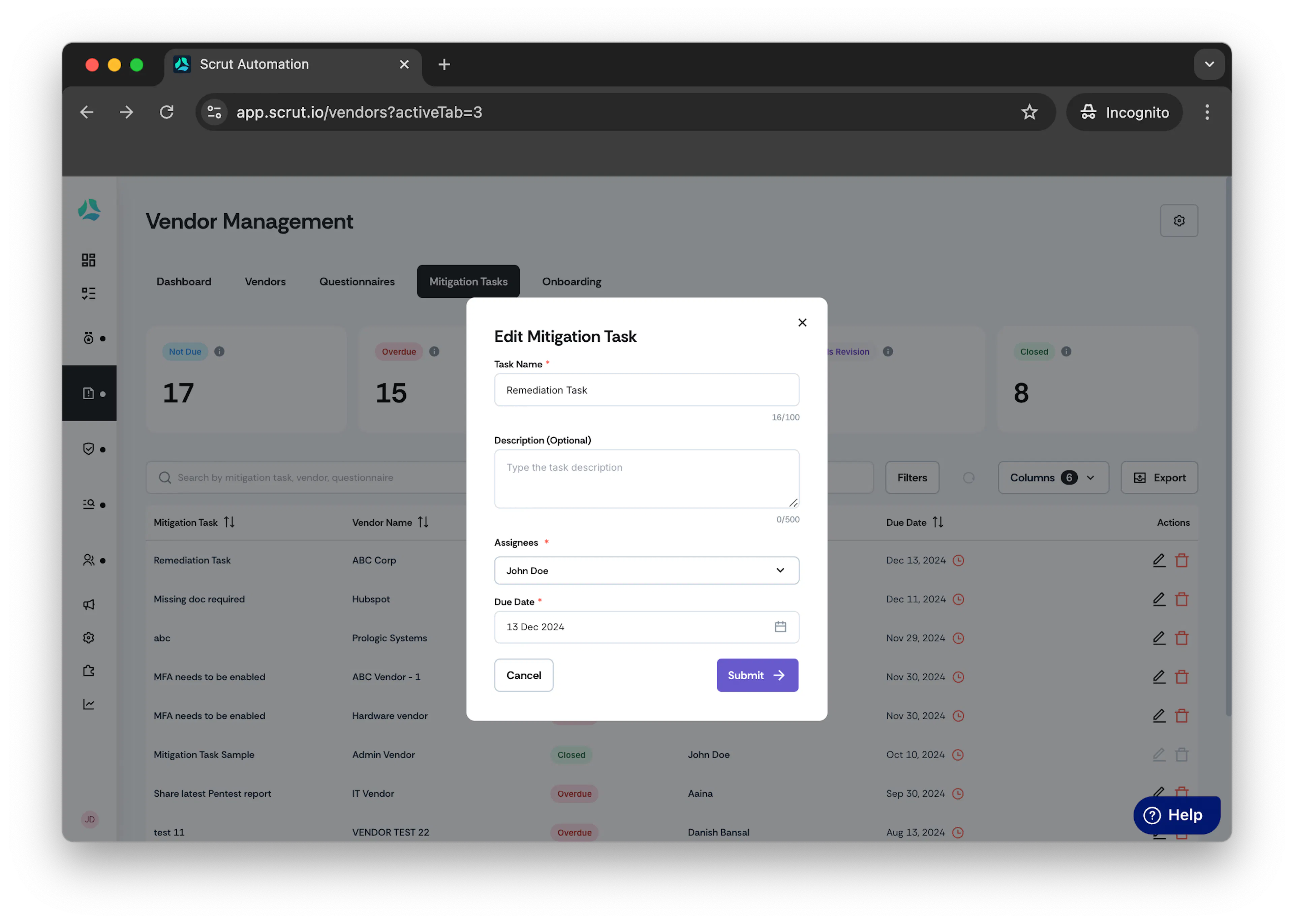
- Make the necessary changes and click Submit.
Deleting a Mitigation Task
- From the left navigation panel, expand Risk menu.
-
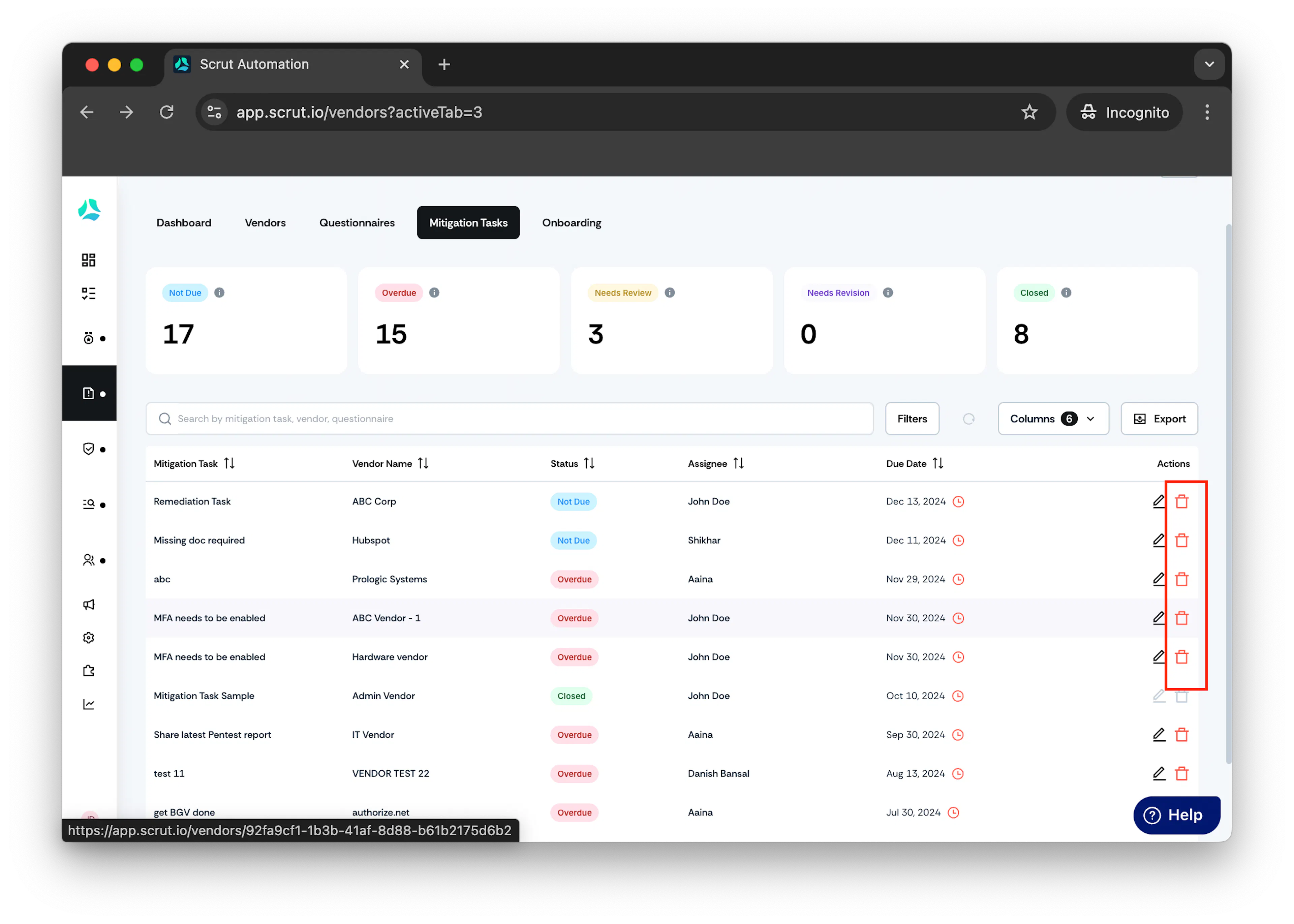
Click Mitigation Task.
-
Under Actions click on the delete icon.
-
Delete mitigation task window opens.
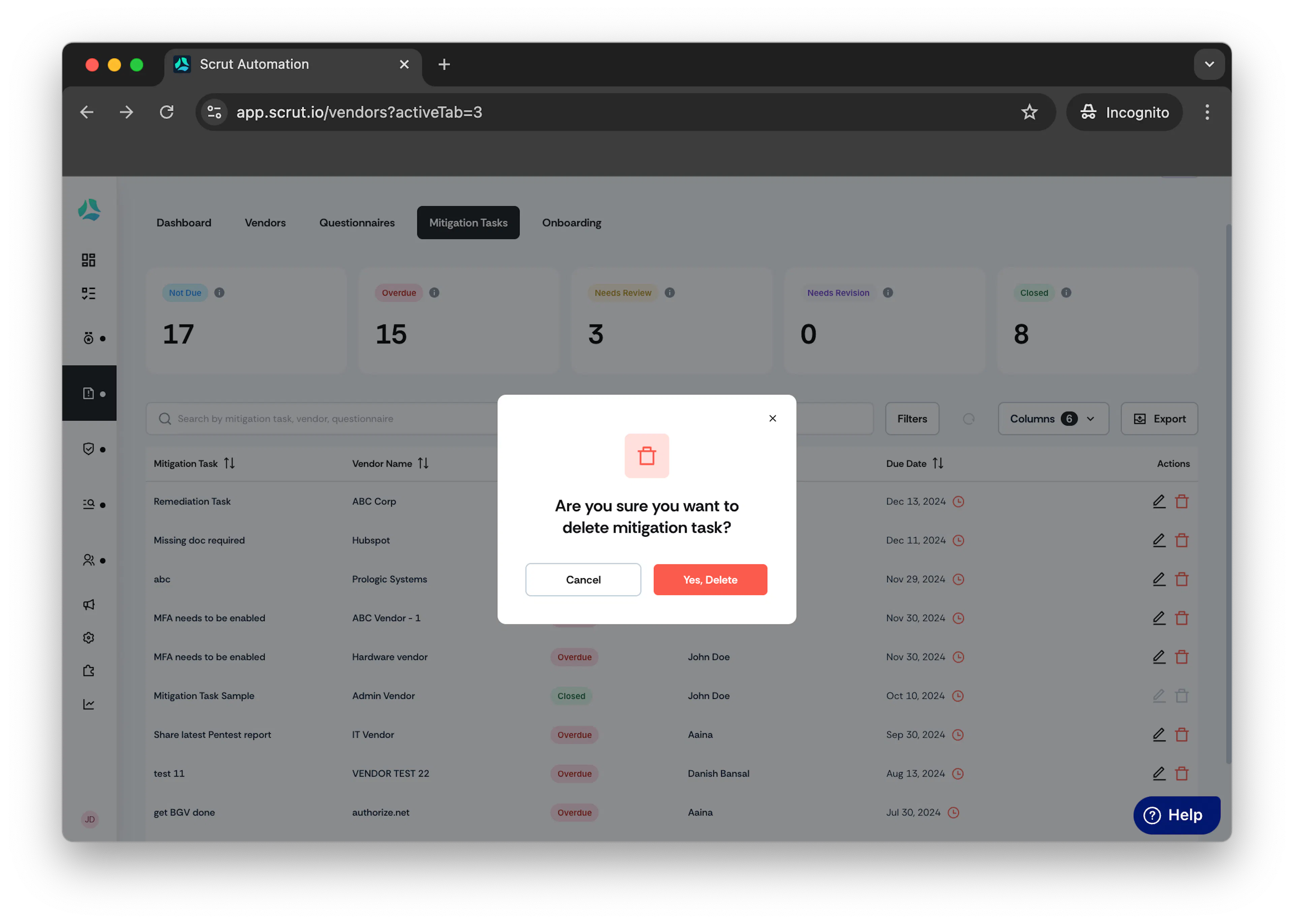
- Click Yes, Delete.