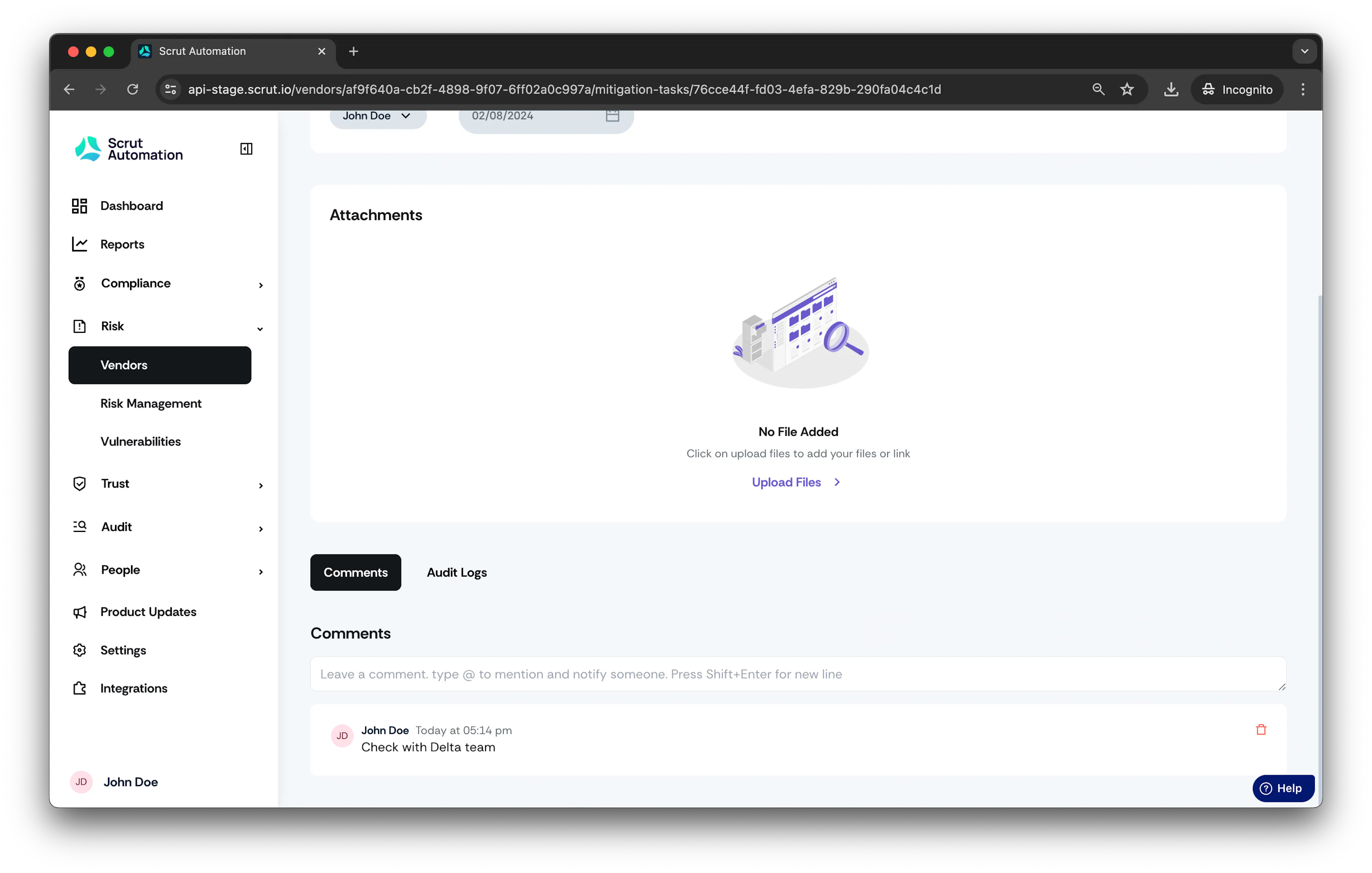
Upload a Mitigation Task Document
Who can use this feature
- Supported on Foundation, Growth, and Scale plans
You can add documents to a mitigation task in two ways:
- Method #1: Via the Vendor Overview Page
- Method #2: Via the Mitigation Task Tab
Method 1: Via the Vendor Overview Page
- From the left navigation panel, expand the Risk menu.
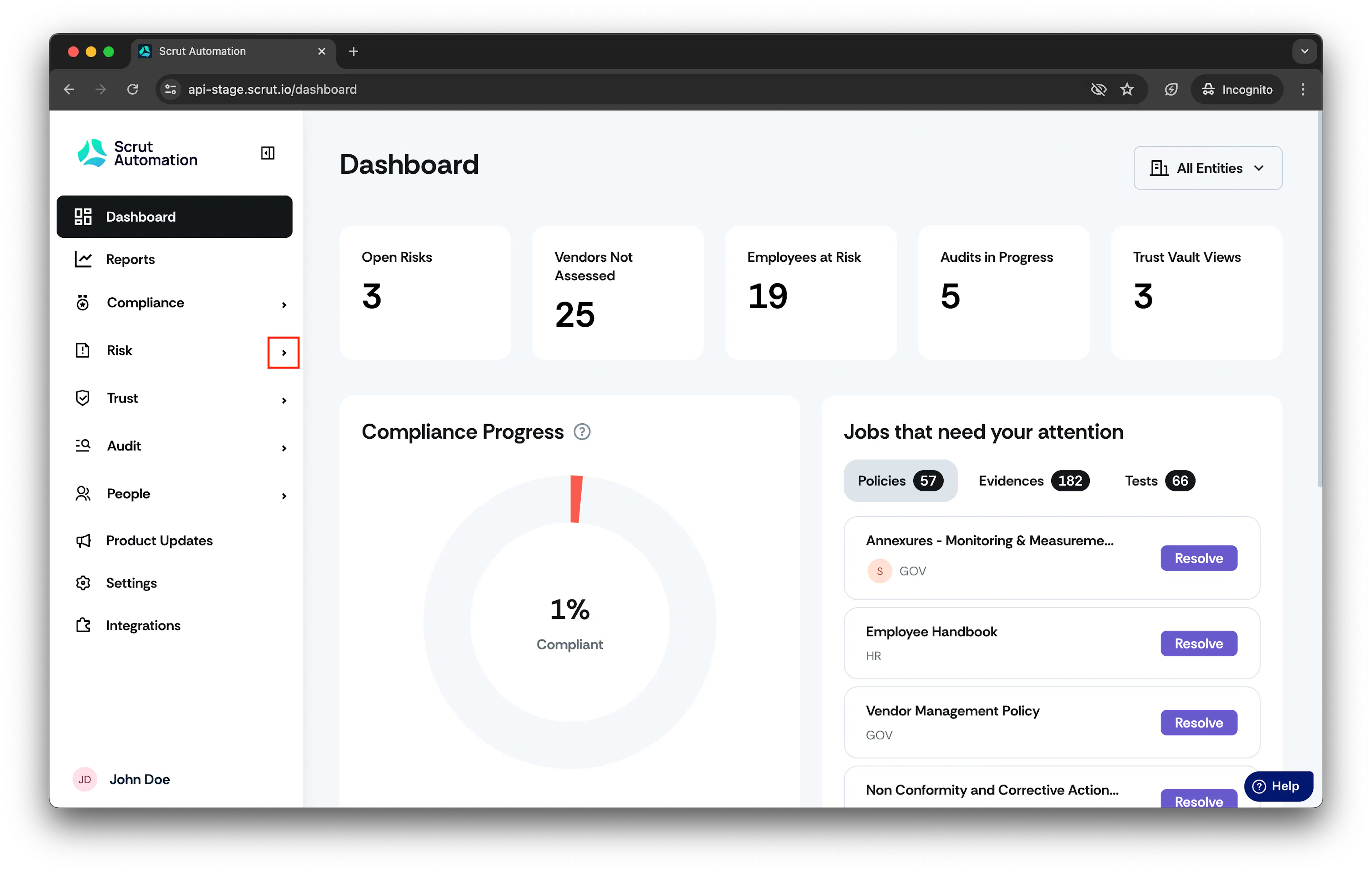
-
Click Vendors and go to the Vendors tab.
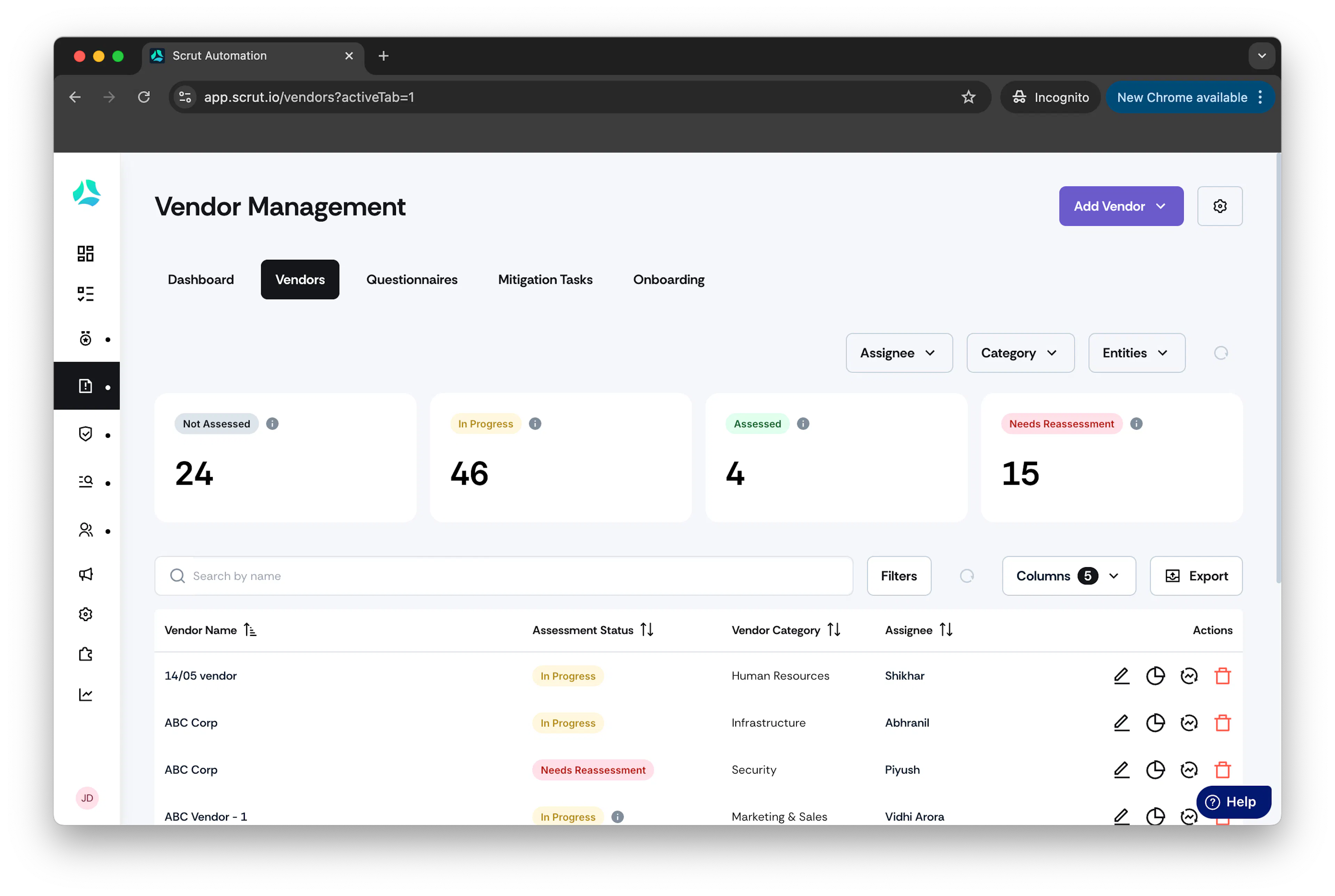
-
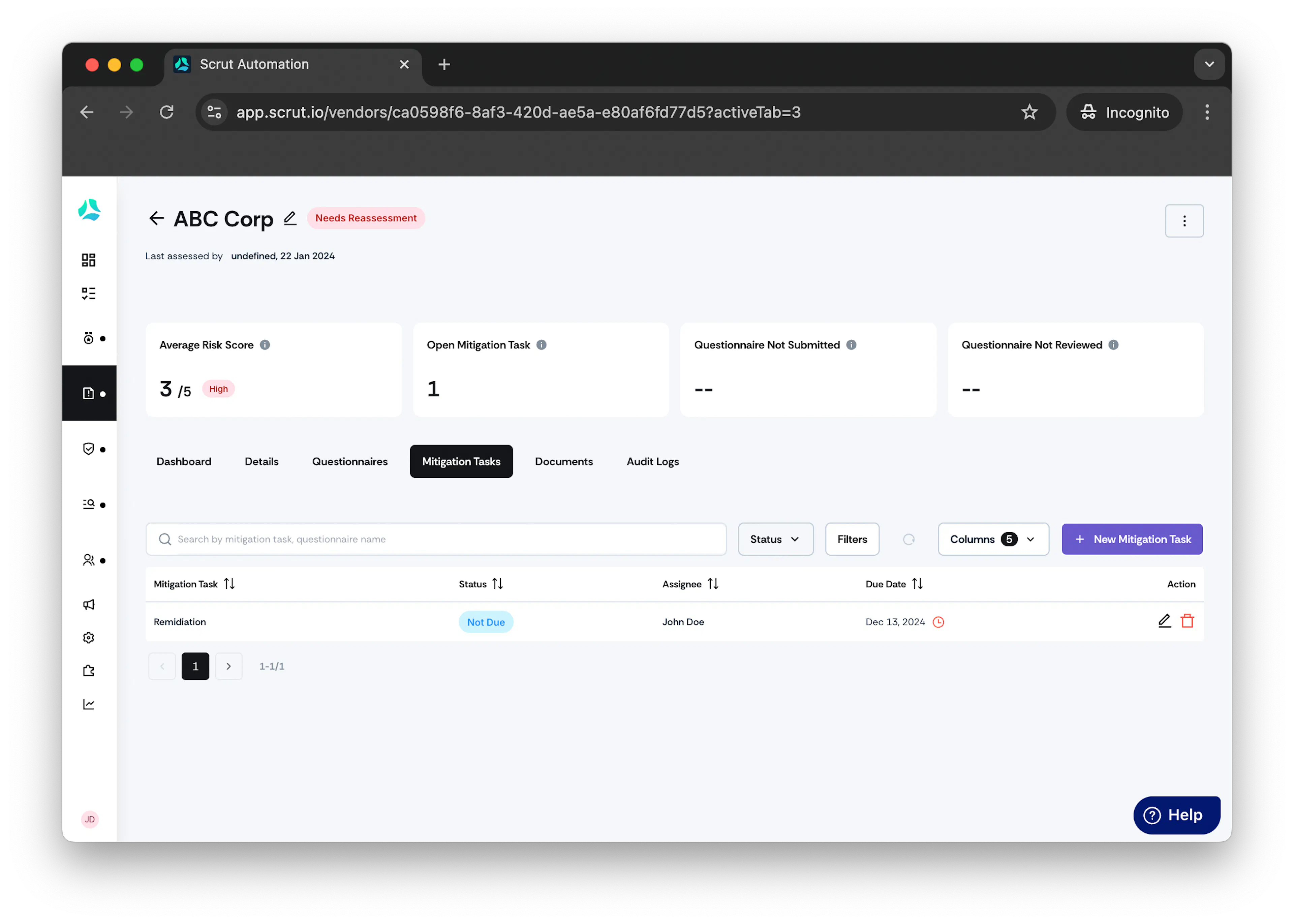
Click on the vendor you want to upload a document for the mitigation task.
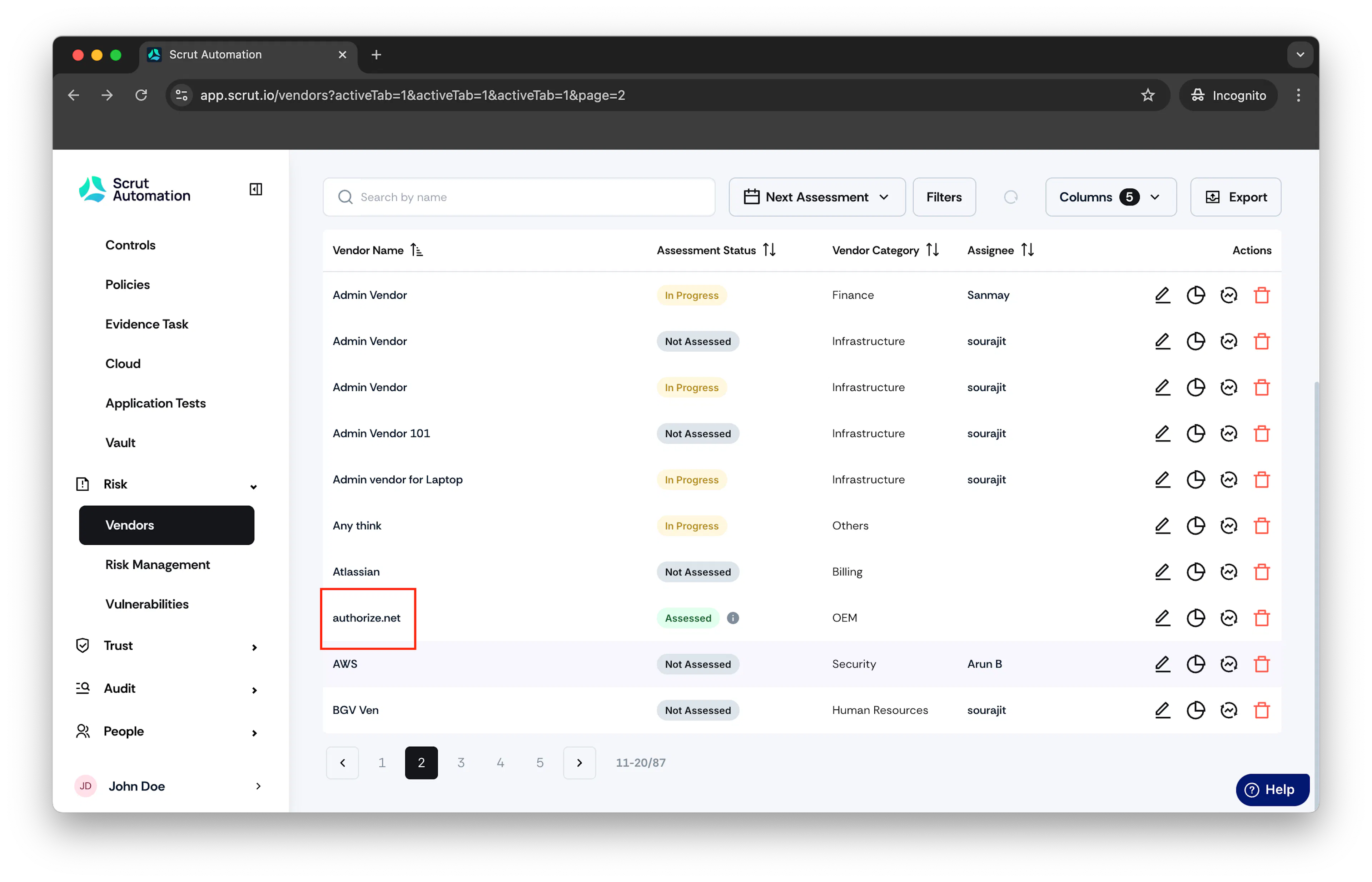
-
Click on the Mitigation Tasks tab.
-
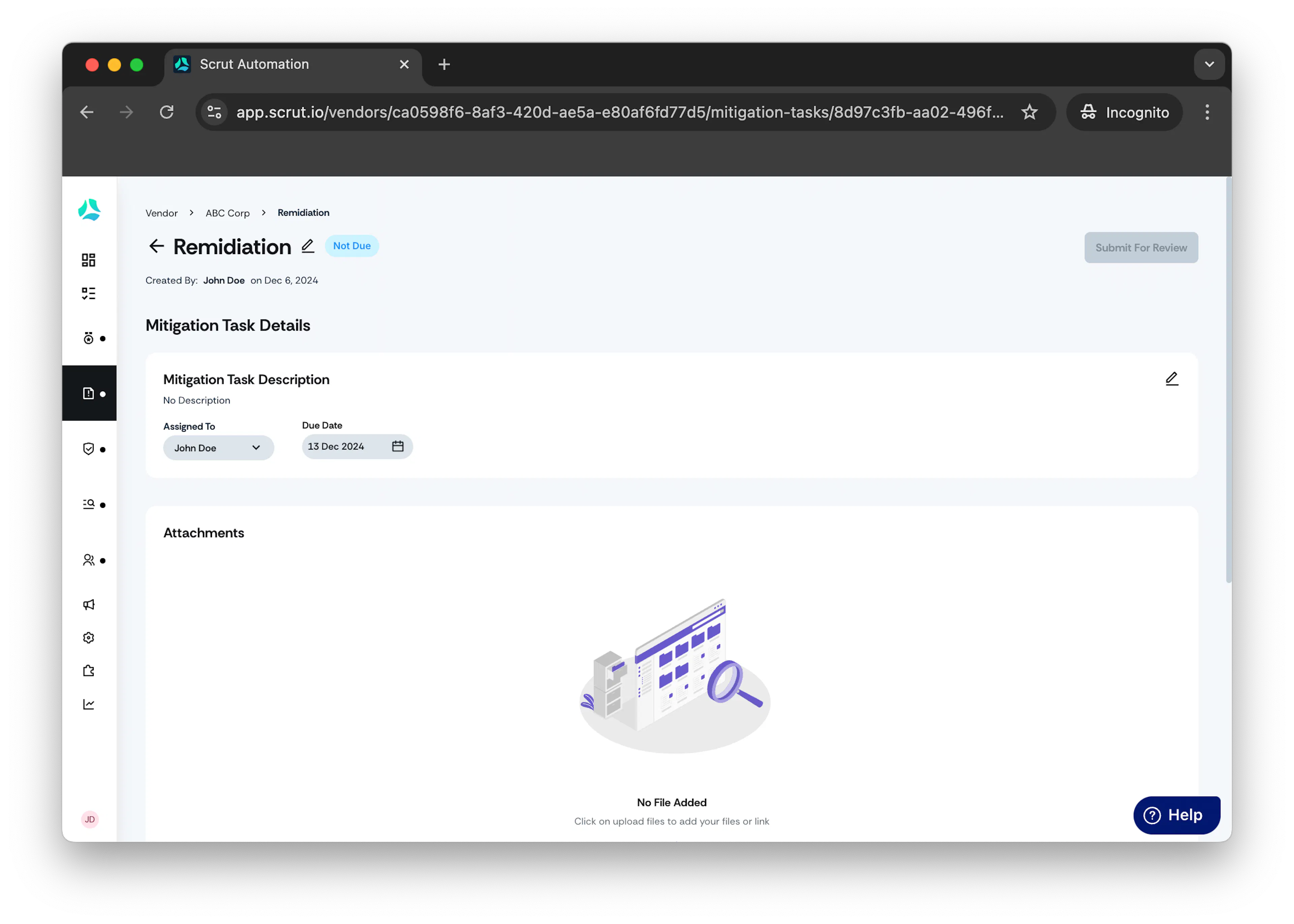
Open the mitigation task you want to upload a document to.
-
Click Upload files.
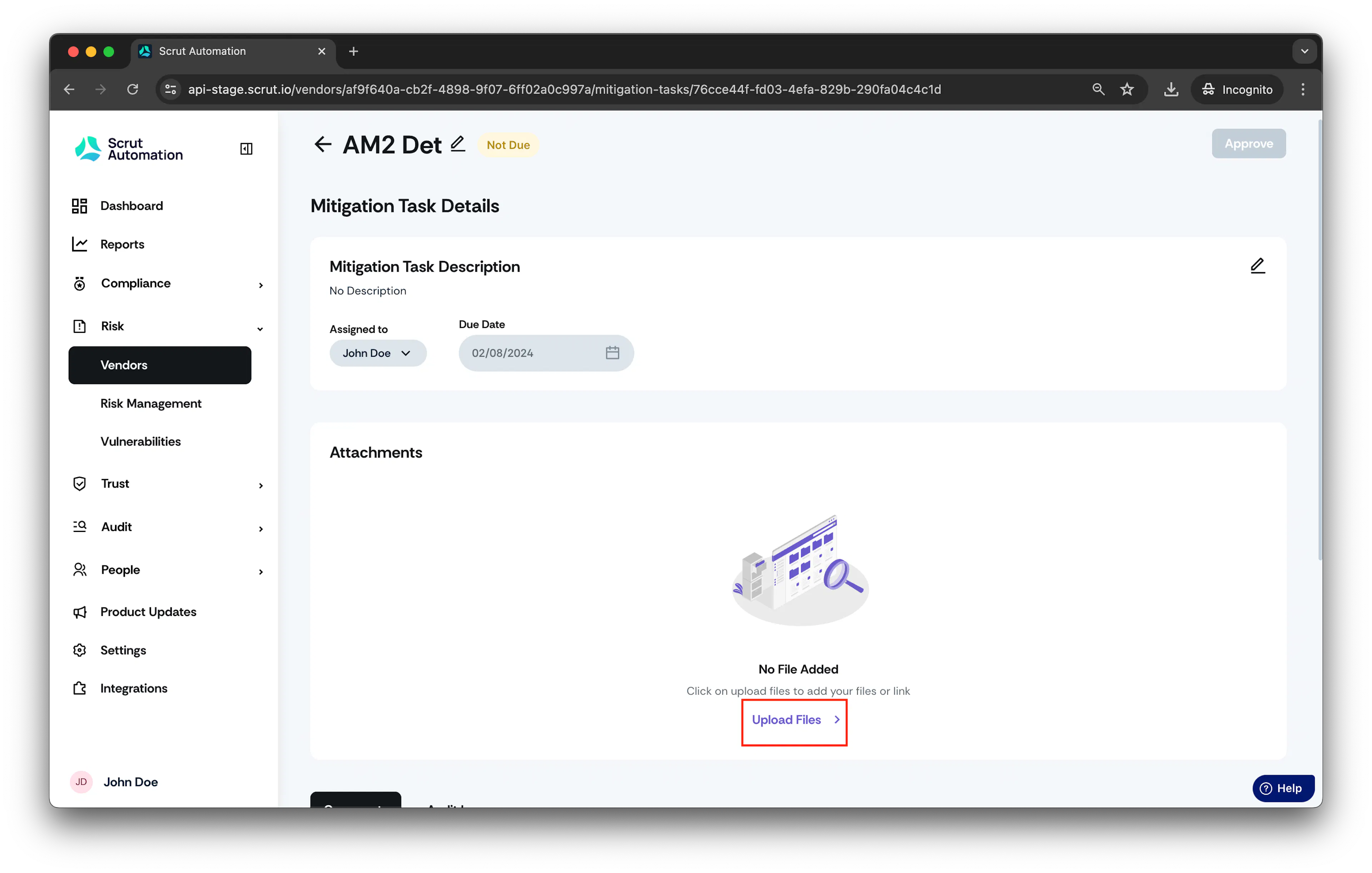
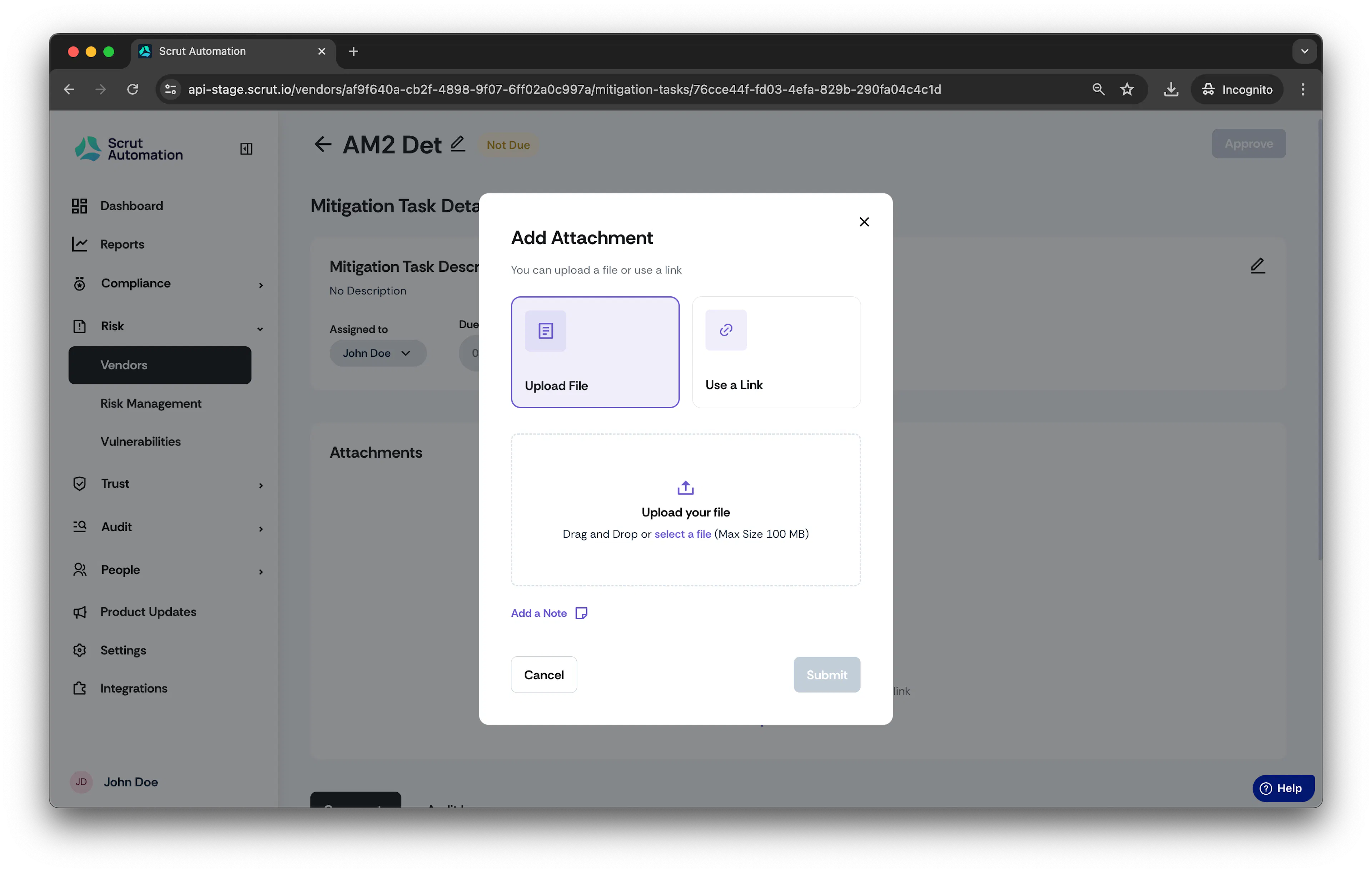
The attachment window opens.
-
Choose one of the following options:
- File: Choose this option if you wish to upload a file by either dragging and dropping or selecting from your system.
- Link: Choose this option to link an external file by providing its link.
-
Optionally, in the Notes field, enter notes related to the document.
-
Click Submit
Method 2: Via the Mitigation Task Tab
- From the left navigation panel, expand the Risk menu.
-
Click Mitigation Task.
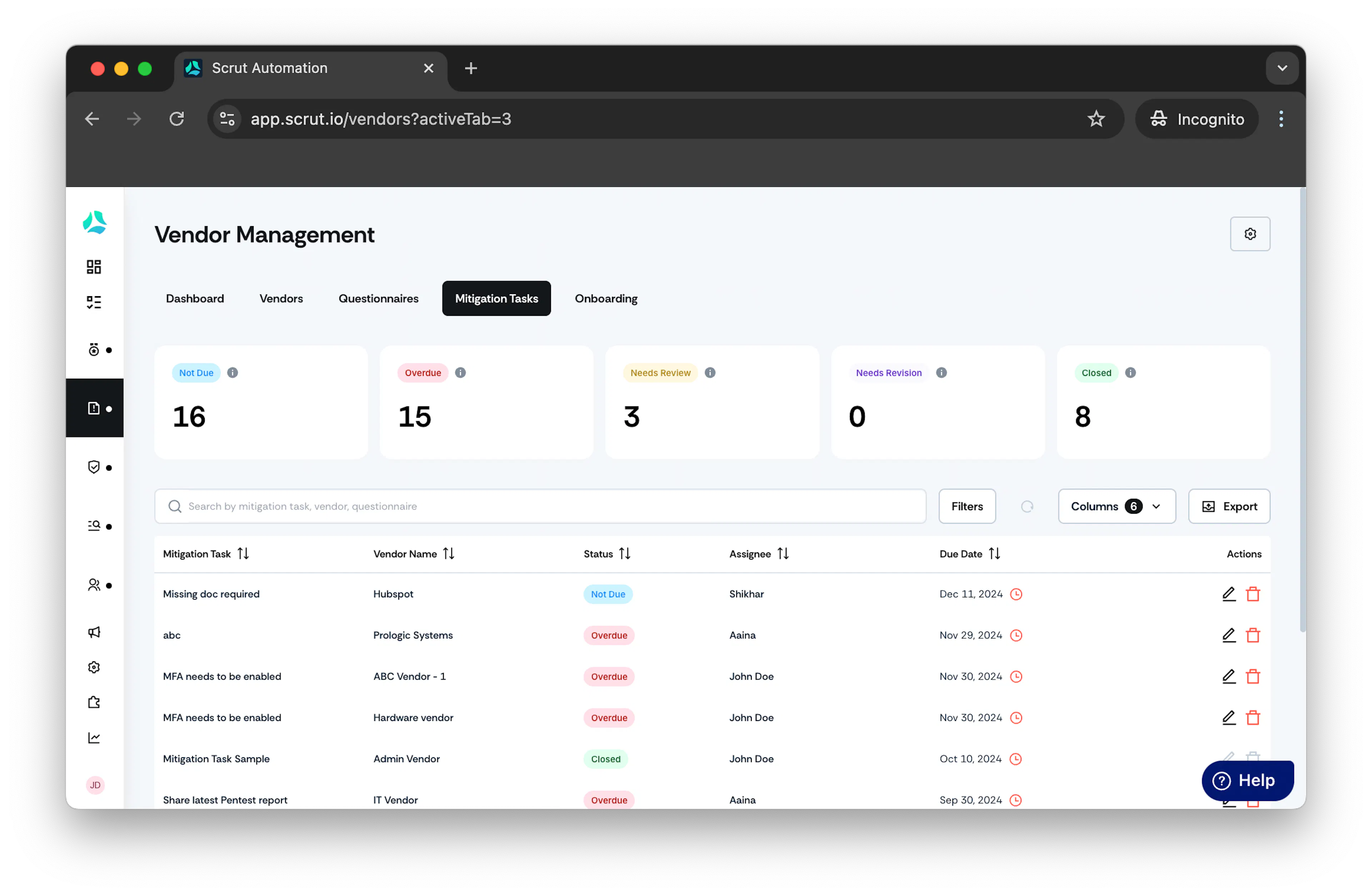
-
Select the mitigation task for which you wish to upload the document. Optionally, you can use the search bar to search for the task.
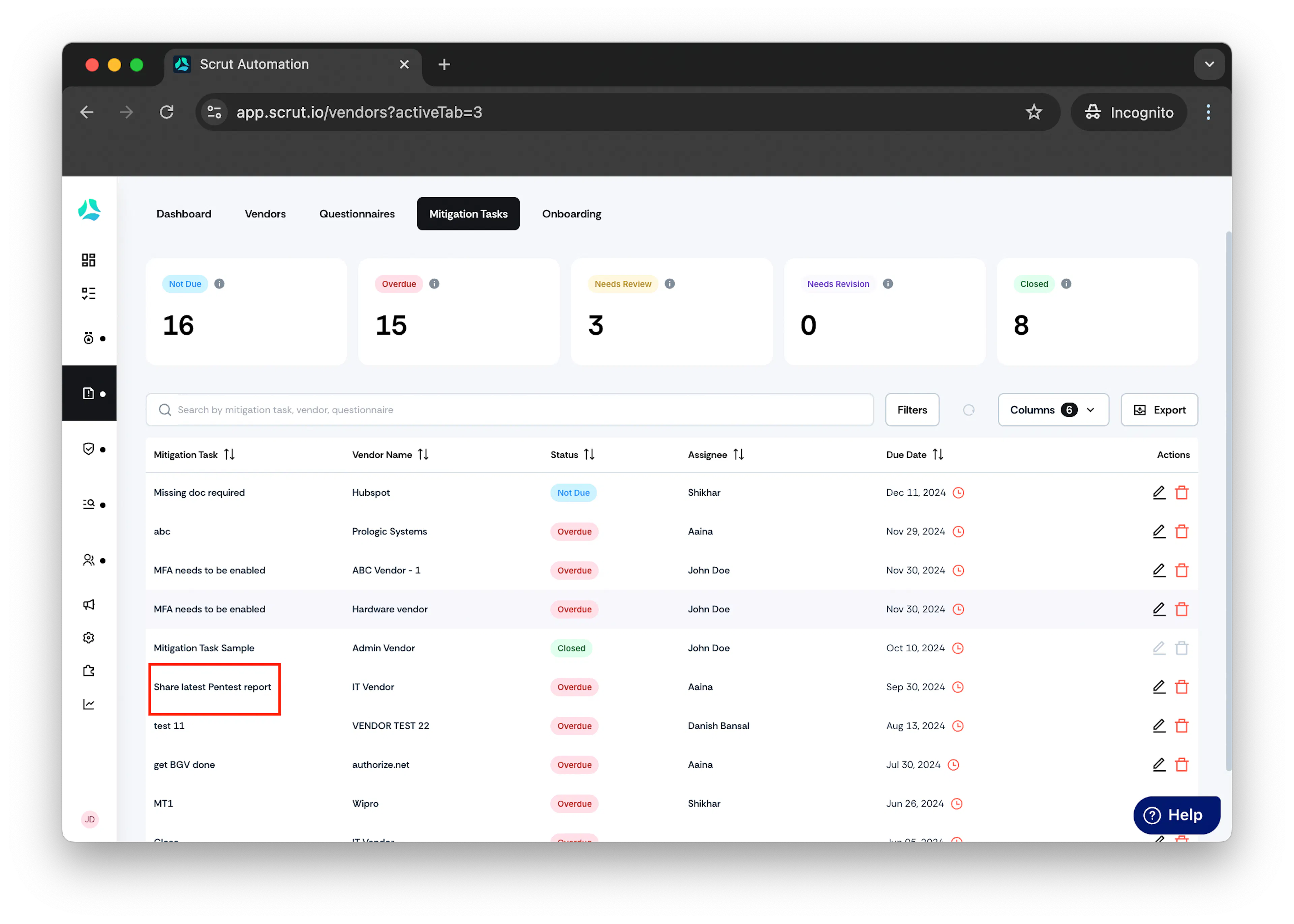
-
Click Upload files.
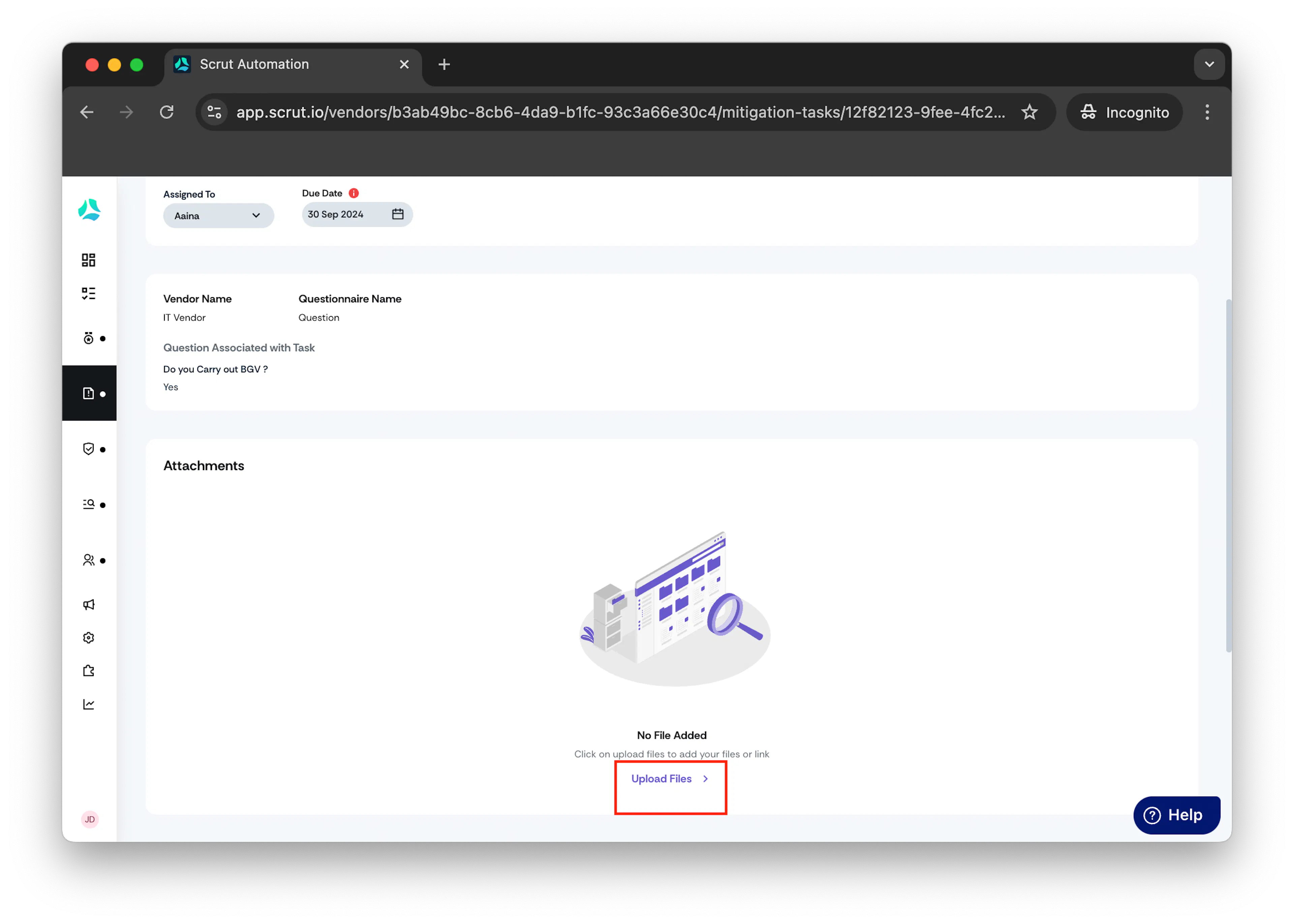
Add attachment window opens.
-
Choose one of the following options:
- File: Choose this option if you wish to upload a file by either drag and drop or selecting from your system.
- Link: Choose this option if you wish to link an external file by prvoding the file link.
-
Optionally, in Notes field, enter notes related to the document.
-
Click Submit
Adding Comments
- To add comments within the mitigation task, simply enter your comments in the provided text field and press Enter on your keyboard.
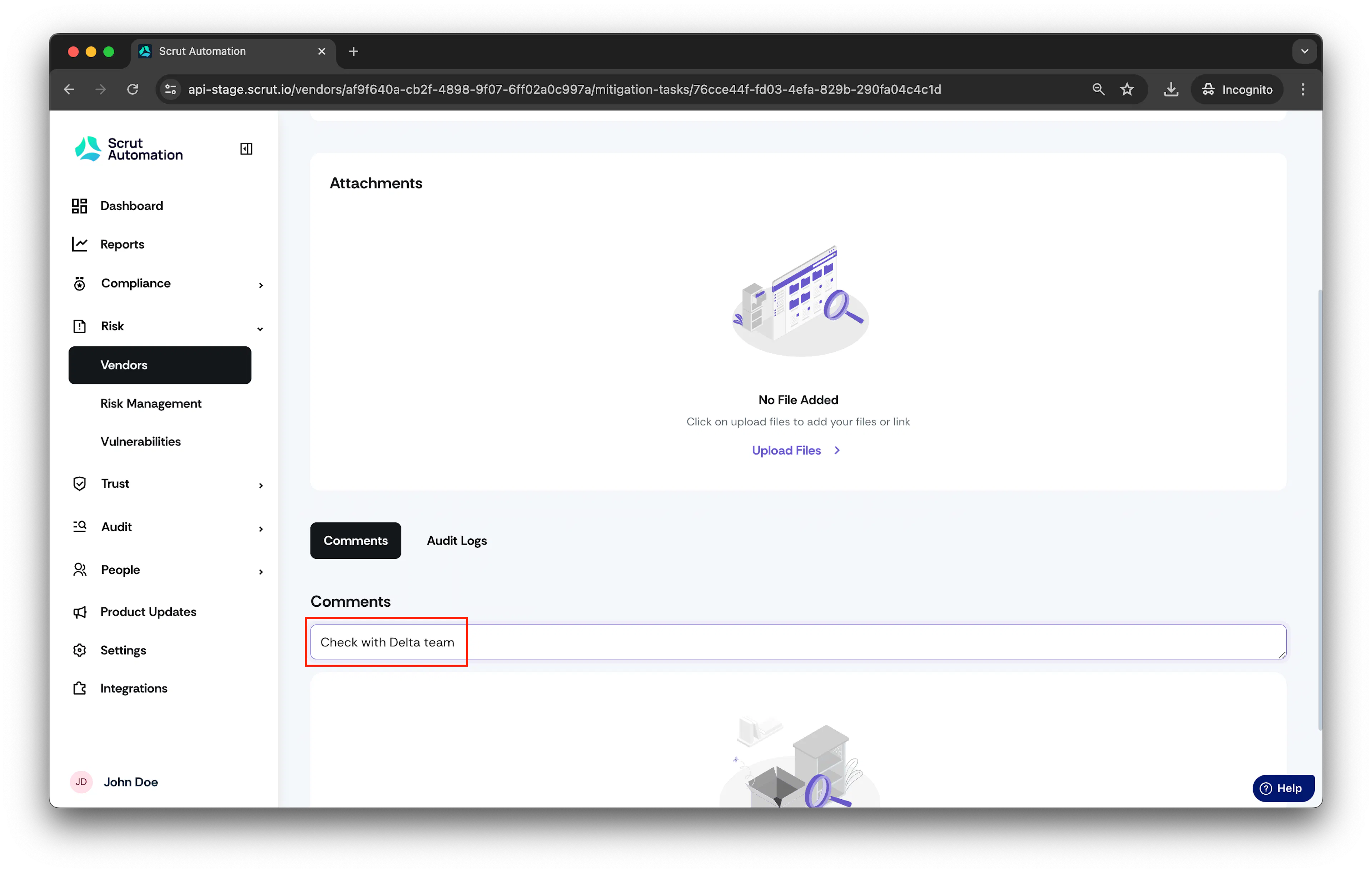
-
The added comments will appear under the Comments section for reference.