

Integrate Sumo Logic
The Scrut - Sumo Logic integration fetches user access data, permissions, and role assignments from your Sumo Logic account and syncs them with the Access Review module. This integration enables your organization to maintain comprehensive visibility over user access rights and streamline periodic access reviews for compliance and security.
Heads Up!
The data synced from Sumo Logic flows into the Access Review module in Scrut.
Prerequisites
Before starting the integration, ensure you have the following access and permissions:
Access
- You must be a Scrut Admin (or Contributor with access to the Integrations module)
- You need the Create Access Keys role capability in Sumo Logic to create an access key
Permissions
Scrut requires read-only access to the following data in Sumo Logic
- User Accounts: View name, email, and user role
Pro Tip!
We recommend logging into your Sumo Logic account before starting the integration to avoid doing so later.
How To Connect Sumo Logic With Scrut
Step 1: Fetch Access Key and ID from Sumo Logic
-
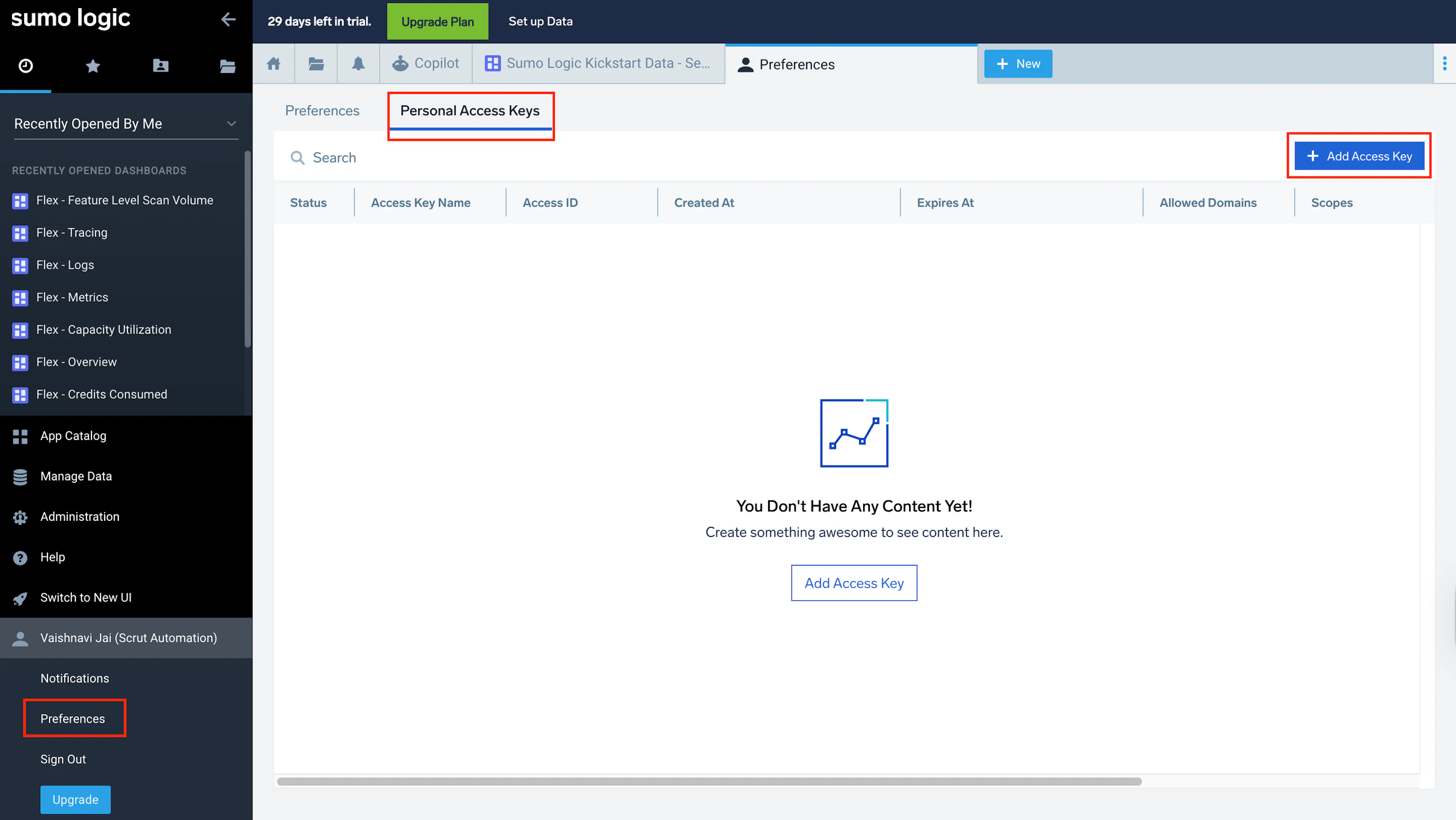
In the main menu in Sumo Logic, select your Username, and then Preferences → Personal Access Keys.
-
Click +Add Access Key.
-
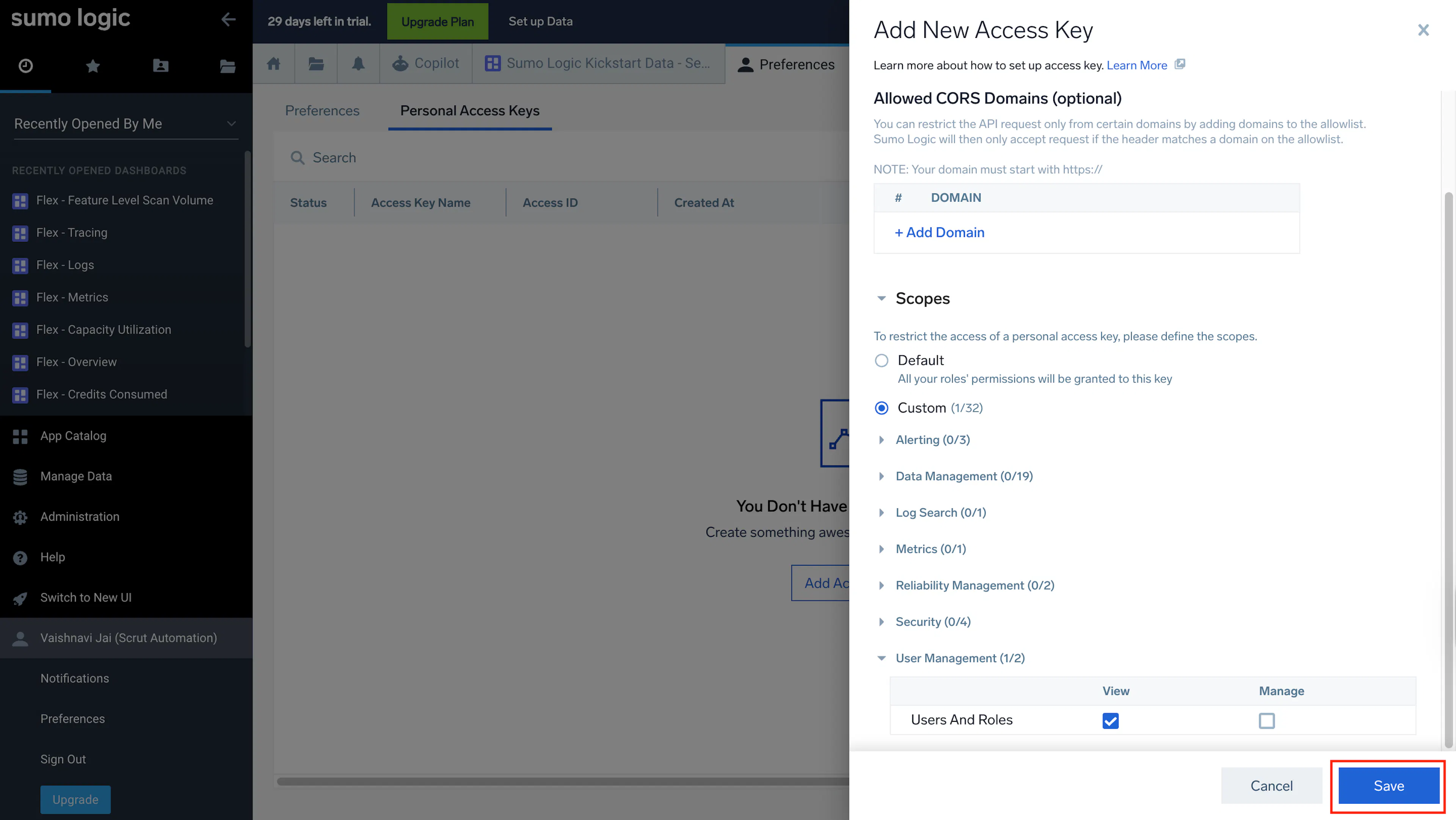
In the Add Access Key window, enter a name for the key, such as Scrut.
-
In the Scopes, select Custom, expand User Management, and set View for Users and Roles.
-
Click Save to generate the key.
-
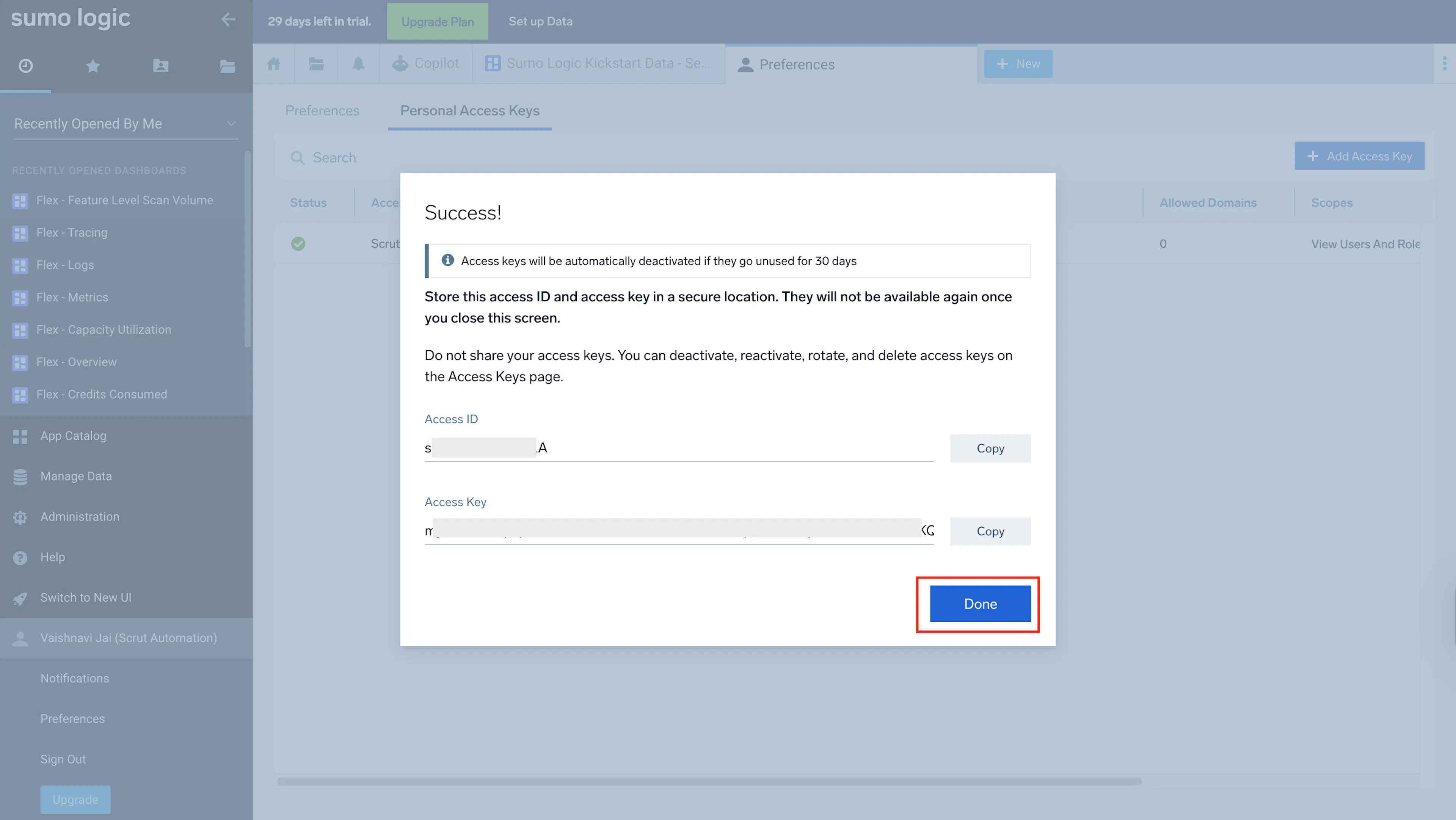
Copy both the generated Access ID and Access Key, as you’ll need to enter them in Scrut in the next step.
Important: These values will not be displayed after closing this screen. So, make sure to copy the ID and key and save them in a safe location.
Pro Tip!
Refer to these guides from Sumo Logic for more information on generating Access Keys and the required role capabilities.
Step 2: Go To Integrations in Scrut
-
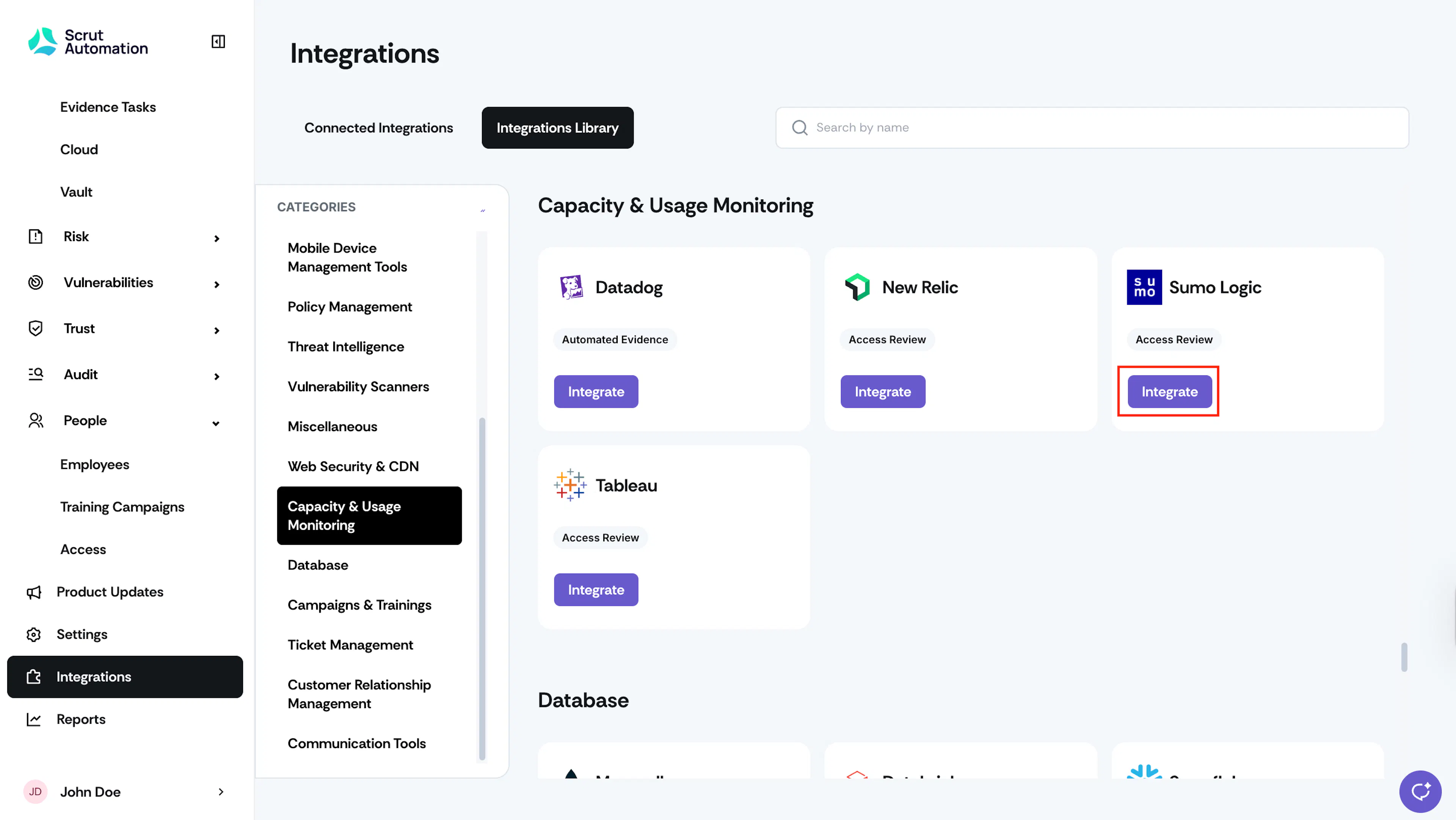
Sign in to Scrut and click Integrations on the left navigation panel.
-
Navigate to the Integrations Library tab, and choose Capacity & Usage Monitoring in the Categories section.
-
Scroll to the Sumo Logic tile and click Integrate.
-
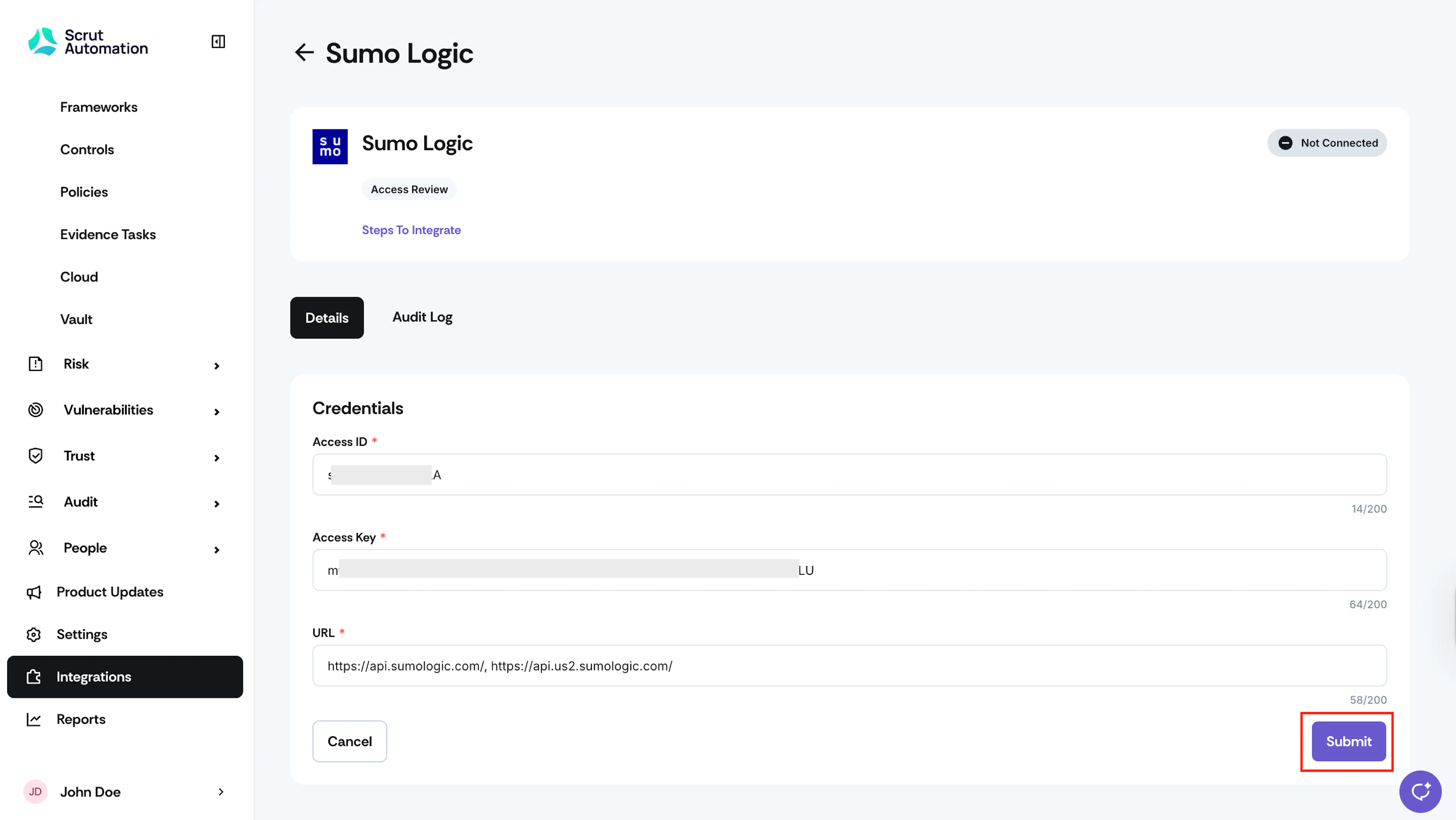
On the integration page, paste the Access Key and ID obtained in Step 1.
-
Enter the URL based on the location of your Sumo Logic deployment.
-
US2: https://api.us2.sumologic.com/
Note: Refer to the Sumo Logic API help guide for more information.
-
Click Submit.
-
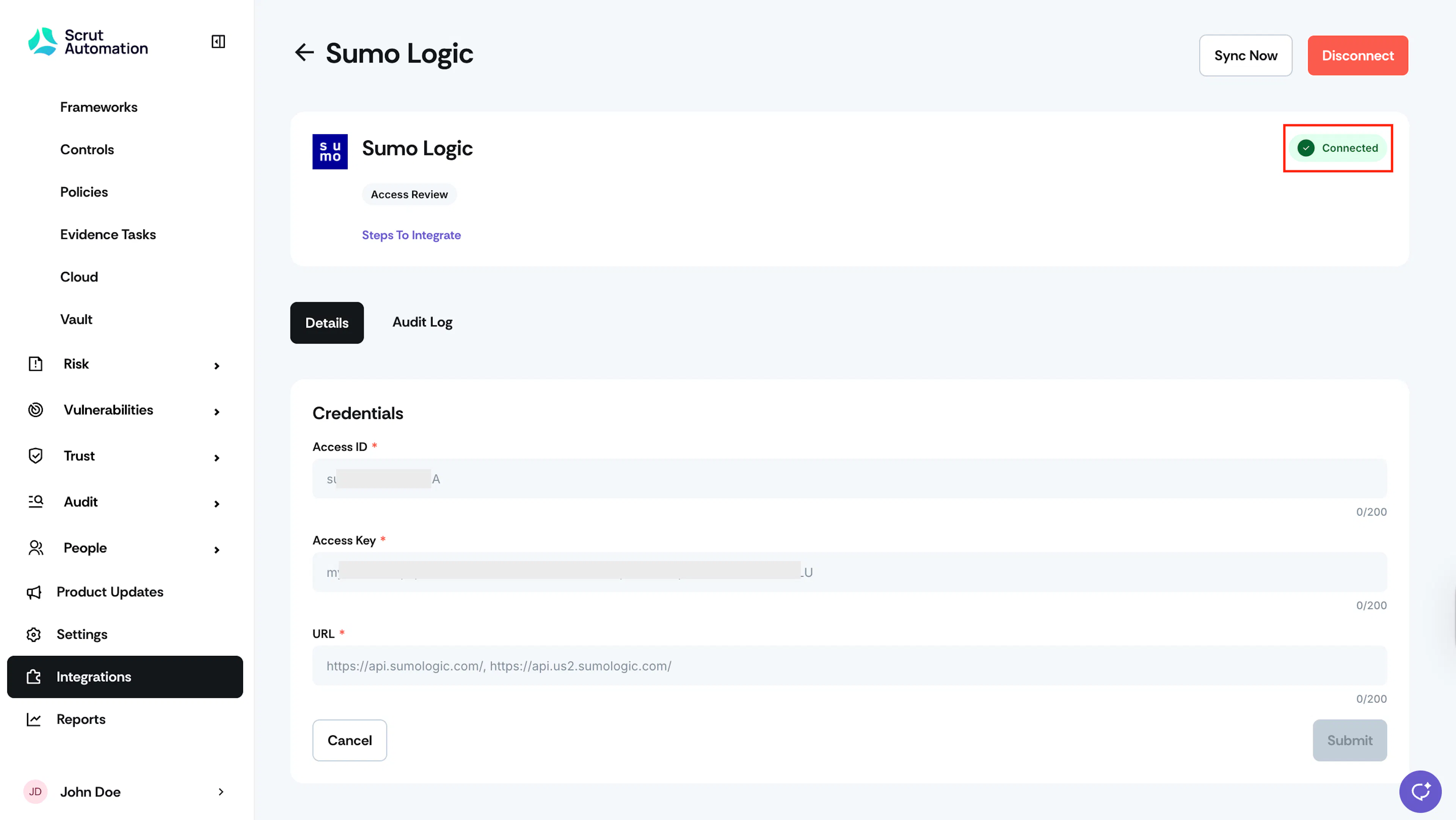
Once authorization is done, you’ll see the “Connected Successfully” message and the Connected status indicator.
Synchronization Details
-
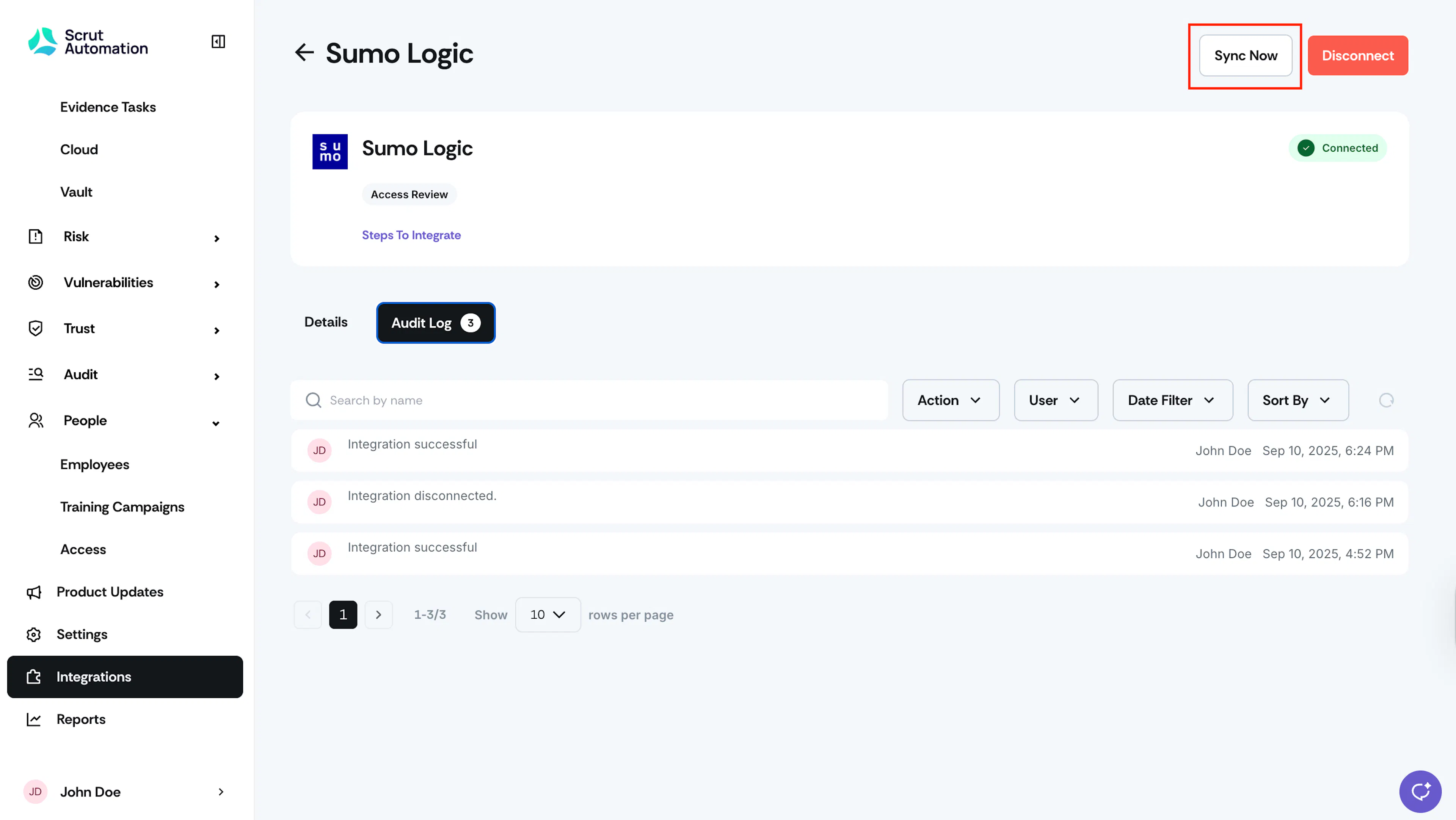
Initial Sync: Upon completing the integration, Scrut will start syncing user data from Sumo Logic. This process typically takes a few hours to complete. Check the Audit Log on the Sumo Logic integration page in Scrut to review the status.
-
Recurring Sync: After this, Scrut performs the sync once every 24 hours to fetch incremental data such as new users, role changes, and permission updates.
-
Manual Sync: You can also click the Sync Now button to trigger an immediate data refresh.
Data Fetched from Sumo Logic
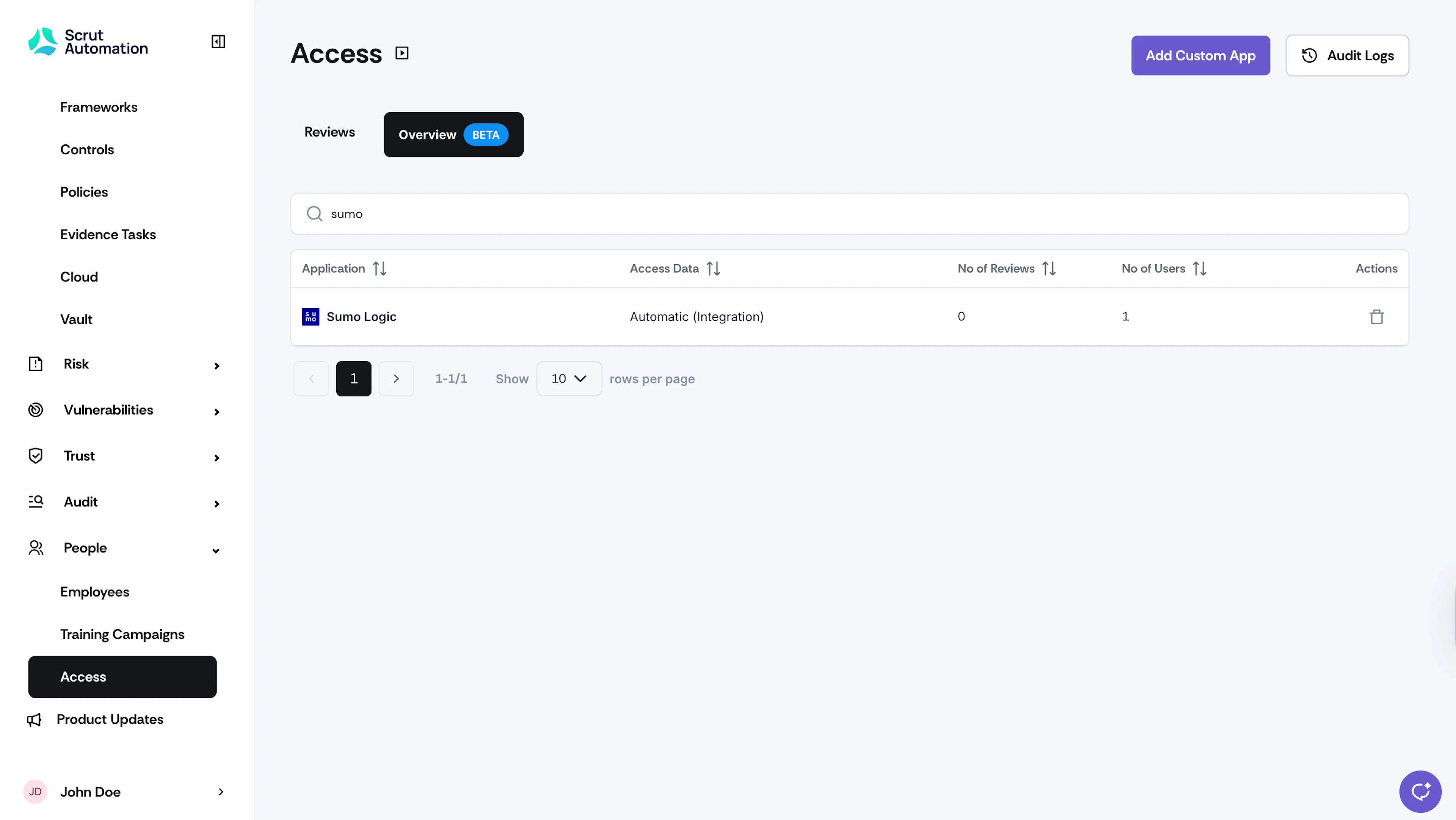
To view the data fetched from your Sumo Logic account, go to the People → Access → Overview tab. On this page, you can see the user details for your Sumo Logic account. Click on it for more information.
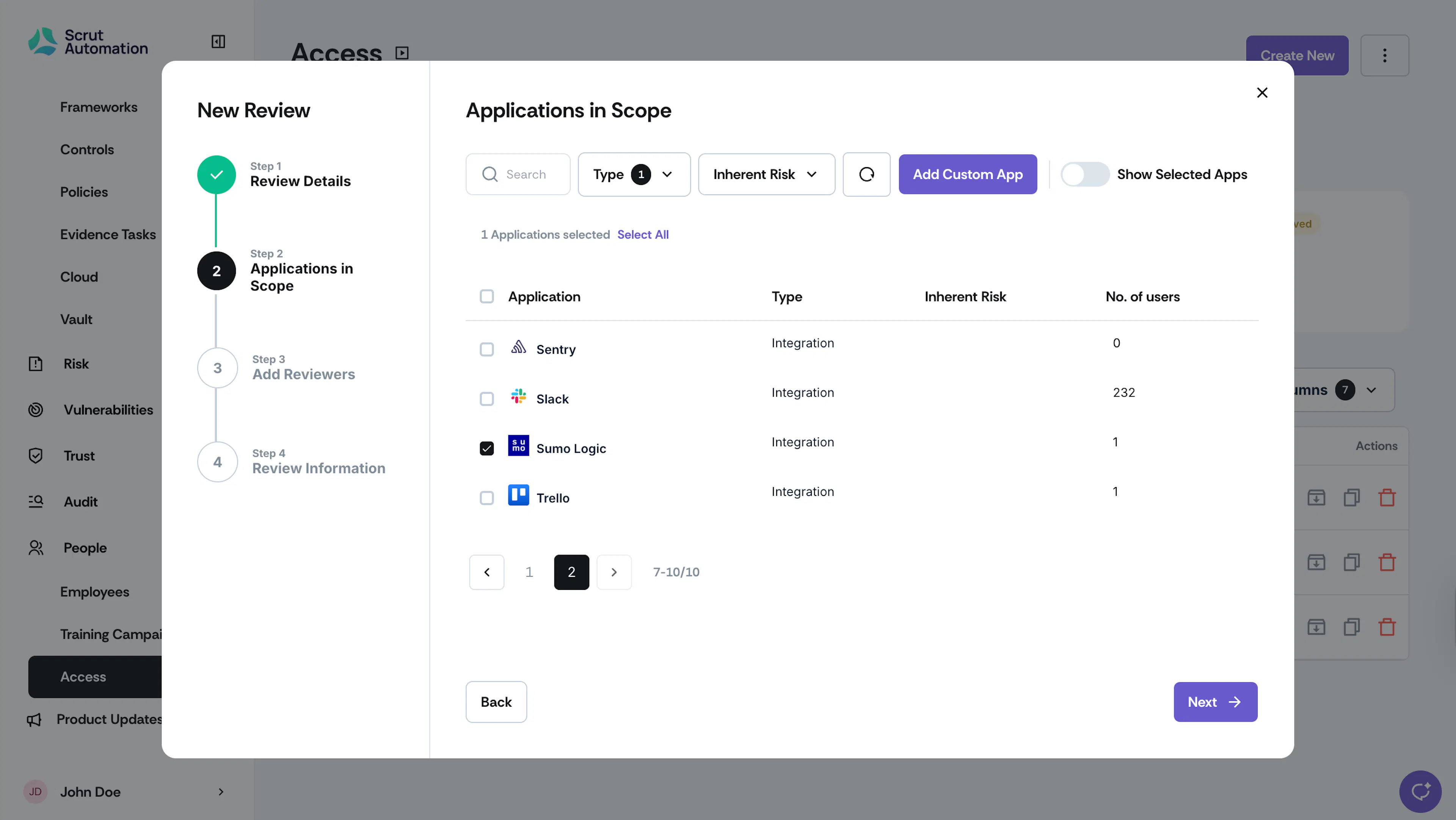
You can also create an Access Review (or edit an existing one) and include the Sumo Logic application in scope. Refer to this guide for step-by-step instructions on creating an access review.
Follow these steps to create a new access review for Sumo Logic:
- Go to People → Access and click Create New.
- Enter Review Details: Name, Description, Owner, and Review Days.
- In step 2, search for and select Sumo Logic in the Applications in Scope.
- Select Reviewer and Approver.
- Review the details and click Save Review.
From the Access Review page, click Sumo Logic to view user details in Scrut.
If you face any difficulties connecting Sumo Logic with Scrut, get in touch with the Scrut support team at support@scrut.io.