

Create a Vendor Questionnaire Template Manually
Who can use this feature
- Supported on Foundation, Growth, and Scale plans
If the default VSA template doesn't fit your requirements, you can build a custom template from scratch. This article walks you through creating a template and adding questions to it.
Step 1: Name Your Template
-
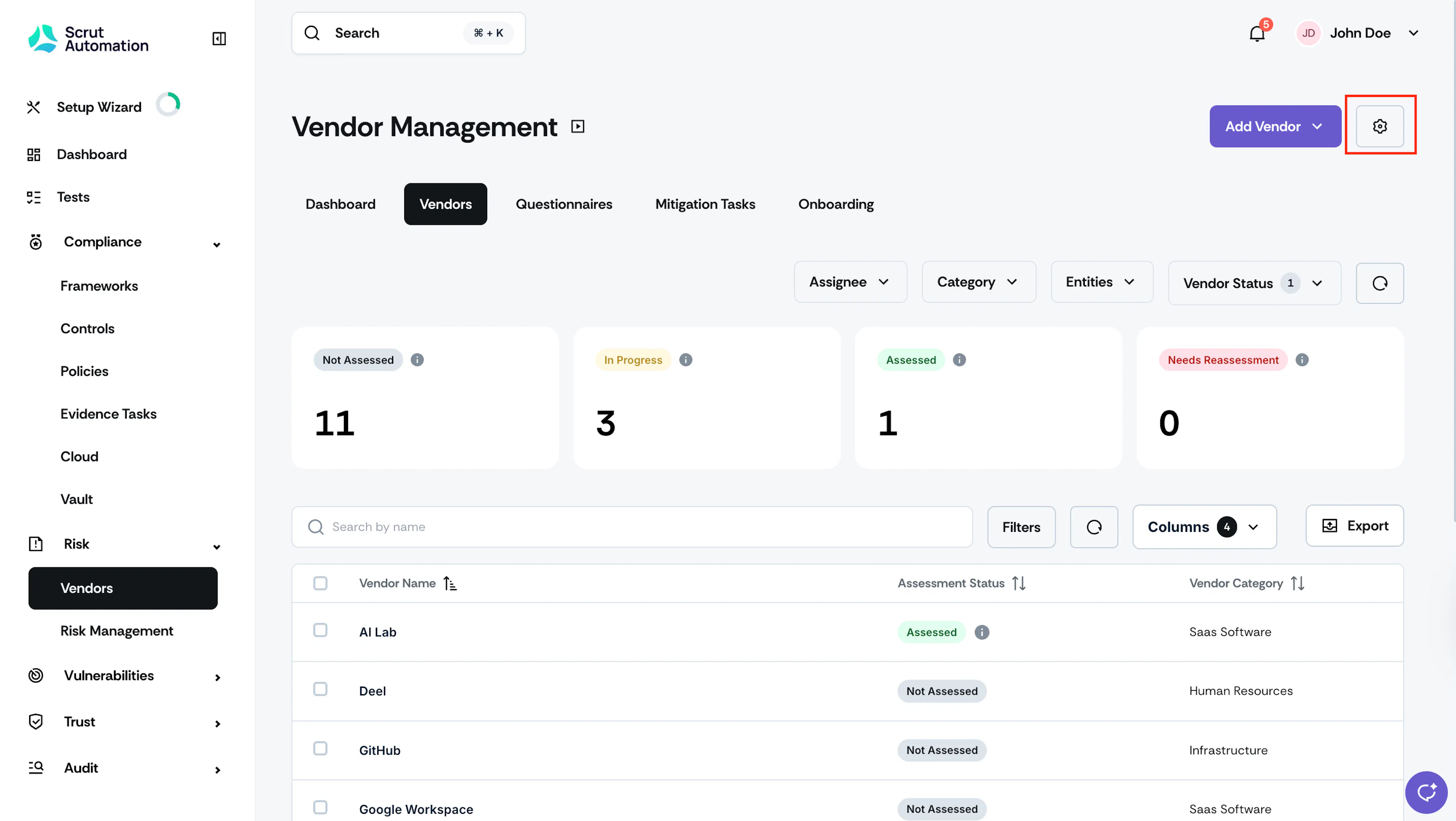
Sign in to Scrut and navigate to Risk → Vendors using the left navigation panel.
-
Click the Settings icon on the top right of the page.
-
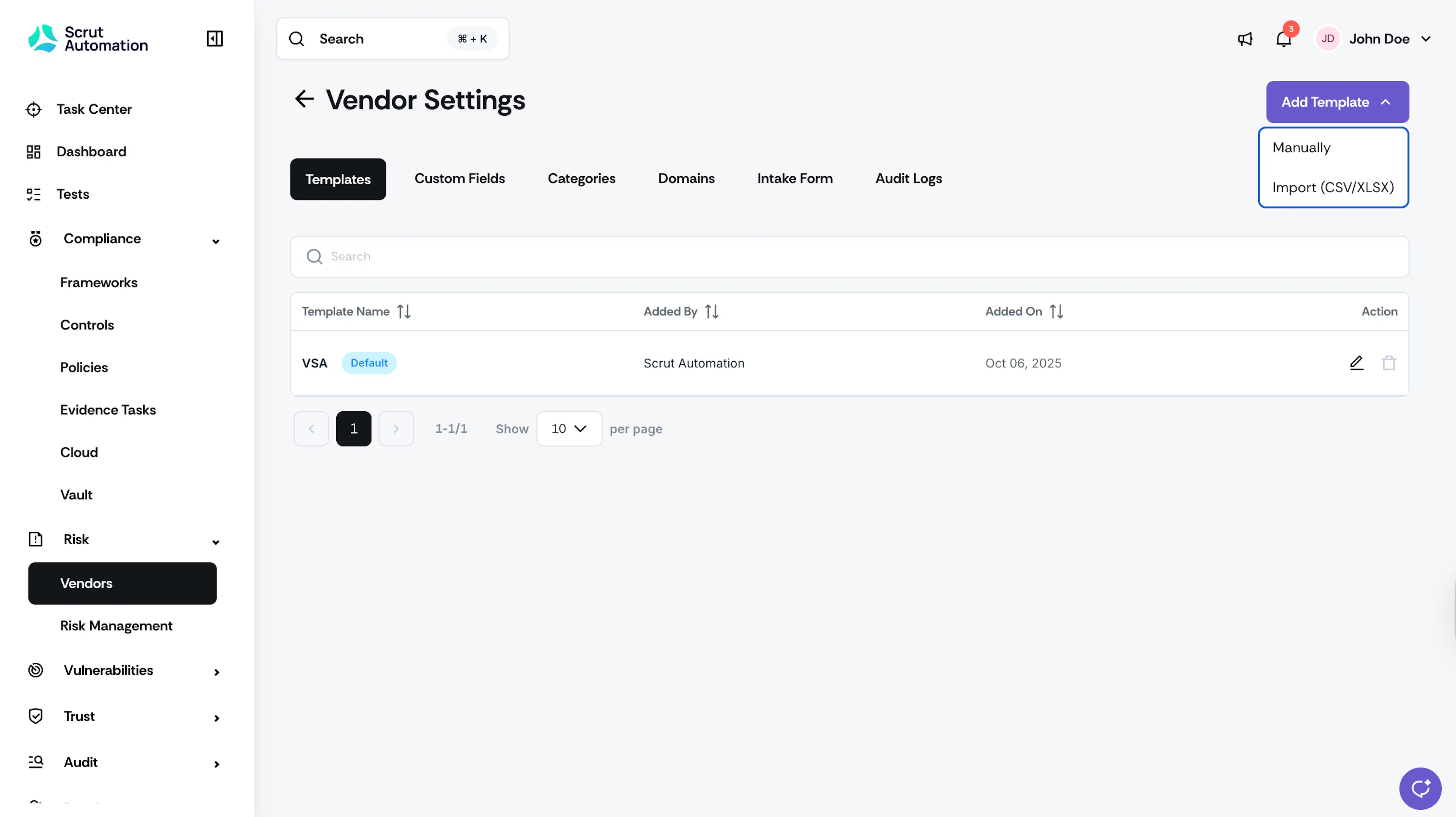
In the Templates tab, click the Add Template button and select Manually.
-
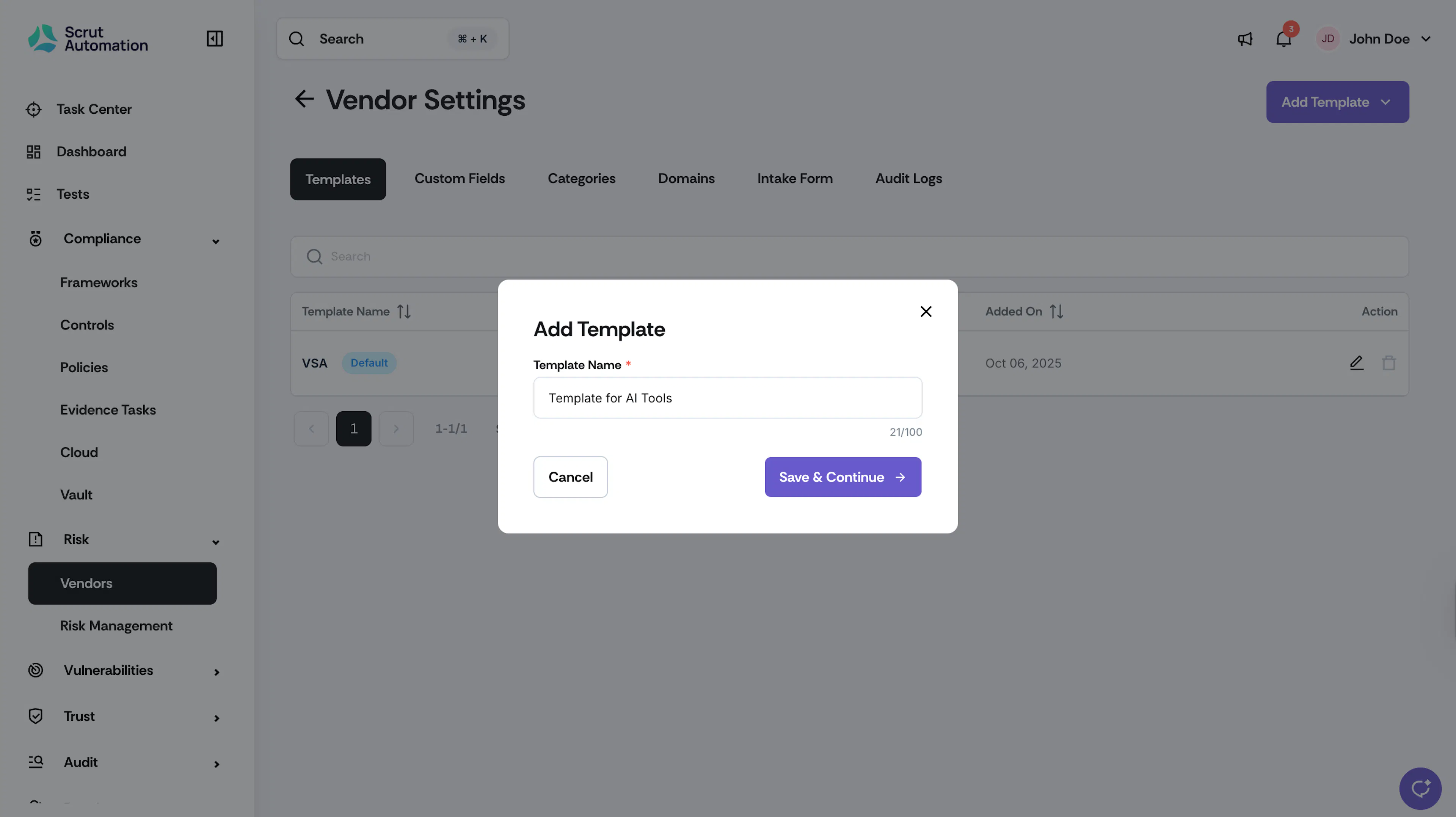
Enter the name of the template and click Save & Continue.
Step 2: Add Questions to the Template
-
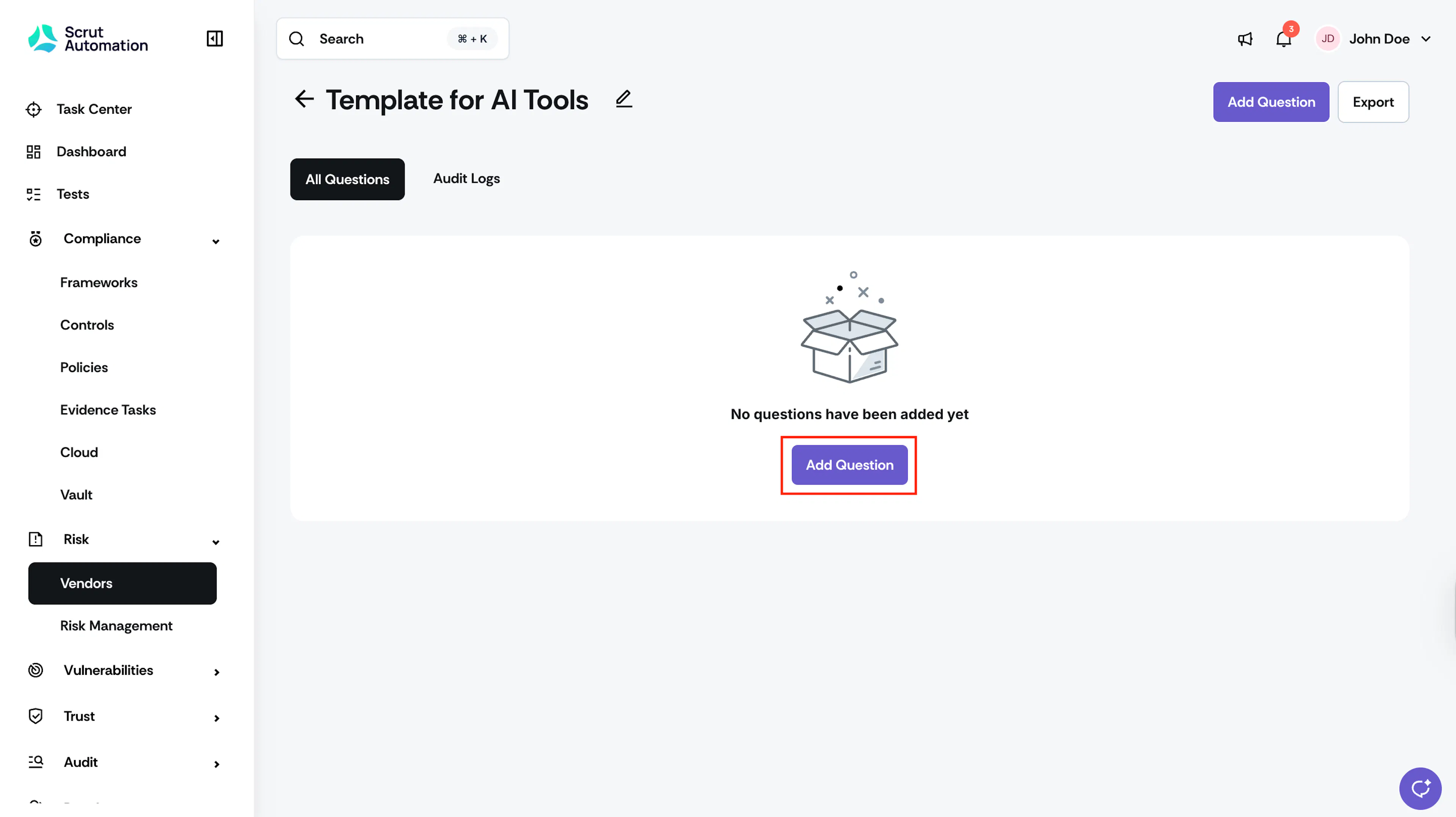
Click Add Question.
-
Enter your question in the textbox.
-
For Question Type, you can choose one of the following options:
-
Subjective: An open-ended text response.
-
Objective (Single Select): The vendor selects one answer from the options you define.
Note: You can include conditional follow-up questions nested within the parent question.
-
Objective (Multi Select): The vendor selects one or more answers from the options you define.
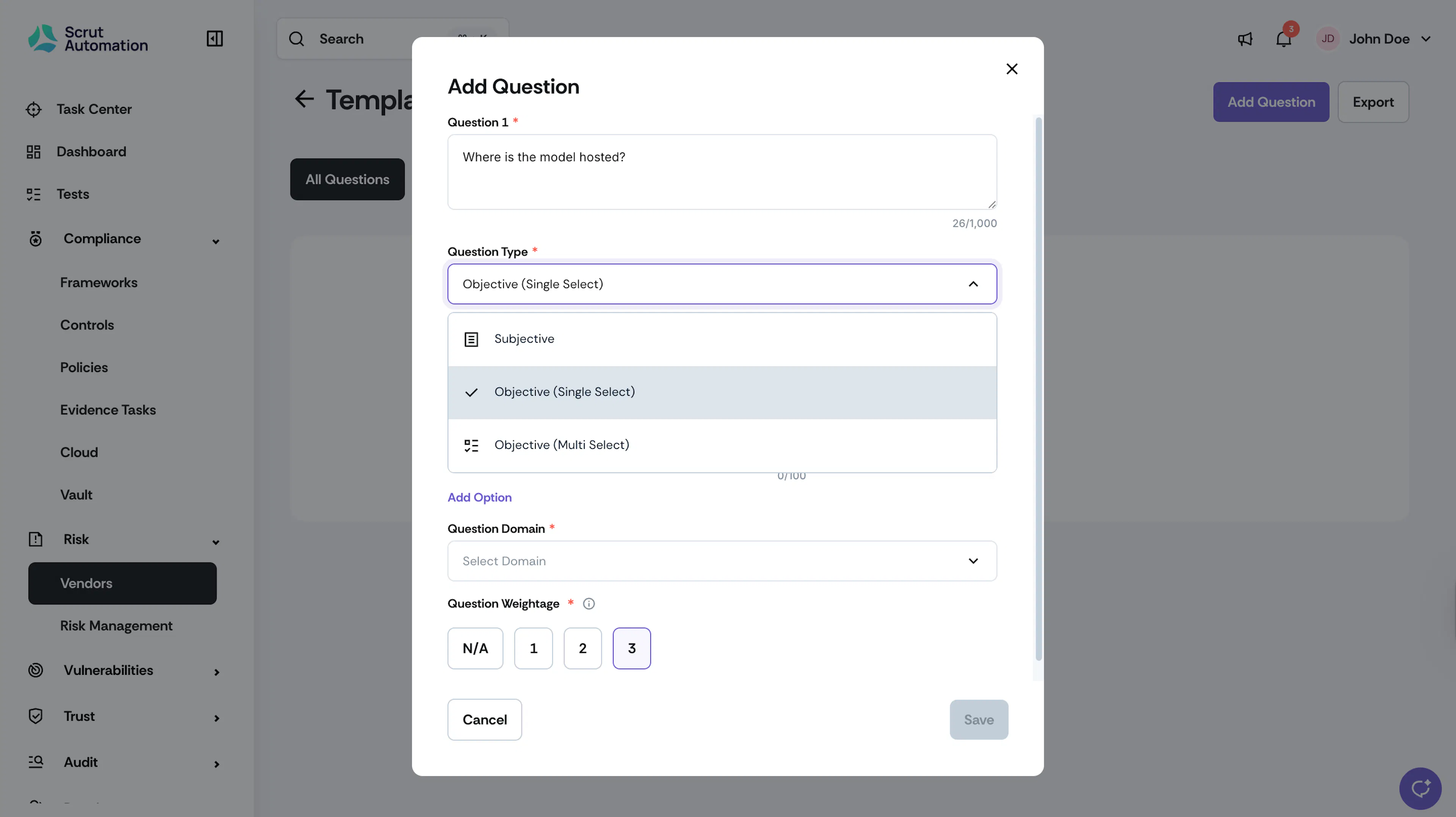
-
-
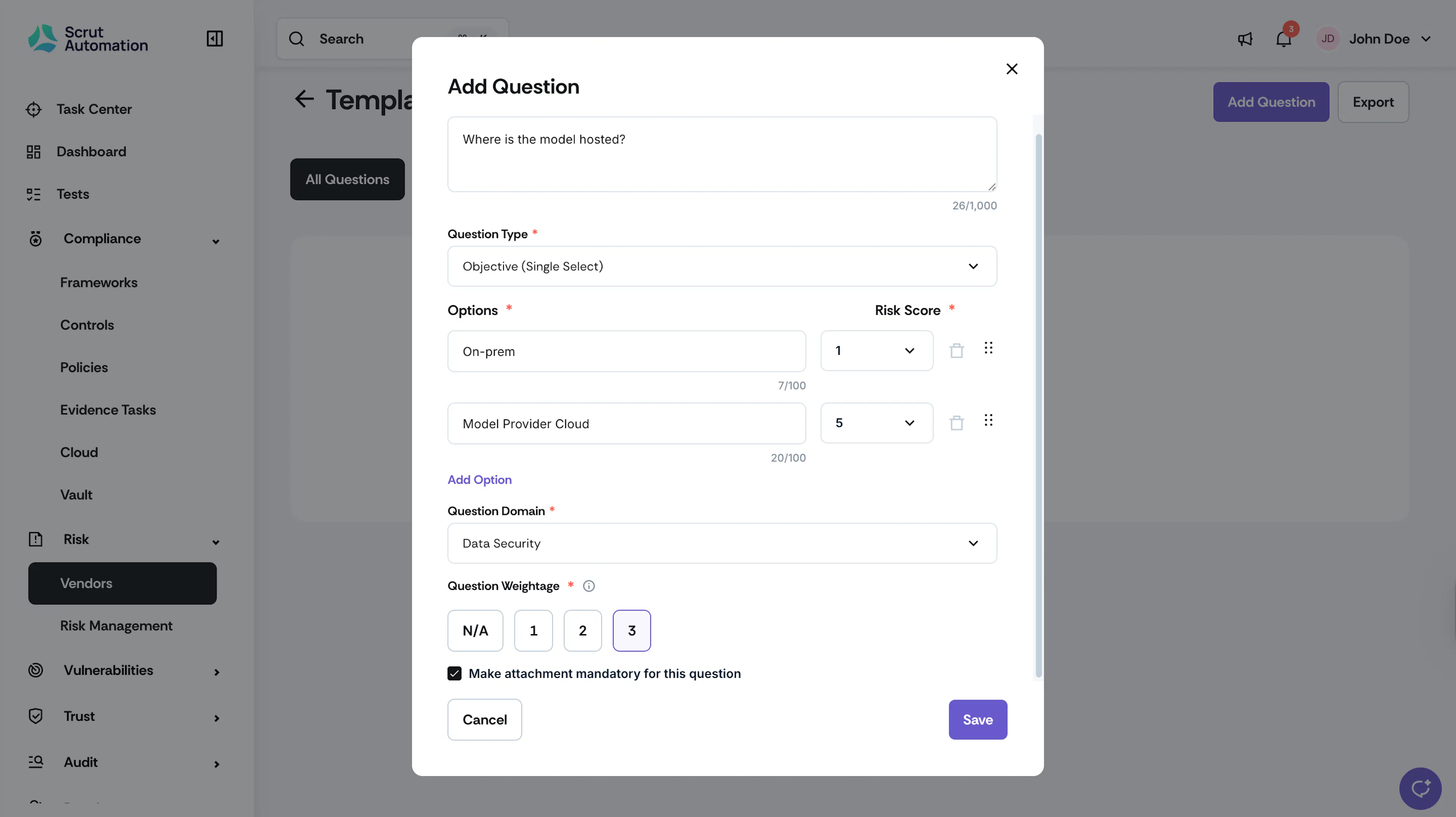
If you select Objective (Single Select) or Objective (Multi Select), you must set risk scores for each option.
Note:
Scrut scores risk on a scale of 0 to 5.
0 to 1: Low Risk 2 to 3: Medium Risk 4 to 5: High Risk
-
Click + Add Option to add more choices for objective questions.
-
Select the Question Domain from the options available.
-
Choose the Question Weightage. Scrut uses this value to calculate the weighted average vendor risk score.
-
Select the “Make attachment mandatory for this question” if you want the responder to include a supporting file.
-
Click Save.
The question is added to the template. Repeat these steps to add more questions.
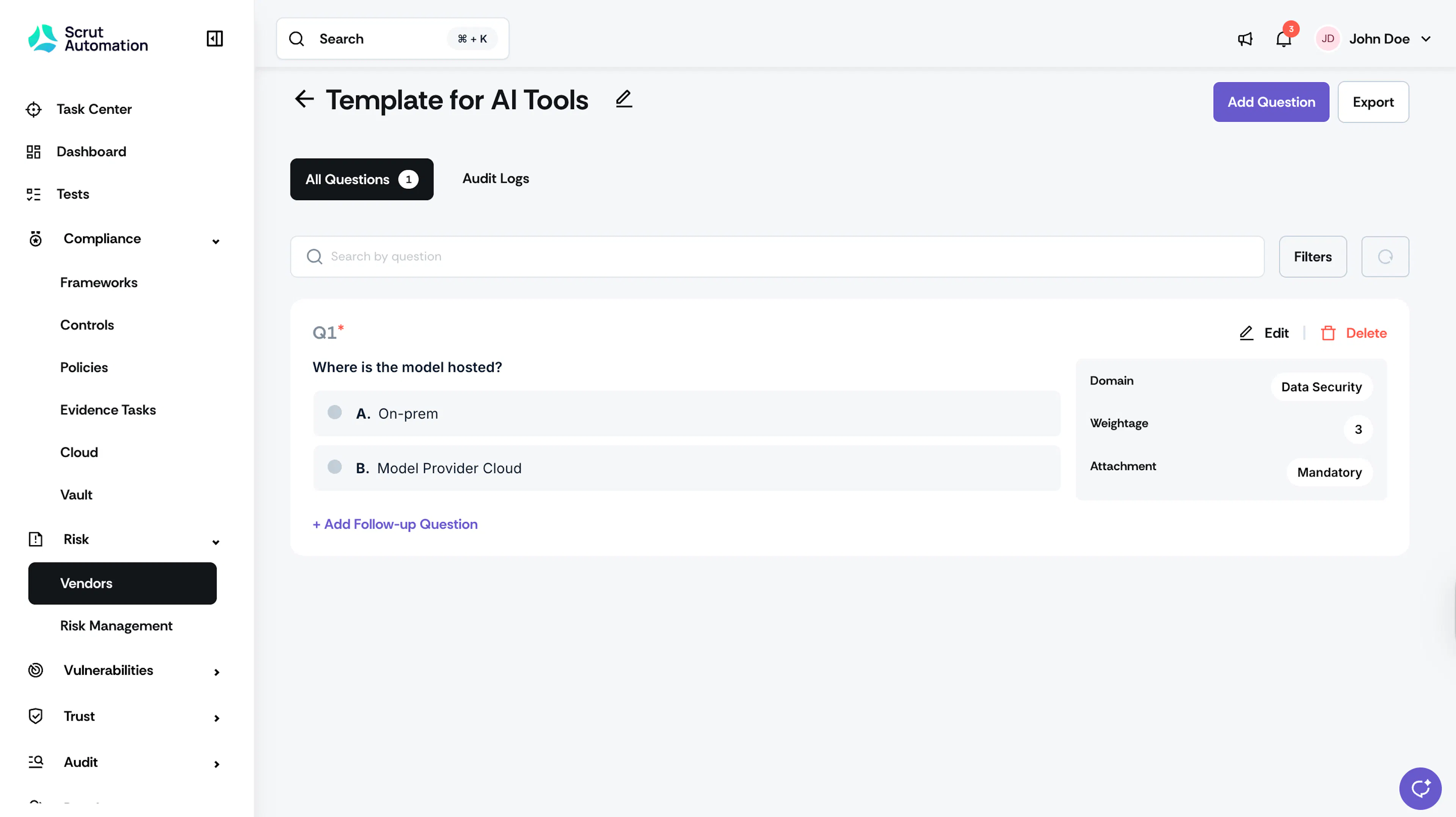
Add Conditional Follow-up Questions
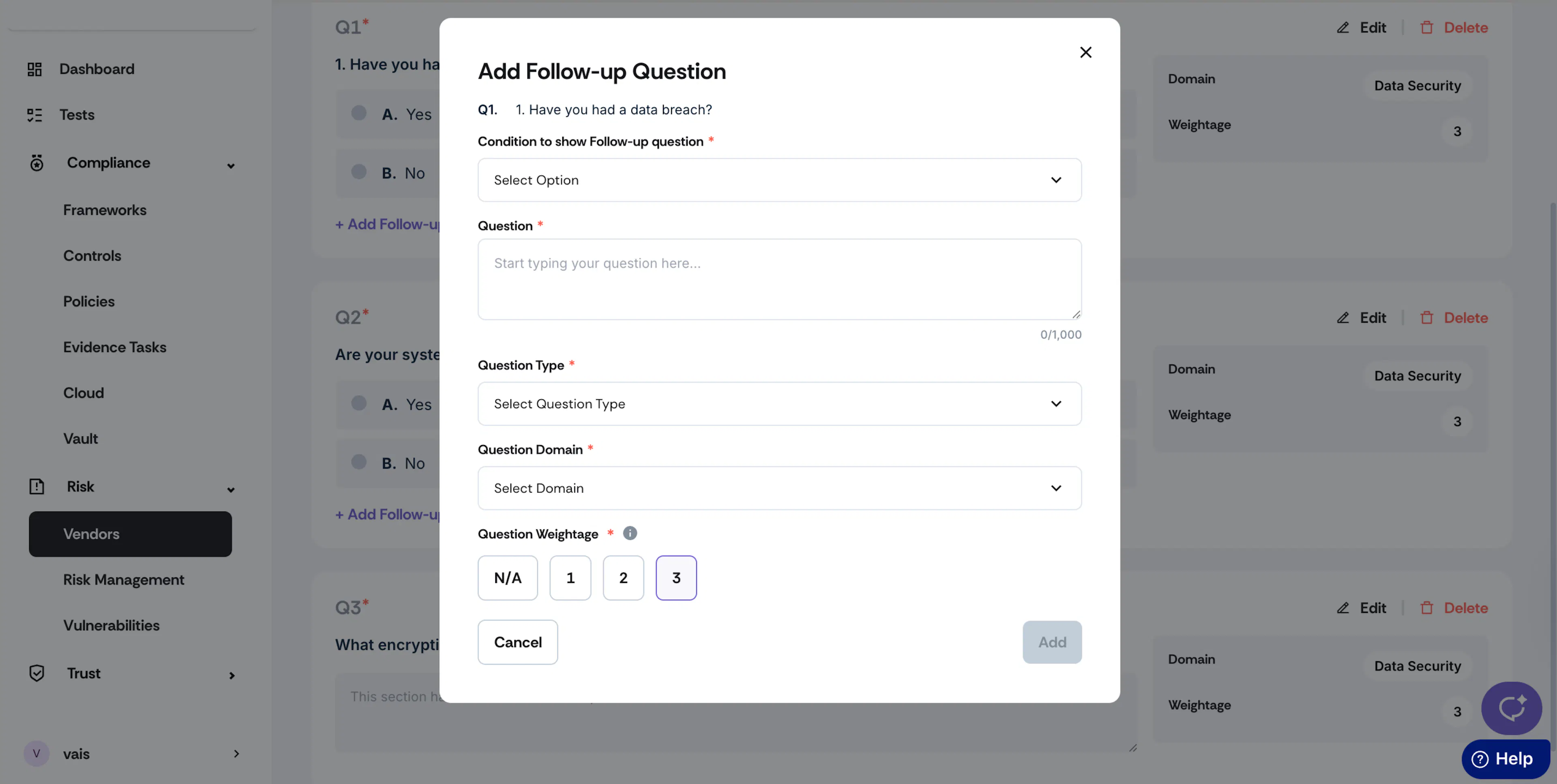
If you add an Objective (Single Select) question to your questionnaire, you have the option to include a conditional follow-up question that is linked to the answer selected by the vendor. This follow-up question will only appear if the vendor selects a specific option from the parent question.
For example, if the vendor answers “Yes” to the question, “Have you ever had a data breach?”, you can then ask for additional details about the breach. This could include inquiries about the impact of the breach, when it occurred, and any other relevant information you deem necessary. By including conditional follow-up questions, you can develop more focused, adaptive questionnaires tailored to the answers vendors provide.
To add a conditional follow-up question:
-
Click the +Add Follow-up Question button. This is available only for objective (single-select questions).
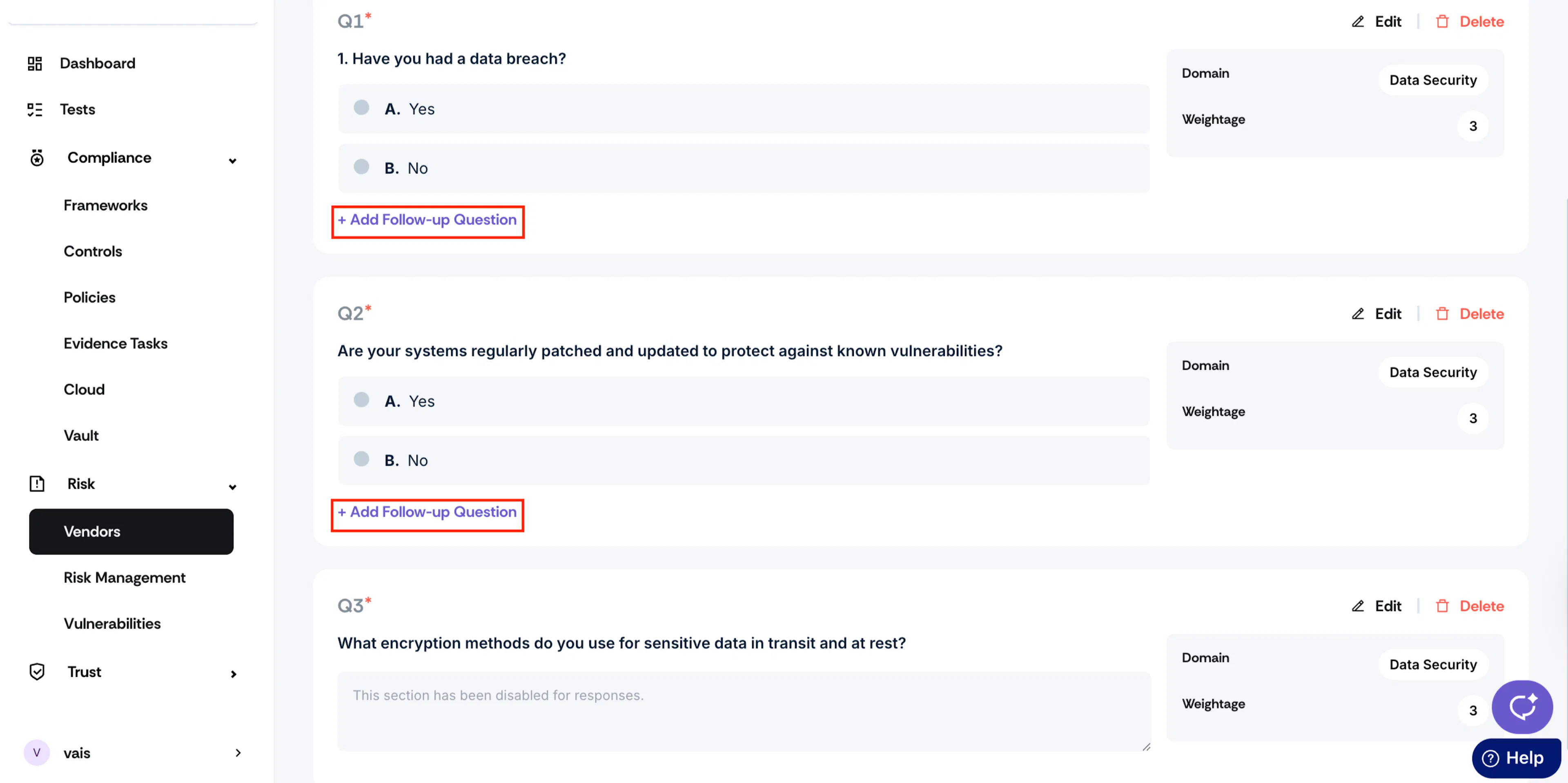
-
Select the answer option that triggers the follow-up question.
-
Type your follow-up question.
-
Choose the Question Type: Subjective, Objective (Single Select), or Objective (Multi Select).
-
Choose the Question Domain from the available options.
-
Select the Question Weightage and click Add.
The follow-up question appears below the parent question.