

Import a Vendor Questionnaire Template
Who can use this feature
- Supported on Foundation, Growth, and Scale plans
If you already have a vendor questionnaire in a spreadsheet, you can import it directly into Scrut instead of building a template from scratch.
How To Import a Template
-
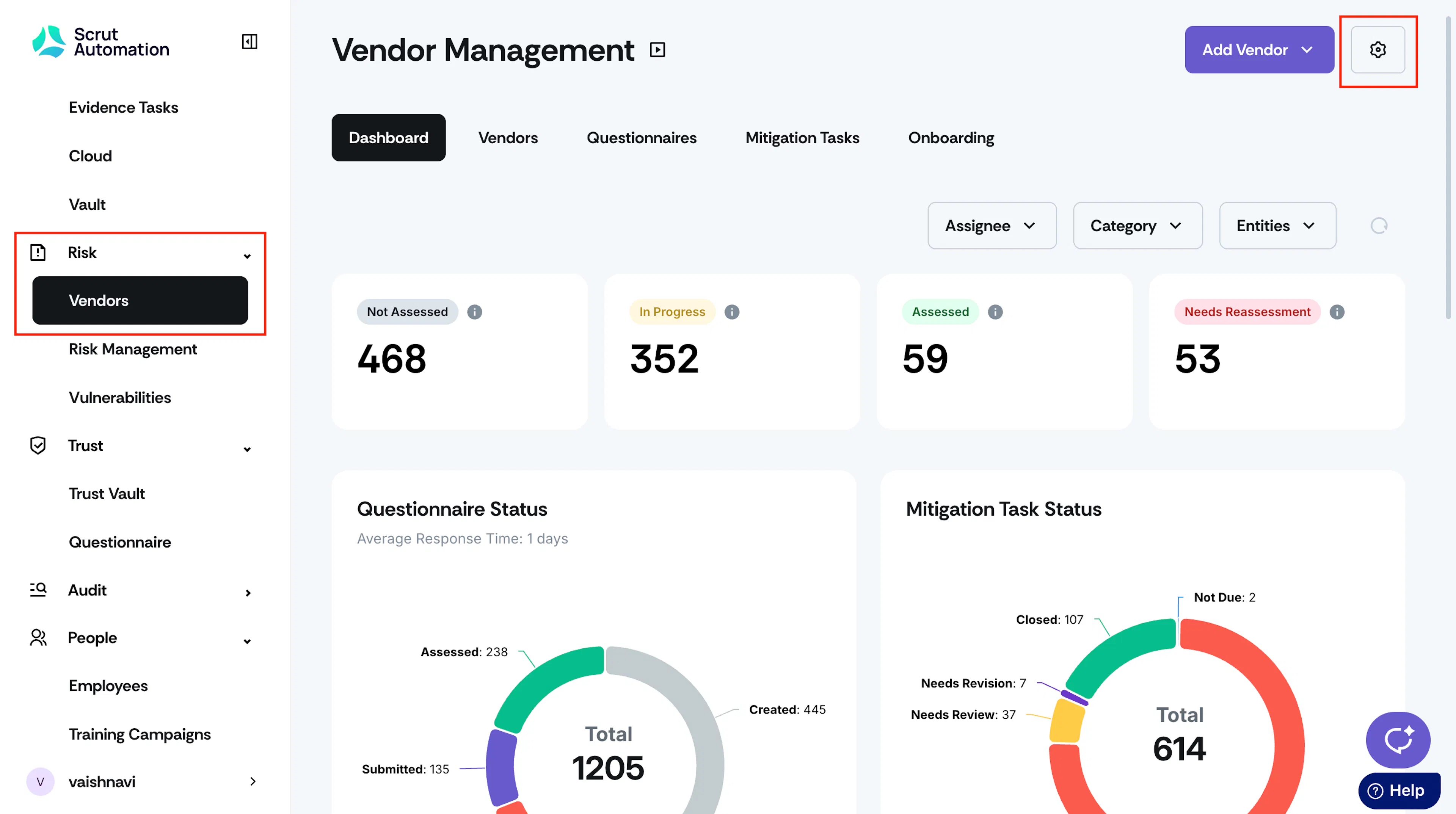
Sign in to Scrut and navigate to Risk → Vendors using the left navigation panel.
-
Click the Settings icon on the top right of the page.
-
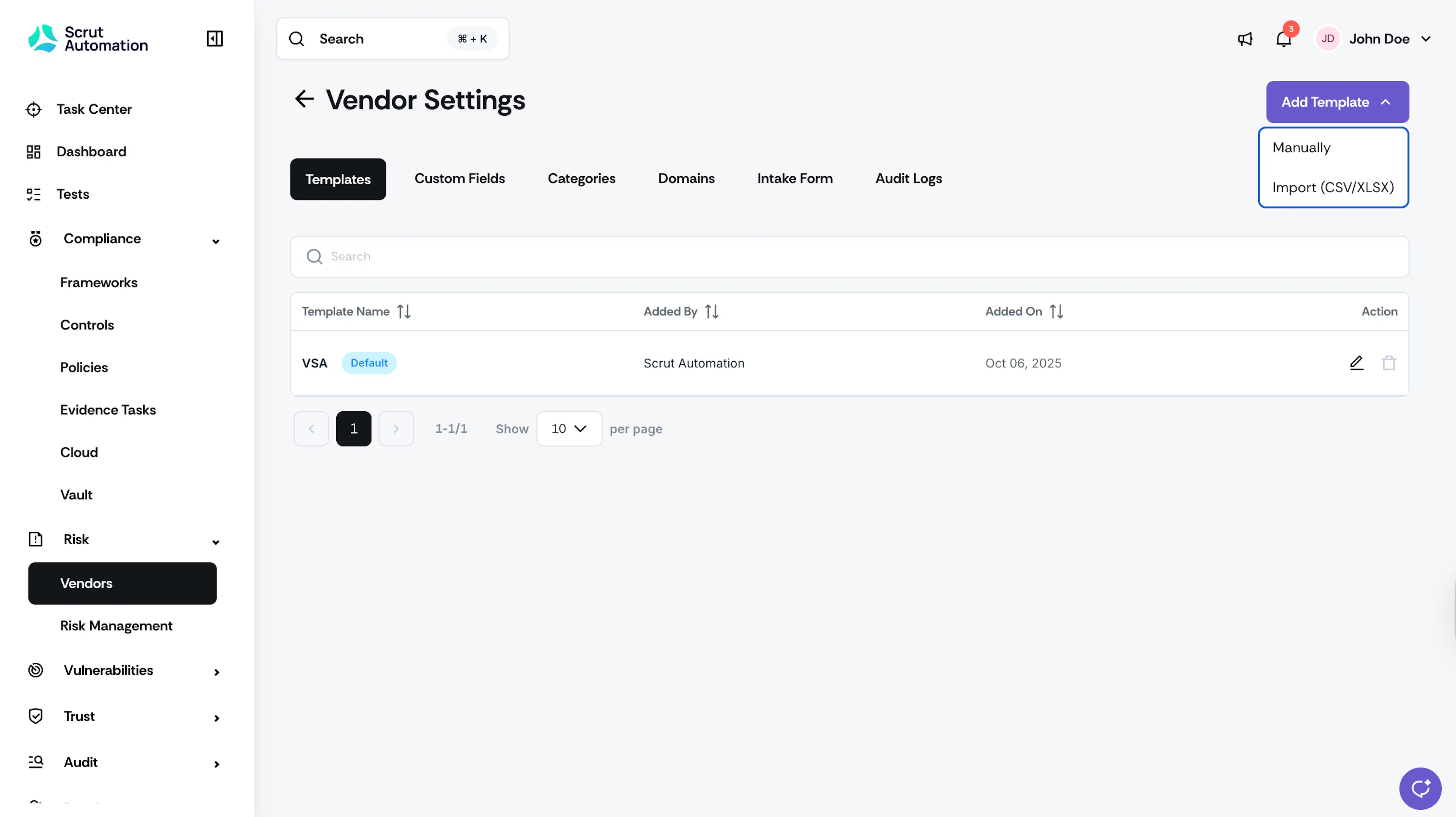
In the Templates tab, click Add Template and select Import (CSV/XLSX).
-
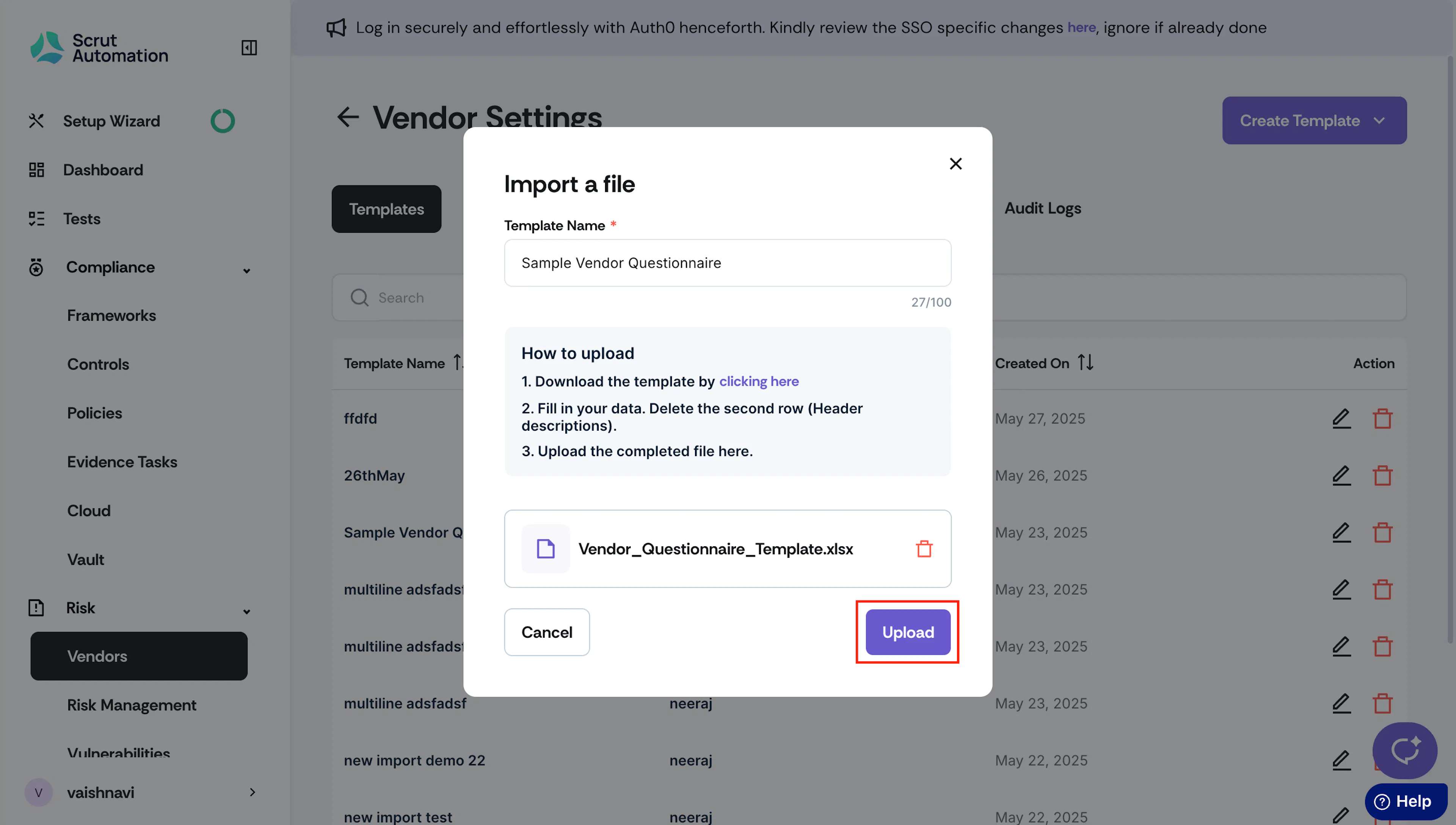
Enter a name for the template.
-
Download the Scrut import file and paste your questionnaire into it.
Pro Tip!
Refer to this section for detailed instructions on adding questions to the template.
-
Drag and drop the completed file into the upload area, or click to upload it manually.
-
Click Upload.
-
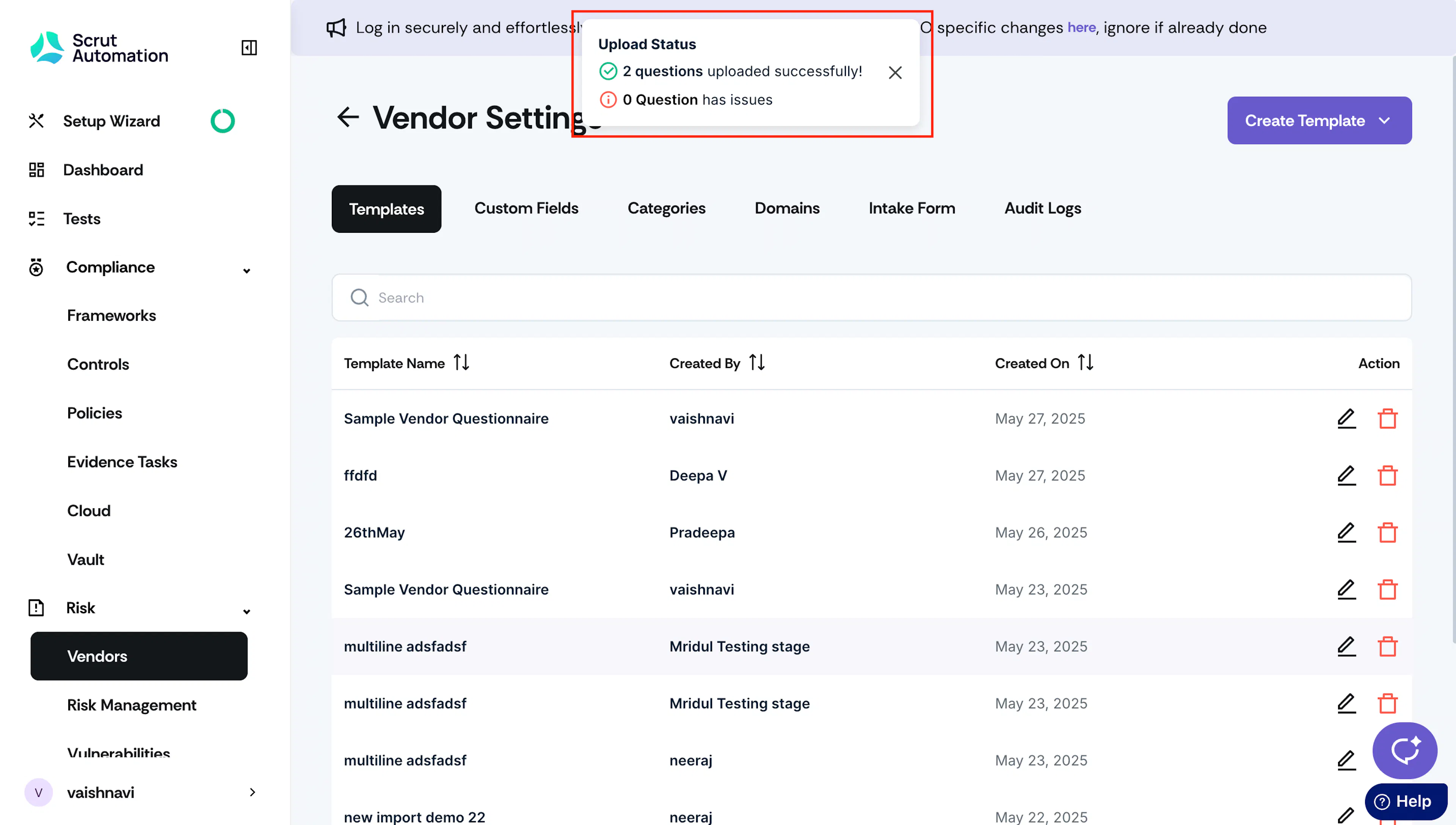
Scrut will notify you of any questions that weren't imported because of formatting issues. Fix the errors in the file and upload it again.
-
Your imported template is available in Vendor Settings → Templates.
Tips for Using the Template

Follow these guidelines when filling in the import file to avoid upload errors.
- Keep the first row intact. It contains the column headers Scrut needs to process the file.
- The description in the second row will guide you in adding questions. Feel free to remove that row once you have incorporated the questions.
- If you leave the Question Type column blank, Scrut defaults to Subjective.
- If the question type is Objective (Single Select) or Objective (Multi Select), enter the answer options and risk scores in the corresponding columns.
- Leave Condition for follow-up question (Column C) blank for main questions.
- Avoid extra formatting, such as background colors.
Add Conditional Follow-up Questions
The import template includes two columns at the front of the sheet: Question number and Condition for follow-up question. Use these to bring conditional follow-up questions into Scrut along with your main questions.
-
Question number: Enter a number that reflects the question's place in your hierarchy.
- Use Q1, Q2, Q3 for main questions.
- For a follow-up nested under Q1, use Q1.1 and Q1.2.
- For a second-level follow-up nested under Q1.1, use Q1.1.1.
- Scrut supports up to two levels of nesting, the same limit that applies when building a template manually.
-
Condition for follow-up question: For each follow-up row, enter the parent answer option that should trigger it. Leave this column blank for main questions.
Heads Up!
Conditional follow-ups can only be attached to Objective (Single Select) parent questions.