Edit Risk Details
Who can use this feature
- Supported on Foundation, Growth, and Scale plans
Scrut makes it easy to edit risk details such as assignee, department, category, linked assets, custom fields, and more. In this article, we walk you through the process of editing risk details and updating risk scores.
To edit risks individually:
-
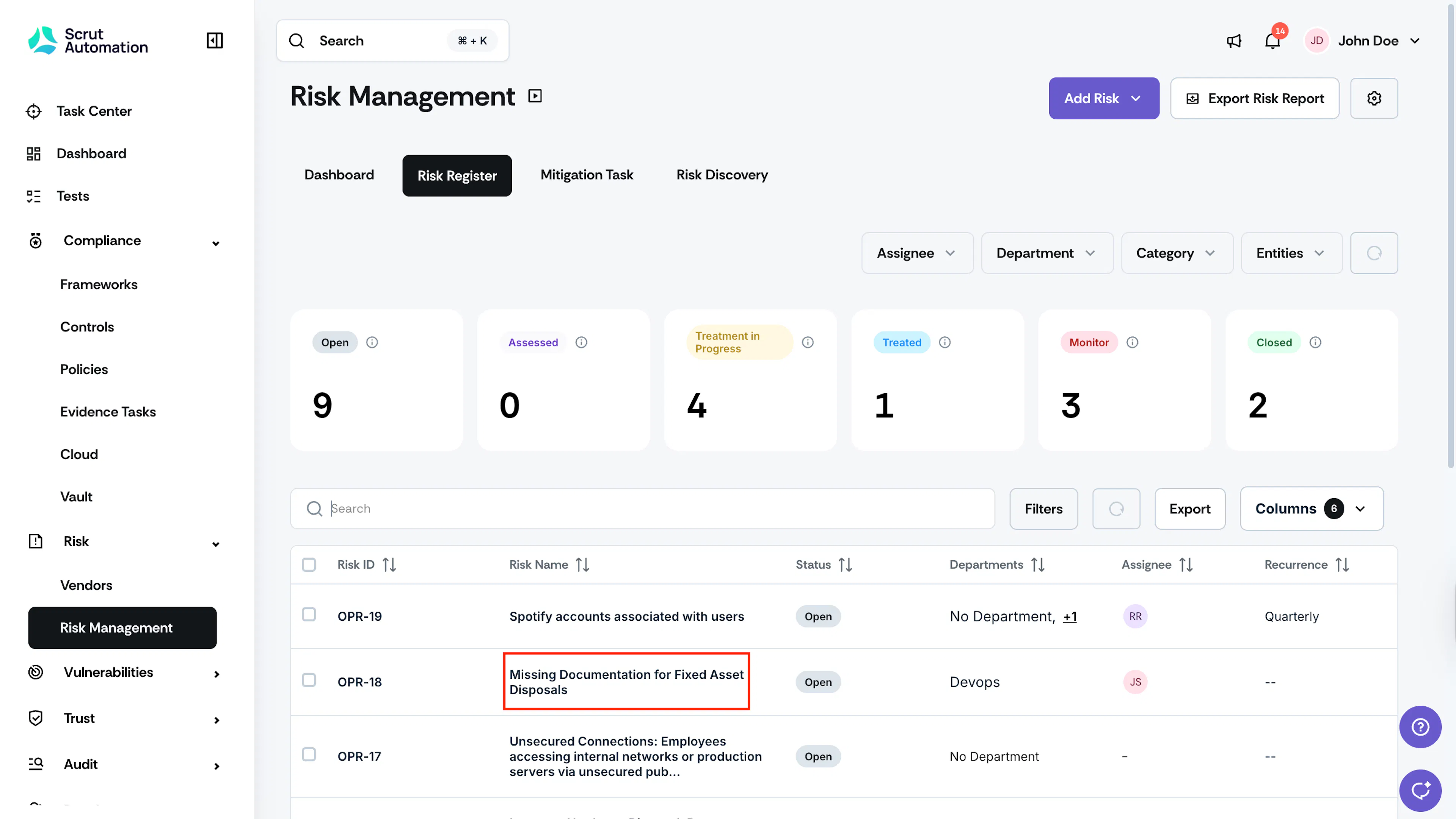
Click Risk → Risk Management, and go to the Risk Register tab.
-
Click on the risk you want to edit.
-
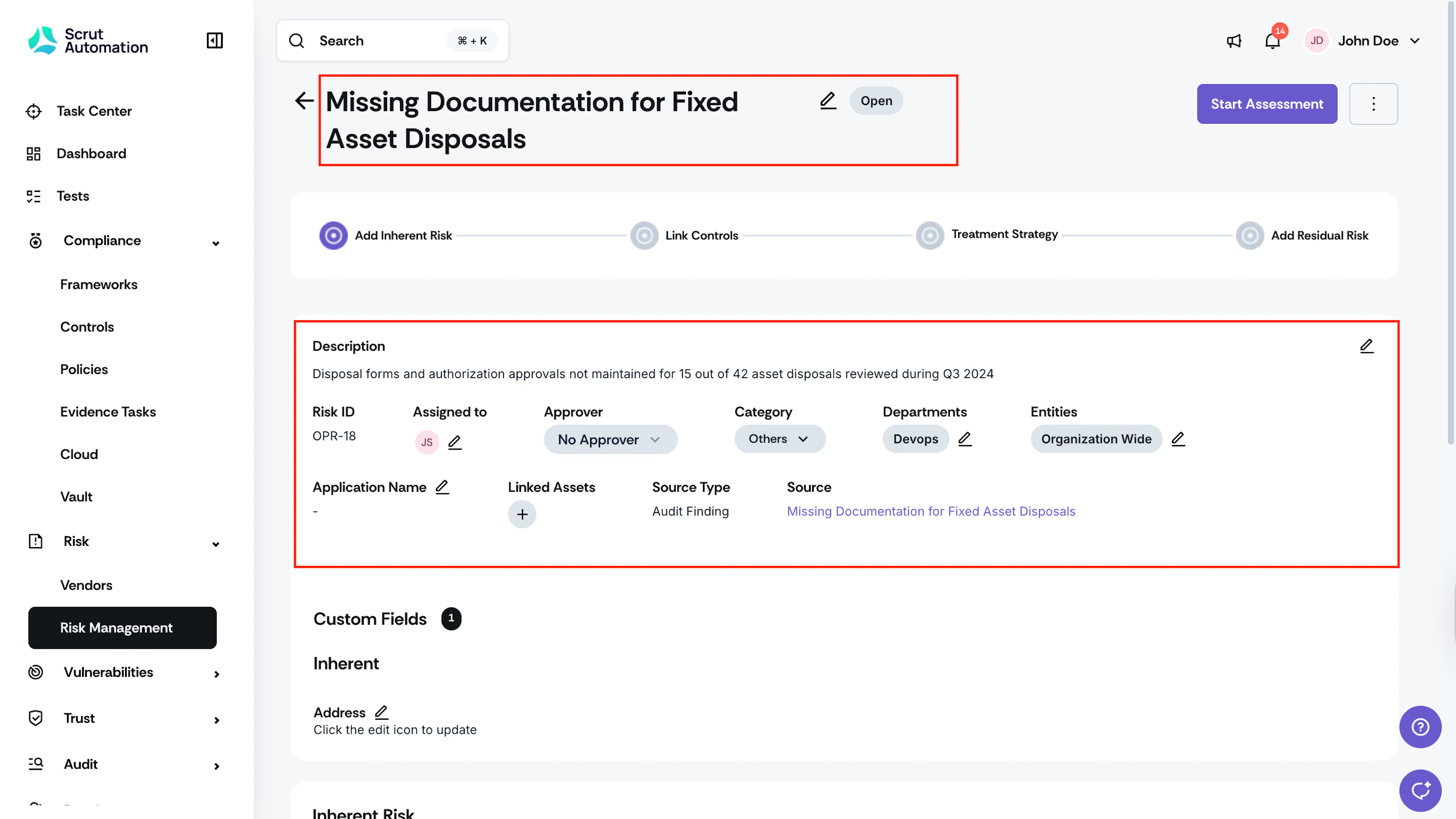
This opens the Risk details page, from where you can edit its details.
-
To edit any field, click the pencil icon next to it. For fields with dropdowns, click the dropdown to make your selection.
-
If you’ve added custom fields, these will be present below the default fields. Click the pencil icon adjacent to it to edit the values for custom fields.
To edit details of multiple risks simultaneously:
-
Click Risk → Risk Management, and go to the Risk Register tab.
-
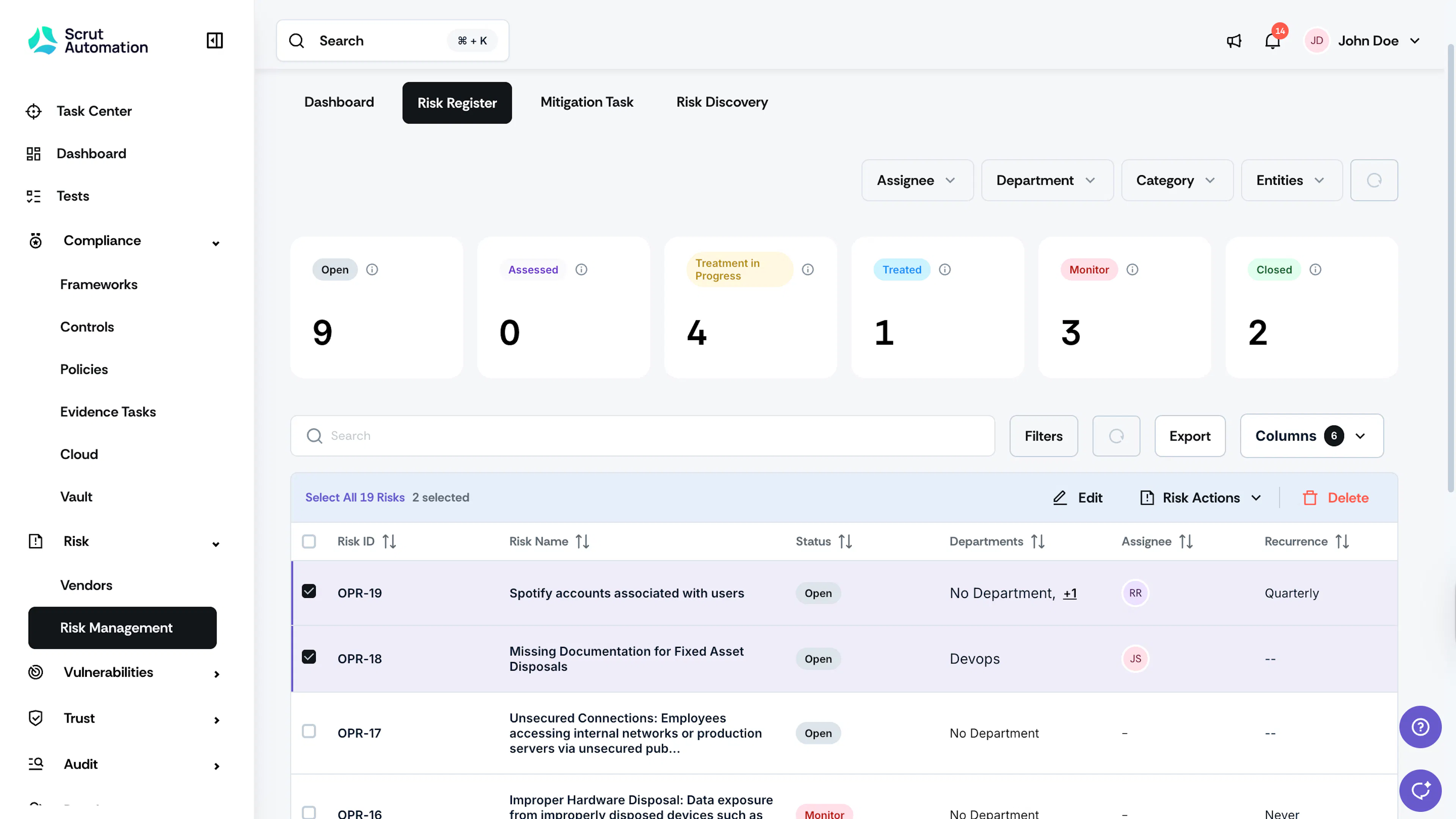
Select the risks you want to edit.
-
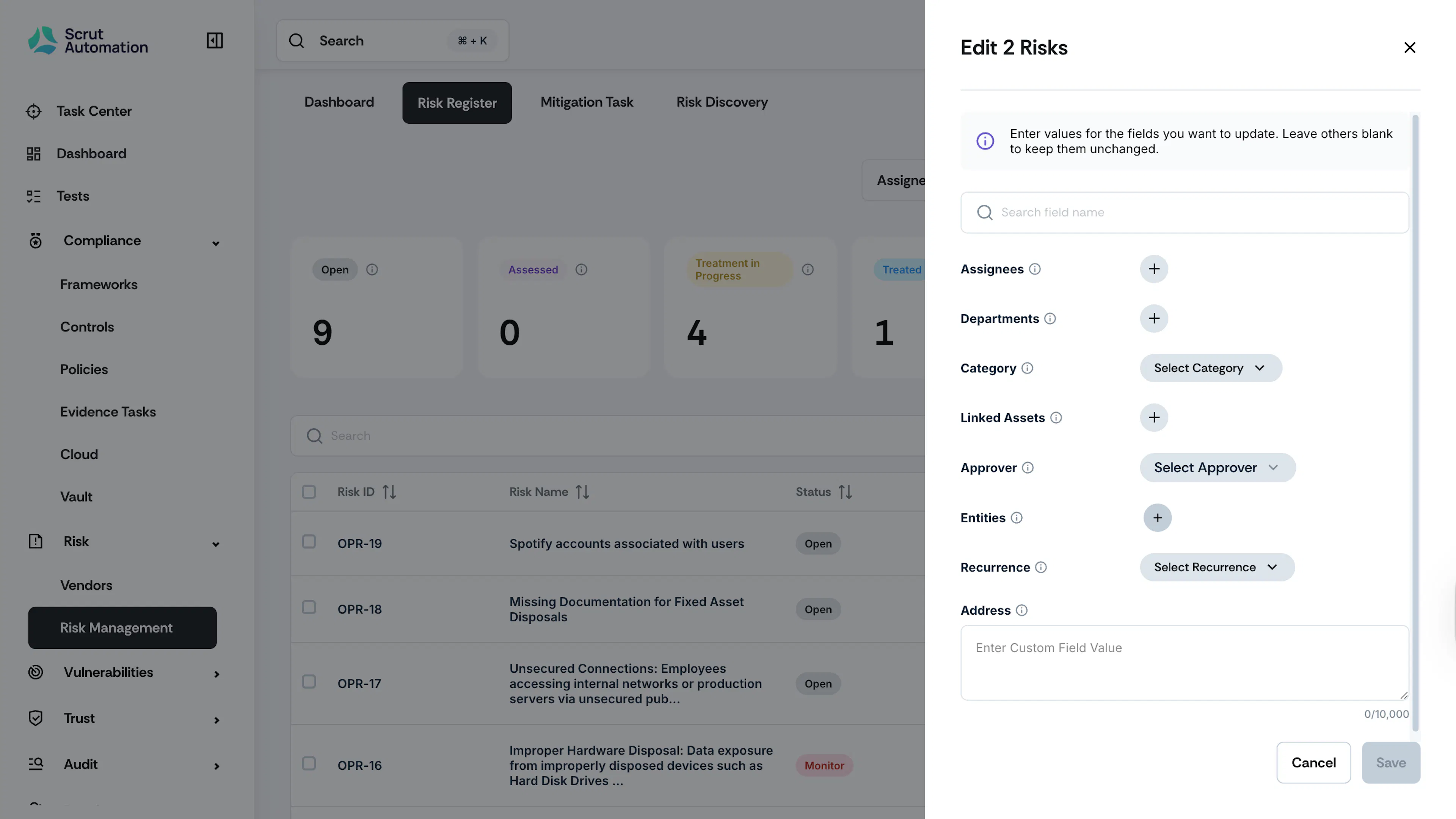
Click the Edit button at the top. This opens the bulk actions modal.
-
Use the sidebar to bulk edit risk details, including Assignees, Departments, Category, Linked Assets, and Entities, and other custom fields you’ve created.
Heads Up!
If you don’t choose a value for a specific field, then no updates will be made to it. Existing details will remain unchanged for this field.
-
Make the necessary edits and click Save.
Note:
For fields like Risk Name and Description, you cannot bulk edit as they are unique to each risk. Go to the specific risk details page to update these fields.
Note:
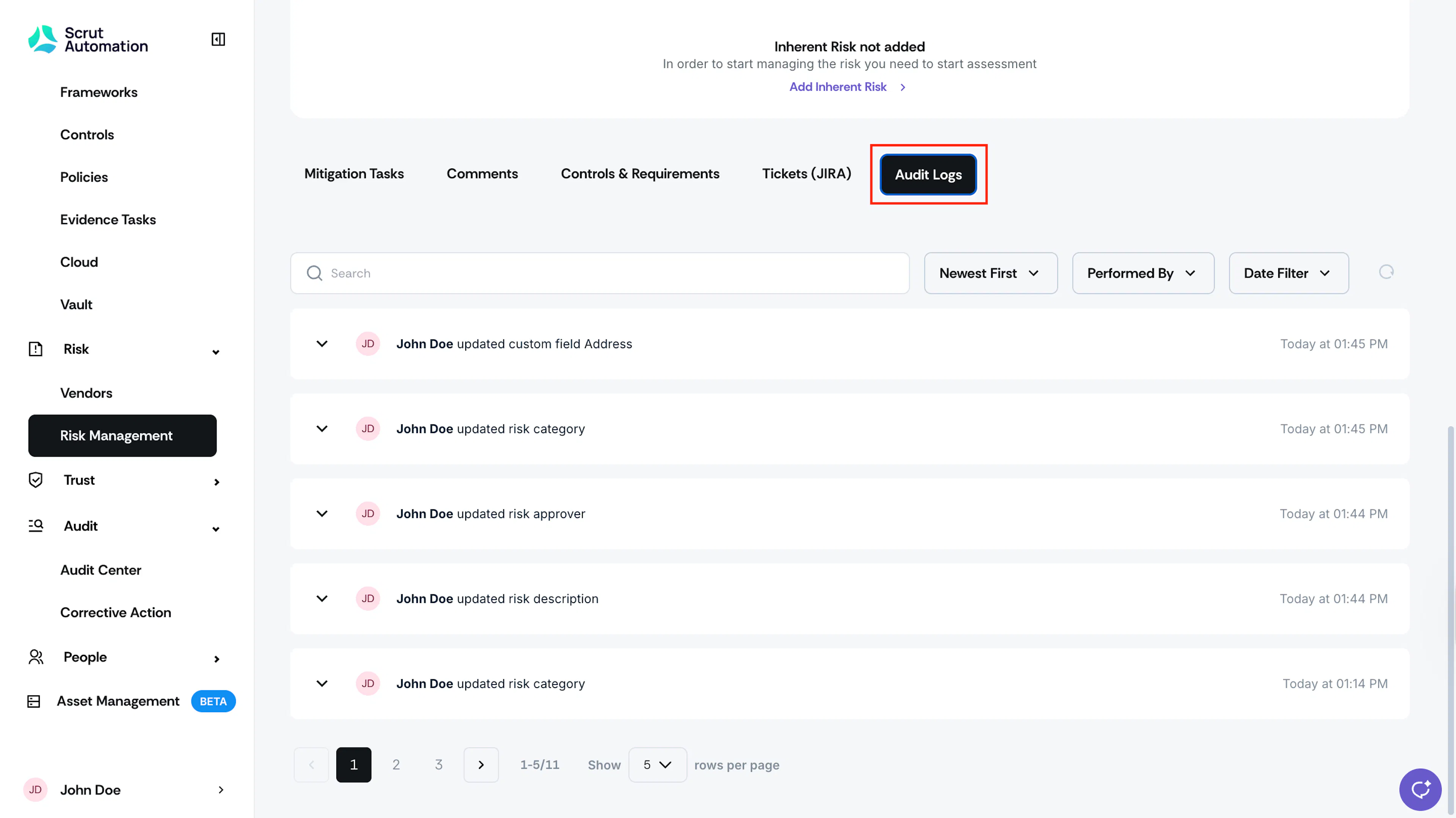
Any edits you make to risk details are captured in the Audit Logs of the corresponding risks.