Link and Unlink Controls to a Risk
Who can use this feature
- Supported on Foundation, Growth, and Scale plans
Scrut allows you to link controls at the time of risk assessment. Additionally, Scrut provides the flexibility to edit linked controls later on, if needed. In this guide, we walk you through the process of linking and unlinking controls to a risk.
How To Link/Unlink Controls to a Risk
-
Sign in to Scrut and go to Risk → Risk Management using the left navigation panel.
-
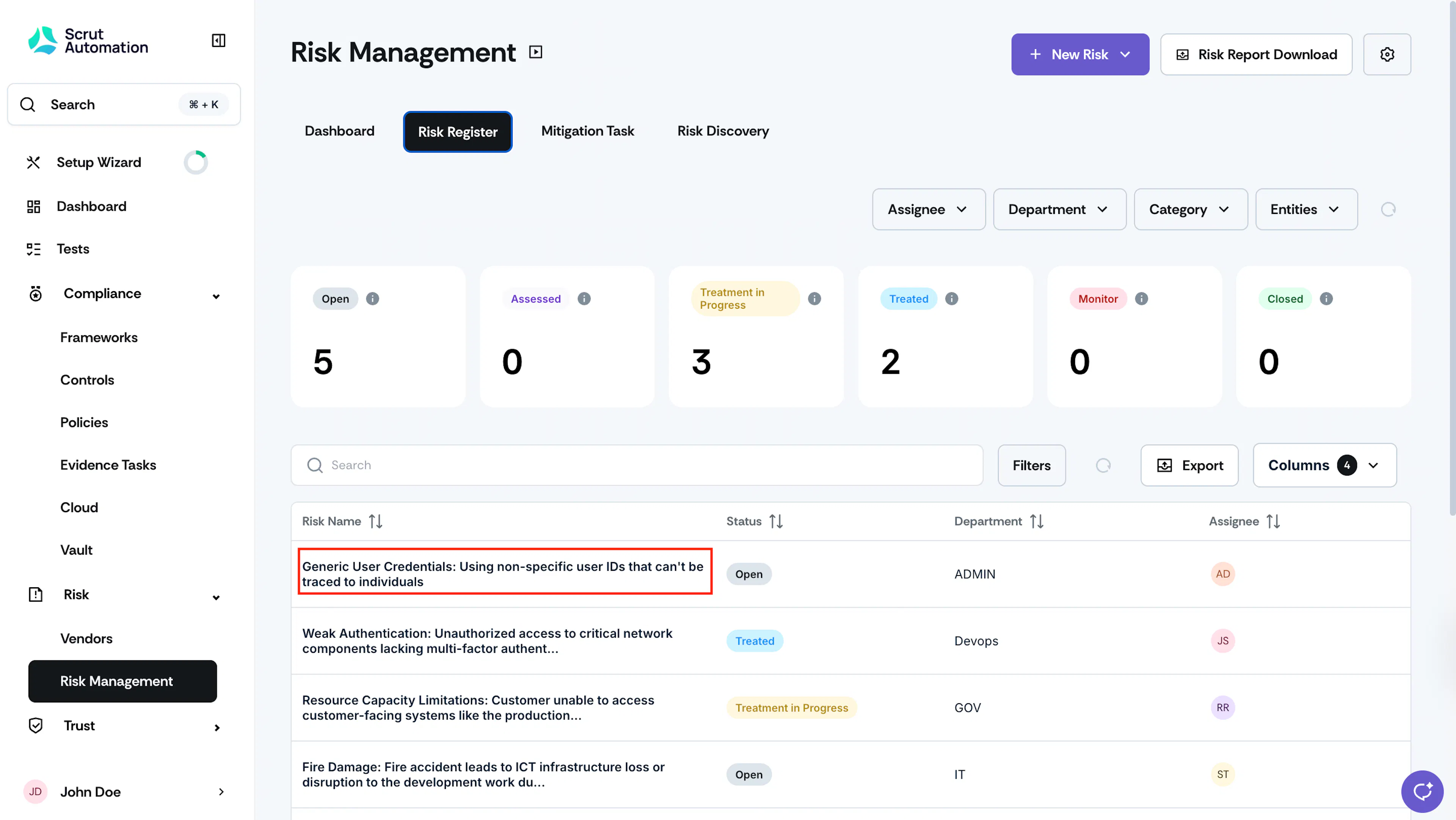
Go to the Risk Register tab and click on the risk to which you want to link or unlink controls.
-
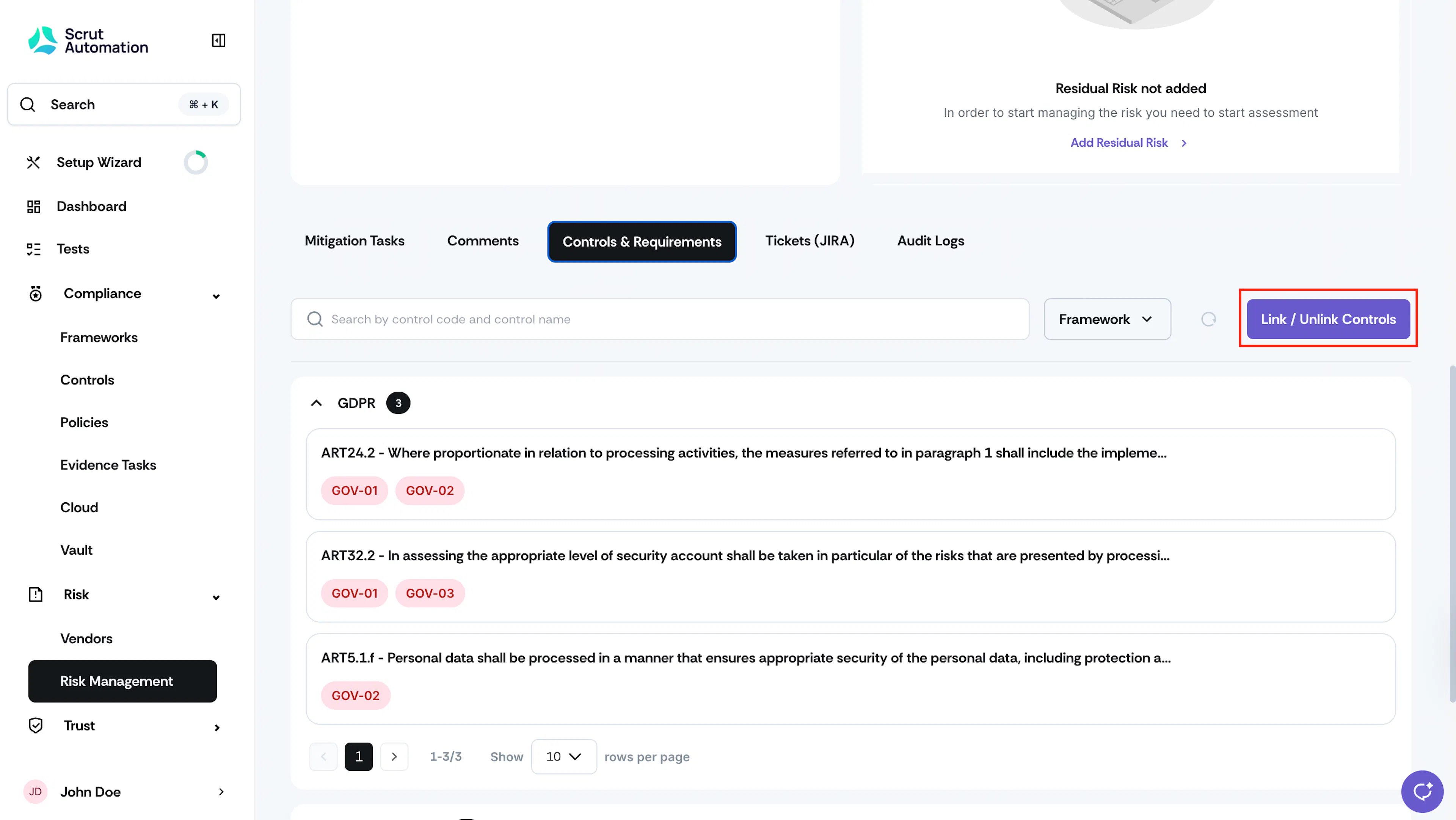
Scroll to the Controls & Requirements tab, and click theLink/Unlink Controls button.
-
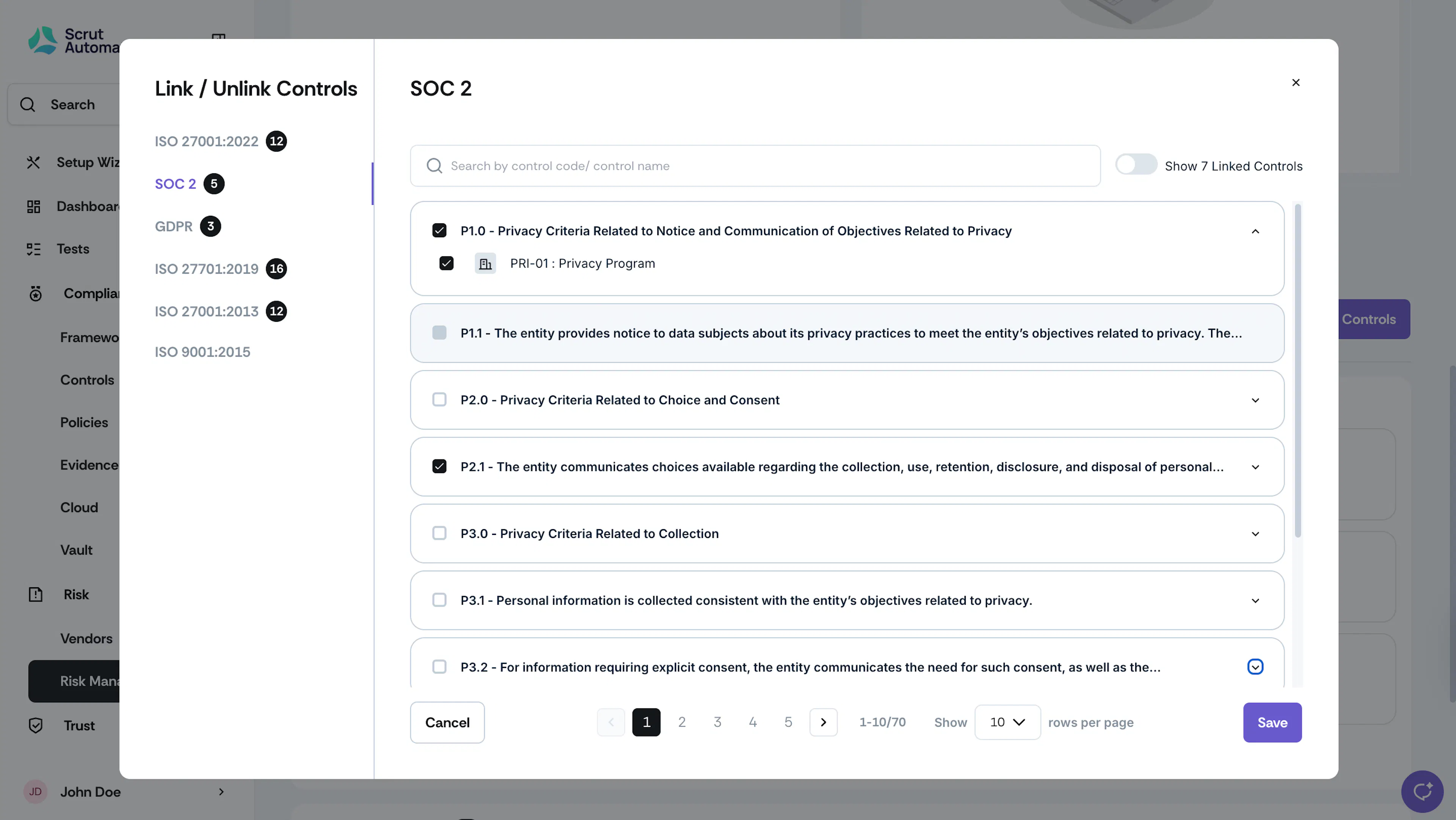
Use the Frameworks panel to view controls relevant to your frameworks.
-
Expand a specific requirement to see all controls associated with it.
- When you select a requirement, all controls within it will be selected by default.
- If needed, you can then select/unselect specific controls as required.
-
Select the checkboxes next to the controls you want to link.
Note: Any requirement that is not applicable will appear greyed out.
-
Use the search bar at the top to quickly locate controls by name or code.
-
Once you've made the selections, enable the Show Linked Controls toggle to review and verify which controls you have chosen to link.
-
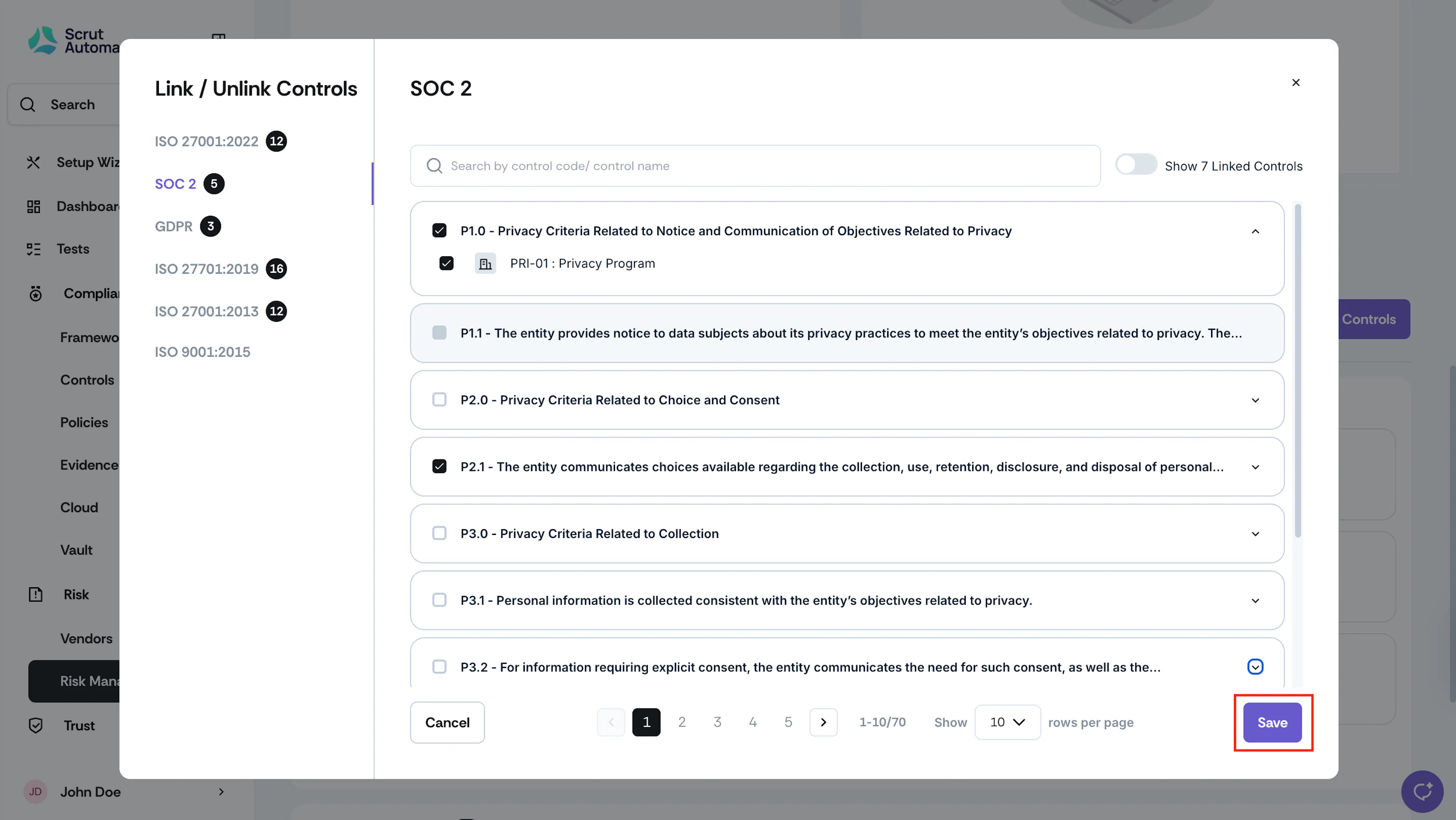
Click Save to confirm your selections.