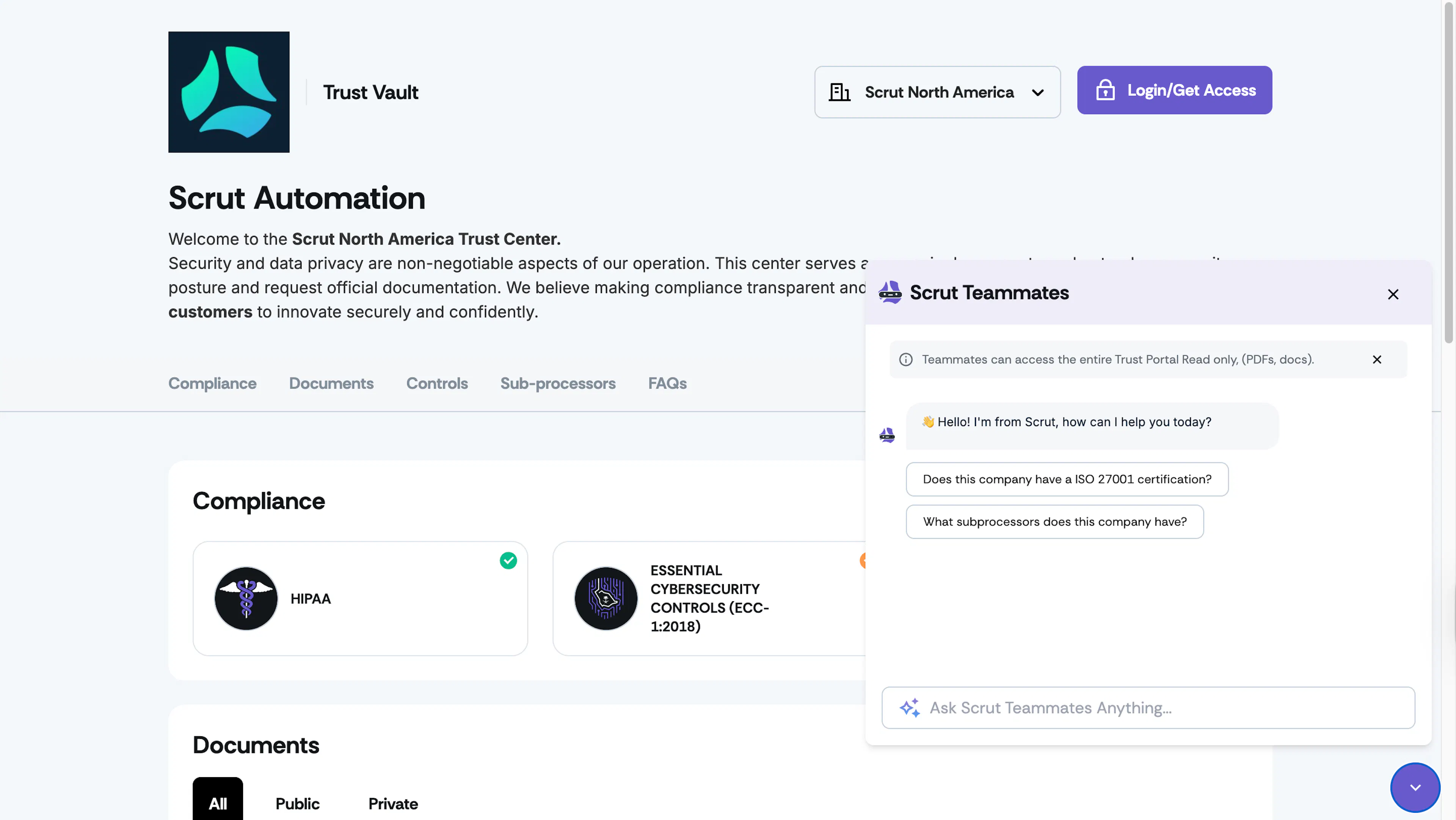
Enable Teammates Chat on Trust Portal
Enabling Scrut Teammates on your Trust Portal lets visitors ask questions and receive instant, contextual answers via a chat interface.
How does it work?
Teammates offers an AI-powered chat interface where portal visitors can:
- Ask questions about your company's security practices
- Get clarification on compliance documentation
- Learn about the contents of your Trust Portal in real-time
The chat uses data from your Trust Portal to provide accurate and context-specific answers.
How to Enable Teammates for the Trust Portal
-
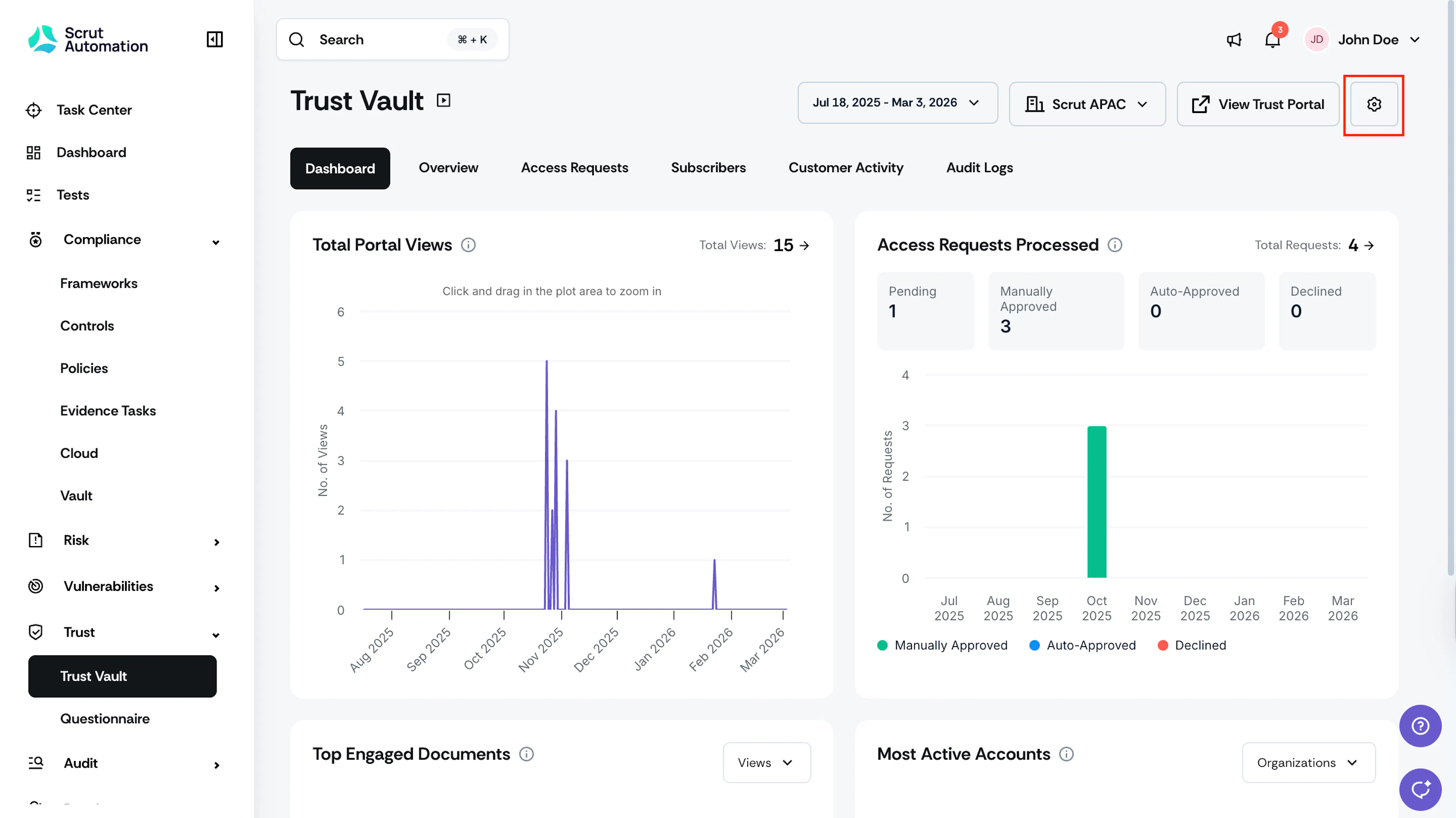
Sign in to Scrut and navigate to Trust → Trust Vault using the left navigation panel.
-
Click the Settings icon in the top-right corner.
-
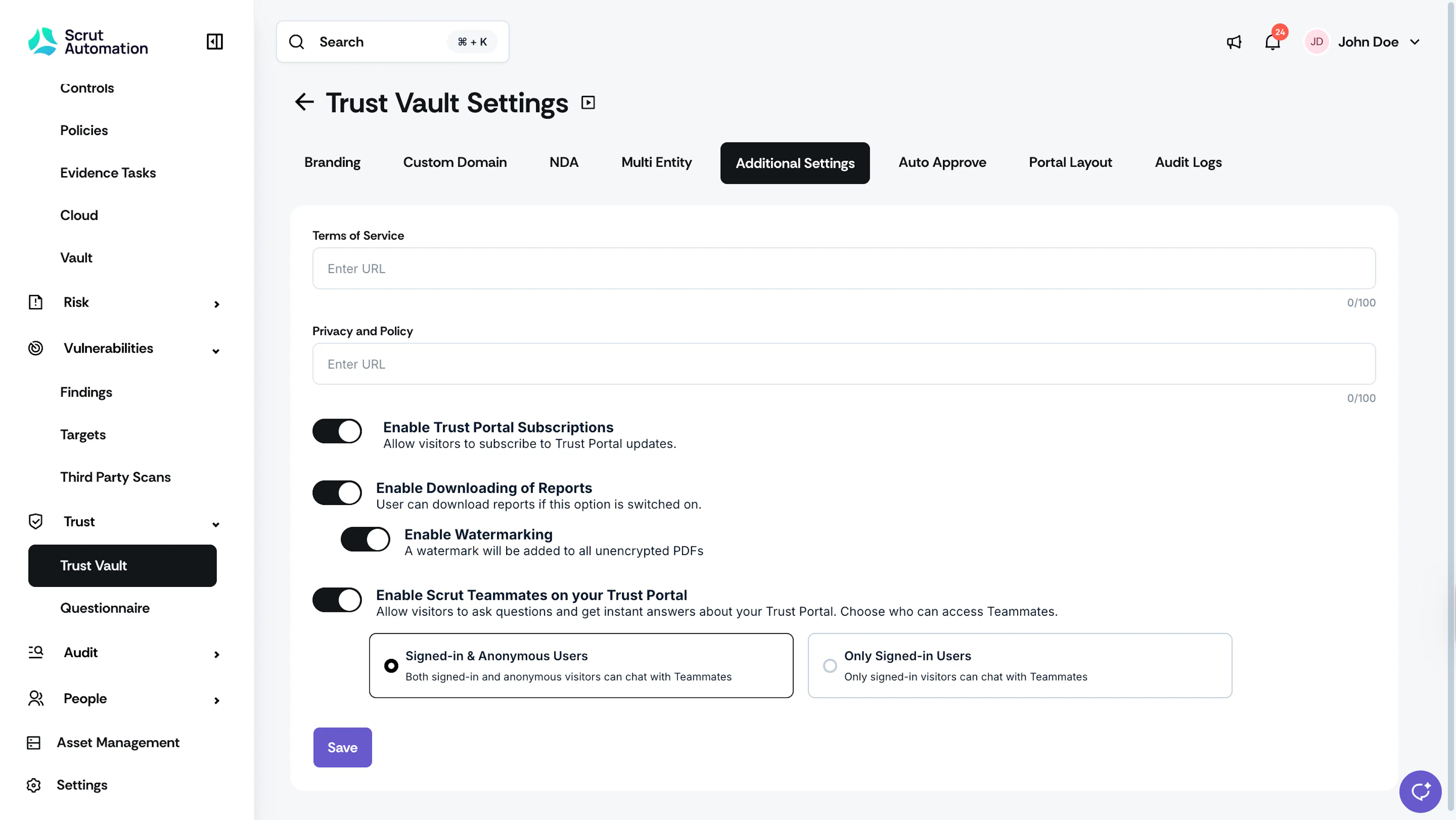
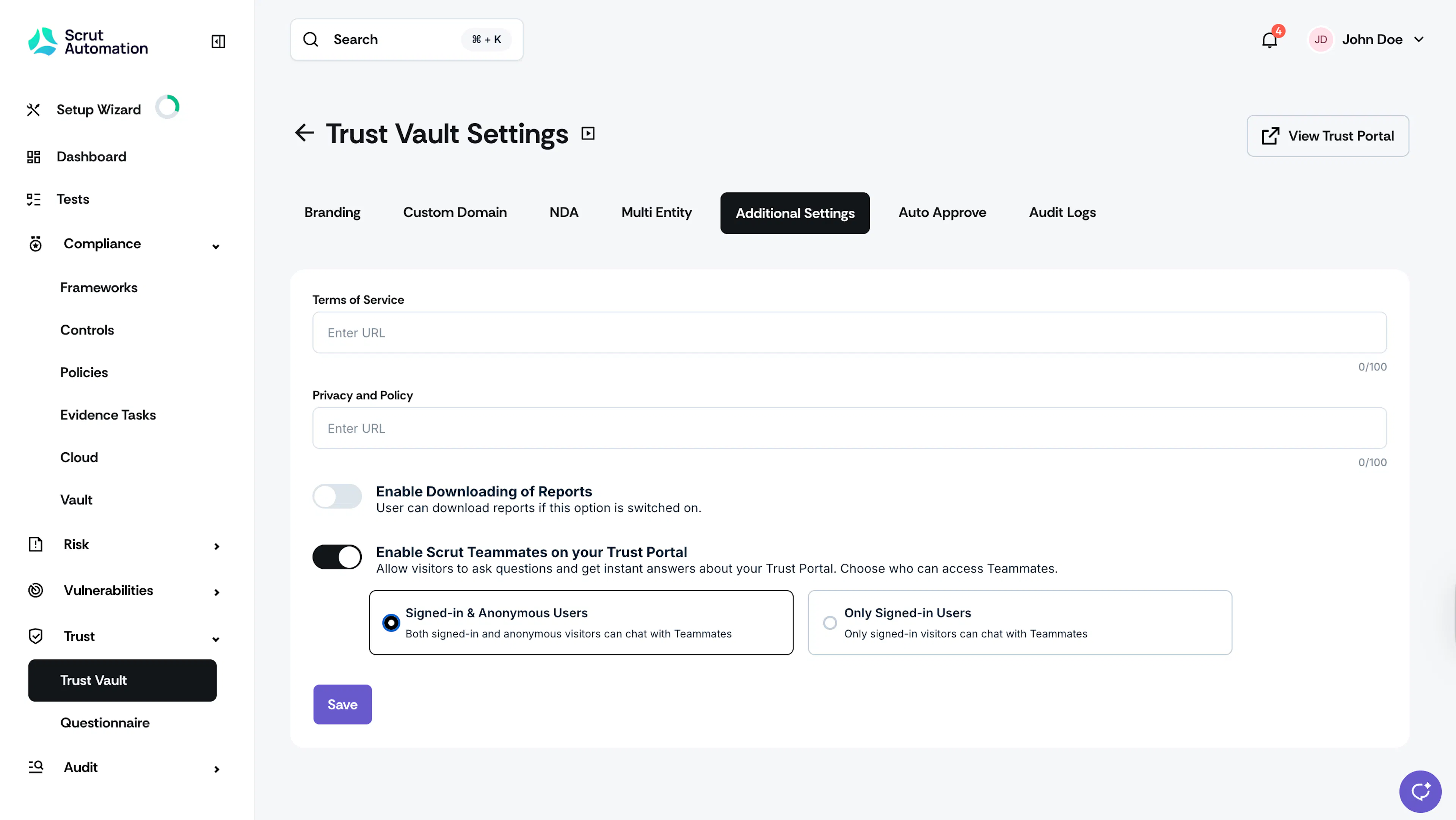
Go to the Additional Settings tab, and turn on the “Enable Scrut Teammates on Your Trust Portal” toggle.
-
Choose who can access Teammates on your Trust Portal:
- Both Signed-In and Anonymous Users
- Only Signed-In Users
-
Click Save.
What Trust Portal Visitors Will See
Once you’ve enabled Teammates for the Trust Portal, visitors will see the handy chat icon in the bottom right corner of the portal.
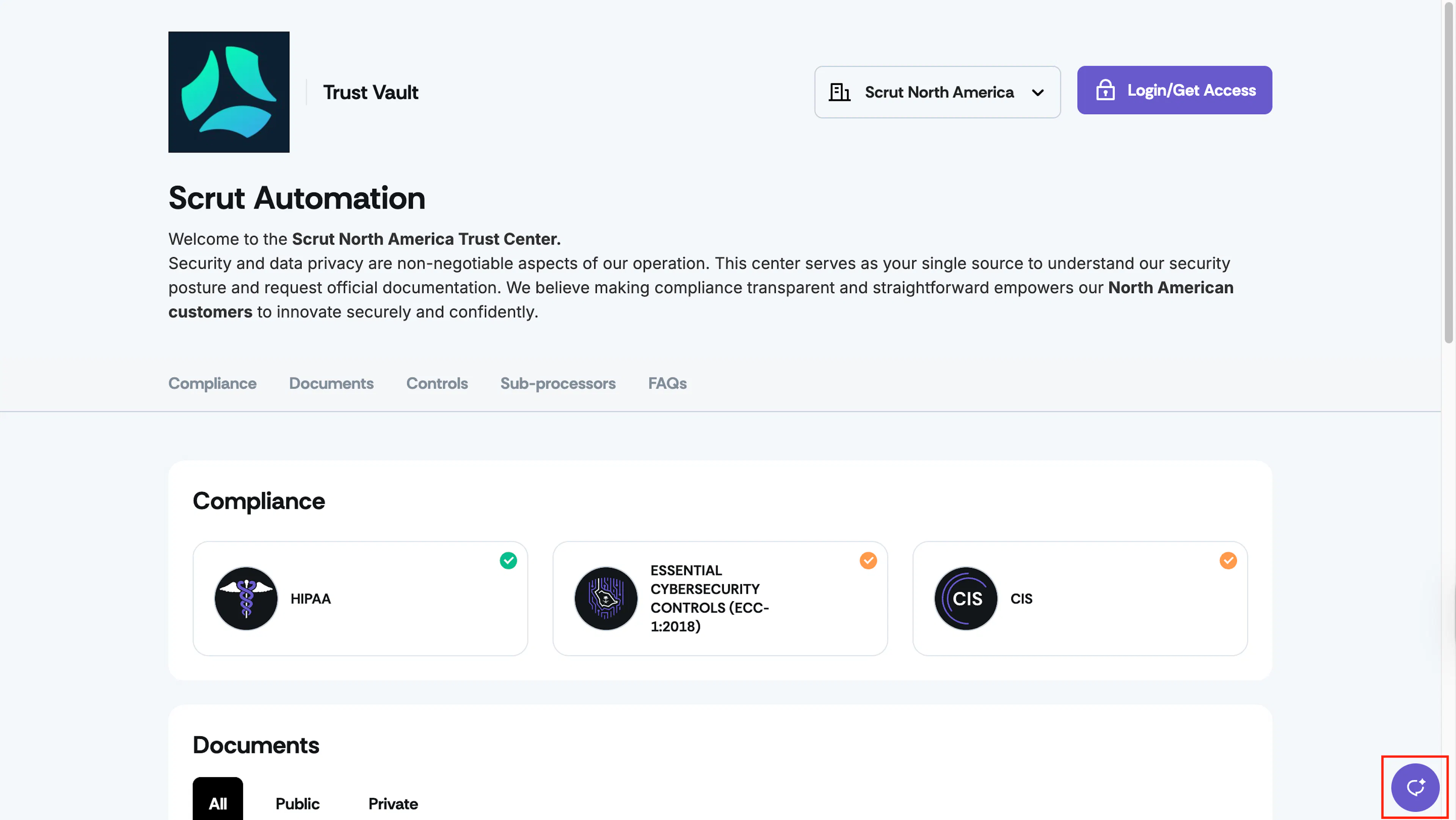
They can click it, ask questions, and receive instant responses about the page's content.