

Set Up Your Trust Portal With Teammates
Scrut Teammates drafts your Trust Portal from compliance data already in your account.
Who can use this feature
- Supported on Foundation, Growth, and Scale plans
Previously, setting up your Trust Portal required re-entering information that already exists in multiple places in Scrut, such as Frameworks, Policies, Vault, Vendor Management, organization settings, etc.
Scrut now offers an AI-powered workflow to set up your Trust Portal in minutes. Scrut Teammates drafts your Trust Portal from information already available in your account, so that you don't have to start from scratch. Teammates generates a branded Trust Portal draft that you can review and edit as needed. You review every item before it goes live, so visitors see only content you've approved.
Generate Your Trust Portal Draft with Scrut Teammates
- Navigate to Trust → Trust Vault → Overview.
- Click Generate with AI.
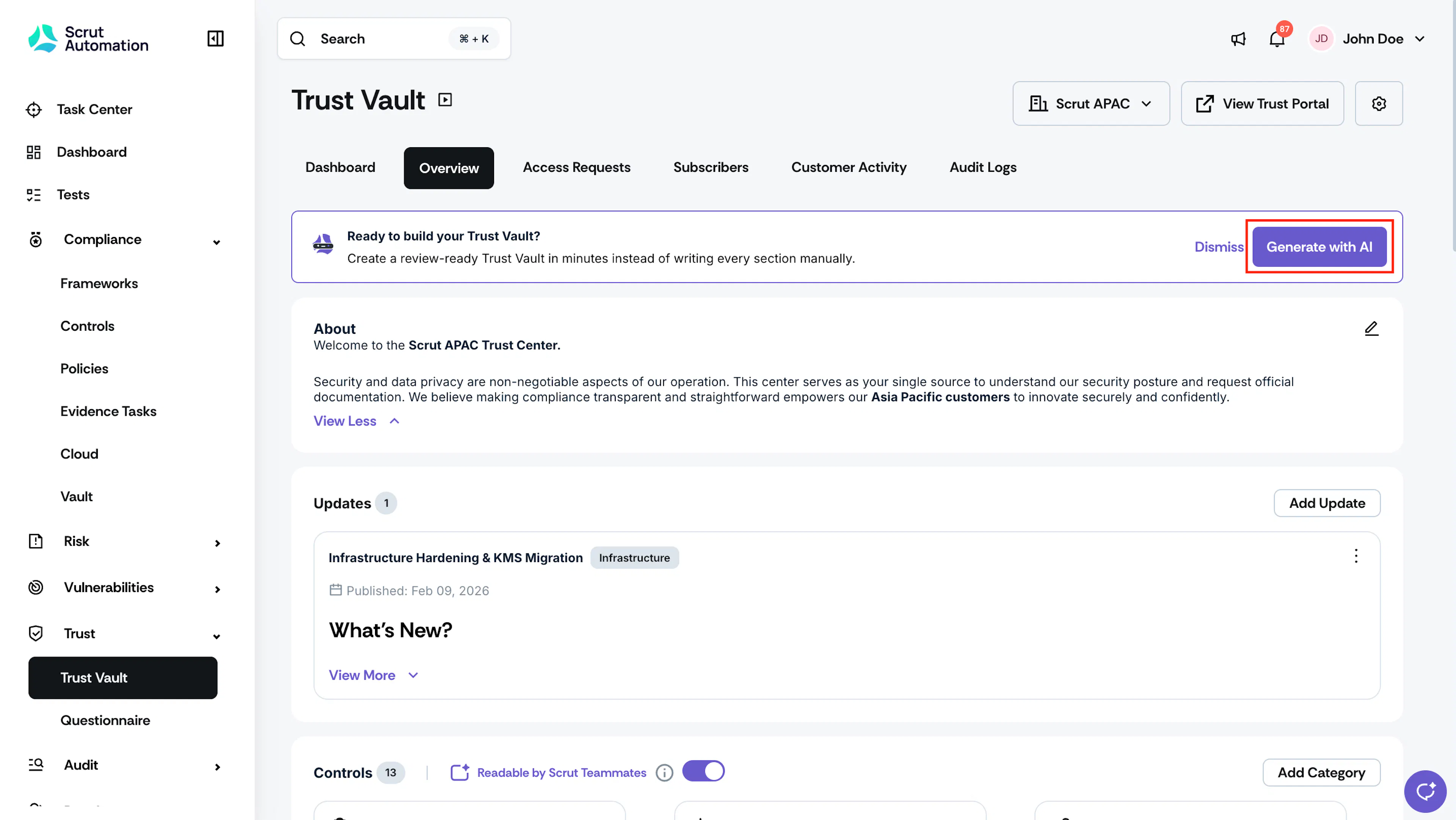
Generate Trust Vault Draft with AI - Answer the setup questions that appear. Scrut Teammates only asks for information it can't find in your account.
- Click Generate. If Scrut Teammates already has everything it needs, drafting starts right away.
Drafting can take a few minutes depending on how much data Teammates needs to review. You don't need to stay on the page. Scrut emails you and sends an in-app notification when your draft is ready to review.
Answer a Few Setup Questions
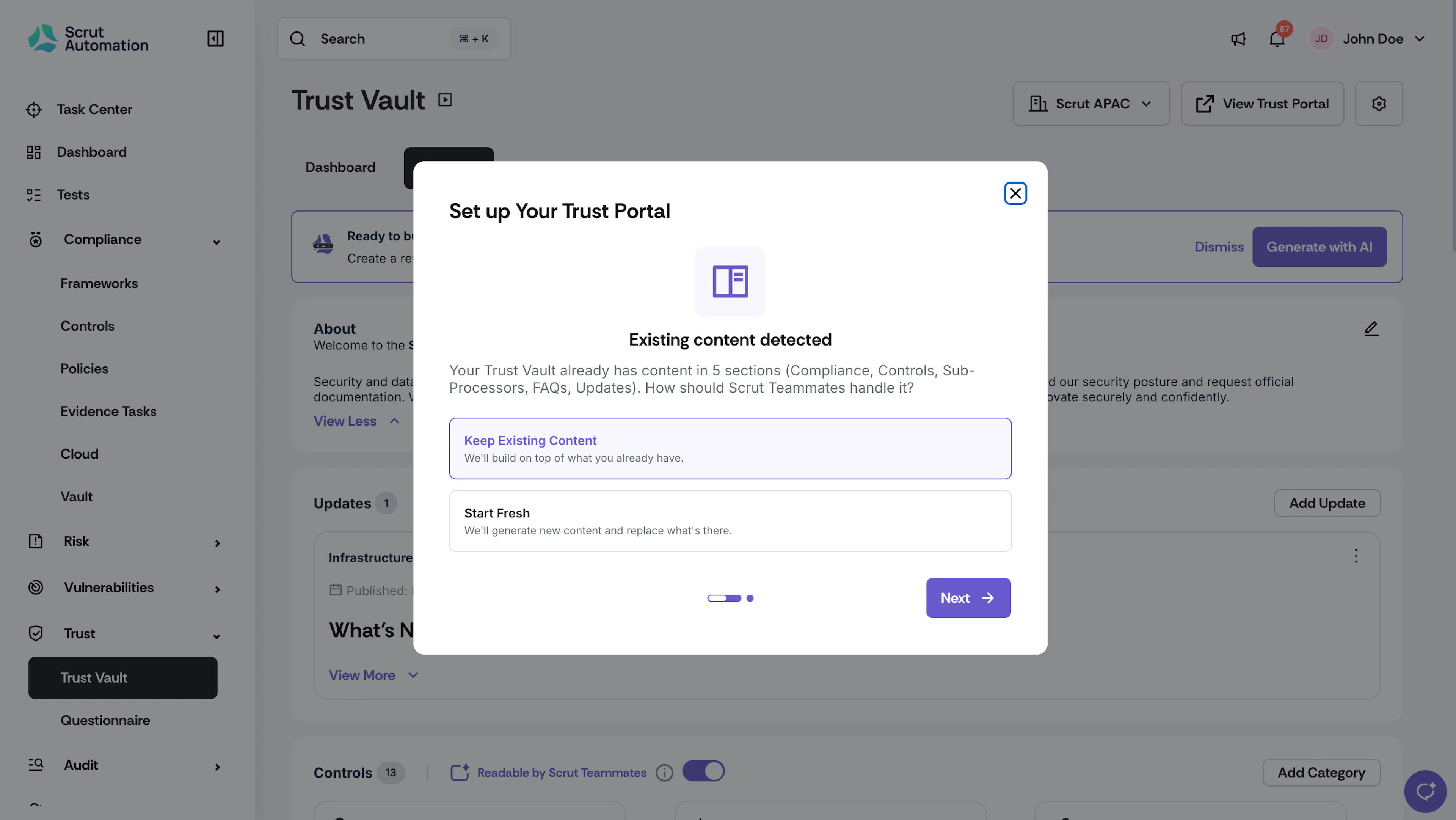
The questions vary based on what's already in your account:
- Entity: If your account has multiple entities, choose whether to set up the Trust Portal for one entity or all of them, and which entity to draft first.
- Existing content: If your Trust Vault already has content, choose whether to keep it and merge the new draft alongside it, or clear it and start fresh.
- Company website: If your website isn't set in your Scrut settings, enter it so Scrut Teammates can draft your About and Branding sections.
- Framework documents: If your account has no frameworks or certificates, upload certificates, audit reports, policy PDFs, or a previous Trust Center export.
Review Your Draft
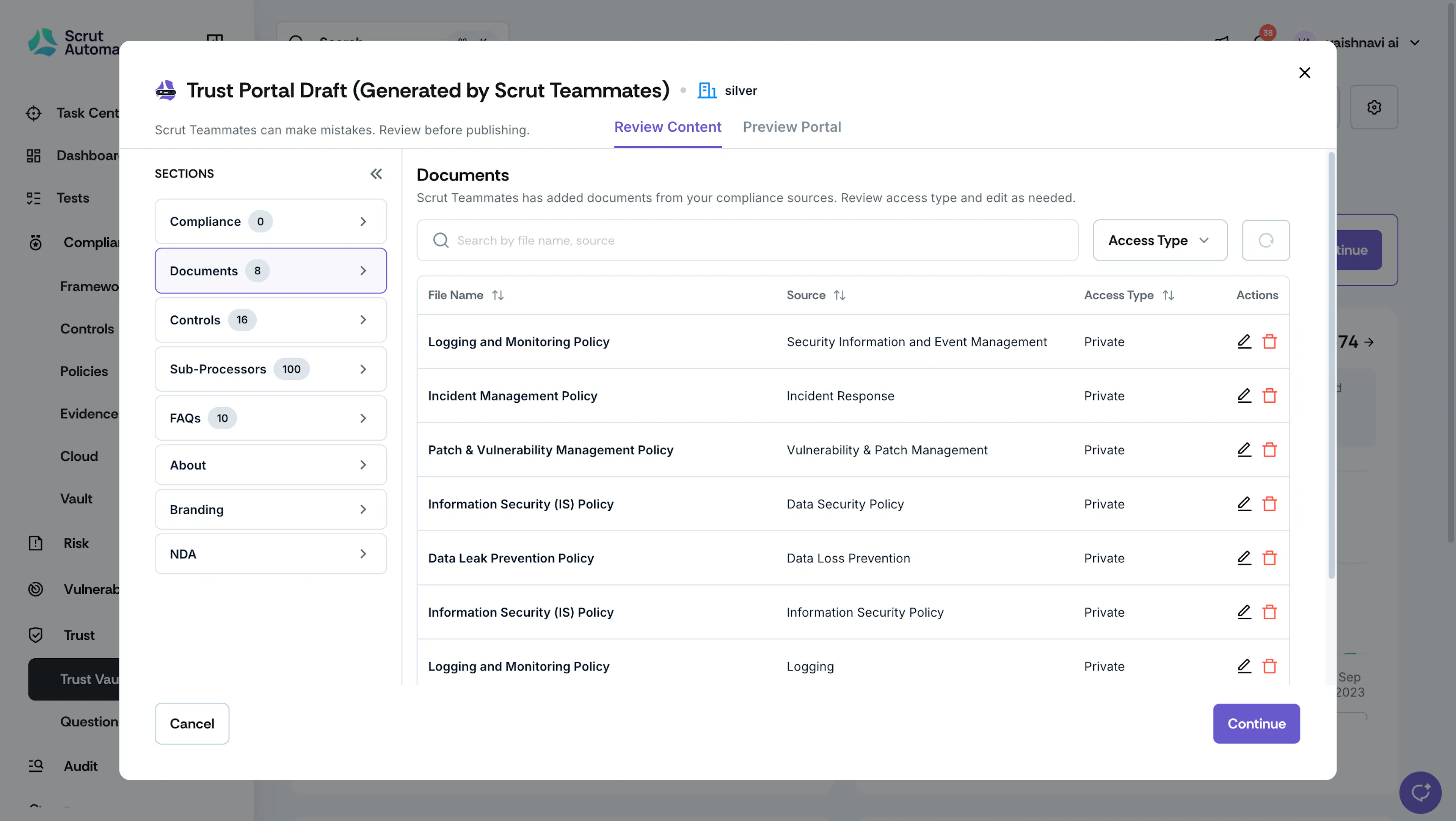
- Open the notification or navigate to Trust → Trust Vault to return to your draft.
- Go through each section: About, Compliance, Controls, Sub-processors, FAQs, Branding, and NDA.
- For each item, you can keep it as-is, edit it, or reject it. Items you ignore are excluded from publishing and won't appear on your live Trust Portal.
- Add any fields Scrut Teammates couldn't find information for.
Heads Up! A section with missing details shows a warning icon. Resolve all warnings before you can preview and publish your Trust Portal.
Preview and Publish Your Trust Portal
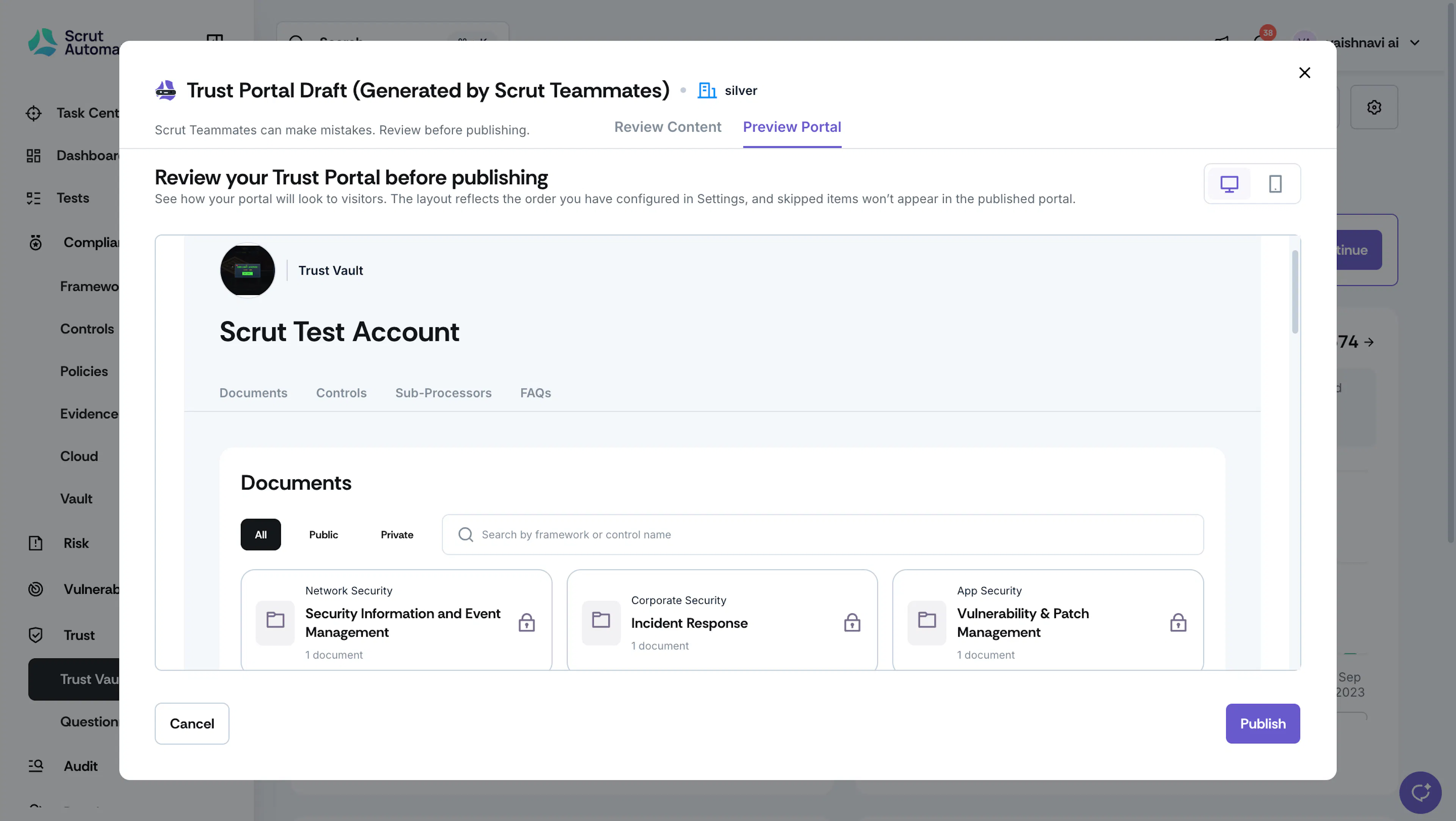
- Click Preview Portal to see how your Trust Portal will look like.
- Enter your custom domain, for example,
trust.yourcompany.com. To add the DNS records Scrut provides, see Add a Custom Domain to Your Trust Portal. - Click Publish. Your Trust Portal goes live once Scrut verifies your DNS records.
Resume an Unpublished Draft
Scrut saves your progress if you leave before publishing. To return to your draft, navigate to Trust → Trust Vault and choose one of the following:
- Continue: Pick up where you left off. Scrut Teammates checks your account for anything added since your last save, such as new frameworks, controls, or sub-processors, and adds them to the relevant sections. Items you edited or ignored stay as you left them.
- Discard: Delete the draft and start over. You can't undo this, and you lose all progress on the draft.
- Alternatively, you can skip drafting with Teammates and set it up manually. See here for step-by-step instructions to set up your Trust Portal manually.
FAQs
Contact support@scrut.io or your CSM for further assistance.