

Understand the Pre-Added Scrut Automation Vendor
Who can use this feature
- Supported on Foundation, Growth, and Scale plans
When you open Risk → Vendors for the first time, you’ll notice Scrut Automation is already listed as a default vendor.
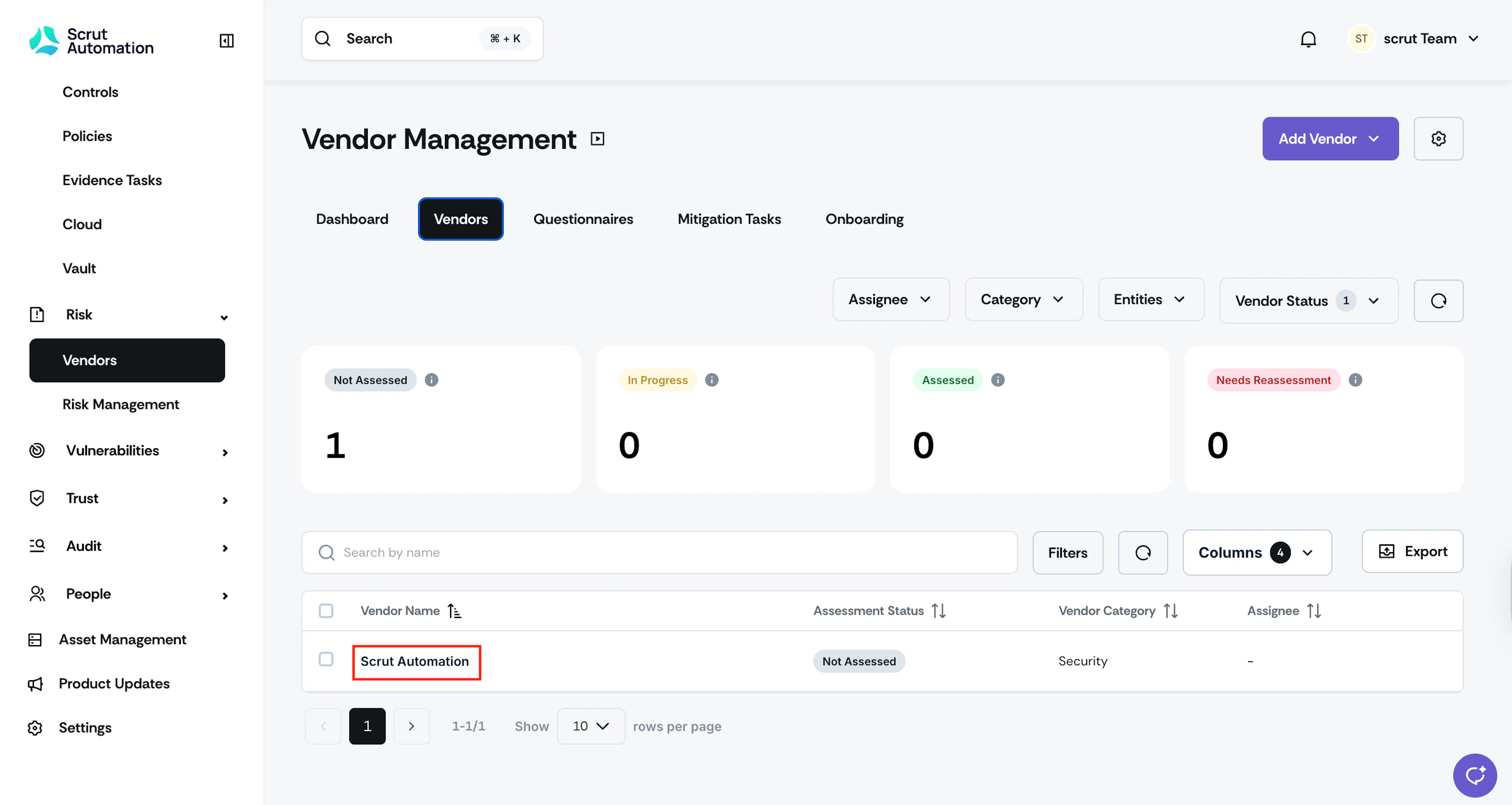
Why is Scrut Pre-Added?
Since Scrut is a vendor for your organization providing compliance automation services, we've eliminated the need for you to manually add Scrut in the vendor module. This helps save time and avoid repetitive work, as we’ve pre-filled the Scrut vendor entry with essential information.
When you click into the Scrut Automation vendor record, you'll find:
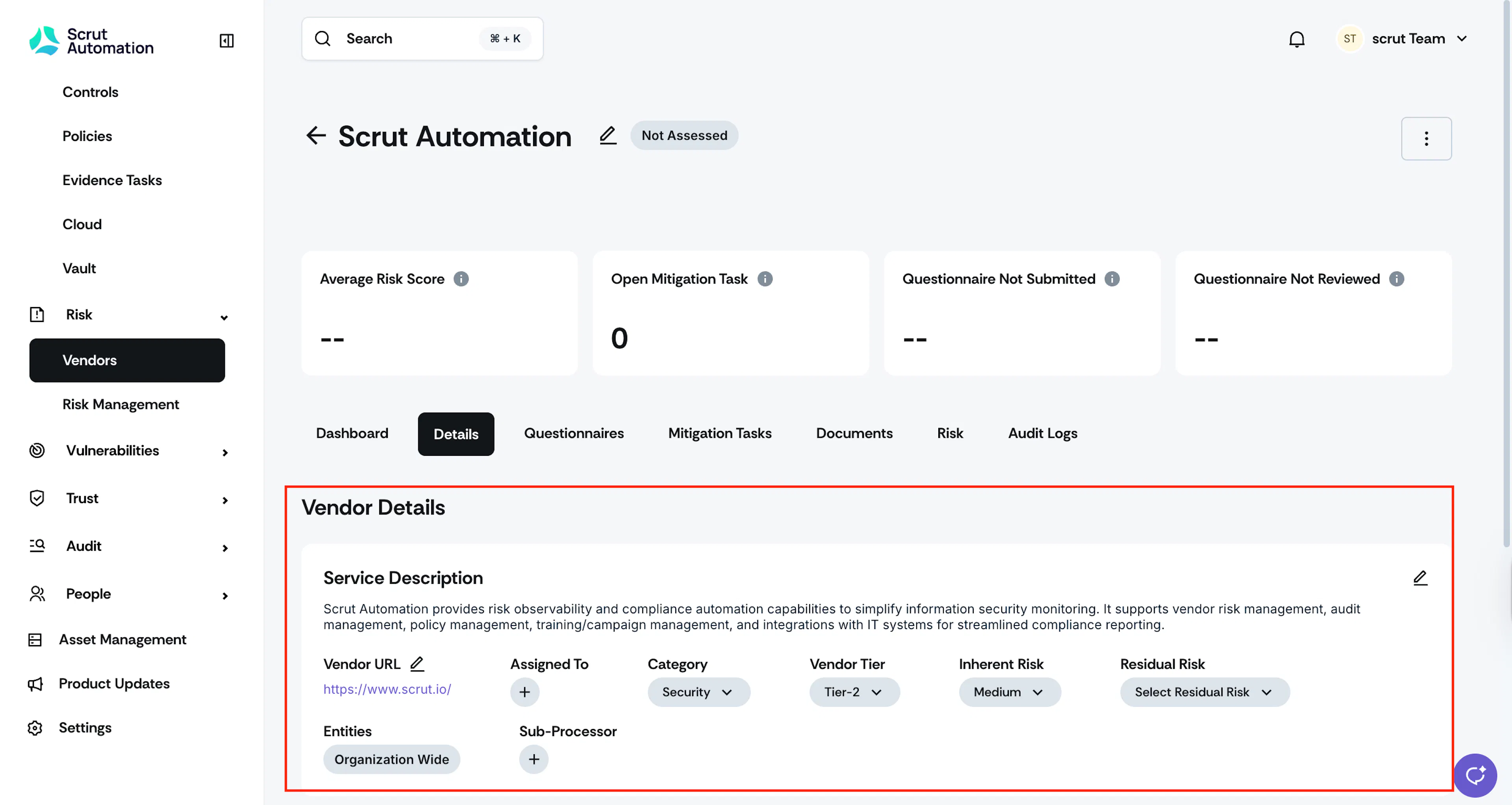
The Scrut Automation vendor record includes the following pre-populated fields:
- Vendor profile: Name, URL, and a detailed service description explaining what Scrut does for your organization
- Vendor category: Set as Security
- Risk classification: Set as Tier 2 with Medium inherent risk to reflect typical GRC vendor assessments
- Organization-wide scope: Applied across all your entities by default
- Assessment status: Marked as "Not Assessed" so you can schedule your review on your timeline
- Source: Set as Default
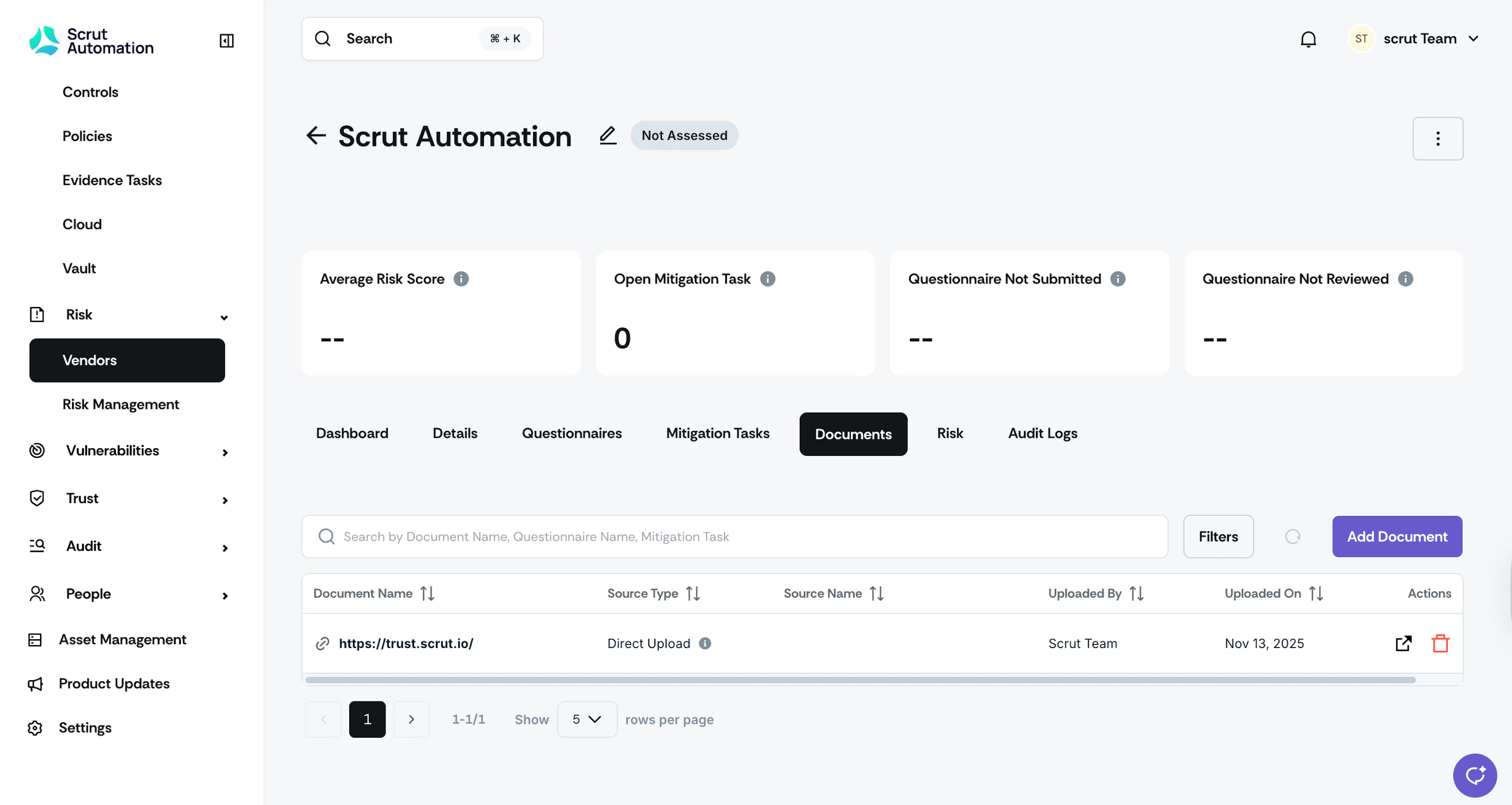
- Documents: The link to Scrut’s Trust Portal (https://trust.scrut.io/) is added by default to the Vendor Documents tab.
What You Can Do
-
Review and customize: Check the pre-filled information and adjust anything that doesn't match your organization's vendor management policies. You have complete control to edit any field.
-
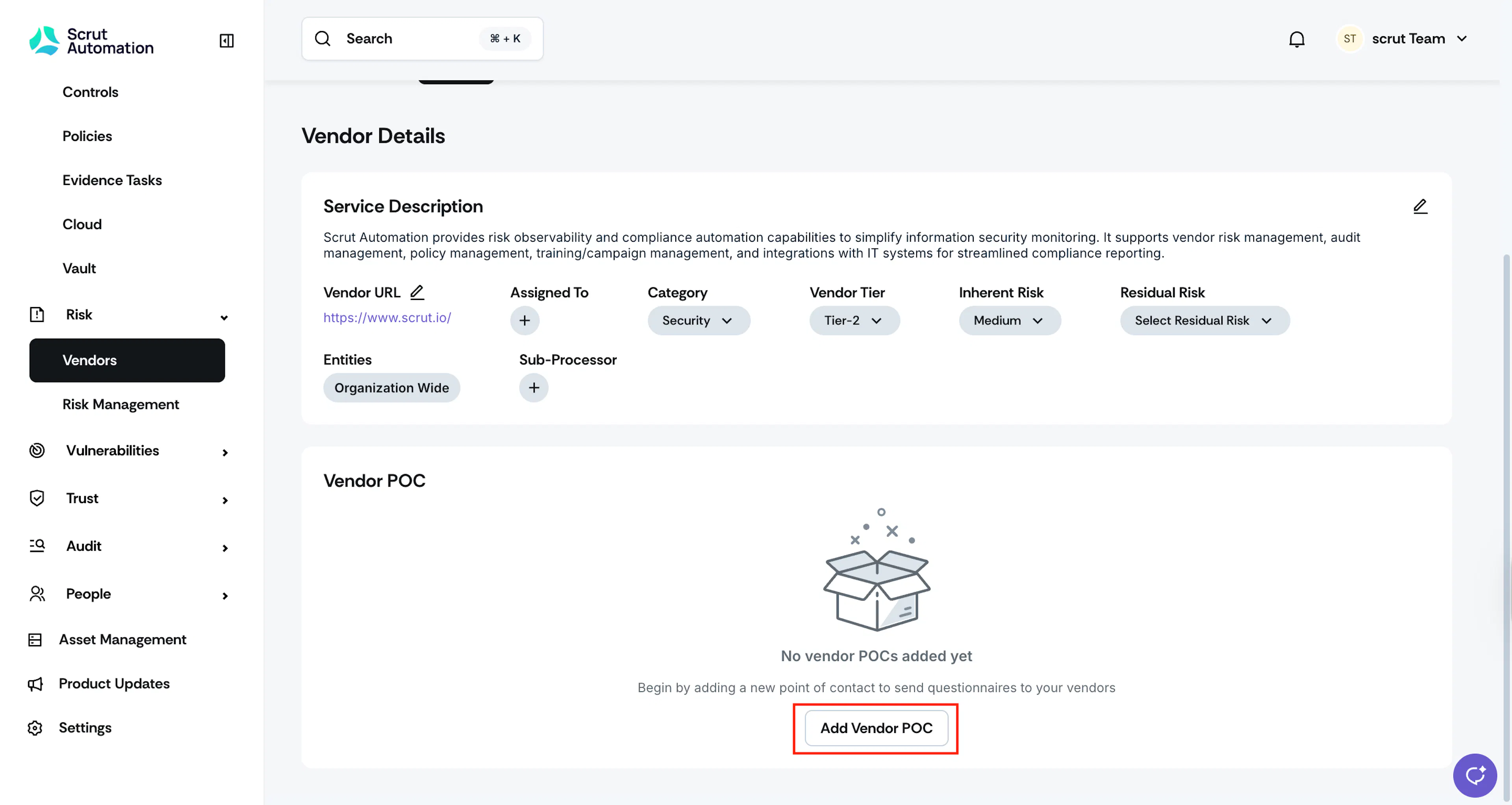
Add Vendor POC: You can add your CSM as the point of contact (POC) for Scrut. Enter their name and email.
-
Assess when ready: The vendor starts with "Not Assessed" status, giving you flexibility to conduct your evaluation when it fits your schedule. Update the status as you progress through your assessment workflow.
-
Manage like any other vendor: You can archive, delete, or modify the Scrut vendor just like you can with other vendors you add yourself.
-
Track in your workflows: The Scrut vendor automatically appears in all your dashboards, exports, and reports, ensuring your vendor inventory and risk reporting remain comprehensive.
-
Need to make changes? Open the Scrut Automation vendor from your vendor list, and click the Edit icon or use the dropdowns to modify the value for the required fields.