

Step 4: Take Actions on Scan Findings
For each scan finding, you can take the following actions:
- Remediation (Fixing the Finding)
- Create a Project Management Ticket (in connected project management tools)
- Create a Risk
- Ignore the Finding
- Create a GitHub Issue
1: Remediation
Once Scrut identifies a vulnerability, you can find the relevant details on the individual Findings page. This page includes a helpful section on how to fix the identified vulnerability. Refer to the remediation steps to resolve the issue.
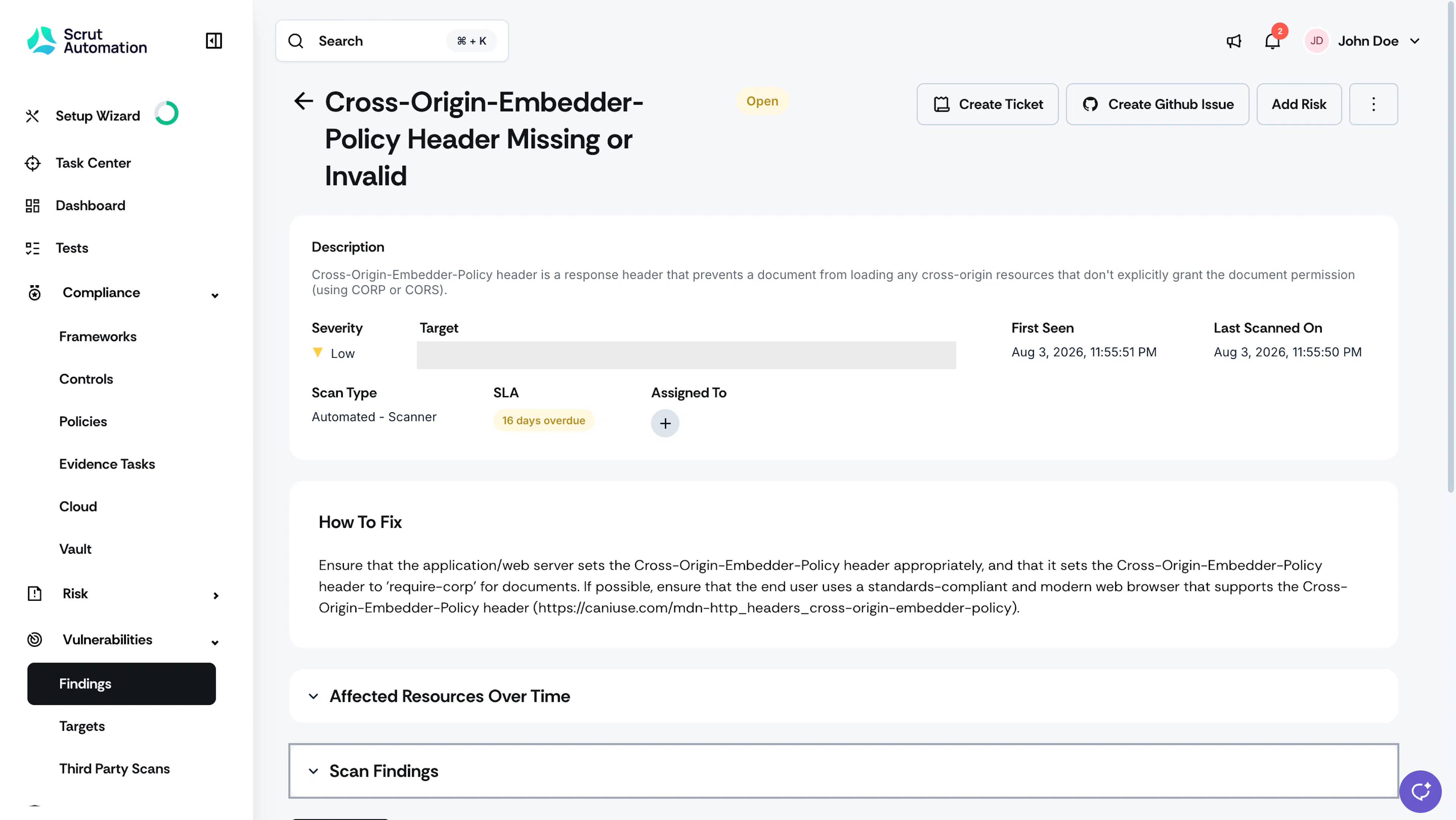
Once fixed correctly, Scrut will not surface the finding in subsequent scans.
2: Create a Project Management Ticket
You can also assign the finding to the relevant resource owner, developer, engineer, or any other team member for remediation. You can create a work ticket for the remediation task directly in your project management tool from the Findings page in Scrut. To do this, you must have integrated Scrut with any of the supported Project Management tools.
Note:
Scrut currently only supports Jira tickets from the Findings page.
Once done, follow the steps below:
- You can create a ticket at the finding or resource level.
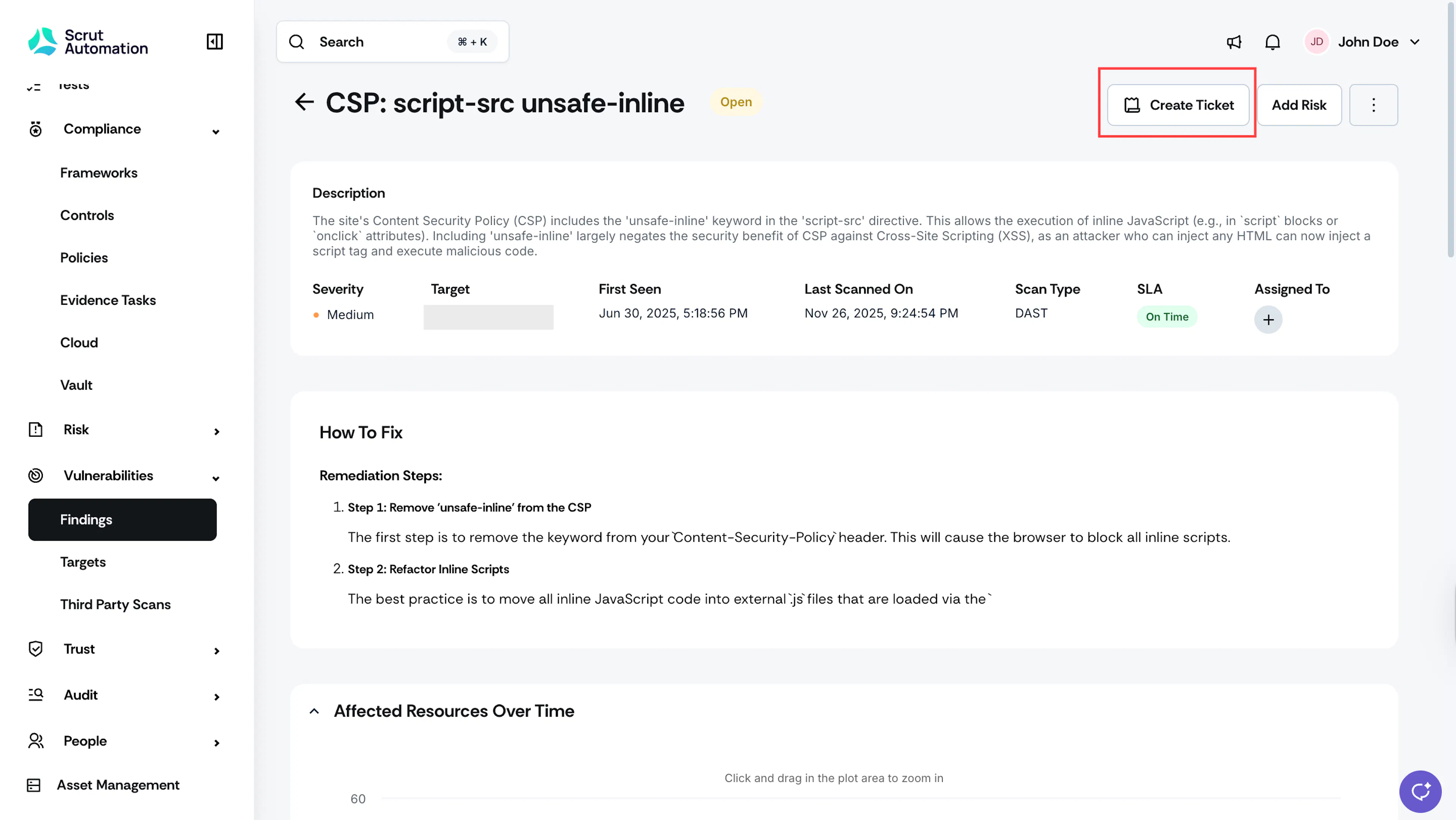
- To create a ticket for the finding, click the Create Ticket button at the top of the finding details page.
- To create a ticket at the resource level, scroll to the Scan Finding Table, select the resource(s) for which you want to create tickets and click the Create Tickets button. Scrut will create a separate ticket for each selected resource.
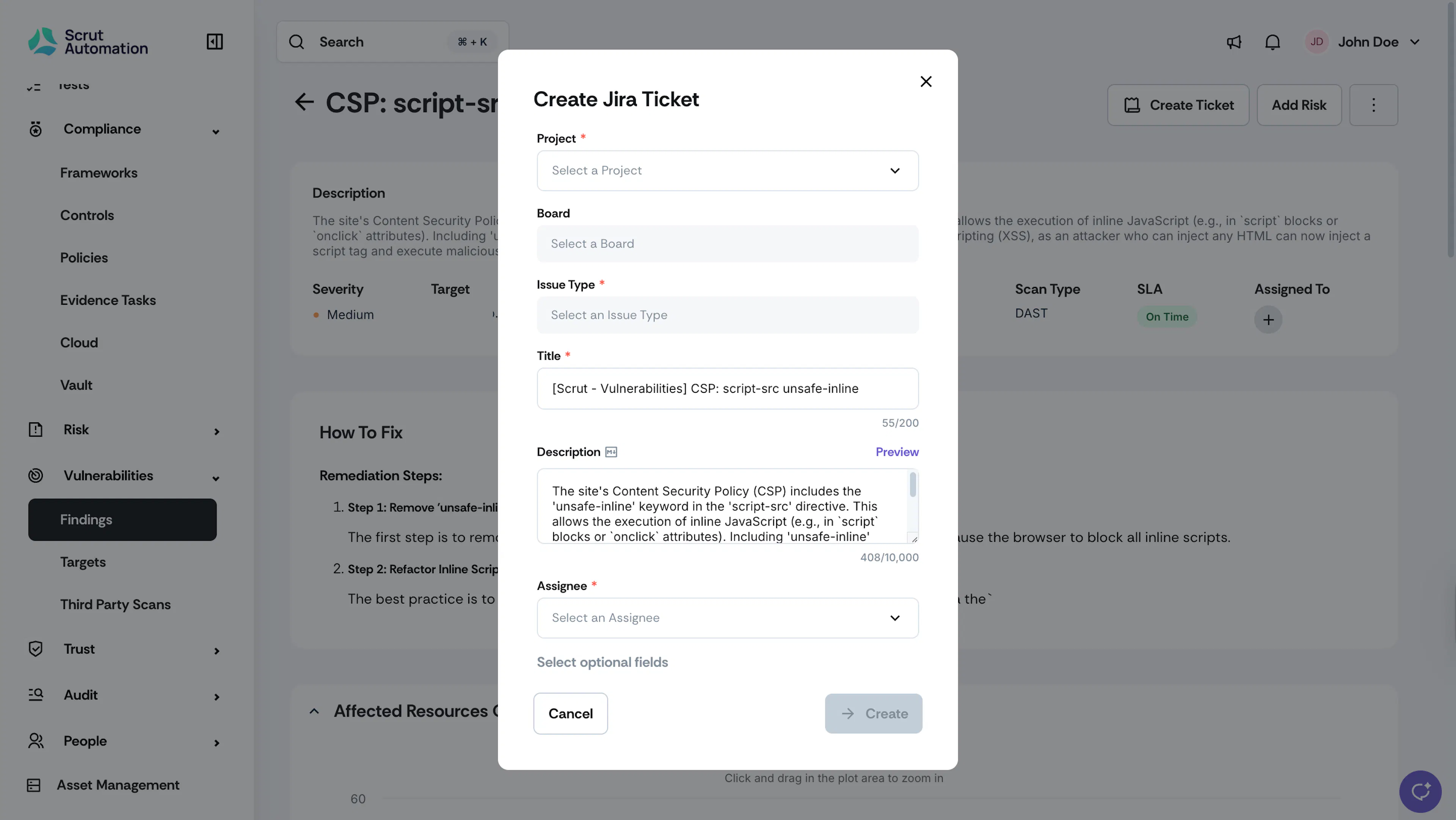
- Enter the ticket details. Scrut auto-fills the ticket’s title and description to provide the required context. You can edit these details if required.
- Select the assignee, due dates, project/board, and other details. Add optional details if required.
- Click Create.
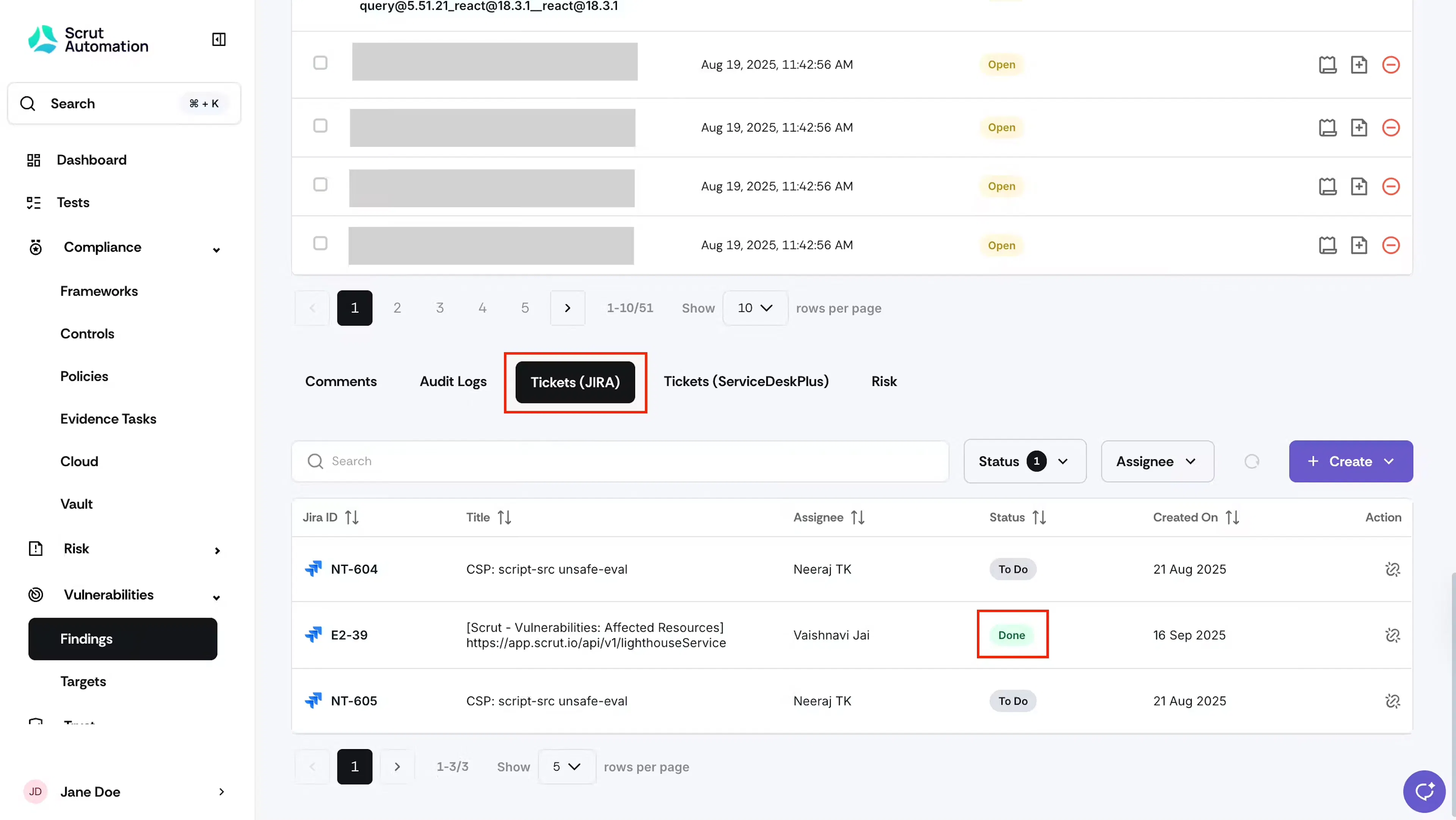
Scrut automatically creates the ticket in your project management tool and assigns it to the selected assignee. You can find all linked tickets under the Tickets tab on the Finding Details page. Once you update the status in your project management tool, Scrut automatically reflects it.
Important
If you create a Jira or Linear ticket for a vulnerability and close it after fixing the issue, the vulnerability will NOT automatically move from the open to the closed stage in Scrut.
Instead, Scrut will detect the fix during the next scan. If the vulnerability is no longer present, it will not appear in the scan findings. Vulnerability status is independent of linked ticket status and depends on actual scan results.
3: Create a Risk
If a finding is not major or does not impact your business landscape, you can add it to your organization’s Risk Register. Follow these steps to mark a finding as a risk:
- Click the Create Risk button on the individual findings page.
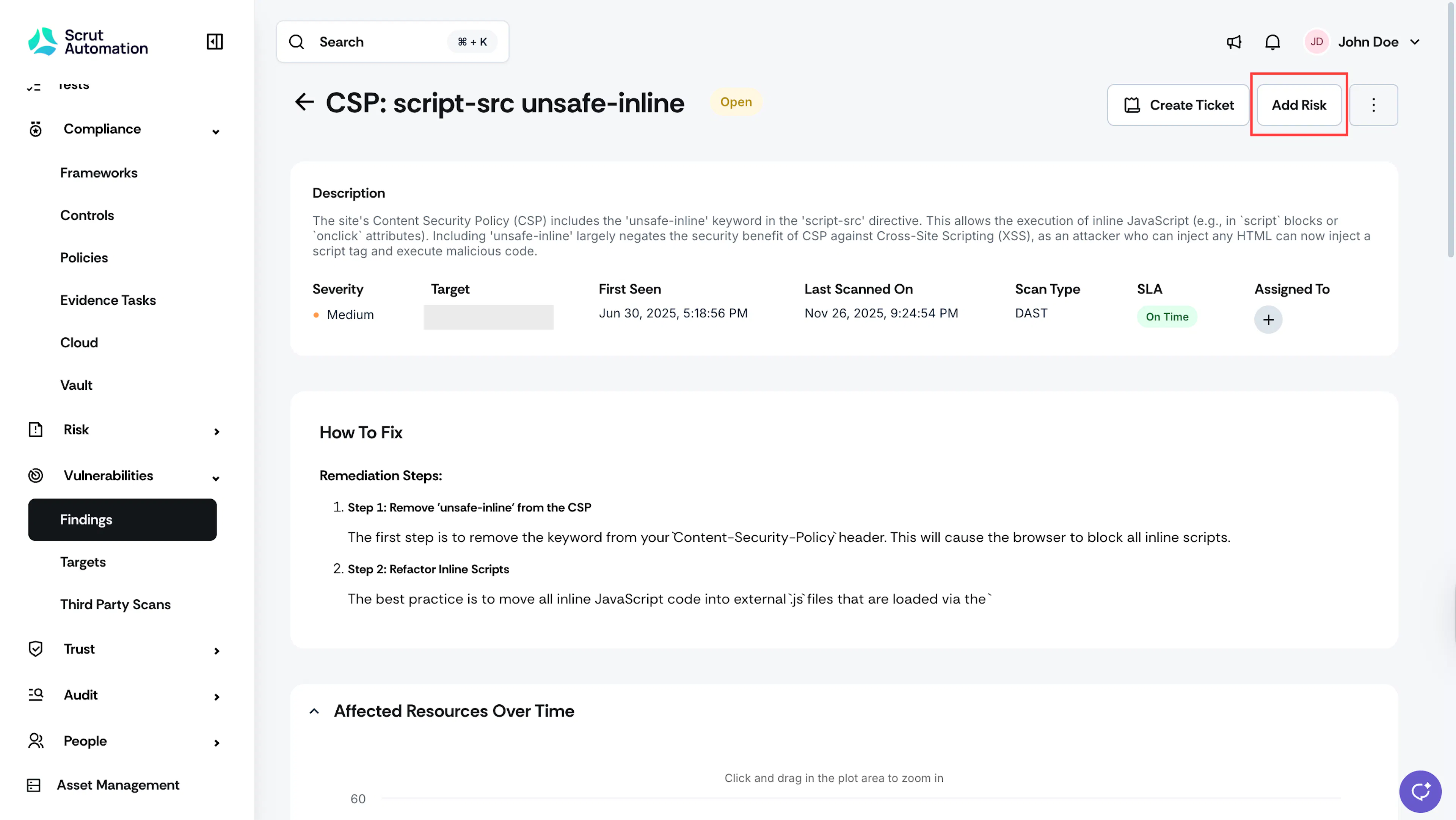
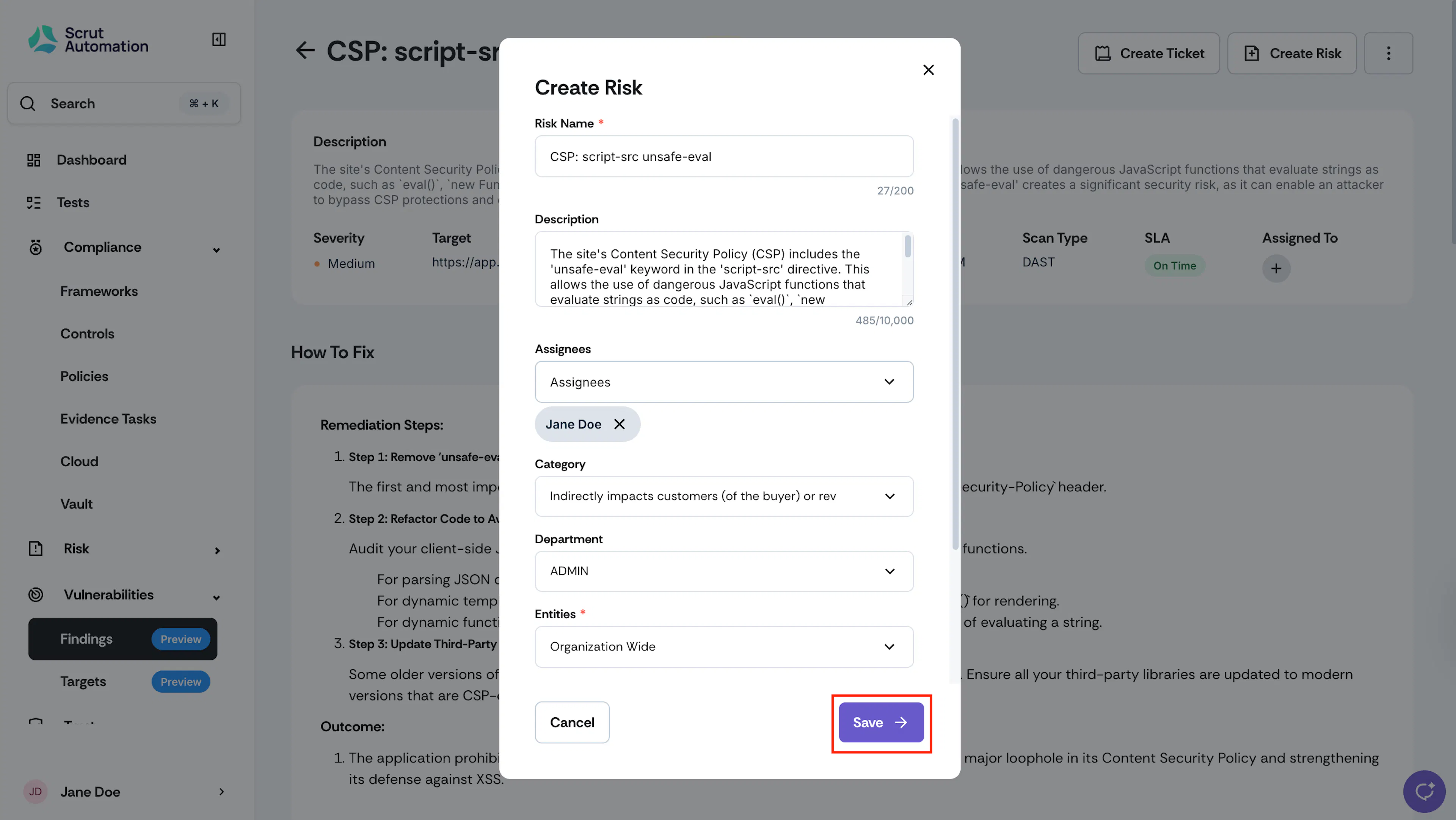
- Scrut auto-fills the risk name and description. You can edit these fields if needed.
- Set assignees and select the risk category, department, and entities.
- Enter the application name, then select the assets affected by this vulnerability.
- Click Save.
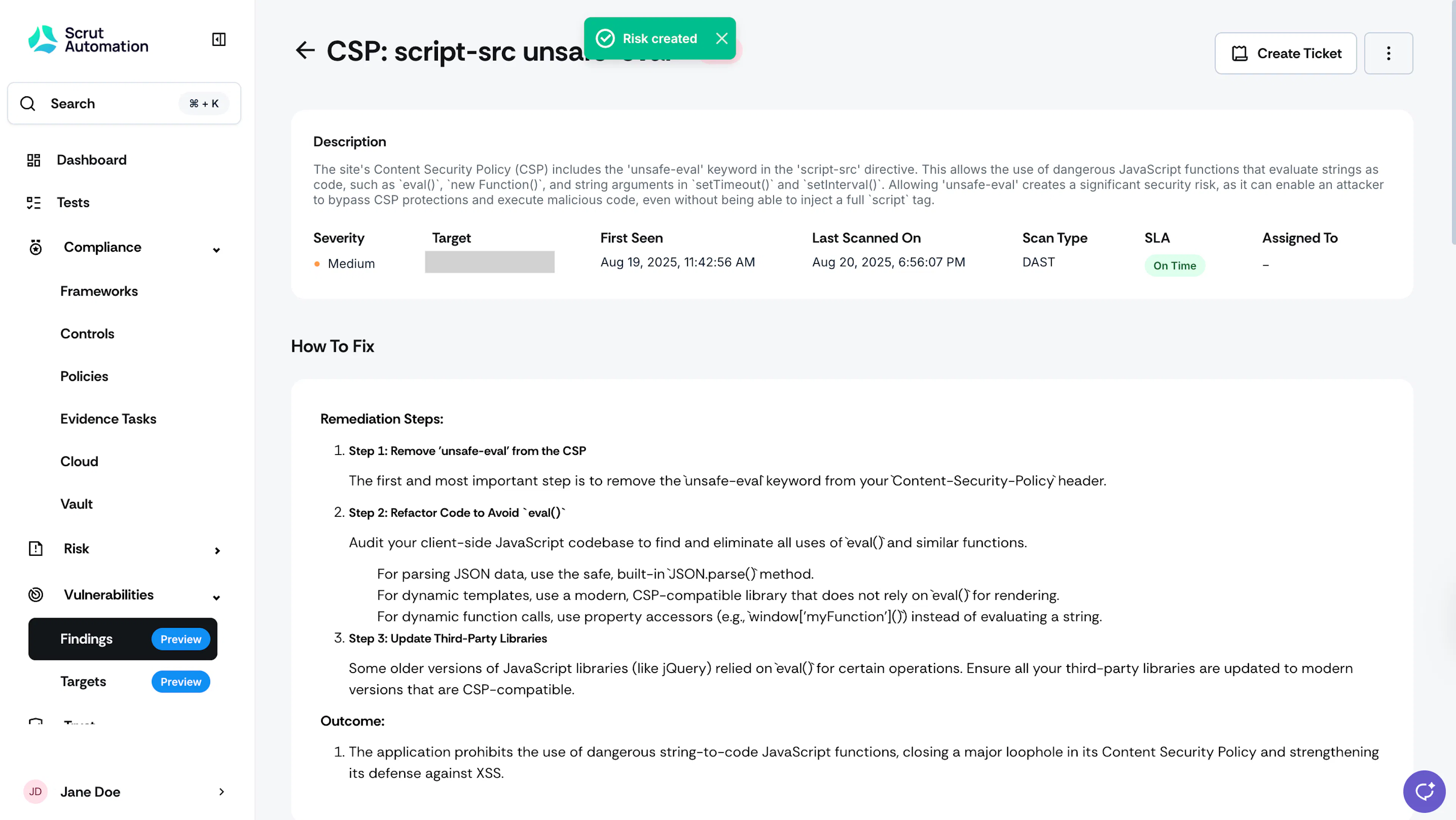
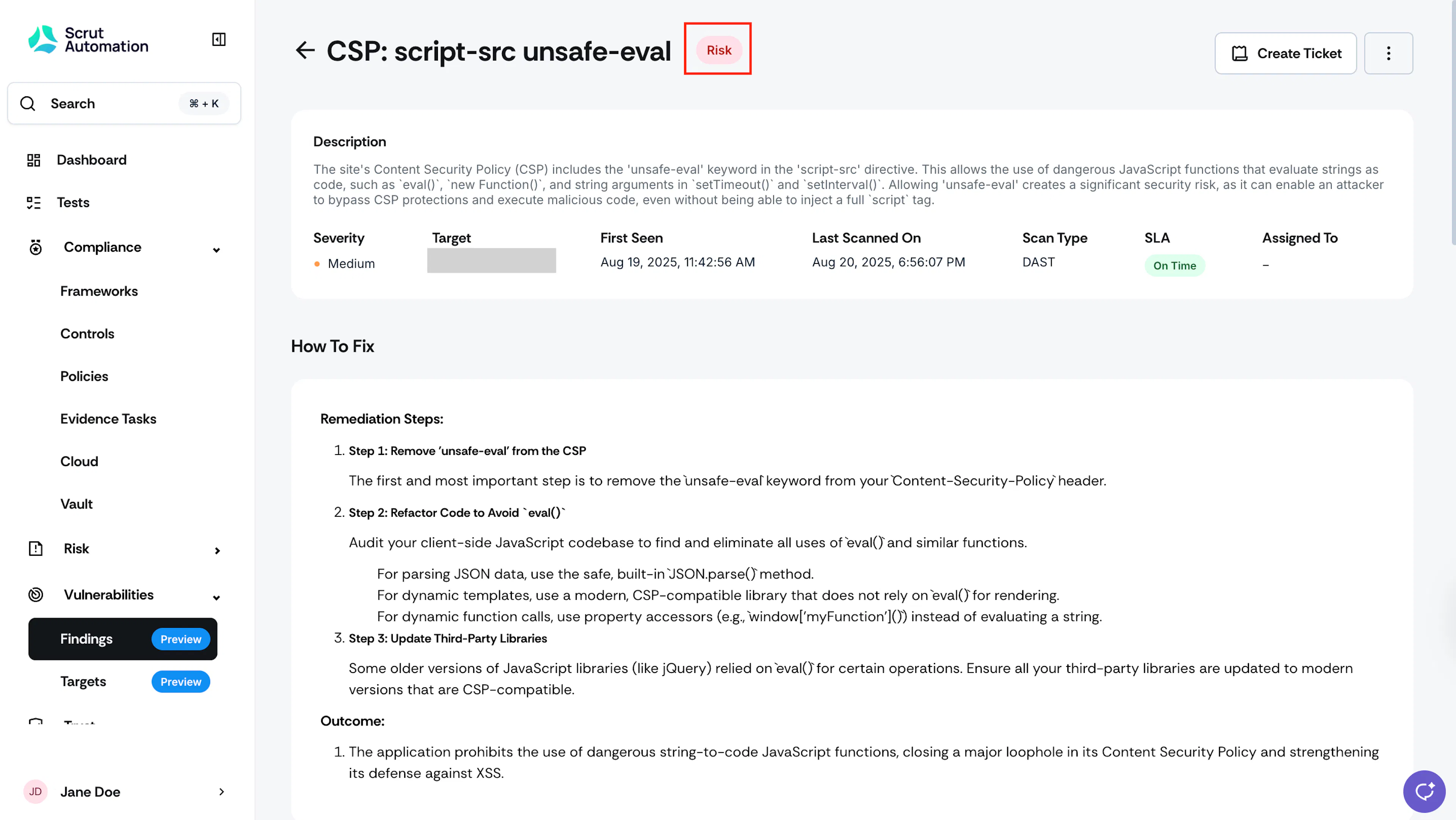
Scrut directly adds the risk to the risk register, and you can manage it in the Risk module. Once you create a risk, the finding status changes from Open to Risk.
4: Ignore Finding
This option suits irrelevant or false-positive findings.
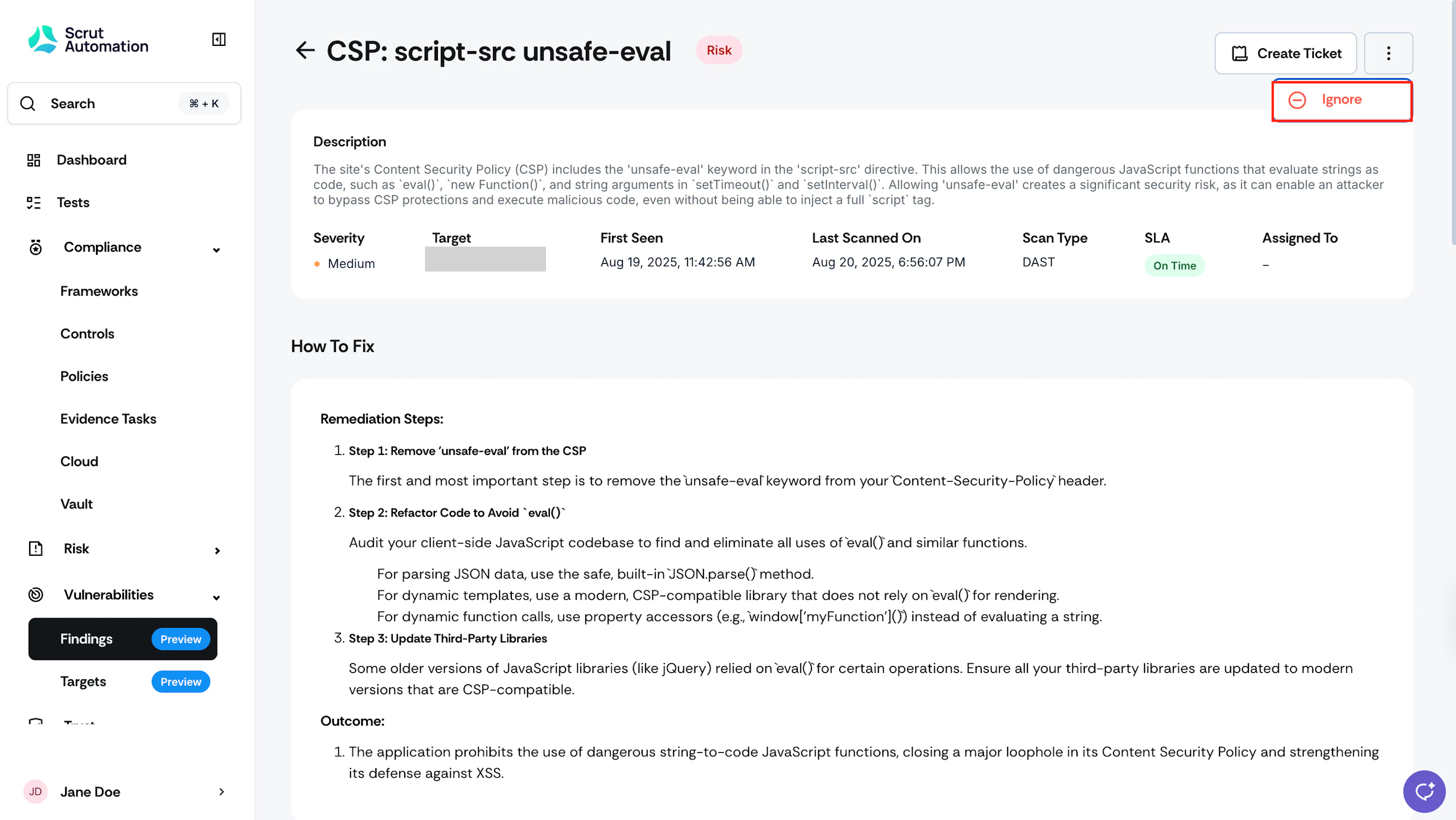
- Click the three-dot icon on the individual findings page and select Ignore.
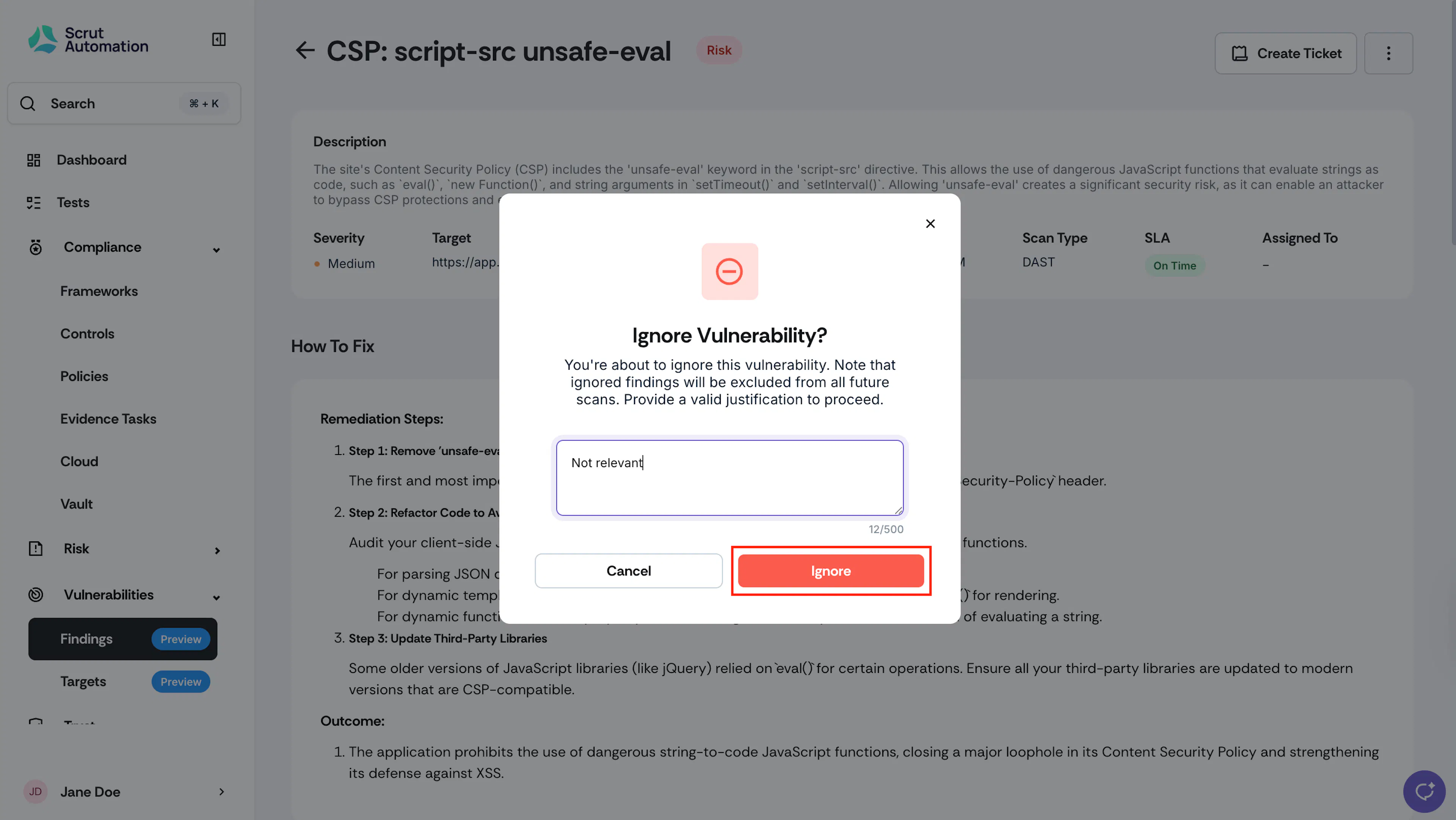
- Provide a valid justification and click Ignore to confirm your action.
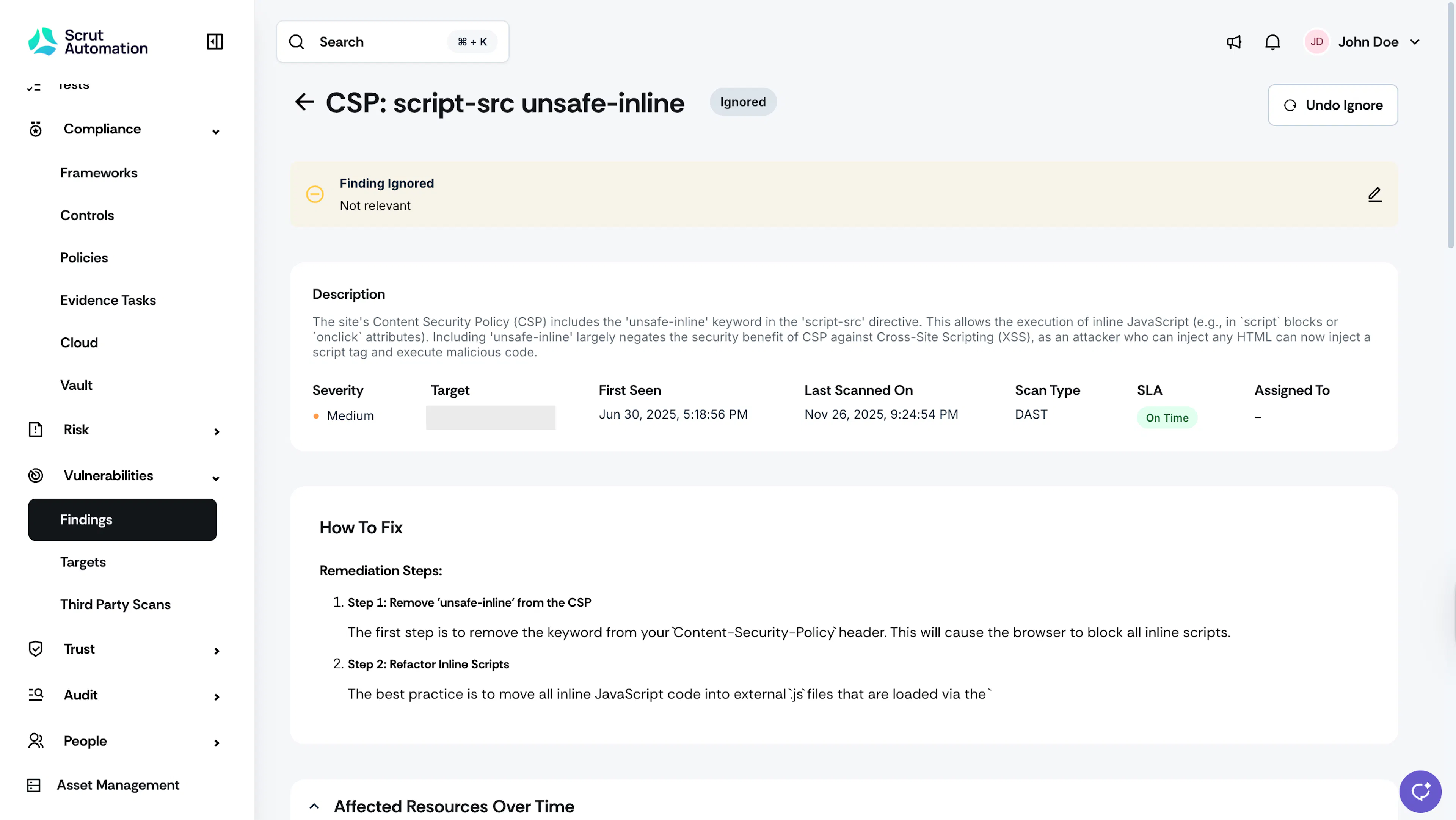
- The status changes to Ignored.
Note:
If you mark a finding as ignored, Scrut will not surface it in subsequent scans of the target.
5: Create a GitHub Issue
Create a GitHub issue straight from a scan finding to hand off remediation work to your engineering team without leaving Scrut.
- Open the scan finding you want to create an issue for.
- Click Create GitHub Issue.
- Select the Repository where the issue should be created.
- Review the Title. It's pre-filled with the finding name. Edit it if you want to change how it appears in GitHub.
- Review the Description. It's pre-filled with a link back to the vulnerability finding. Add any extra context your team needs.
- Select one or more Assignees.
- Select one or more Labels.
- Click Create.
GitHub creates the issue in the selected repository and links it back to the scan finding, so your team can track remediation from either side.