

Configure the Add Risk Form
Who can use this feature
- Supported on Foundation, Growth, and Scale plans
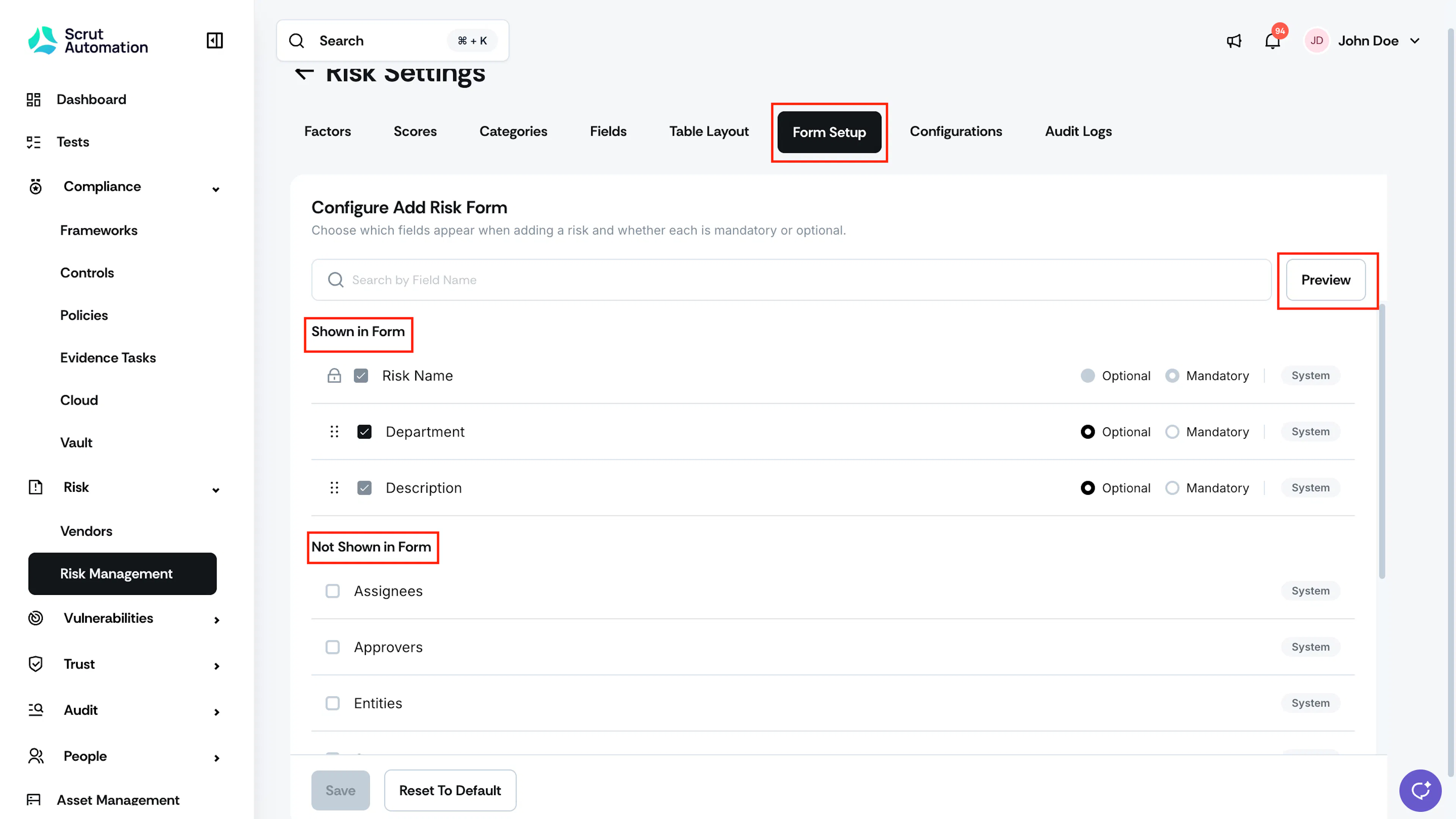
The Form Setup tab in Risk Settings lets you control which fields appear on the Add Risk form, their order, and whether each is optional or mandatory, ensuring risk creators see only the fields relevant to your organization's process.
Show or Hide a Field
- From the left navigation panel, navigate to Risk → Risk Management and go to Settings.
- Select the Form Setup tab.
- Under Not Shown in Form, select the checkbox next to a field to add it to the Add Risk form.
- Under Shown in Form, clear the checkbox next to a field to remove it from the Add Risk form.
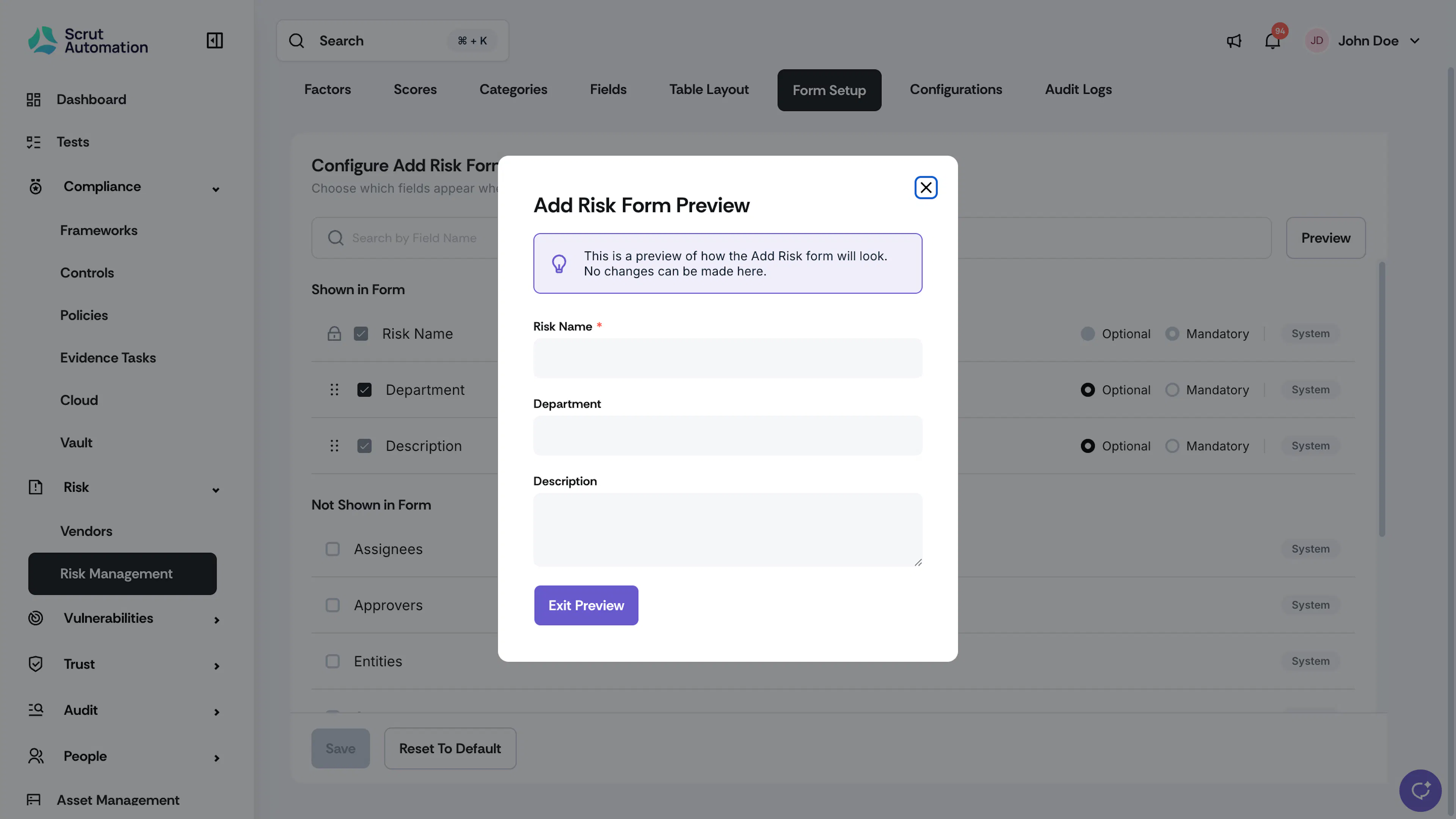
- Click Preview to review how the form will look with your current field configuration.
- Click Exit Preview to close.
- Click Save.
Note:
Risk Name is a mandatory field. It's locked at the top of the Shown in Form list, is always required, and can't be reordered, hidden, or set to Optional.
Reorder Fields
- Select the Form Setup tab.
- Under Shown in Form, drag a field using the handle icon to change its position.
- Click Save.
Set a Field as Optional or Mandatory
- Select the Form Setup tab.
- Next to a field under Shown in Form, select Optional or Mandatory.
- Click Save.
Note: Fields marked Mandatory display a red asterisk on the Add Risk form and must be completed before a risk can be saved.
Preview the Add Risk Form
- Select the Form Setup tab.
- Click Preview.
- Review how the form will look with your current field configuration.
- Click Exit Preview to close.
Note: The preview reflects your unsaved changes, but you can't edit the form from here. Exit Preview and use the Form Setup tab to make changes.
Reset to Default
If you want to undo your changes and return to Scrut's baseline form configuration, click Reset To Default.
Reach out to support@scrut.io or contact your CSM for further assistance.