

Customize Risk Register Layout
Who can use this feature
- Supported on Foundation, Growth, and Scale plans
The Table Layout tab in Risk Settings lets you control which columns appear by default in your Risk Register table and the order in which they are displayed. This helps you customize the Risk Register so your team can quickly view the risk details that matter most to them.
Reorder and Show or Hide Columns
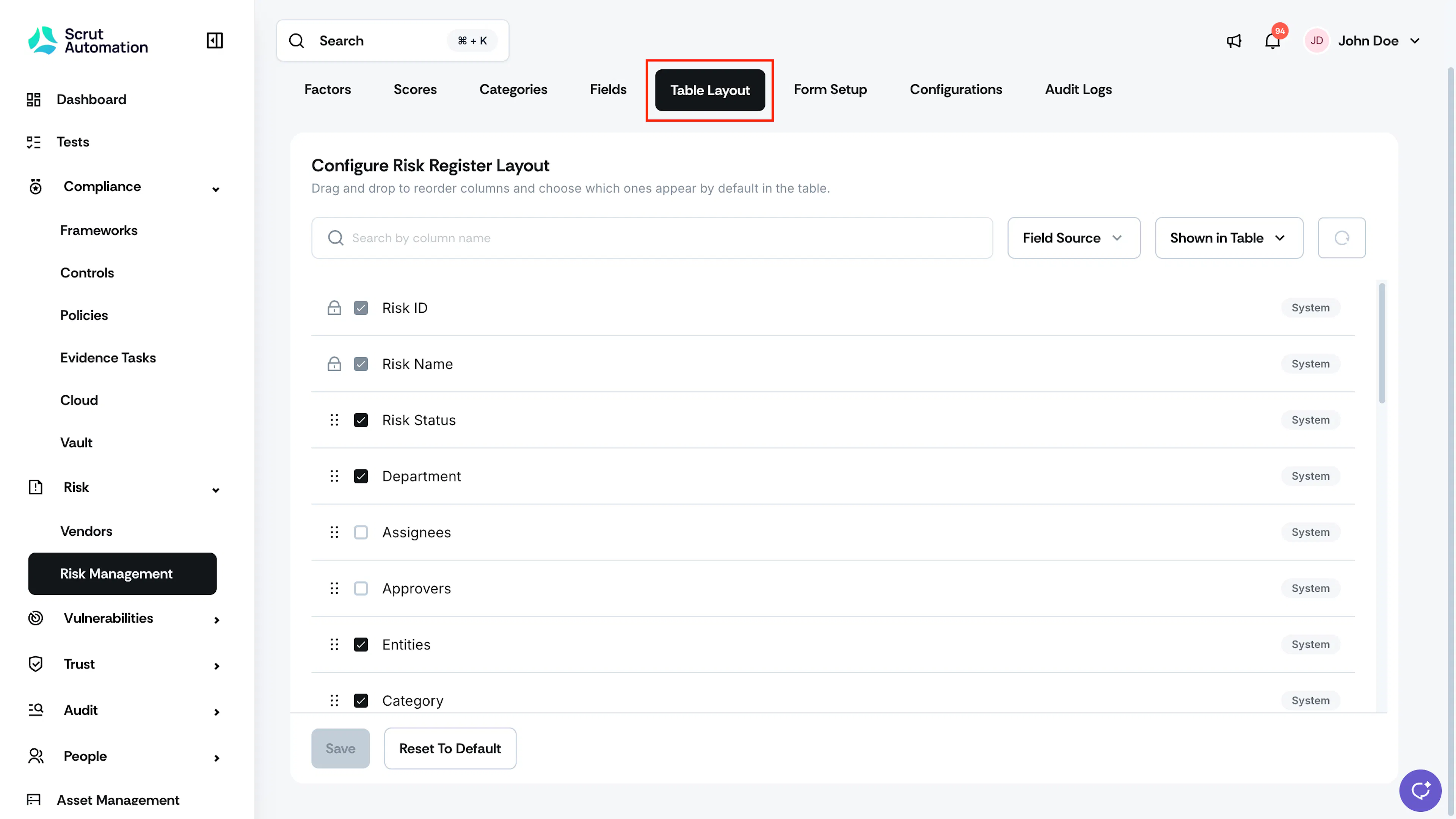
- In the left navigation panel, navigate to Risk → Risk Management, then go to Settings.
- Select the Table Layout tab.
- Drag a column using the handle icon to reorder it in the table.
- Select or clear the checkbox next to a column to show or hide it in the Risk Register table.
- Click Save.
Note:
- Risk ID and Risk Name are mandatory columns. They always appear first in the table and can't be reordered or hidden.
- Textarea custom fields don't appear in this list at all, since they're not shown in the Risk Register table. You can still view and edit them from the risk's detail page.
View Additional Columns in the Risk Register
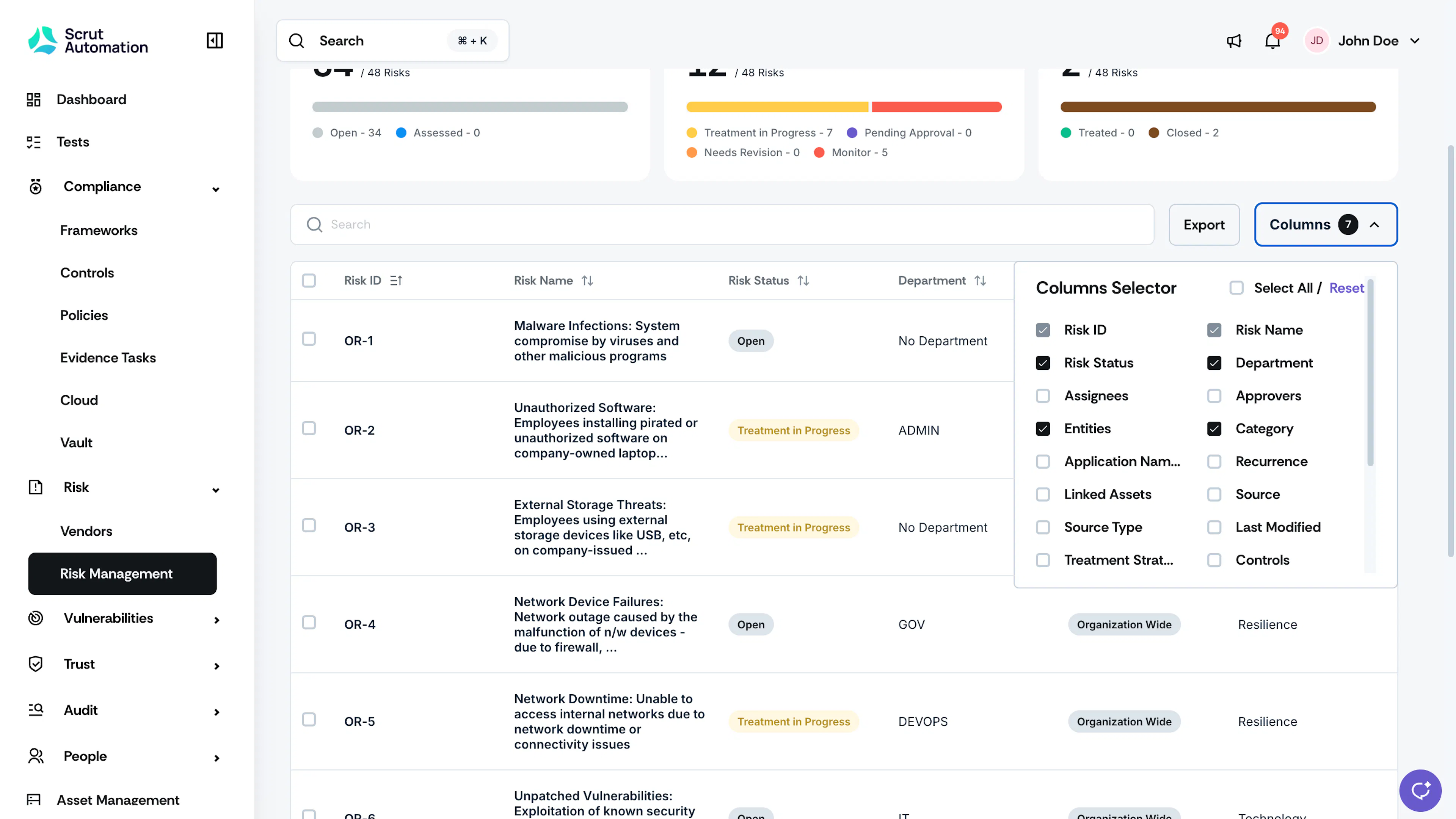
The columns you configure above set the default view for your organization. If you need to see a column that isn't part of that default, you don't need to change the Table Layout setting. You can view it directly from the Risk Register table instead.
- Navigate to Risk → Risk Management → Risk Register.
- Click Columns.
- In the Columns Selector, select the checkbox next to any additional column you want to view.
Note: Viewing an additional column from the Risk Register's Columns selector doesn't change the org-wide default set in Table Layout.
About Column Sources
Each column in the list shows a Field Source badge so you can tell where it comes from.
- System: Shows Scrut's default risk fields
- Custom: Fields you've created on the Fields tab in Risk Settings
- Factor: Risk factors configured on the Factors tab
- Score: Risk scores configured on the Scores tab
Find a Column
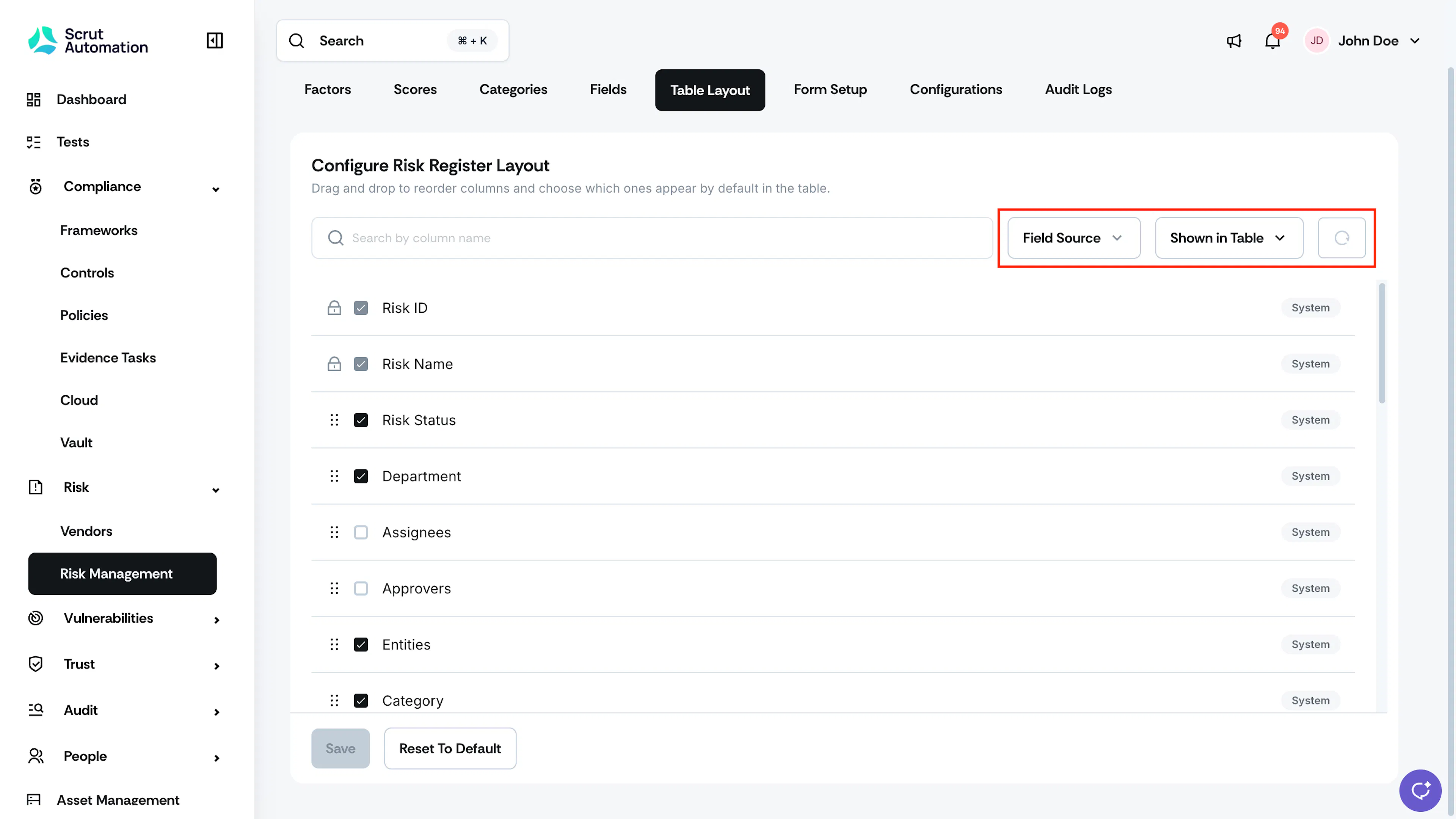
If you have many columns, use the search bar and filters at the top of the Table Layout tab to find a specific column.
- Enter a column name in the search bar to find it directly.
- Use the Field Source filter to narrow the list to System, Custom, Factor, or Score columns.
- Use the Shown in Table filter to view only columns that are currently visible (Yes) or hidden (No) in the Risk Register.
- Click the circular reset icon to remove applied filters.
Reset to Default
If you want to undo your changes and return to Scrut's baseline column order and visibility, click Reset To Default.
Heads Up!
Resetting removes any reordering or visibility changes you've made and restores Scrut's default column configuration.
Reach out to support@scrut.io or contact your CSM for further assistance.