

Create a Risk from an Audit Finding
Who can use this feature
- Supported on Foundation, Growth, and Scale plans
Scrut streamlines the process of addressing audit findings by enabling you to create risks directly from within the Audit Center. This cohesive connection between audit findings and risks enhances efficiency and transparency in your audit management process.
How To Create a New Risk from an Audit Finding
- Sign in to Scrut, and click Audit → Audit Center on the left navigation menu.
- Select the audit for which you want to create a risk.
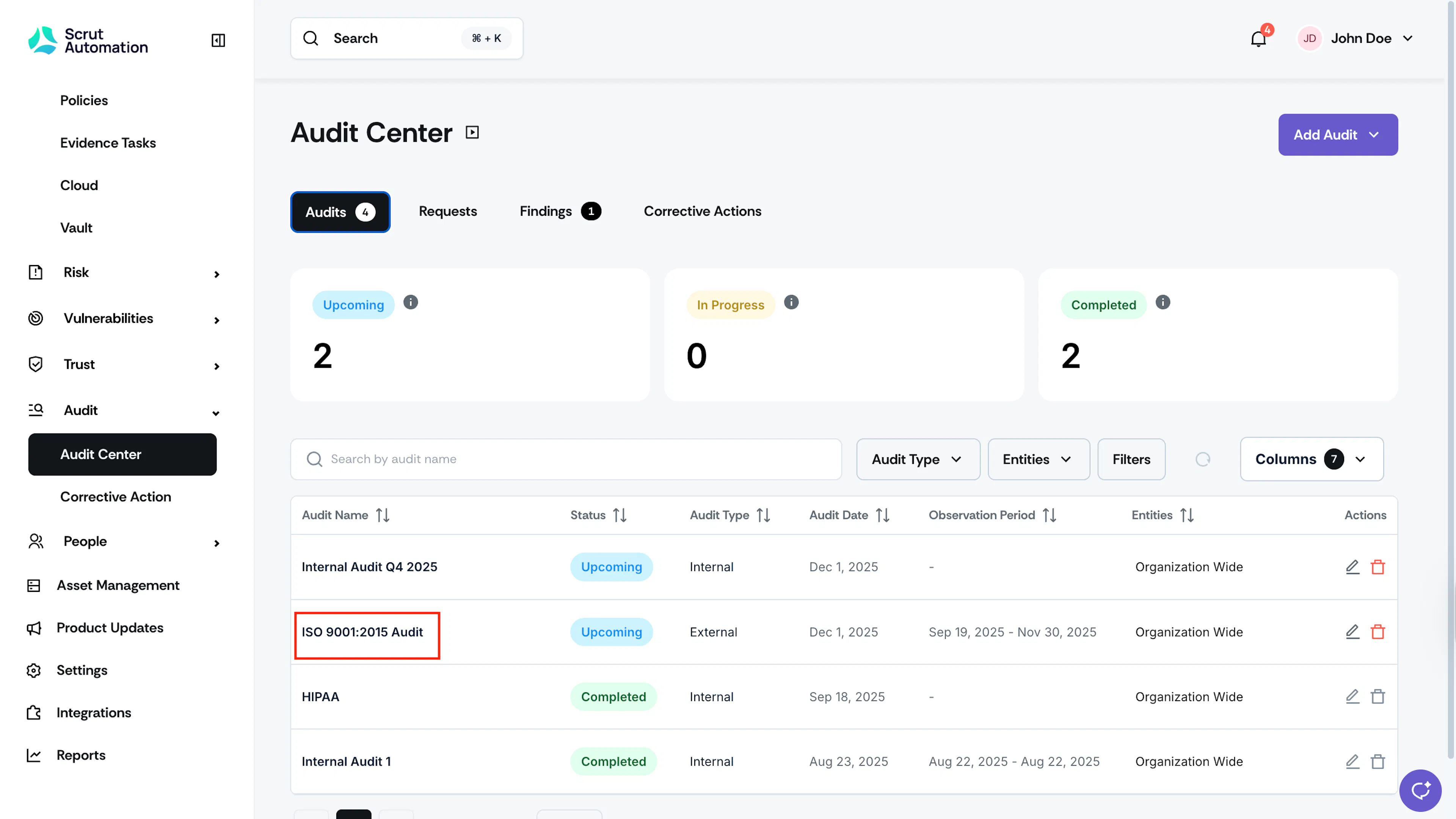
- Once you’re on the audit page, scroll to the Findings tab and open the finding to which you want to add a risk.
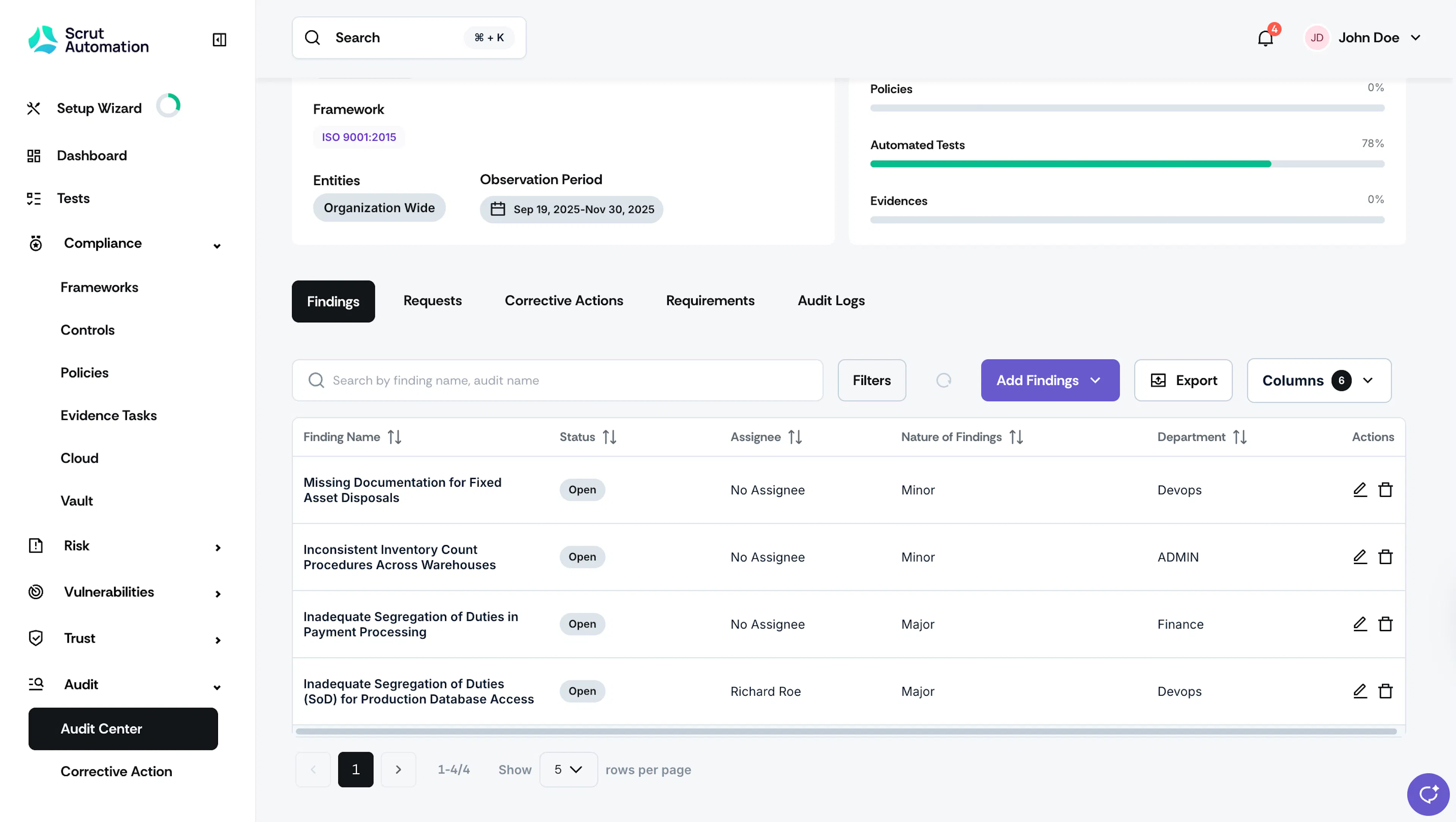
Findings tab in Audit Page - Alternatively, you can directly navigate to Audit → Audit Center → Findings tab and open the finding to which you want to add a risk.
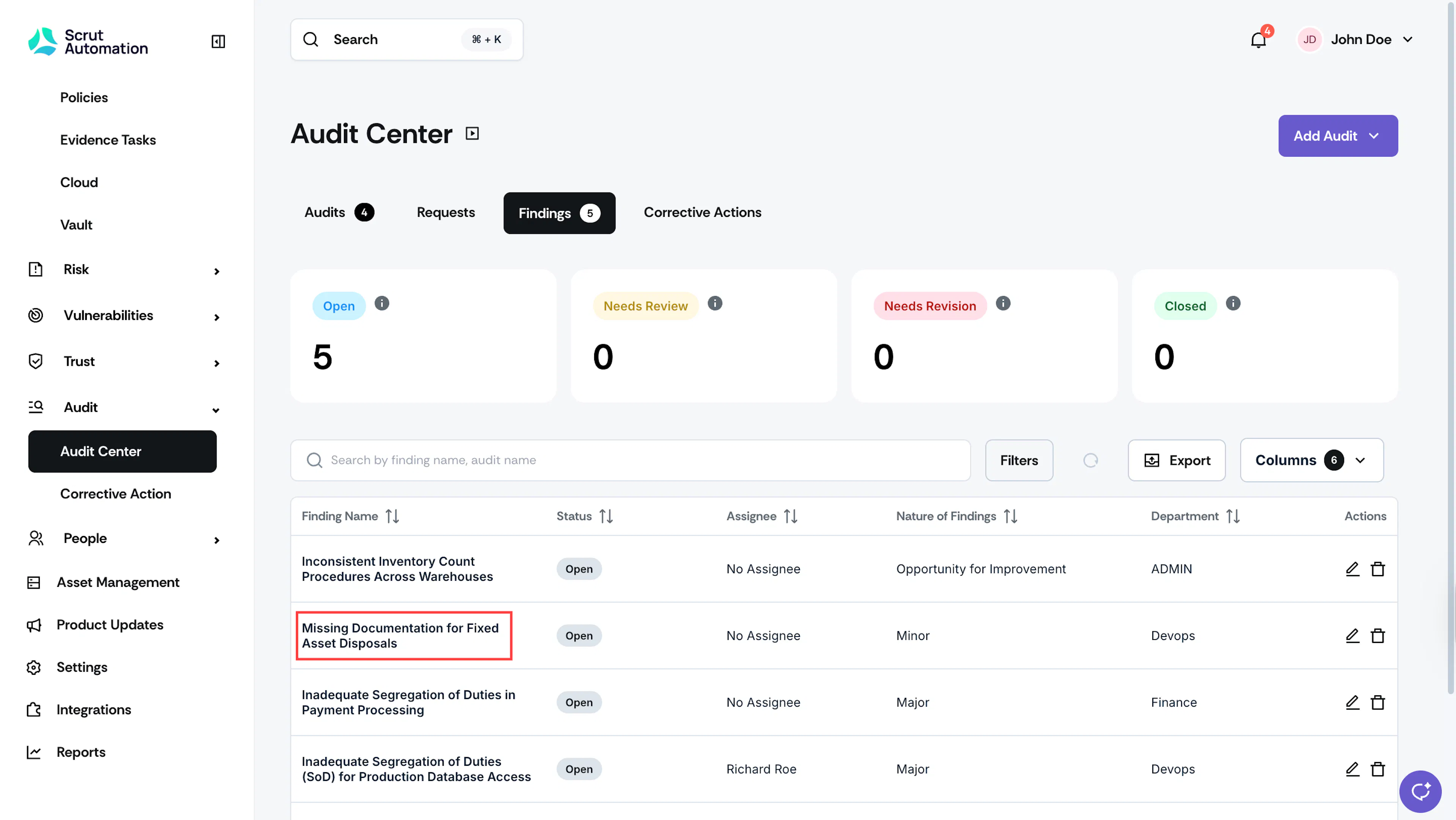
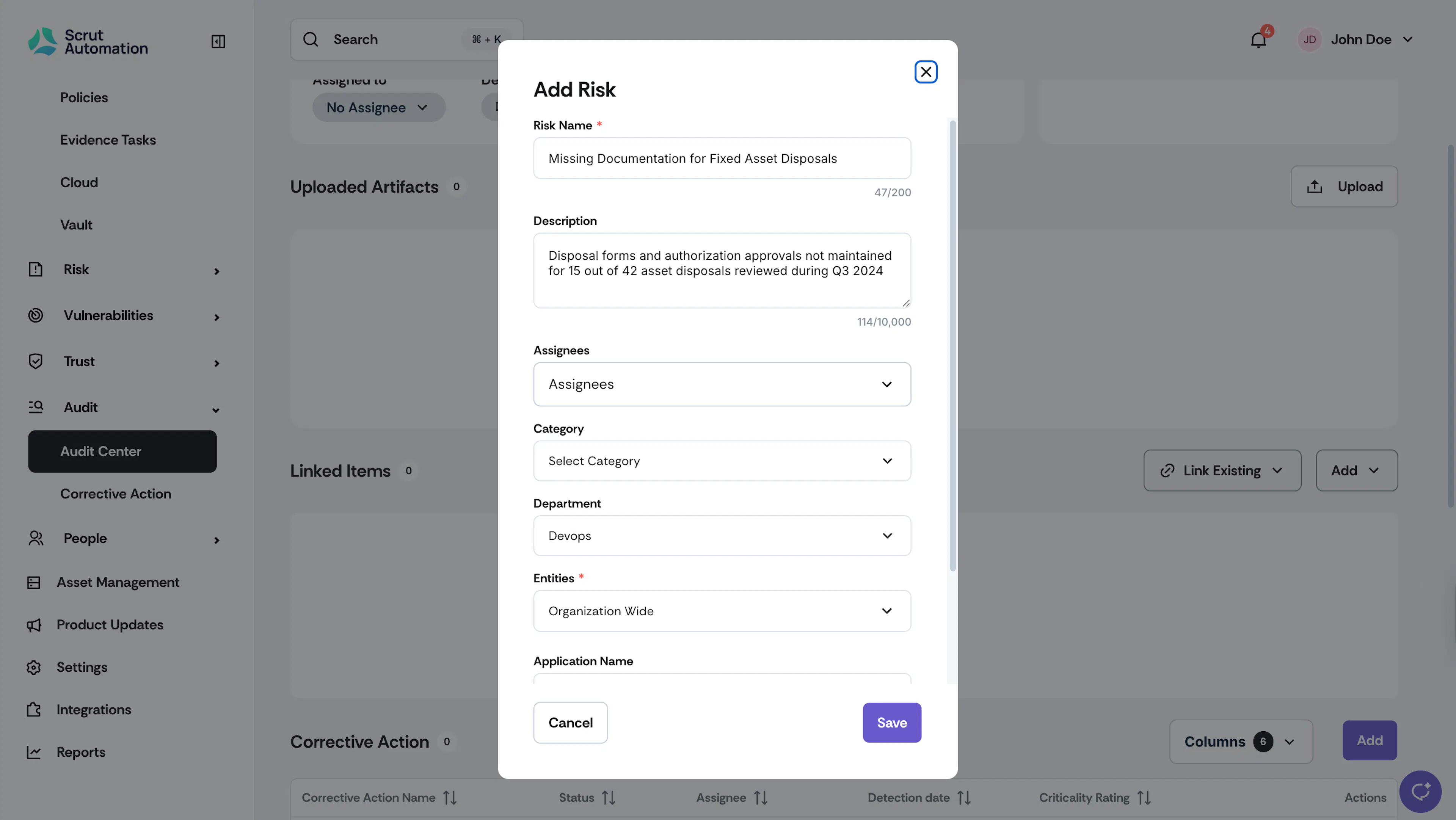
- Scroll to the Linked Items section, click the Add button and select Risk.
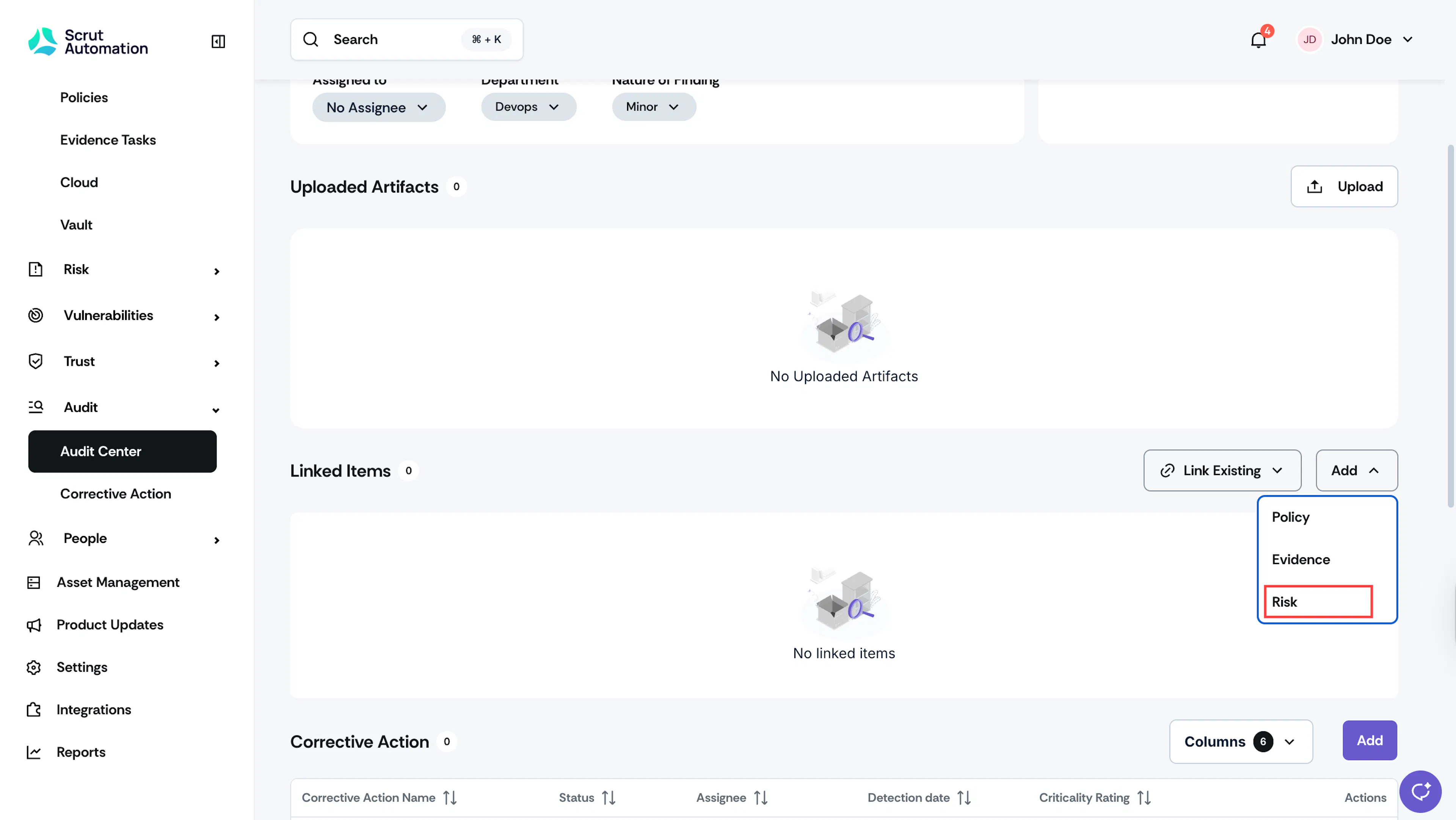
- Enter the required details, then click Save.
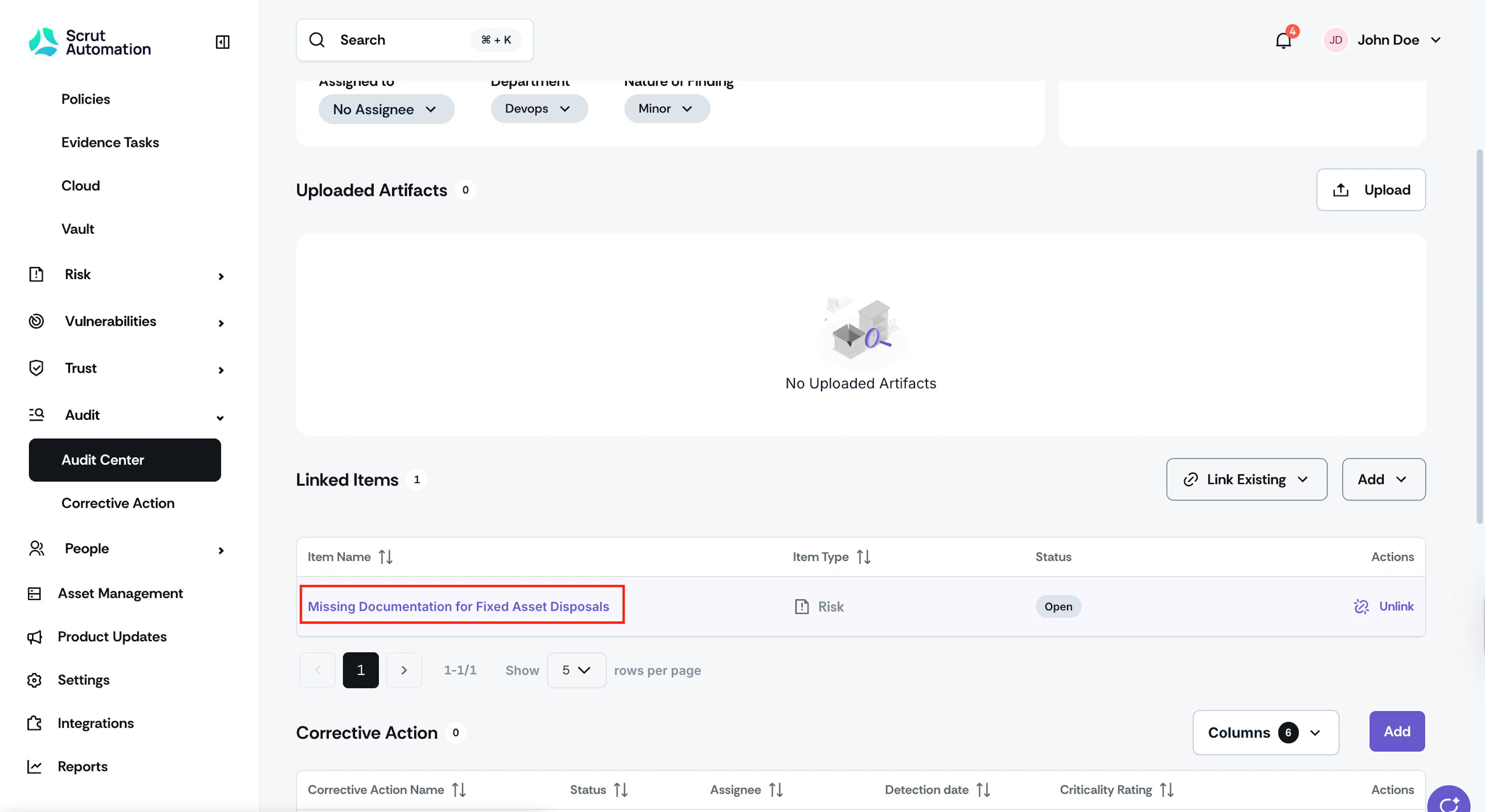
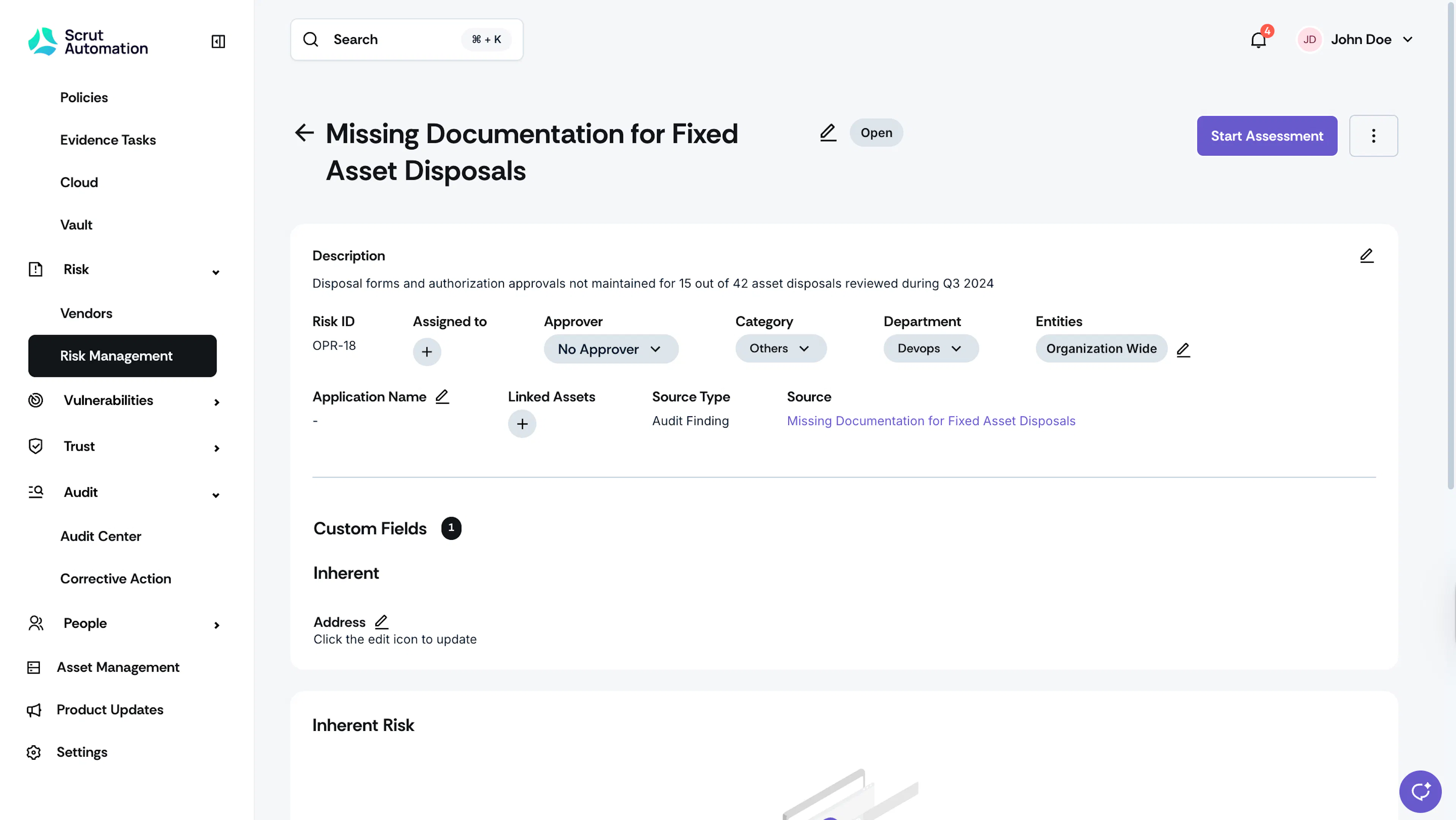
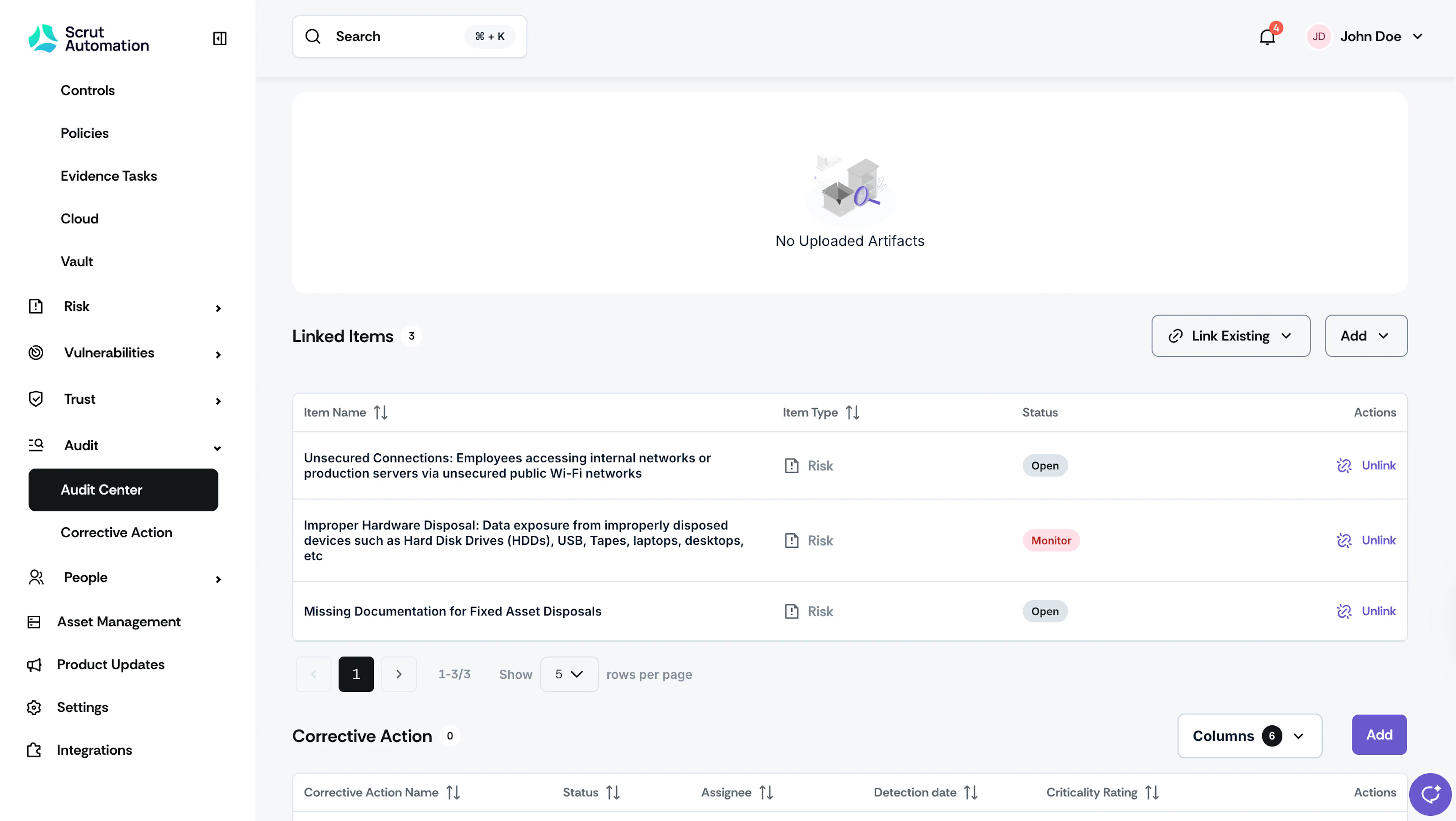
- Scrut will create the risk, and you can view it under the Linked Items section. The risk is hyperlinked; clicking it takes you directly to the created risk in the Risk Management module.
Heads Up!
If necessary, you can create and link multiple risks to a single finding.
How To Link an Existing Risk to an Audit Finding
In addition to creating a new risk, you can also link existing risks to audit findings. Follow these steps:
- Once you’re on the Findings page, scroll to the Linked Items section.
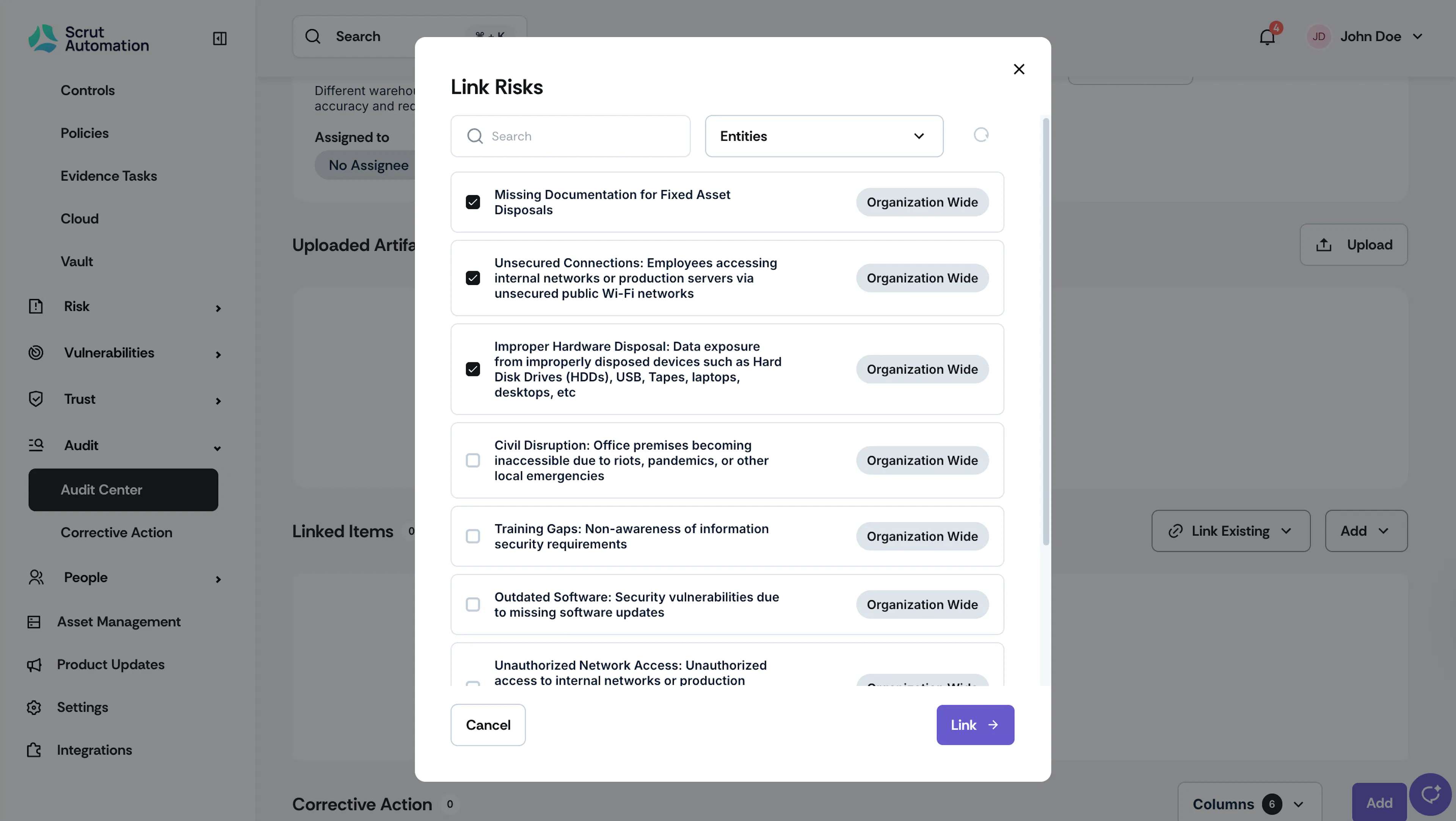
- Click the Link Existing button and select Risk.
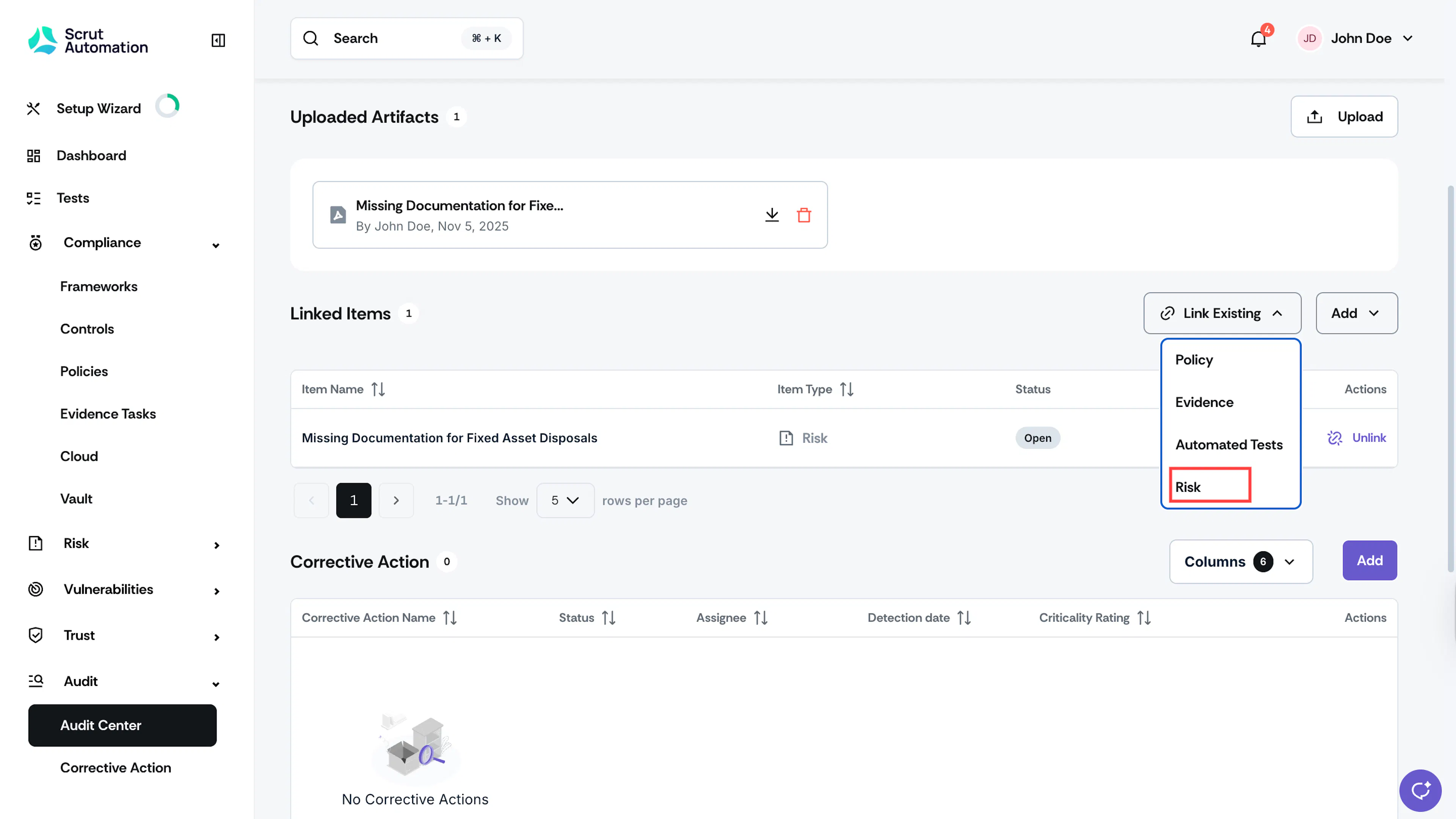
- Choose the risks you want to link by clicking the checkboxes next to them.
- Click Link.
- The selected risks will now be linked to the finding.
Was this page helpful?