

Create a Corrective Action from an Audit Finding
Who can use this feature
- Supported on Foundation, Growth, and Scale plans
You can create a corrective action to address specific non-conformities or other issues identified by auditors as a finding. Scrut streamlines the process of addressing audit findings by making it easy to create and manage corrective actions directly from within the Audit Center. This cohesive connection between audit findings and corrective actions enhances efficiency and transparency in your audit management process.
In this article, we walk you through the process of creating a corrective action from an audit finding.
How To Create a Corrective Action from an Audit Finding
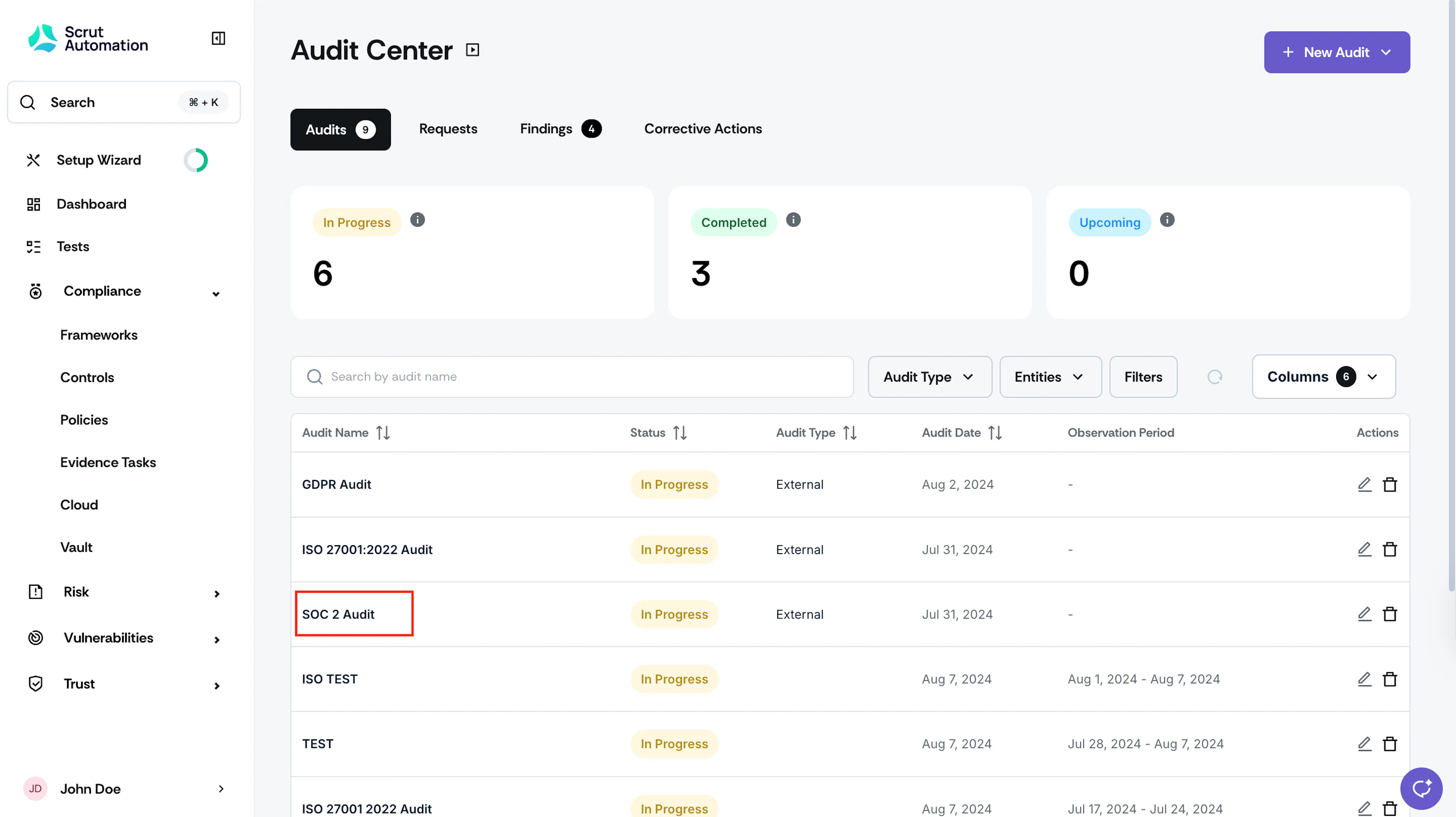
- Sign in to Scrut, click Audit → Audit Center on the left navigation panel, and select the audit for which you want to create a corrective action.
- Go to the Findings tab and click the finding for which you want to create a corrective action.
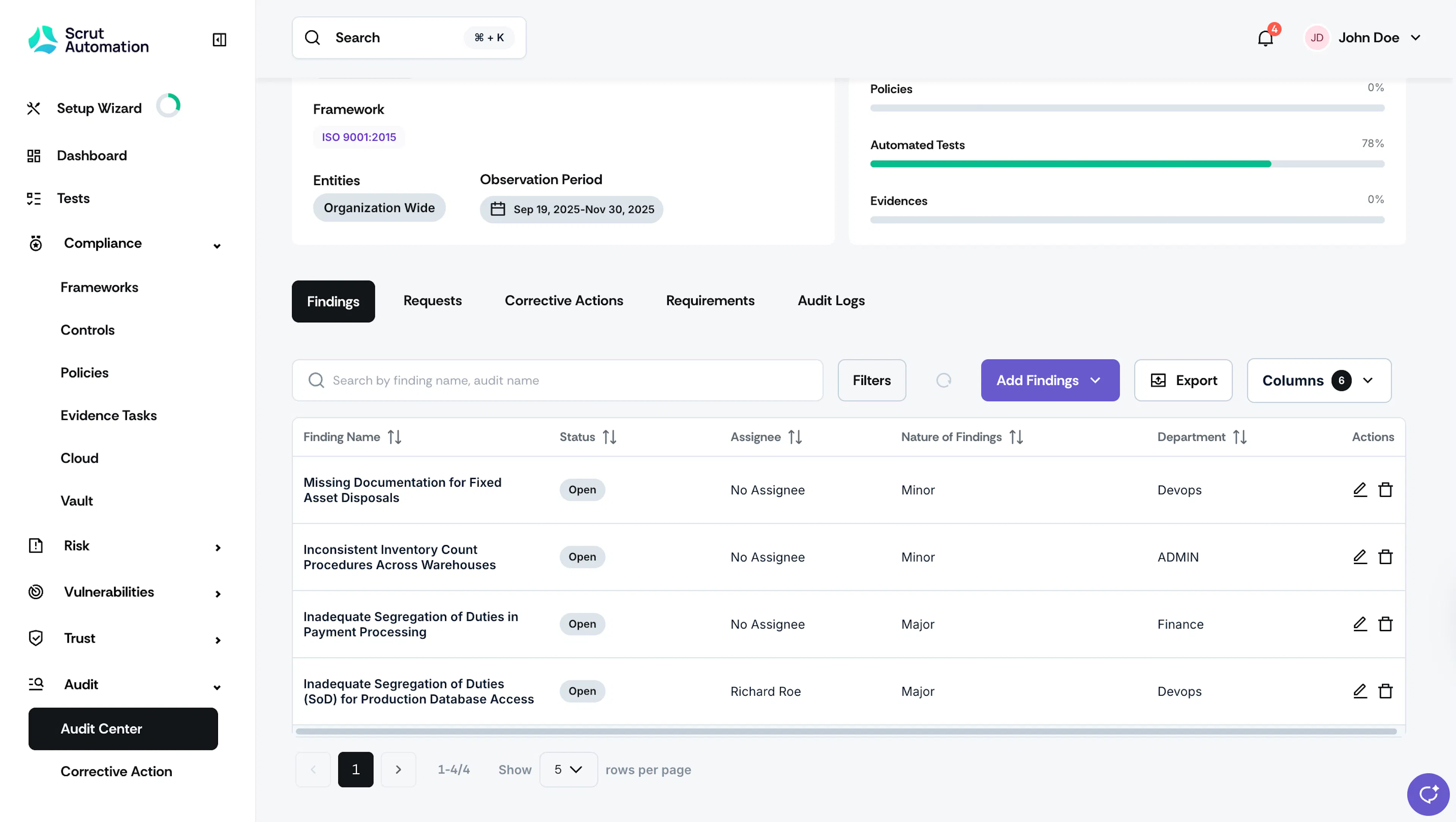
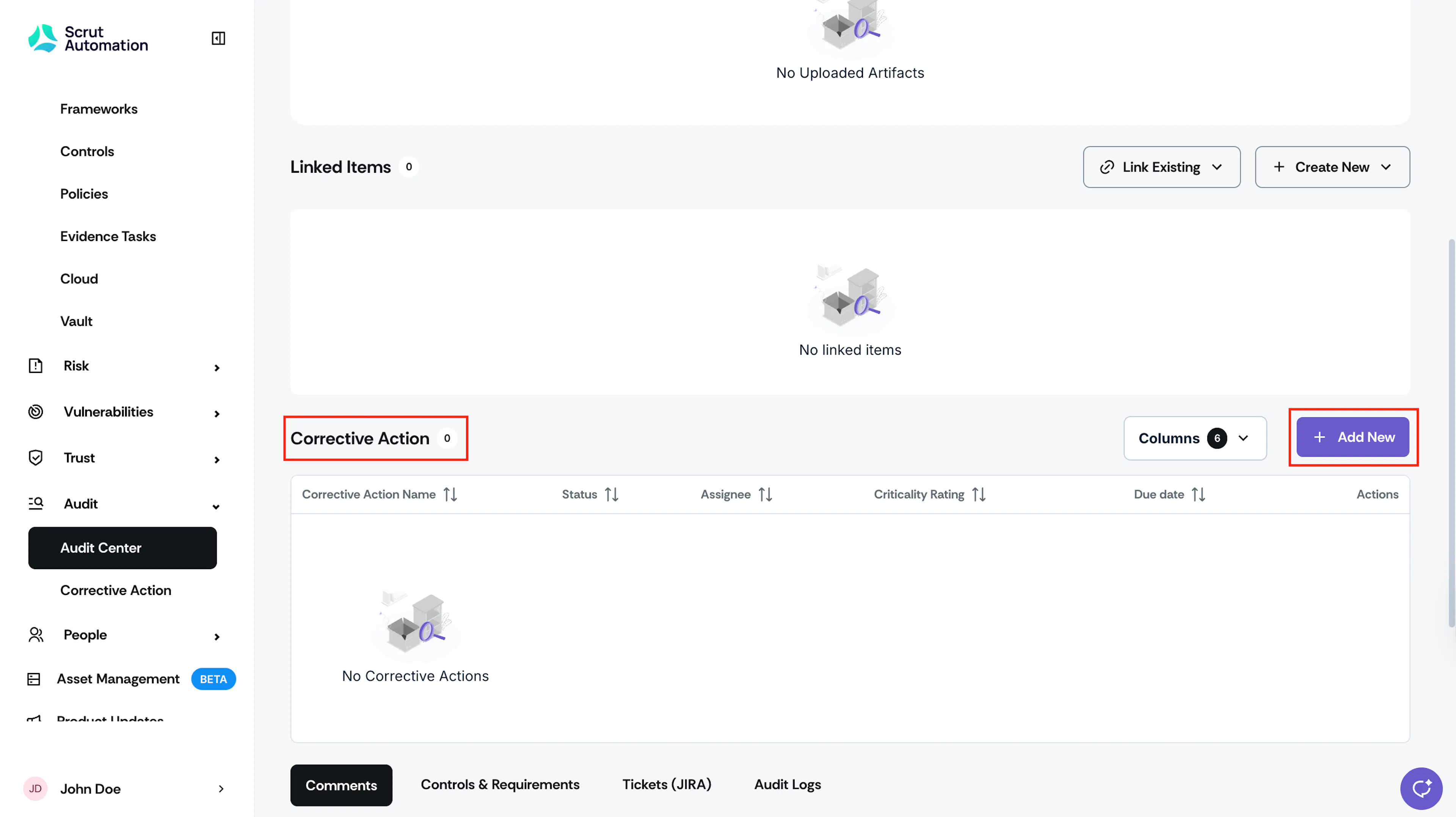
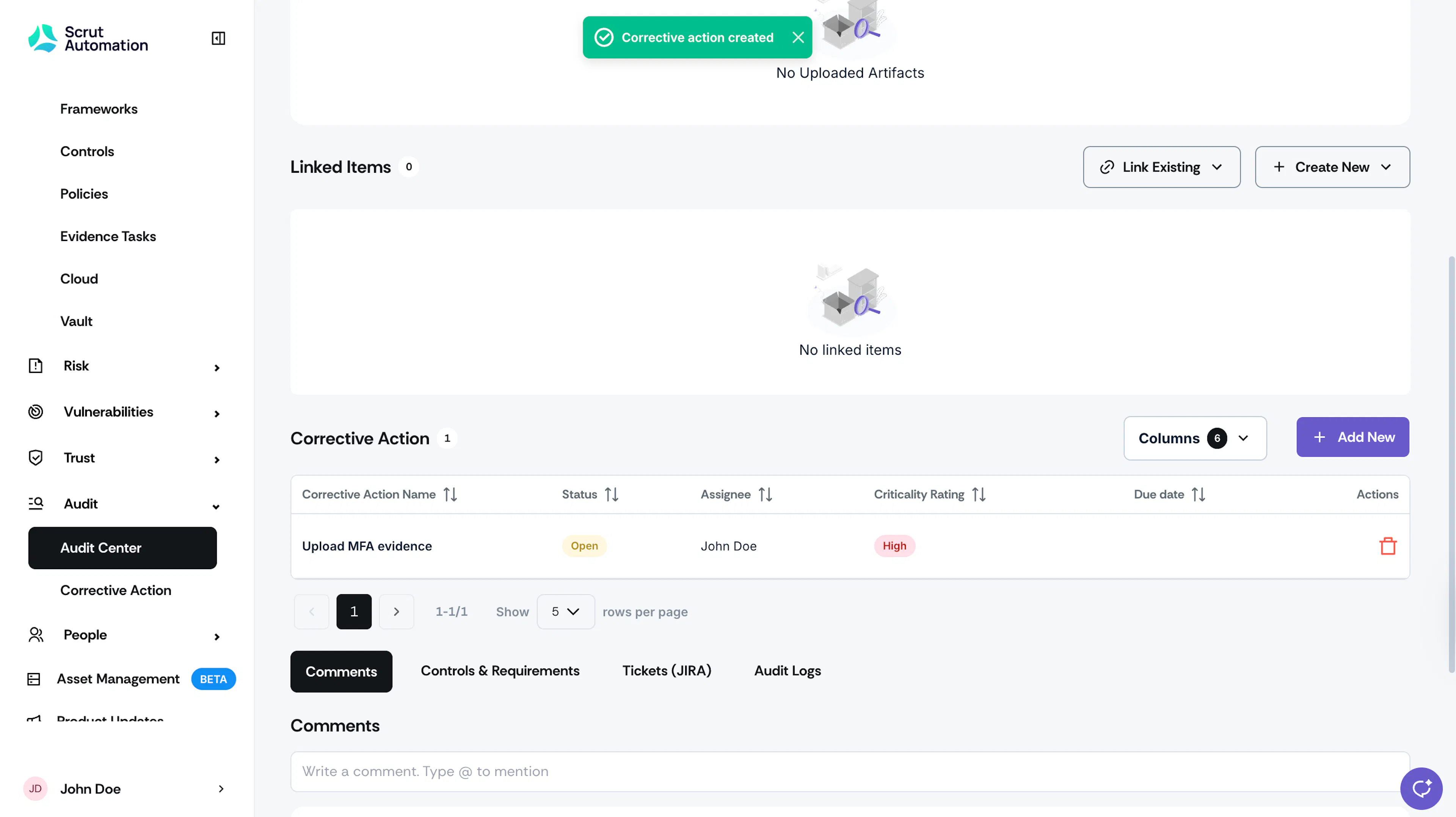
Findings tab in Audit Page - Scroll to the Corrective Actions section and click Add Corrective Action.
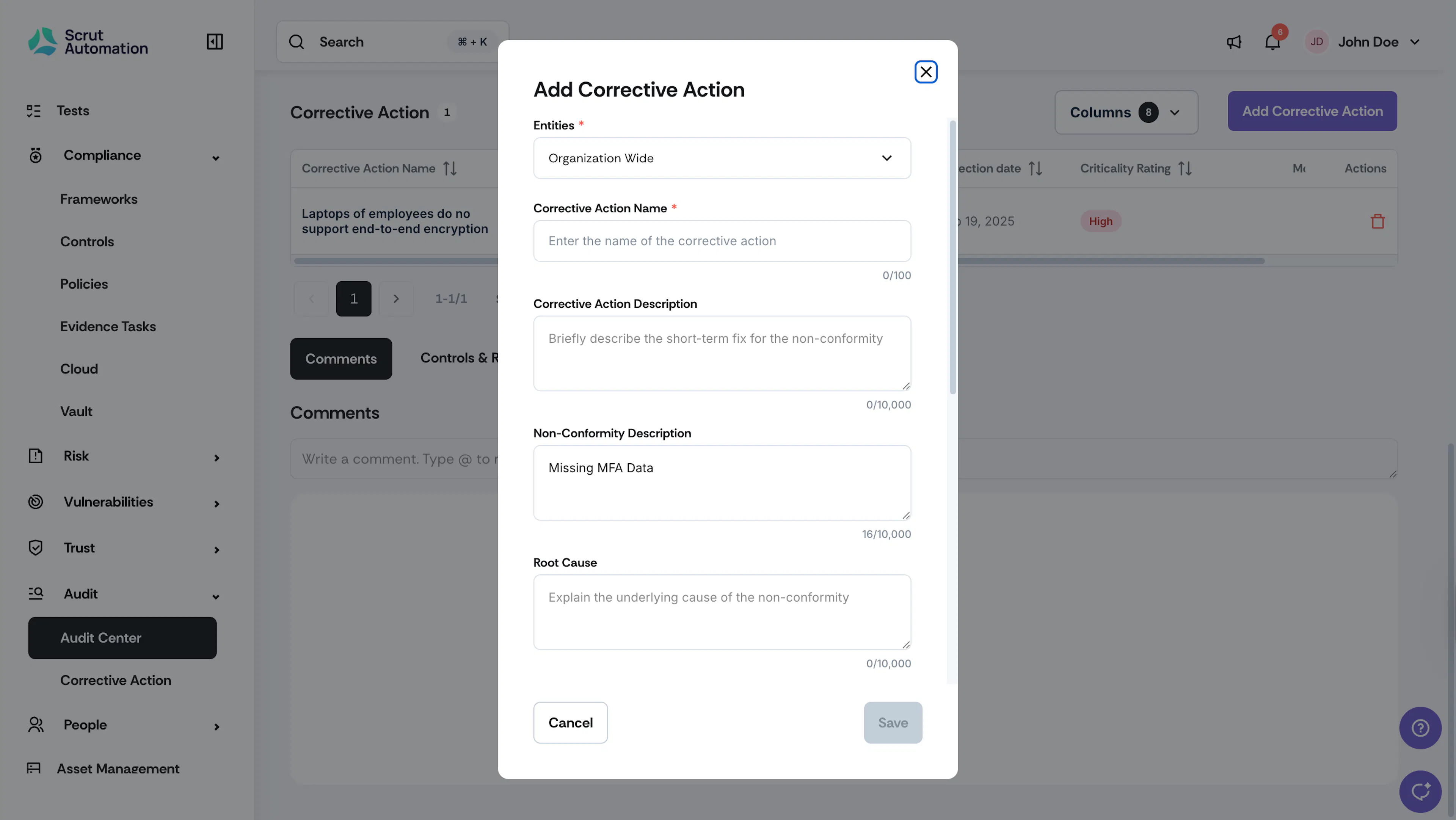
- Fill in the required details such as:
-
Corrective Action Name: Enter a relevant name for the corrective action.
-
Corrective Action Description: Briefly describe the short-term fix to address the non-conformity. This should outline the immediate steps taken to rectify the issue and ensure compliance.
-
Non-Conformity Description: Scrut auto-fills this field with the finding name and description when you create a corrective action from an audit finding. This provides context for the issue being addressed. You can edit it if needed.
-
Root Cause: Explain the underlying cause of the non-conformity. Explain the factors that led to the issue, which can help in determining effective preventive measures.
-
Preventive Action: Describe the long-term preventive measures to address the root cause and prevent recurrence. This should include strategies or changes to be implemented to ensure the non-conformity does not recur.
-
Detection Date: Select the date the non-conformity was detected.
-
Assignees: Choose the users responsible for taking the action. Scrut will notify assignees via email regarding the task.
-
Approver: By default, the user who created this Finding is pre-selected as the Approver for this corrective action. However, you can change the approver if needed.
Note: Scrut recommends that the assignee and approver be different to ensure an independent review.
-
Due Date: Set the deadline for completing the corrective action.
-
Criticality Rating: Assign a rating based on the severity of the non-conformity. Choose from: Low, Medium, or High.
-
Add Attachments: Attach relevant documents or evidence related to the corrective action.
-
- Click Save.
Important!
To close an audit finding, all associated corrective actions must be closed first.