

Link and Unlink Controls to an Audit Finding
Who can use this feature
- Supported on Foundation, Growth, and Scale plans
Scrut makes it easy for auditors to link relevant controls directly with the identified audit findings. This allows auditors to establish a direct relationship between the controls and the findings.
How To Link/Unlink Controls to an Audit Finding
-
Sign in to Scrut and go to Audit → Audit Center using the left navigation panel.
-
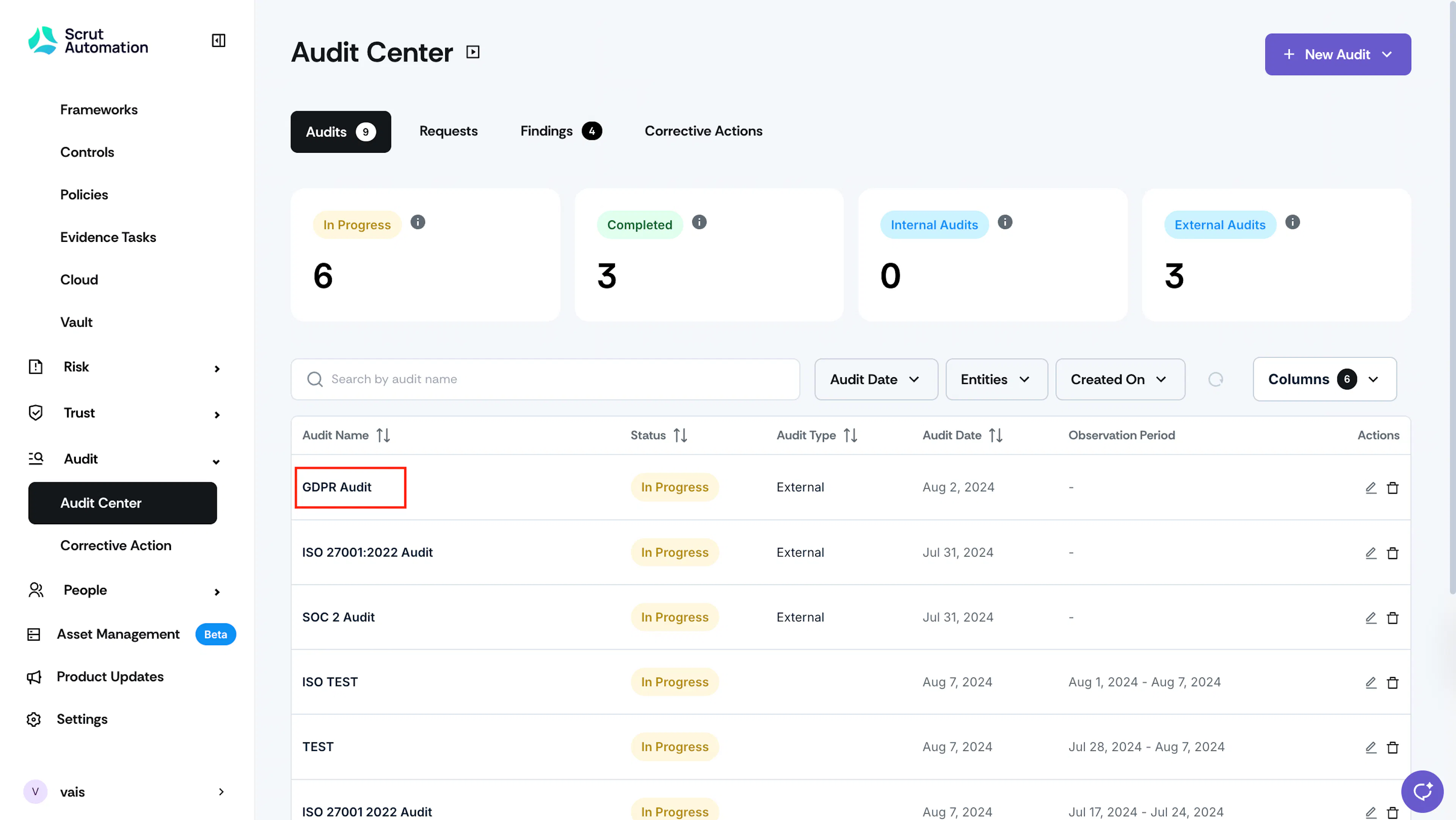
Navigate to the Audits tab and click on a specific audit.
-
On the Audit page, click the Findings tab and open the finding to which you want to link/unlink controls.
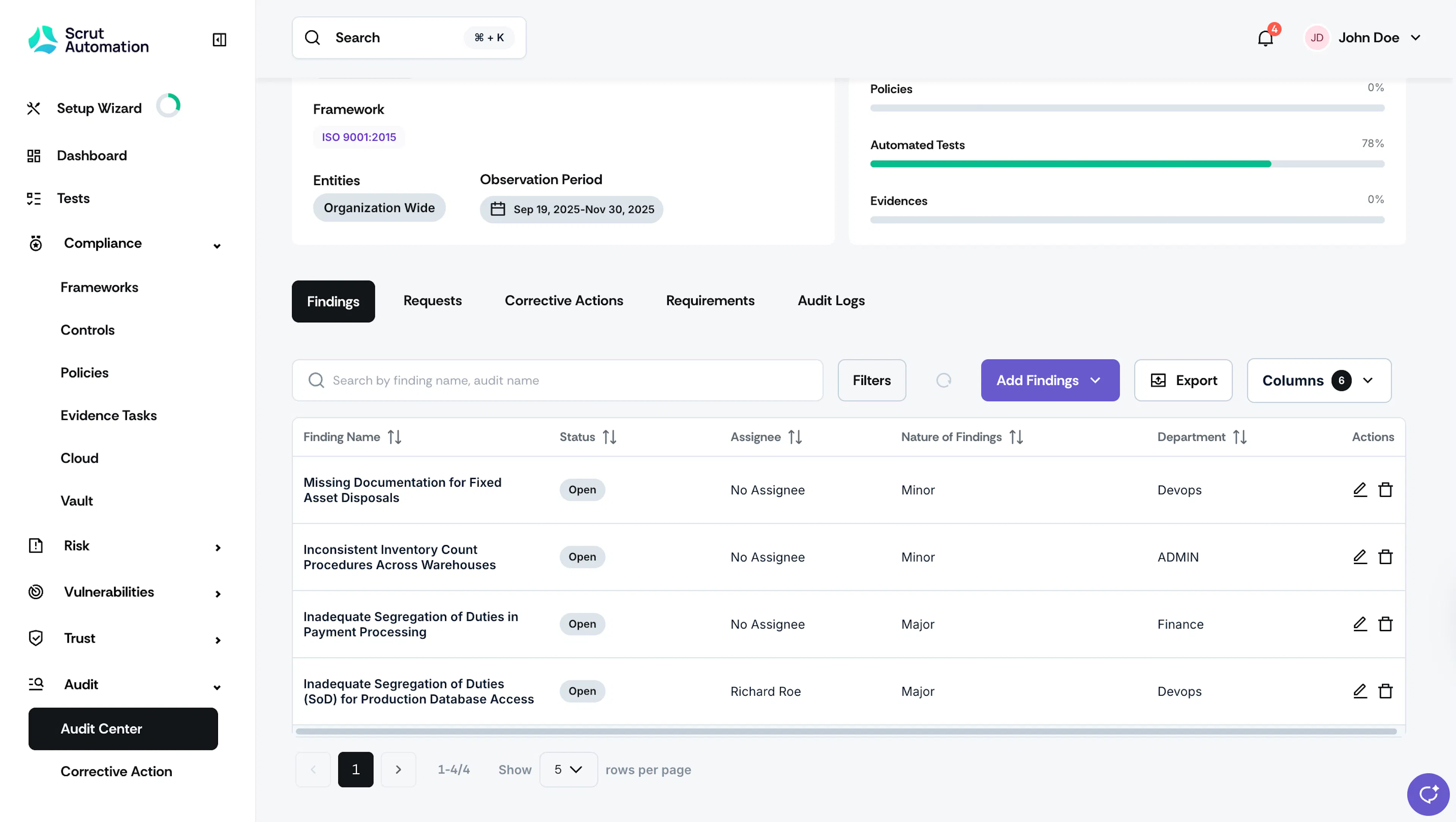
Findings tab in Audit Page -
On the Finding page, scroll to the Controls & Requirements tab, and click the Edit Controls & Requirements button.
-
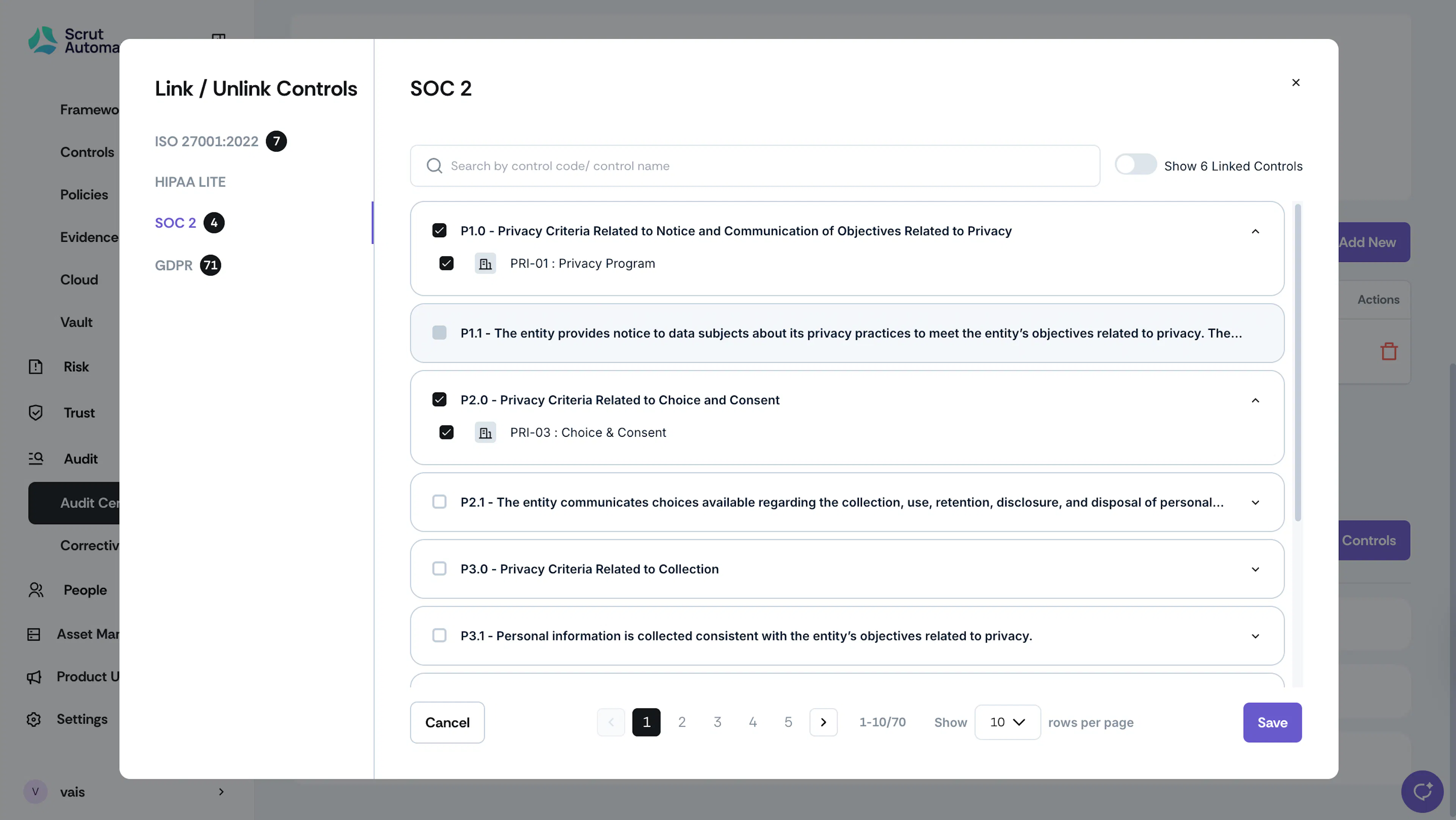
Use the Frameworks panel to view controls relevant to your frameworks.
-
Expand a specific requirement to see all controls associated with it.
- When you select a requirement, all controls within it will be selected by default.
- If needed, you can then select/unselect specific controls as required.
-
Select the checkboxes next to the controls you want to link.
Note: Any requirement that is not applicable will appear greyed out.
-
Use the search bar at the top to quickly locate controls by name or code.
-
After you make your selections, enable the Show Linked Controls toggle to review and verify which controls you selected to link.
-
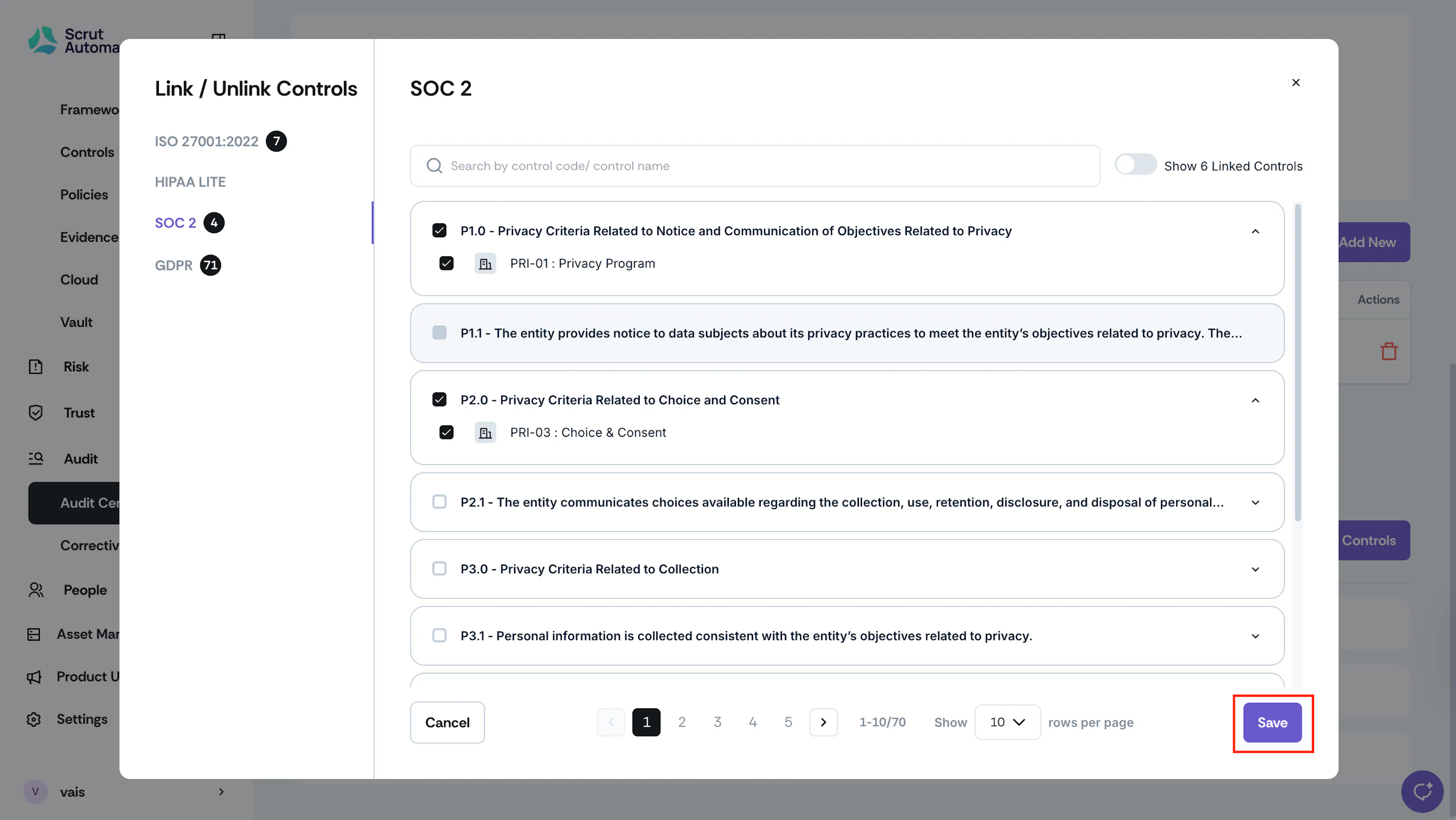
Click Save to confirm your selections.
Important
Once the controls are linked, the status of the linked controls will be automatically changed to Non-Compliant.
Note
Once the Finding is closed by the Assignee or Auditor, the controls status will be automatically changed to Compliant.