Custom Fields in Corrective Actions
Who can use this feature
- Supported on Scale plan
Scrut gives you the flexibility to customize the details captured in a corrective action by adding custom fields that match your specific requirements. To add a custom field:
-
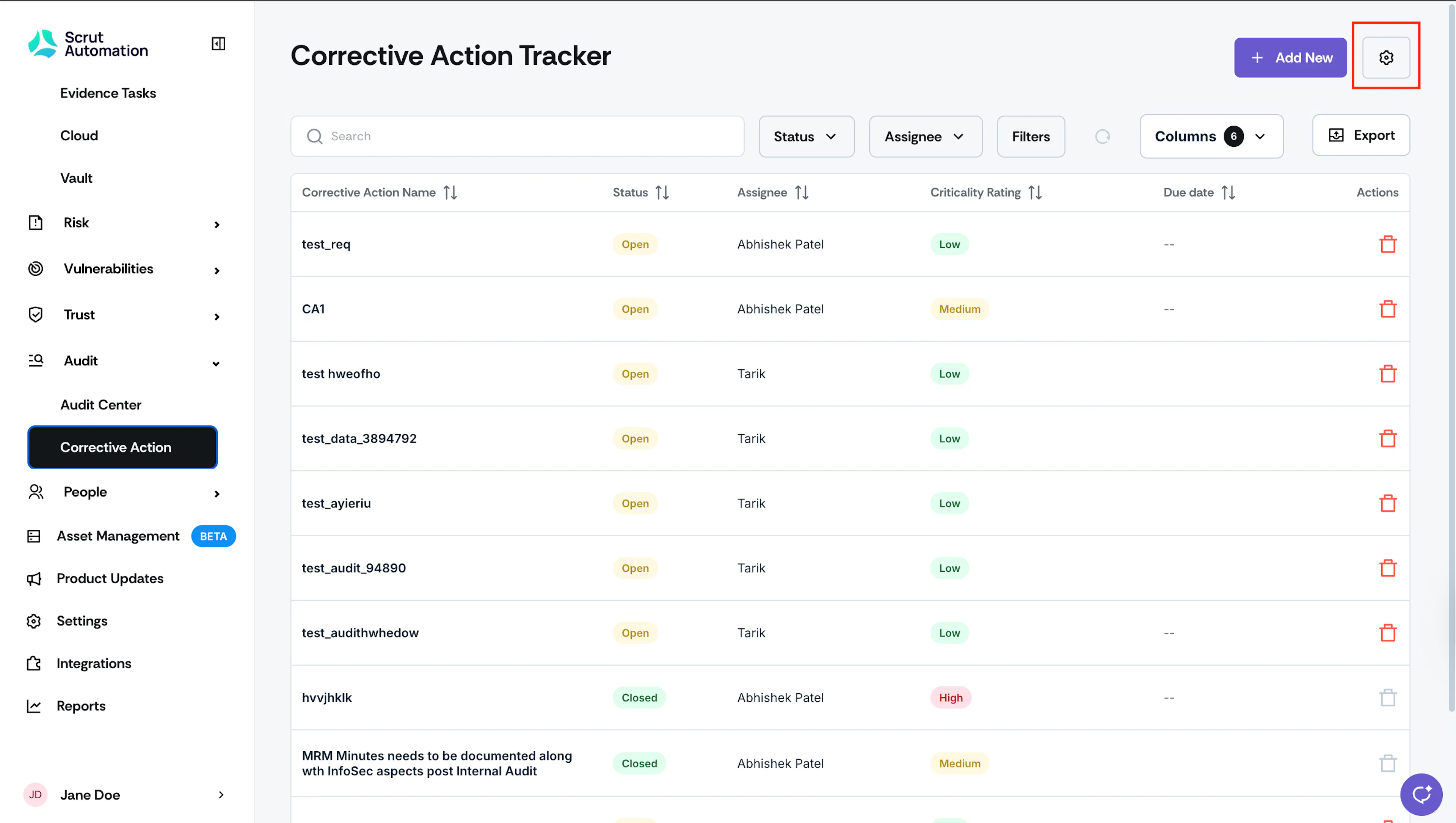
Go to Audits → Corrective Actions and click the Settings icon on the top right.

-
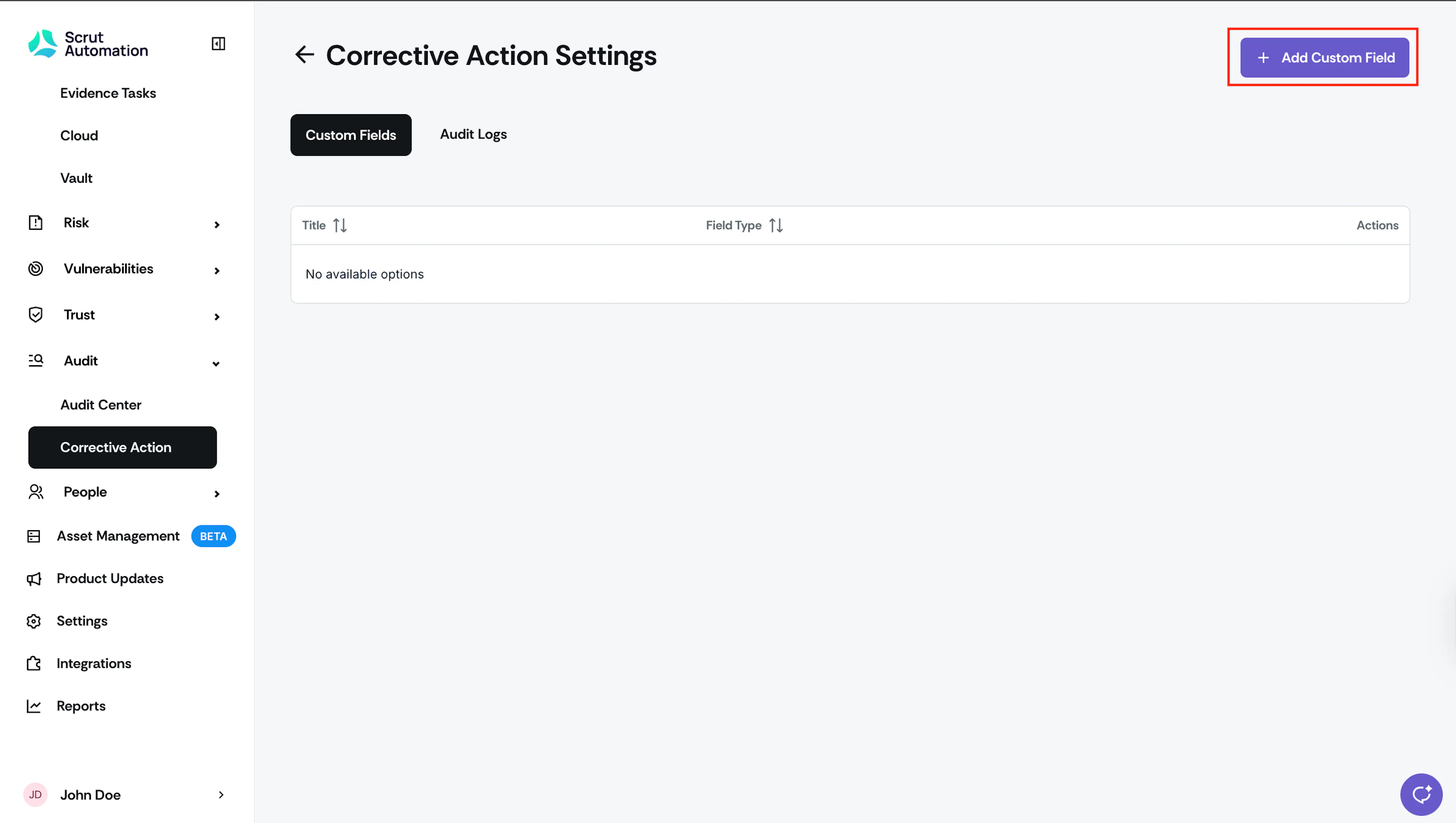
This opens the Corrective Actions Settings page with the Custom Fields tab selected by default.
-
Click the +Add Custom Field button.
-
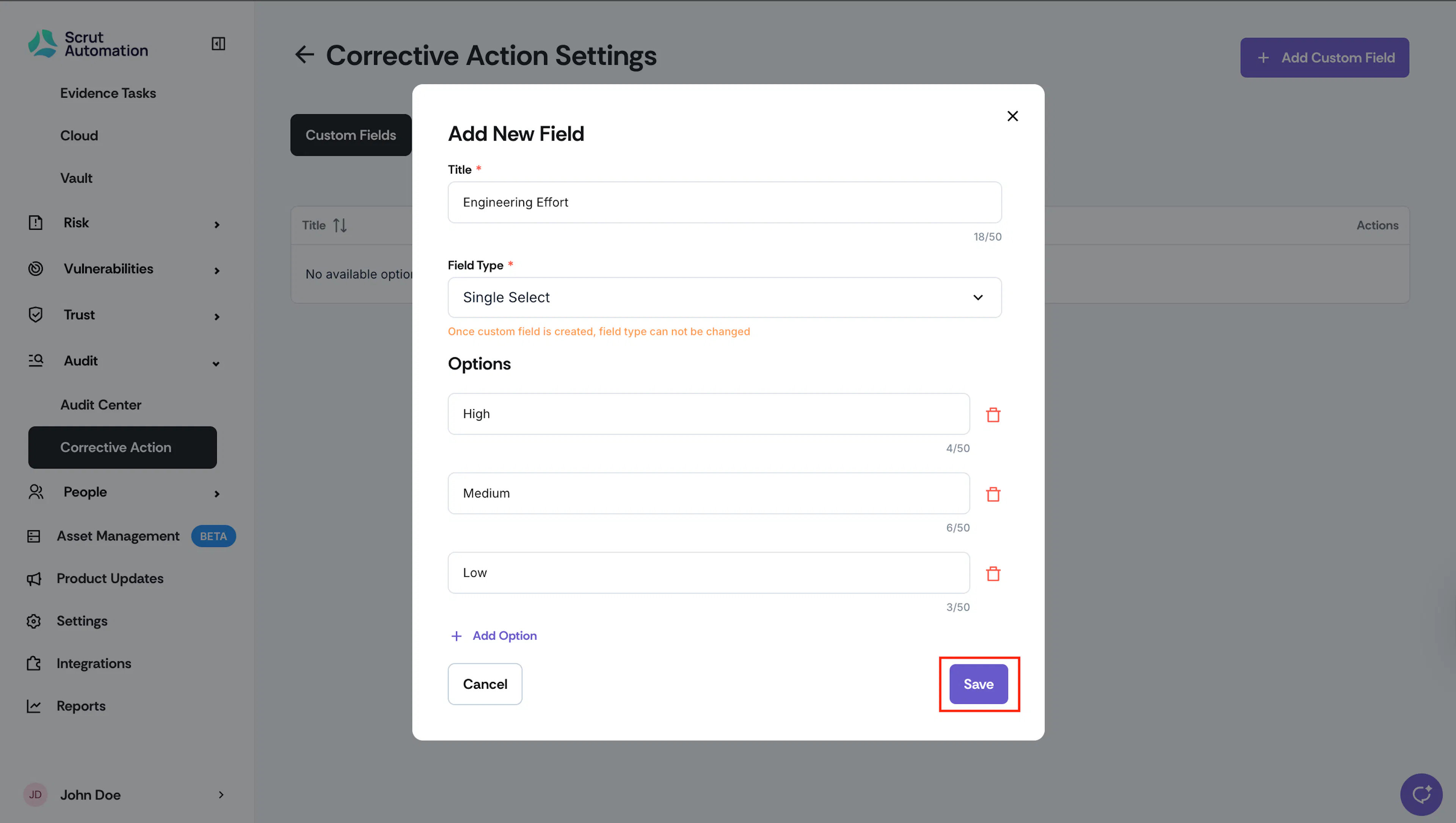
Enter the field name and choose an appropriate field type. You can select from: Textbox, Textarea, Single Select, Multi Select, Currency, and Date.
Heads Up!
Make sure to select the correct field type, as once you create the custom field you cannot edit its type.
-
Click Save.
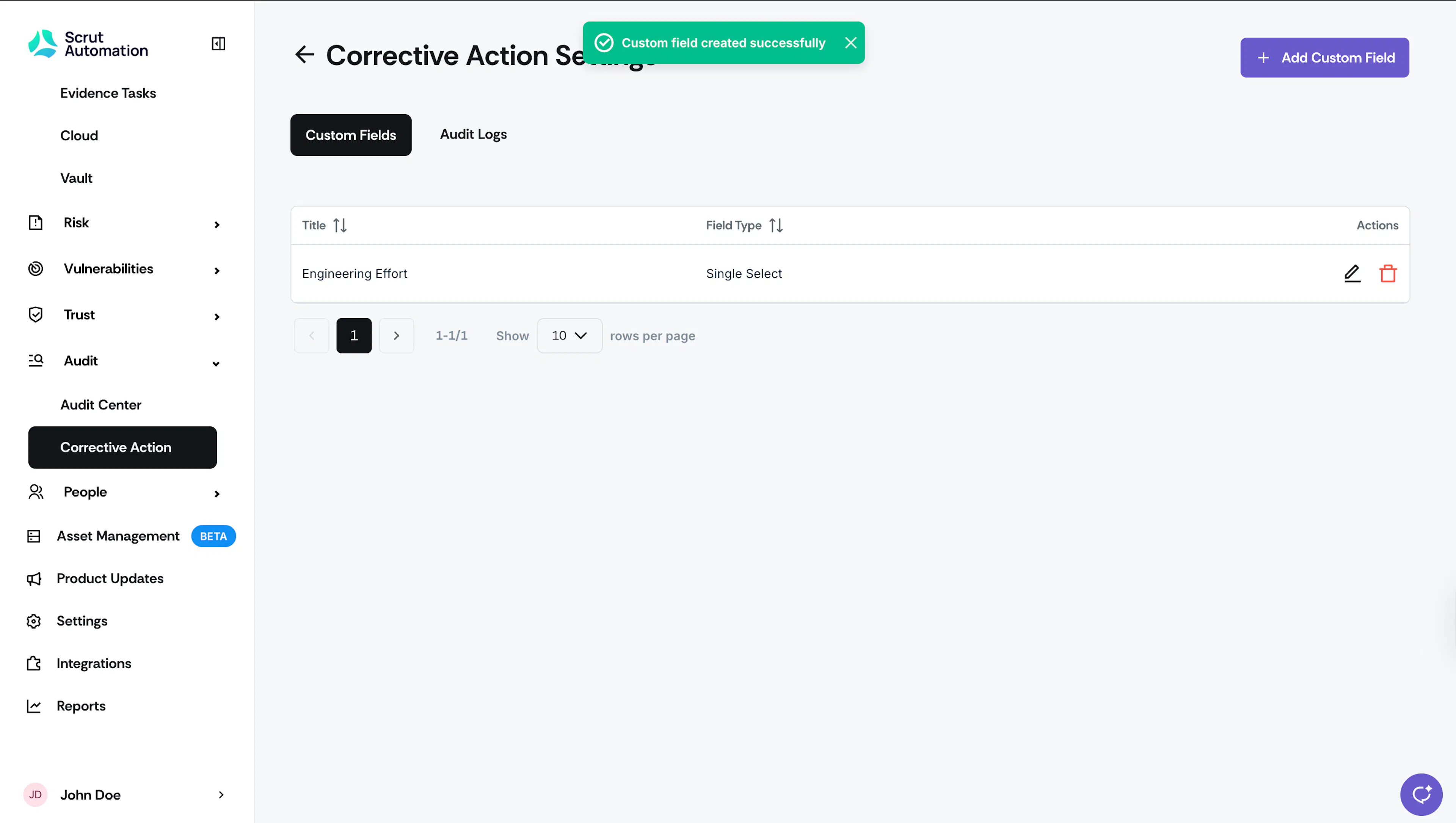
What Happens Next?
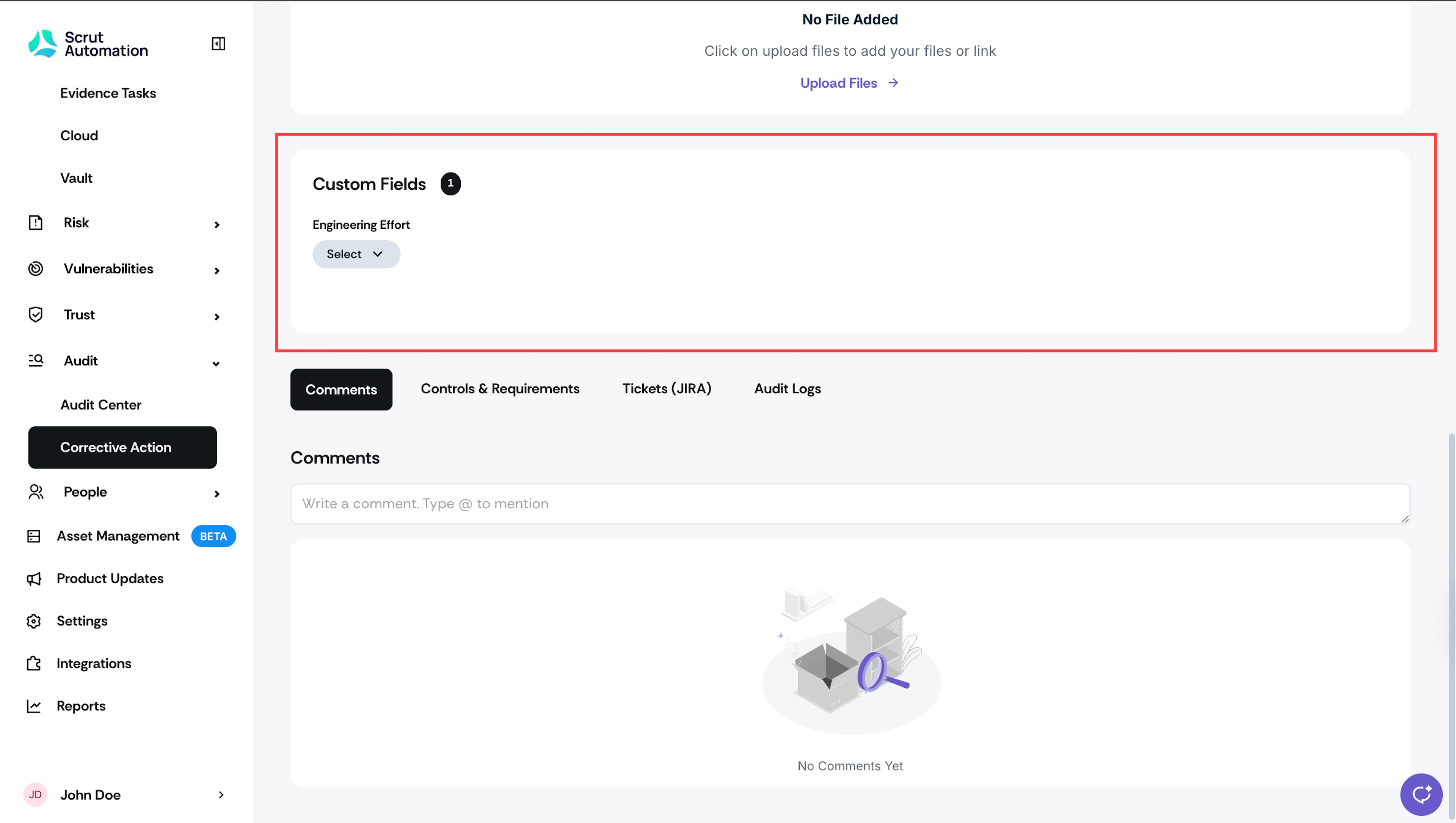
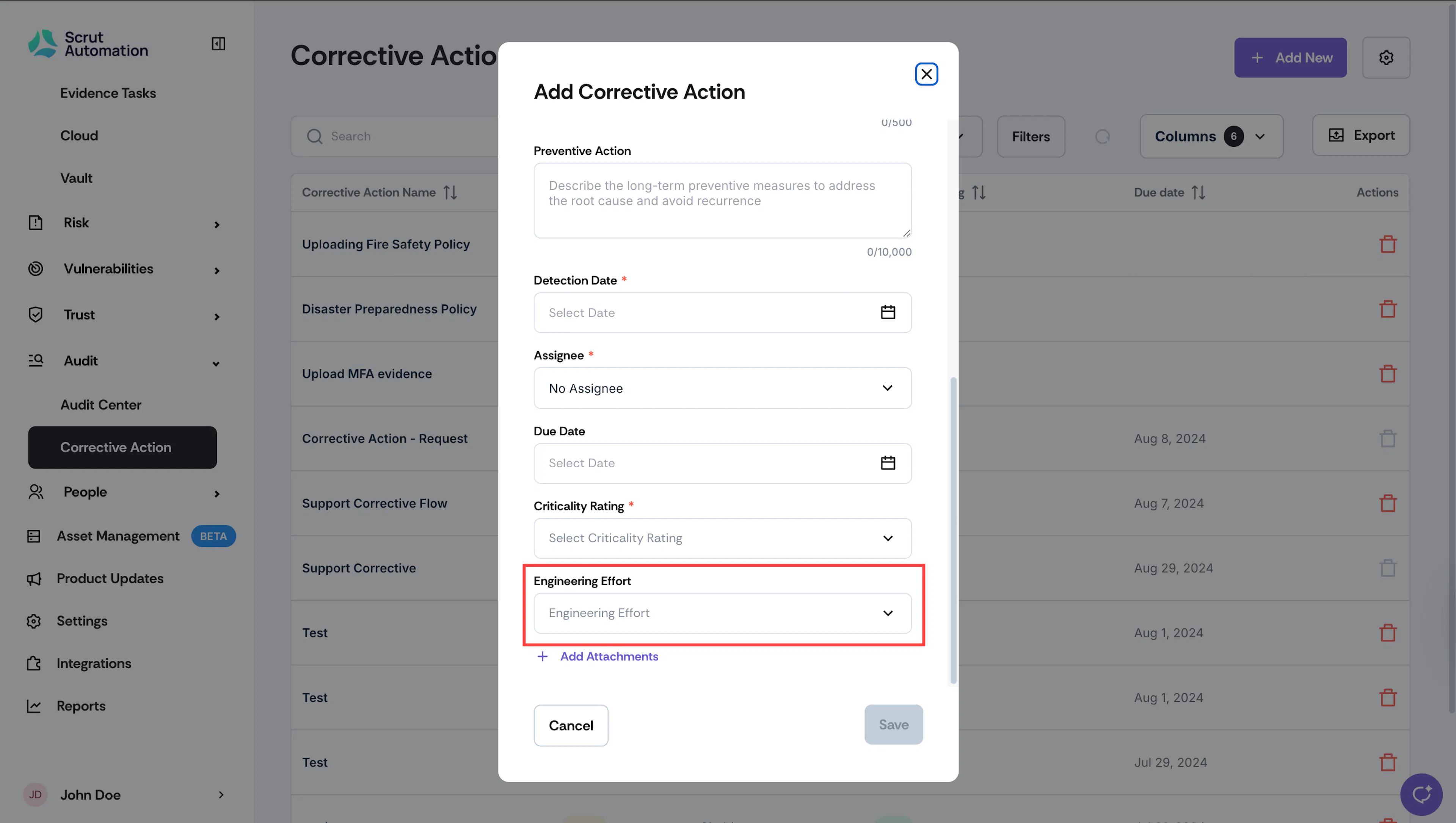
Once you add a custom field, it will be available while creating a Corrective Action.
You can find the custom field data on the Corrective Action details page under the Custom Fields section.