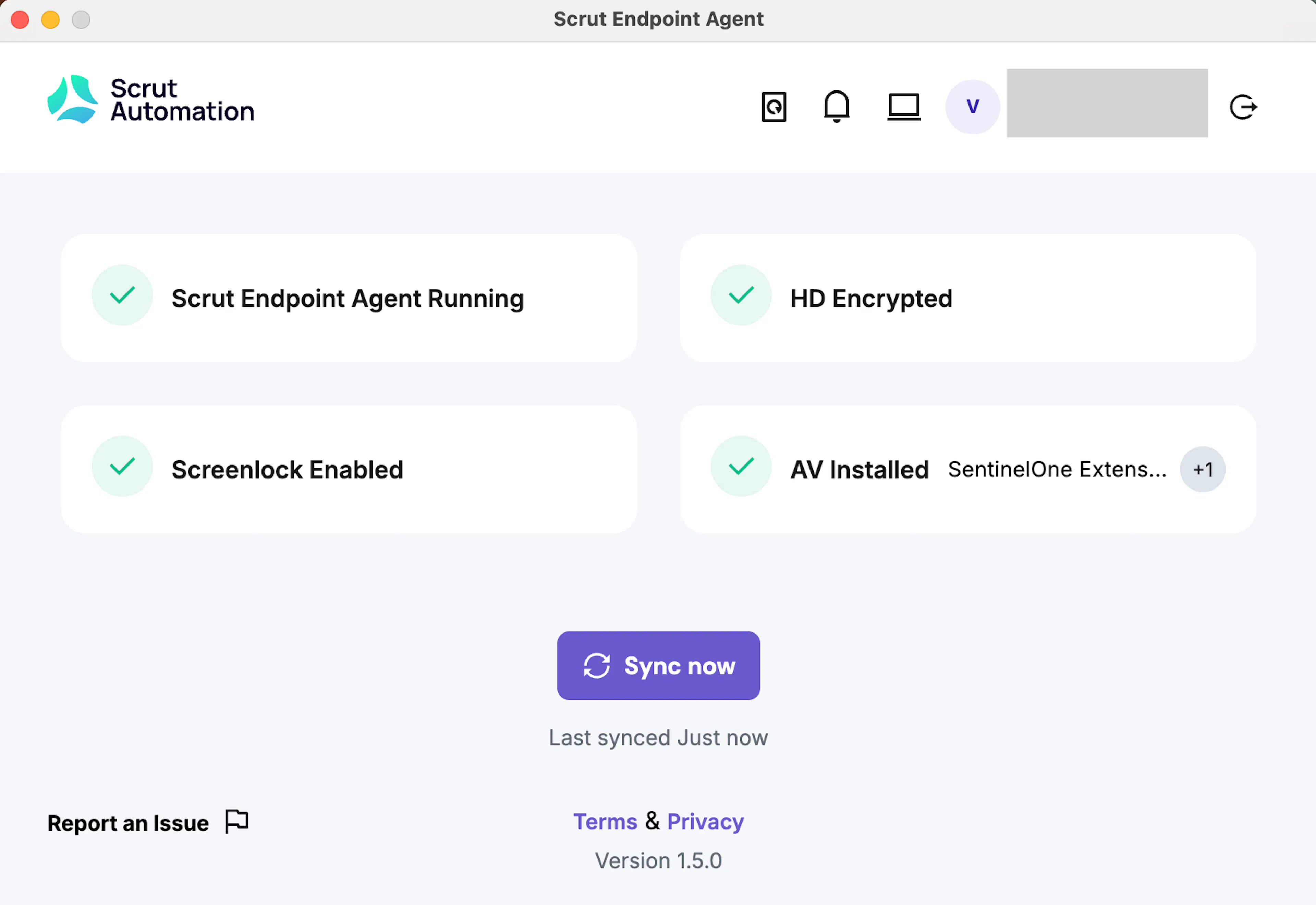
Install Scrut Agent for Fedora Linux/RPM
Note:
See here for step-by-step instructions on installing Scrut Agent for other Linux distributions and Ubuntu.
In this article, we walk you through the steps to download and install the Scrut Endpoint Agent on an RPM-based Linux distribution like Fedora, CentOS, or RHEL.
Prerequisites
- Root (sudo) access to the terminal
- An active internet connection
Step 1: Install AppImage Launcher
AppImageLauncher allows you to easily integrate AppImages with your system (creating menu entries and icons).
-
Download the RPM package. Click the link below to download the specific version of AppImageLauncher: Download AppImageLauncher v2.2.0
-
Open your Terminal. Navigate to the directory where you downloaded the file (usually the Downloads folder): cd ~/Downloads
-
Install the package. Run the following command to install the downloaded RPM.
sudo dnf install ./appimagelauncher-2.2.0-travis995.0f91801.x86_64.rpm
Note: If prompted, enter your system password to authorize the installation.
Step 2: Install System Dependencies
The Scrut Agent requires specific system tray indicators to function correctly on the Gnome desktop environment.
-
Install AppIndicator Extension. Run the following command in your terminal:
sudo dnf install gnome-shell-extension-appindicator -
Restart Shell (Optional but Recommended). If you do not see the indicator immediately after installation, you may need to log out and log back in or restart your computer.
Step 3: Install Scrut Agent
-
Download the Agent. Click the link below to download the Scrut Endpoint Agent AppImage: https://scrut-agent-artifact.s3.ap-south-1.amazonaws.com/scrut-endpoint-agent-linux-setup-1.5.7.AppImage
-
Launch and Integrate.
-
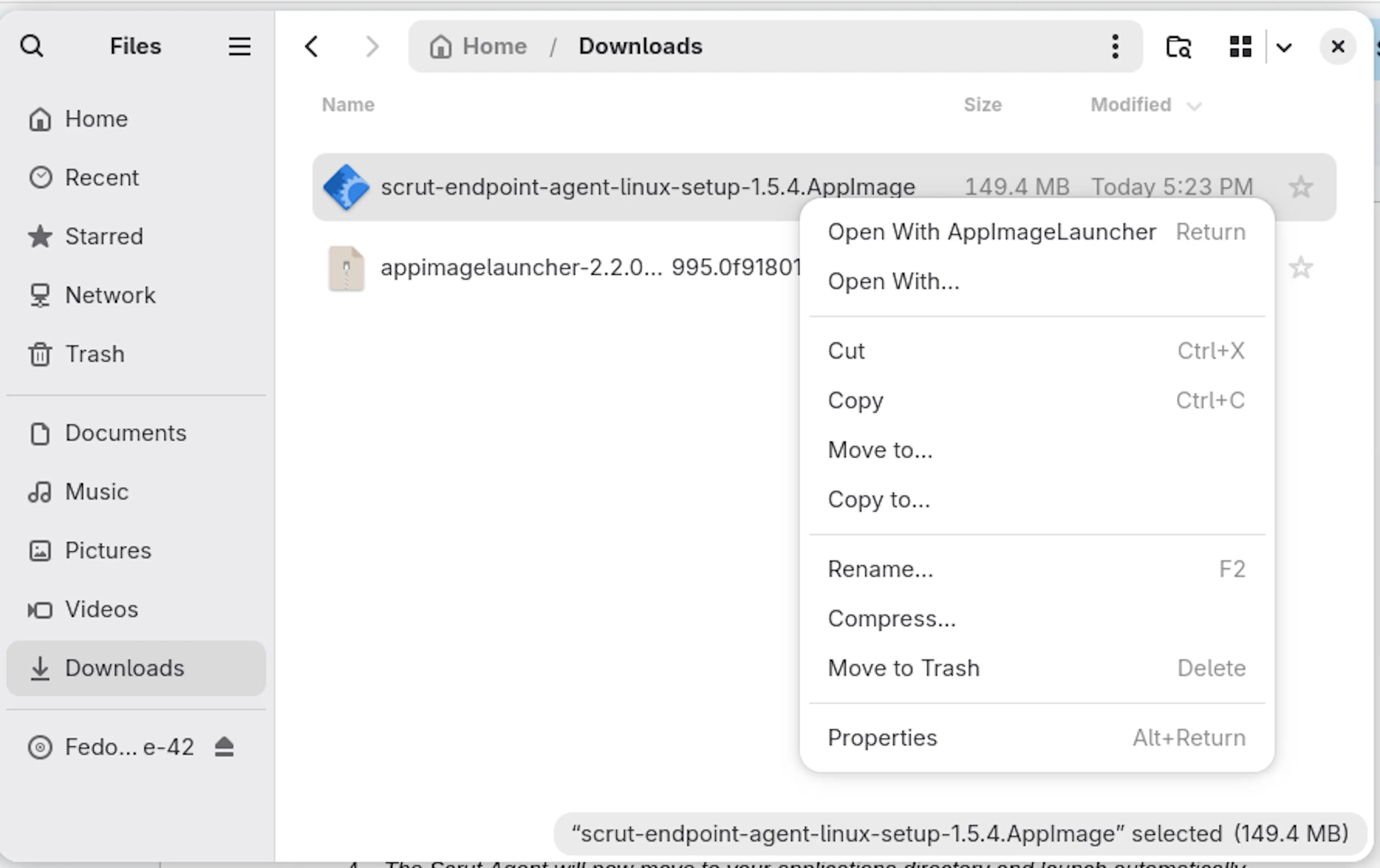
Open your File Manager and locate the downloaded file (scrut-endpoint-agent-linux-setup-1.5.4.AppImage).
-
Right-click on the file.
-
Select “Open With” → “AppImageLauncher”.
-
-
Finalize Installation.
-
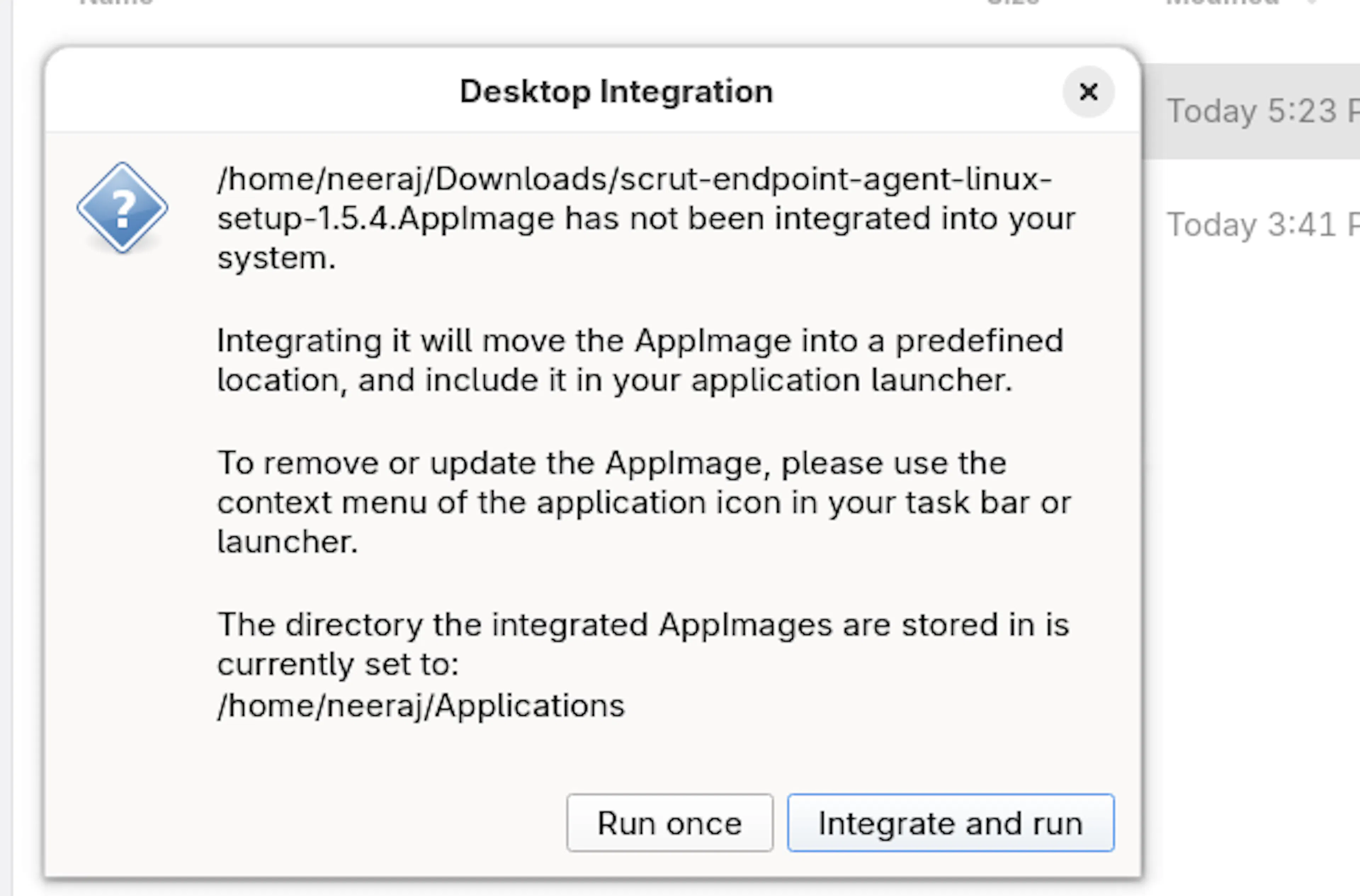
A prompt will appear asking how you want to run the file.
-
Click the button labeled “Integrate and Run.”
-
-
The Scrut Agent will now move to your applications directory and launch automatically.
Step 4: Launch the App
You can now find the Scrut Endpoint Agent in your Applications menu. It will run like a regular app.
-
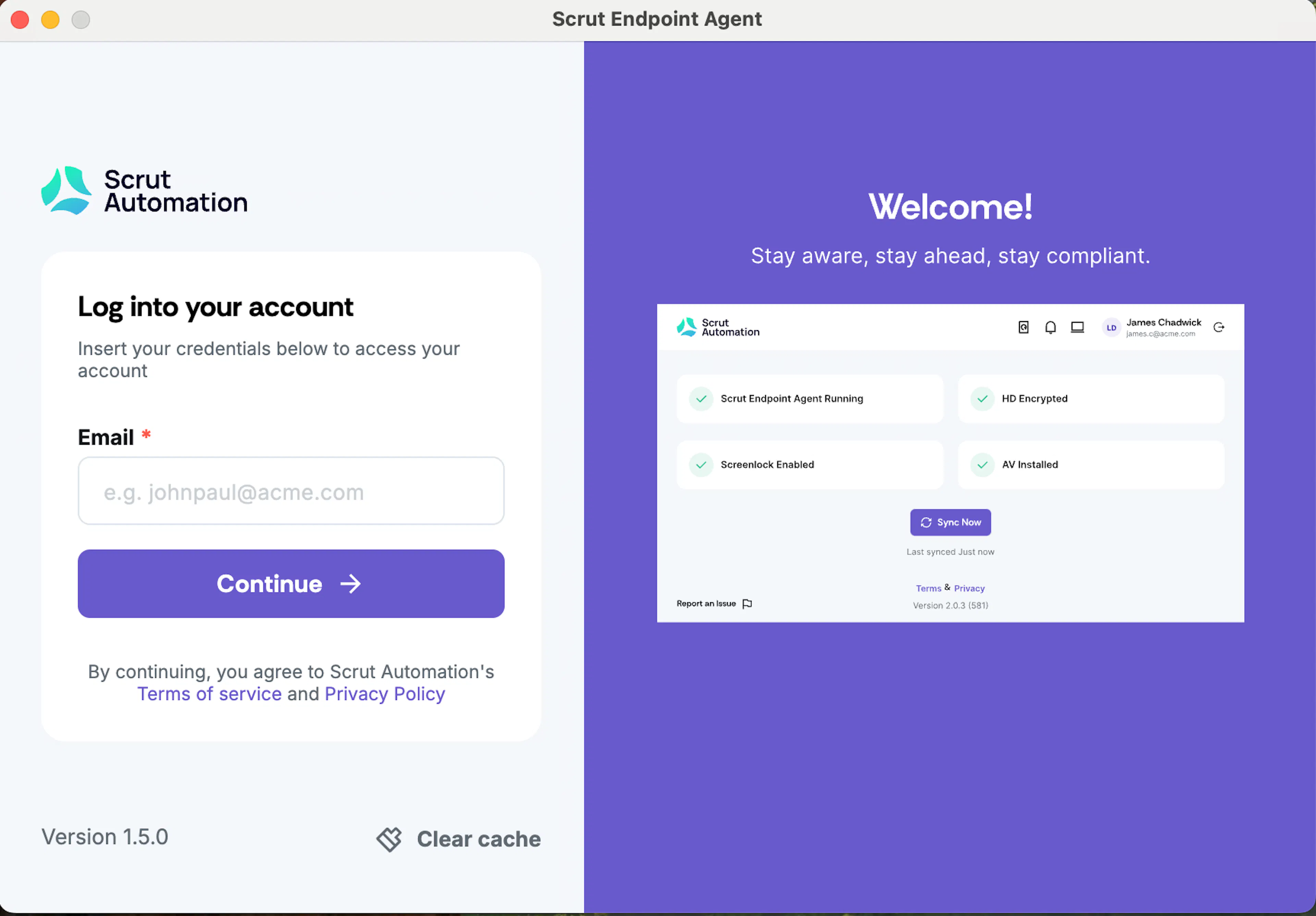
Launch the app and log in using your registered email address (the email address you use to log in to Scrut, typically your work email).
-
Scrut will send a One-Time Password (OTP) to your email. Check your inbox for the OTP. If you haven't received it, click Resend.
-
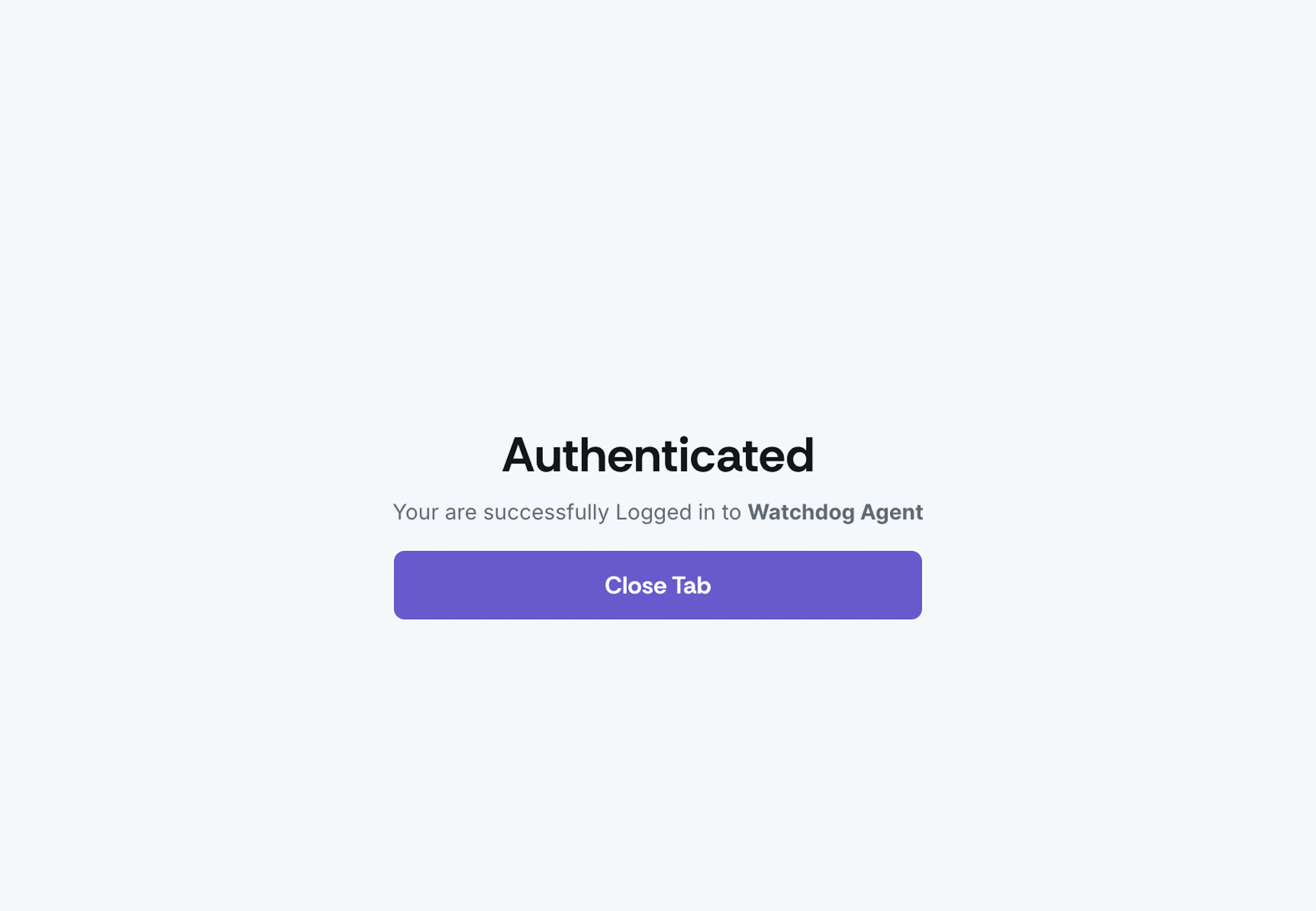
Once authentication is complete, you can close the browser tab.
-
The Scrut Agent is now ready and will run in the background automatically.