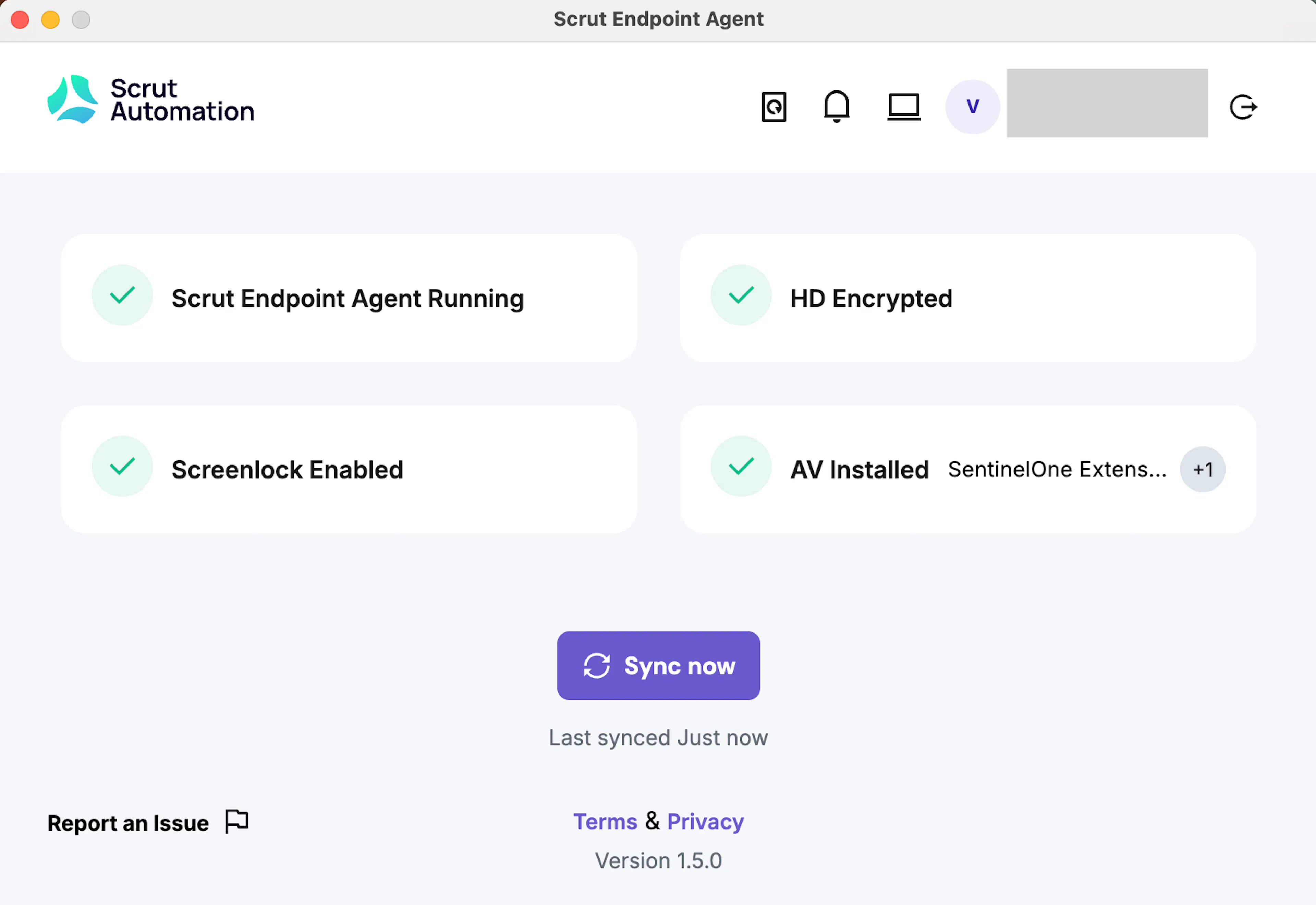
Install Scrut Agent for Debian Linux/Ubuntu
Note:
See here for step-by-step instructions on installing the Scrut Agent for an RPM-based Linux distribution like Fedora, CentOS, or RHEL.
In this article, we walk you through the steps to download and install the Scrut Endpoint Agent for the Debian Linux distribution, such as Ubuntu.
Prerequisites
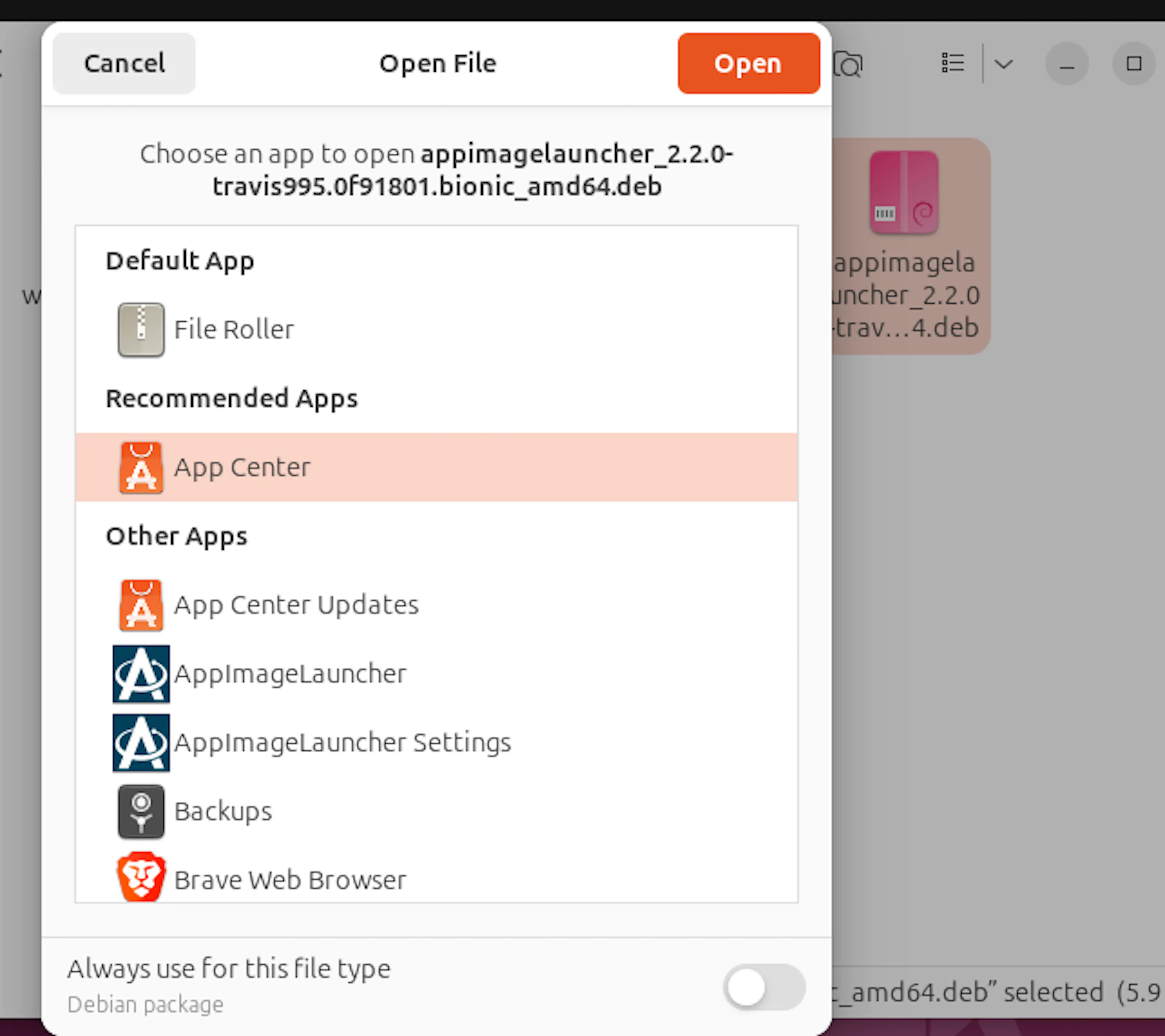
AppImageLauncher is required for the easy installation of .AppImage files.
Note:
Ensure AppImageLauncher is installed before continuing. If it’s already installed, go to step 1.
Steps to Install AppImageLauncher
-
Open this link in your browser and download the file.
-
Once the file is downloaded, either:
- Double-click the file (Ubuntu Software) to open it automatically (OR)
- Right-click the file and select “Open With → Ubuntu Software” to install it
Step 1: Download Scrut Endpoint Agent
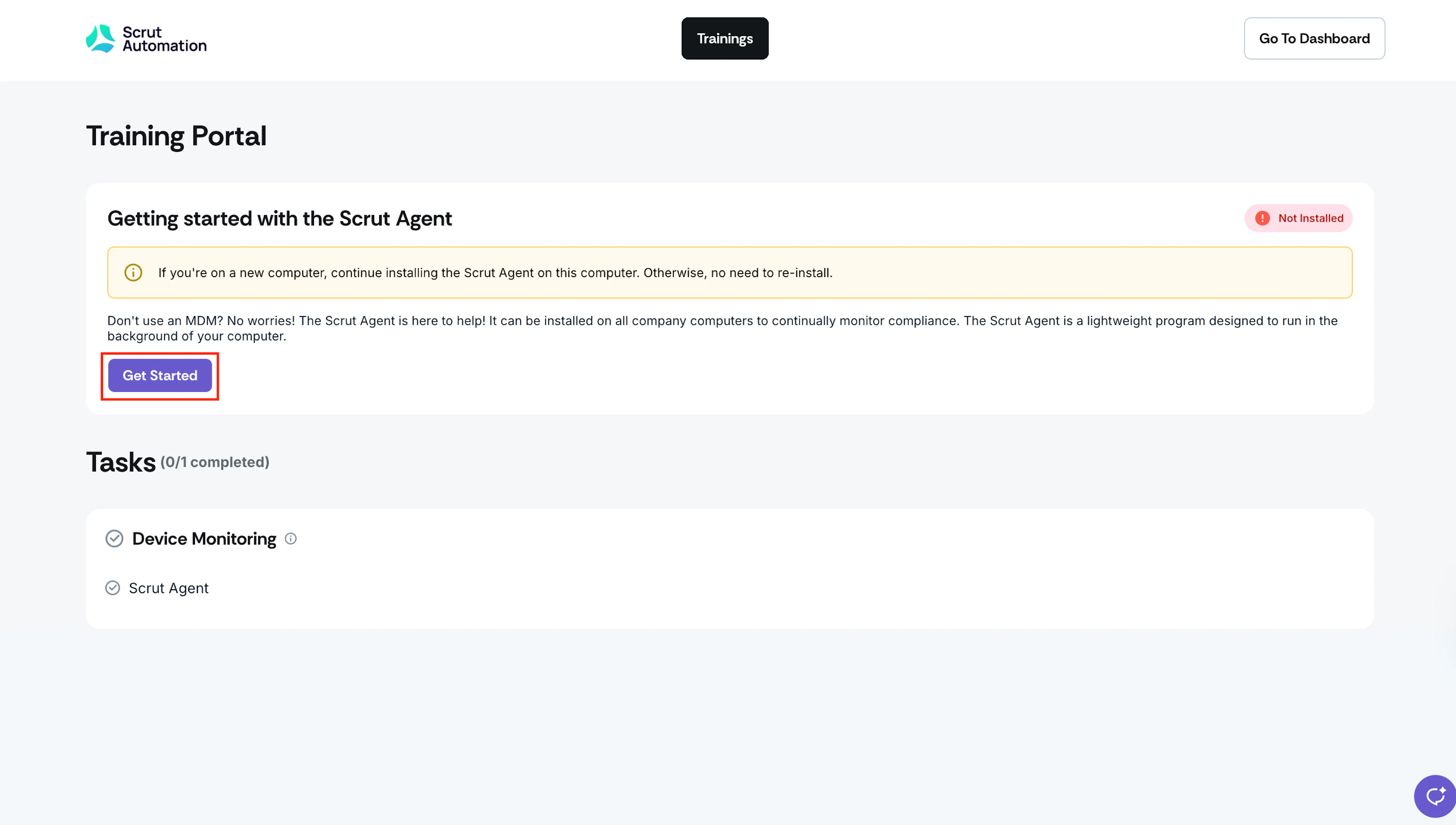
We recommend using the Employee Training Portal, as it contains the latest version of the app.
Via the Employee Training Portal
To download the latest version of the app, log in to the Scrut Employee Training Portal and click Get Started.
Note for Scrut Admins:
Kindly reach out to your Scrut CSM or Scrut Support (support@scrut.io) to learn how to enable the agent download option for employees on the employee training portal.
Download Link
Alternatively, you can also download Scrut Agent AppImage by clicking this link:
For Linux and Ubuntu: https://scrut-agent-artifact.s3.ap-south-1.amazonaws.com/scrut-endpoint-agent-linux-setup-1.5.7.AppImage
Heads Up!
We recommend downloading the Scrut Agent from the Employee Training Portal as it contains the latest app version.
Step 2: Open the AppImage
-
Go to the Downloads folder.
-
Double-click on the
scrut-endpoint-agent-linux-setup-1.5.1.AppImagefile. -
The AppImageLauncher will prompt you to integrate the app.
- Click Integrate and Run to add the app to your system menu.
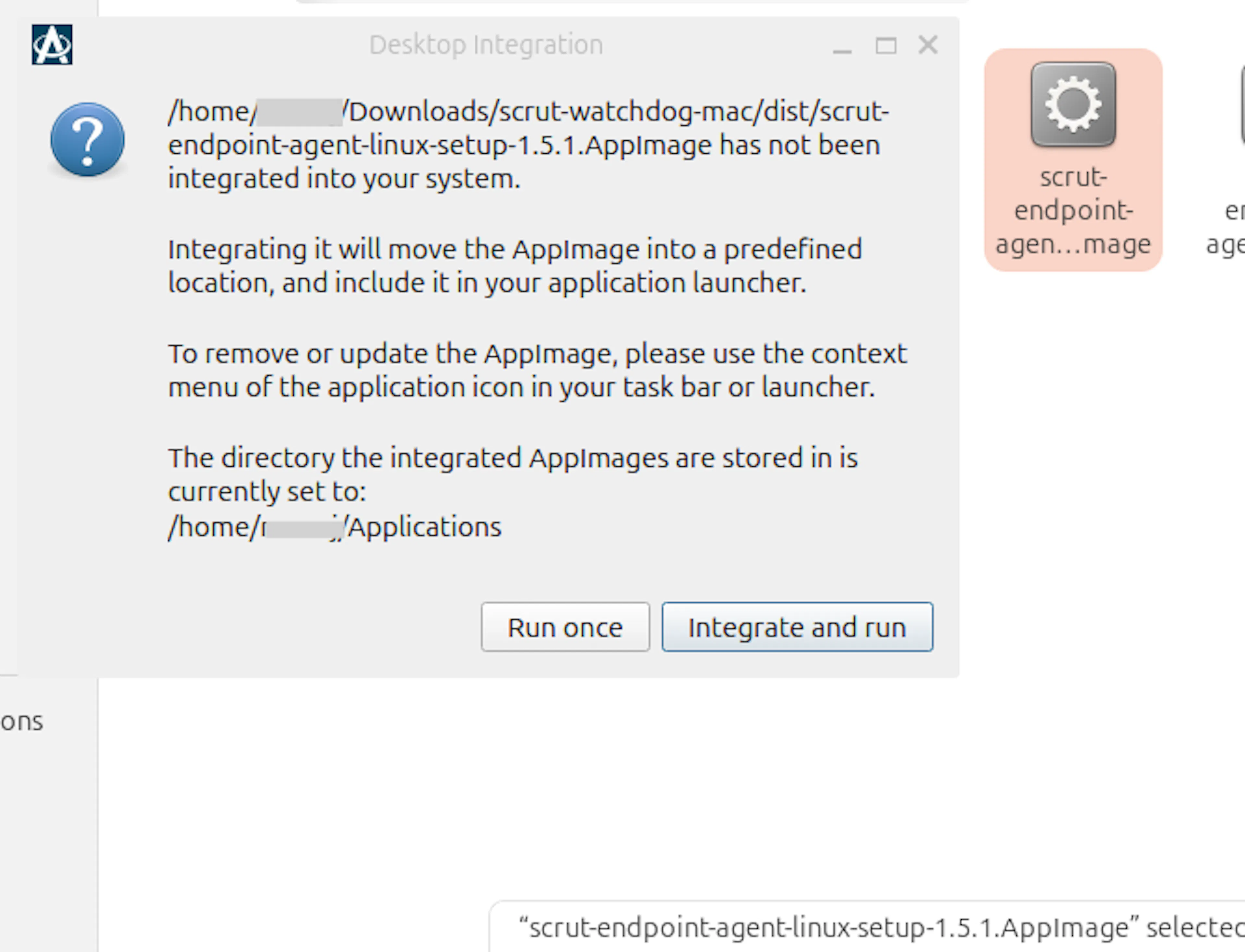
This installs the latest version of Scrut Agent and replaces any existing version (if installed) on your device.
Step 3: Launch the App
You can now find the Scrut Endpoint Agent in your Applications menu. It will run like a regular app.
-
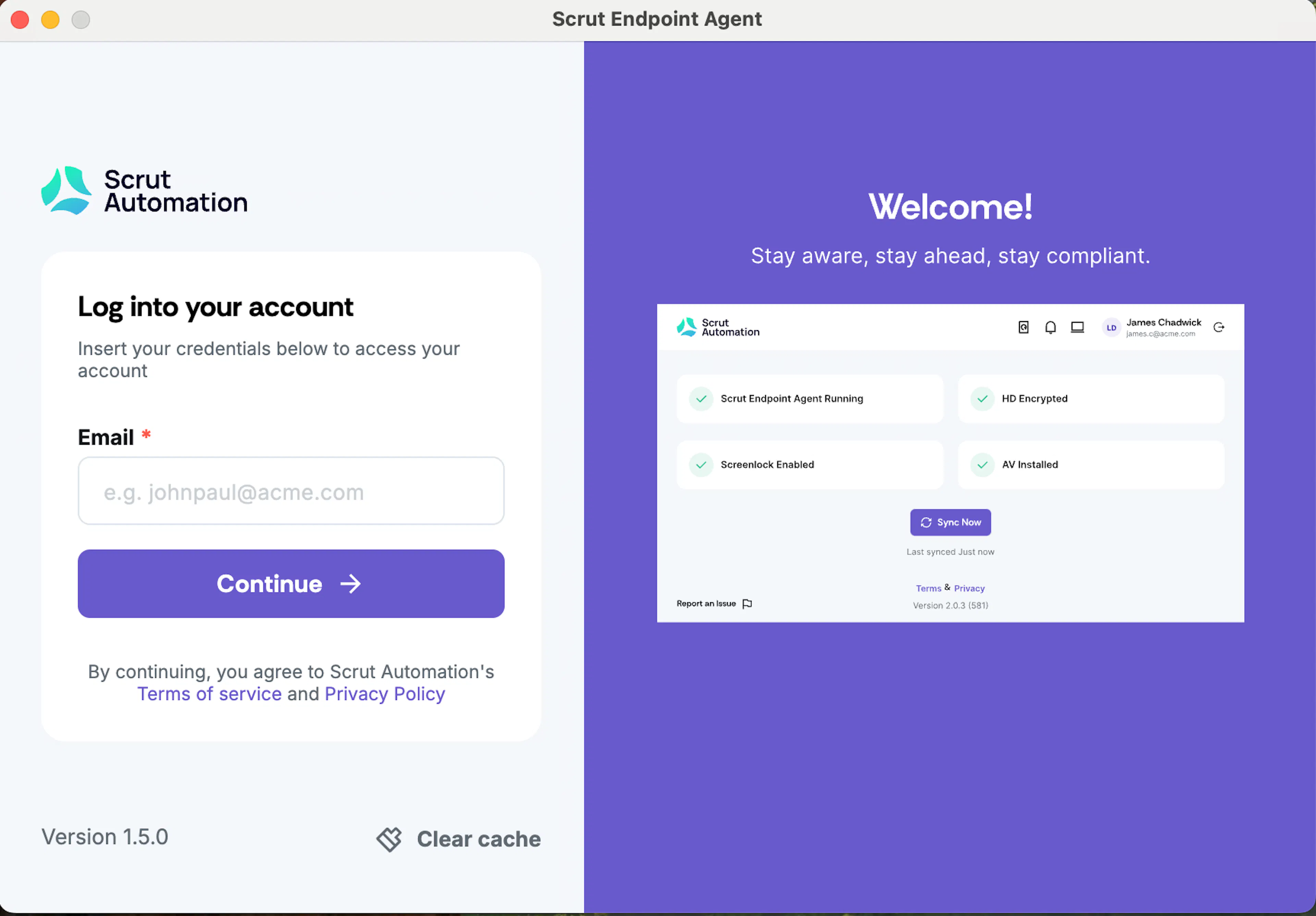
Launch the app and log in using your registered email address (the email address you use to log in to Scrut, typically your work email).
-
Scrut will send a One-Time Password (OTP) to your email. Check your inbox for the OTP. If you haven't received it, click Resend.
-
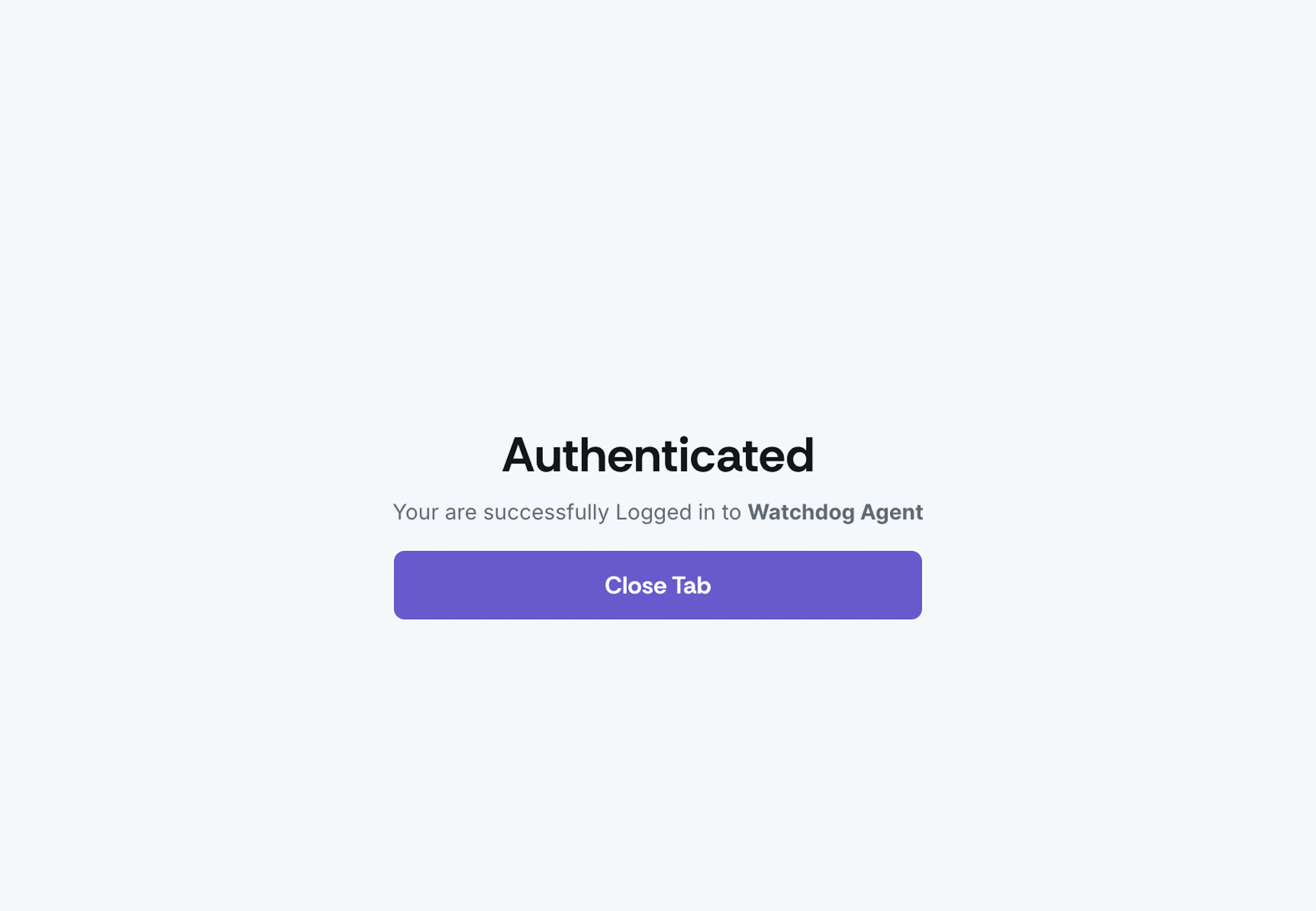
Once authentication is complete, you can close the browser tab.
-
The Scrut Agent is now ready and will run in the background automatically.