

Install Scrut Agent for Windows
Steps to Install Scrut Agent on Windows
Follow these steps to download and install the Scrut Agent on Windows.
-
Download the Scrut Endpoint Agent app.
-
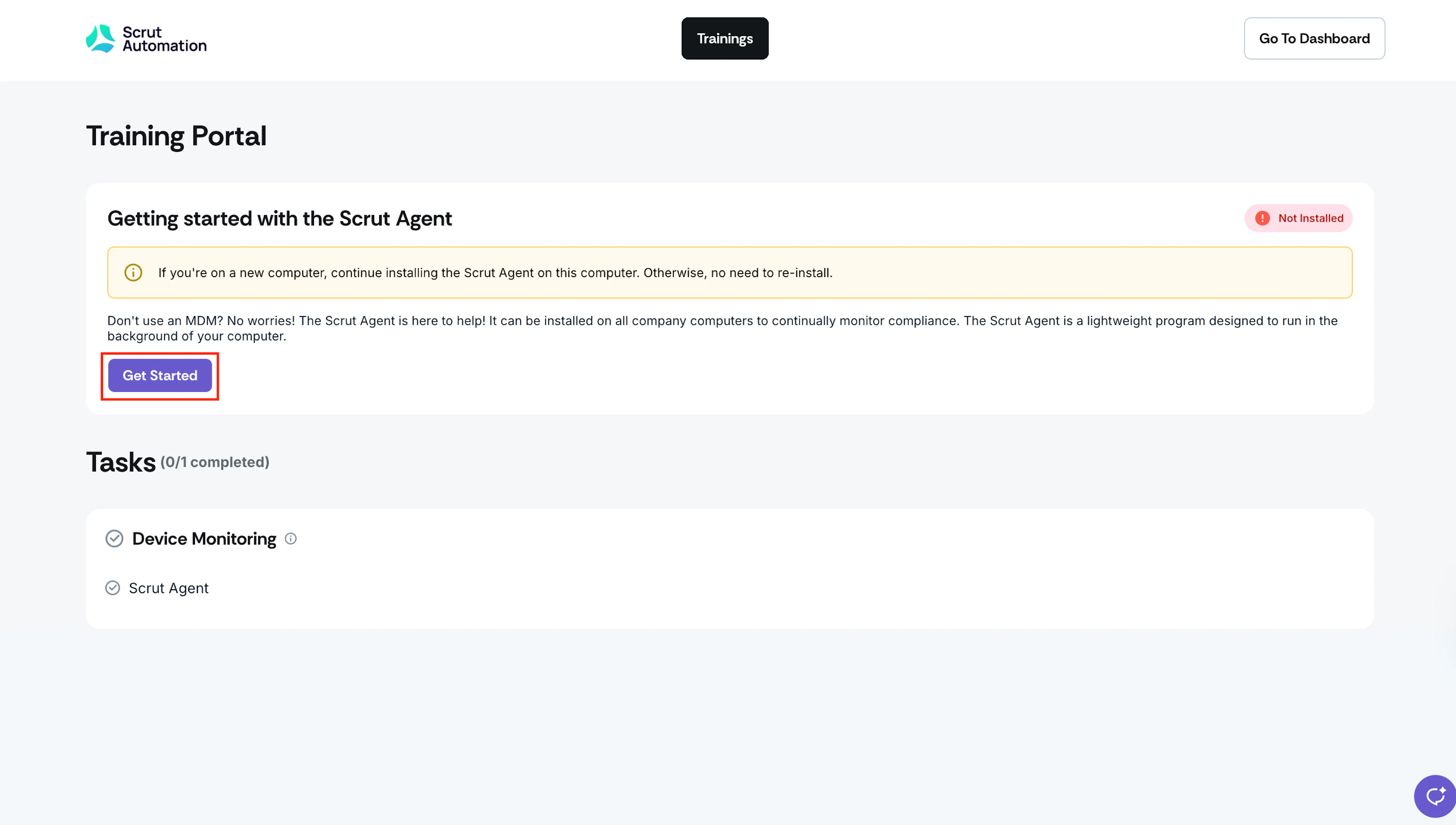
To download the latest version of the app, log in to the Scrut Employee Training Portal and click Get Started.
-
Alternatively, you can also download the app by clicking this link:
For Windows:
https://scrut-agent-artifact.s3.ap-south-1.amazonaws.com/scrut-endpoint-agent-win-setup-1.5.17.exe
For Windows MSI:
https://scrut-agent-artifact.s3.ap-south-1.amazonaws.com/Scrut+Endpoint+Agent+1.5.17.msi
Heads Up!
We recommend downloading the Scrut Agent from the Employee Training Portal as it contains the latest app version.
Note for Admins:
Kindly reach out to your Scrut CSM or Scrut Support (support@scrut.io) to learn how to enable the agent download option for employees on the employee training portal.
-
-
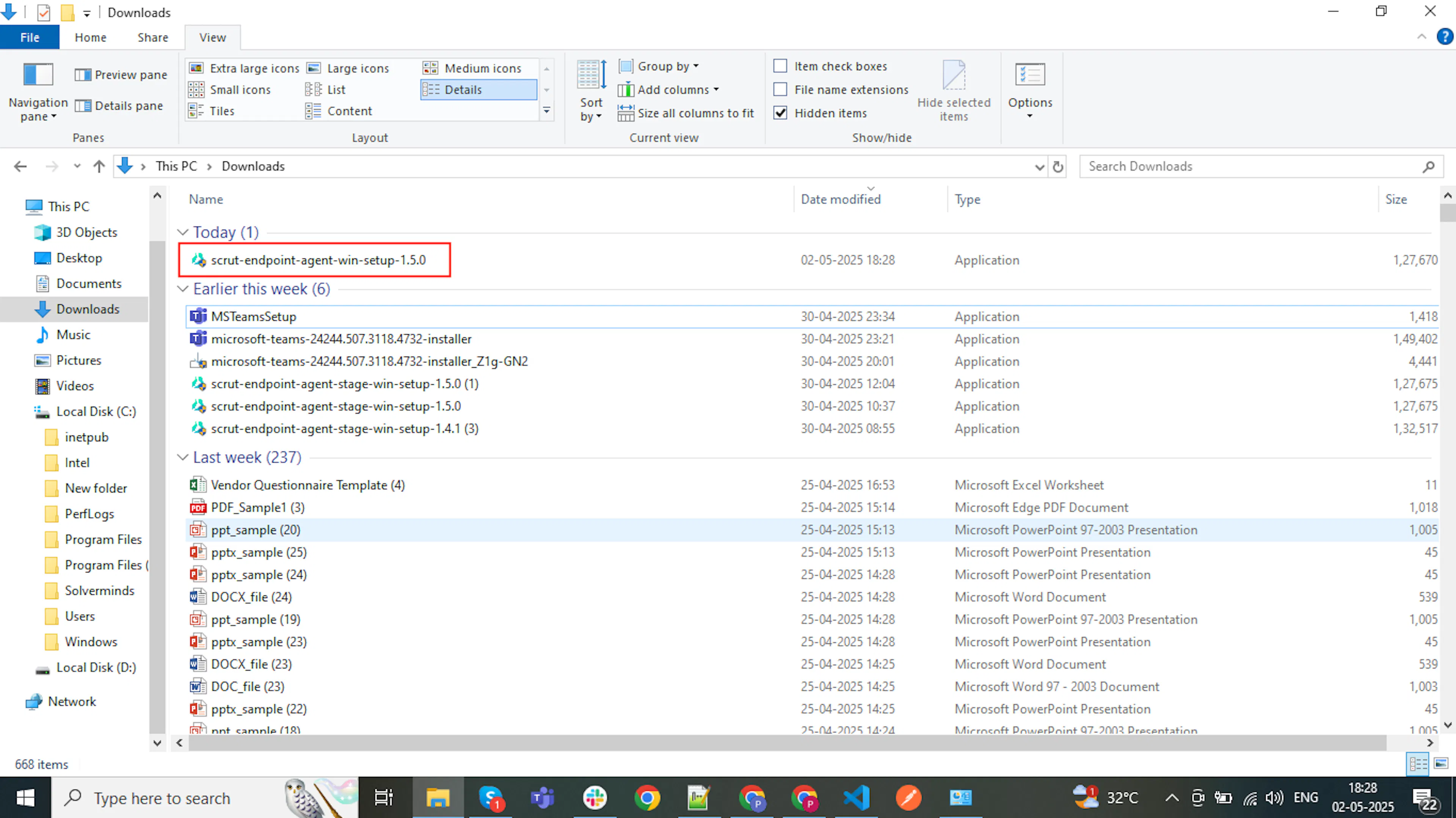
The download will start when you click the link.
-
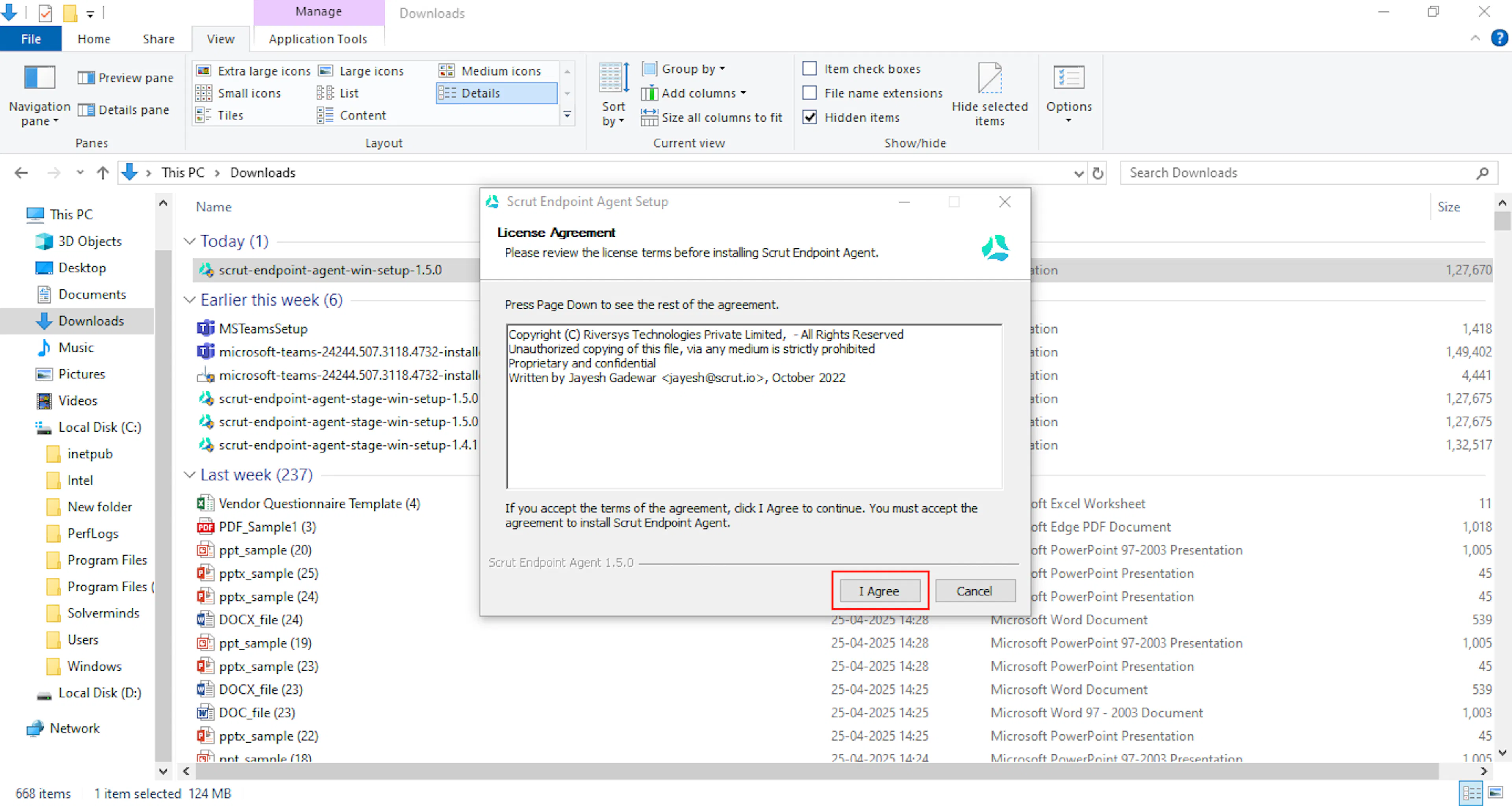
Double-click the downloaded file to begin the installation.
-
Click on I Agree to proceed.
-
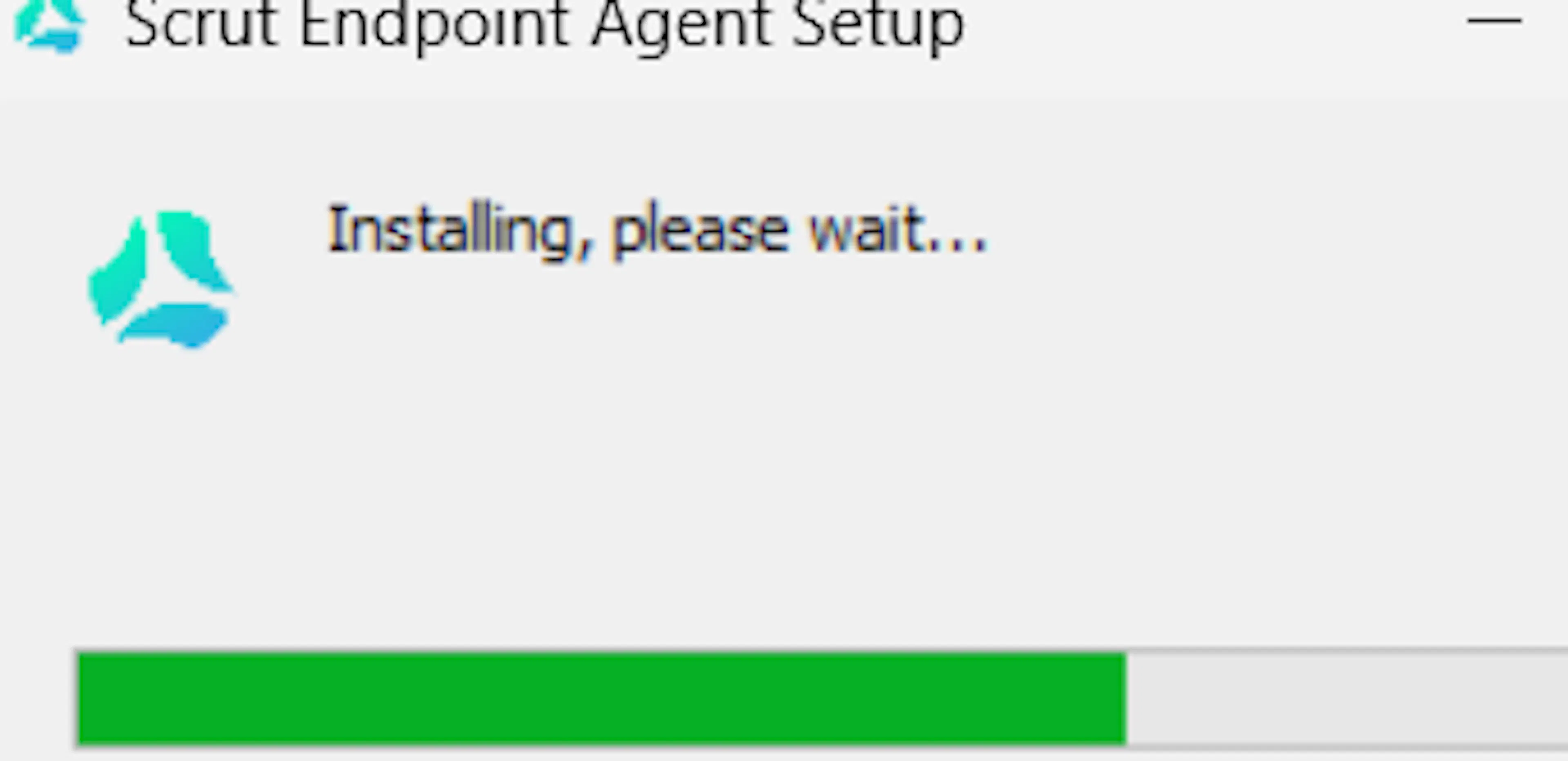
Once the installation is complete, the app will launch automatically.
-
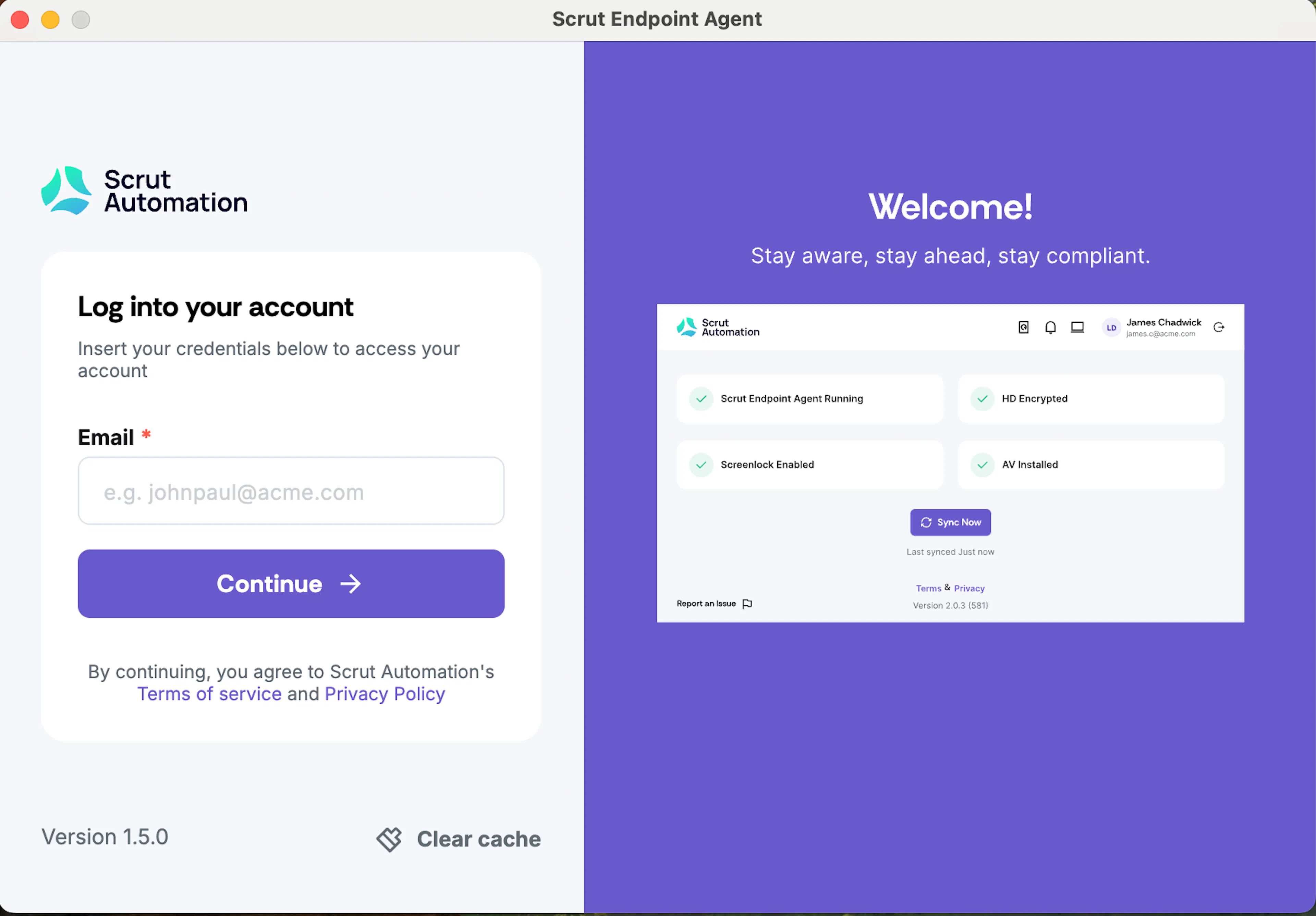
Log in using your registered email address (The email you use to log in to Scrut, mostly your work email). Click Continue.
-
Validate your email via the OTP sent to your inbox. Check your inbox for the OTP. If you haven't received it, click Resend.
-
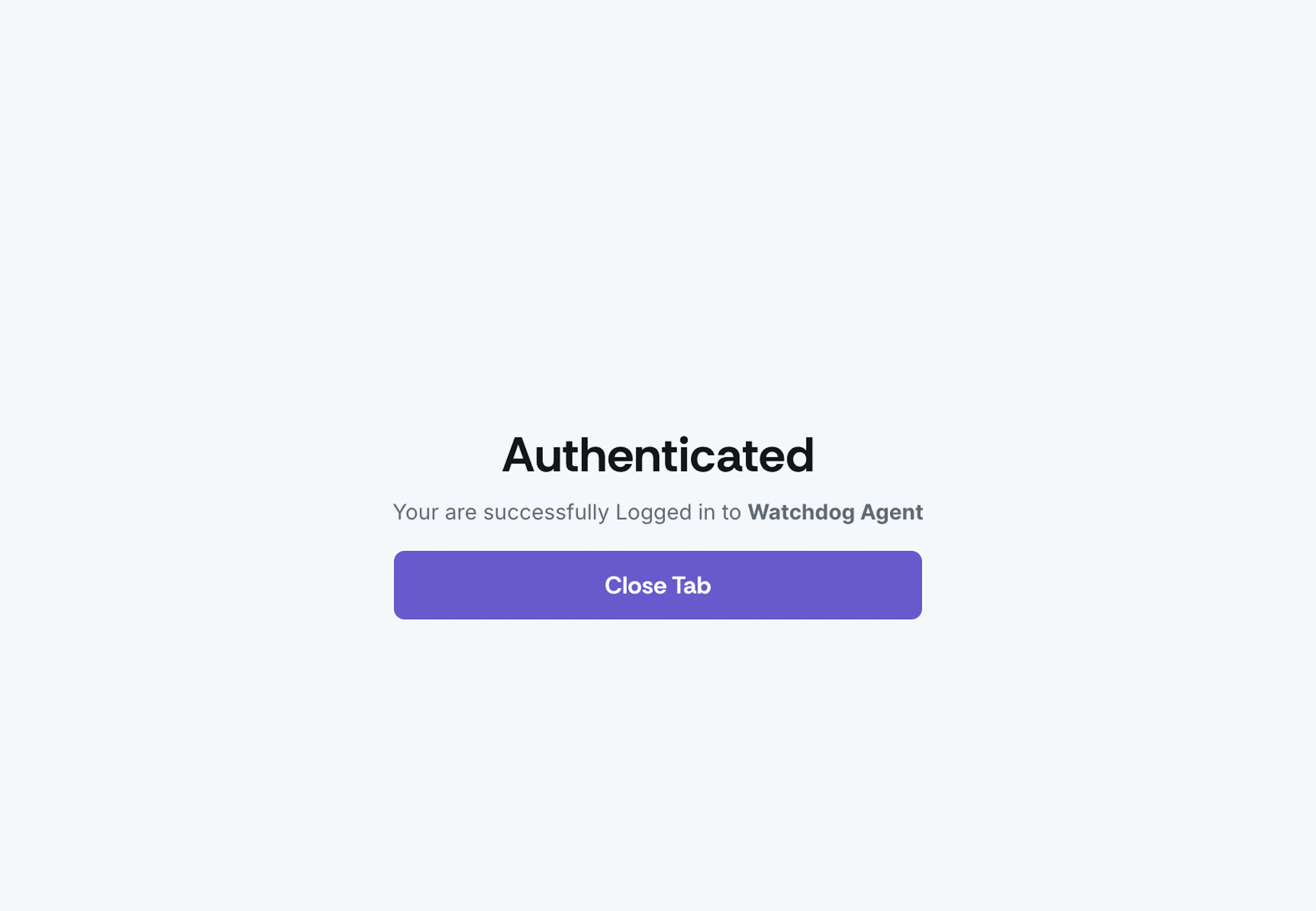
Once authentication is complete, you can close the browser tab.
-
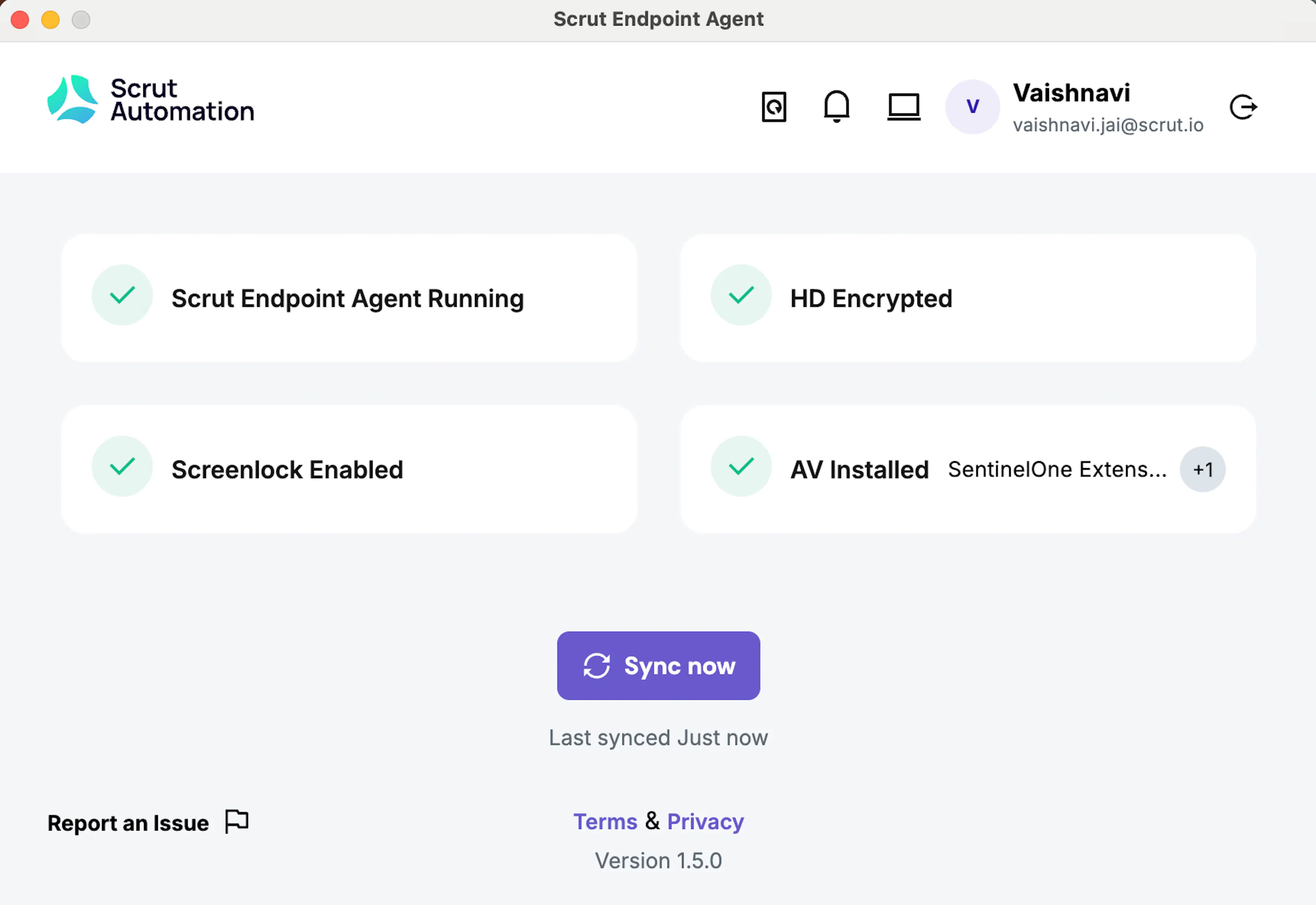
The Scrut Agent is now ready and will start running on your device.
Enabling Default Security Parameters on Your Device
HD Encryption
You can enable BitLocker encryption using one of the following methods:
Method 1: Using the Start Menu
- Click on the Start Menu.
- Type BitLocker into the search box.
- Select BitLocker Drive Encryption from the results.
- Click Turn on BitLocker.
Method 2: Using the Control Panel
- Open Windows Control Panel.
- In the upper-right search box, type BitLocker and press Enter.
- Click on Manage BitLocker from the search results.
- On the next screen, click Turn on BitLocker.
- Once enabled, BitLocker will check your PC’s configuration to ensure your device supports encryption. Follow the on-screen instructions to complete the setup.
AV Installed
- Open Windows Security: Click the Start button, then search for Windows Security and open the app.
- Access Virus and Threat Protection: On the left-hand menu, click on Virus and Threat Protection.
- Check Real-time protection: Under Virus & threat protection settings, ensure the toggle switch for Real-time protection is turned on.
ScreenLock Enabled
To ensure that Screen Lock is enabled on your Windows device, follow these steps:
Method 1: Using System Settings
- Click on the Start Menu and select Settings.
- Navigate to Accounts → Sign-in options.
- Under Require sign-in, select When PC wakes up from sleep to prompt for a password.
Method 2: Configuring Lock Screen Timeout
- Open Settings and go to System → Power & sleep.
- Under Screen, set a preferred time for Turn off the display after inactivity.
- Under Sleep, ensure the device is set to sleep after a defined period of inactivity.