Manage Access Requests
Who can use this feature
- Supported on Scale plan
Requesting Access
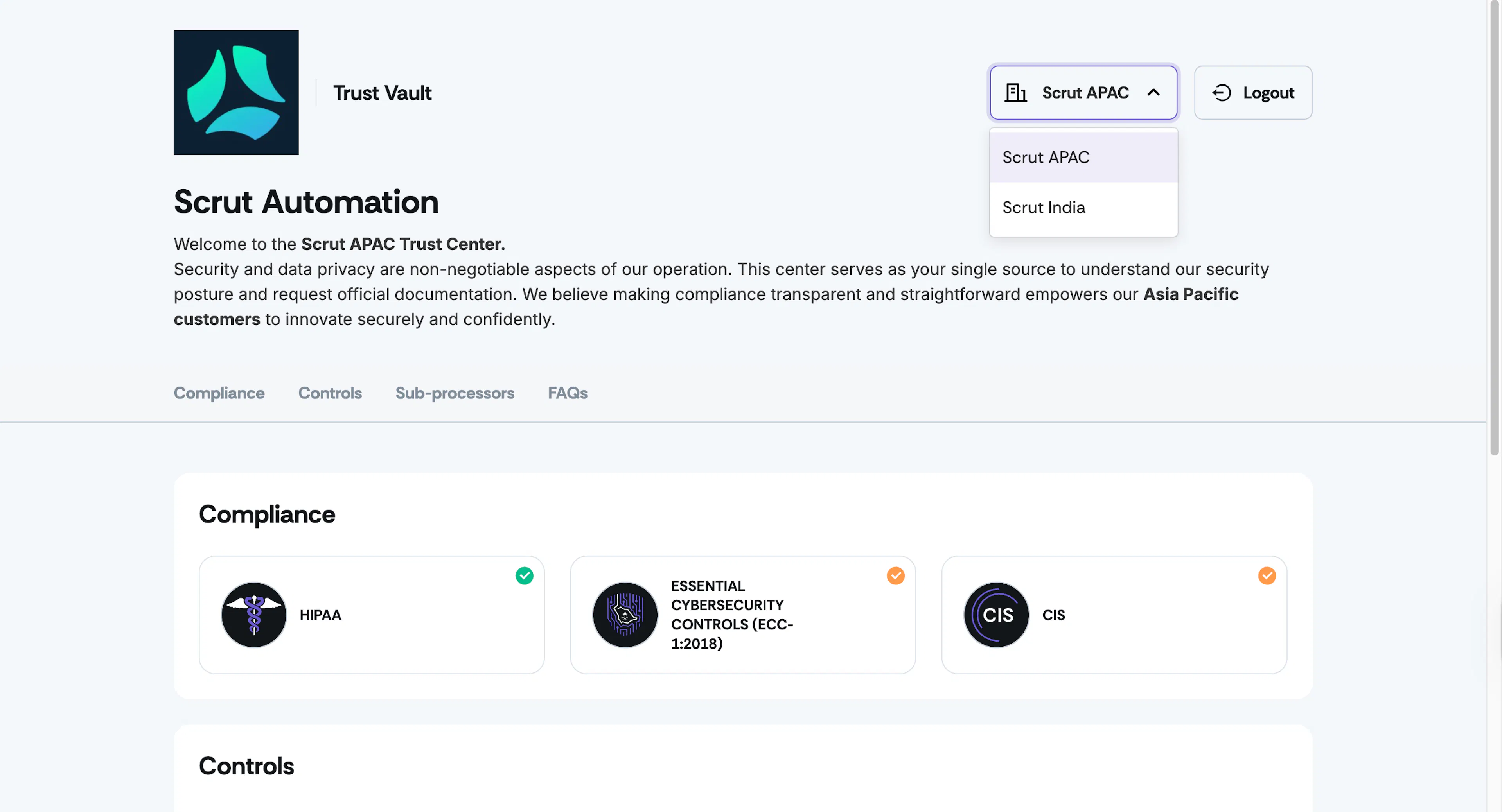
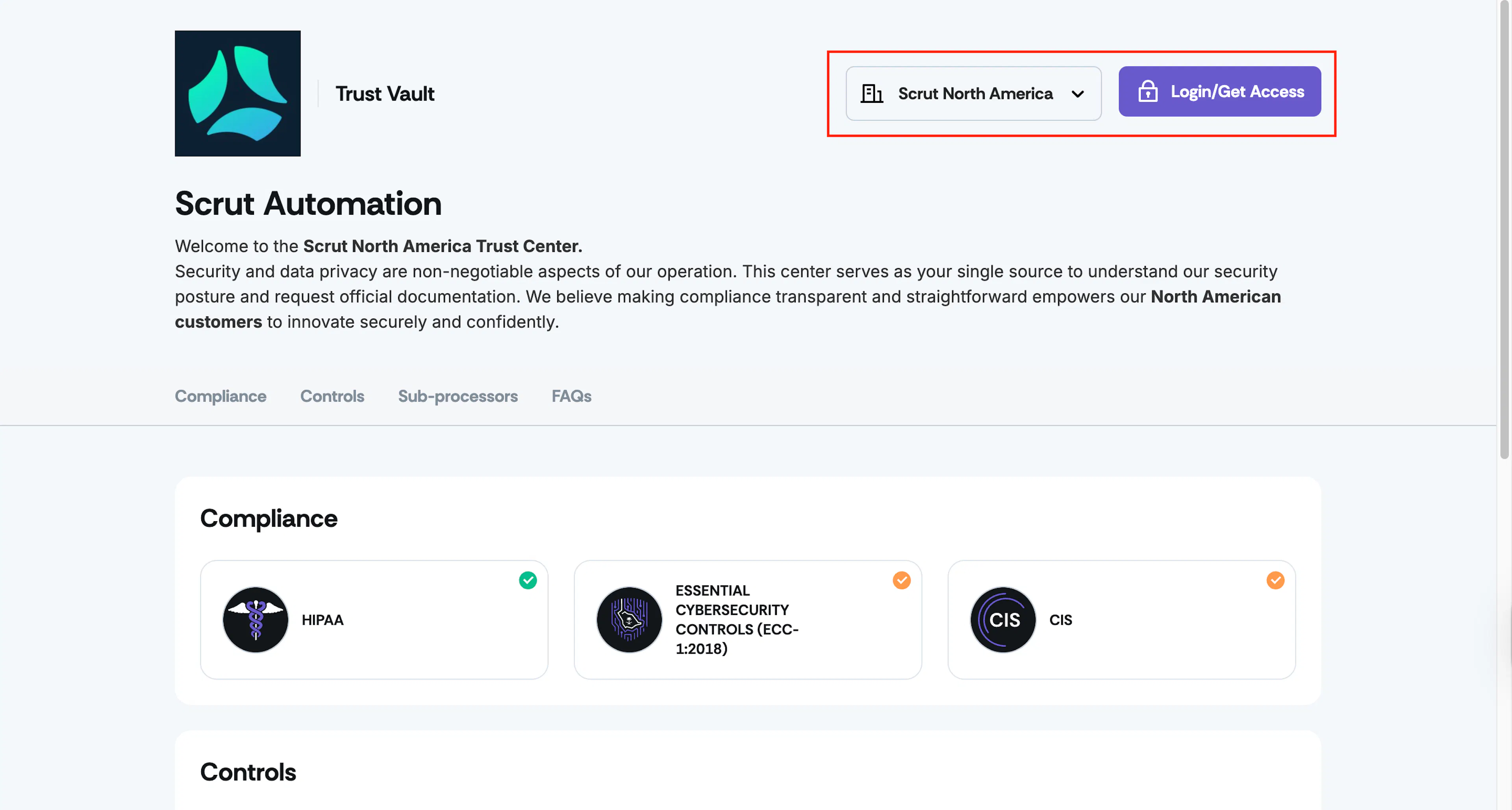
When a visitor lands on your Trust Portal, by default, they’ll be directed to the default entity. They can then switch to the desired entity by using the dropdown at the top right. The user can click the “Login/Get Access” button to request access to the Trust Portal of a specific entity.
Approving Access Requests
To approve access requests:
-
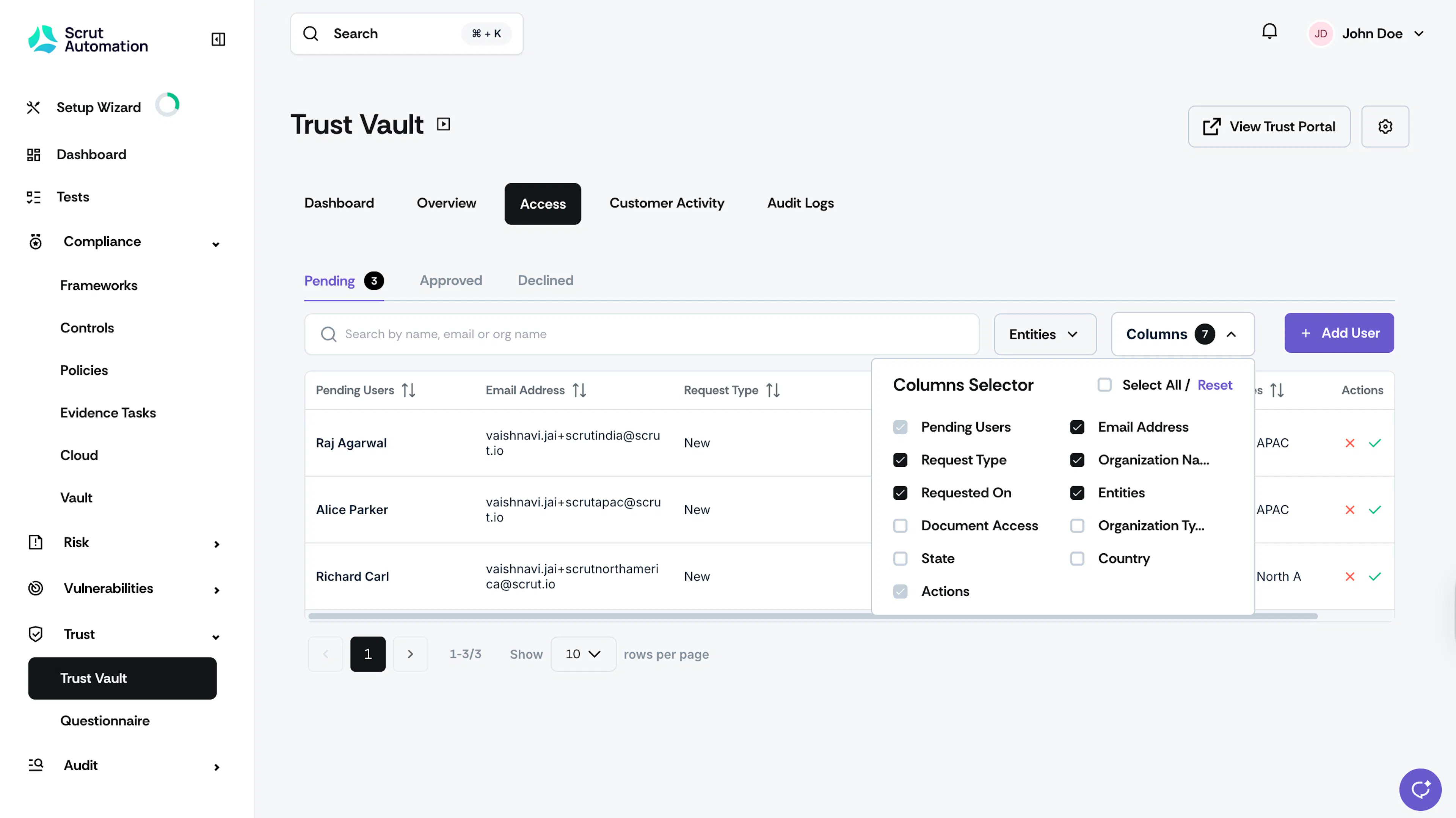
Navigate to Trust → Trust Vault → Access → Pending.
-
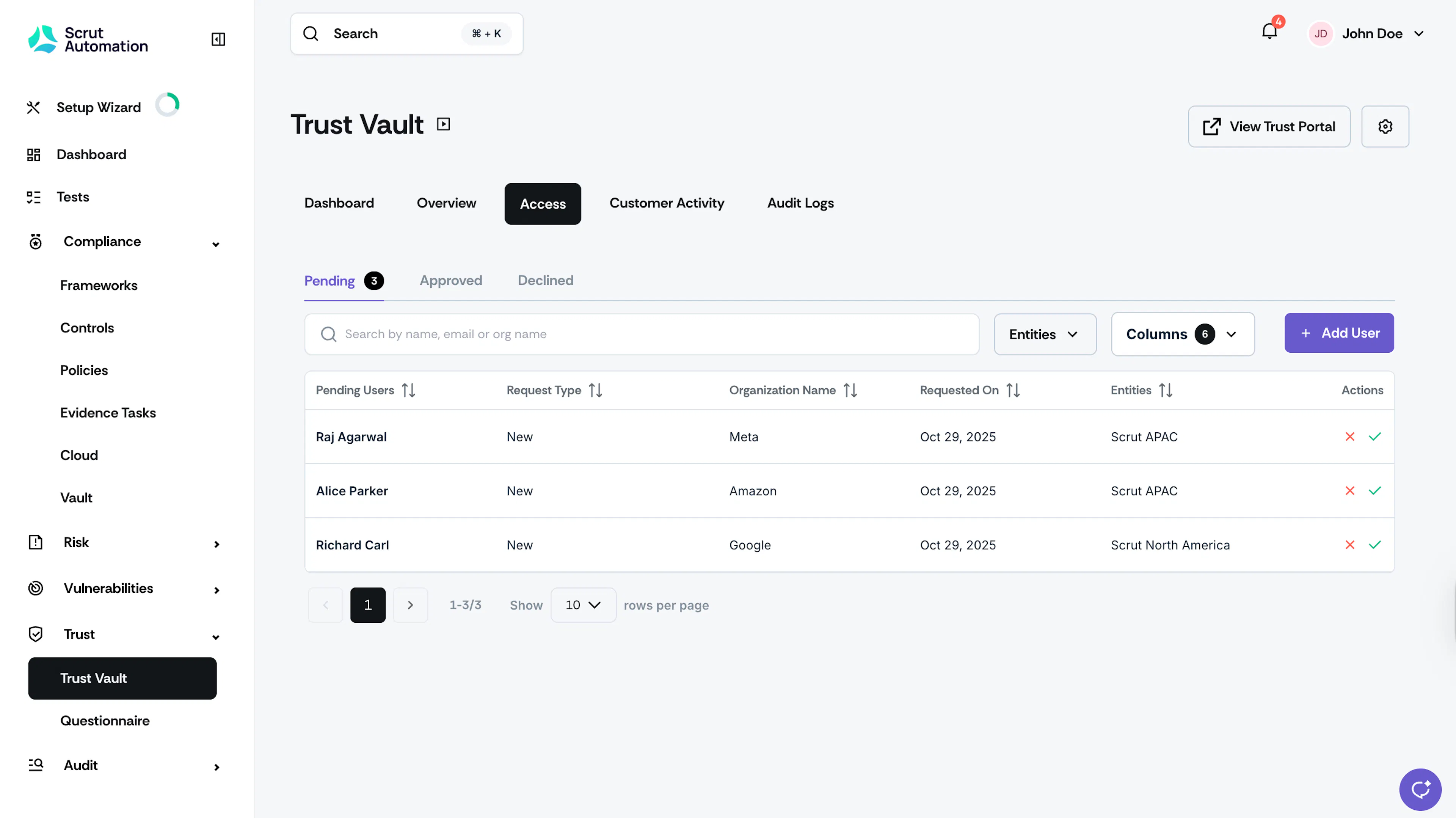
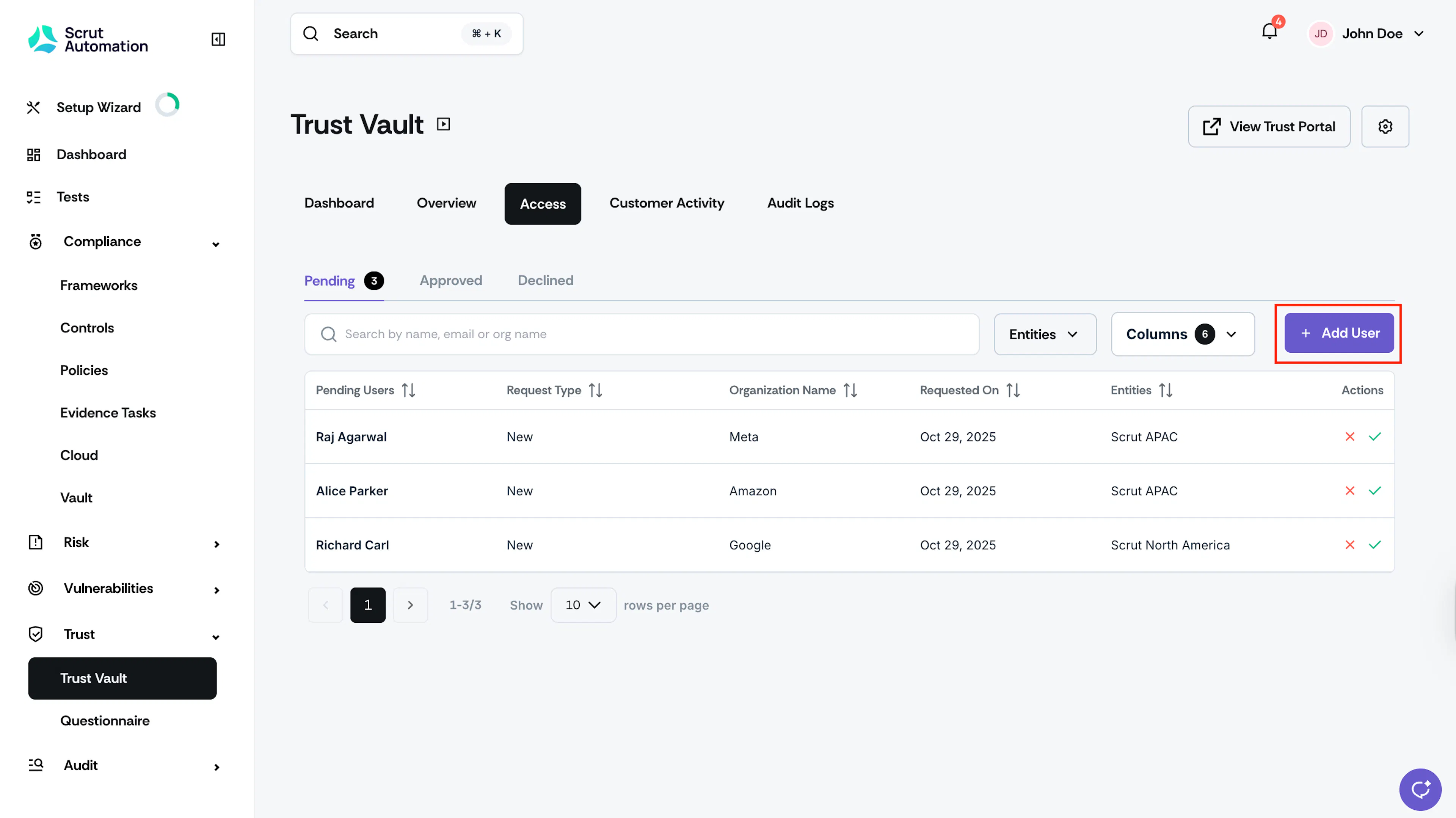
On this page, you can view all pending access requests. Use the column selector to display entities in the table. This shows the entity for which the user has requested access.
-
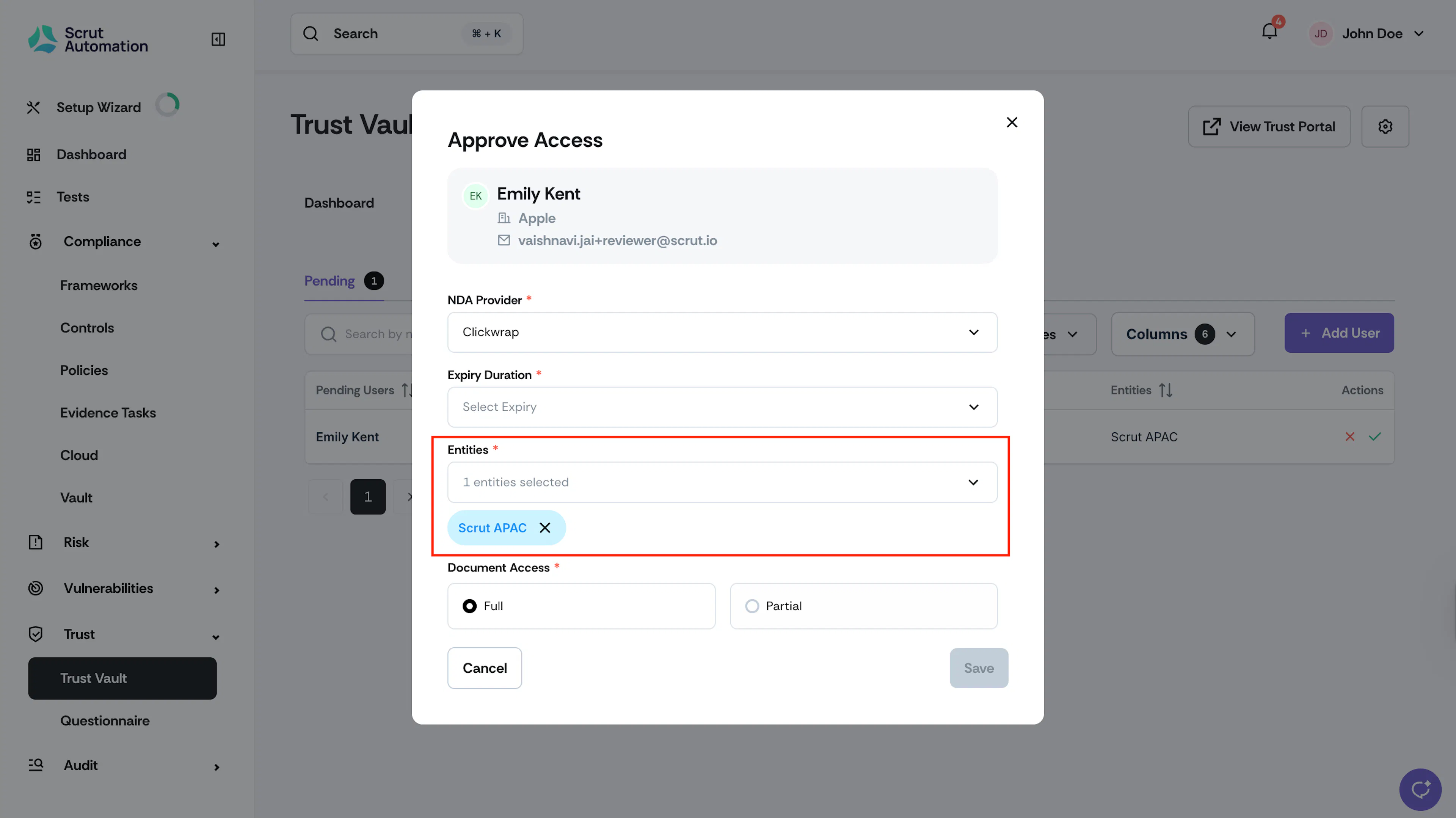
Click Accept to grant the user access to the Trust Portal of a specific entity.
Heads Up!
While approving the user’s access, you can also grant them access to other entities (or organization-wide), if required.
Manually Adding Users
-
Navigate to Trust → Trust Vault → Access → Pending.
-
Click Add User.
-
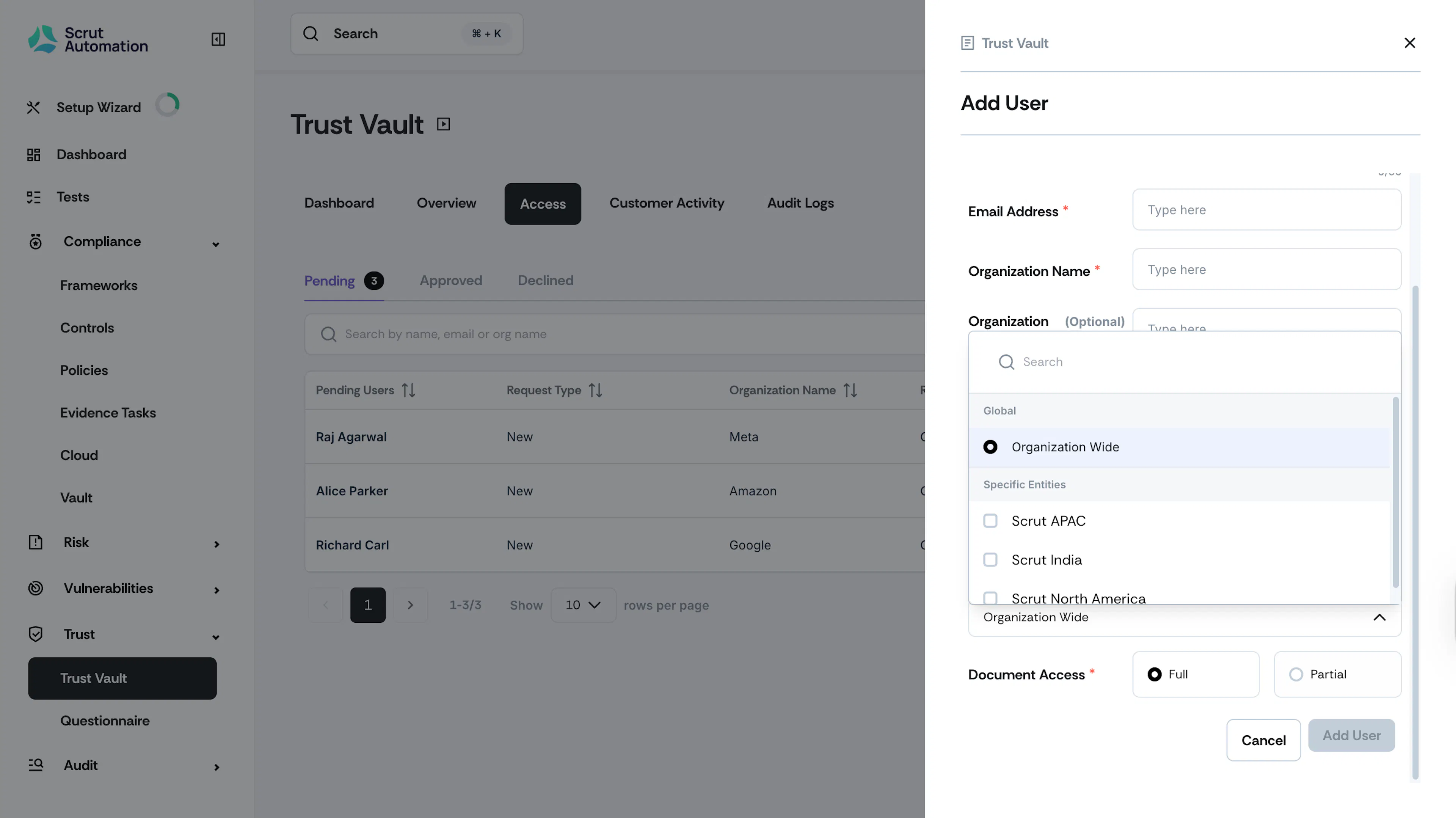
Enter the user details and select the entities for which you want to grant the user access.
-
Select organization-wide to grant the user access to all entities.
-
Click Add.
Viewing Approved Users
-
Navigate to Trust → Trust Vault → Access → Approved.
-
This tab shows all users with access to your Trust Portal.
-
Use the column selector to view the entities for which a user has access.
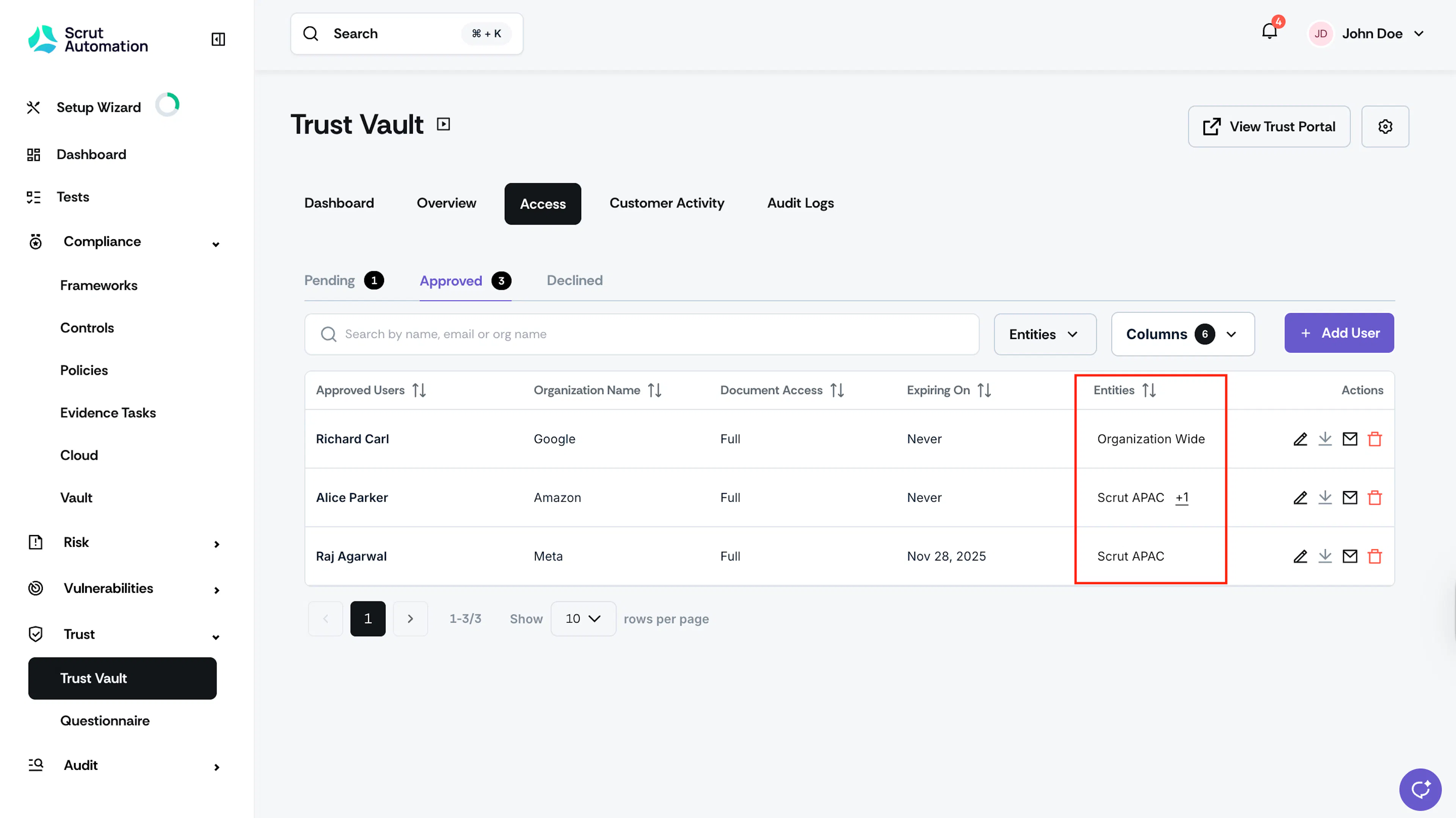
Note: If a user has access to multiple entities, it will be indicated in the Entities column with a prefix showing the number of additional entities they have access to.
Logging In and Viewing Entity-Specific Content
Once you approve a user’s request:
- When they log in, they can see an entity dropdown showing all entities they have access to.