

Add a Framework Requirement
Who can use this feature
- Supported on Foundation, Growth, and Scale plans
In Scrut, a requirement refers to a specific set of guidelines, principles, or rules that your organization must follow to ensure compliance with a designated framework, such as HIPAA, ISO 42001:2023, or GDPR.
For the standard frameworks that Scrut offers out of the box, the requirements are, by default, available in the platform. However, for custom frameworks, you will need to add the requirements manually into Scrut. While Scrut provides a comprehensive set of requirements for standard frameworks, in some cases, you might need to add additional requirements tailored to your organization’s unique needs or specific compliance objectives.
For both standard and custom frameworks, Scrut offers two ways to add requirements manually:
- Add a Single Requirement: This option is useful when you need to add a one-off requirement to a standard or custom framework.
- Import Multiple Requirements: This method allows you to add multiple requirements simultaneously via a CSV or XLSX file.
Let’s take a closer look at both methods.
Add a Single Requirement
-
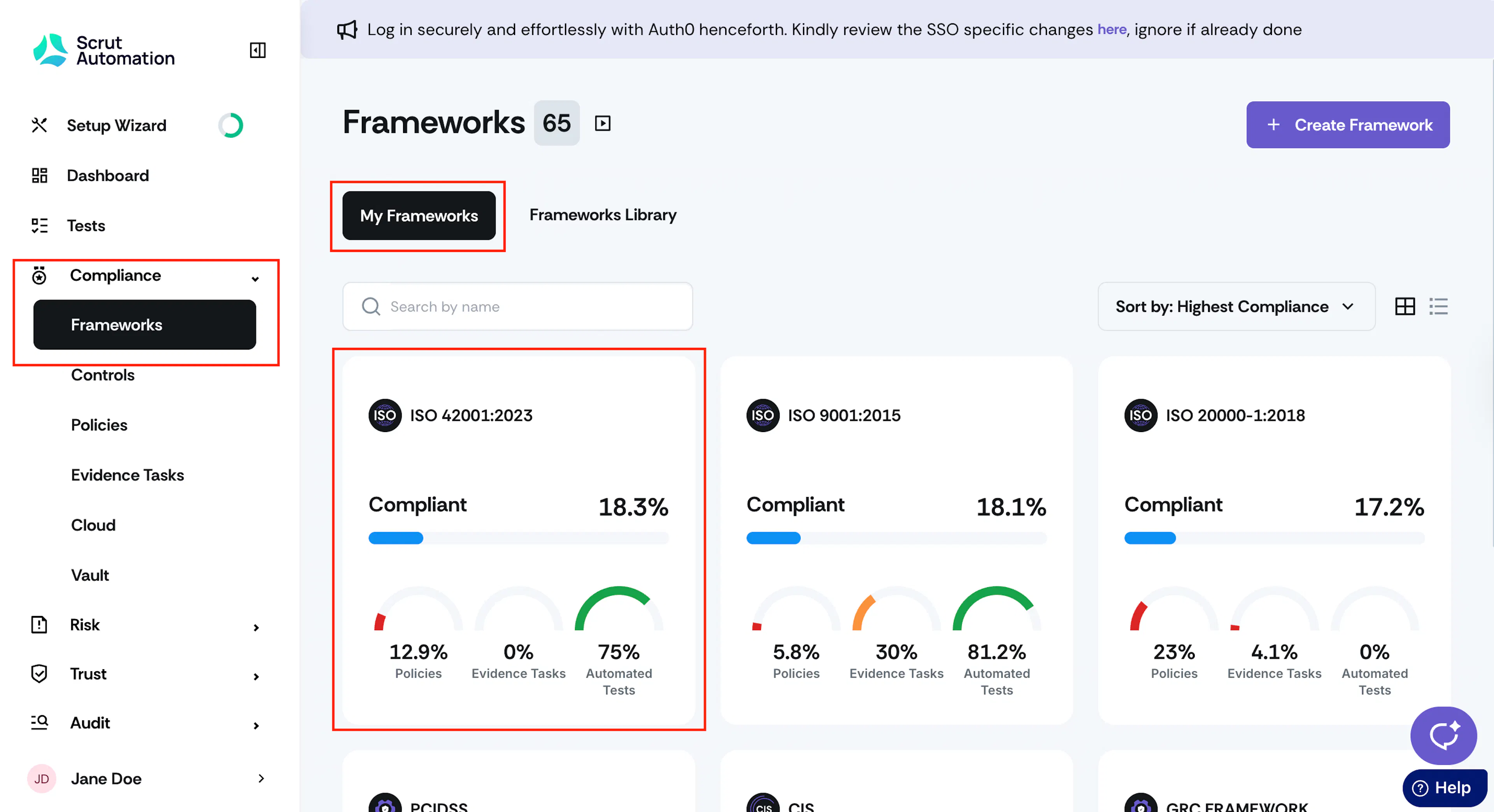
Sign in to Scrut and go to Compliance → Frameworks → My Frameworks using the left navigation panel.
-
Click on the framework to which you want to add a requirement.
-
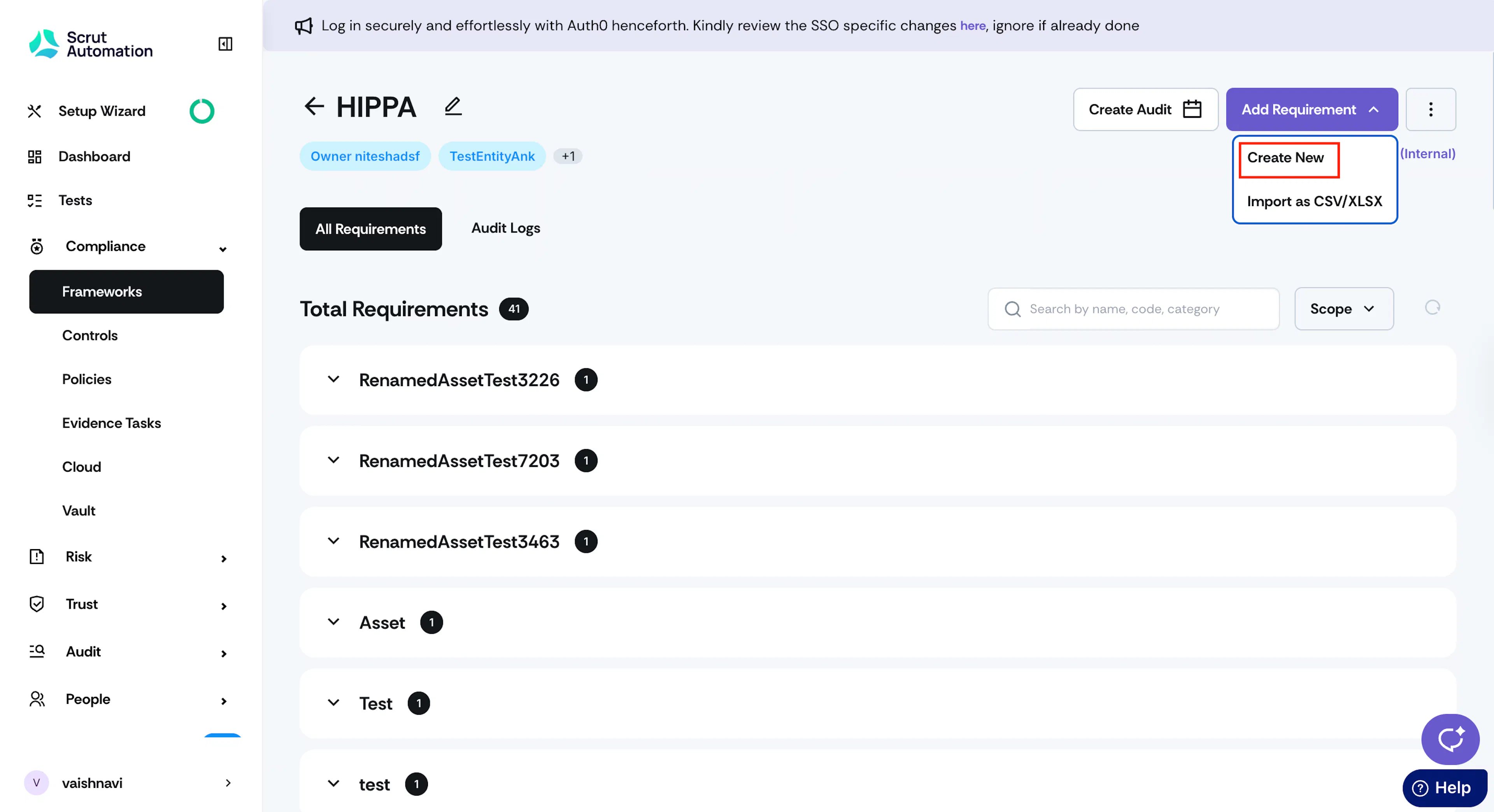
Once you’re on the framework page, click the +Add Requirement button at the top right and select Create New.
-
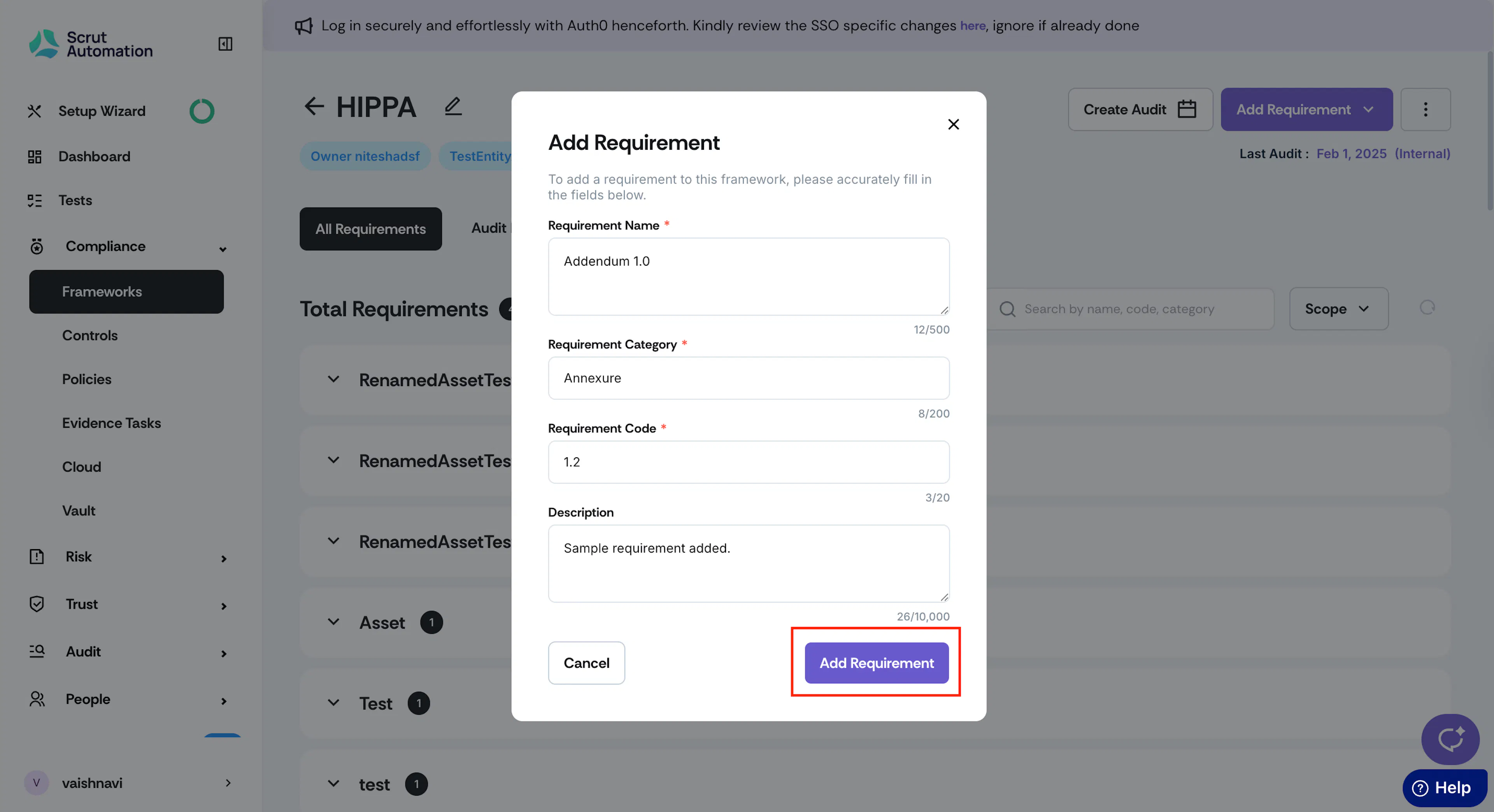
Enter the requirement details, such as:
-
Requirement Name: Enter a short descriptive name for the requirement.
-
Requirement Category: Enter the requirement category, such as Chapter Name, Annexure, etc.
-
Requirement Code: Enter a unique code for the requirement. The code must not be similar to another requirement for the framework.
-
Description: Optionally, include a detailed description of the requirement, such as what it is, why it matters, etc.
-
-
Click Add Requirement.
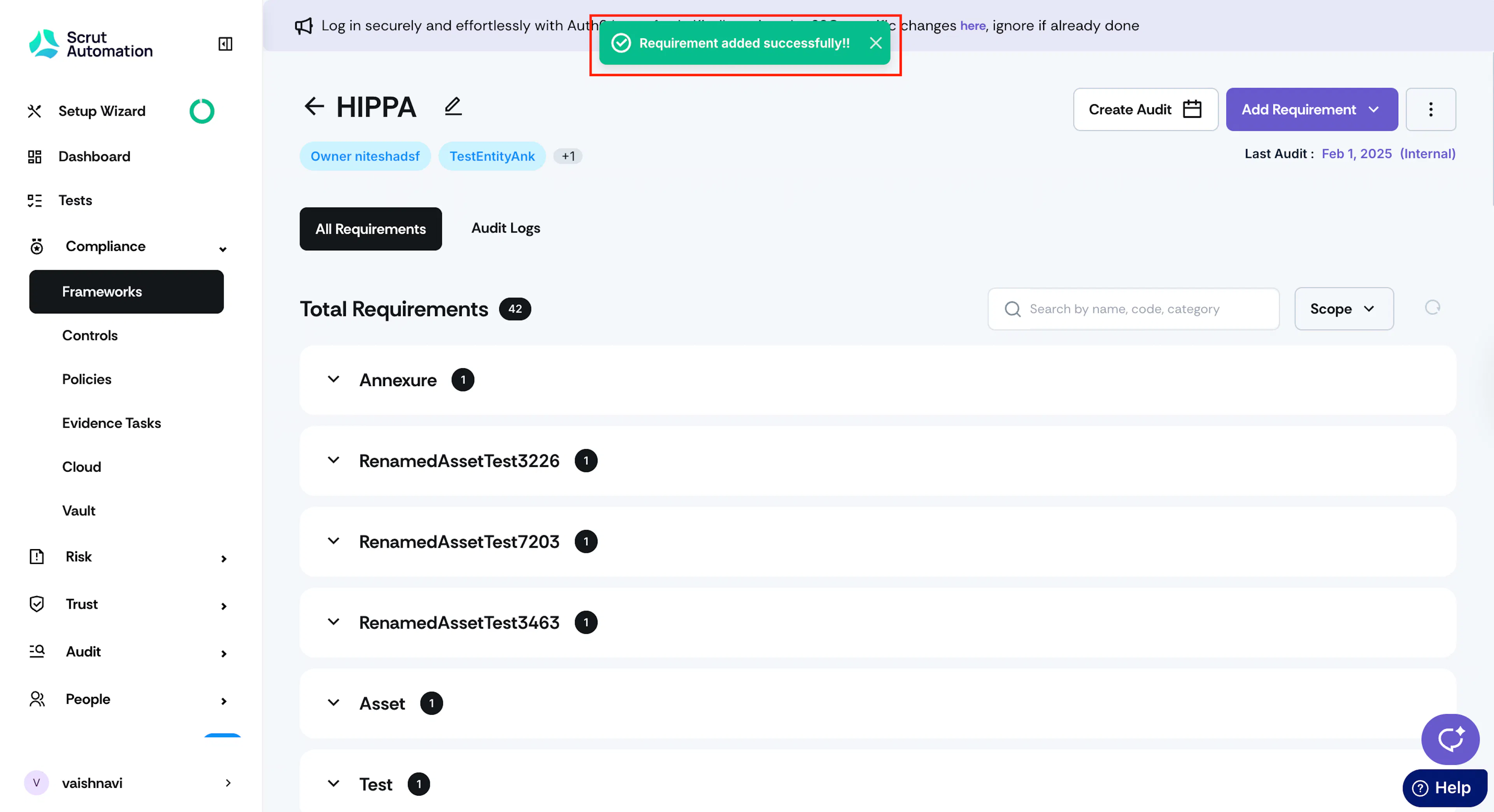
Watch out for the “Requirement added successfully” notification message.
Import Multiple Requirements
To add multiple requirements simultaneously:
-
Sign in to Scrut and go to Compliance → Frameworks → My Frameworks using the left navigation panel.
-
Click on the framework to which you want to add a requirement.
-
Once you’re on the framework page, click the +Add Requirement button at the top right and select Import as CSV/XLSX.
-
Download the template and copy and paste your requirements into it.
-
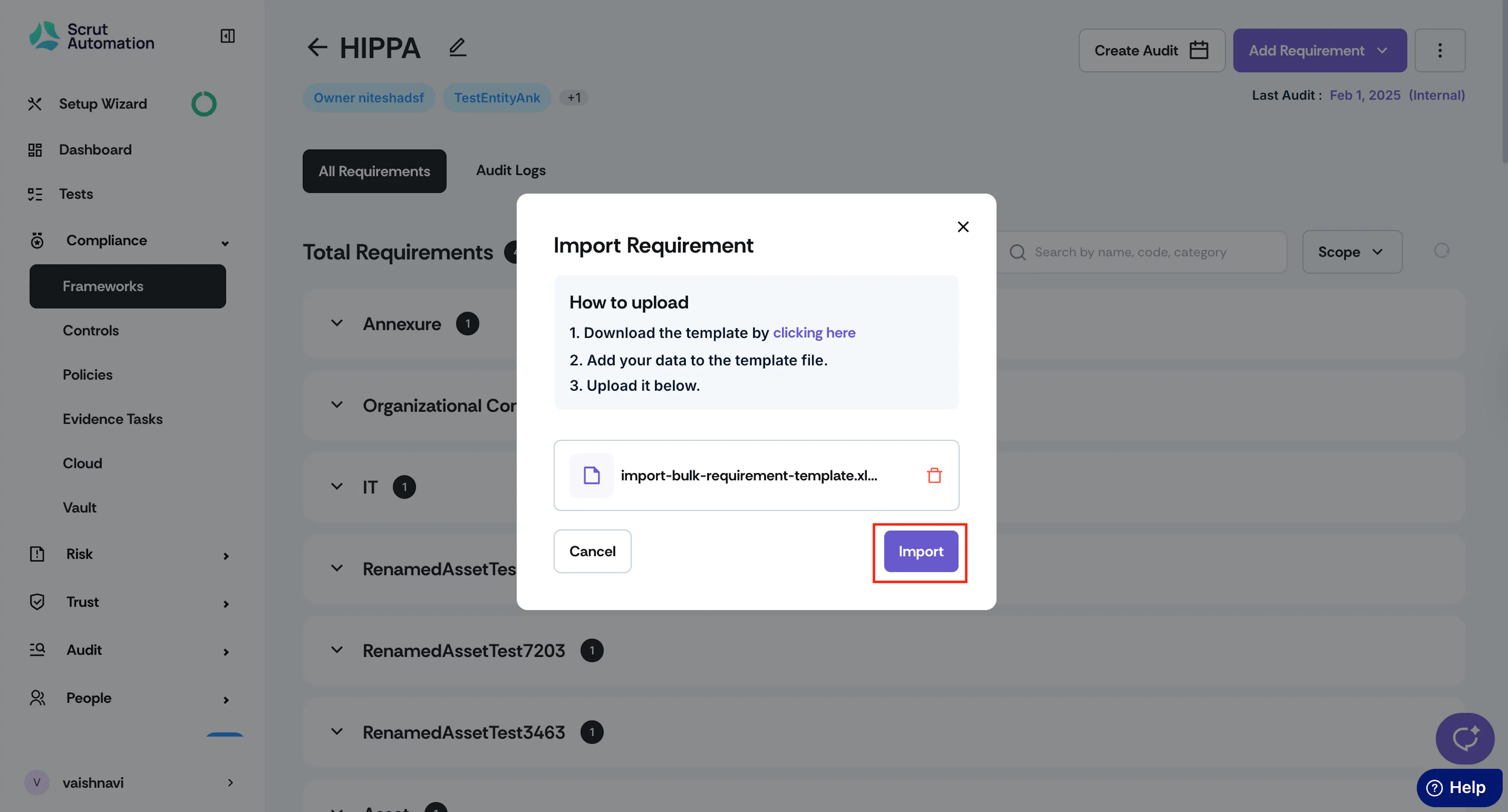
Drag and drop the template file, or upload it.
Pro Tip!
Refer to this section for detailed instructions on how to add requirements to the template.
-
Click Upload.
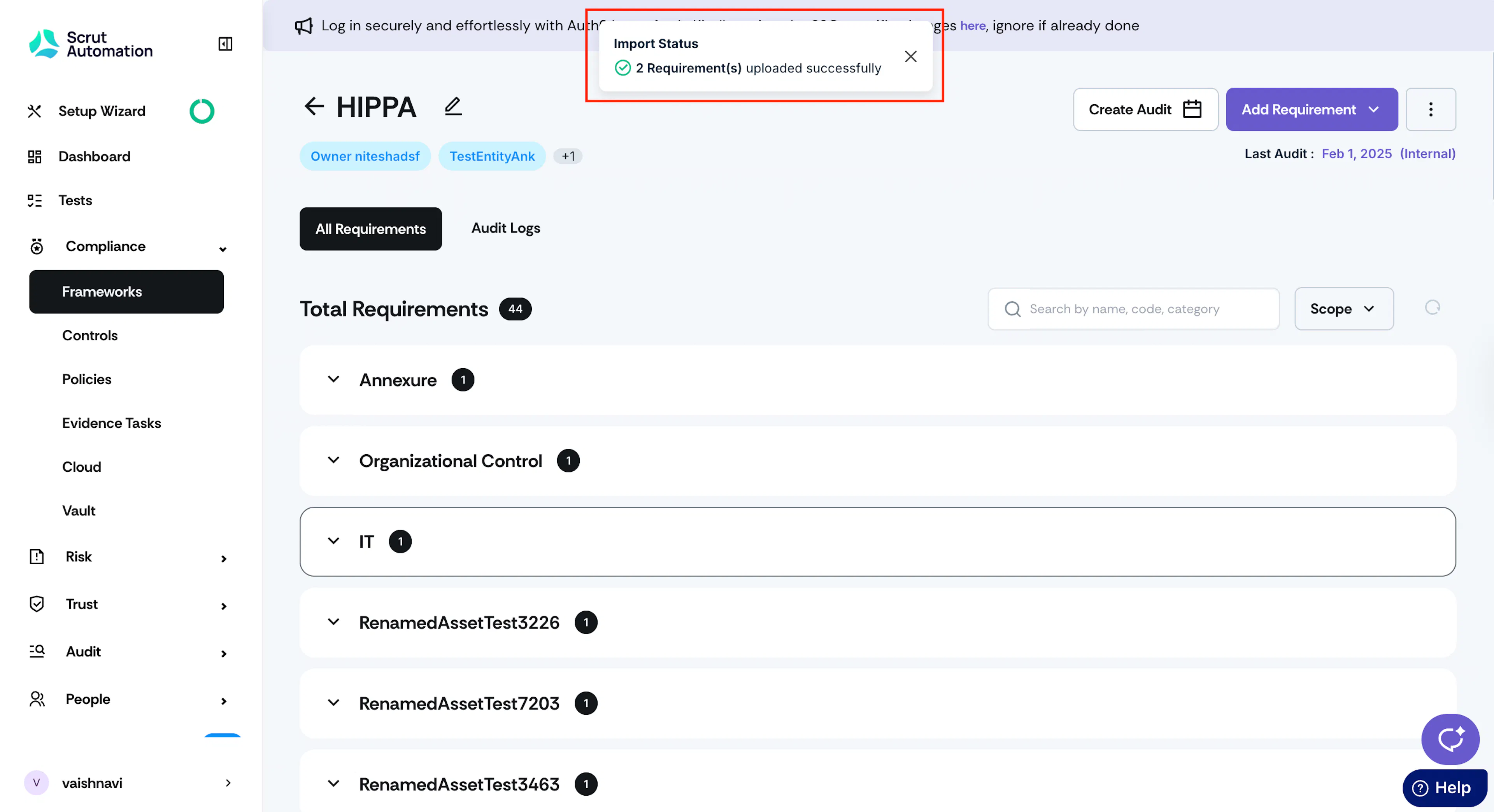
Watch out for the “Uploaded Successfully” message.
Heads Up!
Make sure there are no formatting errors or missing data. If any issues are found, Scrut cannot import the requirements. Please fix all the errors and reupload the file.
Tips for Using the Template

-
Do NOT remove the first row, as it contains column headers. Scrut requires this information to process the requirement details accurately.
-
Remove the contents of the second row and enter your requirements from Row 2.
-
Create a separate row for each requirement that you’re importing.
-
Requirement code (Column A), name (Column B), and category (Column D) are mandatory, while description (Column C) is optional.
-
Ensure that you enter a unique value for the requirement code. It shouldn’t match any existing requirement in the framework.
-
Make sure to follow the character limits for each column:
- Code: Maximum limit of 20 characters
- Name: Maximum limit of 500 characters
- Description: Maximum limit of 10,000 characters
- Category: Maximum limit of 200 characters
-
Avoid using extra formatting, such as background colors, etc.