Link and Unlink Controls to a Framework Requirement
Who can use this feature
- Supported on Foundation, Growth, and Scale plans
Requirements of standard frameworks like ISO, SOC2, GDPR, and others are already linked to controls. These mappings are pre-established by Scrut. However, if you have created a custom framework requirement, Scrut provides you with the flexibility to link and unlink controls, as needed.
Linking Controls to a Requirement
To link one or more controls to a requirement, follow the steps outlined below:
-
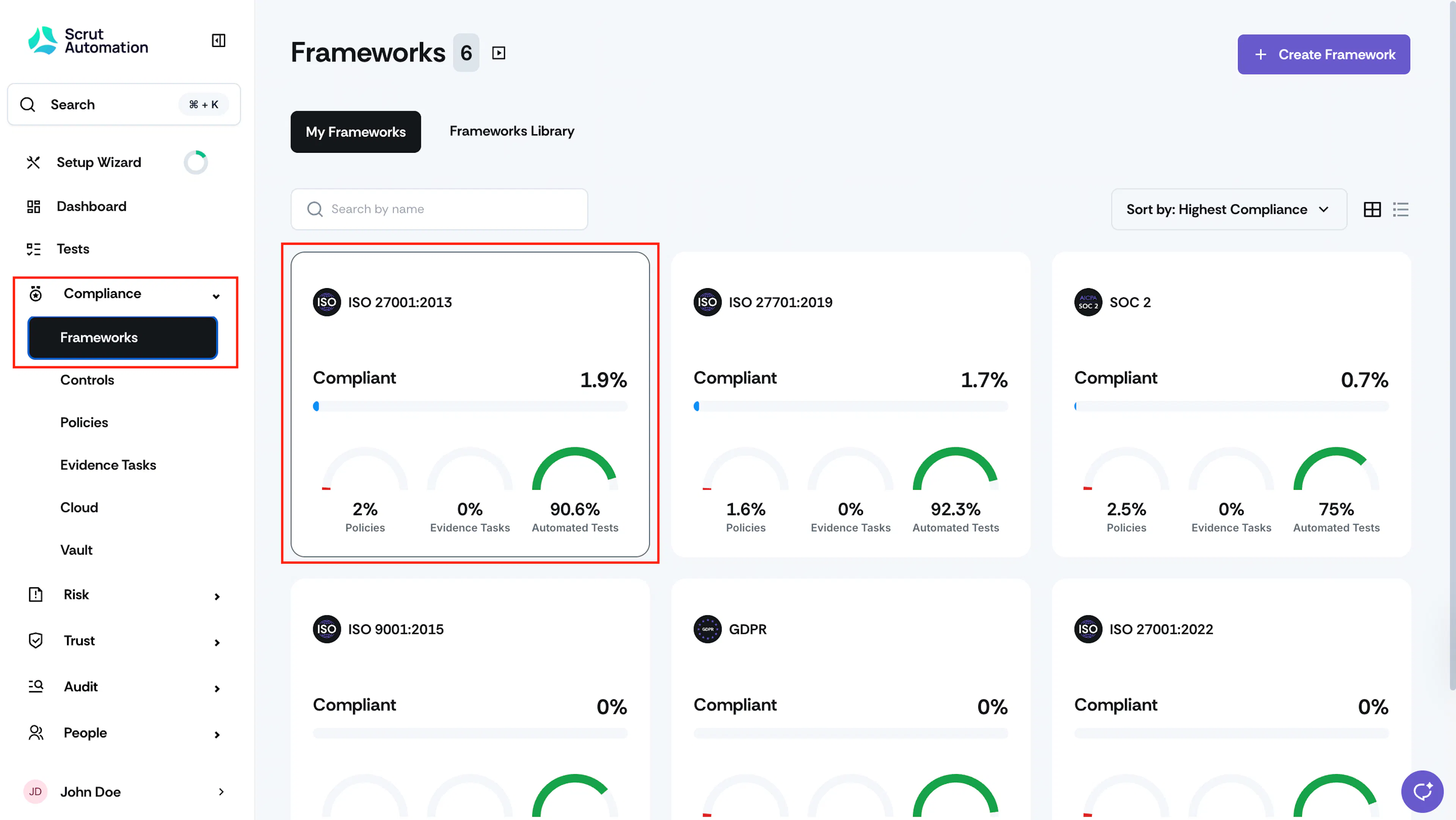
Sign in to Scrut, and go to Compliance → Frameworks using the left navigation panel.
-
Click on the framework to which you want to link a control.
-
Locate the specific requirement to which you want to link a control.
-
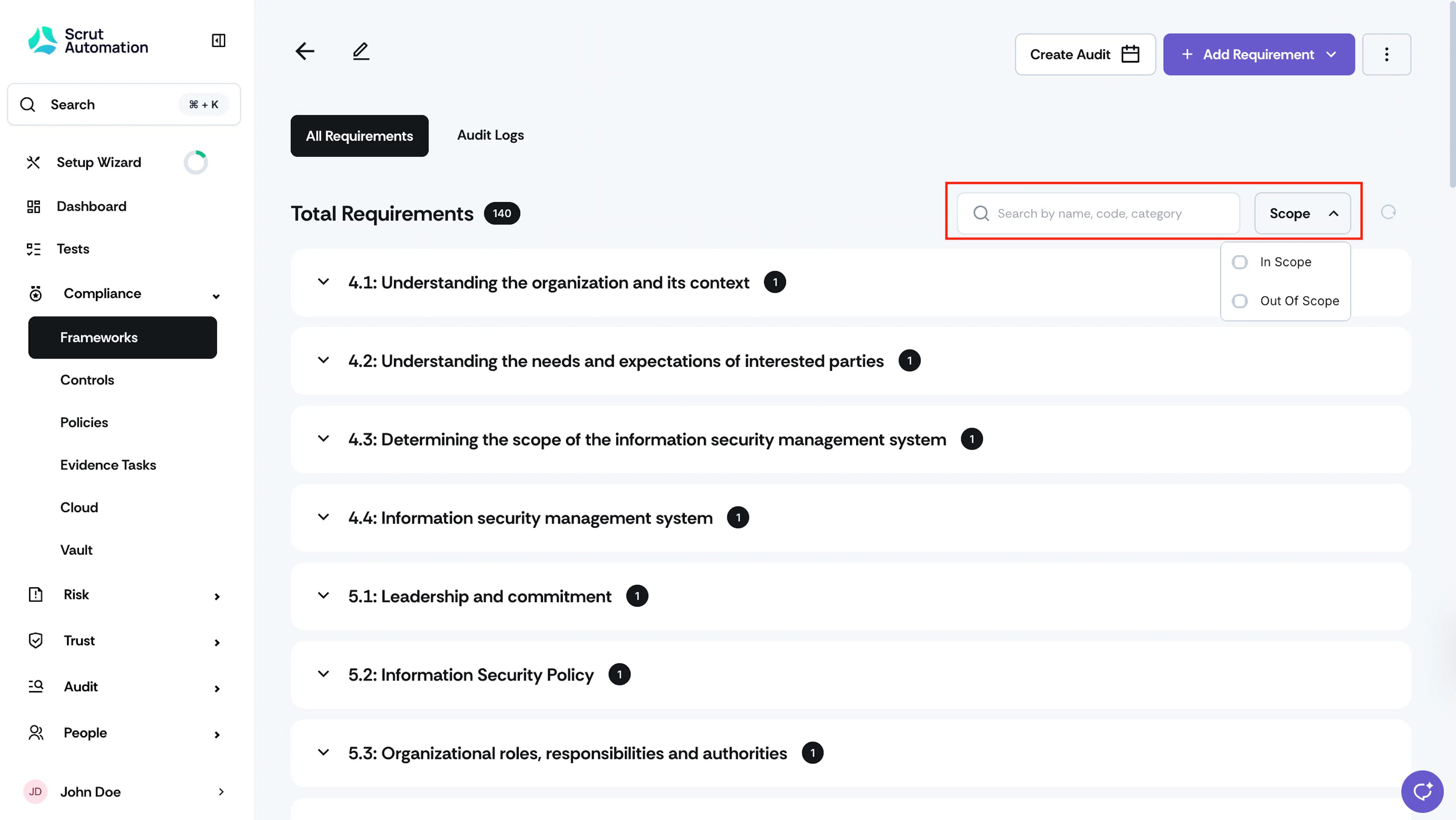
To narrow down your options, use the search bar at the top. You can search by Requirement Name, Code, or Category.
-
If needed, apply the Scope filter at the top to view requirements categorized as In Scope or Out of Scope.
-
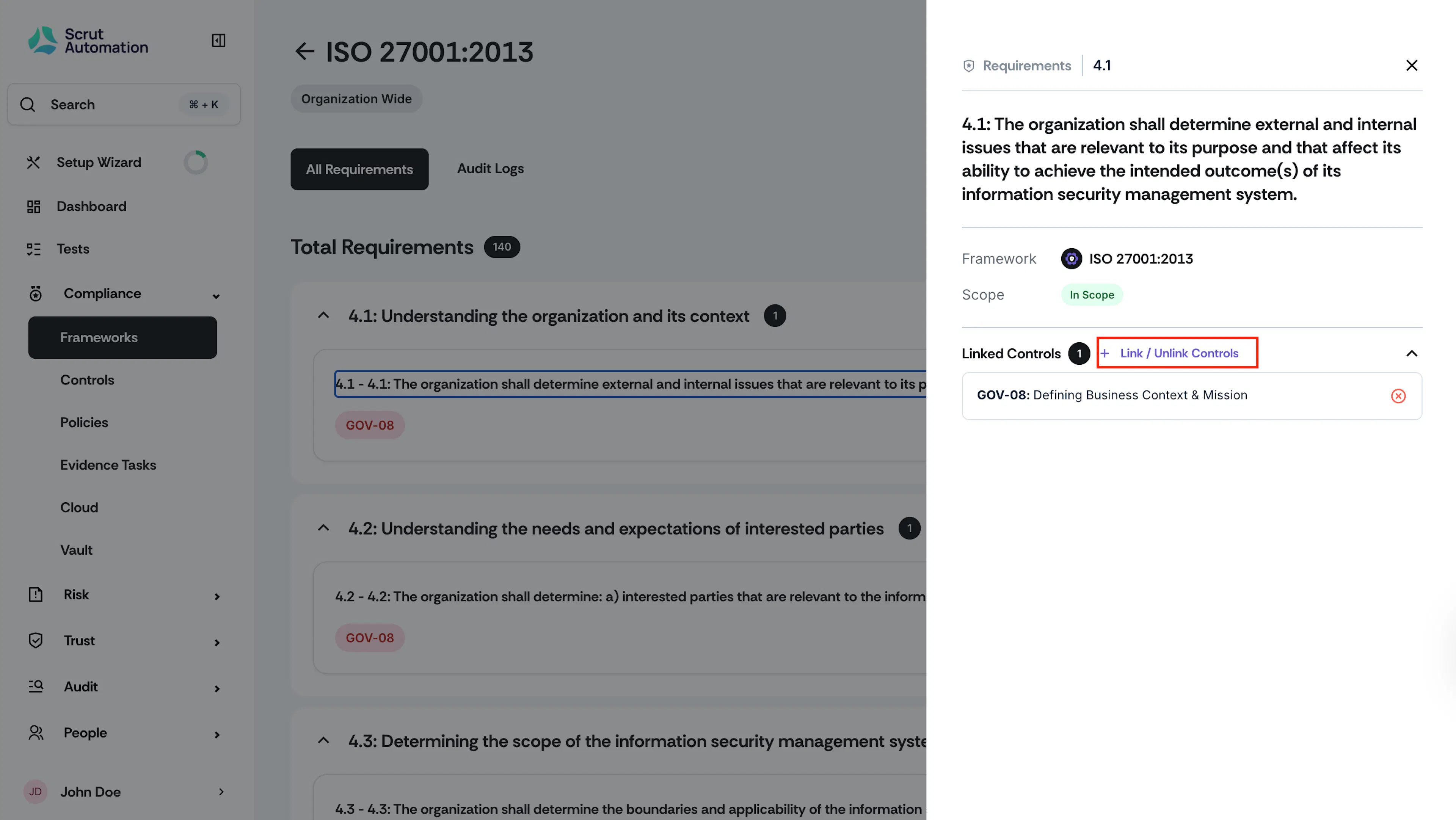
Expand the requirement to view its details in a side drawer.
-
Click the Link / Unlink Controls button.
-
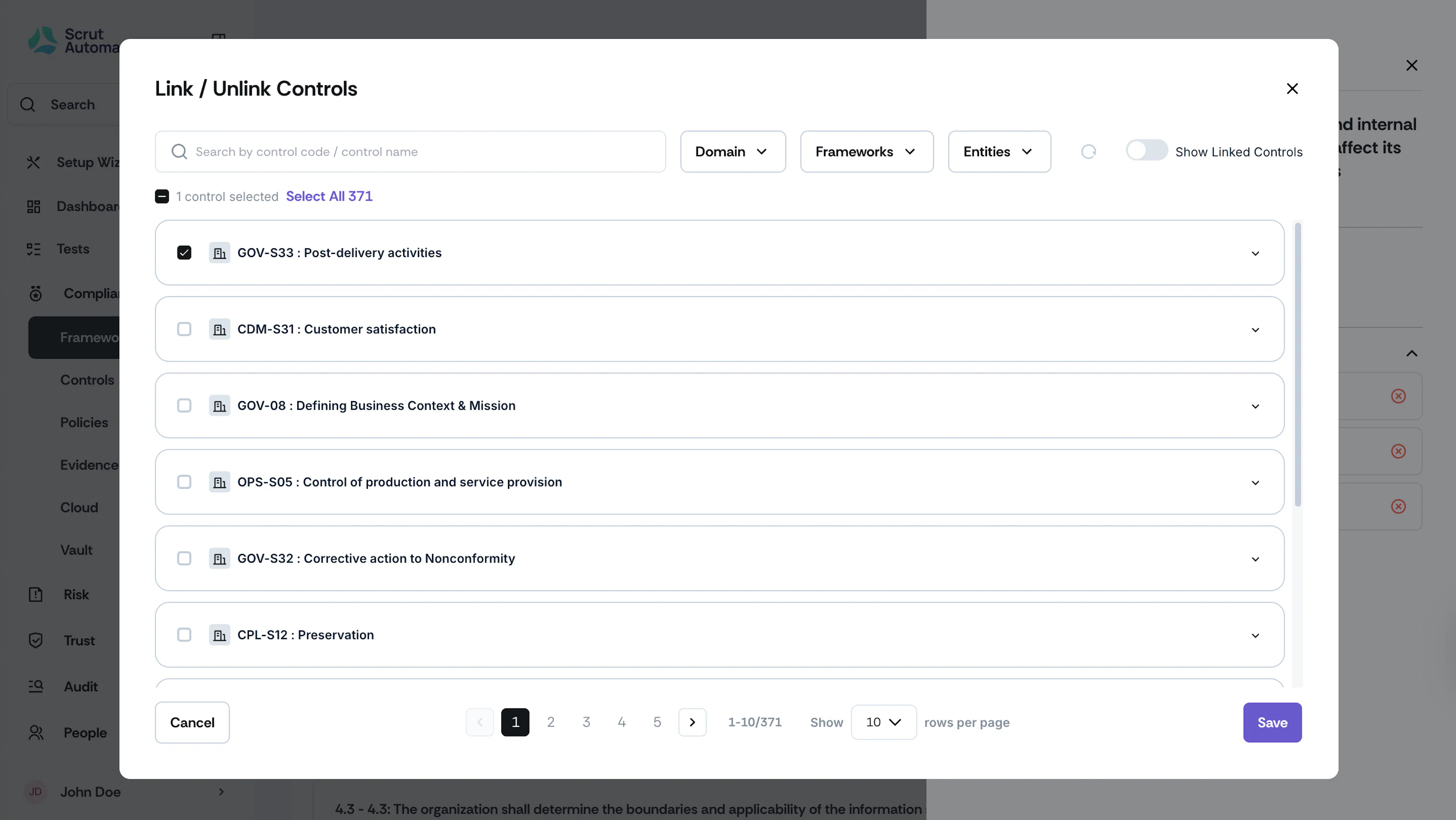
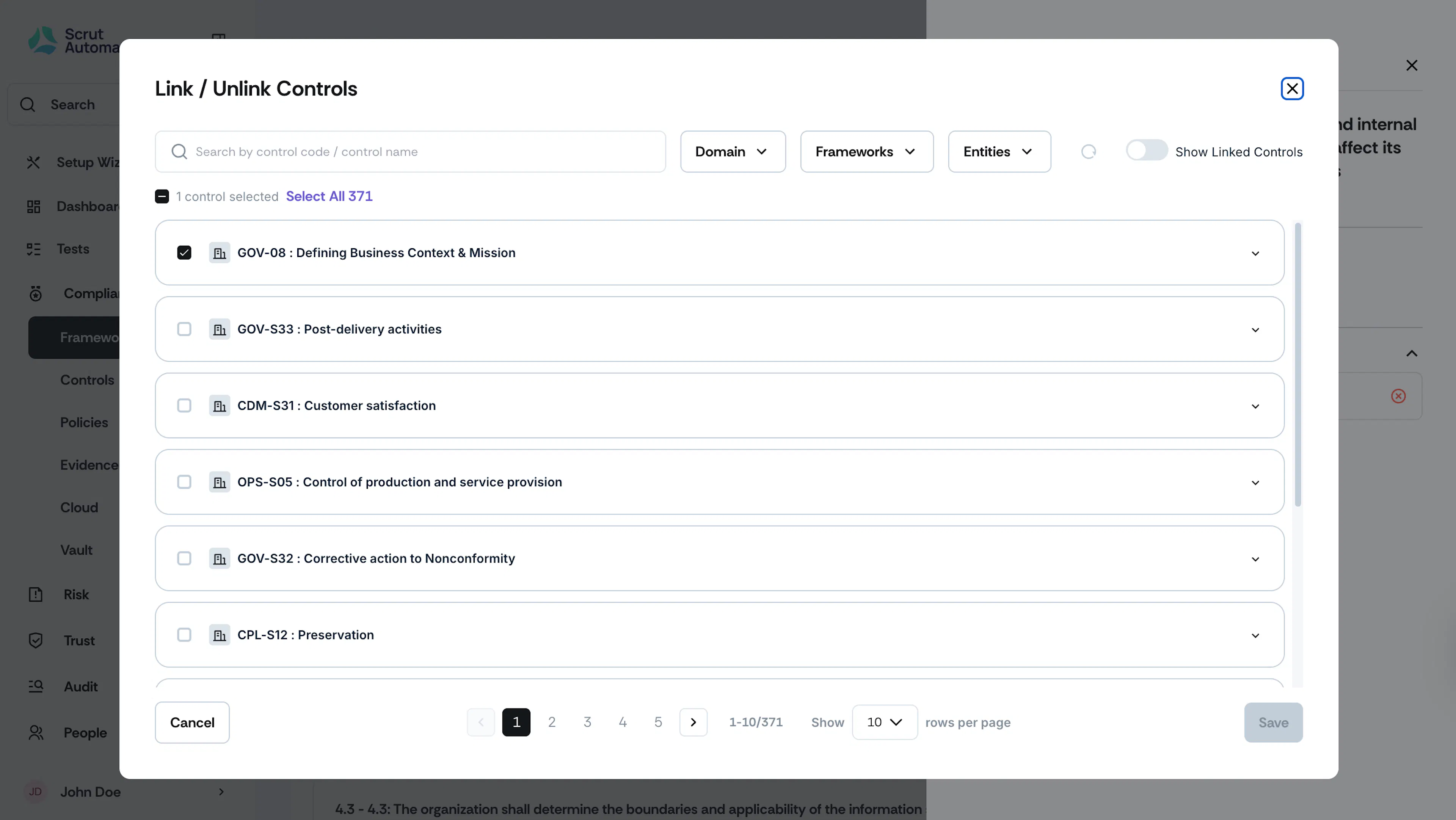
In the Link / Unlink Controls window, select the checkboxes for the control(s) you want to link.
-
Optionally, use the search bar to find specific controls by name or code.
-
If needed, use the Domain, Frameworks, and Entities filters at the top to filter specific controls.
-
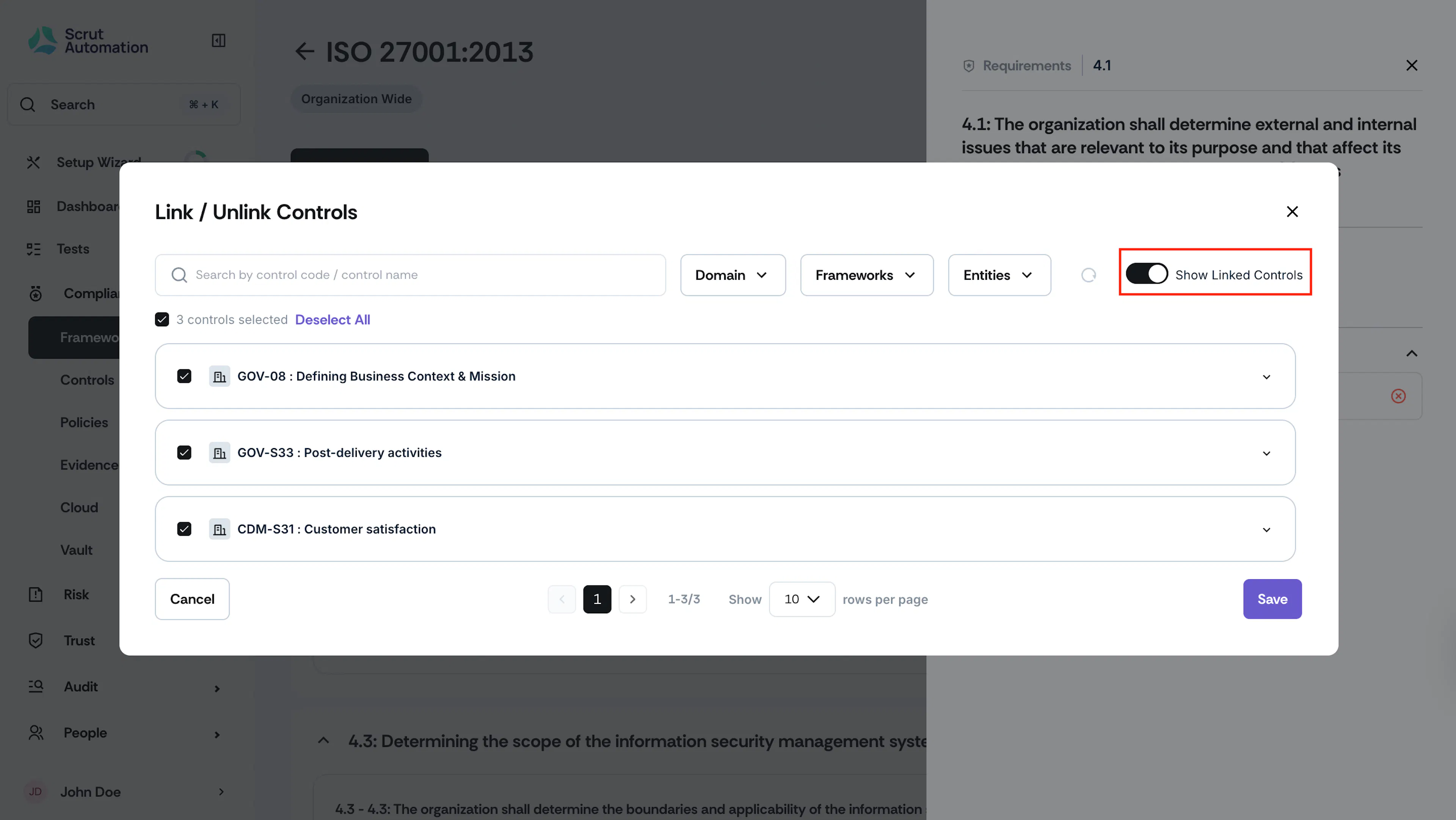
Once you've selected the desired controls, enable the Show Linked Controls toggle to review and verify your selection.
-
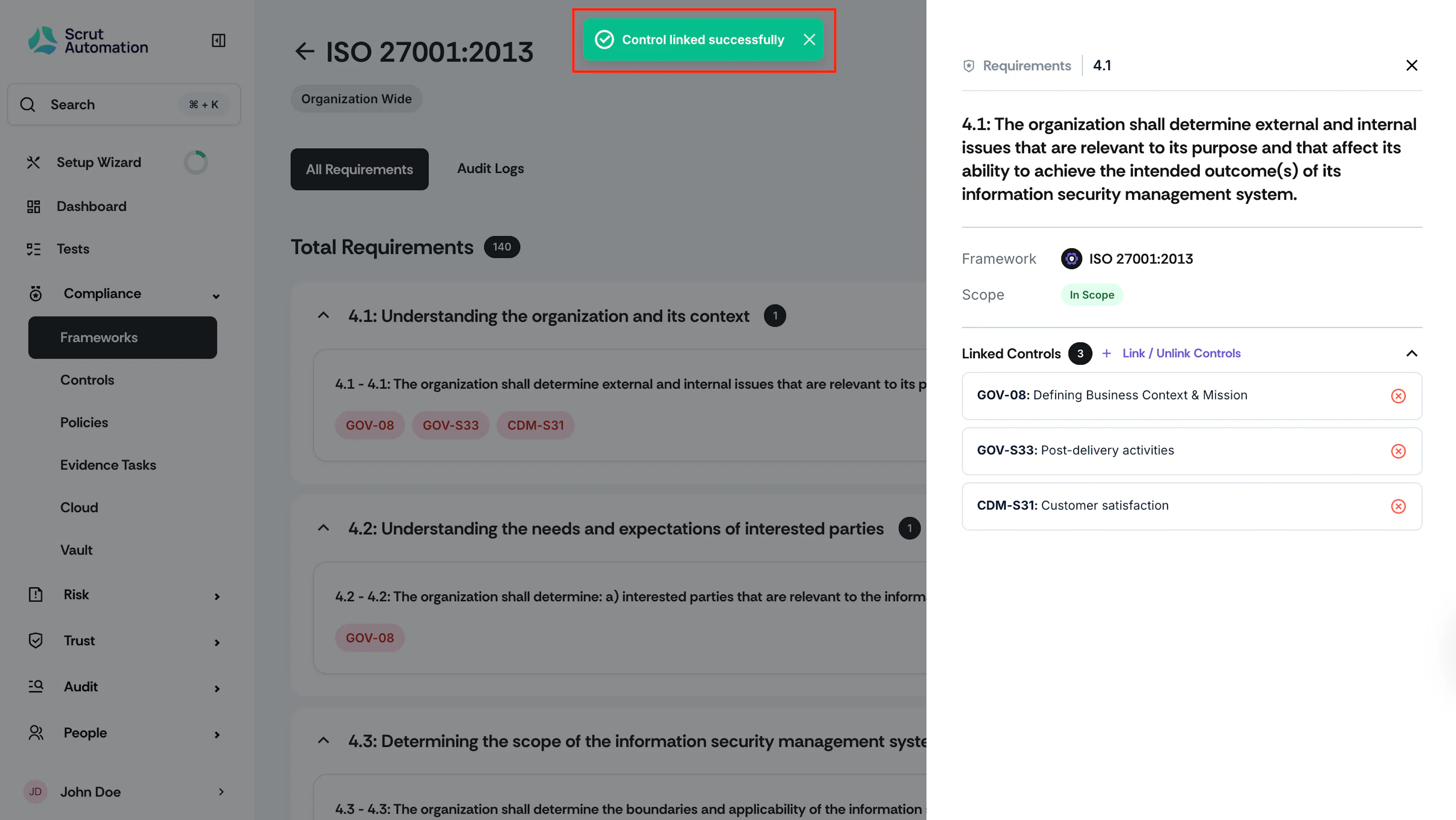
Click Save to complete the process.
Unlinking Controls to a Requirement
-
Locate the specific requirement from which you want to unlink a control.
-
Expand the requirement to view its details in a side drawer.
-
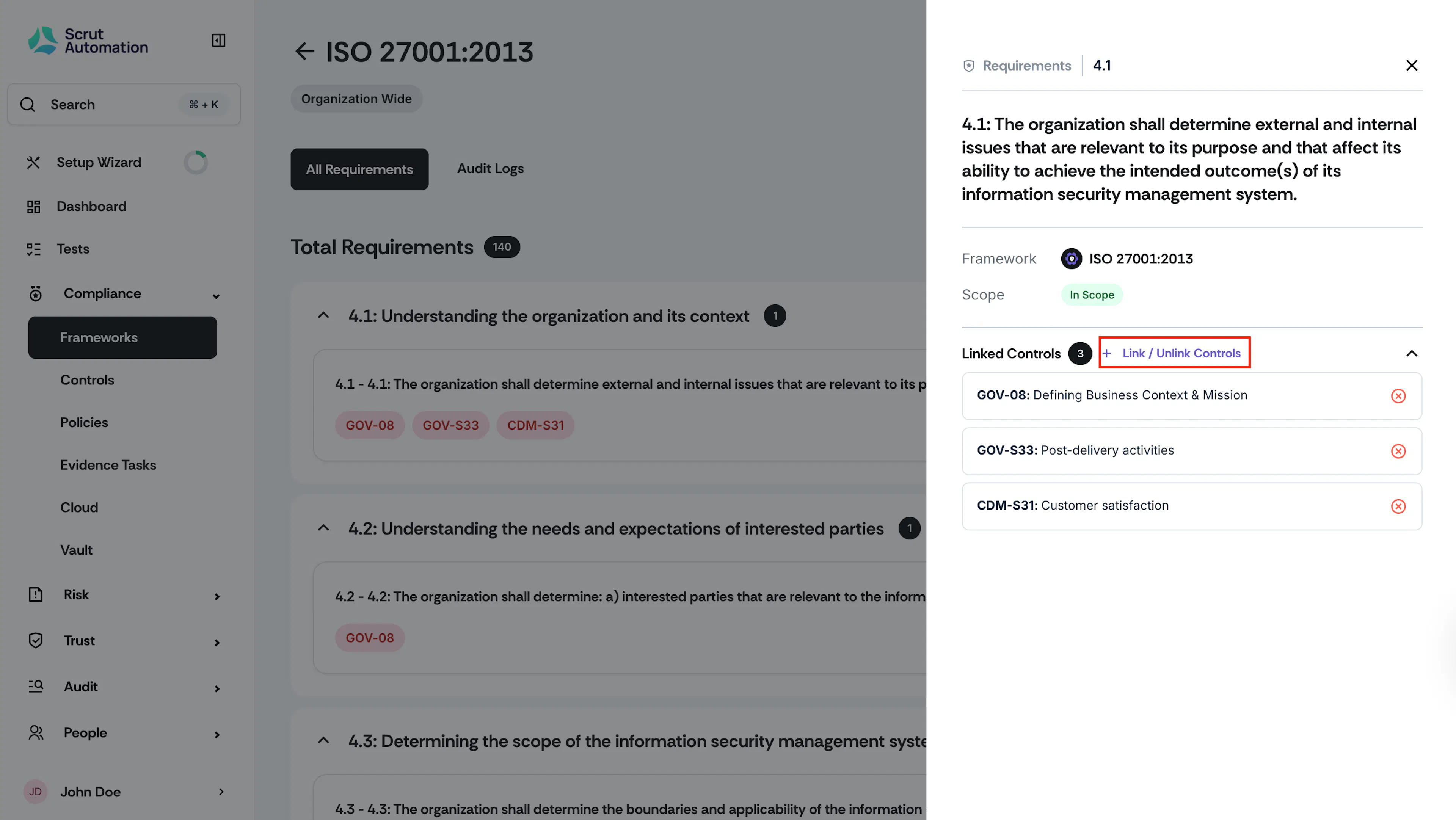
Click the Link / Unlink Controls button.
-
In the Link / Unlink Controls window, deselect the checkboxes for the control(s) you want to unlink.
-
Click Save to complete the process.