

Configure Auto Approval for Specific Domains
Who can use this feature
- Included in the Scale plan
- Available in the Trust Advanced Add-On for Foundation and Growth plans
By default, anyone who visits your Trust Portal must submit an access request to view sensitive information. Domain-based auto-approval lets you automatically approve requests from a specified email domain, without waiting for manual review. This reduces friction for legitimate prospects and keeps your sales cycle moving.
How It Works
When domain-based auto-approval is turned on, Scrut checks the email domain of each incoming access request against your saved domain list.
- If there's a match, access is approved instantly, an NDA is sent via your selected provider, and the requester receives an email confirmation.
- Requests from domains not on the list continue through the standard approval flow.
How to Set Up Domain-Based Auto-Approval
-
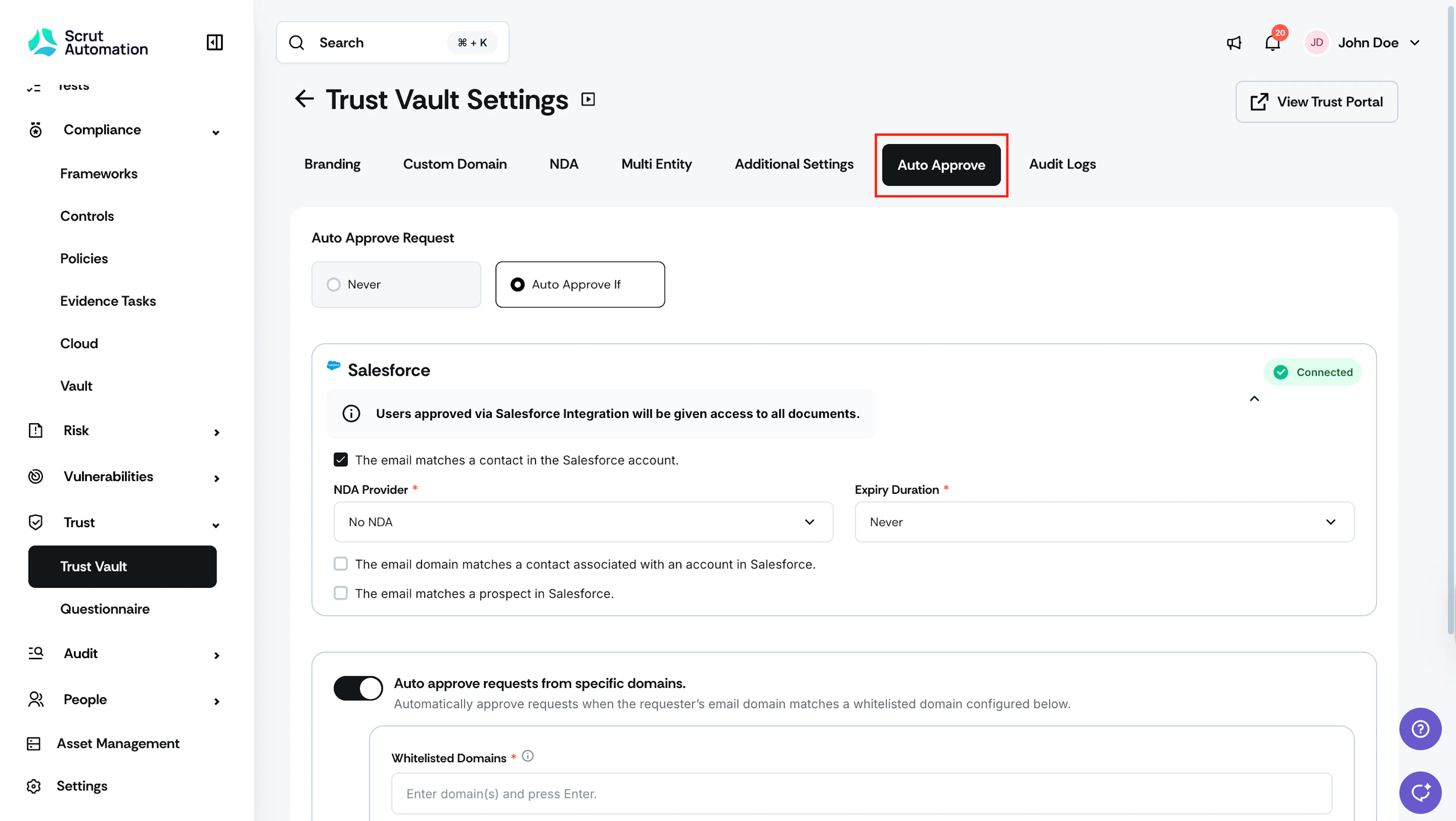
Navigate to Trust → Trust Vault → Settings → Auto Approve.
-
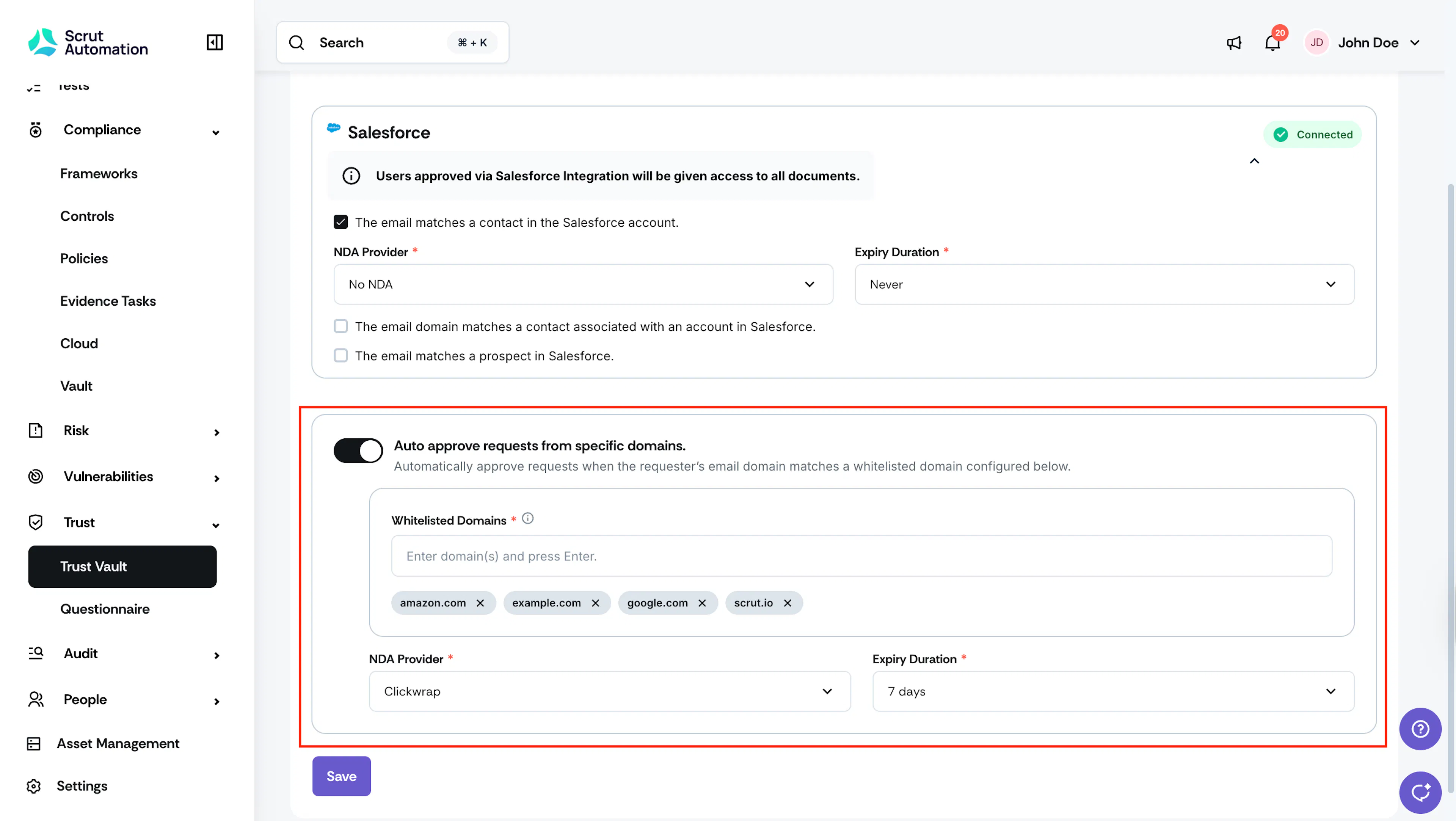
Under Auto Approve If, turn on the toggle labeled Auto approve requests from specific domains.
-
In the domain input field, type a domain (for example,
partner.io) and press Enter, comma, or Space to add it as a tag. Repeat this step to add more domains. Each domain appears as a removable tag. To remove a domain, click the X on its tag. -
Select an NDA provider from the NDA Provider dropdown.
-
Select a duration from the Expiry Duration dropdown. Options include 7 days, 15 days, 30 days, Never, or Custom.
-
Click Save.
Heads Up!
Domain-based auto-approval is turned off by default for all accounts. Turning it on applies immediately to all incoming access requests from matching domains.
What Happens Next?
Depending on the domains you've saved in the Auto Approve tab, whenever a customer or prospect requests access to your Trust Portal, the request will get auto-approved if the requester's email domain matches a domain on your list. If there is a match, you don't have to approve the access request. Scrut will automatically grant them access to your Trust Portal.
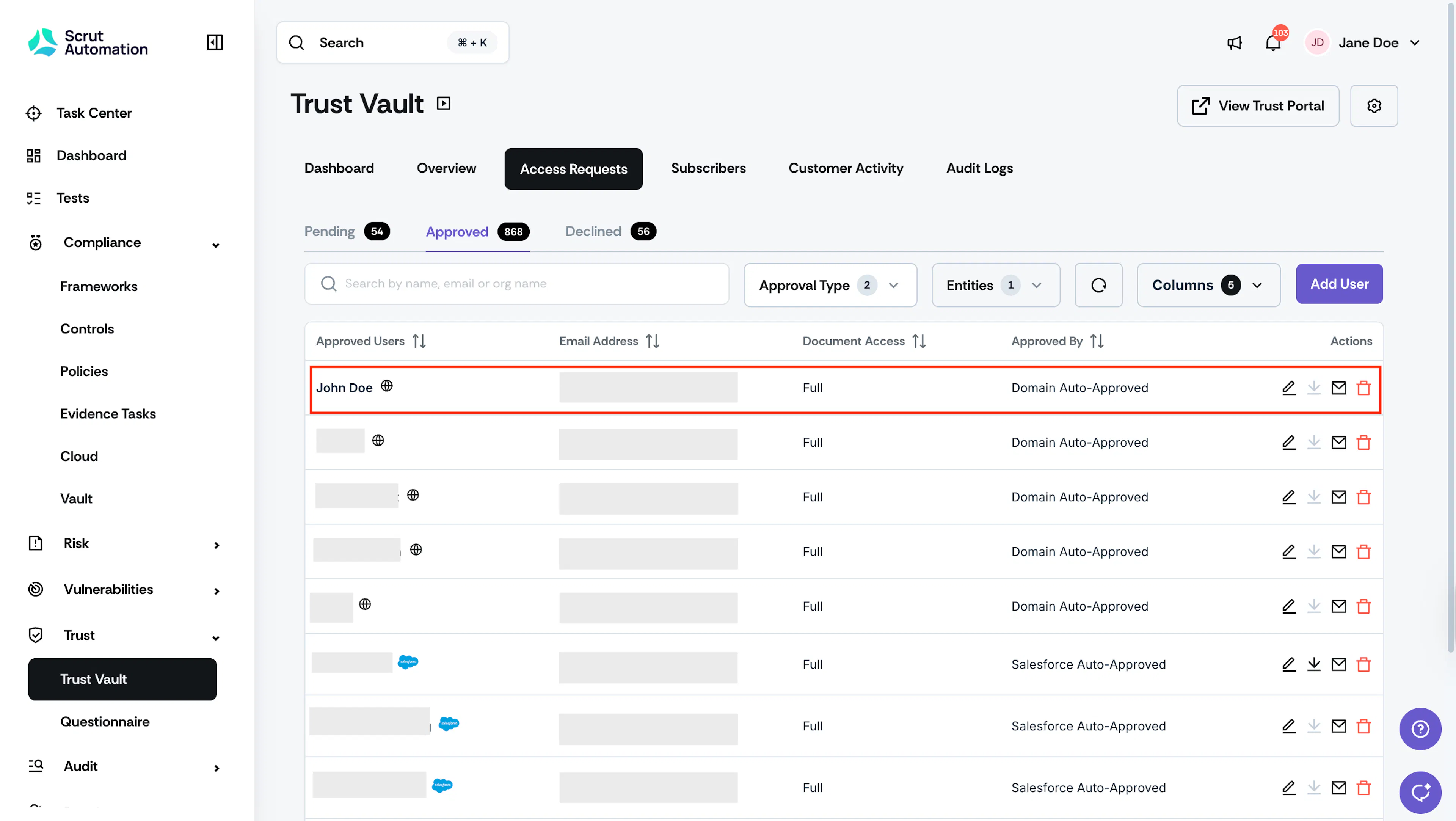
Note: Users who are auto-approved via this rule will have the Domain tag associated with them. You can check this in Trust → Trust Vault → Access Requests → Approved. The Approved By column is set to Domain Auto-Approved.
FAQs
Reach out to support@scrut.io or contact your CSM for further assistance.