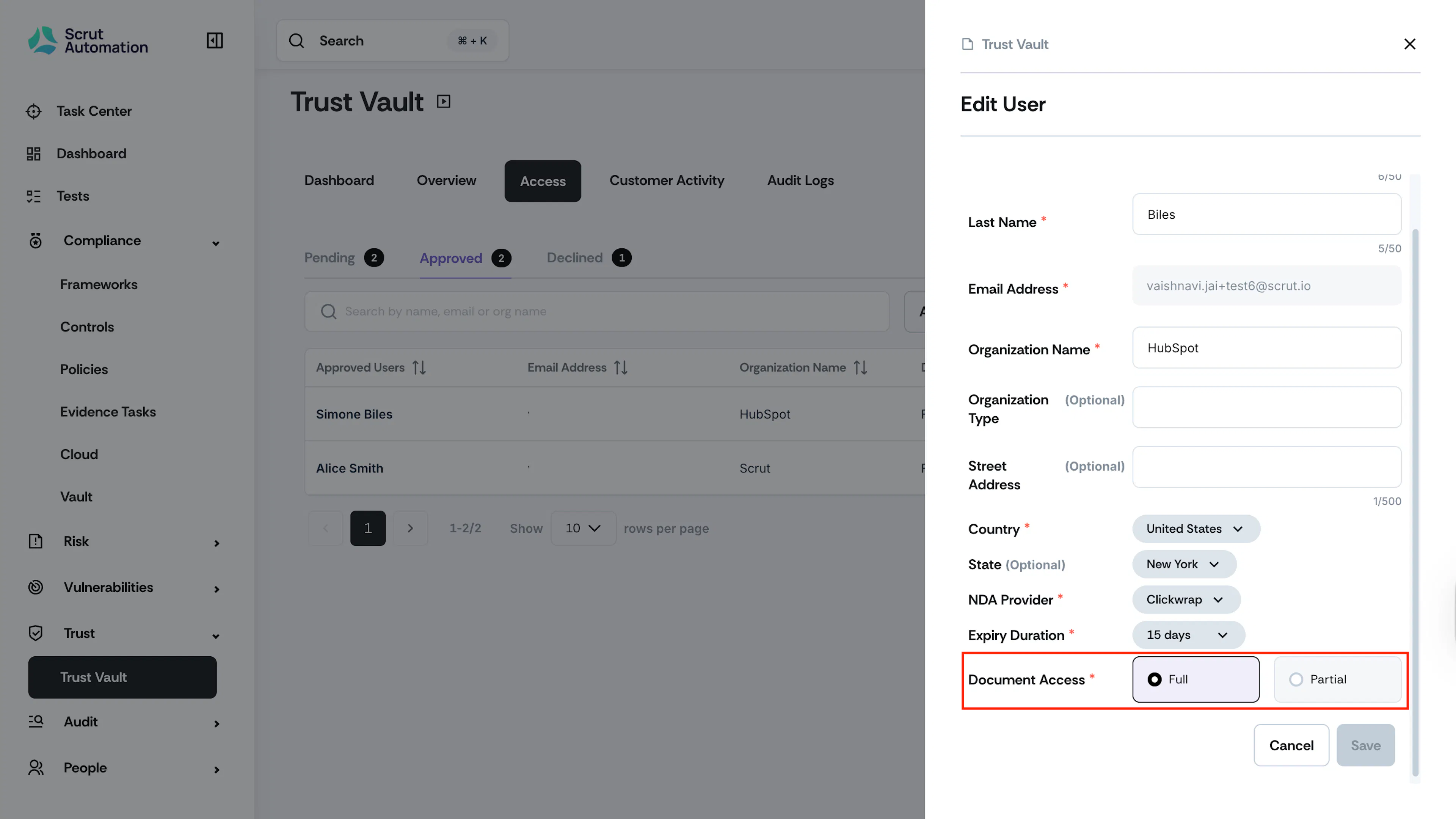
Grant Partial or Full Access to Your Trust Portal
Who can use this feature
- Supported on Foundation, Growth, and Scale plans
This guide explains how to configure partial or full access for Trust Portal documents.
Understanding Access Types
When approving user access to your Trust Portal, you can either grant them:
- Full Access: Grants access to all documents in your Trust Portal
- Partial Access: Grants access to specific documents only
How Users Request Access
Users follow these steps to request Trust Portal access:
-
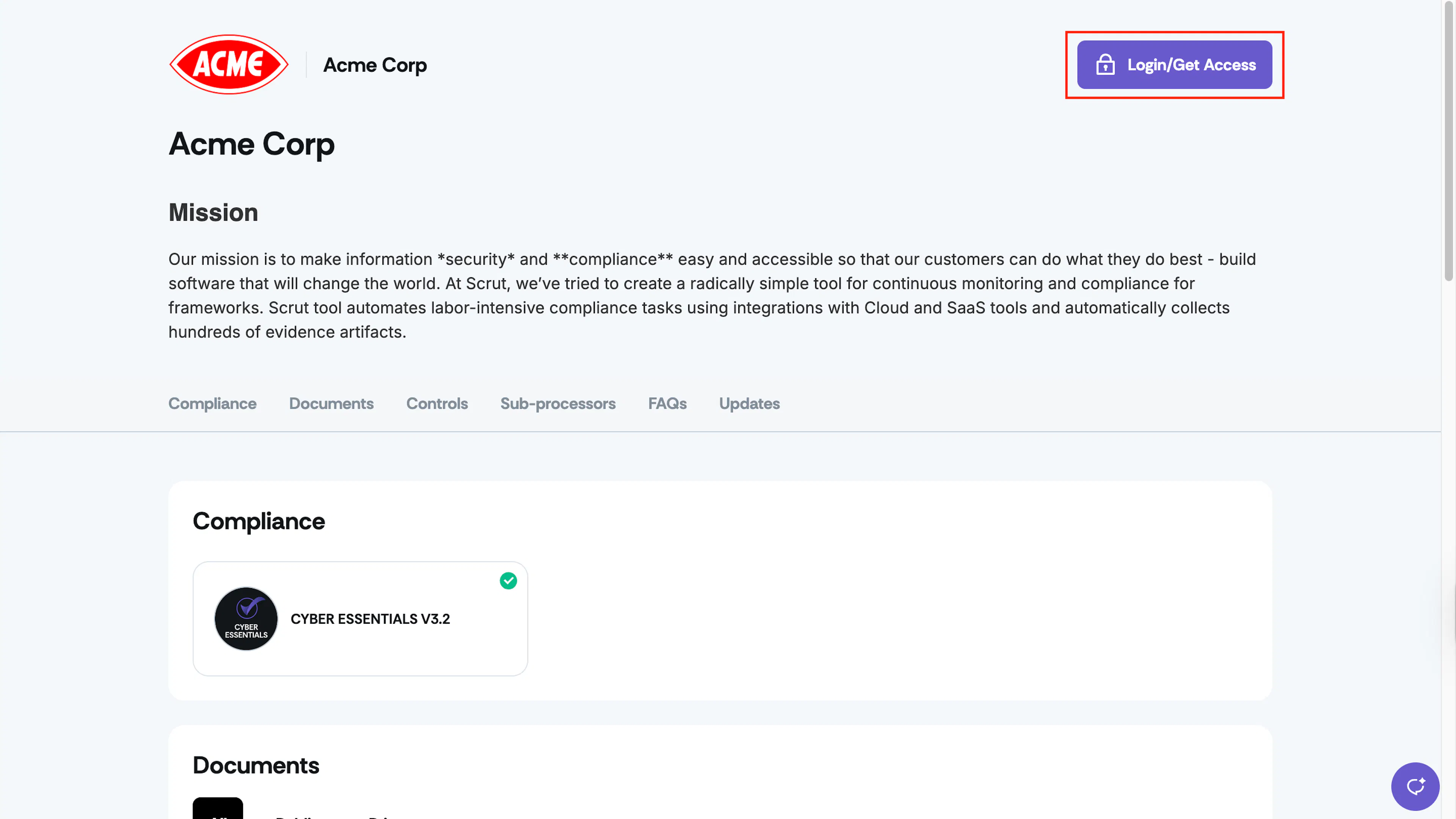
Navigate to the Trust Portal webpage (
trust.example.com) -
Click Login/Get Access.
-
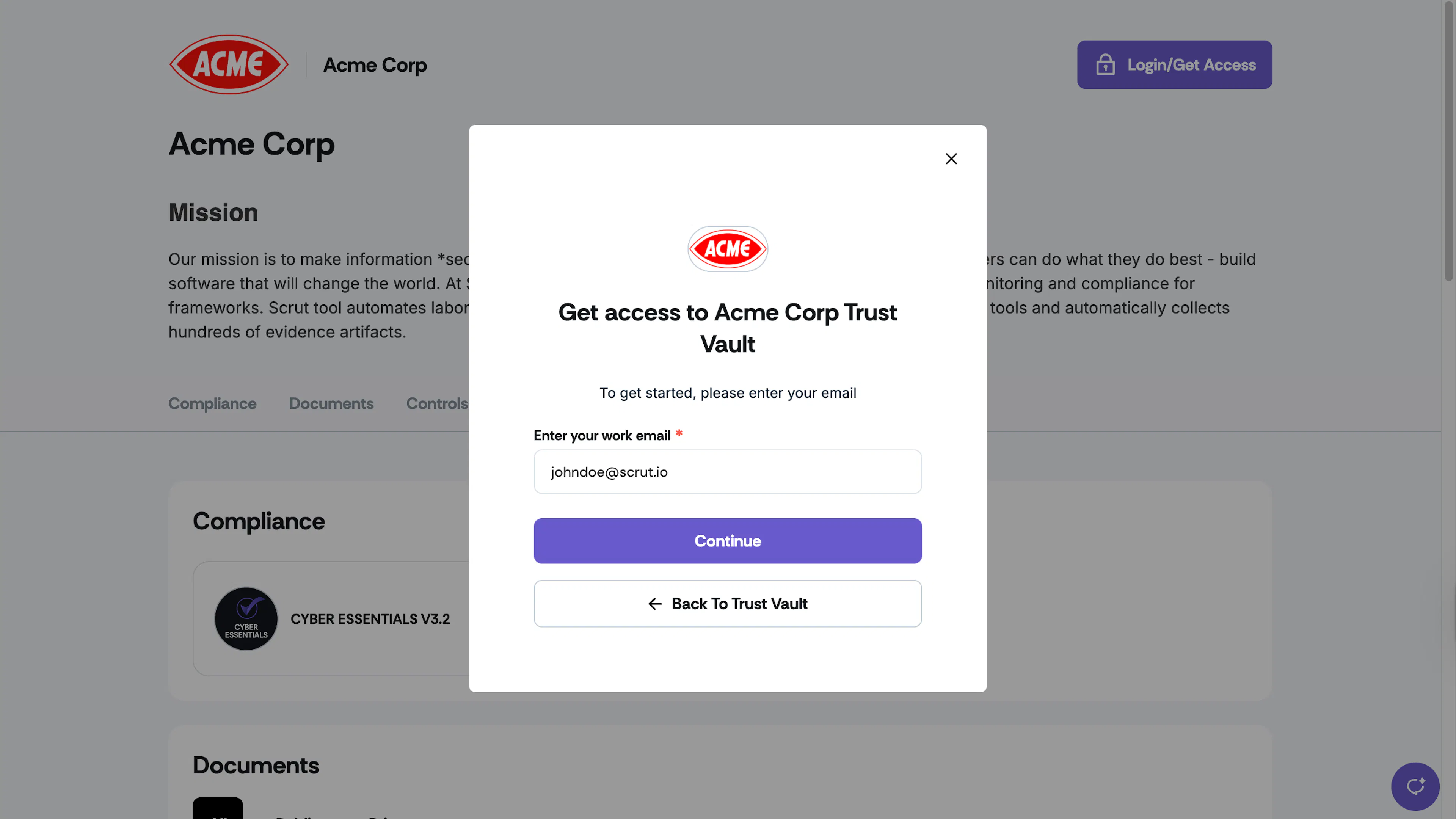
Enter their work email and click Continue.
-
Complete the access request form with the required details:
- First Name*, Last Name*
- Email*
- Organization Name*, Organization Type
- Street Address, Country*, State
-
Select preferred document access level:
- Choose Full Access for all documents, or
- Choose Partial Access and select specific documents
-
Accept the Terms of Service.
-
Click Get Access.
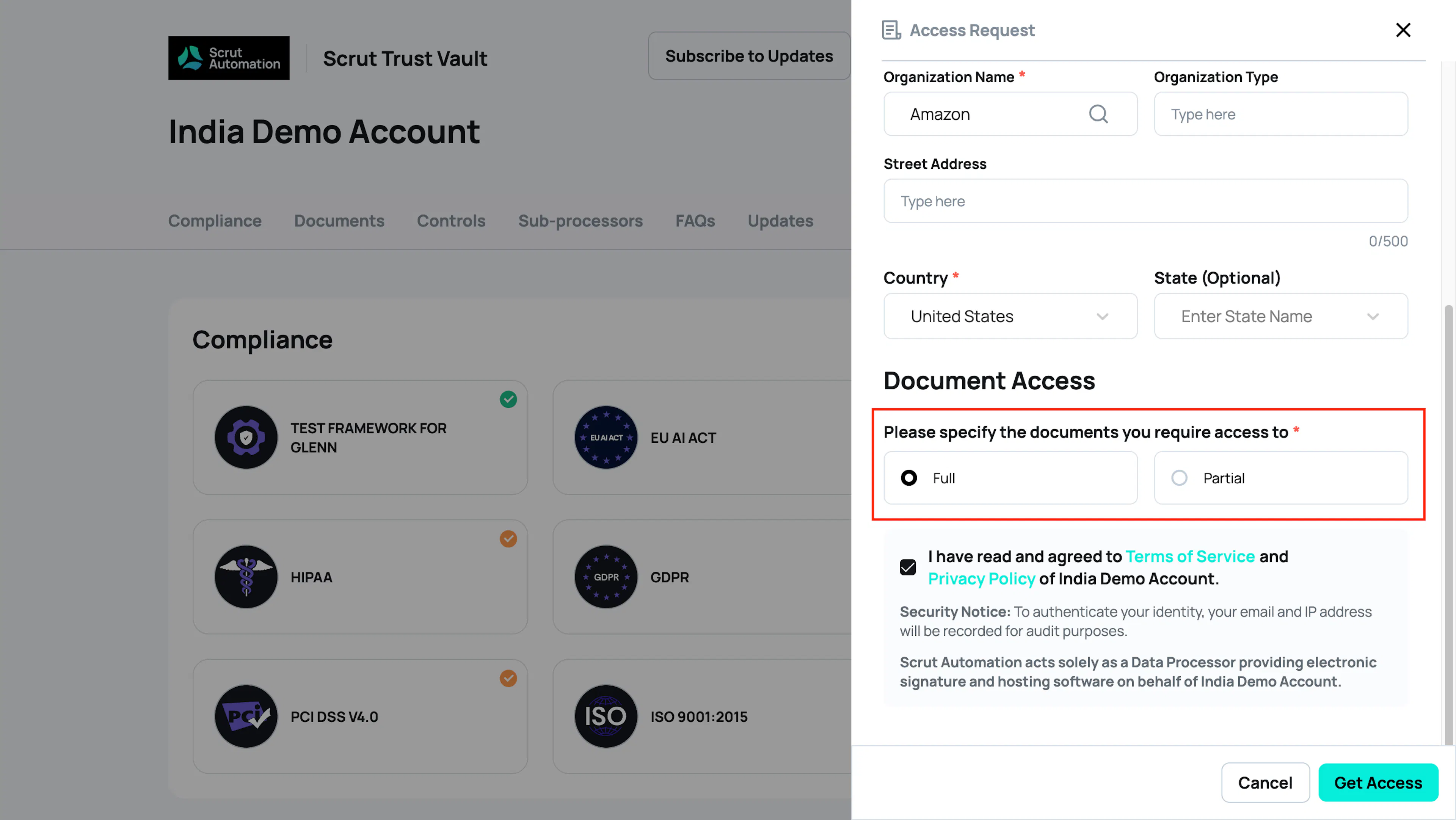
Once submitted, users receive an on-screen confirmation message, and the request appears in the Trust Vault → Access → Pending tab in Scrut.
Review Access Requests
Step 1: Access Pending Requests
- Navigate to Trust → Trust Vault → Access → Pending tab in Scrut.
- Click the green check mark to approve the user's access.
- Review the access request details, including user information and access levels.
Step 2: Modify Access (Optional)
Before approving, you can adjust the access configuration:
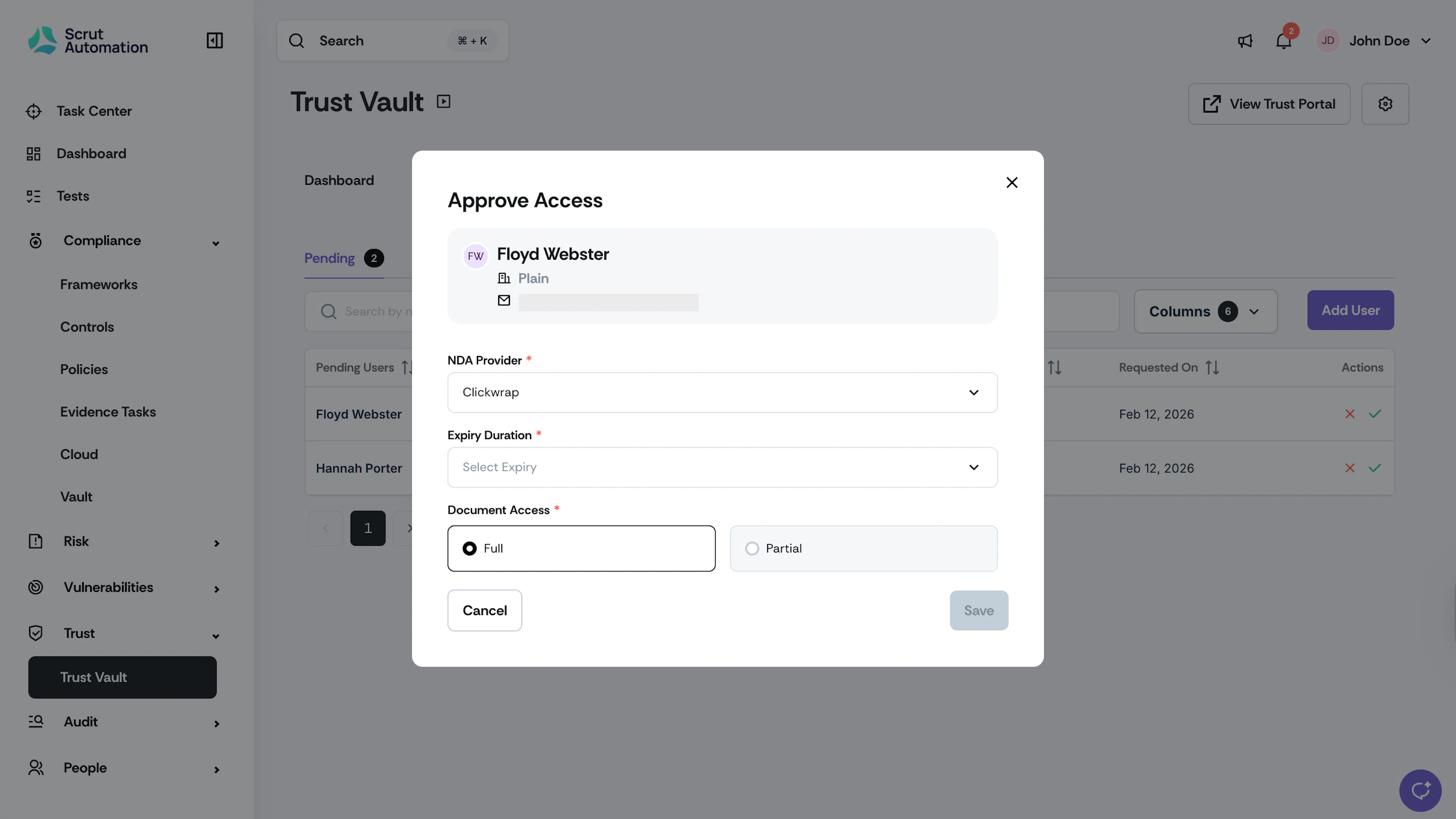
- In the Document Access section, you can switch between full or partial access as needed.
- If granting partial access, select the list of documents that the user will have access to.
Step 3: Configure Access Settings
Set the following parameters:
- Access Expiry Duration: Define how long the user will have access.
- NDA Settings: Review and configure NDA requirements.
Step 4: Approve the Request
Once you've reviewed and configured the settings, click Save to approve the request.
Modifying Access After Approval
You can update user permissions even after granting access:
-
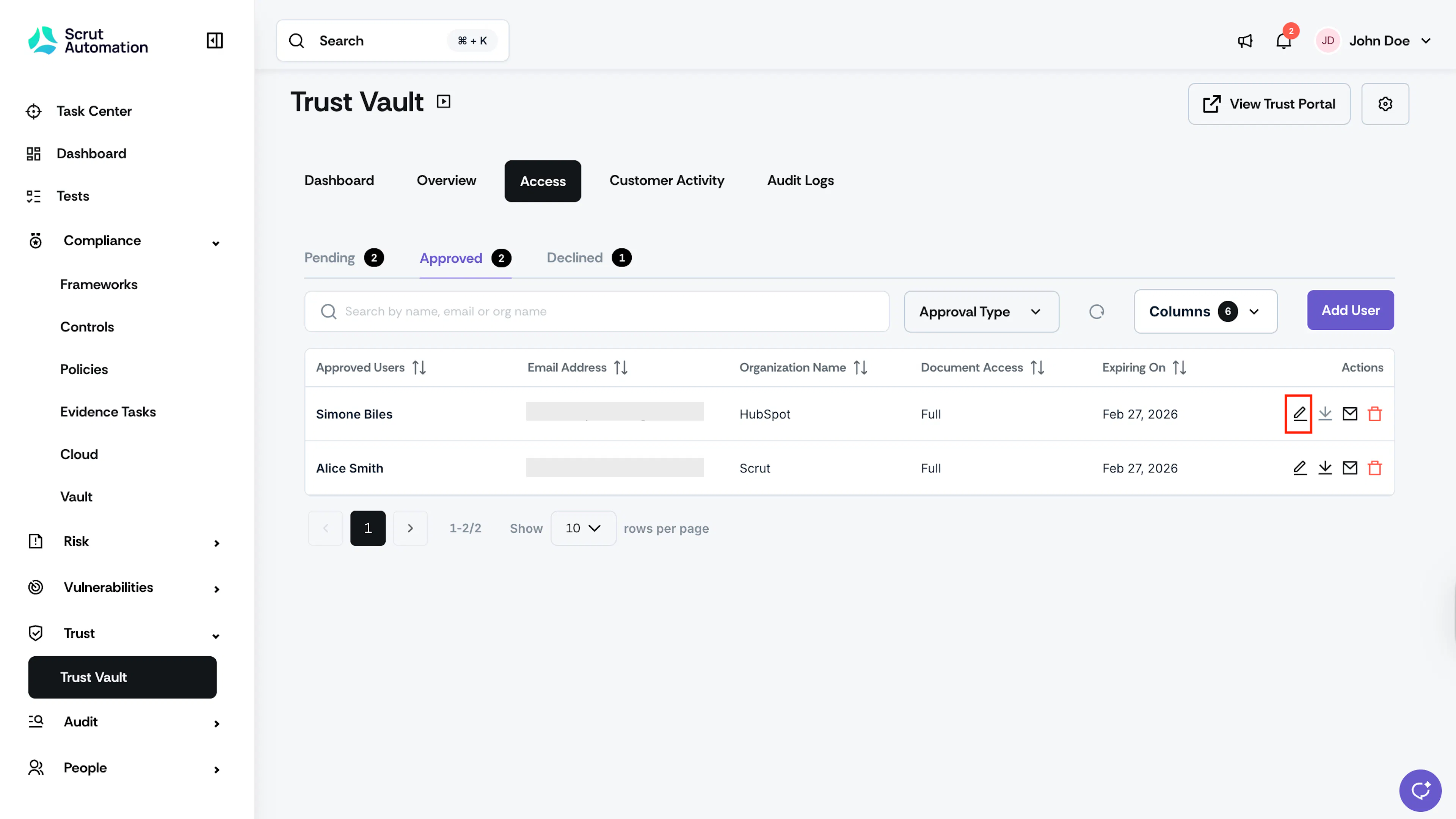
Navigate to the user's profile in Trust → Trust Vault → Access → Approved tab.
-
Click the edit icon to modify the user’s access type.
-
Edit the access type:
- Switch between full and partial access
- If using partial access, adjust the document list
-
Save the changes.