

Customize Download Permissions in Trust Portal
Heads Up!
This features is in limited Beta, and is available only to a few customers. To know more, contact your CSM or Scrut Support (support@scrut.io)
You can now control who can download documents from your Trust Portal. This feature lets you customize the document download access at the user level, ensuring that only authorized users can download sensitive information. Learn how to configure user-specific download permissions in the Trust Vault.
Customizing Download Permissions for Individual Users
Note:
The default setting for the Document Download toggle is the same as the Enable Downloading of Reports settings of the Trust Vault.
For New Requests
New access requests arrive in the Pending tab on the Trust Vault dashboard. When approving a user request, you can set the user's download permissions. To do this:
-
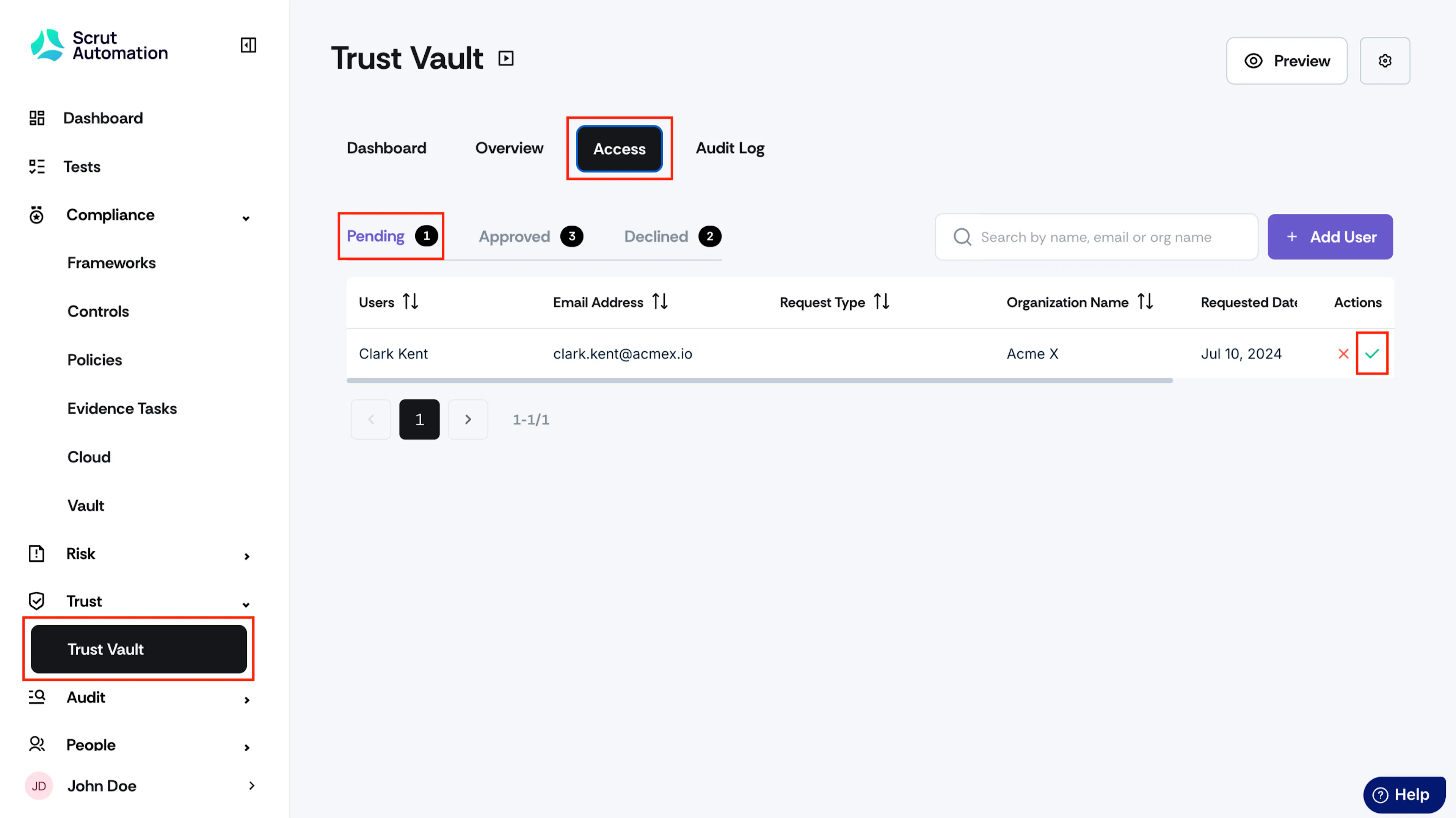
Navigate to Access → Pending tab in Trust Vault.
-
Click the Approve icon in the Actions column for a specific user.
-
In the Approve Access window, turn the Document Download toggle on or off as required.
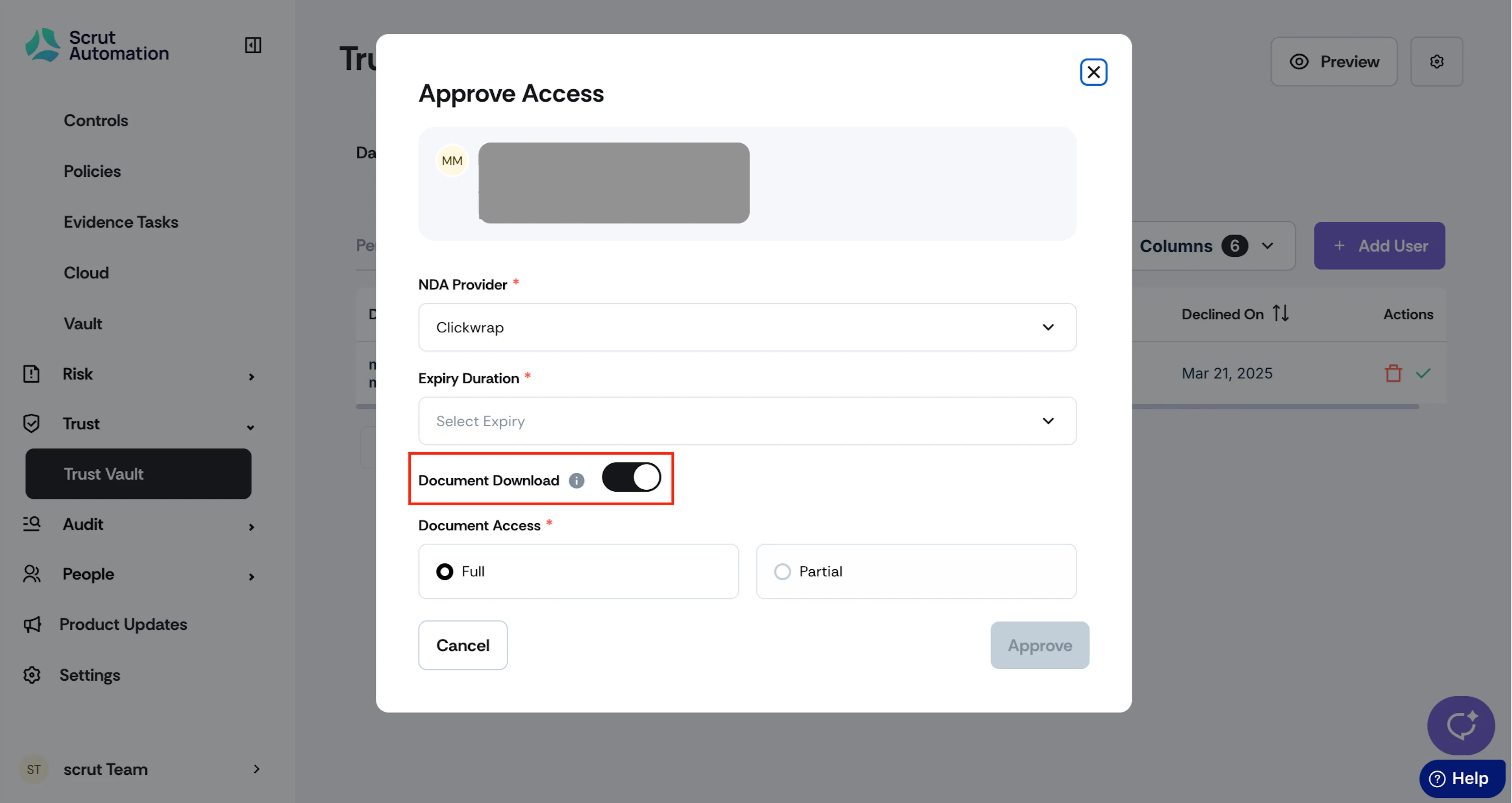
If enabled, users can download all documents they’ve been granted access to via the Document Access settings.
For Approved Users
For users you’ve granted access to the Trust Vault, you can change their download permissions by editing their details. To do this:
-
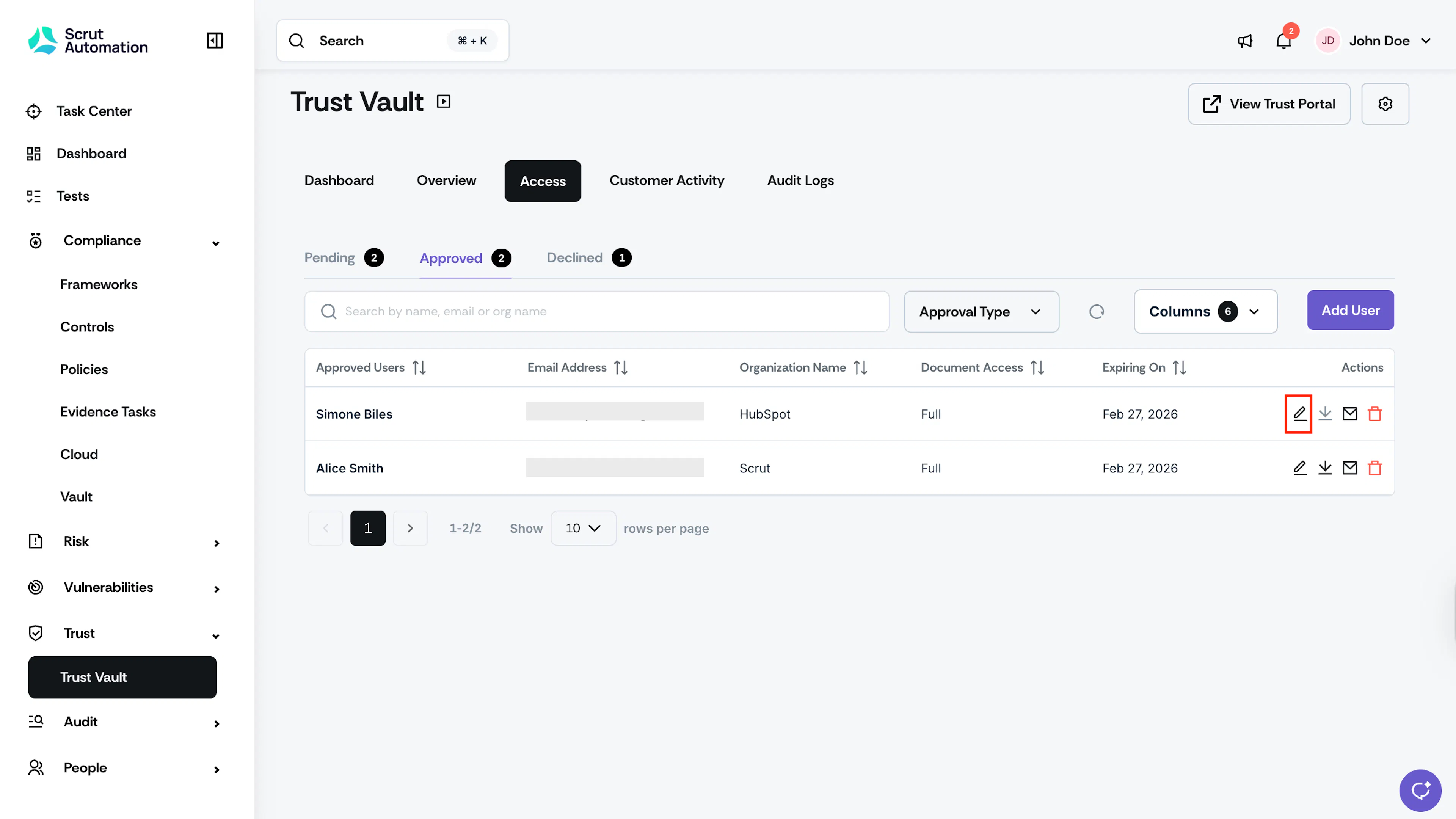
Navigate to the Approved tab in Trust Vault and click the pencil icon next to the user you want to edit.

-
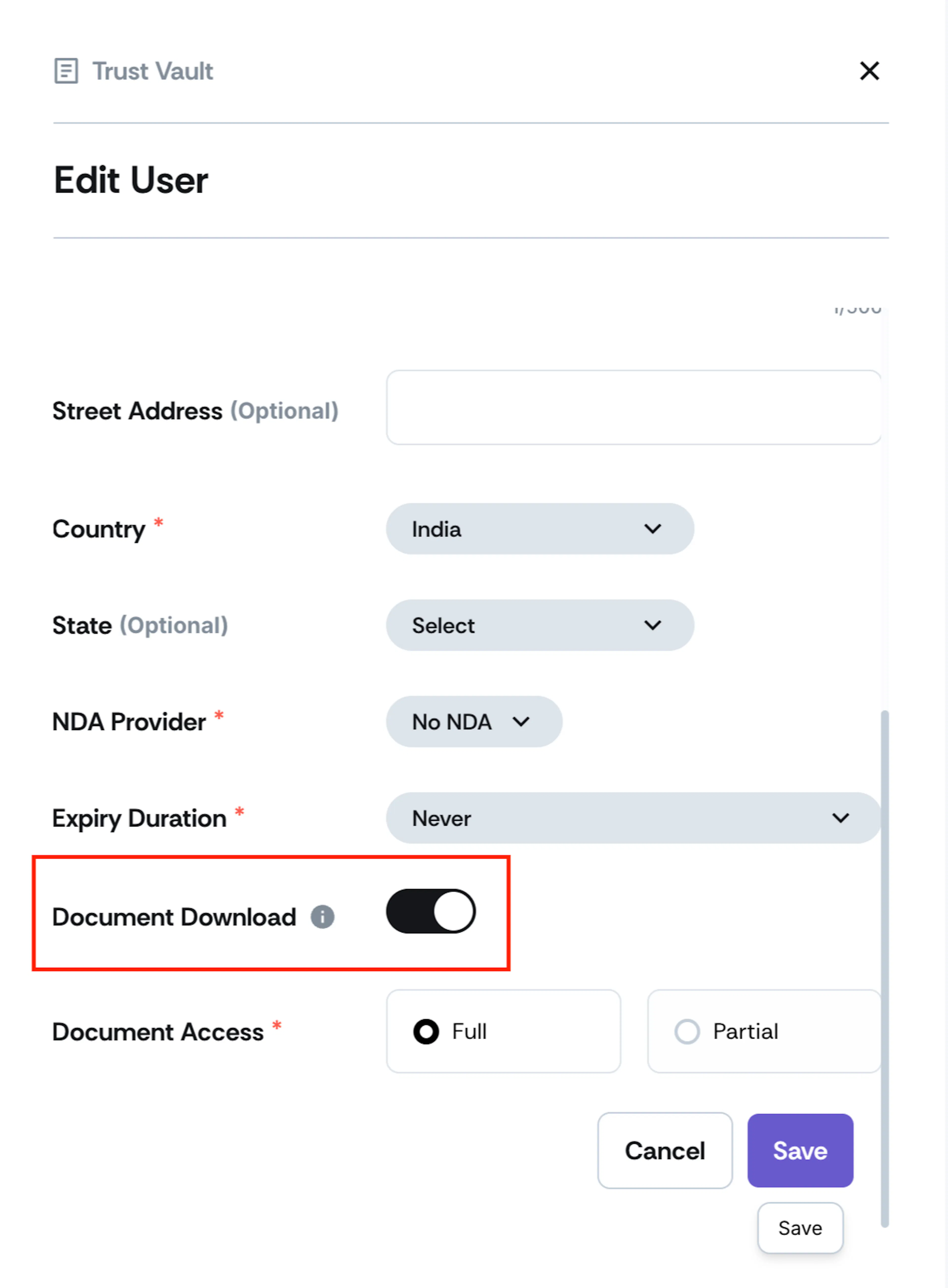
This opens the Edit User sidebar.
-
Toggle the Document Download setting on or off, as needed.
-
Click Save.