

Customize the Display Order of Your Trust Portal
Who can use this feature
- Included in the Scale plan
- Available in the Trust Advanced Add-On for Foundation and Growth plans
This guide covers how to customize the display order of Trust Portal sections and items within each section.
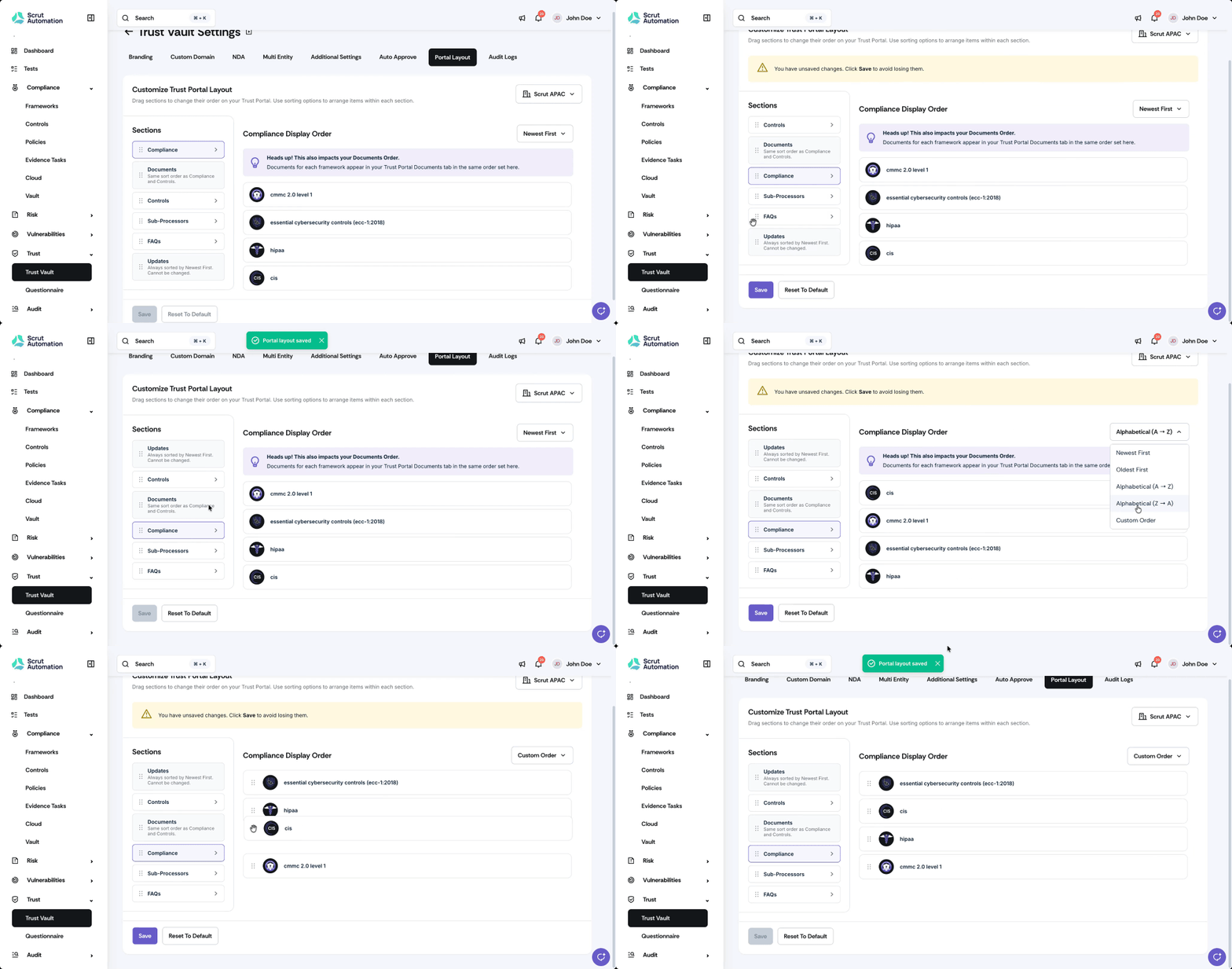
Display order customization works at two levels:
- Page layout: Drag and reorder entire sections (Compliance, Controls, Sub-Processors, FAQs, Updates).
- Section sort: Set a sort strategy for items within each section, such as sorting compliance frameworks alphabetically or placing your most recently added sub-processors at the top.
Note:
Any changes you make in Trust Vault → Settings → Portal Layout affect presentation only. They do not modify your compliance data, control configurations, or any other content.
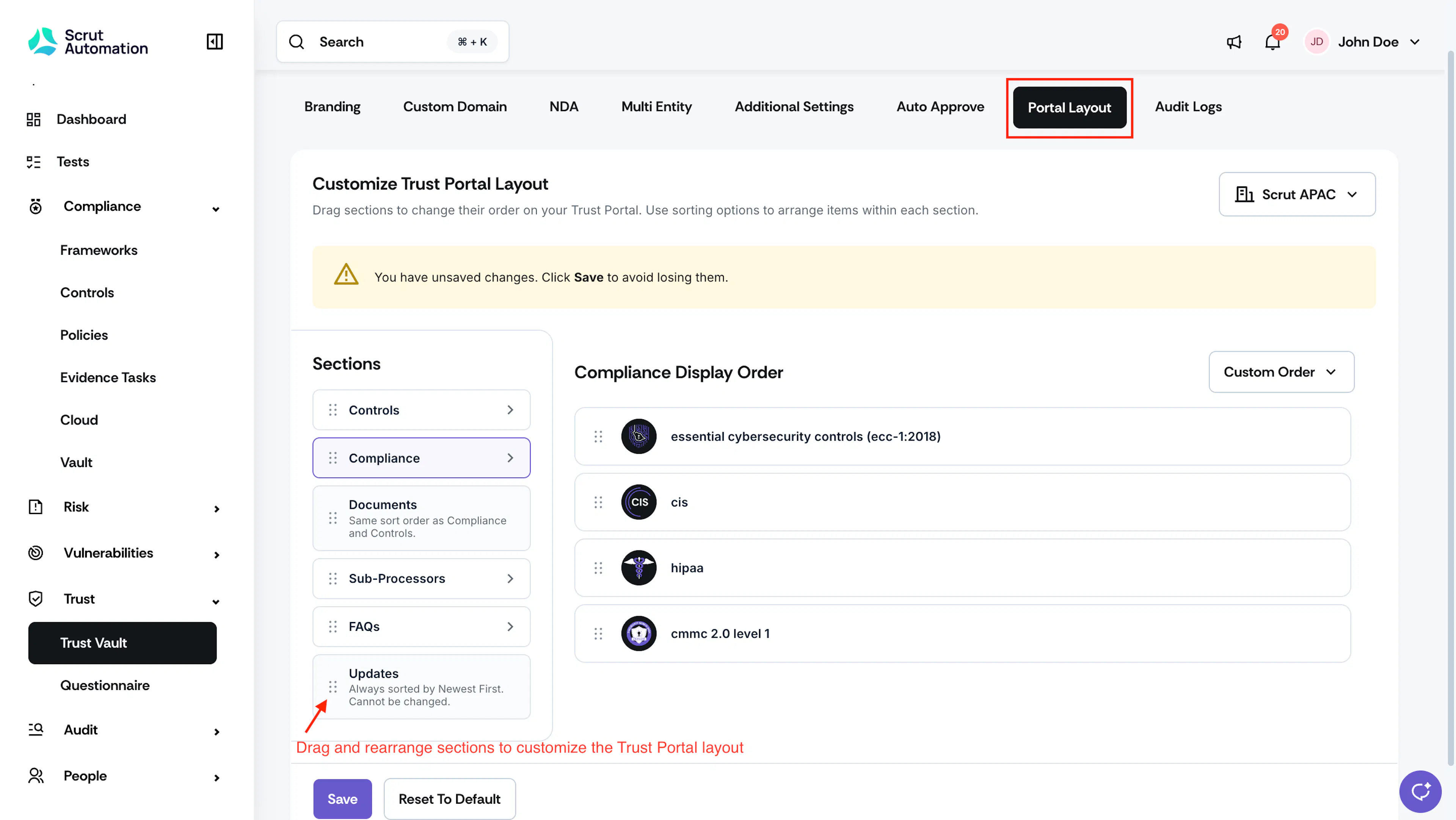
Reorder Trust Vault Sections
- Sign in to Scrut and navigate to Trust → Trust Vault → Settings.
- Click the Portal Layout tab.
- Drag each section to your preferred position.
- Click Save to apply the new layout.
The updated section order is reflected on your Trust Portal immediately.
Set the Sort Order for Items Within a Section
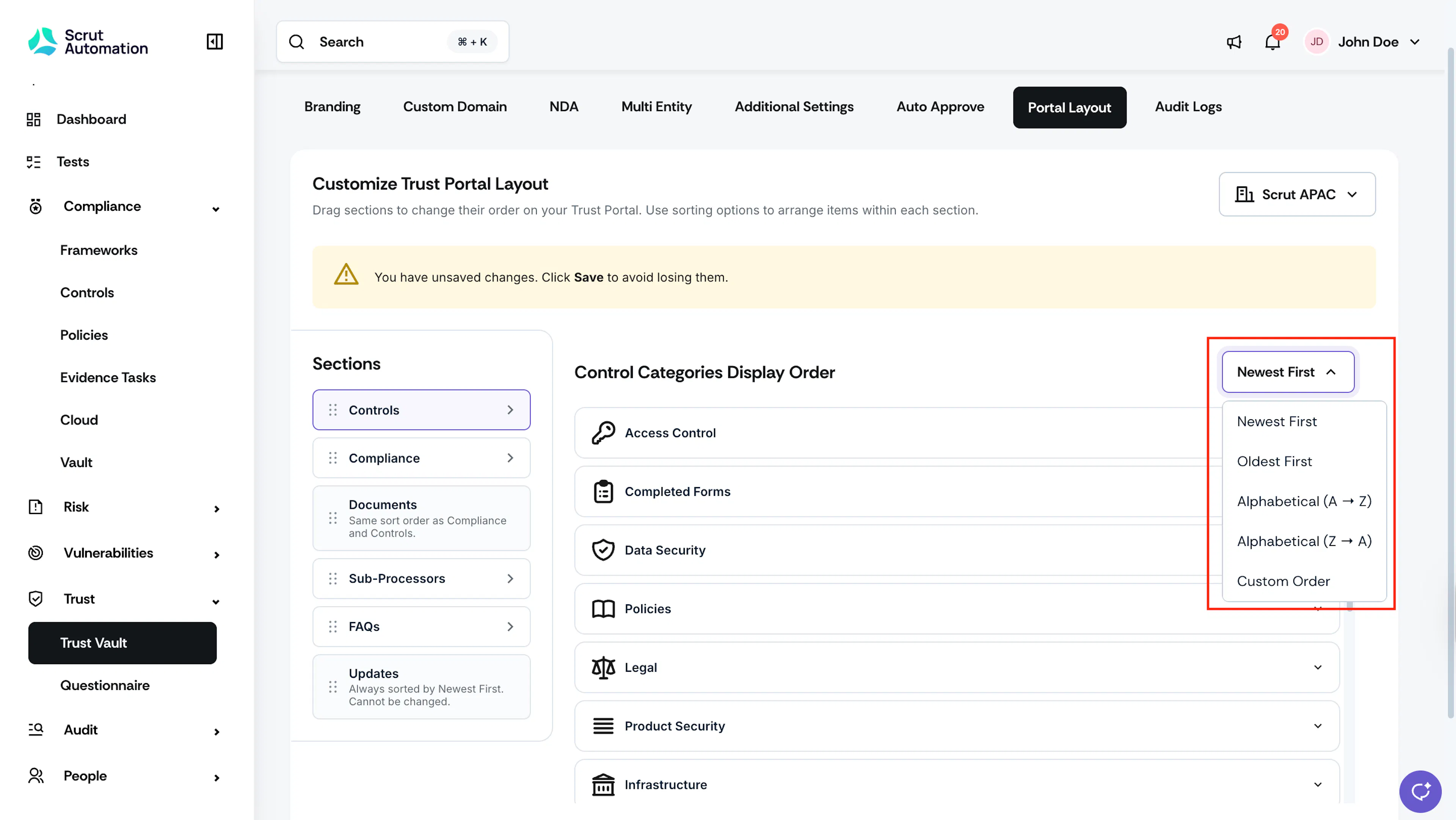
You can also customize the sorting order for items within each section.
- Navigate to Trust → Trust Vault → Settings.
- Click the section you want to configure on the left panel: Compliance, Controls, Sub-Processors, or FAQs.
- Select your preferred order from the sorting dropdown.
- If you select Custom Order, drag handles appear next to each item. Drag them to rearrange the order.
- Click Save.
The selected order is automatically applied to the Trust Portal.
Heads Up!
- Updates are always sorted by Newest First. This ordering is fixed and cannot be changed.
- The Documents section follows the same sort order as you have set for Compliance and Controls.
FAQs
Was this page helpful?