

Enable Reports Download
Who can use this feature
- Supported on Foundation, Growth, and Scale plans
On the Trust Portal, you can use the Enable Downloading of Reports toggle to control whether visitors can download reports (documents) or only view them.
- When the toggle is On: Visitors can view and download the reports they have access to.
- When the toggle is Off: Visitors can view reports only. The download option will not be available.
You can use this setting to control how your documents are shared externally.
When Downloads are Enabled
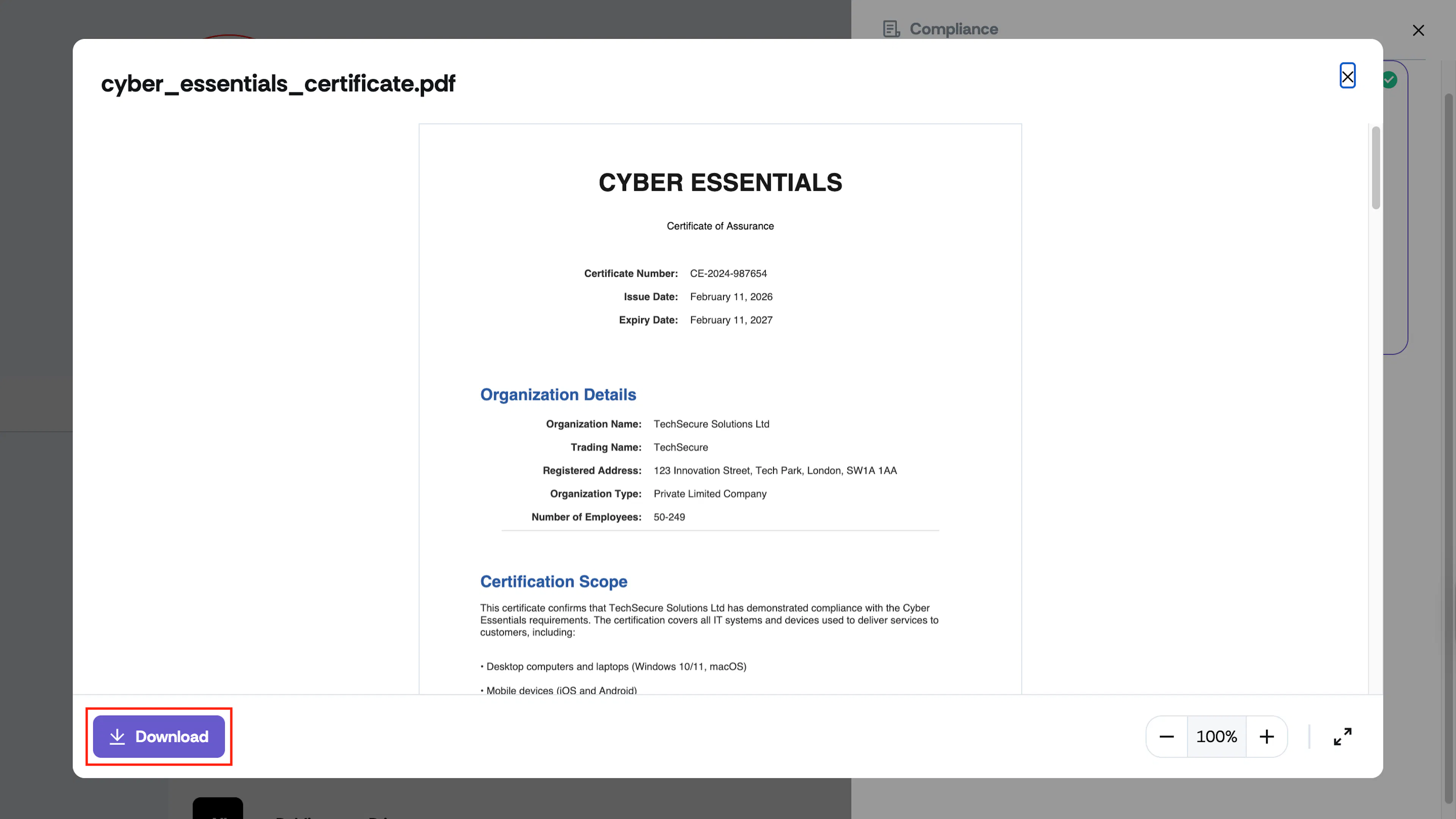
When the Enable Downloading of Reports toggle is turned ON, visitors can both view and download the reports they have access to.
- A Download button appears alongside accessible documents.
- Visitors can save reports directly to their devices.
- Access permissions still apply. They can only see and download documents that have been shared with them.
When Downloads are Disabled
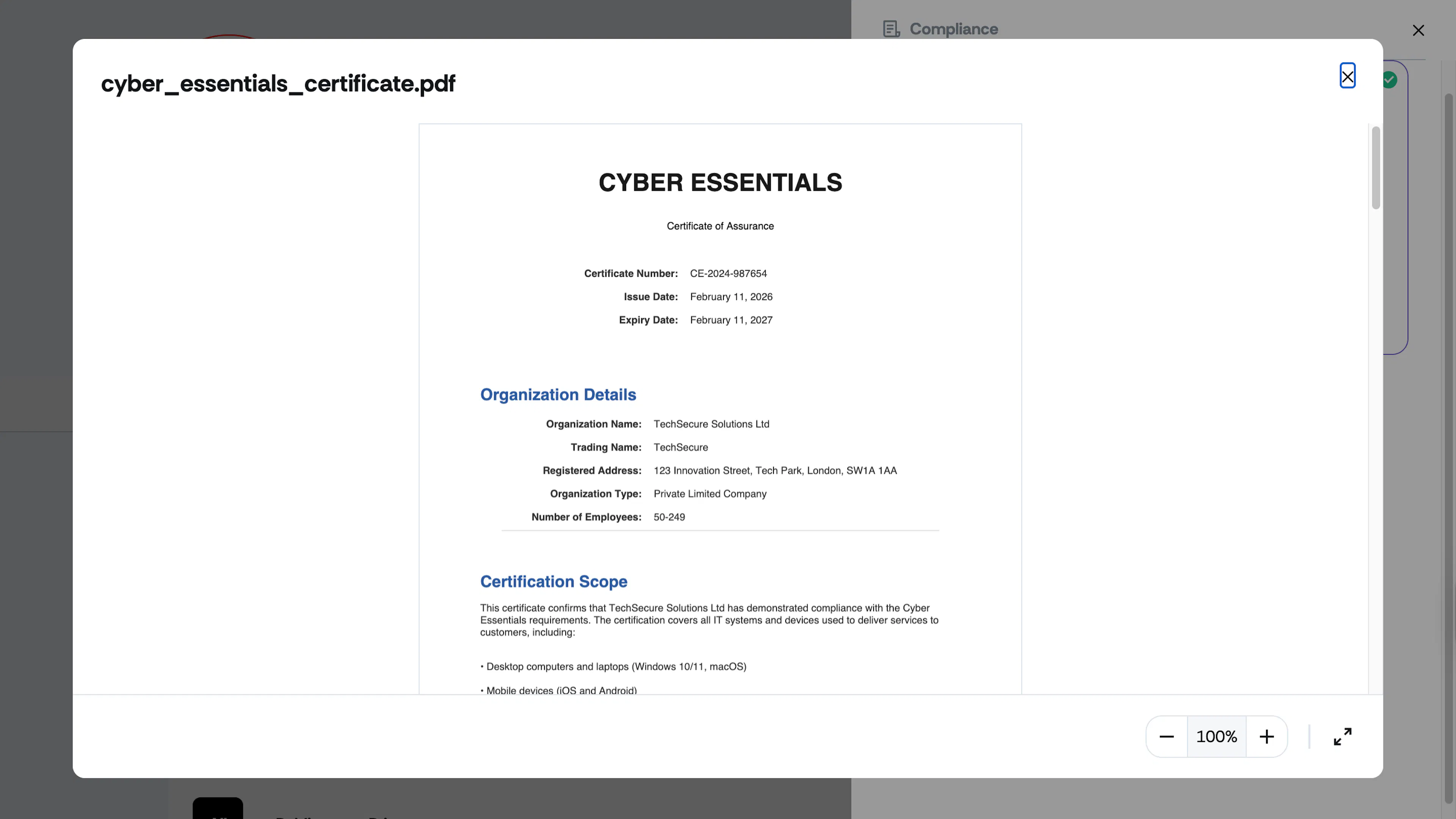
When the Enable Downloading of Reports toggle is turned OFF, visitors can view reports only.
- The Download option is not displayed.
- Reports can be opened and reviewed within the portal.
- Documents cannot be saved or exported.
How to Enable or Disable Report Downloads
-
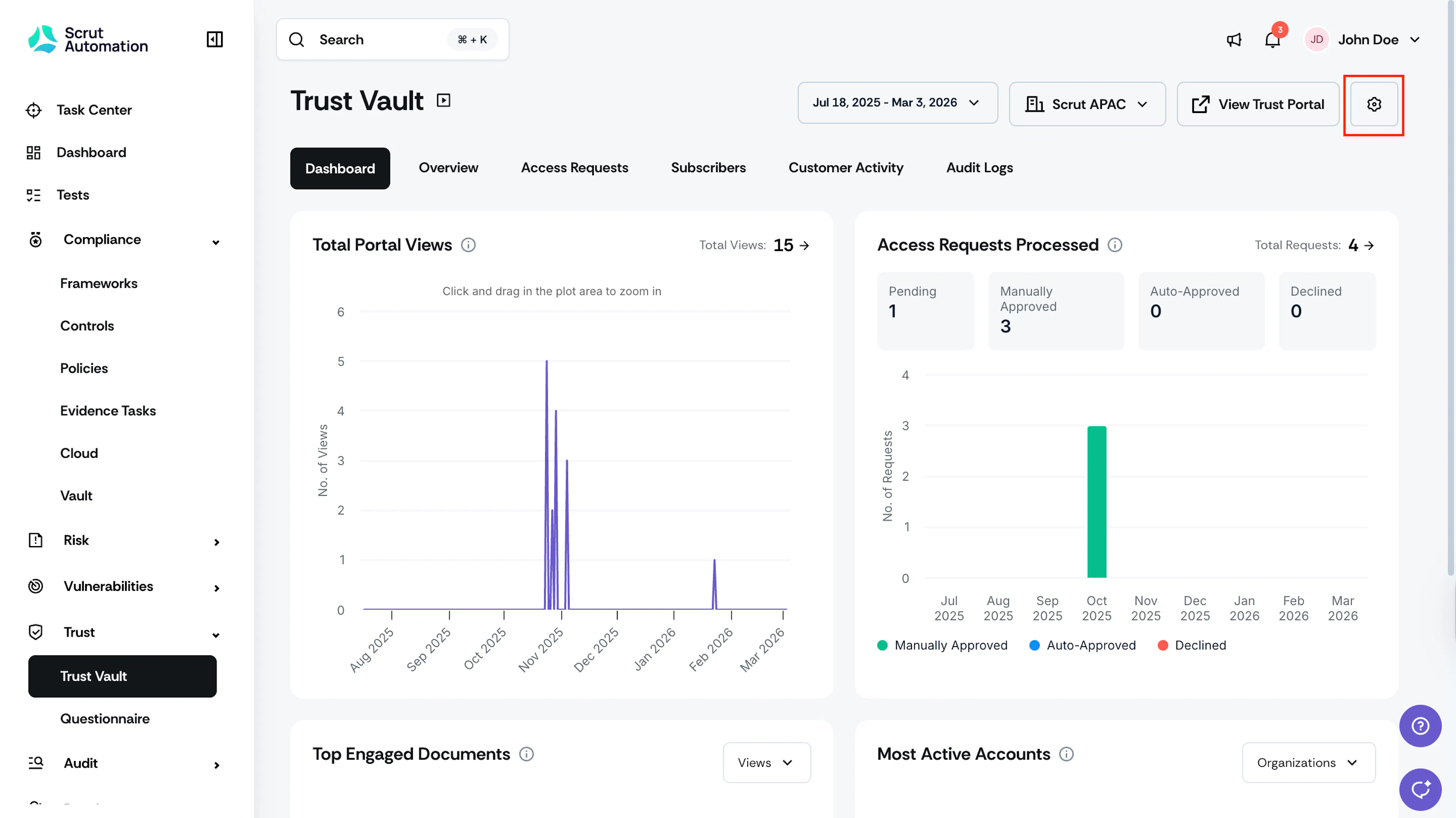
Click Trust → Trust Vault on the left navigation panel and click the Settings icon in the top-right corner of the Trust Vault module.
-
Navigate to the Additional Settings tab.
-
Turn the Enable Downloading of Reports toggle On or Off, as required.
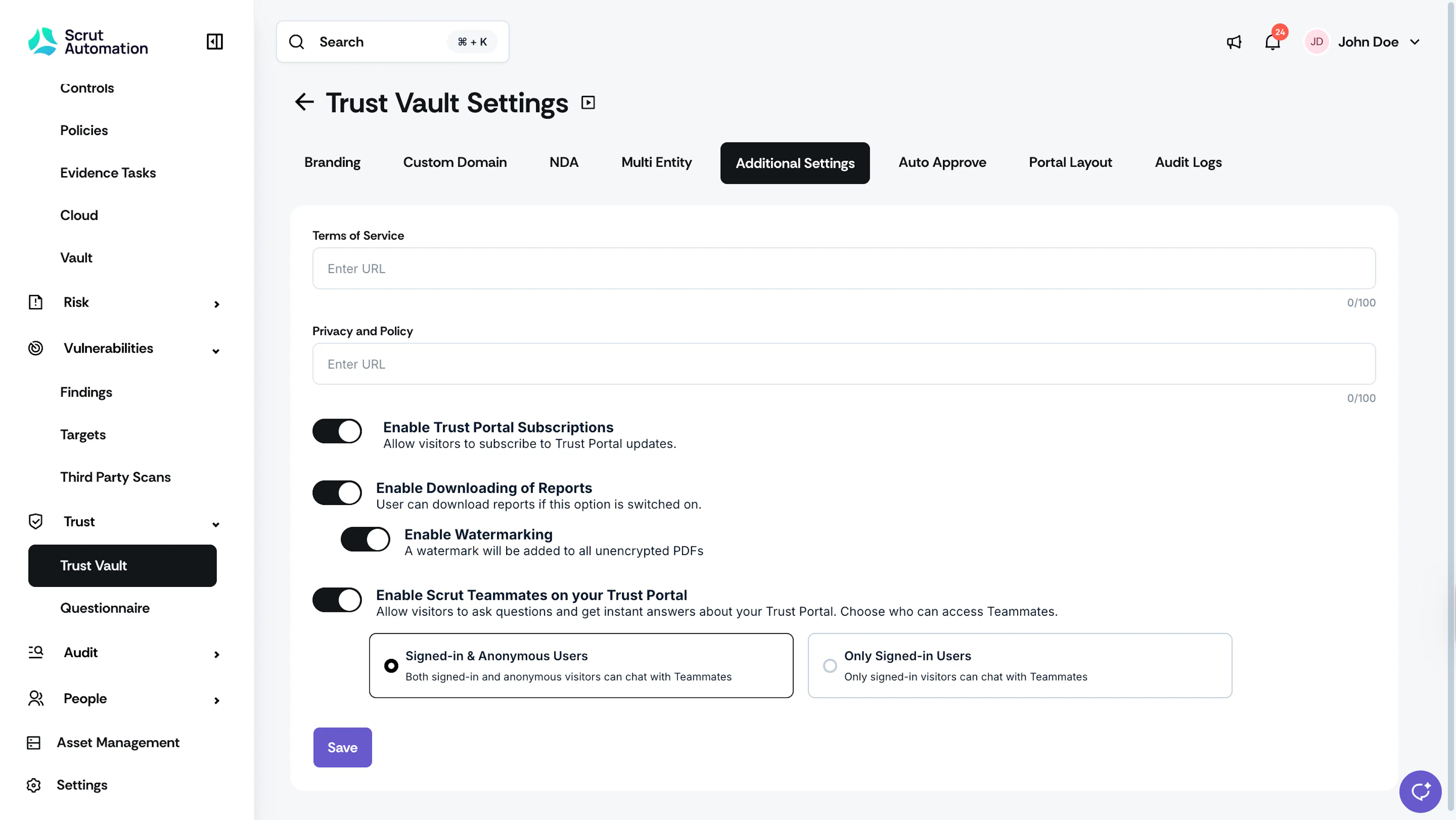
Your changes take effect immediately.