

Submit a Vendor Procurement Request
Who can use this feature
- Included in the Scale plan
- Available in the Vendor Advanced Add-on for Foundation and Growth plans
For Employees
When you want to onboard a new vendor, you can submit a procurement request directly through the Scrut Employee Portal. Your request goes to the relevant team for review, and you'll be notified once a decision is made.
How to Submit a Vendor Procurement Request
-
Log in to the Scrut Employee Portal.
-
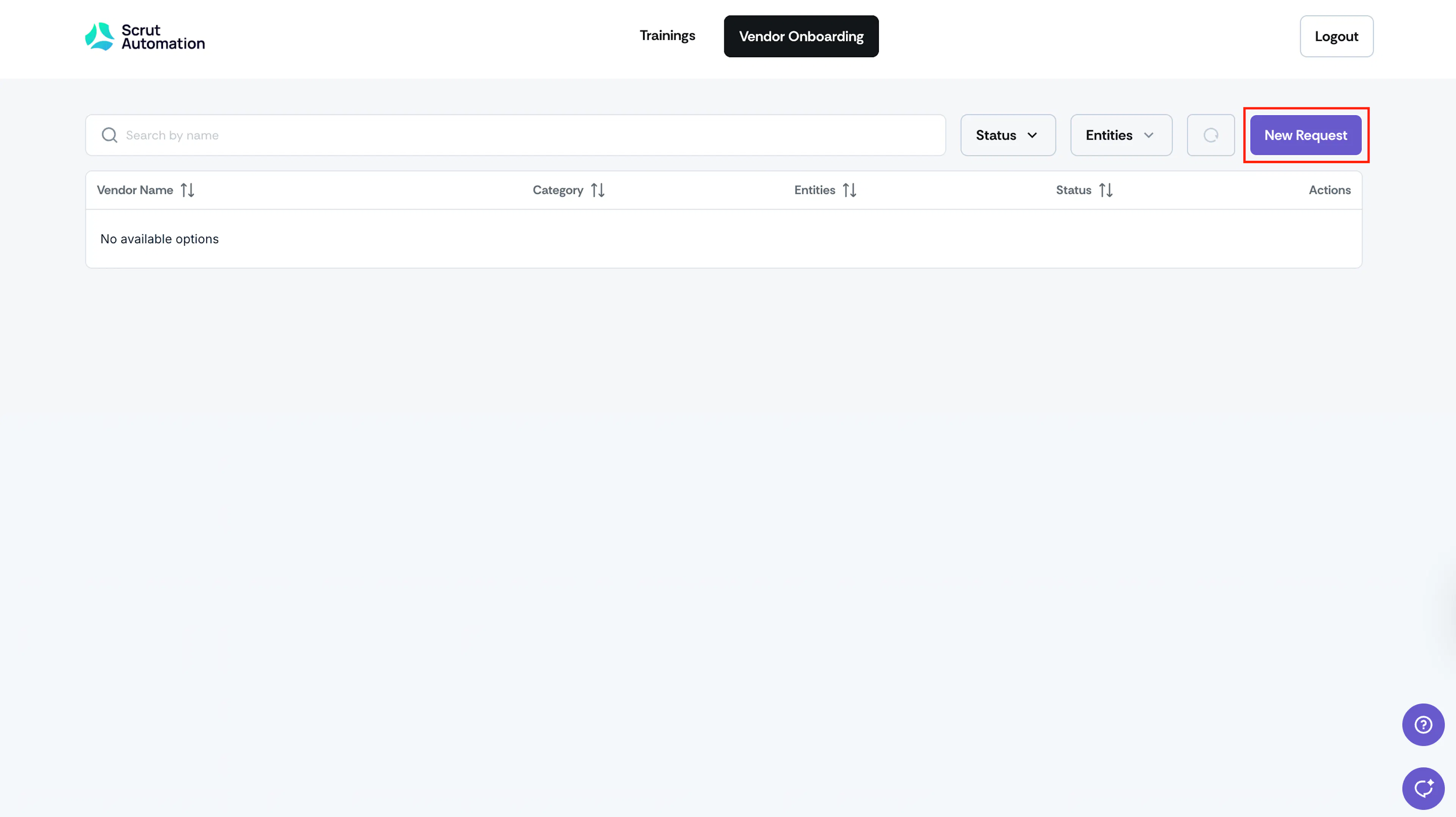
Click the Vendor Onboarding tab.
-
Click New Request.
-
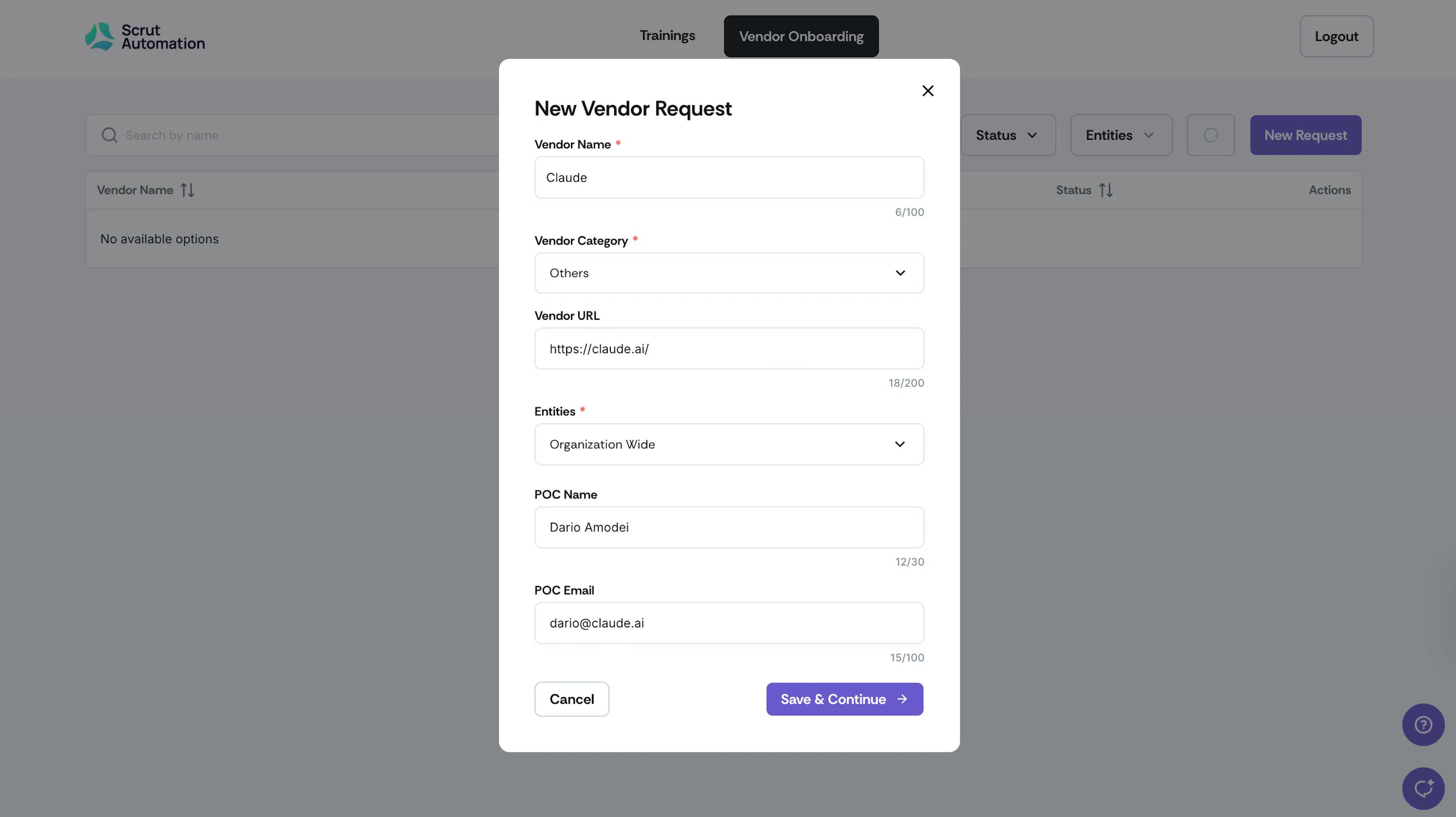
Enter the vendor's name in the Vendor Name field.
-
Select a category from the Vendor Category dropdown.
-
Enter the vendor's website in the Vendor URL field.
-
Select an entity from the Entities dropdown to link to this vendor.
-
Enter the point of contact's name and email in the POC Name and POC Email fields.
-
Click Save and Continue.
This creates a vendor request in Draft status and opens the intake form.
-
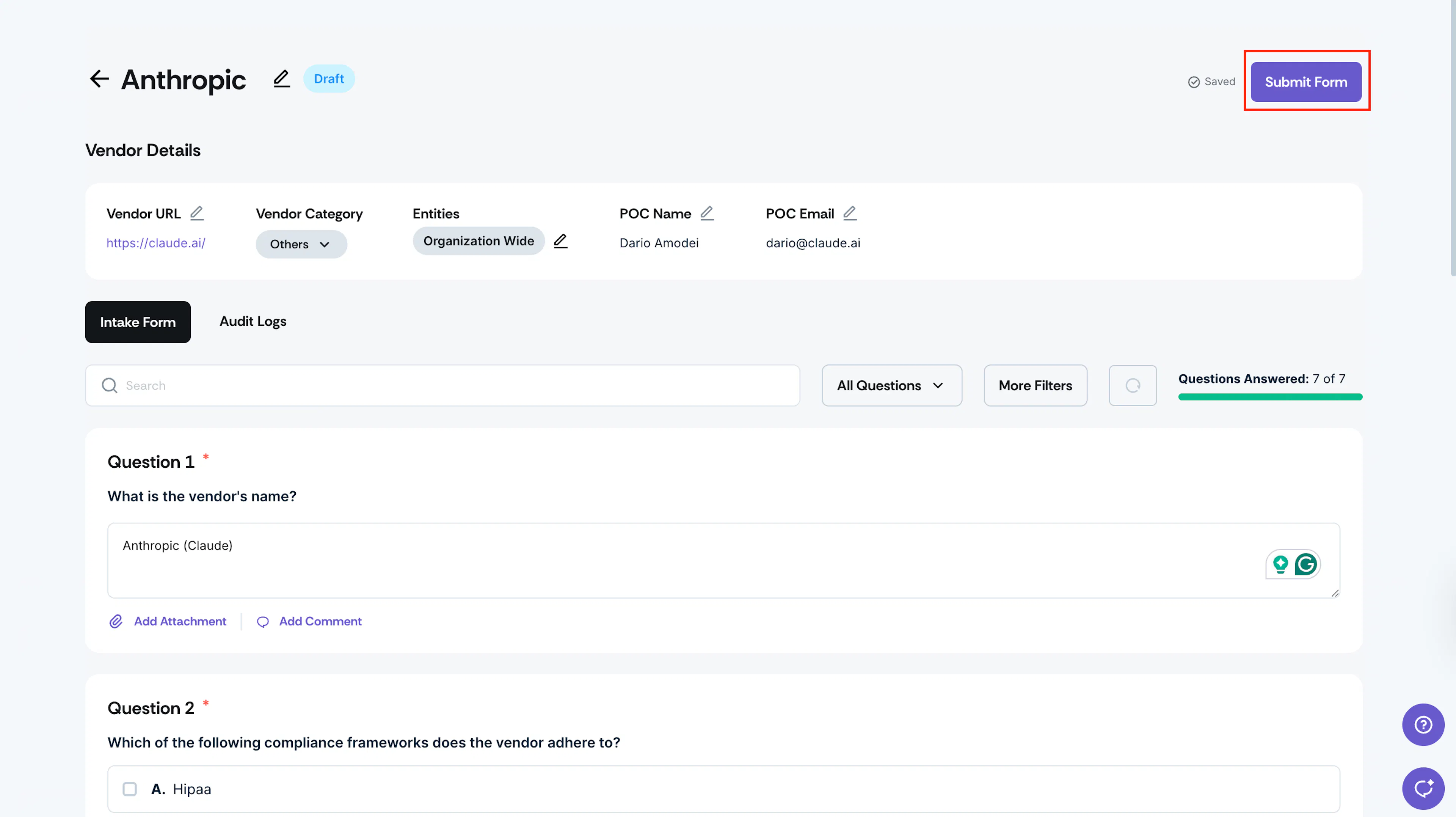
Answer all questions in the intake form.
Note: Your answers are saved automatically as you fill out the intake form. You can leave and return to a draft request at any time before submitting.
-
Click Submit Form.
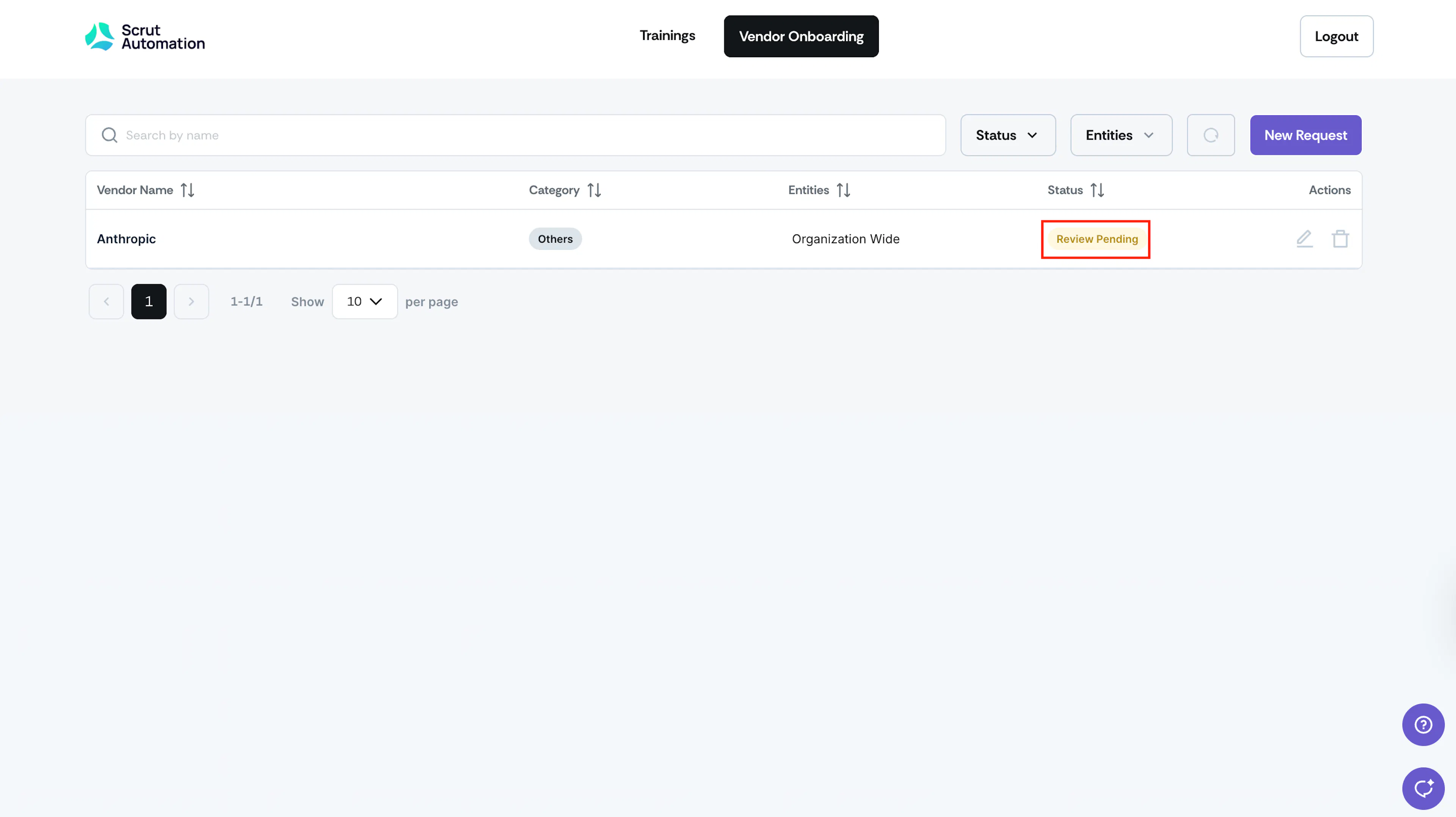
A success message confirms your submission. The request status changes to Review Pending, and Scrut Admins are notified by email.
Heads Up!
You can only edit or delete a vendor request while it's in Draft status. Once submitted, it cannot be modified. So, make sure to check your answers carefully before submitting.
Tracking Your Request
You can track the status of your request from the Vendor Onboarding tab in the Employee Portal. After the reviewing team assesses it, the status is updated to Approved or Declined. You'll receive an email notification with the outcome and any remarks provided.