

Review Vendor Procurement Requests
Who can use this feature
- Included in the Scale plan
- Available in the Vendor Advanced Add-on for Foundation and Growth plans
When an employee submits a vendor procurement request, you review the responses in the intake form and decide whether to approve or decline the vendor. Approved vendors are added directly to your Vendor list in the Risk → Vendor Management module.
Heads Up!
Admins receive an email notification whenever an employee submits a new vendor procurement request via the intake form.
How to Review Vendor Procurement Requests
-
Navigate to Risk → Vendors using the left navigation panel.
-
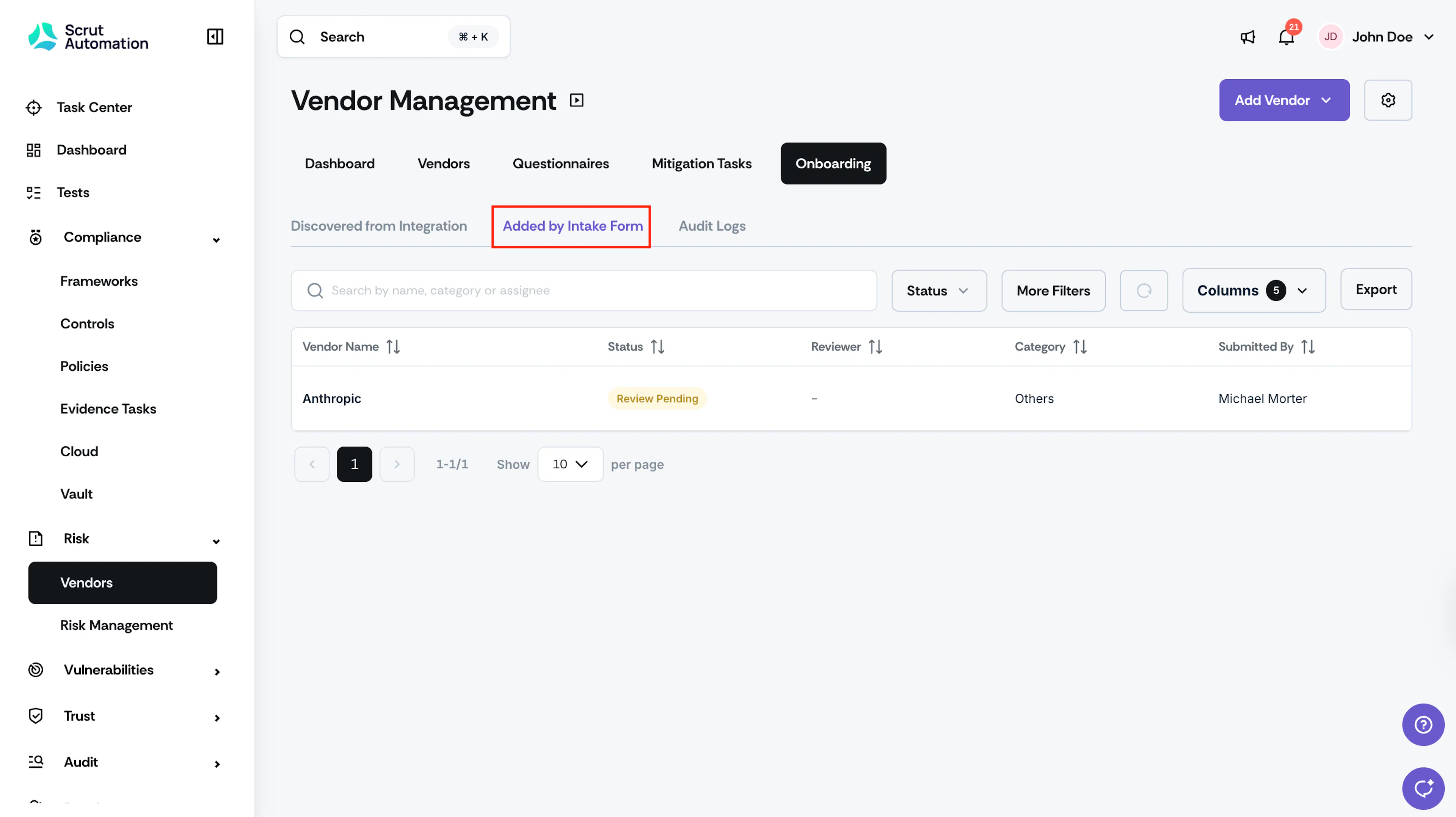
Click the Onboarding tab.
-
Select the Added by Intake Form tab to view requests submitted by employees.
-
Click a vendor request to open it.
-
Optionally, assign a reviewer from your team using the Reviewer dropdown. Use this if you want someone else to assess the request rather than reviewing it yourself.
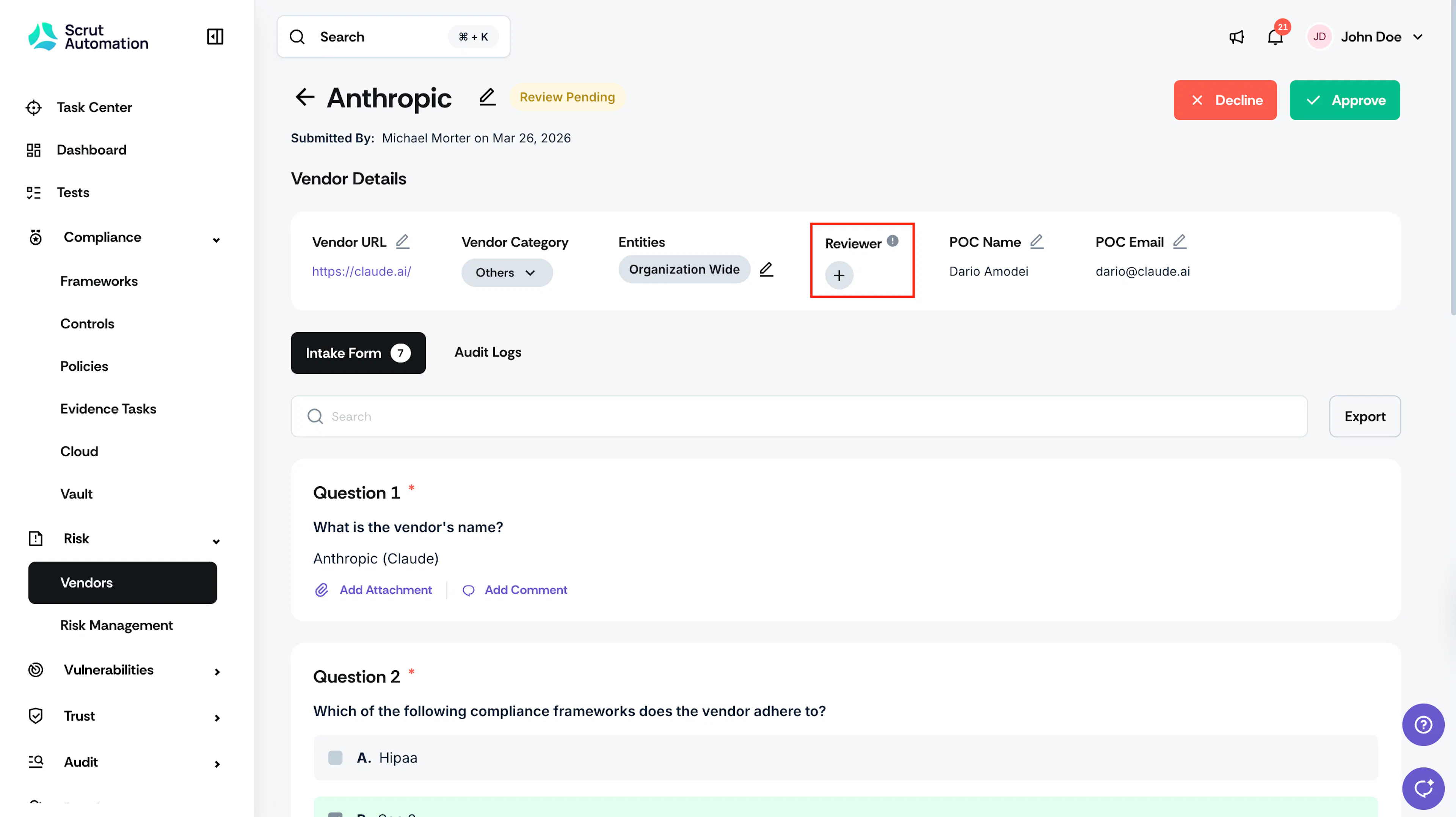
Note: The assigned reviewer receives an email notification to begin their review.
-
Read through the responses from the employee.
-
Once done, select Approve or Decline.
Approving a Request
If the vendor meets your requirements:
-
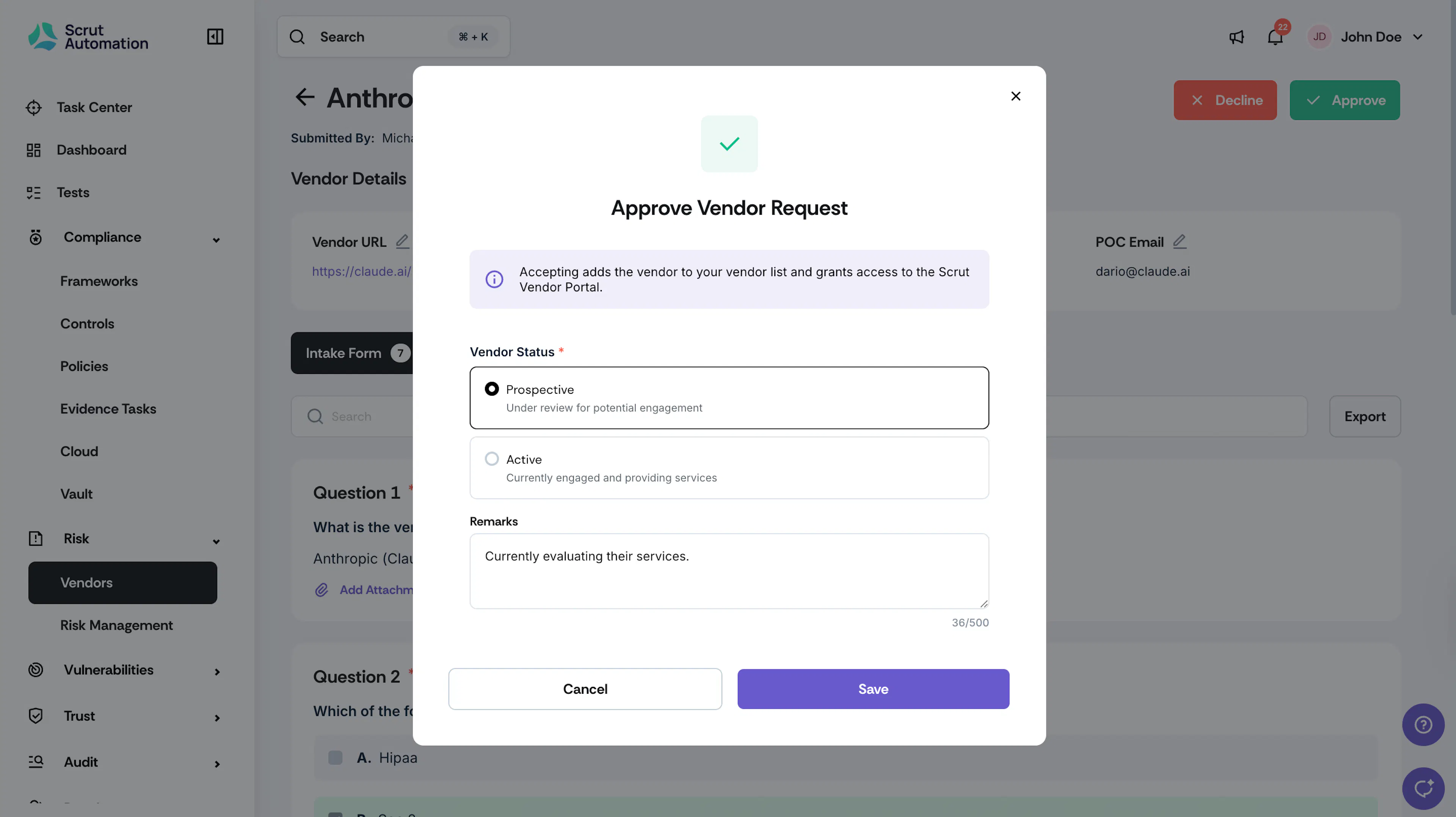
Select Approve.
-
Select the vendor's status:
- Prospective: The vendor has not yet been engaged. Choose this if you're approving them for potential future use.
- Active: The vendor is currently engaged and providing services. Choose this if onboarding is already underway.
-
Optionally, enter any remarks in the Remarks field.
-
Click Save.
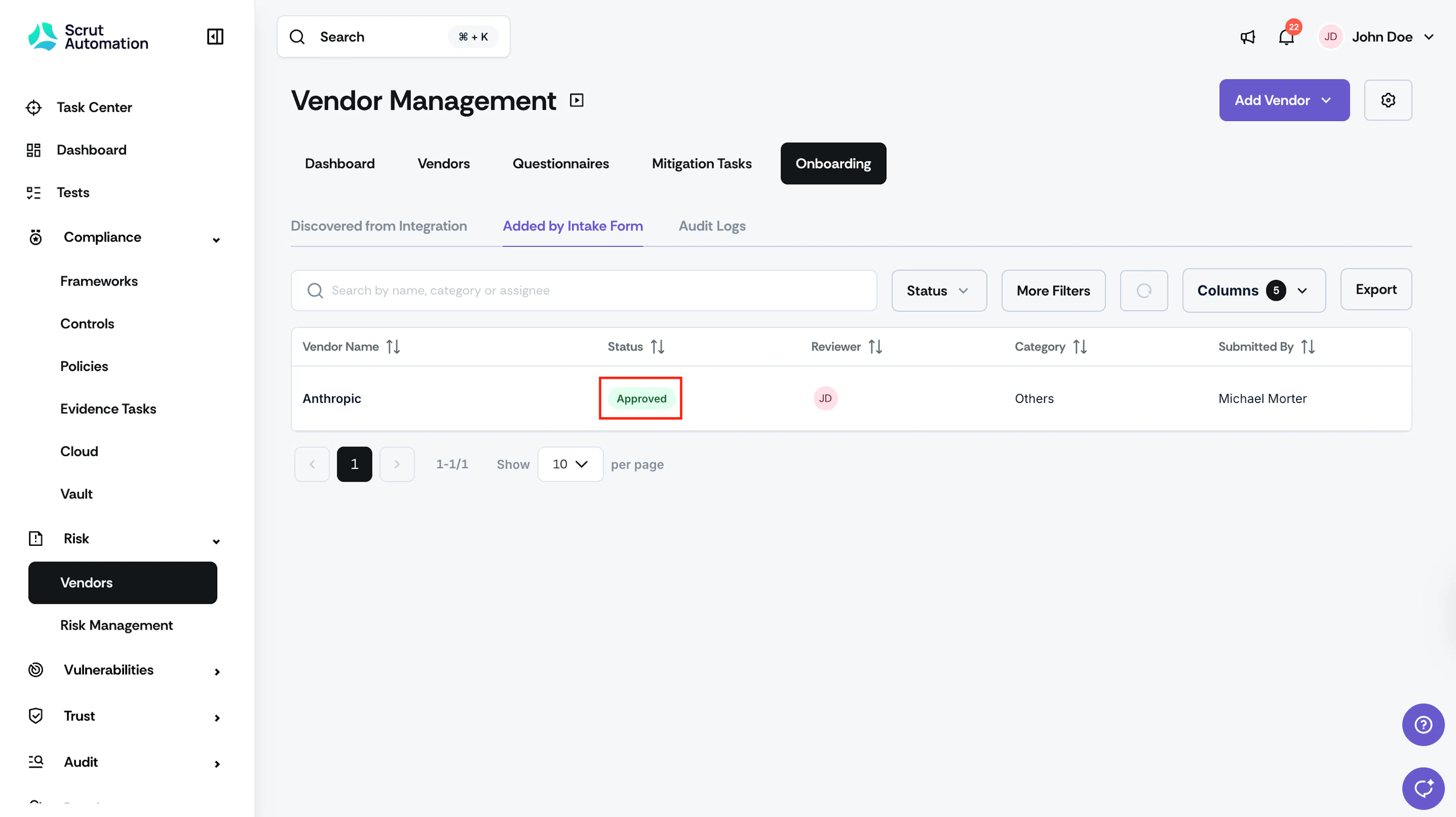
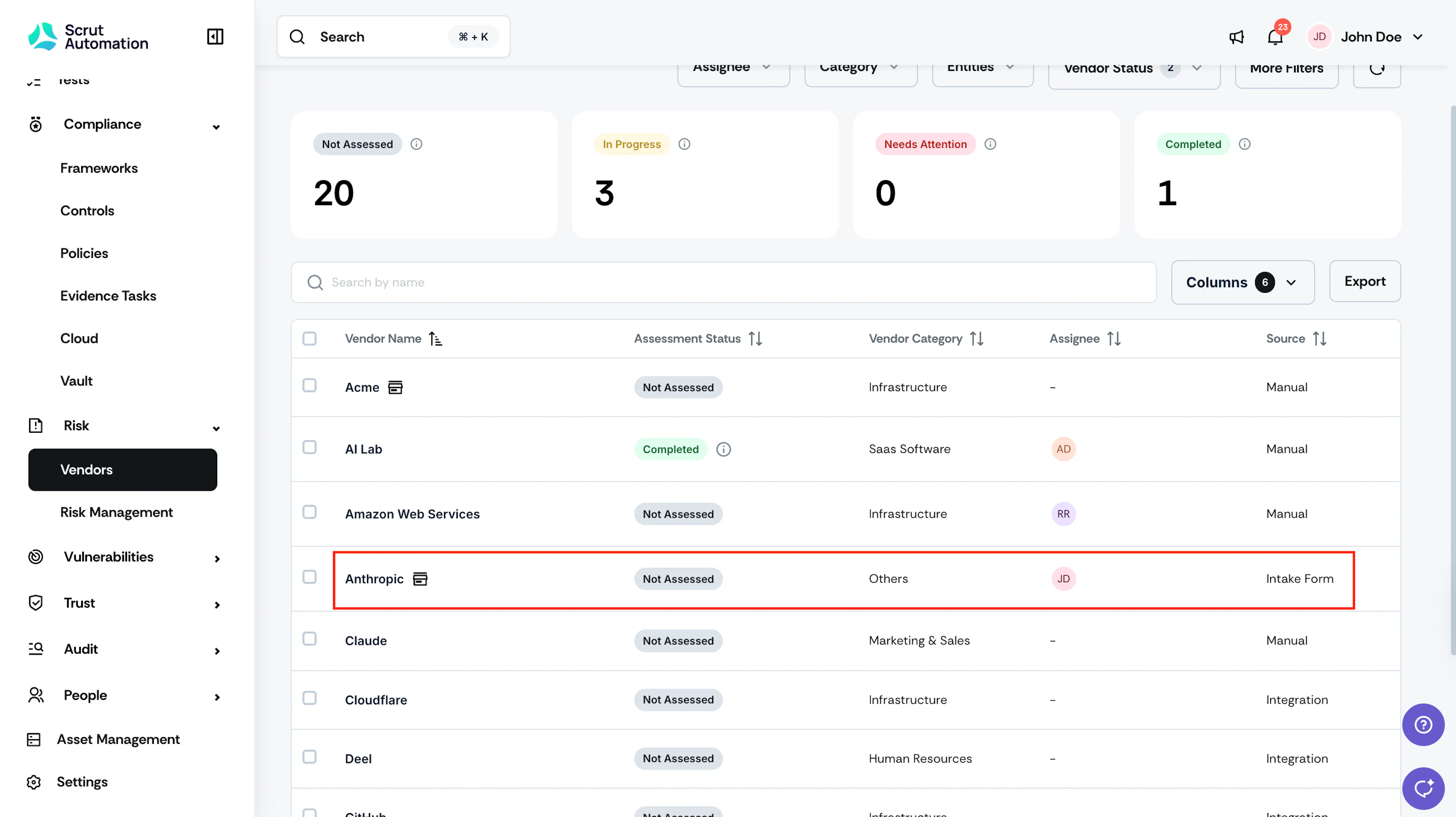
The vendor is added to the Vendor list, and the onboarding status changes from Review Pending to Approved. The employee who submitted the request receives an email notification confirming the decision.
The vendor is added to the Vendor table with the Source type as Intake Form.
Declining a Request
If the vendor does not meet your requirements:
-
Select Decline.
-
Enter the reason for declining in the Remarks field.
-
Click Decline.
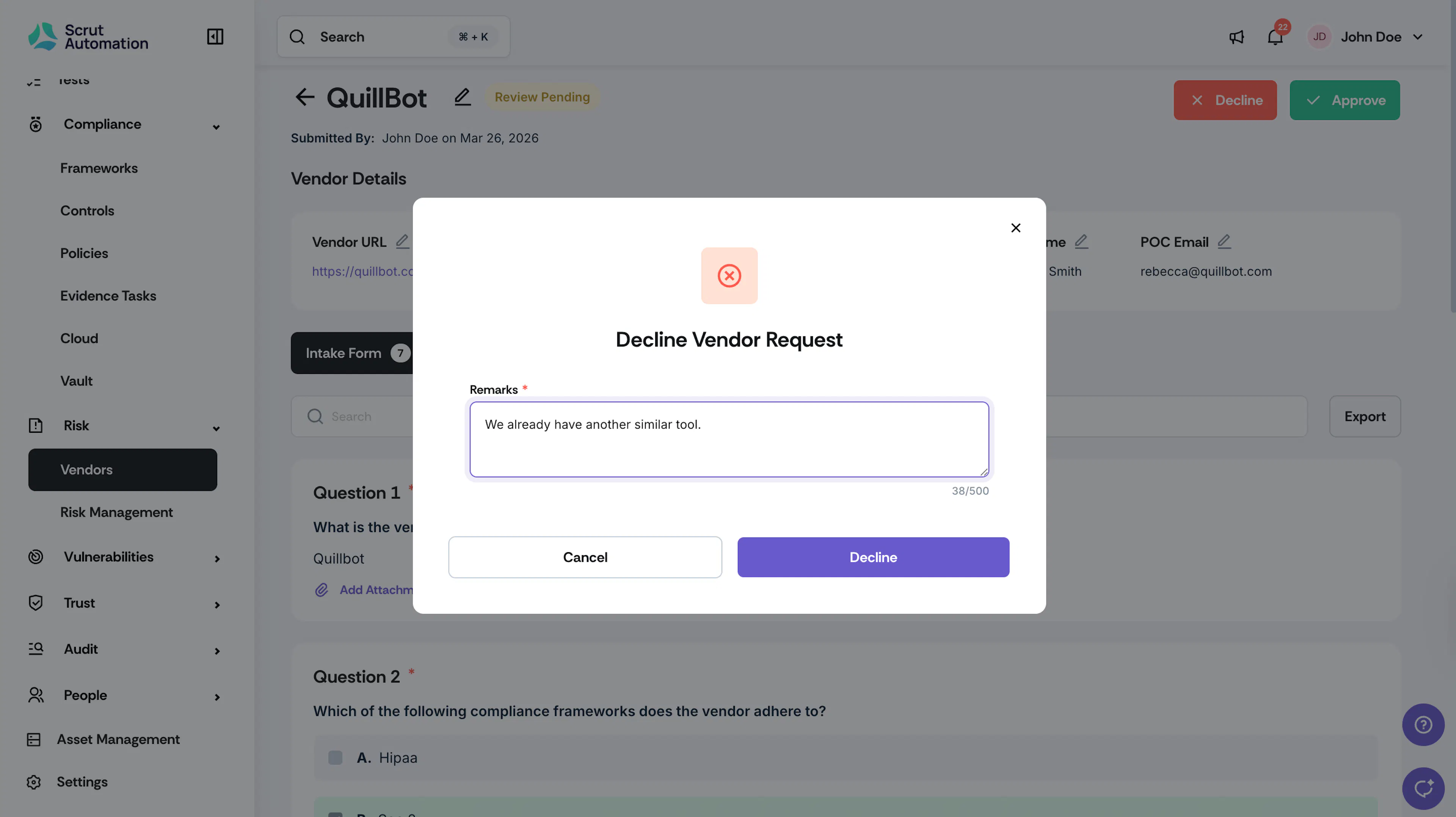
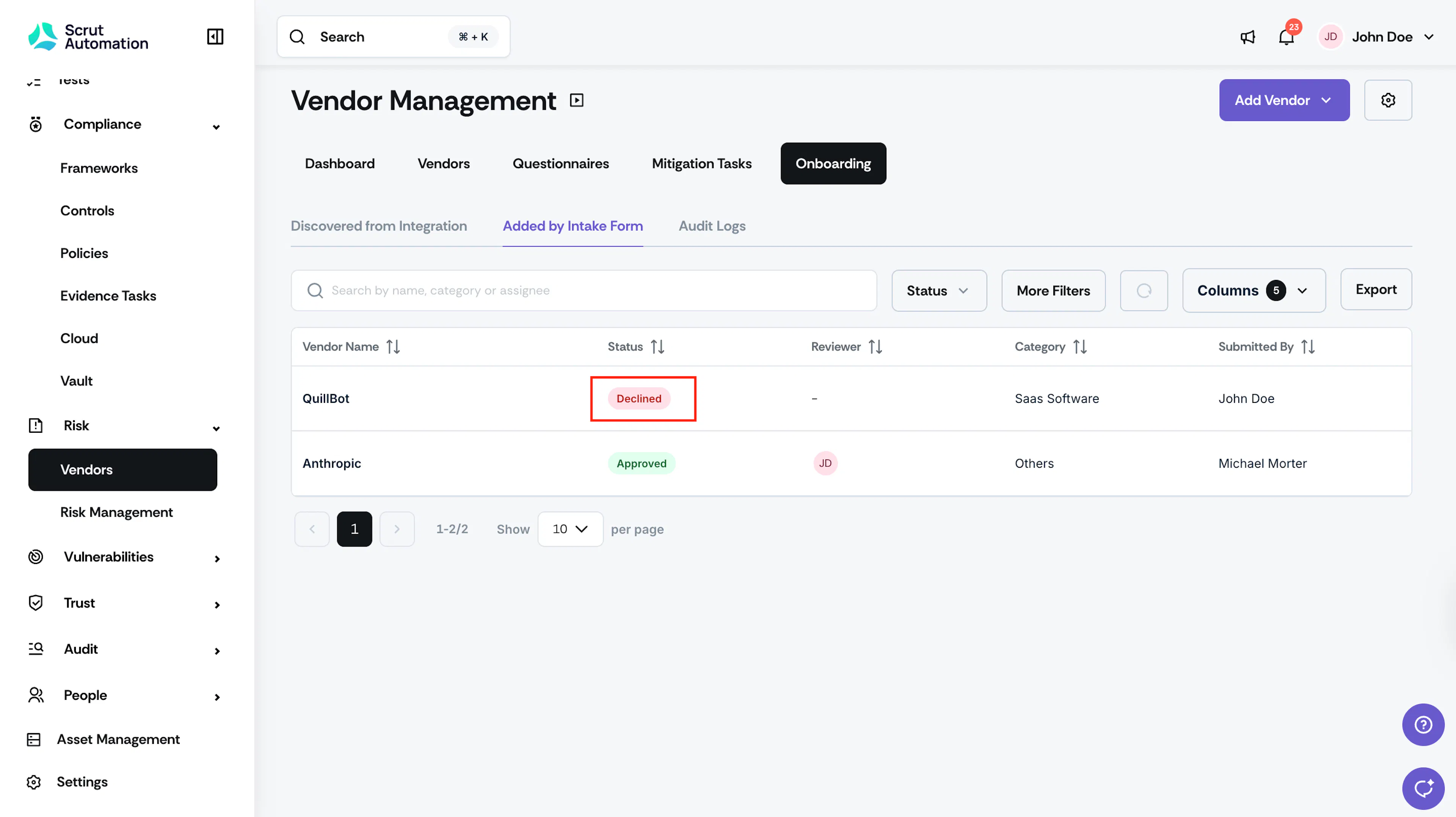
The onboarding status changes to Declined, and the employee who submitted the request receives an email notification with your remarks.
Tracking Activity with Audit Logs
The Audit Logs tab on each vendor request records every action taken during the review process, including submissions, assignments, approvals, and declines.
Reach out to support@scrut.io or contact your CSM for further assistance.