

Assign a Test Finding
You can assign test findings to specific team members to efficiently remediate the compliance and security issues identified by cloud tests. There are two ways of assigning test findings:
How To Assign a Single Test Finding
-
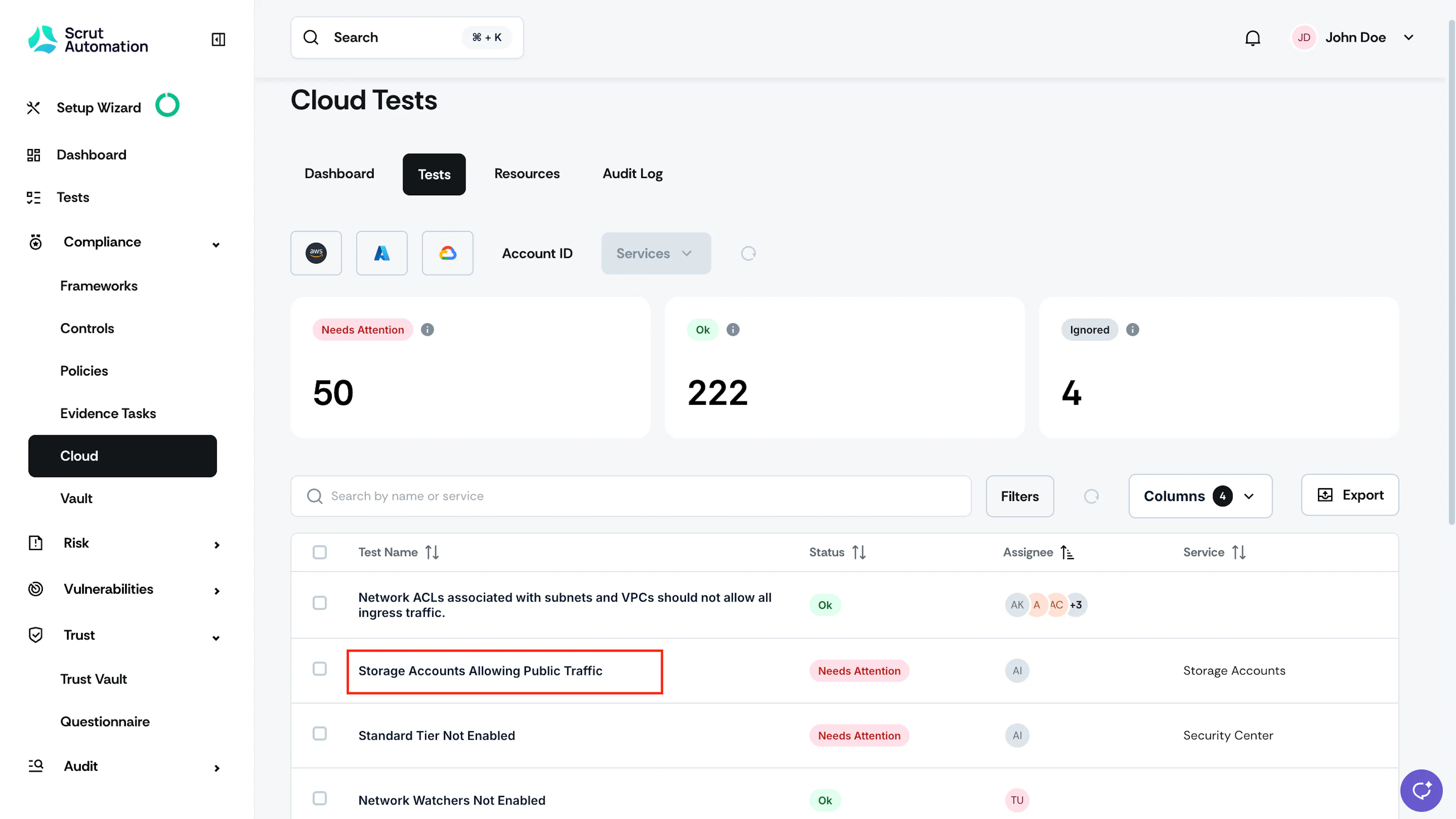
Click Compliance → Cloud on the left navigation menu, and go to the Tests tab.
-
Click on the test for which you want to add an assignee.
-
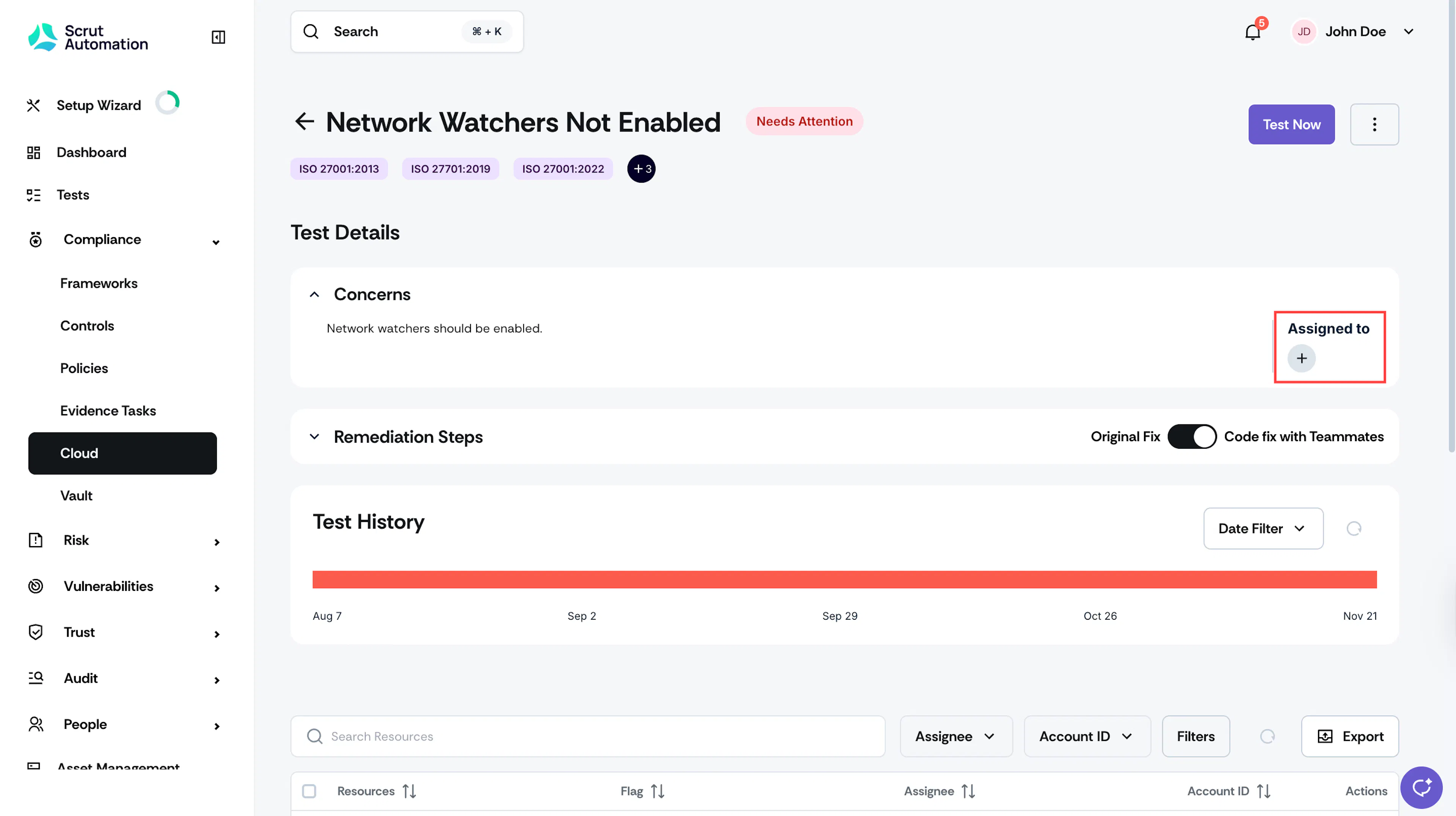
Click the + icon under the Assigned To section.
-
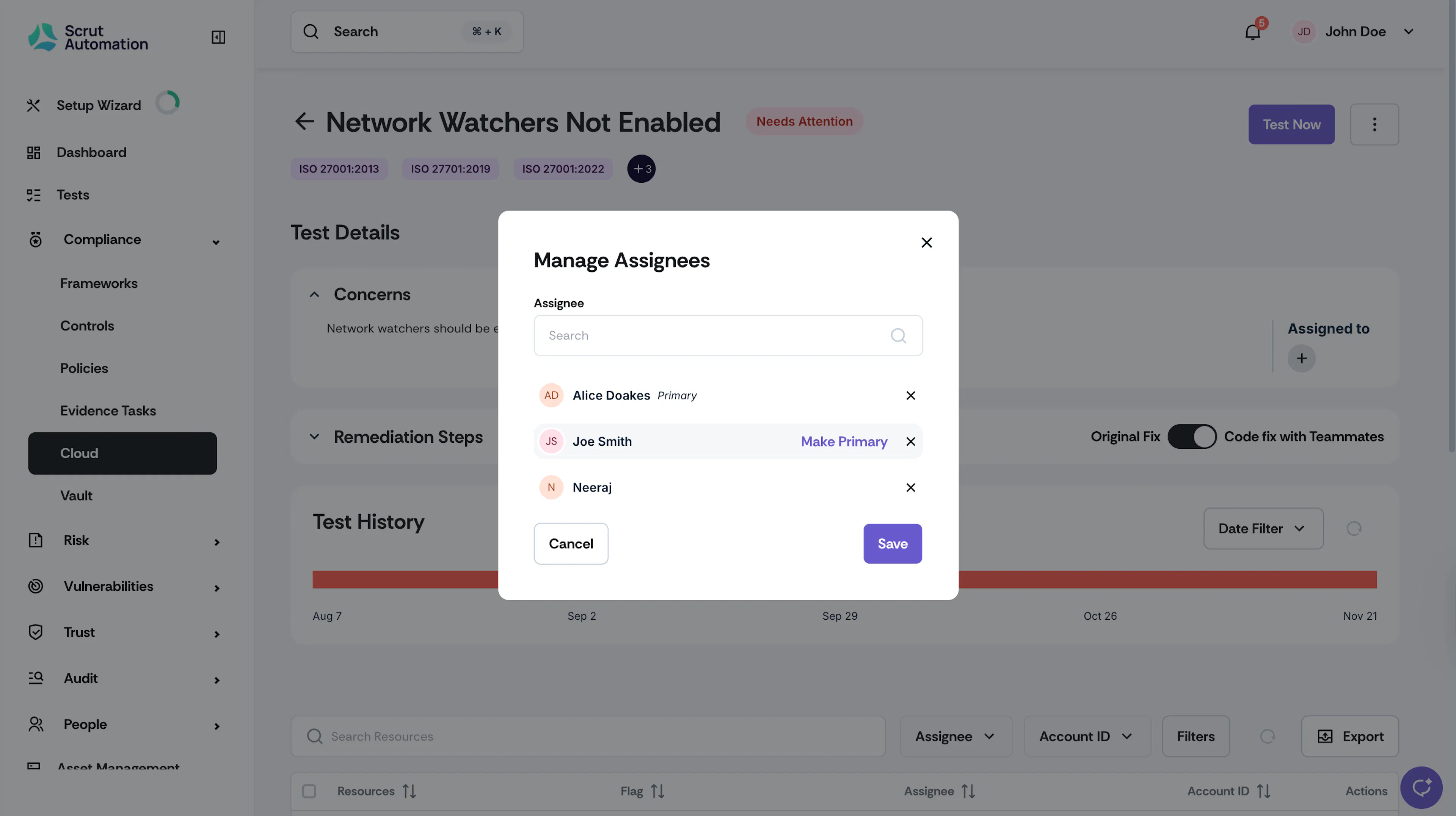
In the Assignees dropdown, select the team members who will be working on remediating the test finding. You can add multiple assignees, if required.
-
Click Add.
-
Click the Make Primary action button to set a specific assignee as the main person responsible for fixing this test.
-
Click Save.
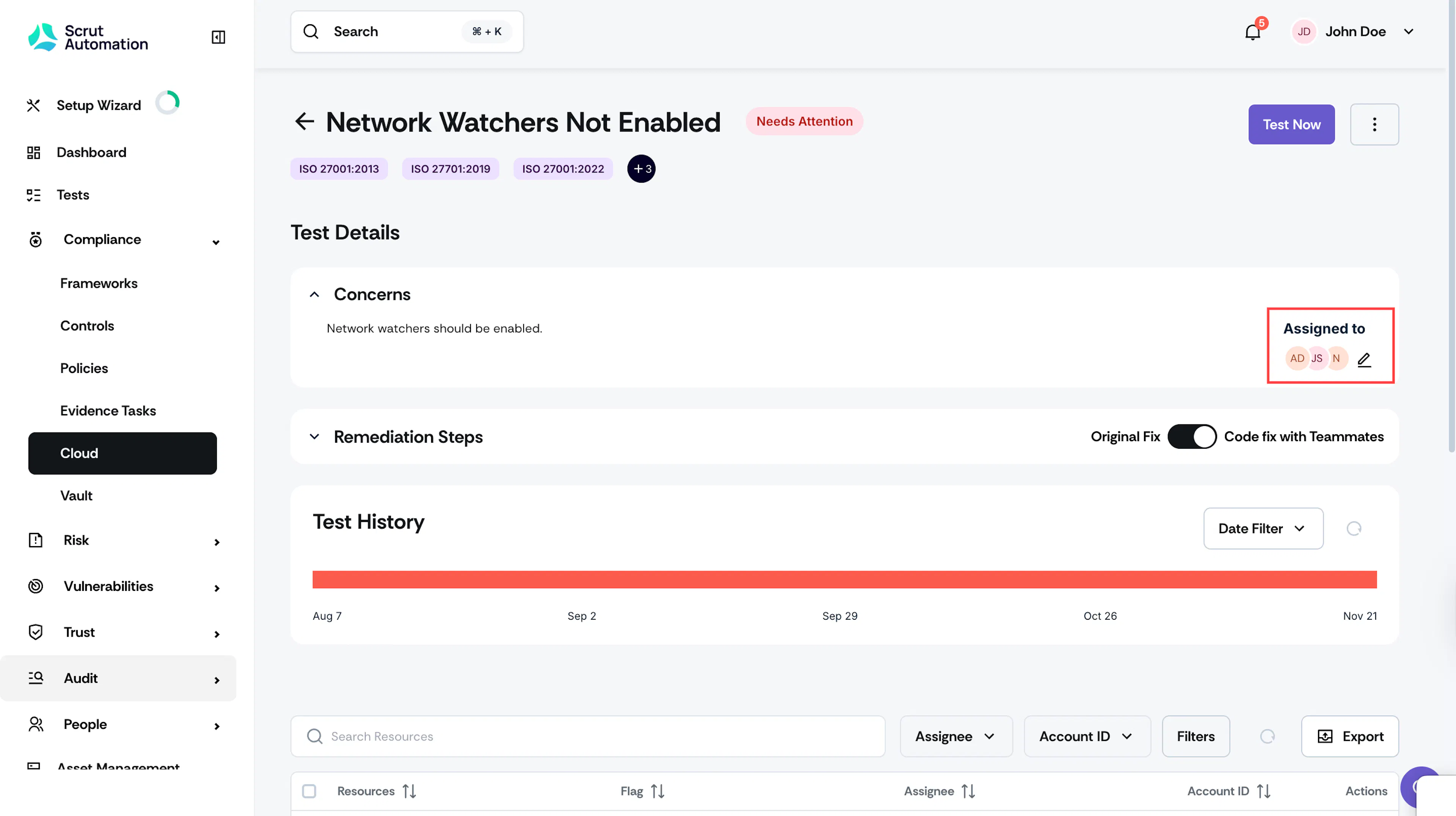
Assignees will be notified via email about the task assigned to them. Scrut will display the assignee’s initials in the Assigned To section on the Test Details page.
How To Bulk Assign Multiple Test Findings
-
Click Compliance → Cloud on the left navigation menu, and go to the Tests tab.
-
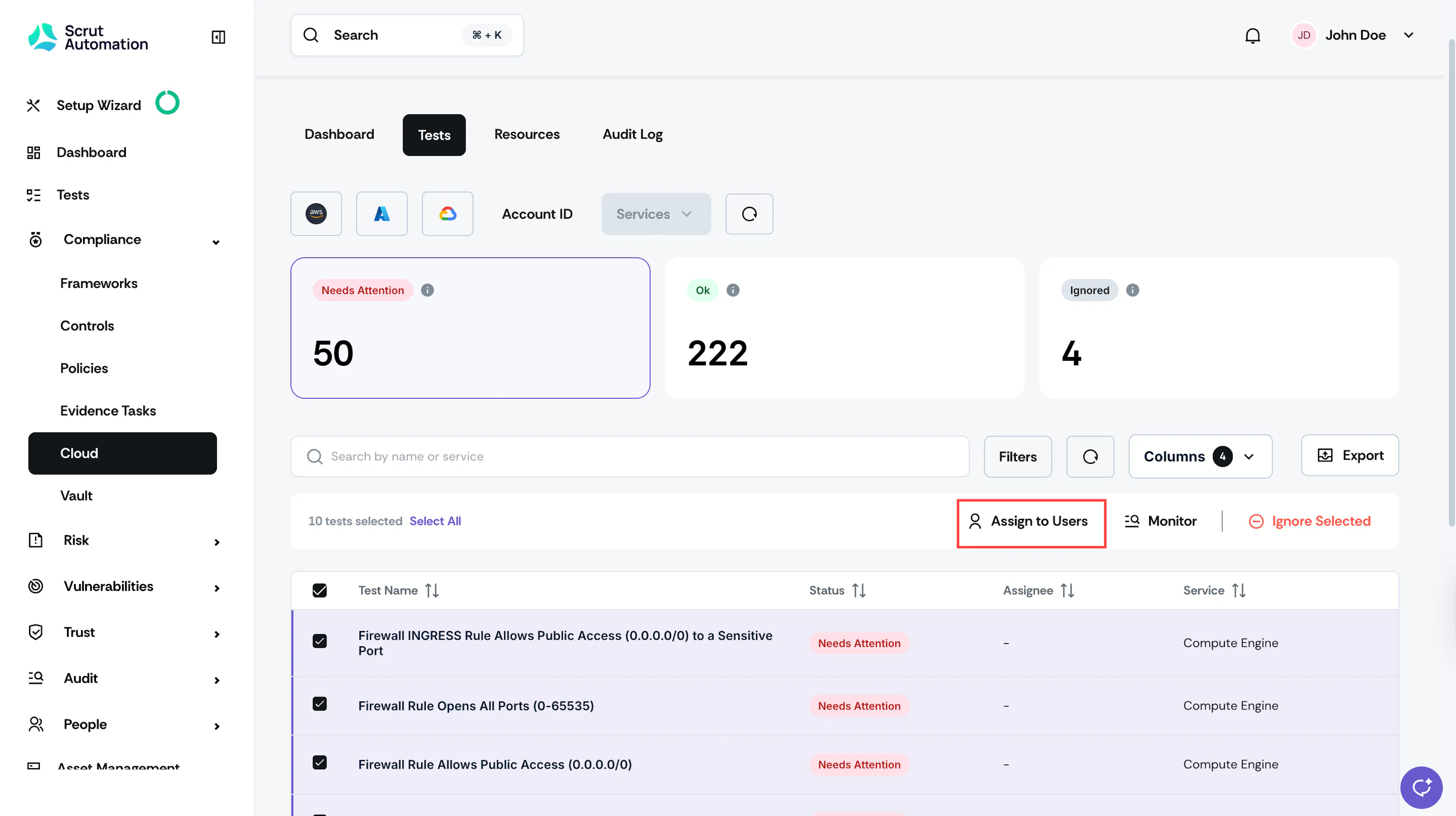
Select the checkboxes corresponding to the tests for which you want to add assignees.
-
Click Assign to Users.
Pro Tip!
Use the search bar and filters at the top to quickly locate specific tests.
-
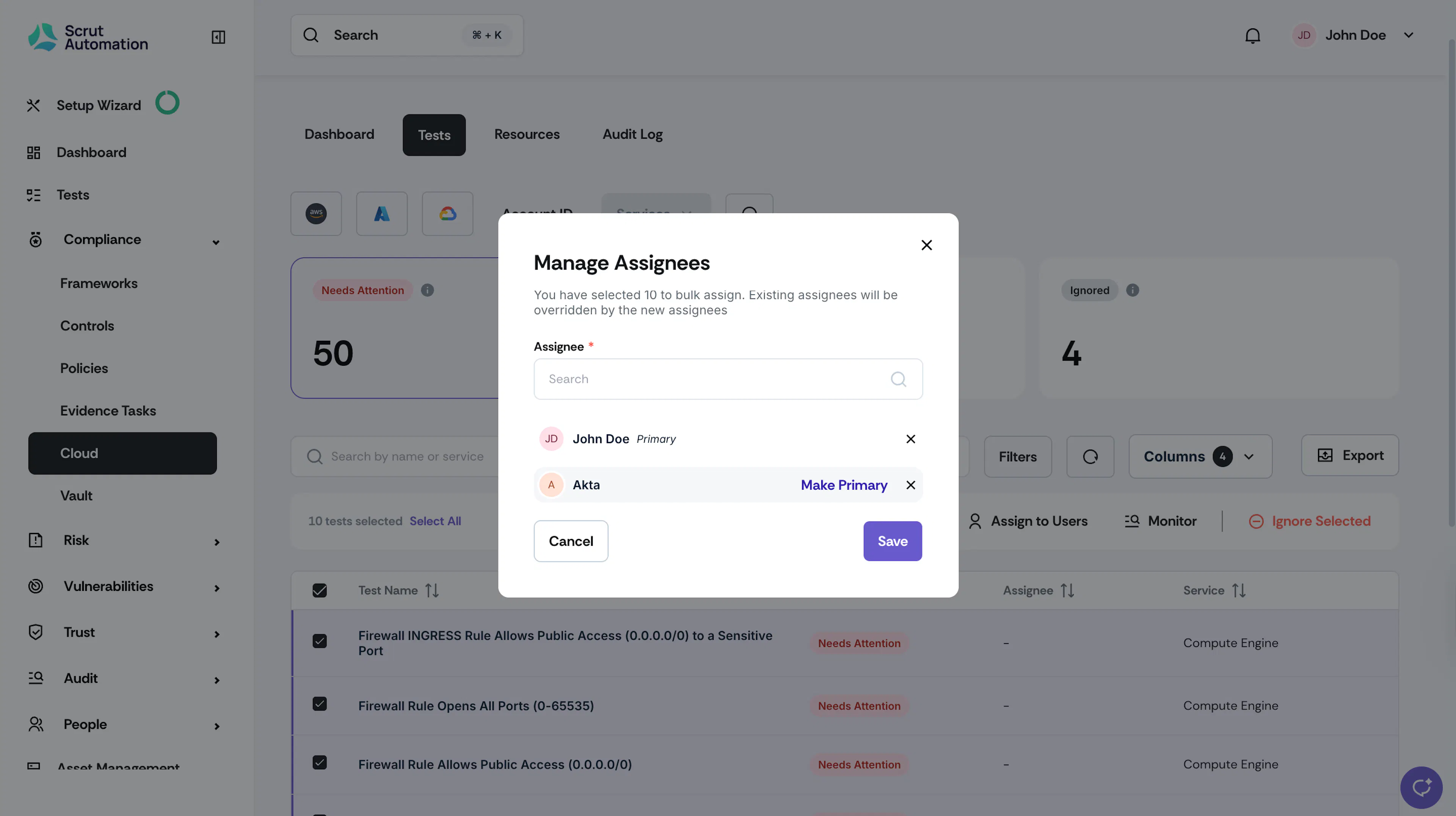
In the Assignees dropdown, select the team member who will be working on remediating the test finding.
-
Click Add.
-
Repeat steps 4 & 5 to add multiple assignees.
-
Click the Make Primary action button to set a specific assignee as the main person responsible for fixing this test.
-
Click Save.
Heads Up!
Any existing assignees will be replaced by the assignees you’ve selected now.