Ignore a Resource Within a Test Finding
Ignoring a resource within a test finding allows you to intentionally exclude certain resources from further consideration while still addressing the overall test finding. This feature is valuable when you want to acknowledge an issue but determine that remediation is not required for particular resources.
-
Click Compliance → Cloud on the left navigation panel.
-
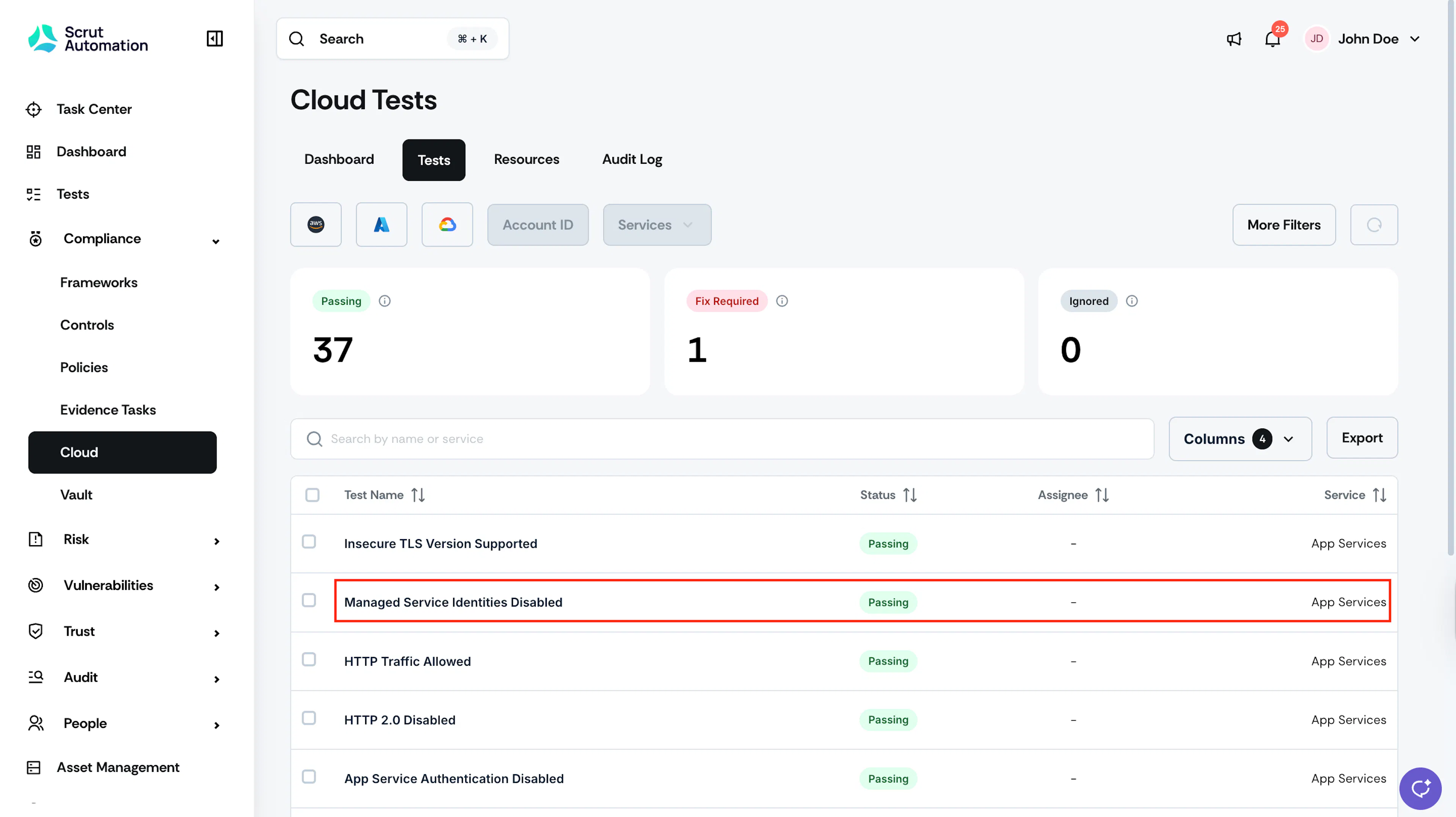
Go to the Tests tab, and select your desired test.
Pro Tip: Use the search bar and filters at the top to quickly find specific tests.
-
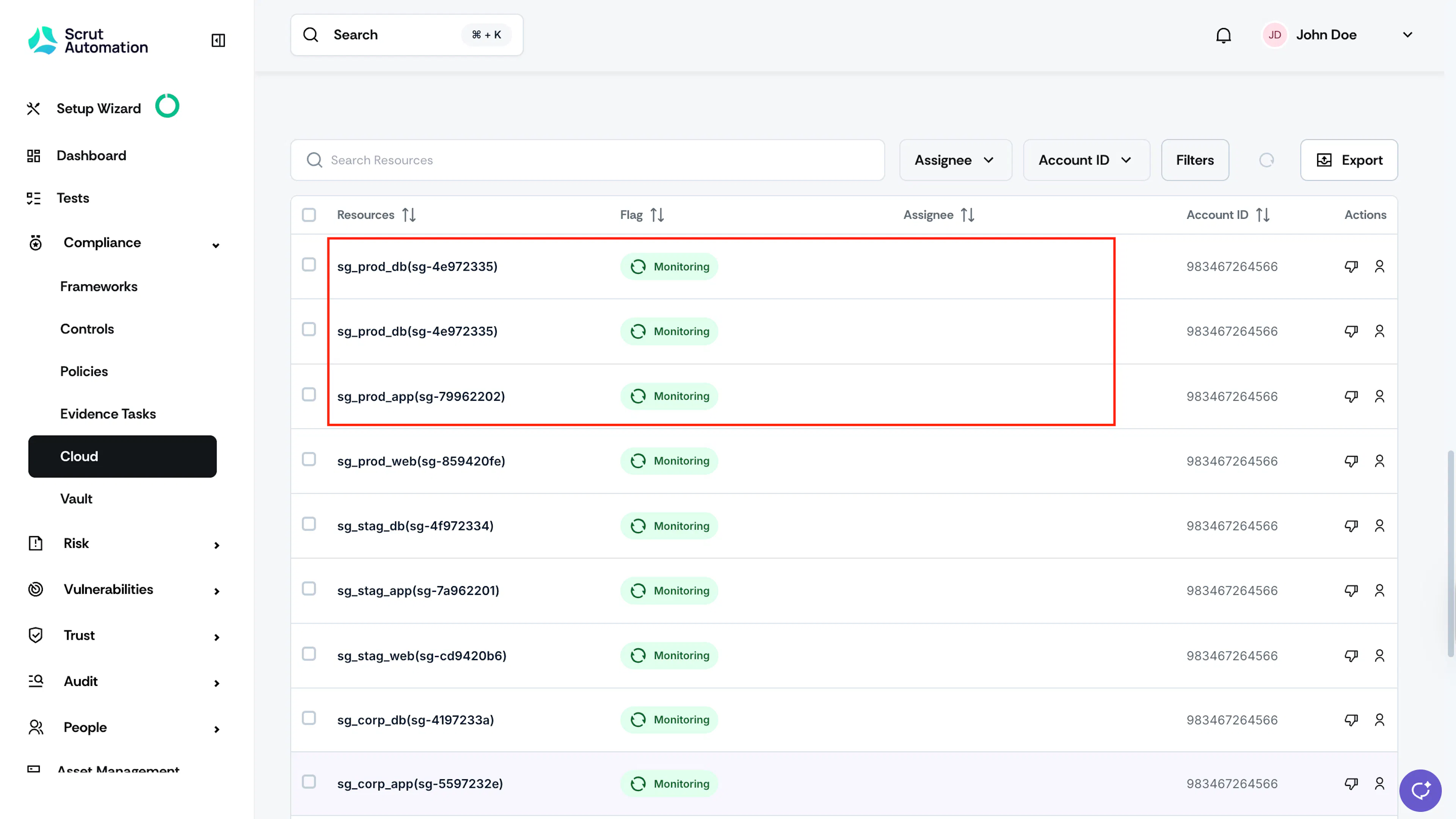
Scroll to the Resources section and select one or more resources that you want to ignore.
Pro Tip: Use filters to narrow down resources by region, flag, or tags.
-
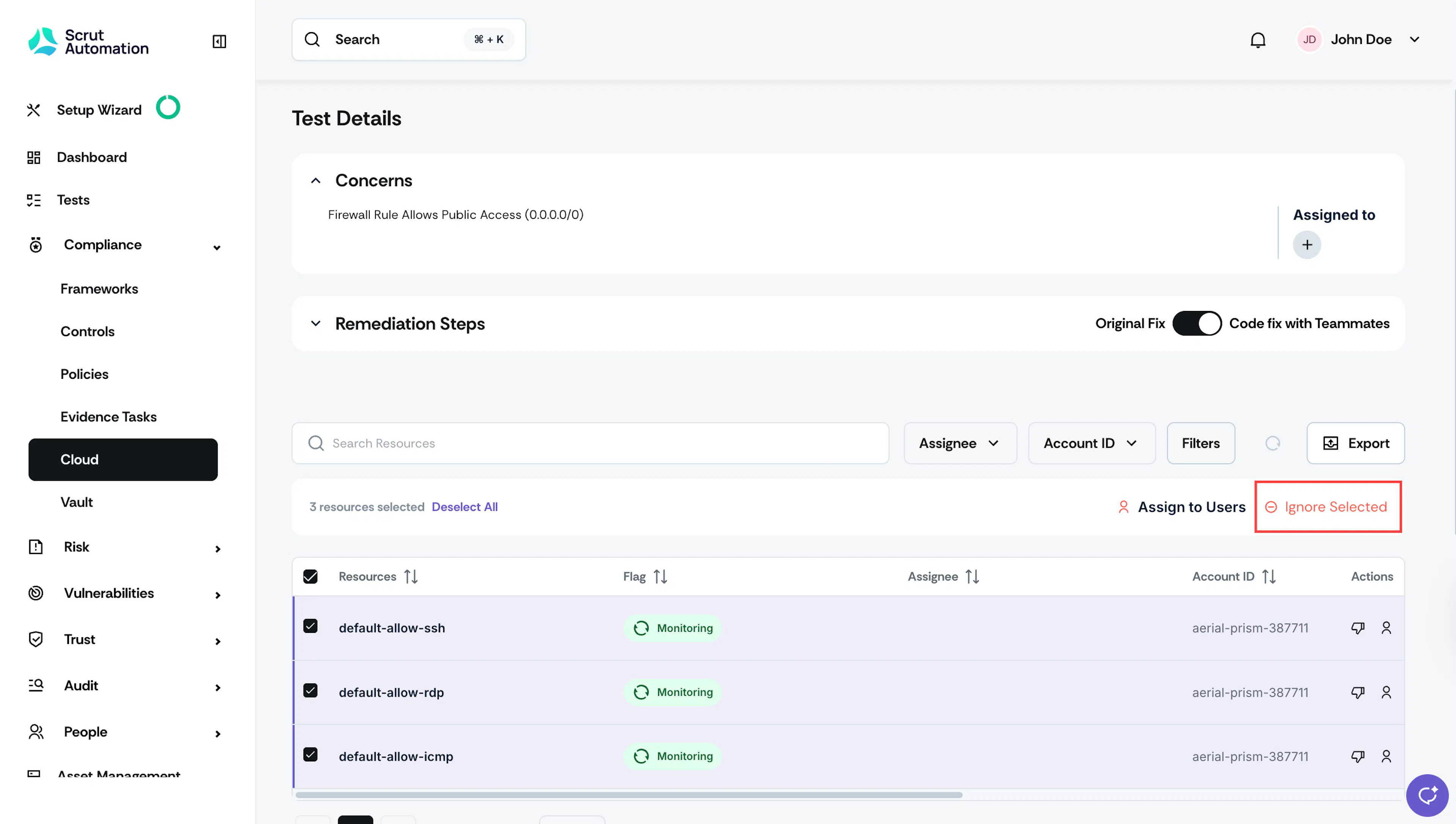
In the Actions column for your selected resource(s), click Ignore Selected.
-
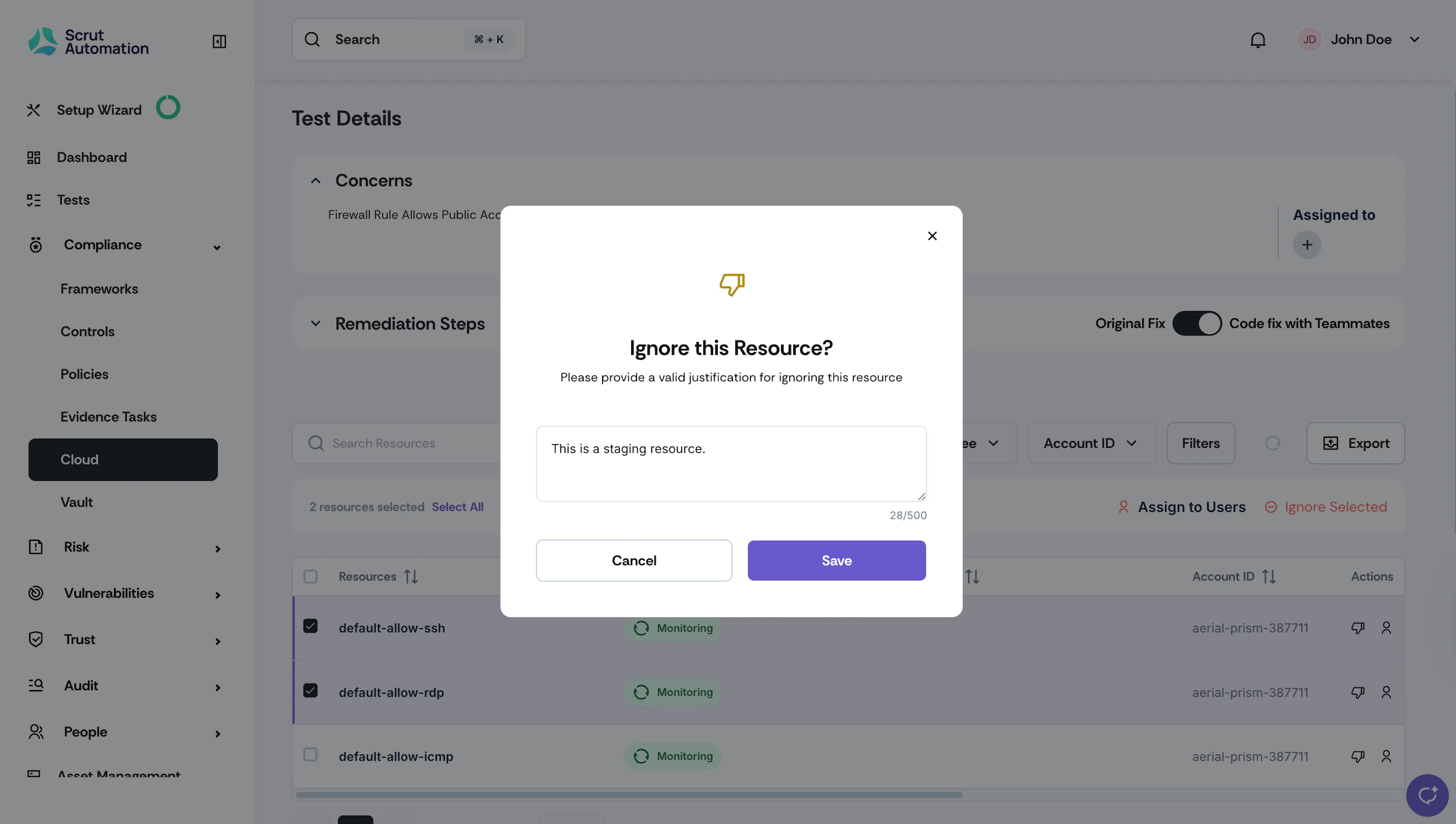
In the Justification field, enter the reason for ignoring this specific resource.
-
Click Save.
Note:
Ignoring a resource will prevent it from being included in future scans.
How To View Ignored Resources
-
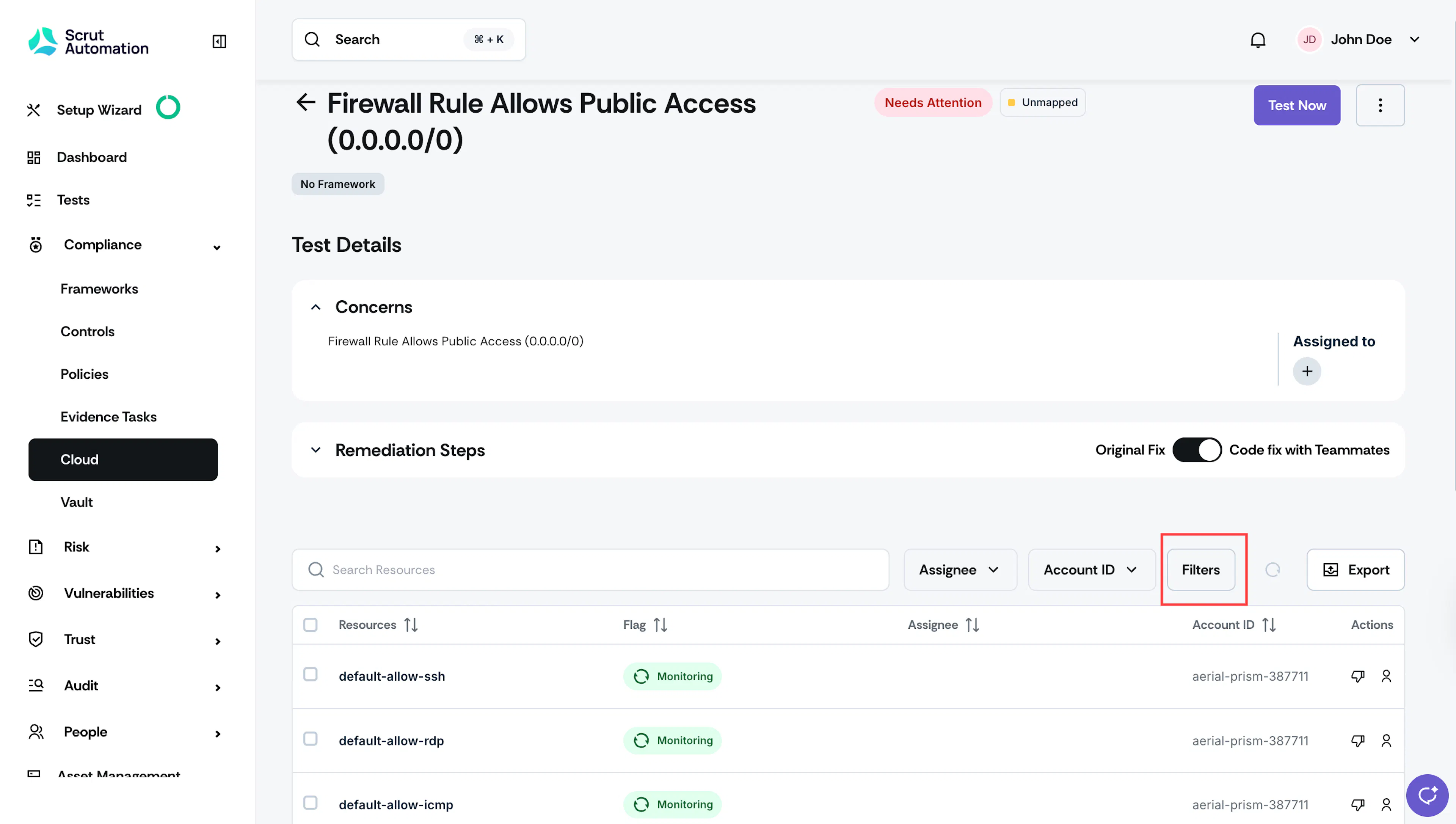
Click the Filters button at the top of the resources table.
-
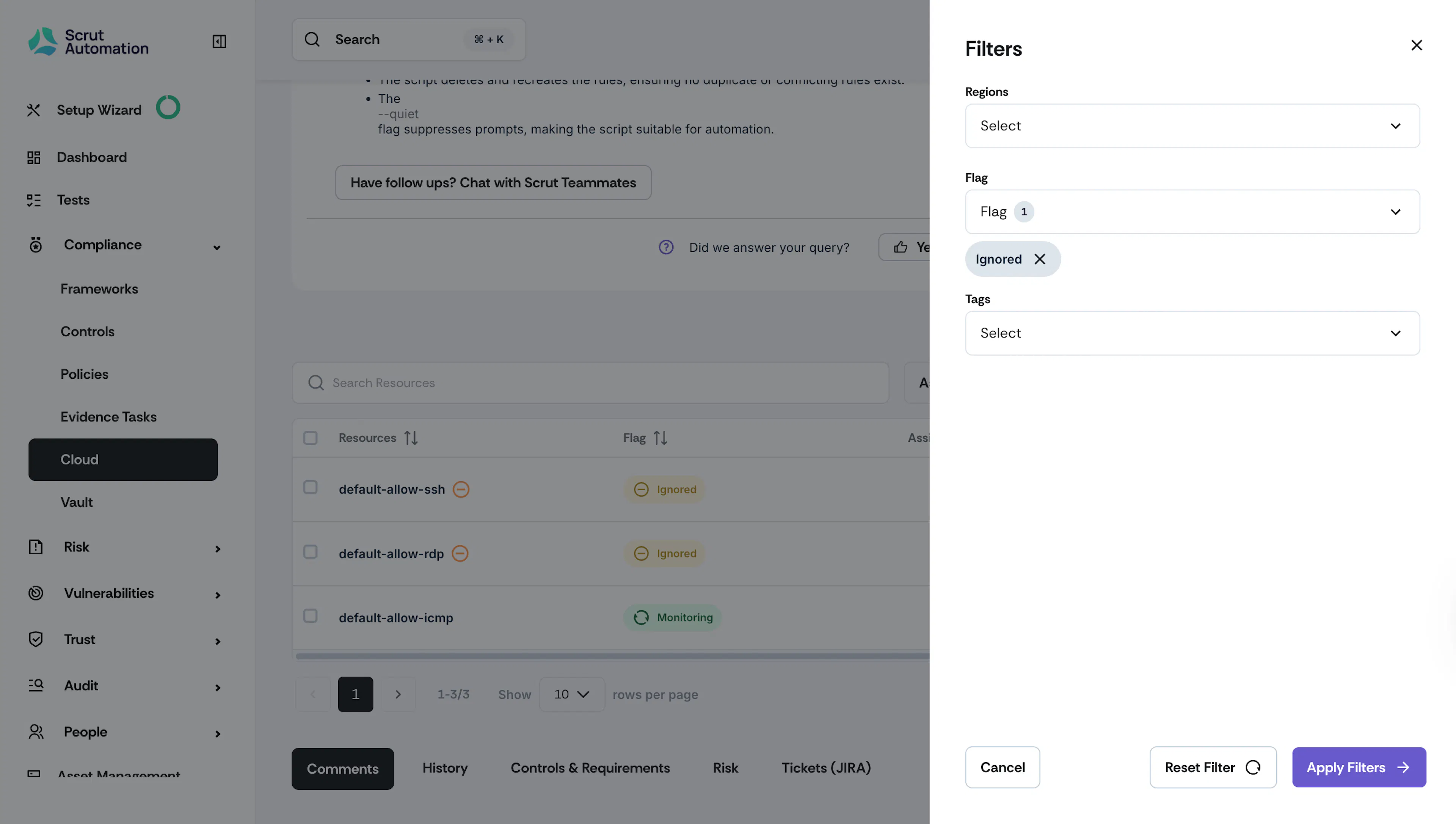
In the Flag dropdown, select Ignored and click Apply Filters.
-
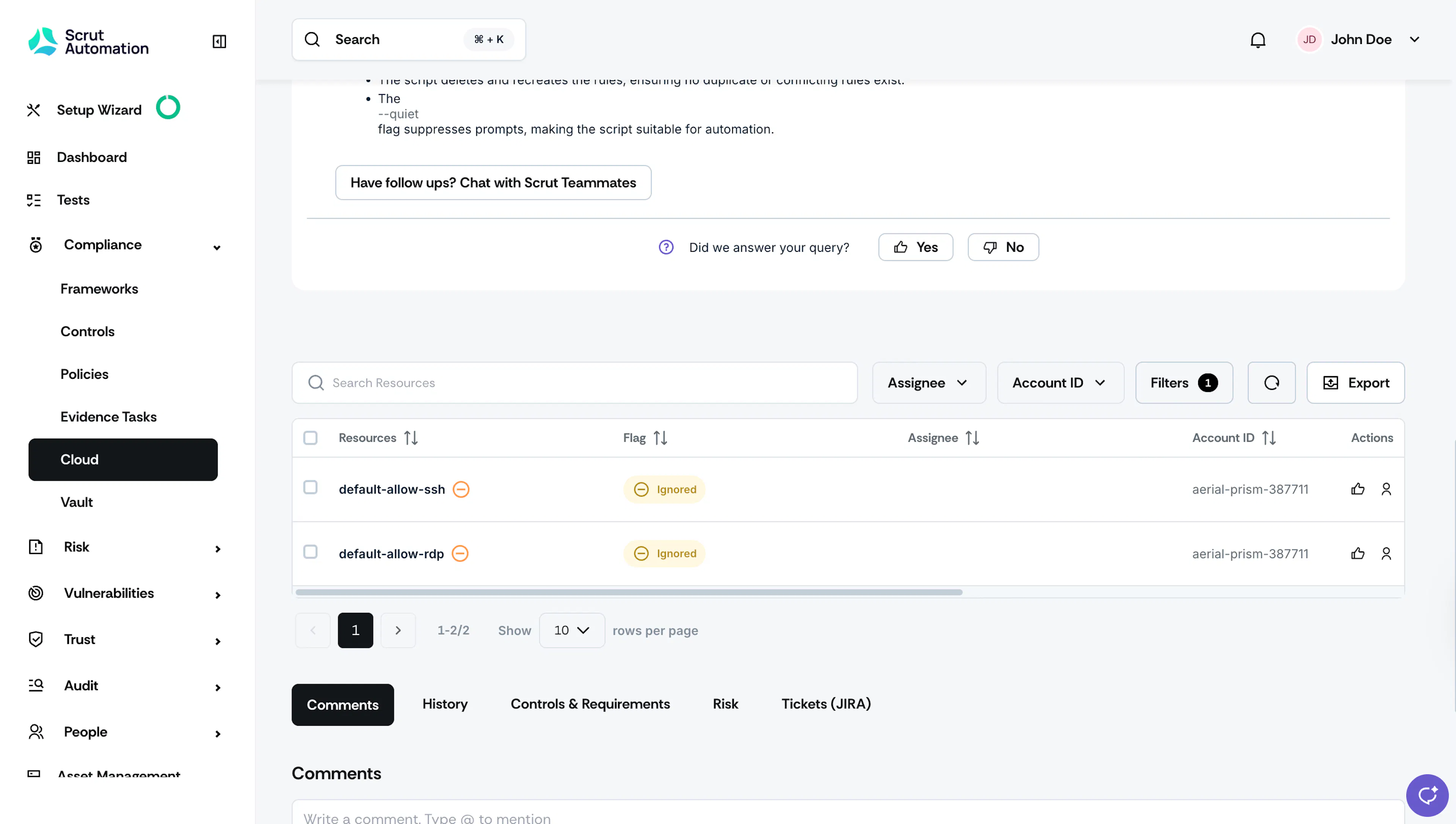
You can view all ignored resources in the Flag column.
Pro Tip! Click the circular reset icon to remove the applied filters.

Heads Up!
If you mark all resources as “Ignored” in a failing test, the test status automatically changes to Ok. However, it doesn’t mean you’ve fixed the issue, as the test might fail for new resources discovered in future scans.
Reverting an Ignored Resource
There may be scenarios where you have wrongly marked a resource as ignored. You can revert this action by clicking the thumbs-up icon in the actions column of the ignored resource.
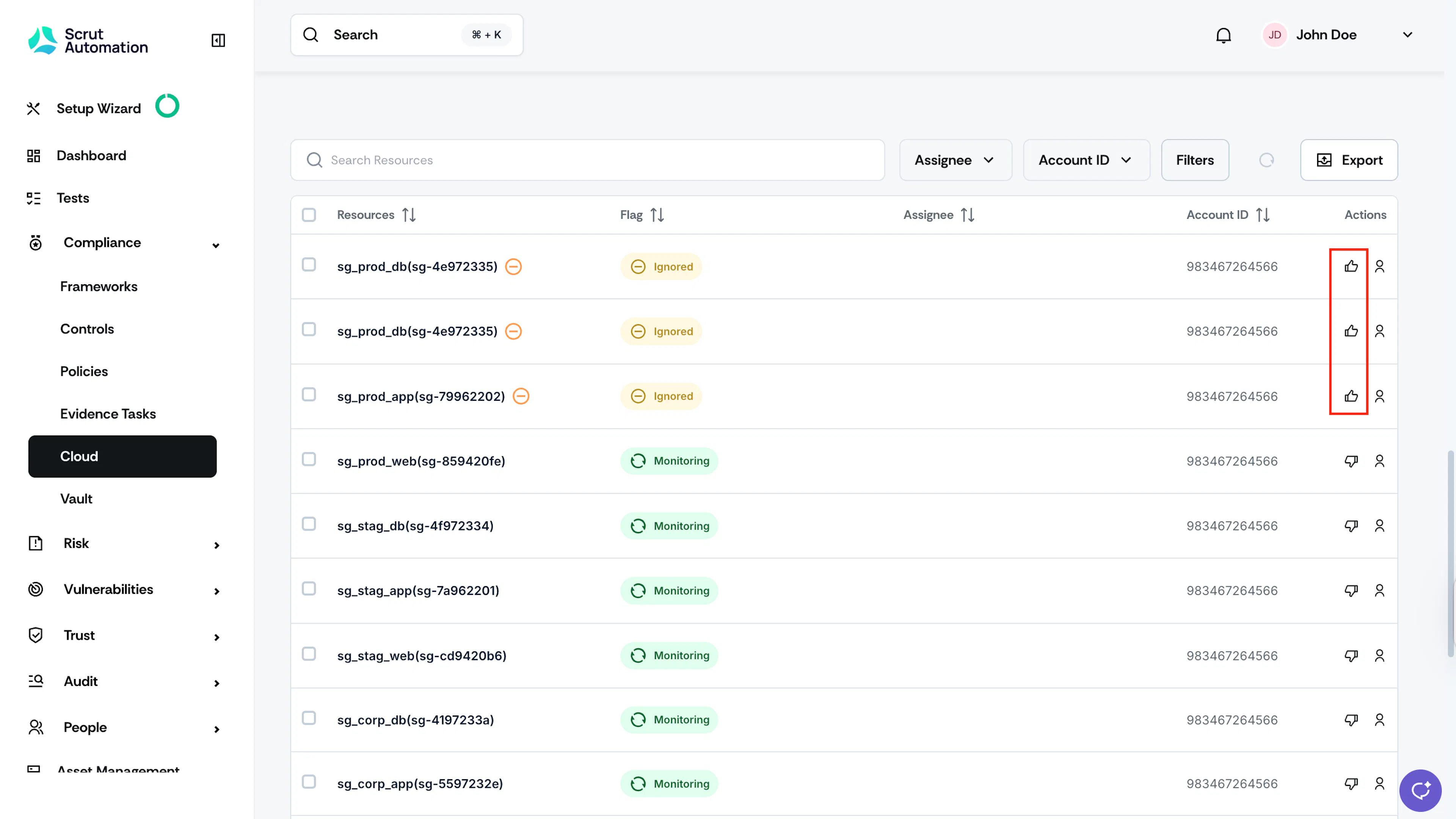
The resources will move to the Monitoring status.