

Assign and Manage Employees to Training Campaigns
Scrut allows you to assign security training to employees based on the groups they belong to. Since different departments and teams within your organization might have varying training requirements, this group-based approach helps you streamline the training assignment process. This article explains how to add employees to a training campaign and remove them from specific campaigns.
How To Add Employees to a Training Campaign
Follow these steps to assign employees to a training campaign:
Step 1: Create a Training Campaign
Before assigning employees, you need to set up a training campaign. Refer to our training campaign creation guide for detailed instructions.
Step 2: Create an Employee Group
Set up an employee group that will be associated with your training campaign. Follow our employee group setup guide for step-by-step instructions.
Step 3: Assign Employees to the Training Campaign
Once your training campaign and employee group are ready:
-
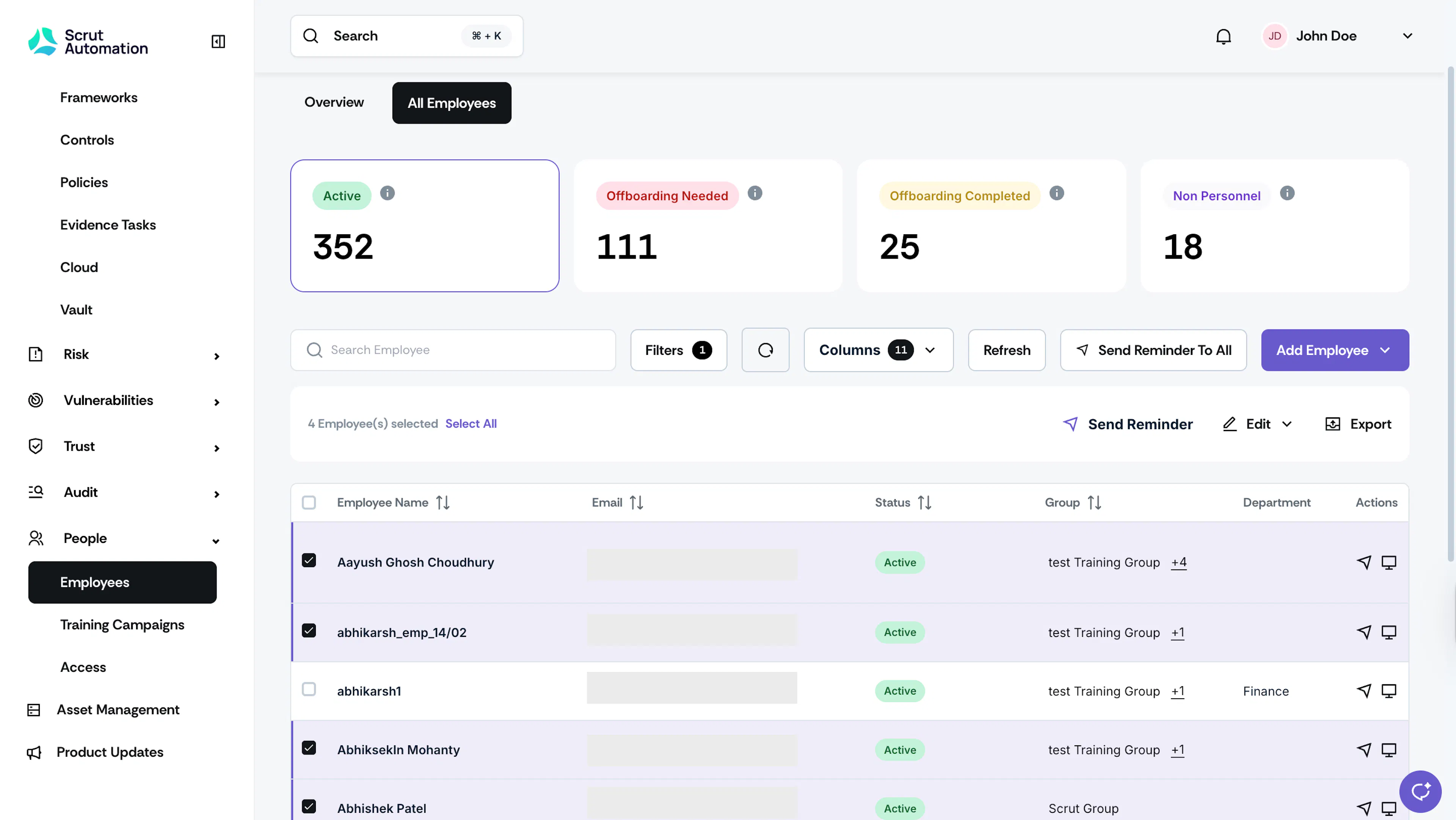
Navigate to People → Employees → All Employees.
-
Select the employees you want to add to the training campaign by checking the boxes next to their names.
-
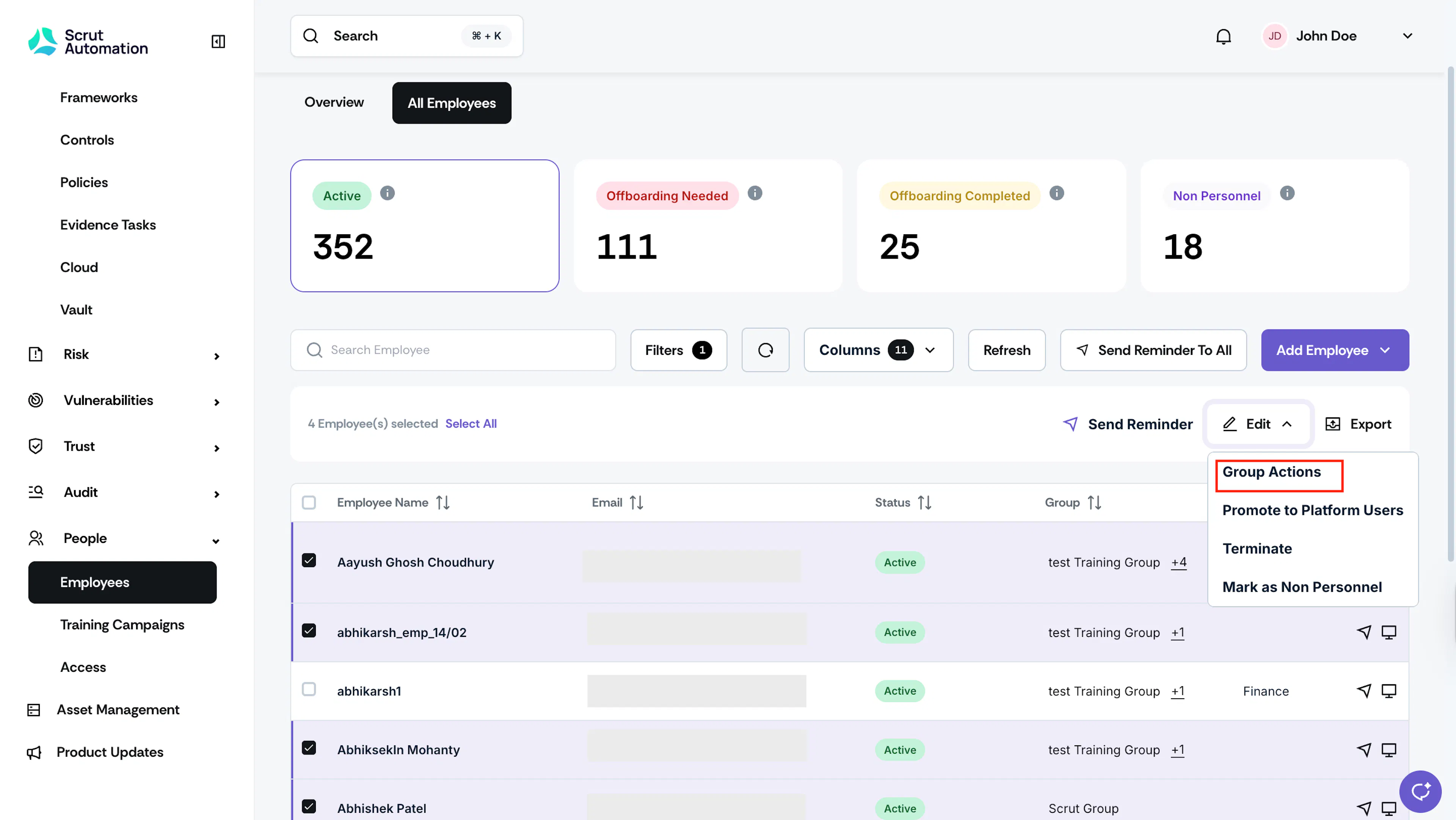
Click the Edit button at the top of the table.
-
Click Group Actions and then click Add to Group.
-
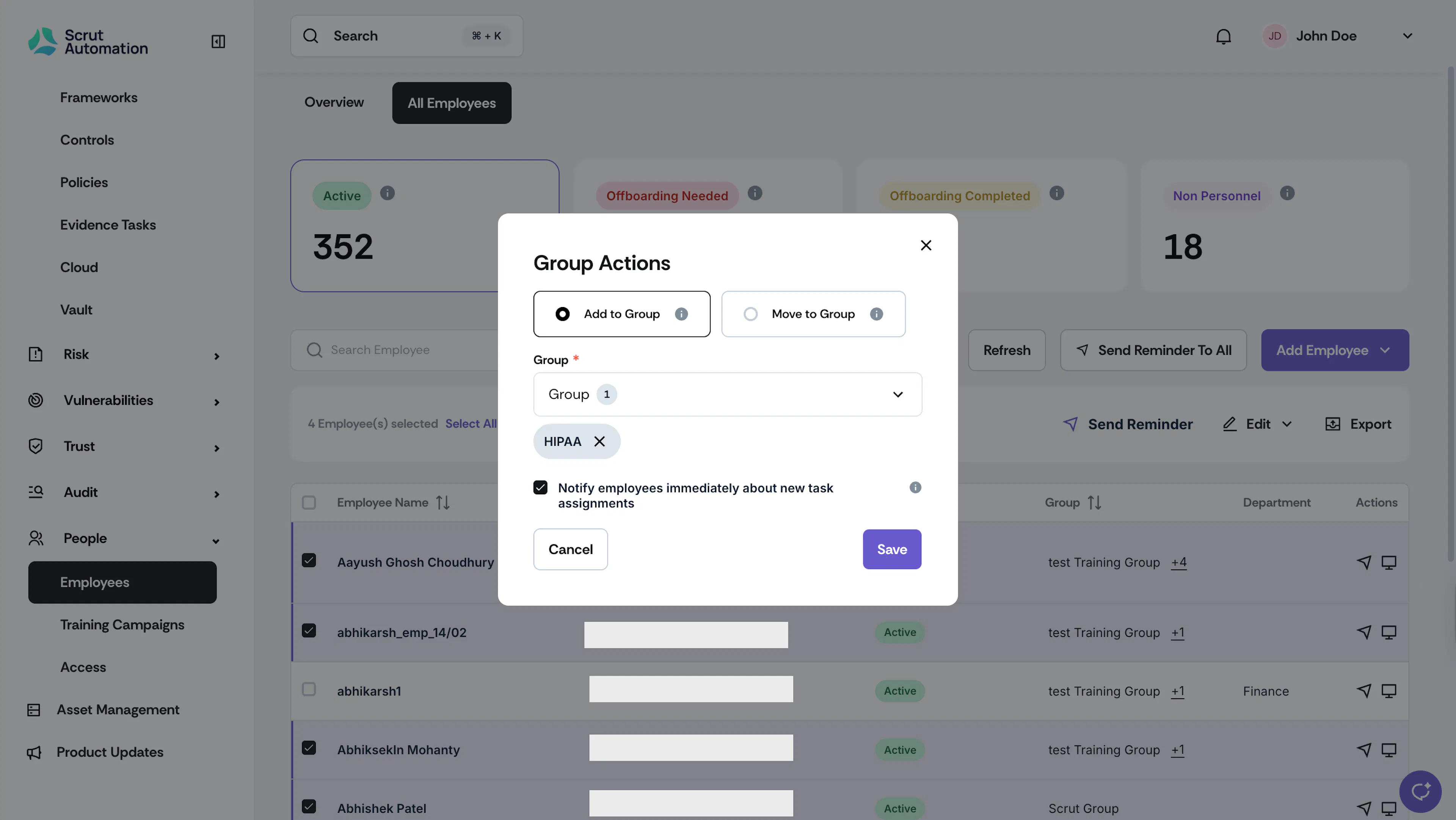
Next, select the appropriate group that includes the checklist for your training campaign.
-
Select the “Notify employees immediately about new task assignments” checkbox if you want assigned employees to receive notifications about the newly assigned training campaign. Employees can access the training materials through their dashboard.
-
Click Save.
The selected employees will now be enrolled in the corresponding training campaign.
How To Remove Employees from a Training Campaign
If you need to unenroll an employee from a training campaign:
Step 1: Find the Employee
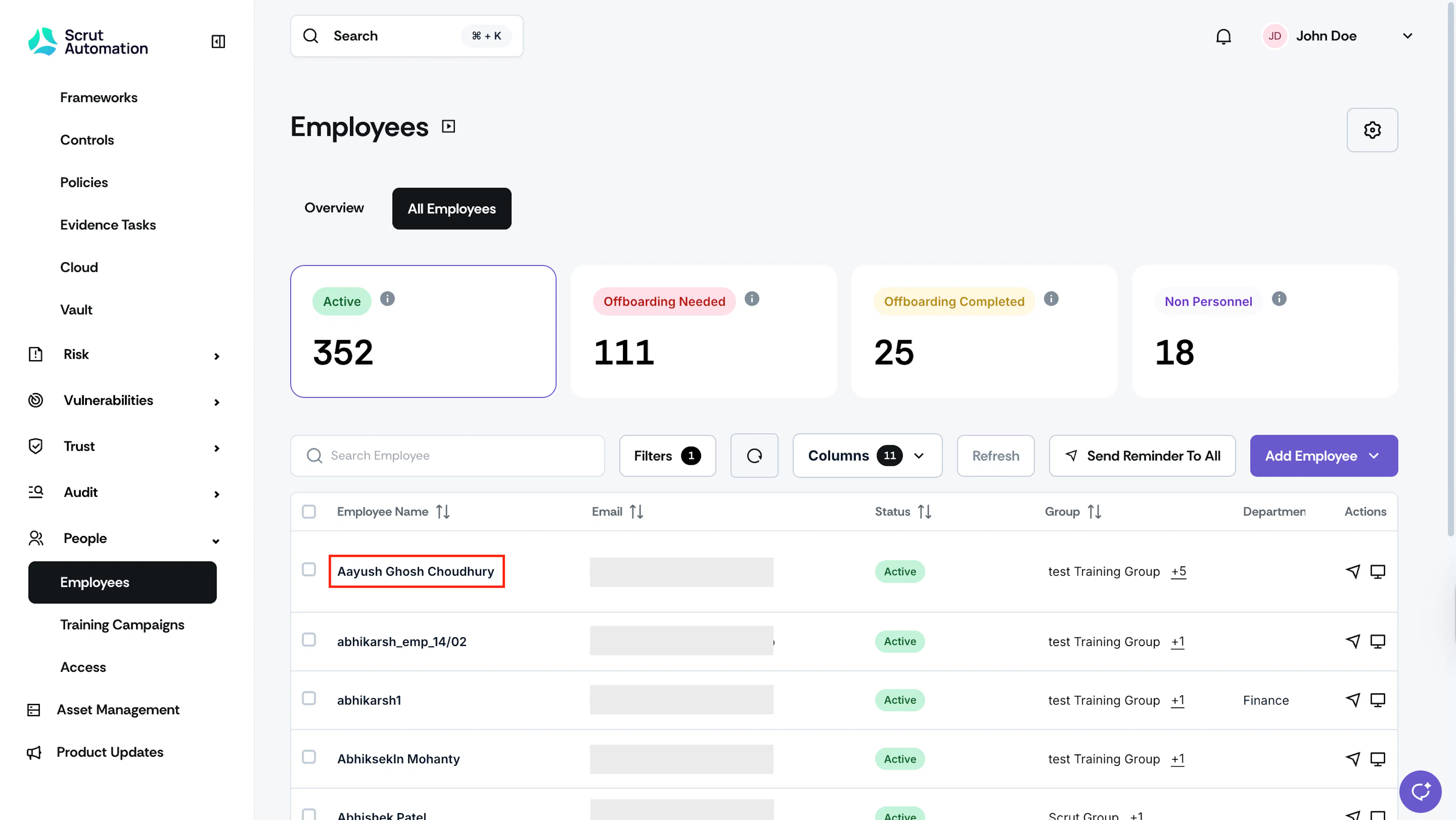
- Navigate to People → Employees → All Employees.
- In the All Employees table, select the employees you want to remove from the campaign.
Step 2: Access Ongoing Campaigns
Navigate to the Tasks → Ongoing tab to view all active campaigns for this employee.
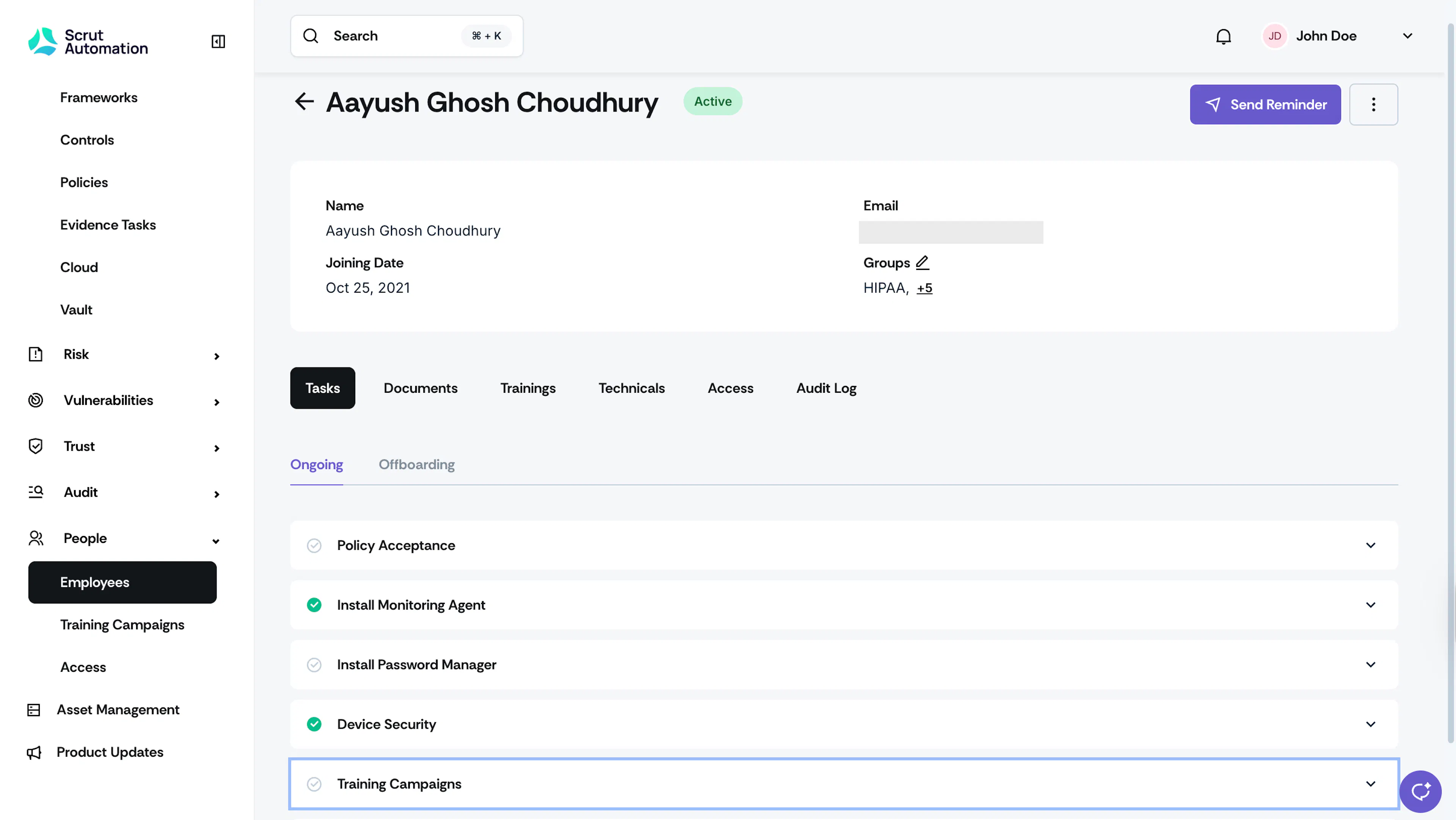
Step 3: Remove from Campaign
-
Expand the Training campaign section to view campaign details.
-
Click the "Ignore" option in the action column for the campaign you want to remove.
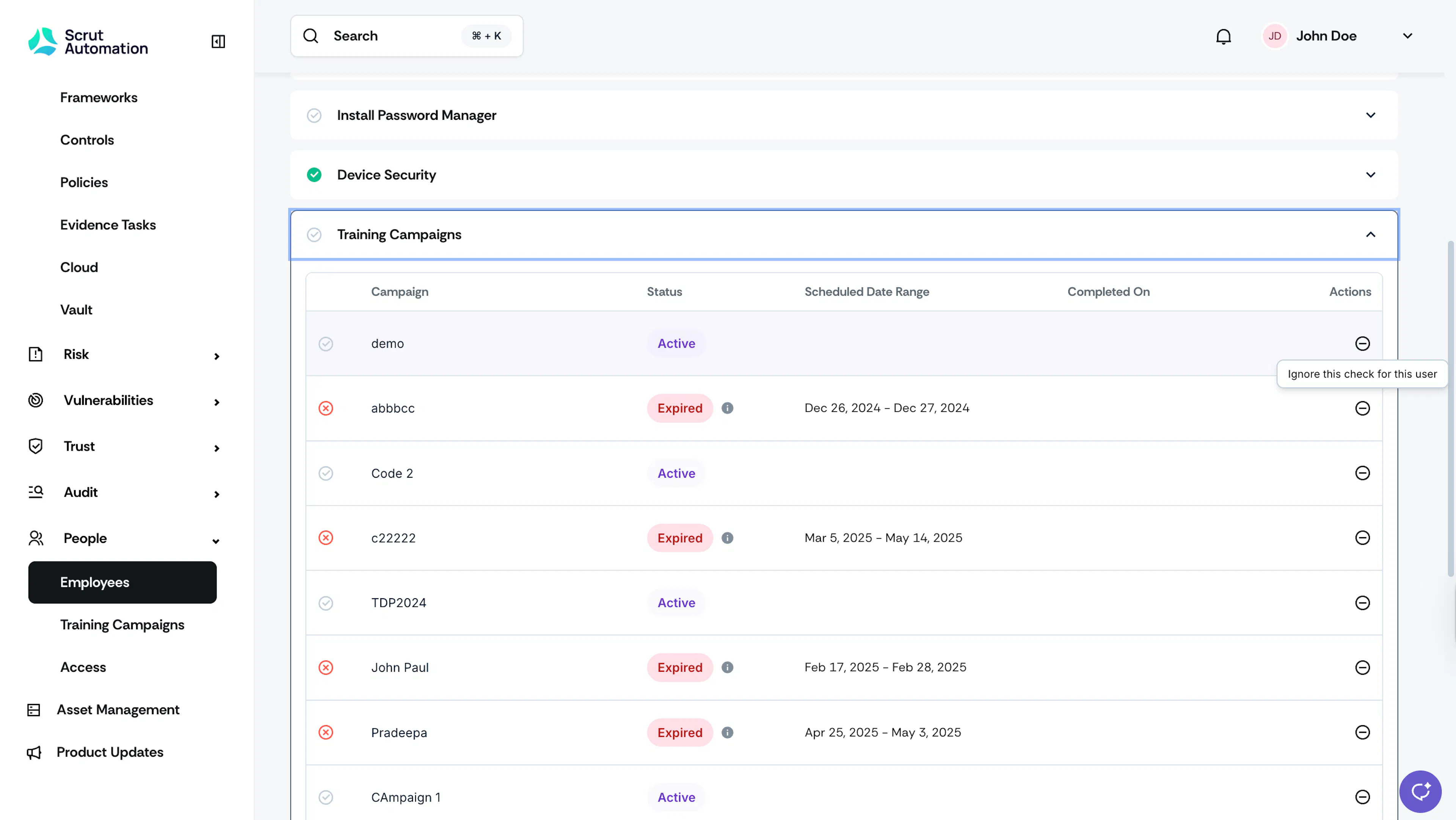
-
Enter a justification for this action and click Save.
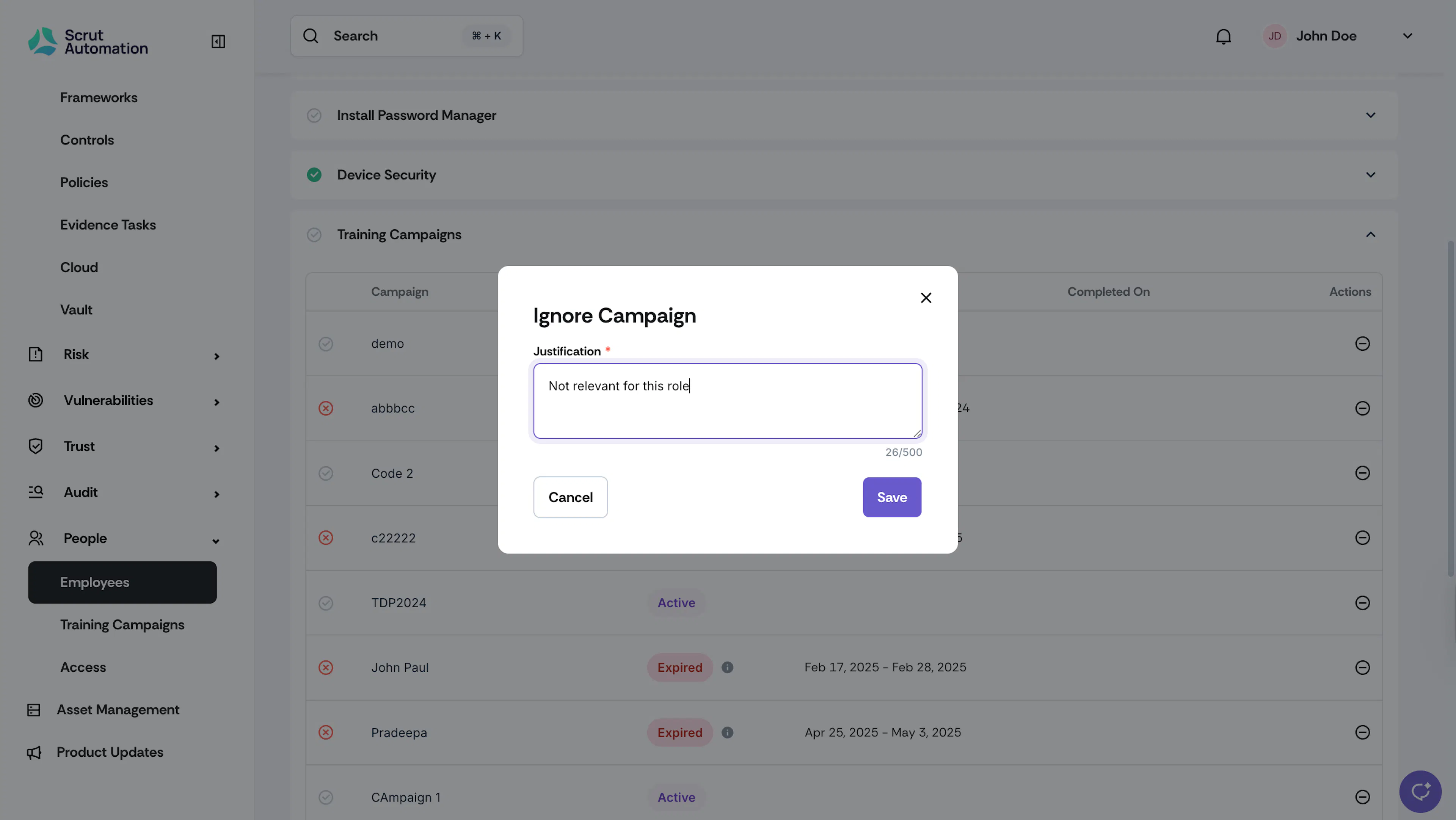
Note:
The employee will no longer see this training campaign in their dashboard and will not receive further notifications about it.