

End a Training Campaign
You can end a training campaign when it needs to be closed ahead of schedule.
Note: Only campaigns with an In Progress status can be ended. Campaigns in a Created or Completed state do not have this option.
Method 1: End a Campaign from the Training Campaigns List
-
Navigate to People → Training Campaigns.
-
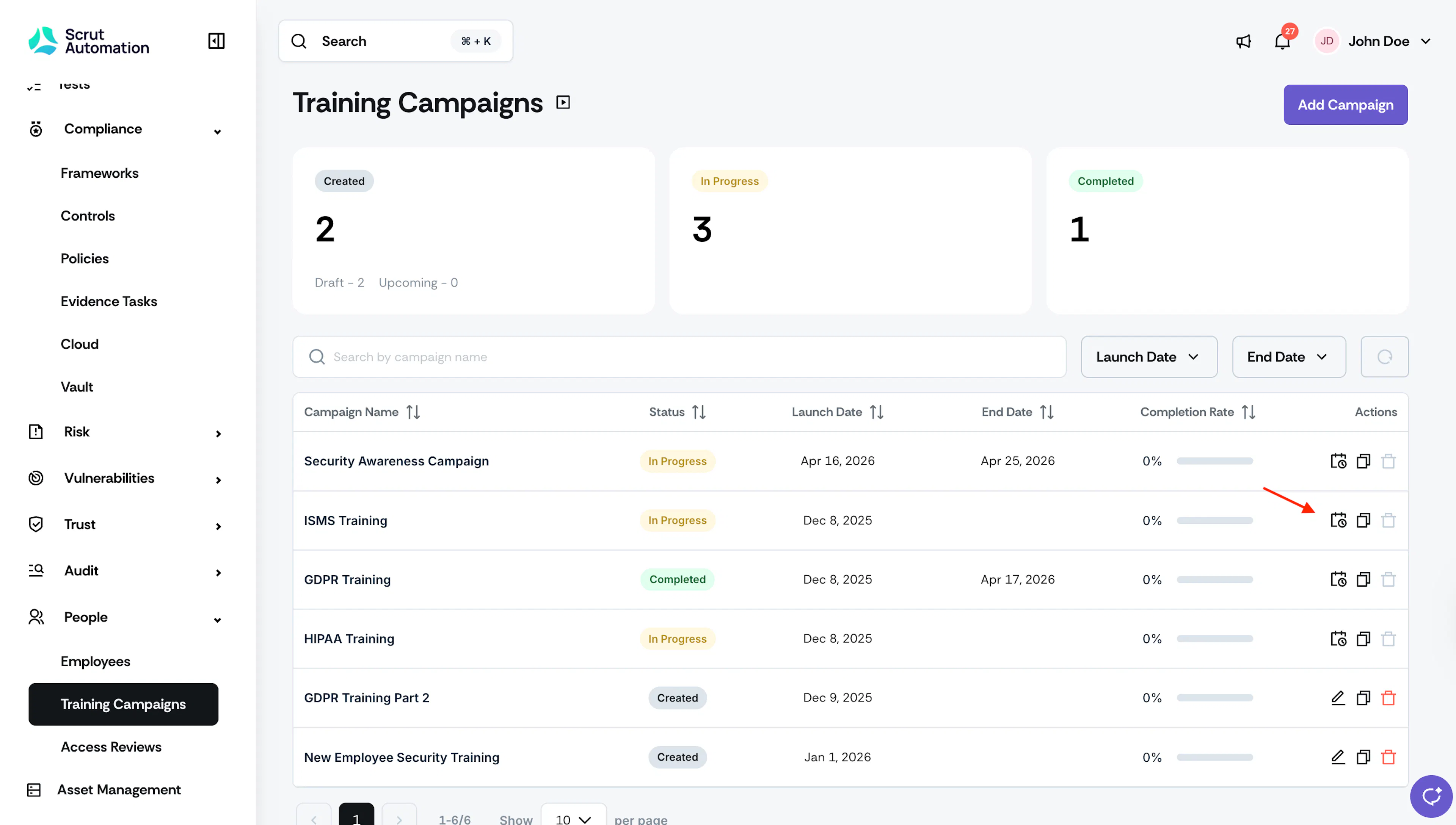
Locate the campaign you want to end. Confirm its status shows In Progress.
-
In the Actions column for that campaign, click the Reschedule icon (calendar icon).
-
In the End date and time field, enter the date and time you want the campaign to end. If the campaign should not have a fixed end date, select the This campaign does not have an end date checkbox instead.
-
Click Save.
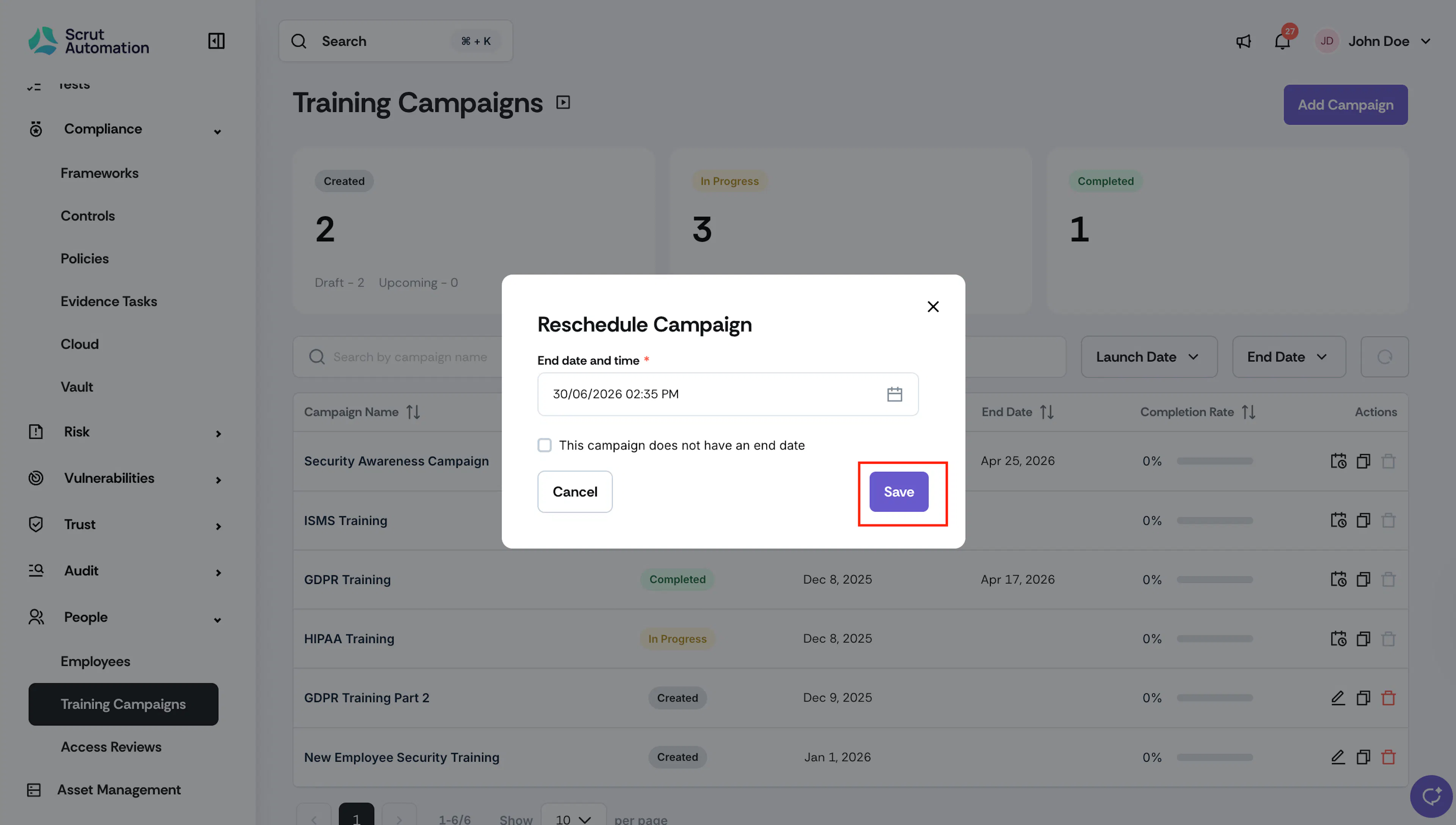
The campaign end date is updated, and the campaign closes at the specified time.
Method 2: End a Campaign from the Campaign Detail Page
-
Navigate to People → Training Campaigns.
-
Click the name of the campaign you want to end.
-
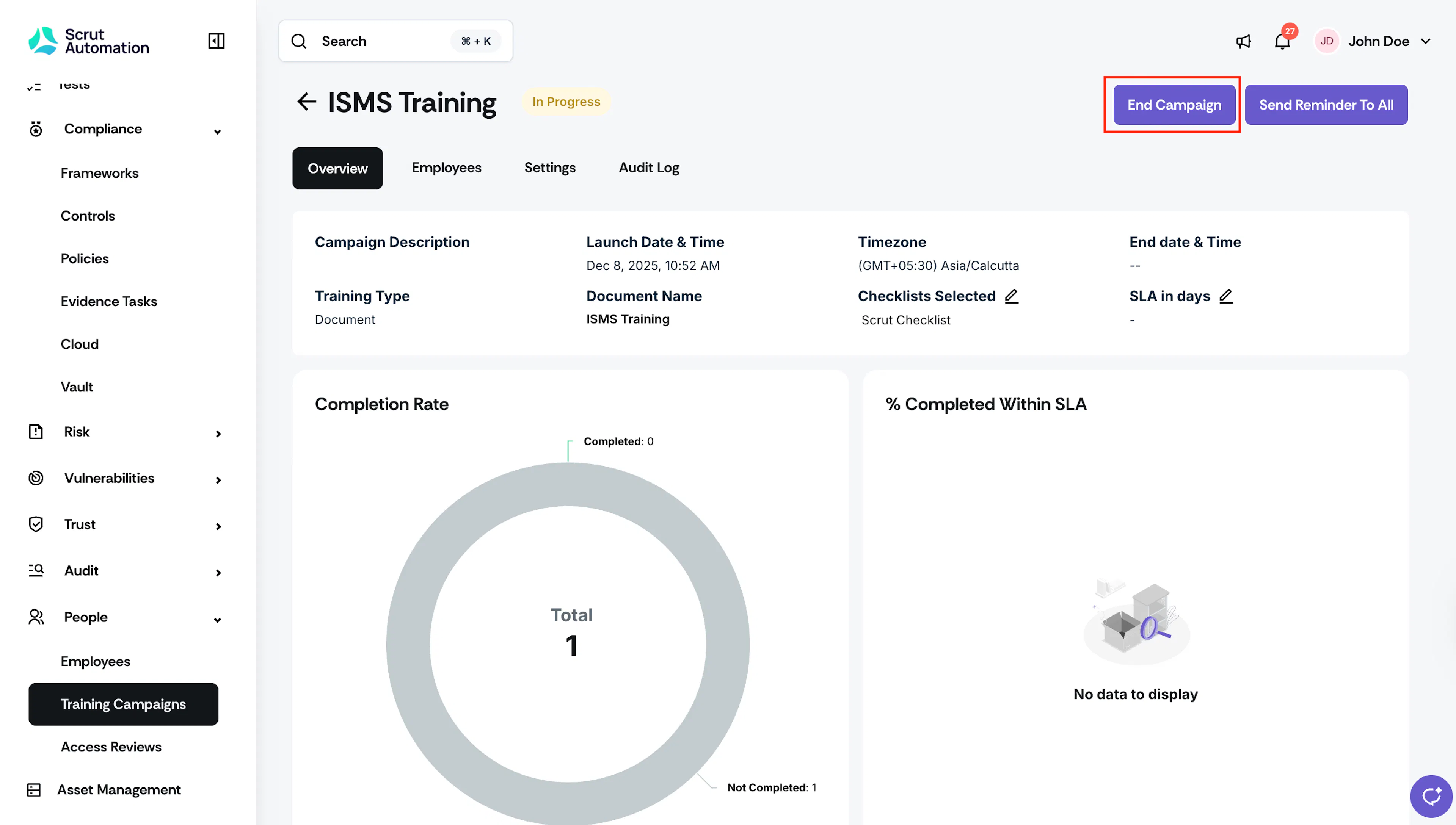
On the campaign detail page, click End Campaign in the top-right corner.
-
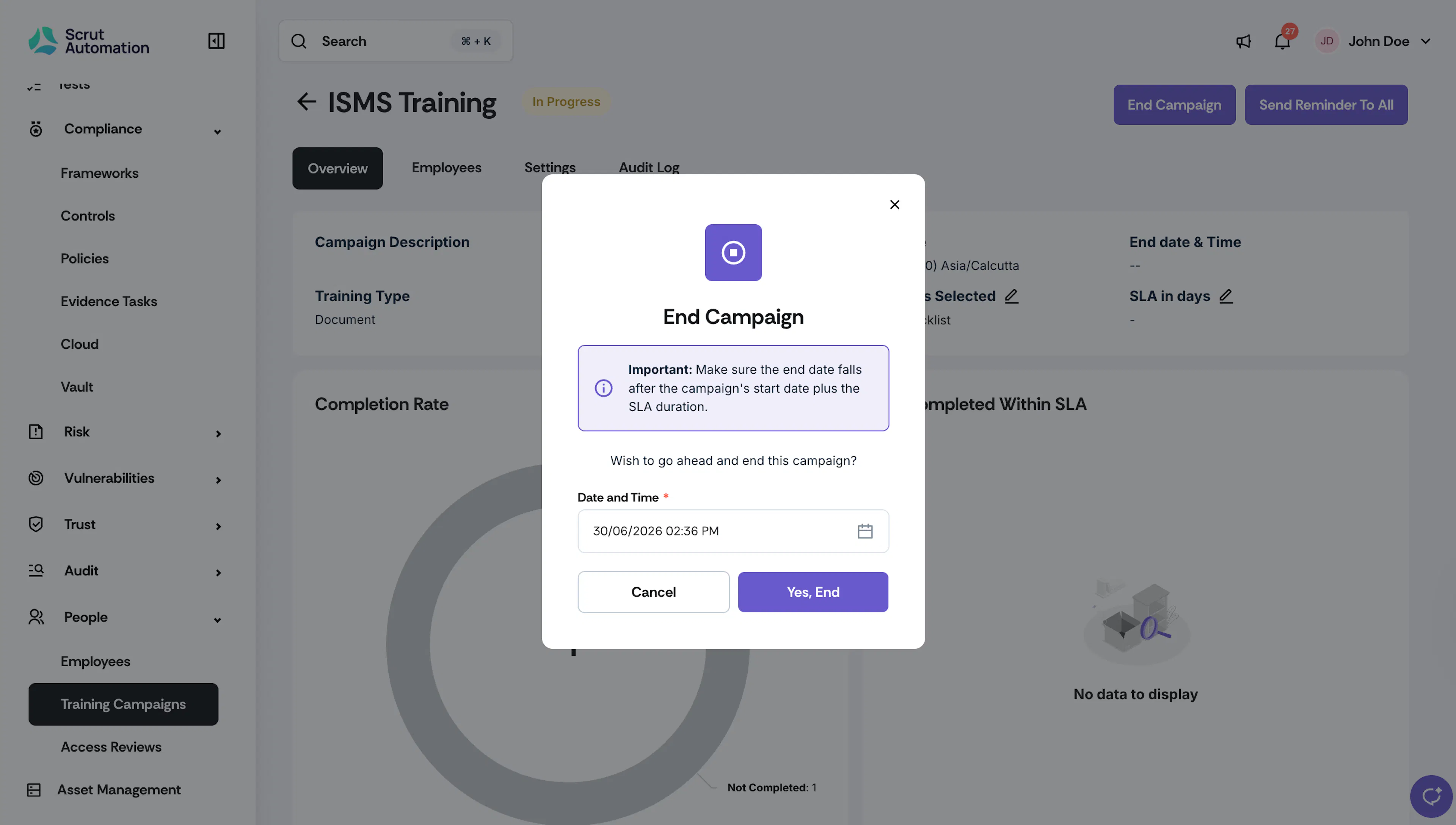
The end date you set must fall after the campaign's start date plus its SLA duration.
-
In the Date and Time field, enter the date and time you want to end the campaign.
-
Click Yes, End to confirm.
Heads Up!
If you end a campaign before all employees complete their training, their tasks will remain incomplete. Completion Rate data reflects the state at the time the campaign ended.
Reach out to support@scrut.io or contact your CSM for further assistance.